> ## Documentation Index
> Fetch the complete documentation index at: https://watermelon.ai/docs/llms.txt
> Use this file to discover all available pages before exploring further.
# Exporting conversations
> Exporting conversations allows you to download all conversations that match your selected filters and date range. The export contains the conversations that fall within these filters.
## How to export conversations
First navigate to **Analytics** in the left-hand menu.
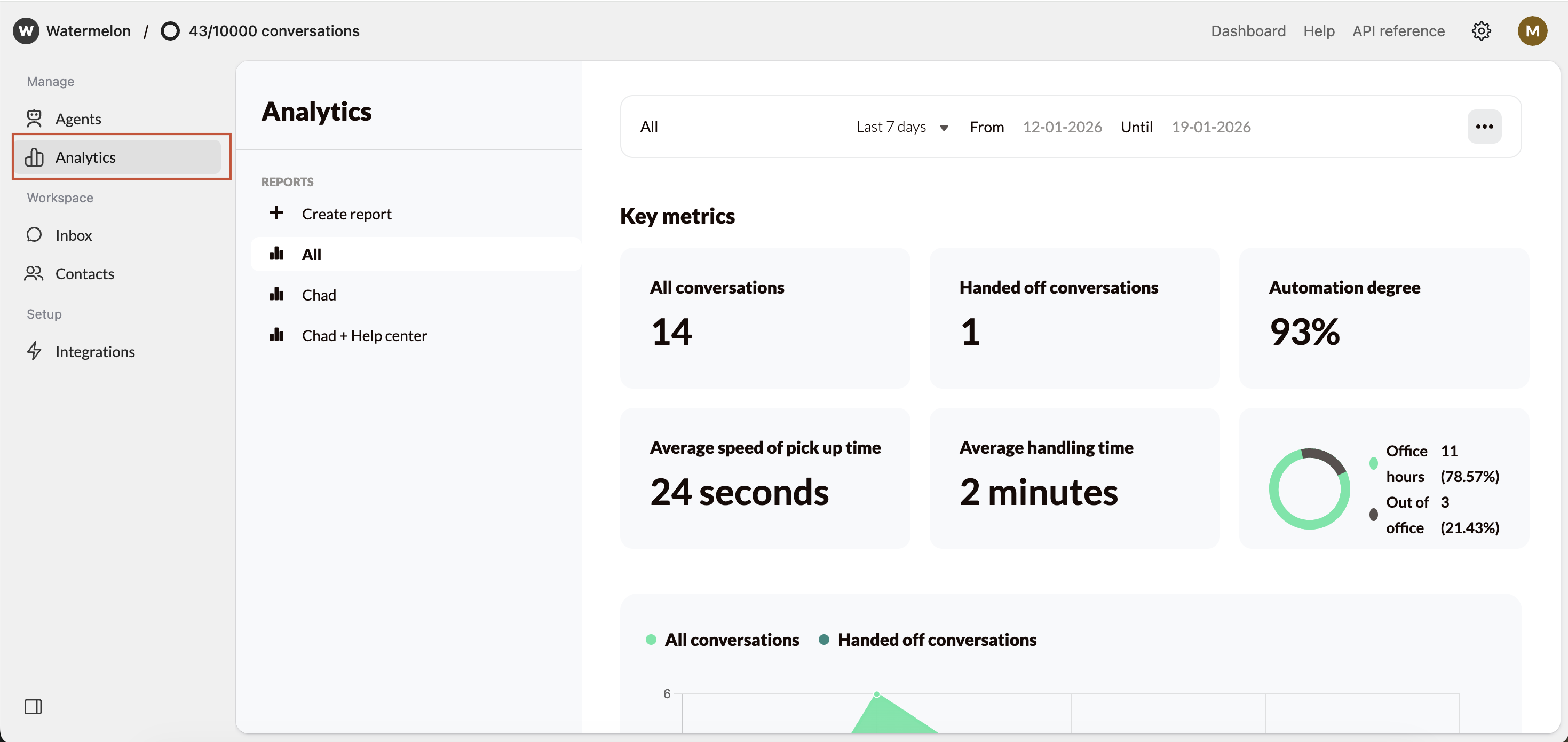 At **Report** select the report you want to export: 'All' or one of your custom reports.
Decide for what date range your want to export chats.
At **Report** select the report you want to export: 'All' or one of your custom reports.
Decide for what date range your want to export chats.
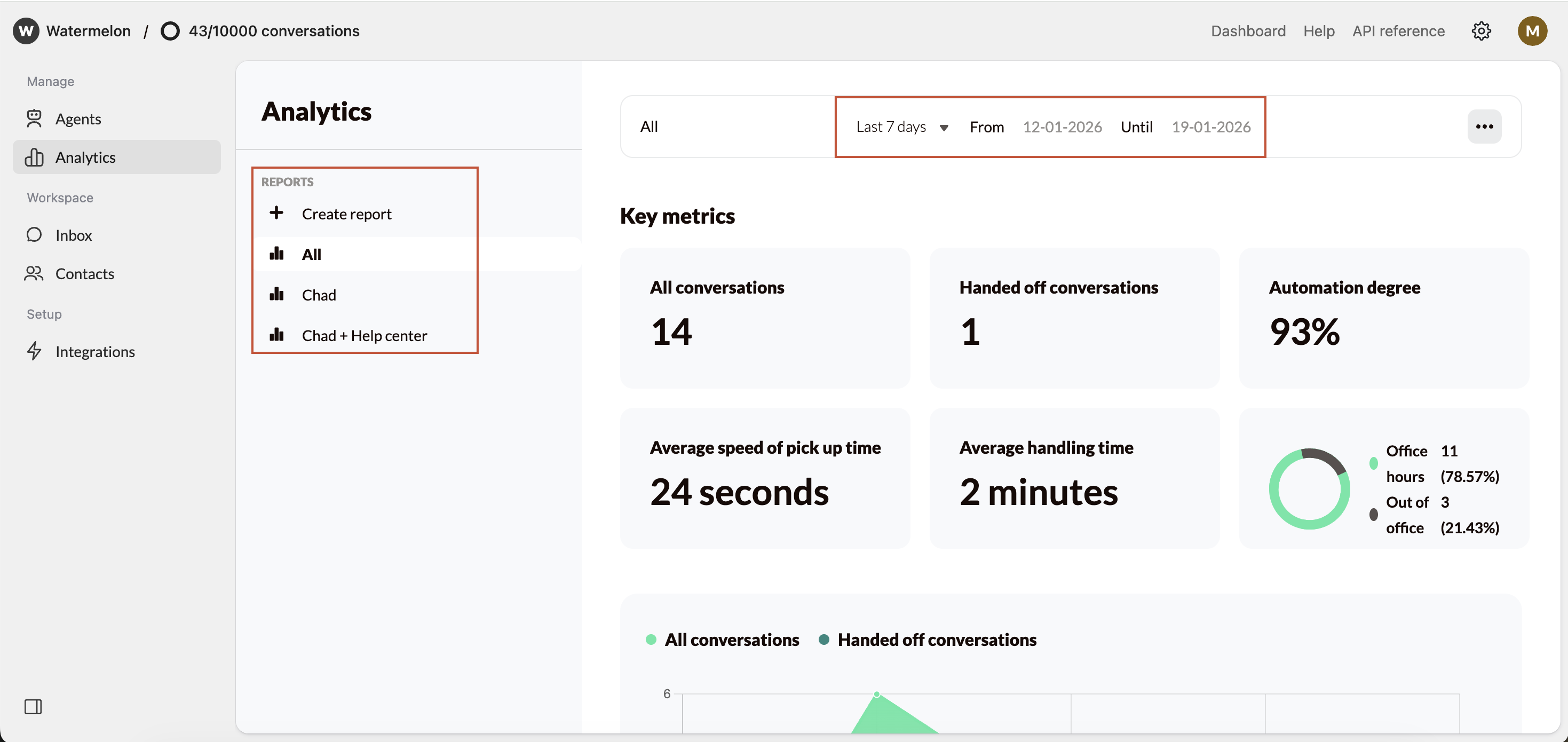 Click the option button in the top-right corner and select export. A CSV file will be downloaded.
 ## What you'll get
You’ll receive a CSV file with all chats from the selected period. Each **row** in the CSV represents **one chat** and contains:
* **Column 1 – Conversation ID:** The unique ID of the chat.
* **Column 2 – Date and time of creation:** When the chat was started.
* **From column 3 onwards:**
* **Messages:** Each following column is the next message in that chat, so every column represents a new message within the same conversation.
* **Thumbs up/down**: If a user gave feedback (using thumbs up/down) in the chat widget, this will be shown at the end of a message.
Exports use the **UTC time zone**, which may differ from your local time zone. As a result, the timestamps in the export can differ from the actual local time of the chats shown in your Inbox.
## What you'll get
You’ll receive a CSV file with all chats from the selected period. Each **row** in the CSV represents **one chat** and contains:
* **Column 1 – Conversation ID:** The unique ID of the chat.
* **Column 2 – Date and time of creation:** When the chat was started.
* **From column 3 onwards:**
* **Messages:** Each following column is the next message in that chat, so every column represents a new message within the same conversation.
* **Thumbs up/down**: If a user gave feedback (using thumbs up/down) in the chat widget, this will be shown at the end of a message.
Exports use the **UTC time zone**, which may differ from your local time zone. As a result, the timestamps in the export can differ from the actual local time of the chats shown in your Inbox.