> ## Documentation Index
> Fetch the complete documentation index at: https://watermelon.ai/docs/llms.txt
> Use this file to discover all available pages before exploring further.
# Automatically add tags
> Automated tags let your AI Agent categorise conversations based on what customers say. This keeps your inbox organised and shows how many conversations fall under each tag in your Analytics.
Automated tags are available in Advanced, Business and Enterprise licenses.
## Automated tags
Your AI Agent reads the context in the first messages of a conversation and selects **one tag** from your existing tag library. As soon as there’s enough information—usually after the first customer question—the tag is applied in real time.
In **Analytics** you can easily view the count of your tags.
Automated tags work on top of your existing tag setup, so it’s important that your tag library is clear, structured, and aligned with how you want to report on conversations.
### Enable Automate tags
To allow your AI Agent to automatically add tags to your conversations, open **Settings**.
Go to **Tags** and open the tab **Automate tags**. There, **enable** this feature by selecting **On**.
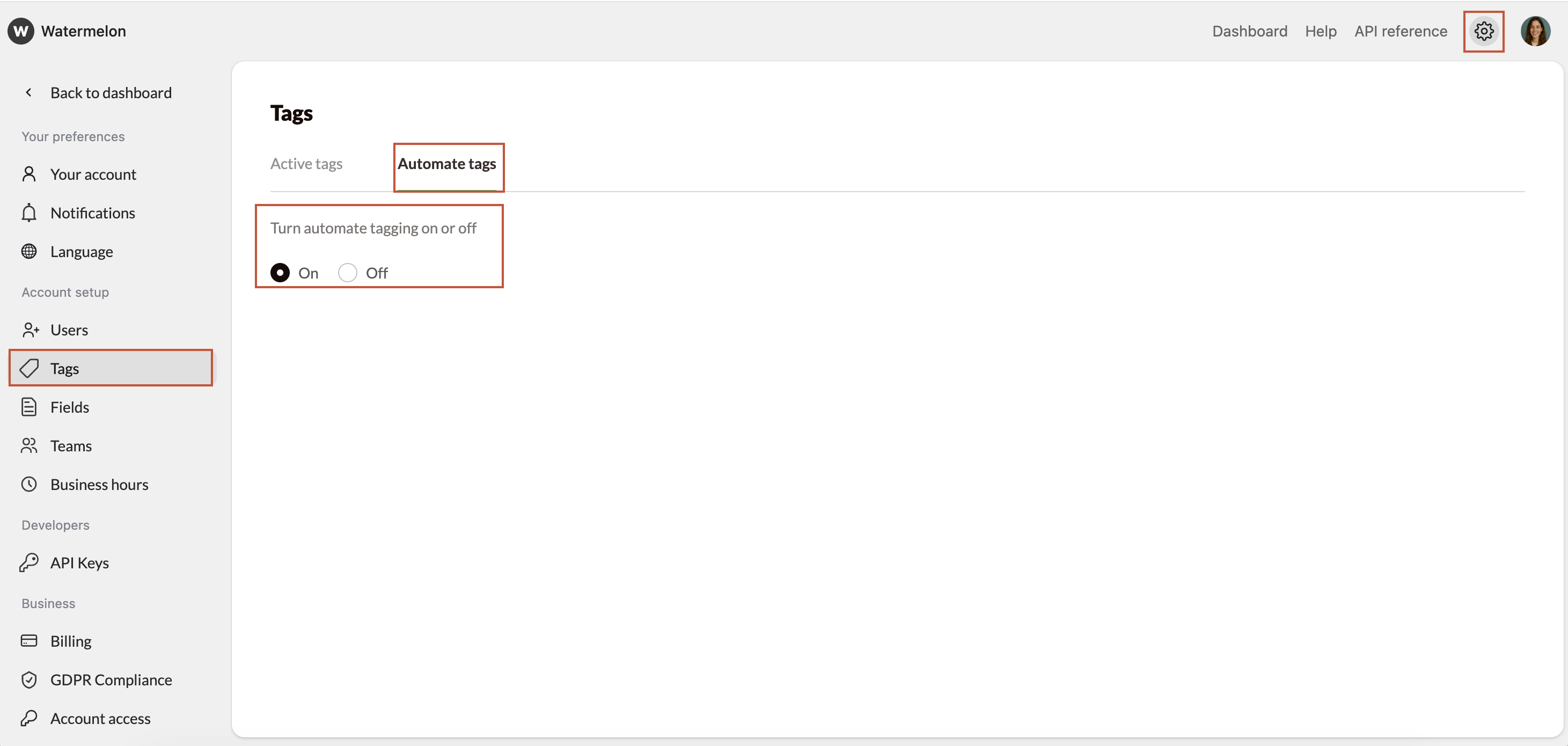 Automated tags are turned **on by default** for Advanced, Business and Enterprise licenses.
### How does it work?
Once Automated tags are enabled, they run in the background for every new conversation. Here's whap happens:
1. **Customer starts a conversation**
2. **The AI Agent responds**
3. **Tag selection**: Based on the content of the customer’s message, the AI Agent selects the most relevant tag from your existing tag library.
4. **Tag applied in real time**: As soon as there’s enough context, the chosen tag is attached to the conversation.
From that moment onward, the conversation remains tagged—unless you or someone on your team edits or removes the tag manually.
Your team can still manually add, change, or remove tags at any time during the conversation.
Automated tags are turned **on by default** for Advanced, Business and Enterprise licenses.
### How does it work?
Once Automated tags are enabled, they run in the background for every new conversation. Here's whap happens:
1. **Customer starts a conversation**
2. **The AI Agent responds**
3. **Tag selection**: Based on the content of the customer’s message, the AI Agent selects the most relevant tag from your existing tag library.
4. **Tag applied in real time**: As soon as there’s enough context, the chosen tag is attached to the conversation.
From that moment onward, the conversation remains tagged—unless you or someone on your team edits or removes the tag manually.
Your team can still manually add, change, or remove tags at any time during the conversation.