> ## Documentation Index
> Fetch the complete documentation index at: https://watermelon.ai/docs/llms.txt
> Use this file to discover all available pages before exploring further.
# Custom fields
> Collect and organize your customer information efficiently using Fields. The custom fields allow you to store exactly the data that matters to your business, like a customer number, order number, or customer type.
## **What is a field?**
A **field** represents a specific piece of information connected to a contact, such as a name, phone number, or email address.
## Custom fields
**Custom fields** are fields you create yourself to store extra information about your contacts. They’re useful when you want to:
* Store specific data such as *customer number*, *order number*, or *subscription type*
* Search for contacts based on your own criteria
* Have your Agent reuse specific details during the conversation and when the end-user starts a new conversation
Custom fields are available in Advanced, Business and Enterprice licenses.
### Where to find custom fields?
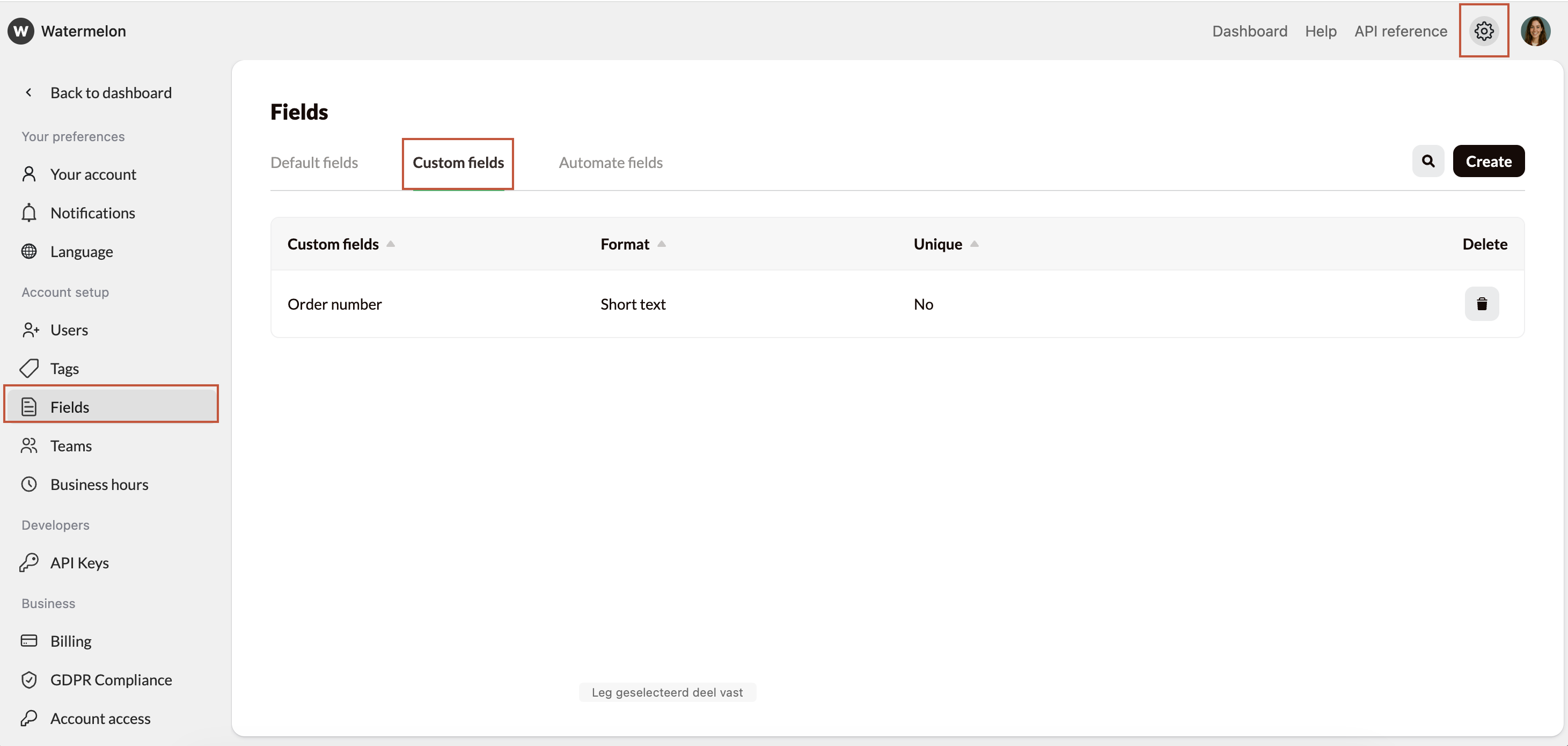
You can find custom fields at **Settings** > **Fields** > **Custom fields**.
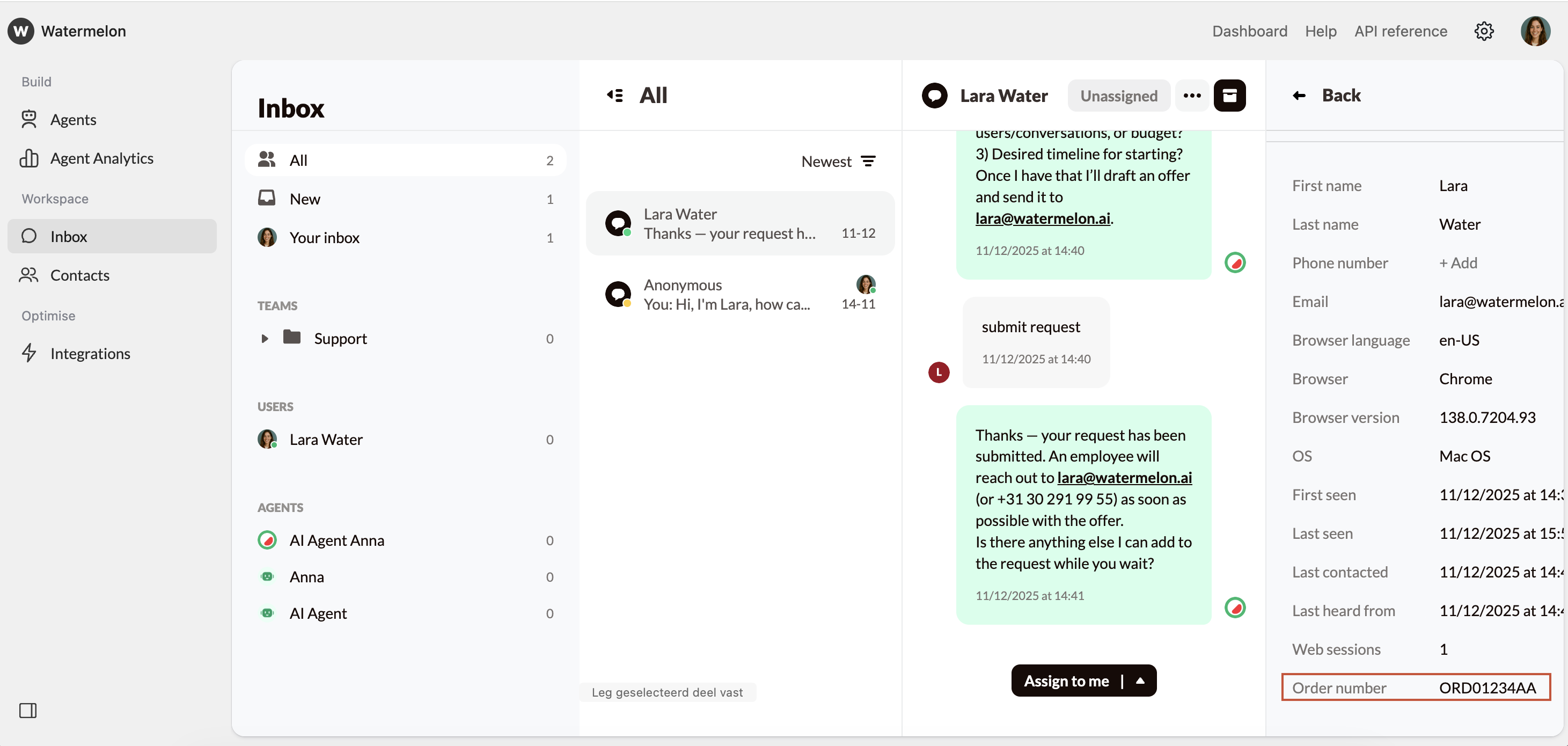
 These fields are also shown at the **Contact’s details** in the **Inbox**:
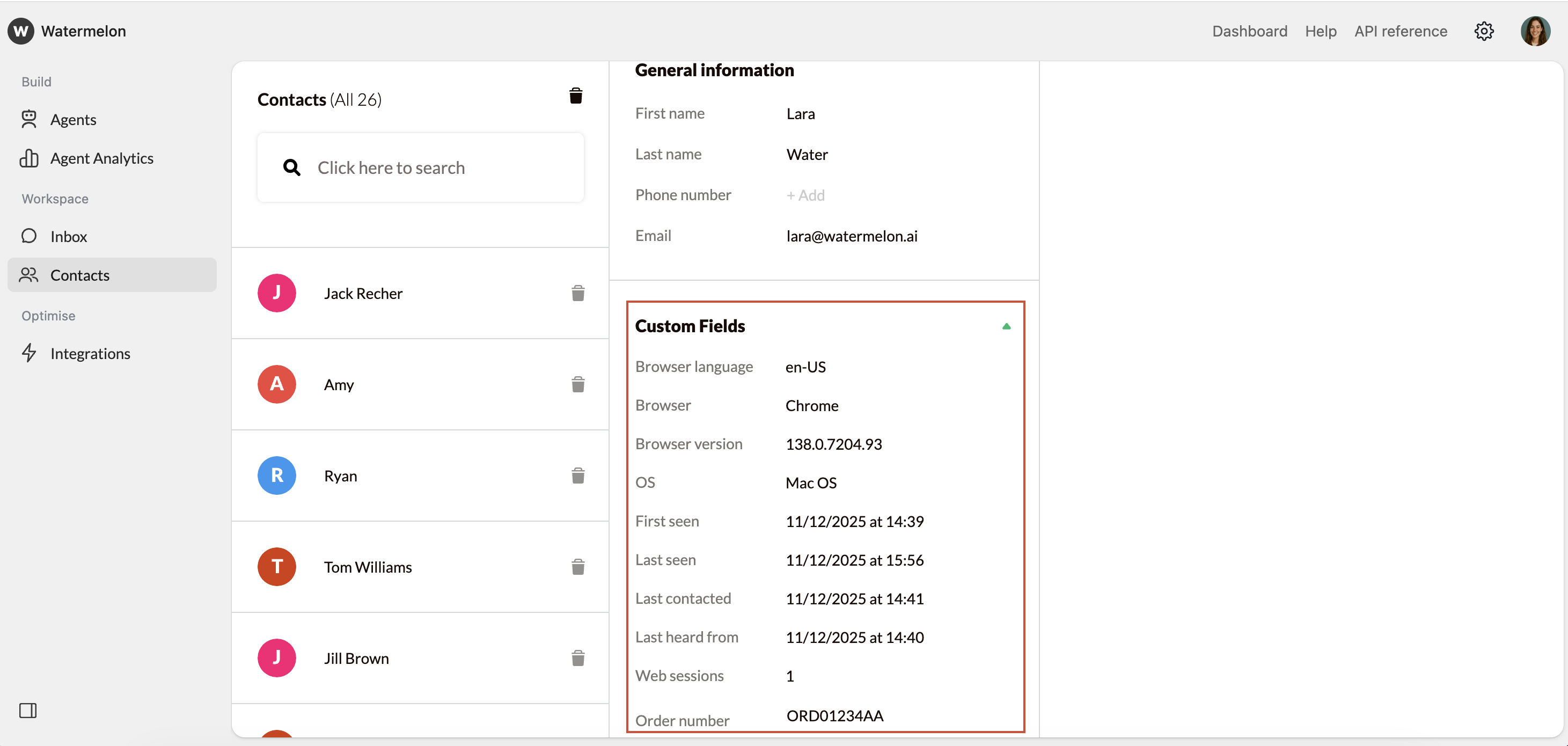
 and via **Contacts** in each **contact profile**:
 ### Creating a custom field
Follow these steps to create a new **custom field**:
Open **Fields** and open the tab **custom fields.**
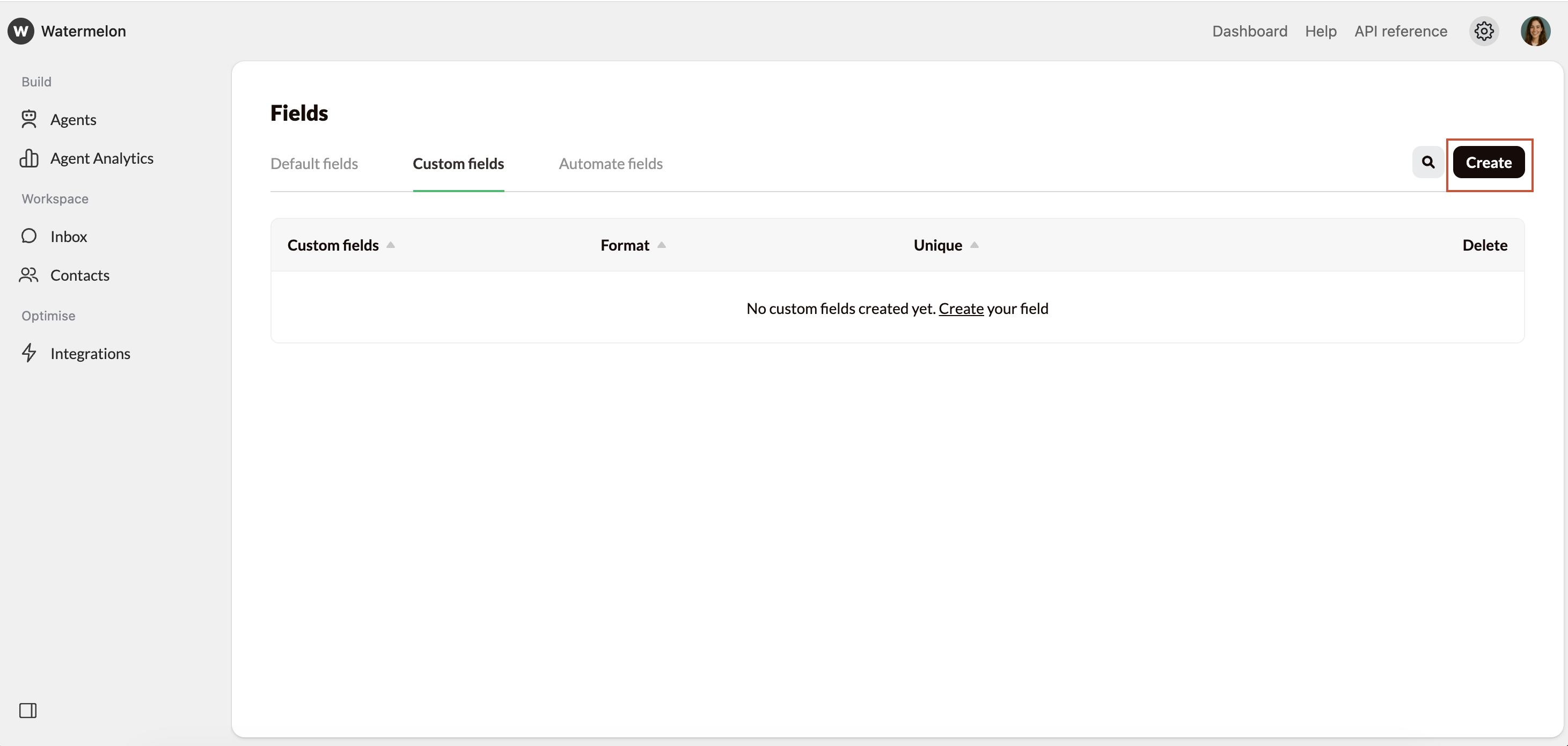
Click **Create** in the top-right corner. A pop-up will open.
### Creating a custom field
Follow these steps to create a new **custom field**:
Open **Fields** and open the tab **custom fields.**
Click **Create** in the top-right corner. A pop-up will open.
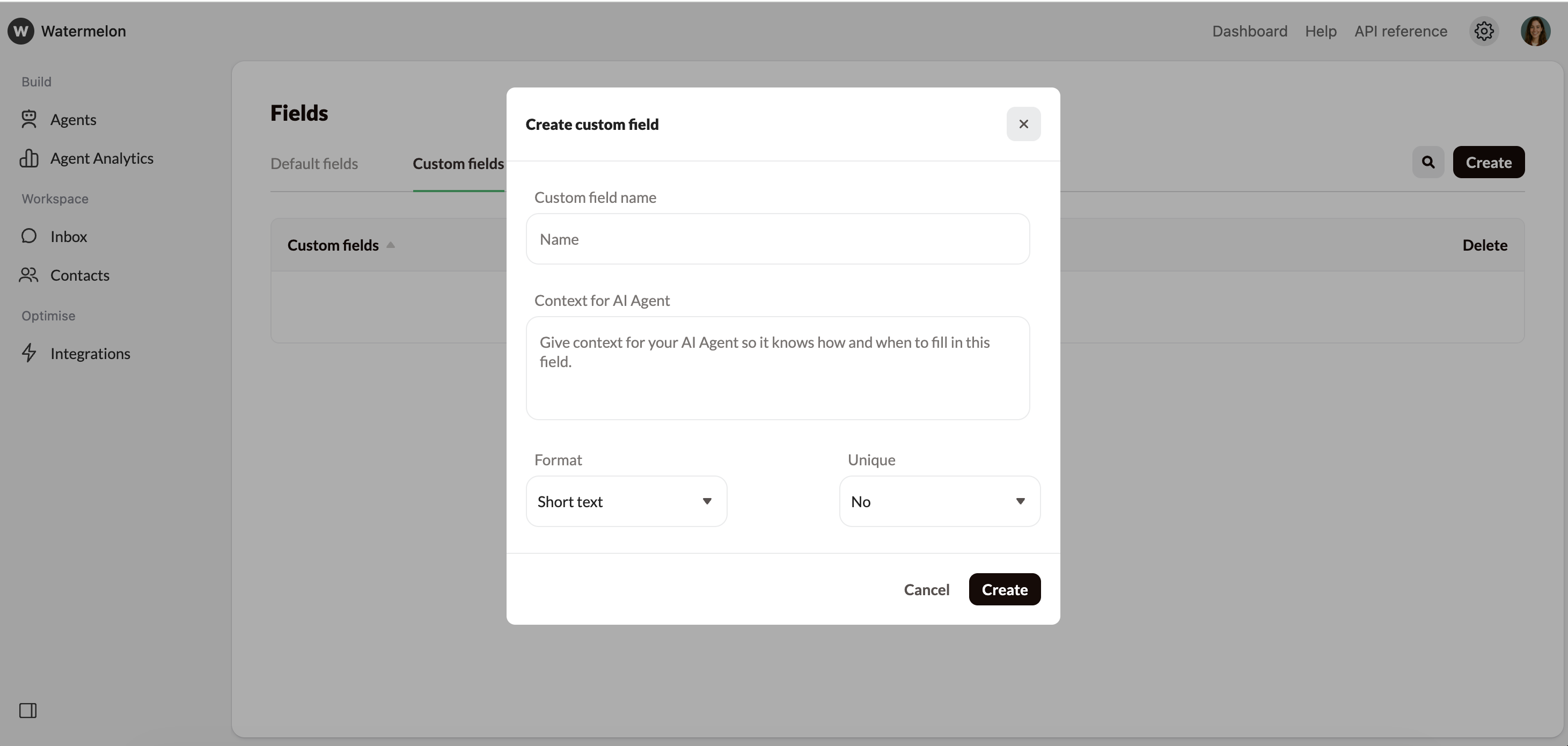 Under **Custom field name** enter a clear description of the information you want to collect, e.g. order number, customer ID or company name.
Under **Context for AI Agent** give your Agent context so it knows how and when to fill in this field, e.g. “This is an order number. The order number consists of 3 letters and 6 numbers, the three letters are always ORD and the 6 numbers are random. Example of an order number: ORD123456".
Under **format** choose the type of data you want to collect. Choose from:
* **Short text**: Use this for short text, such as names, company names, or addresses.
* **Numbers**: Only numeric values are allowed. Ideal for customer numbers, order numbers, or quantities.
* **Email**: Only valid email addresses are allowed (must contain an @).
* **Phone**: Only phone numbers are allowed.
* **Currency**: You can select the currency; only amounts with two decimal places are allowed.
* **Date**: Only dates in a day/month/year or day-month-year format are allowed.
Under **Unique**, indicate whether the field should contain a unique value. Use unique fields for values that uniquely identify a contact, such as customer number, case or ticket number or customer ID.
Marking a field as unique helps prevent **duplicate contacts**.
If you don’t use unique fields, you might end up with multiple contact records for the same person, making your overview less reliable.
Once created, your custom field is immediately available in the contact details.
### Editing a custom field
Want to edit an existing custom field? Here’s how:
Open **Fields** and open the tab **custom fields.**
A pop-up will appear.
* Change the custom field name;
* Change the context for AI Agent;
* Change the format or;
* Change if this field's unique.
Click the save button
Your changes will be applied immediately to all contacts where this field is used.
### Deleting a custom field
If you no longer need a custom field, you can delete it:
Open **Fields** and open the tab **custom fields.**
Under **Custom field name** enter a clear description of the information you want to collect, e.g. order number, customer ID or company name.
Under **Context for AI Agent** give your Agent context so it knows how and when to fill in this field, e.g. “This is an order number. The order number consists of 3 letters and 6 numbers, the three letters are always ORD and the 6 numbers are random. Example of an order number: ORD123456".
Under **format** choose the type of data you want to collect. Choose from:
* **Short text**: Use this for short text, such as names, company names, or addresses.
* **Numbers**: Only numeric values are allowed. Ideal for customer numbers, order numbers, or quantities.
* **Email**: Only valid email addresses are allowed (must contain an @).
* **Phone**: Only phone numbers are allowed.
* **Currency**: You can select the currency; only amounts with two decimal places are allowed.
* **Date**: Only dates in a day/month/year or day-month-year format are allowed.
Under **Unique**, indicate whether the field should contain a unique value. Use unique fields for values that uniquely identify a contact, such as customer number, case or ticket number or customer ID.
Marking a field as unique helps prevent **duplicate contacts**.
If you don’t use unique fields, you might end up with multiple contact records for the same person, making your overview less reliable.
Once created, your custom field is immediately available in the contact details.
### Editing a custom field
Want to edit an existing custom field? Here’s how:
Open **Fields** and open the tab **custom fields.**
A pop-up will appear.
* Change the custom field name;
* Change the context for AI Agent;
* Change the format or;
* Change if this field's unique.
Click the save button
Your changes will be applied immediately to all contacts where this field is used.
### Deleting a custom field
If you no longer need a custom field, you can delete it:
Open **Fields** and open the tab **custom fields.**
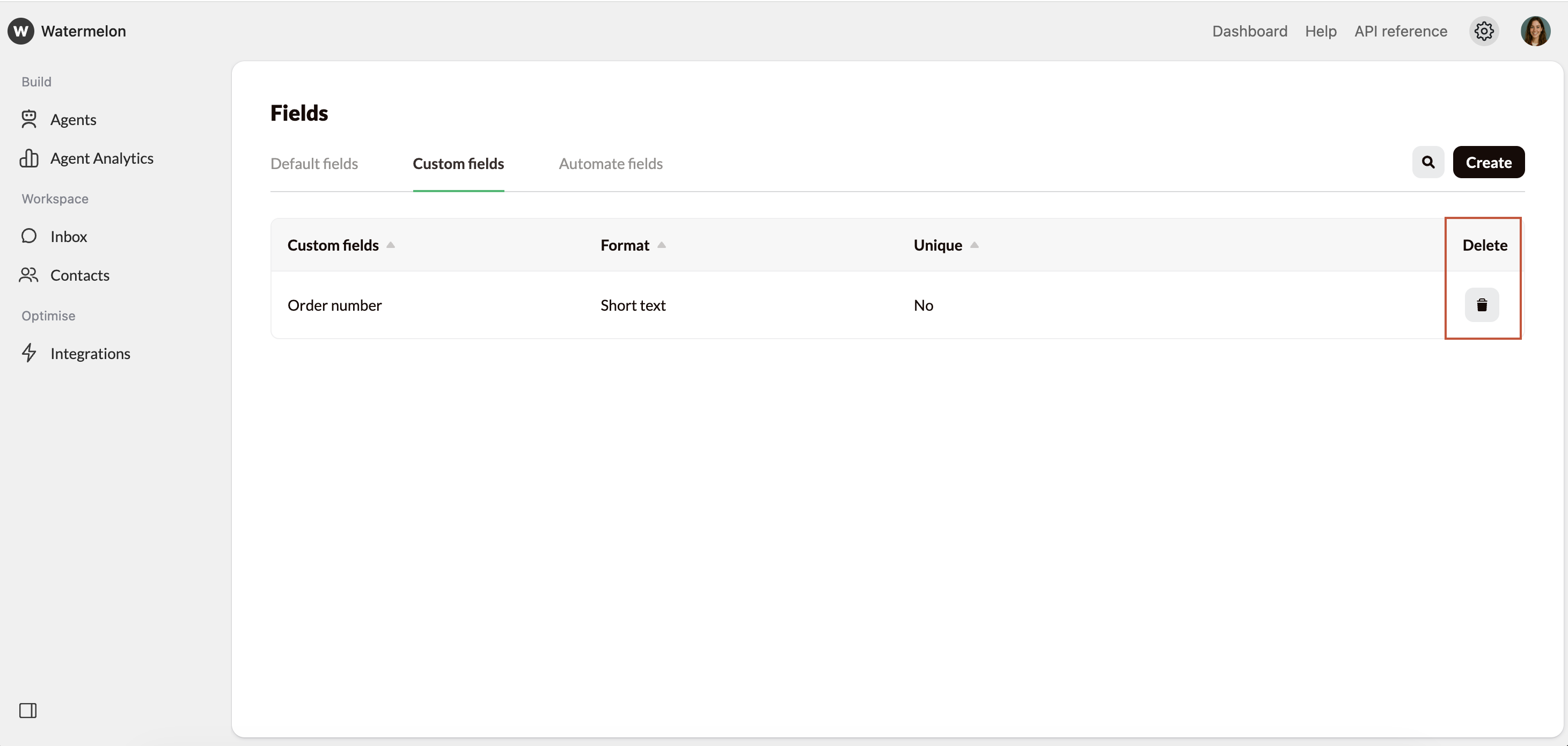 Decide whether you're sure you want to delete this custom field. Then, in the pop-up click 'Delete' again.
Deleting a custom field is irreversible and also means the data stored in that field will no longer be visible in the contact details.
Decide whether you're sure you want to delete this custom field. Then, in the pop-up click 'Delete' again.
Deleting a custom field is irreversible and also means the data stored in that field will no longer be visible in the contact details.