> ## Documentation Index
> Fetch the complete documentation index at: https://watermelon.ai/docs/llms.txt
> Use this file to discover all available pages before exploring further.
# See website visitor path
> Website Visitor Tracking shows which pages your visitors are viewing, how long they stay, and whether they’re still active, directly in your Inbox.
## Why use website visitor tracking
Website visitor tracking helps you see what your visitors are doing on your website while chatting with them.
You can:
* See which page your visitor is currently viewing.
* View how long they’ve been on that page.
* Check their browsing history and total time spent on your website.
This gives your team more context about your visitor’s behavior and helps you offer the right support at the right moment.
## **Activating website visitor tracking**
In your Watermelon account navigate to **Apps**.
Select the **chat widget** you’d like to enable tracking for, then go to **Placement**.
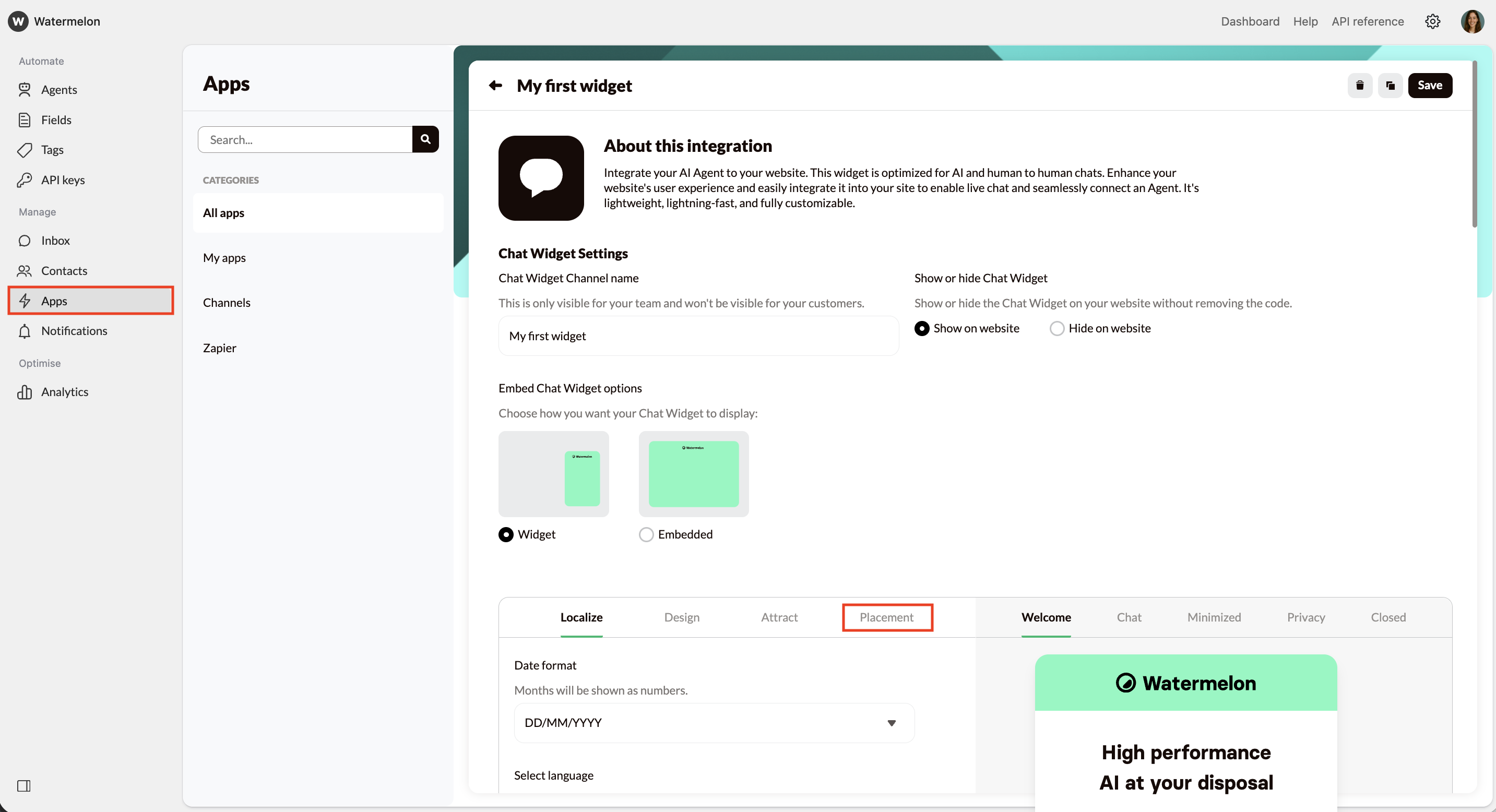 Find the option **Track website visitors**. By default, this is turned **off**.
Toggle it **on** to start tracking your website visitors’ activity instantly.
Find the option **Track website visitors**. By default, this is turned **off**.
Toggle it **on** to start tracking your website visitors’ activity instantly.
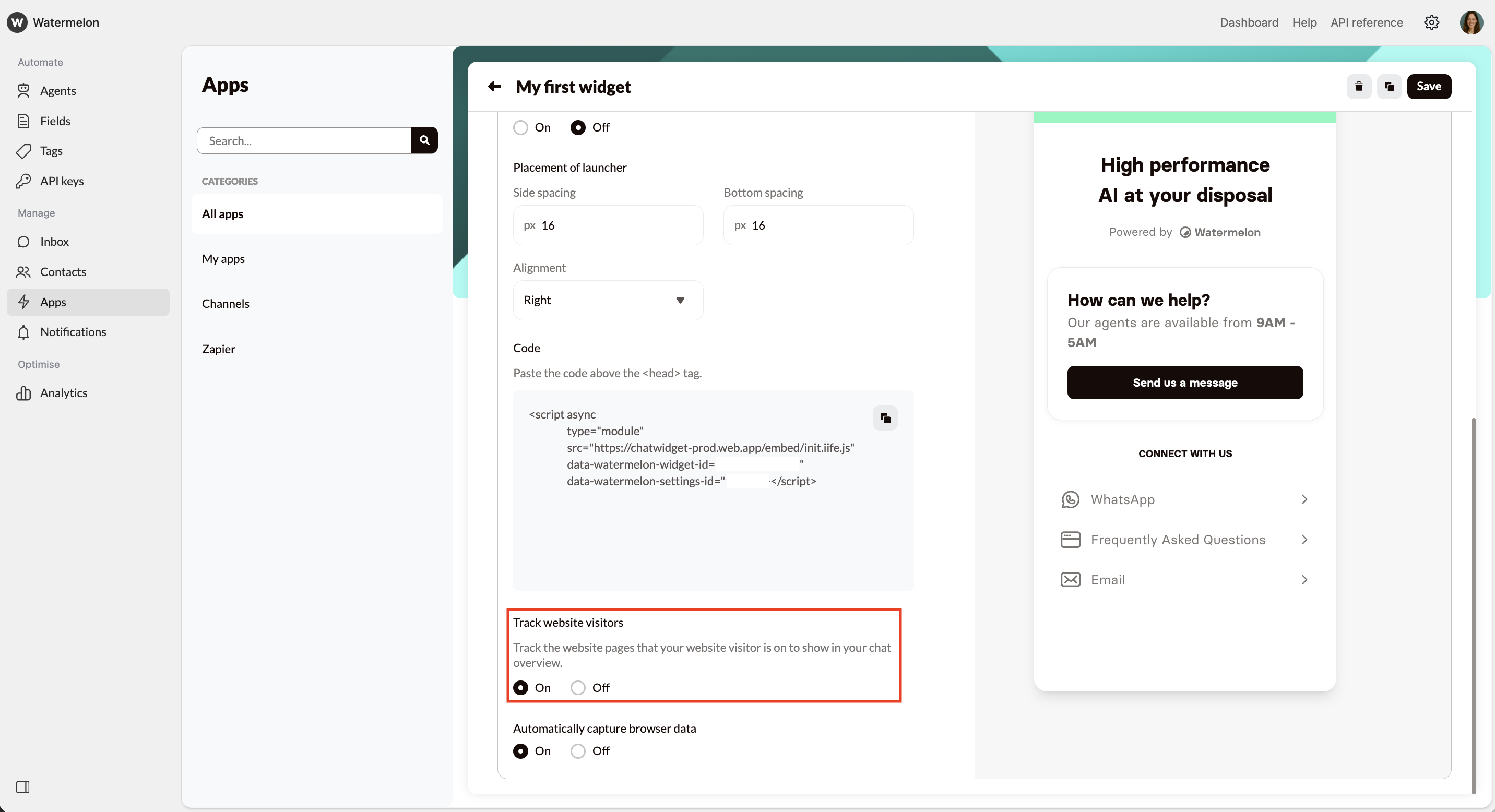 Visitors who were already active before you turned on tracking will appear once they reload the page.
## **View website activity in conversations**
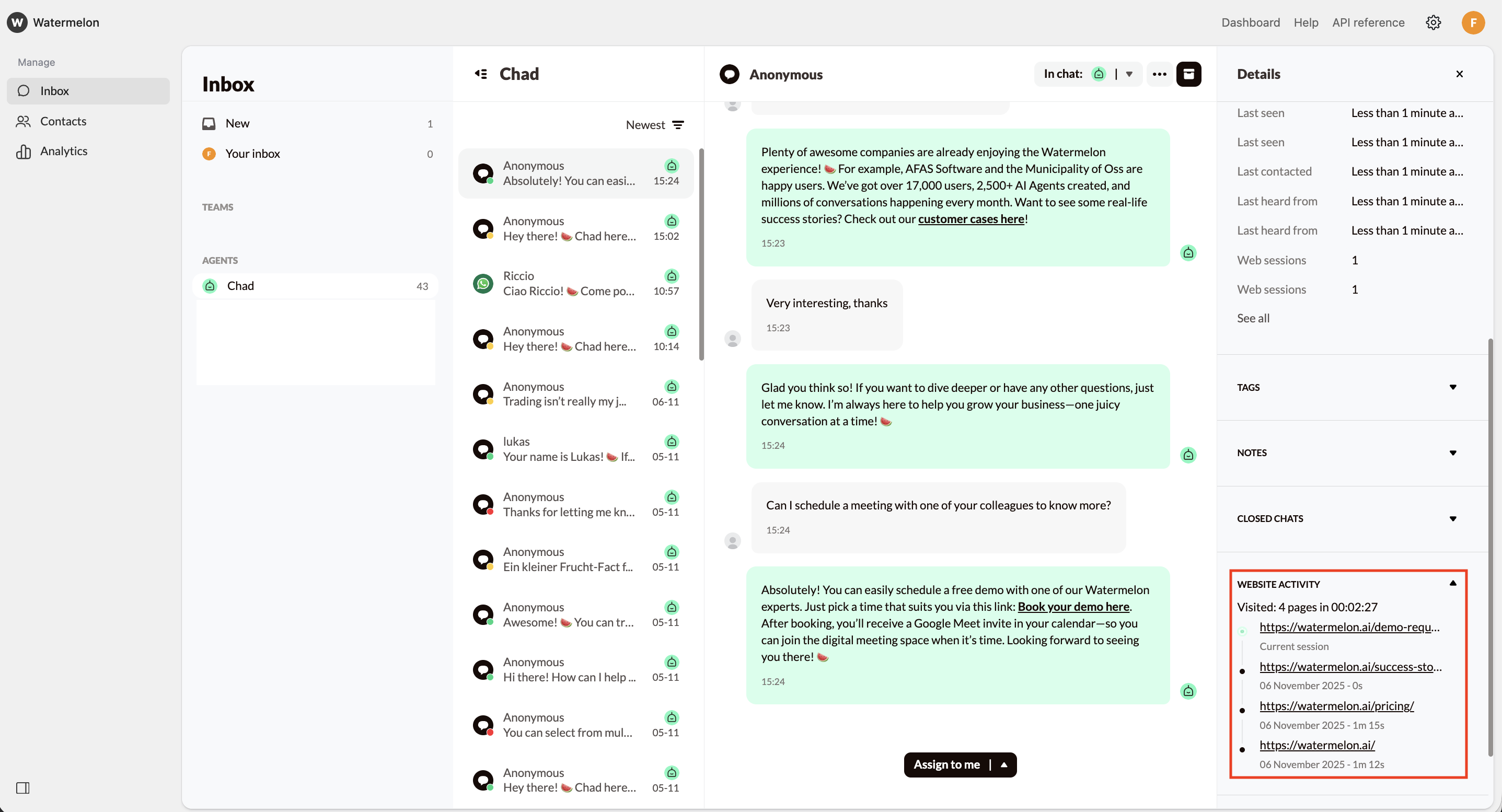
Once website visitor tracking is enabled, you can see real-time insights into how visitors navigate your website in your Inbox. You will find a tab called **website activity** in the **Details** of the contact you're chatting with.
Visitors who were already active before you turned on tracking will appear once they reload the page.
## **View website activity in conversations**
Once website visitor tracking is enabled, you can see real-time insights into how visitors navigate your website in your Inbox. You will find a tab called **website activity** in the **Details** of the contact you're chatting with.
 ### Components
| **Feature** | **Description** |
| -------------------------------- | ------------------------------------------------------------------------- |
| **Page tracking** | See which page the visitor is currently viewing. Hover to view full URLs. |
| **Navigation** | Click a tracked page to open it in a new tab. |
| **Date and time spent on pages** | Check when and how long a visitor stayed on each page. |
| **Active status** | A green dot shows the visitor is currently browsing a page. |
| **Total page visits & time** | View how many pages were visited and total time spent on the site. |
When a visitor closes their browser, it may take a few minutes before Watermelon detects it. After around 4 minutes, the visitor will appear as having left the page.
### Components
| **Feature** | **Description** |
| -------------------------------- | ------------------------------------------------------------------------- |
| **Page tracking** | See which page the visitor is currently viewing. Hover to view full URLs. |
| **Navigation** | Click a tracked page to open it in a new tab. |
| **Date and time spent on pages** | Check when and how long a visitor stayed on each page. |
| **Active status** | A green dot shows the visitor is currently browsing a page. |
| **Total page visits & time** | View how many pages were visited and total time spent on the site. |
When a visitor closes their browser, it may take a few minutes before Watermelon detects it. After around 4 minutes, the visitor will appear as having left the page.