> ## Documentation Index
> Fetch the complete documentation index at: https://watermelon.ai/docs/llms.txt
> Use this file to discover all available pages before exploring further.
# Lightspeed template
The Lightspeed Custom Action connects your Agent to Lightspeed so it can retrieve order status information and use it when answering customer questions.
This setup includes:
* A predefined OpenAPI schema for Lightspeed
* Authentication through the Lightspeed BaseURL
* The required Lightspeed API endpoint
* A health check configuration
After setting up the Action, you can validate it, activate it, and test it in the Playground.
## Set up the action
1. Go to **Actions** in Watermelon.
2. In the **Actions catalog**, click **Custom action**.
3. Click **Create new Action**.
4. Fill in the fields below.
### General details
**Action name**
`Lightspeed Order status Retrieval`
**Description**
`This action lets you get status information from your orders and use it in your chatbot when customers ask for it.`
**BaseURL**
`https://api-key:api-secret@api.webshopapp.com/language/`
Replace:
* `api-key` with your Lightspeed API key
* `api-secret` with your Lightspeed API secret
* `language` with the language used by your Lightspeed store
### Authentication
For **Authorization Header**, select **No auth**.
No additional authentication fields are required, because the API credentials are included in the BaseURL.
### Health check
**Health check URL**
`https://www.yourdomain.com/health_check`
Replace this URL with the health check endpoint you want Watermelon to use.
**Instruction**
> You should respond with the following message or a similar variation: Sorry, something went wrong on our end. Can I assist you with anything else? Please let me know how I can help.
### Schema
Paste the Lightspeed schema into the **Schema** field:
```text theme={null}
openapi: 3.0.3
info:
title: Orders API
description: API for retrieving order details
version: 1.0.0
servers:
- url: https://api.webshopapp.com/nl
paths:
/orders.json:
get:
summary: Retrieve order details by order number
description: Retrieve detailed information about a specific order using the order number.
parameters:
- in: query
name: number
required: true
schema:
type: string
description: The order number to retrieve details for.
responses:
'200':
description: Successful response with order details
content:
application/json:
schema:
$ref: '#/components/schemas/Order'
'400':
description: Invalid request
content:
application/json:
schema:
$ref: '#/components/schemas/Error'
'404':
description: Order not found
content:
application/json:
schema:
$ref: '#/components/schemas/Error'
'500':
description: Server error
content:
application/json:
schema:
$ref: '#/components/schemas/Error'
components:
schemas:
Order:
type: object
properties:
id:
type: integer
example: 275248911
createdAt:
type: string
format: date-time
example: 2024-06-18T16:12:07+02:00
updatedAt:
type: string
format: date-time
example: 2024-06-18T16:46:47+02:00
number:
type: string
example: ORD146123
status:
type: string
example: completed_shipped
channel:
type: string
example: main
priceExcl:
type: number
format: float
example: 96.32
priceIncl:
type: number
format: float
example: 116.55
customer:
$ref: '#/components/schemas/Customer'
addressBilling:
$ref: '#/components/schemas/Address'
addressShipping:
$ref: '#/components/schemas/Address'
payment:
$ref: '#/components/schemas/Payment'
shipment:
$ref: '#/components/schemas/Shipment'
taxRates:
type: array
items:
$ref: '#/components/schemas/TaxRate'
Customer:
type: object
properties:
email:
type: string
example: mireille.pennings@gmail.com
firstname:
type: string
example: Mireille
lastname:
type: string
example: Pennings
Address:
type: object
properties:
street:
type: string
example: Nobelstraat
number:
type: string
example: 12
zipcode:
type: string
example: 3231 BC
city:
type: string
example: Brielle
country:
type: string
example: Netherlands, The
Payment:
type: object
properties:
paymentId:
type: string
example: billink
paymentStatus:
type: string
example: paid
paymentTitle:
type: string
example: Billink - Achteraf Betalen
Shipment:
type: object
properties:
shipmentId:
type: string
example: core|733716|3053761
shipmentStatus:
type: string
example: shipped
shipmentTitle:
type: string
example: Verzending DHL for you
TaxRate:
type: object
properties:
name:
type: string
example: VAT
rate:
type: number
format: float
example: 0.21
amount:
type: number
format: float
example: 20.227199999999996
Error:
type: object
properties:
message:
type: string
example: Invalid order number
```
Click **Validate** to check the schema.
### Example in Watermelon
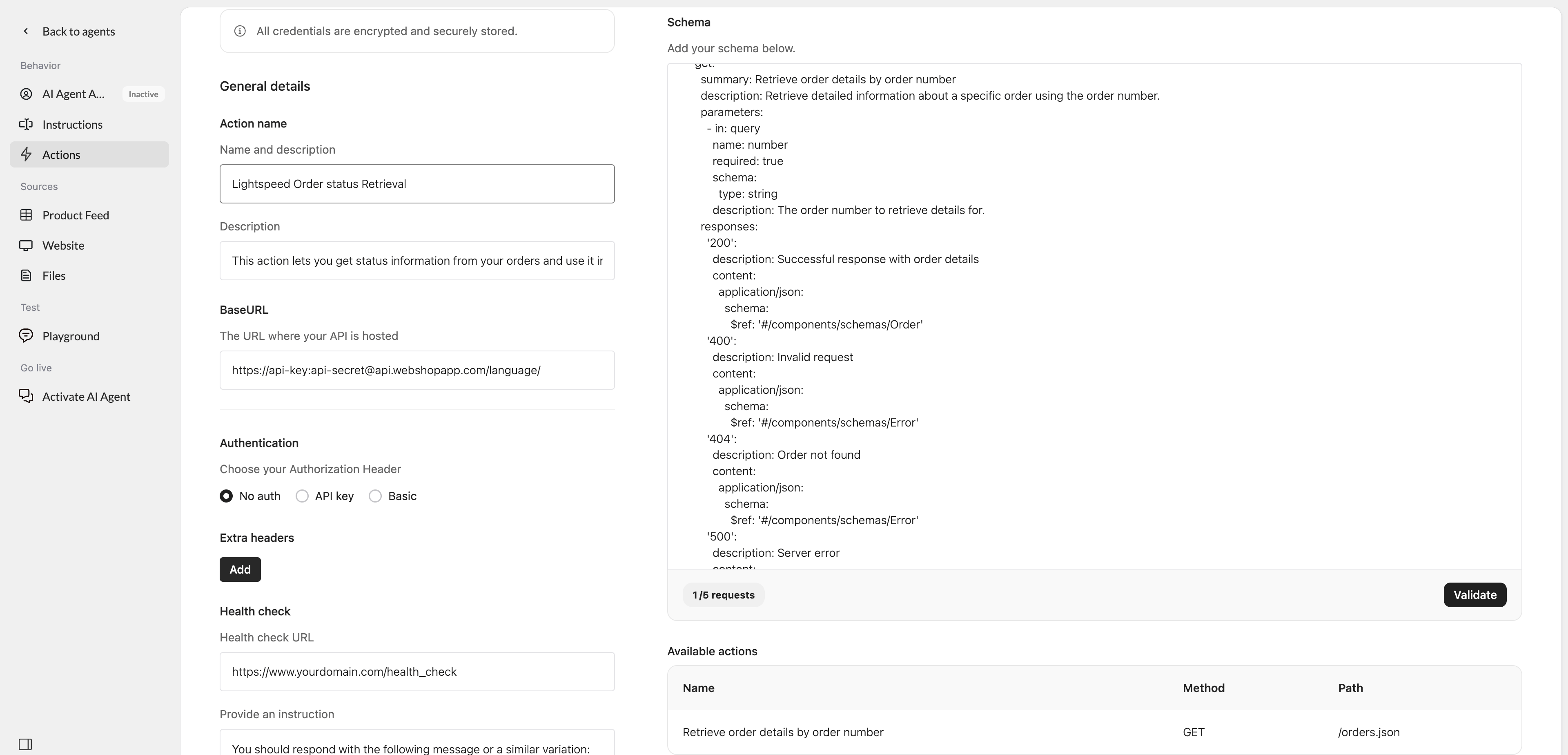 When everything is configured correctly, click **Save** and then **Activate**.
Finally, test the Action in the **Playground** to make sure your Agent can retrieve the expected order information from Lightspeed.
## Editing an Action Template
After setting up an Action, you can adjust it to your use case. For example, you can add endpoints to the schema, change parameters, or update the name and description.
Be careful when changing authentication settings or existing endpoints, as this can prevent the Action from connecting to the API.
## Troubleshooting
| Issue | Likely cause | What to check |
| :------------------------------------------- | :-------------------------------------- | :-------------------------------------------------------- |
| **Validation failed** | Invalid OpenAPI schema | Check the schema for missing or unsupported fields. |
| **401 Unauthorized** | Incorrect API credentials | Check the API key and API secret in your BaseURL. |
| **404 Not Found** | Incorrect endpoint or language | Check the BaseURL, endpoint path, and language value. |
| **Action does not return the expected data** | Schema or parameter mismatch | Check the endpoint parameters and API response structure. |
| **Health check fails** | Health check endpoint cannot be reached | Check the Health check URL and endpoint availability. |
When everything is configured correctly, click **Save** and then **Activate**.
Finally, test the Action in the **Playground** to make sure your Agent can retrieve the expected order information from Lightspeed.
## Editing an Action Template
After setting up an Action, you can adjust it to your use case. For example, you can add endpoints to the schema, change parameters, or update the name and description.
Be careful when changing authentication settings or existing endpoints, as this can prevent the Action from connecting to the API.
## Troubleshooting
| Issue | Likely cause | What to check |
| :------------------------------------------- | :-------------------------------------- | :-------------------------------------------------------- |
| **Validation failed** | Invalid OpenAPI schema | Check the schema for missing or unsupported fields. |
| **401 Unauthorized** | Incorrect API credentials | Check the API key and API secret in your BaseURL. |
| **404 Not Found** | Incorrect endpoint or language | Check the BaseURL, endpoint path, and language value. |
| **Action does not return the expected data** | Schema or parameter mismatch | Check the endpoint parameters and API response structure. |
| **Health check fails** | Health check endpoint cannot be reached | Check the Health check URL and endpoint availability. |