> ## Documentation Index
> Fetch the complete documentation index at: https://watermelon.ai/docs/llms.txt
> Use this file to discover all available pages before exploring further.
# Actions authentication setup
> When you connect your AI Agent to an external tool or system via an API, you’ll need to tell Watermelon how to authenticate — in other words, how to securely prove your identity to that tool.
This guide explains how to set up authentication for your **custom AI Actions** in Watermelon.
Always check the API documentation of the tool you’re connecting to. It will specify which authentication method is required.
## **Overview of Authentication Methods**
| **Method** | **Description** | **Security Level** | **When to Use** |
| :---------------------------------- | :--------------------------------------- | :----------------- | :------------------------------------------------ |
| **No Authentication** | Open connection, no credentials required | Low | Public APIs or internal test environments |
| **Basic Authentication** | Username + password | Medium | Simple API connections (e.g., internal systems) |
| **Bearer Authentication (API Key)** | Token-based | High | Standard for most APIs |
| **Custom Authentication** | Custom headers or query parameters | High | APIs with non-standard token or signature systems |
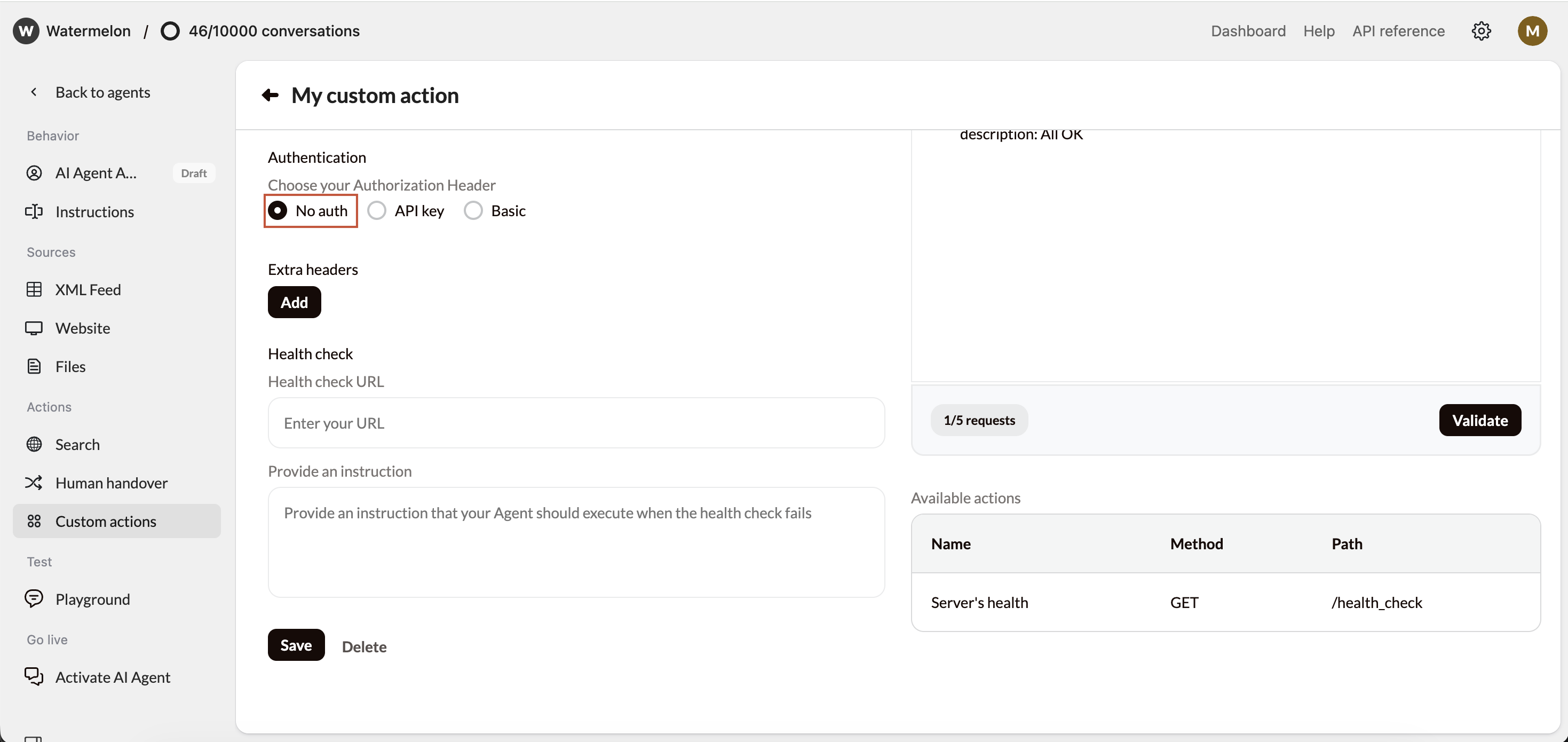
## **No Authentication**
This is the simplest option — and also the least secure.
 ### **What It Means**
No credentials or keys are required. The API endpoint is publicly accessible, so anyone with the URL can send a request.
### **How to Set It Up**
1. In your Watermelon Action, select **No authentication**.
2. Leave all credential fields empty.
3. Test your Action to confirm the connection works.
Avoid using this for APIs that expose sensitive or personal data. Only use it for public or test endpoints.
## **Basic Authentication**
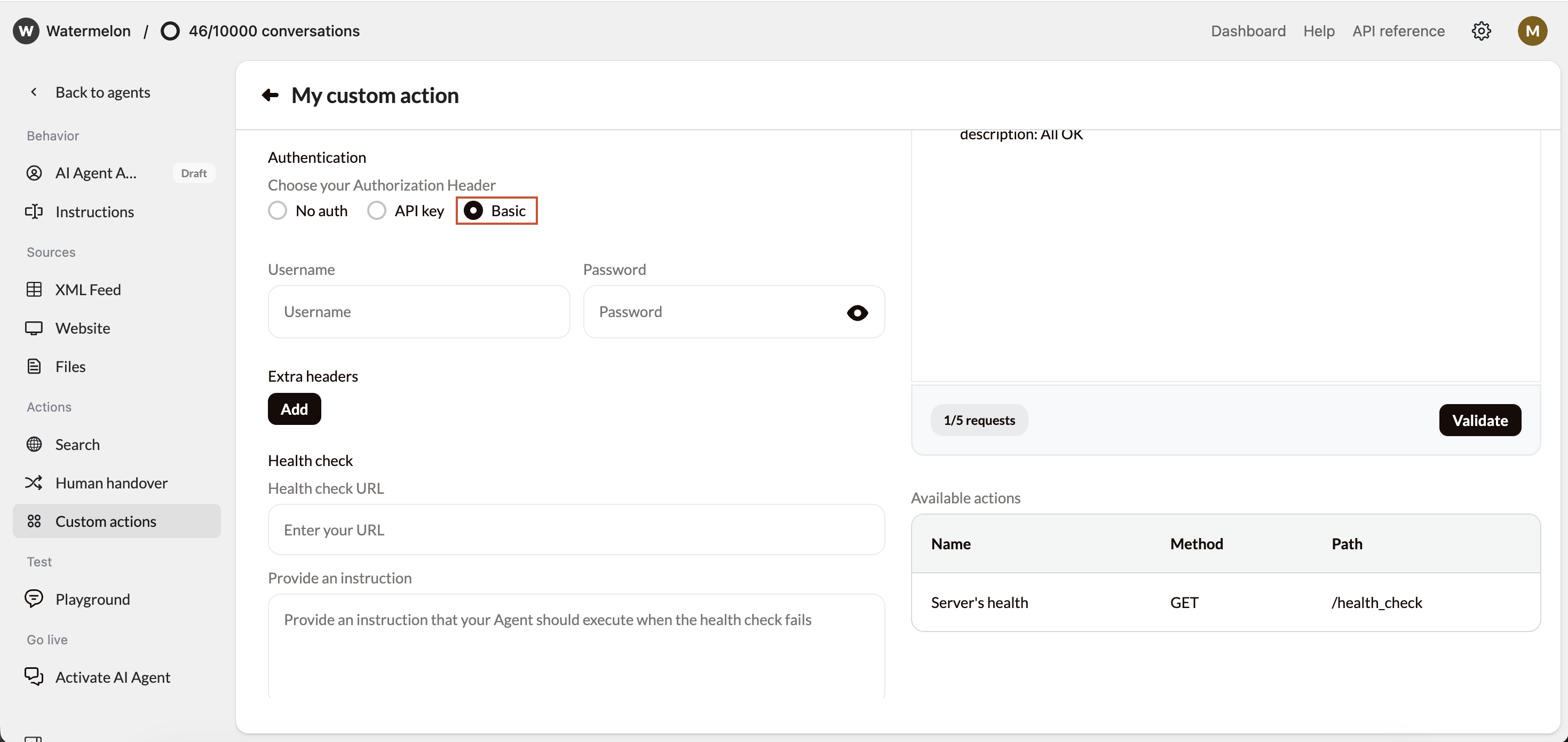
**Basic Authentication** uses a **username and password** to verify access.
### **What It Means**
No credentials or keys are required. The API endpoint is publicly accessible, so anyone with the URL can send a request.
### **How to Set It Up**
1. In your Watermelon Action, select **No authentication**.
2. Leave all credential fields empty.
3. Test your Action to confirm the connection works.
Avoid using this for APIs that expose sensitive or personal data. Only use it for public or test endpoints.
## **Basic Authentication**
**Basic Authentication** uses a **username and password** to verify access.
 ### **How It Works**
Each time your AI Agent sends a request, it includes an encoded string containing your username and password in the header. The API server checks these credentials before allowing access.
### **How to Set It Up**
1. In your Watermelon Action, choose **Basic Authentication**.
2. Enter your:
* **Username**
* **Password**
3. Save the Action.
4. Test the connection in the Playground.
Not all APIs use both username and password it is possible to just use password. By setting it as username
### **Example**
If the API documentation shows:
```
Authorization: Basic dXNlcm5hbWU6cGFzc3dvcmQ=
```
Watermelon automatically handles this encoding once you fill in the username and password fields.
If possible, create a dedicated API user account with restricted access instead of using personal credentials.
## **API Key Authentication**
Many APIs use a **key or token** instead of a username and password. In Watermelon, there are two types of API Key authentication:
1. **Bearer Authentication** (standard)
2. **Custom Authentication** (flexible)
### **1. Bearer Authentication**
Bearer tokens are the most common way to authenticate securely with APIs.
### **How It Works**
Each time your AI Agent sends a request, it includes an encoded string containing your username and password in the header. The API server checks these credentials before allowing access.
### **How to Set It Up**
1. In your Watermelon Action, choose **Basic Authentication**.
2. Enter your:
* **Username**
* **Password**
3. Save the Action.
4. Test the connection in the Playground.
Not all APIs use both username and password it is possible to just use password. By setting it as username
### **Example**
If the API documentation shows:
```
Authorization: Basic dXNlcm5hbWU6cGFzc3dvcmQ=
```
Watermelon automatically handles this encoding once you fill in the username and password fields.
If possible, create a dedicated API user account with restricted access instead of using personal credentials.
## **API Key Authentication**
Many APIs use a **key or token** instead of a username and password. In Watermelon, there are two types of API Key authentication:
1. **Bearer Authentication** (standard)
2. **Custom Authentication** (flexible)
### **1. Bearer Authentication**
Bearer tokens are the most common way to authenticate securely with APIs.
 #### **How It Works**
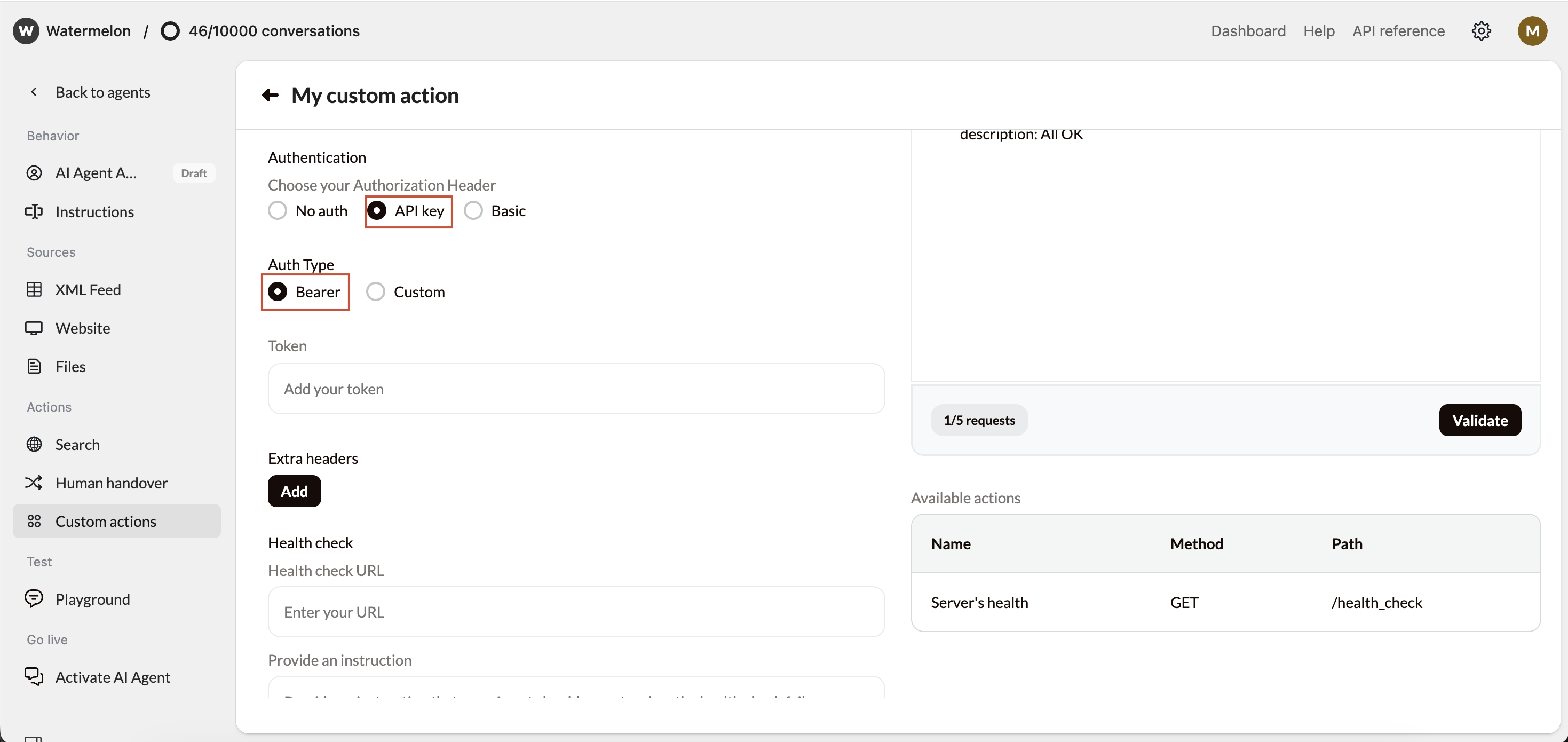
You receive a token (API key) from the service provider. Each API call must include this token in the **Authorization header** like this:
```
Authorization: Bearer
```
#### **How to Set It Up**
1. In your Action setup:
* Choose **Auth Type: Bearer**.
* Paste your **Token** in the provided field.
2. Save and test your Action.
#### **Example**
If your API documentation says:
```yaml theme={null}
curl -H "Authorization: Bearer abc123xyz" https://api.example.com/orders
```
then your setup in Watermelon should have:
* **Auth Type:** Bearer
* **Token:** abc123xyz
**Best for:** APIs like HubSpot or other modern SaaS tools that use OAuth-style tokens.
### **2. Custom Authentication**
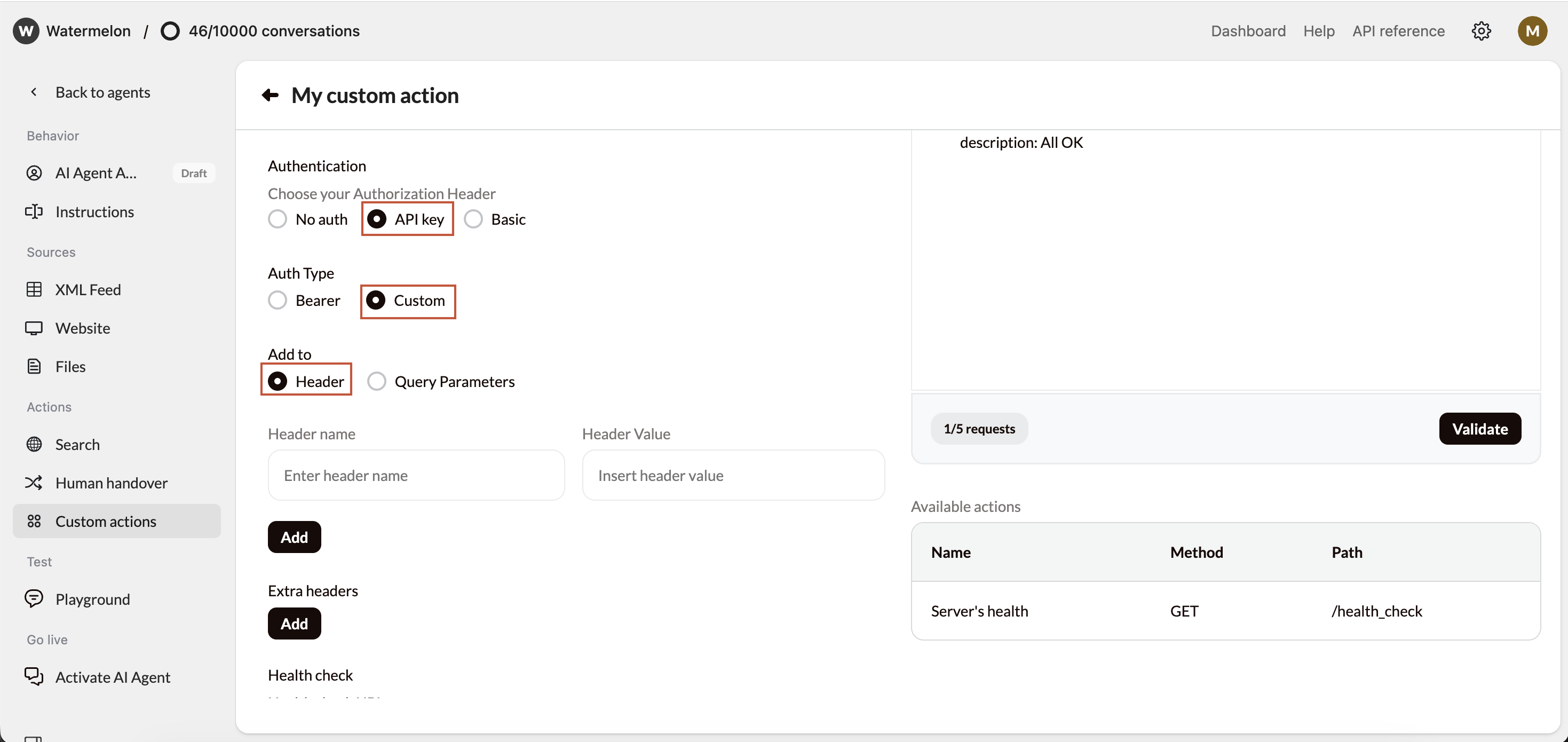
Some APIs use unique authentication methods. Custom authentication lets you define exactly **how credentials are sent**. You can add **extra details** to either the **Headers** or **Query Parameters**.
#### **Option A — Add to Headers**
Headers are used to send metadata about your request, such as authentication or session info.
#### **How It Works**
You receive a token (API key) from the service provider. Each API call must include this token in the **Authorization header** like this:
```
Authorization: Bearer
```
#### **How to Set It Up**
1. In your Action setup:
* Choose **Auth Type: Bearer**.
* Paste your **Token** in the provided field.
2. Save and test your Action.
#### **Example**
If your API documentation says:
```yaml theme={null}
curl -H "Authorization: Bearer abc123xyz" https://api.example.com/orders
```
then your setup in Watermelon should have:
* **Auth Type:** Bearer
* **Token:** abc123xyz
**Best for:** APIs like HubSpot or other modern SaaS tools that use OAuth-style tokens.
### **2. Custom Authentication**
Some APIs use unique authentication methods. Custom authentication lets you define exactly **how credentials are sent**. You can add **extra details** to either the **Headers** or **Query Parameters**.
#### **Option A — Add to Headers**
Headers are used to send metadata about your request, such as authentication or session info.
 **Example:**
```
x-api-key: 12345
x-client-id: watermelon-demo
```
**Setup in Watermelon:**
1. Choose **Custom Authentication**.
2. Add key–value pairs under **Headers**.
3. You can add up to **10 headers per request**
#### **Option B — Add to Query Parameters**
Query parameters are added at the end of the URL, visible like this:
**Example:**
```
x-api-key: 12345
x-client-id: watermelon-demo
```
**Setup in Watermelon:**
1. Choose **Custom Authentication**.
2. Add key–value pairs under **Headers**.
3. You can add up to **10 headers per request**
#### **Option B — Add to Query Parameters**
Query parameters are added at the end of the URL, visible like this:
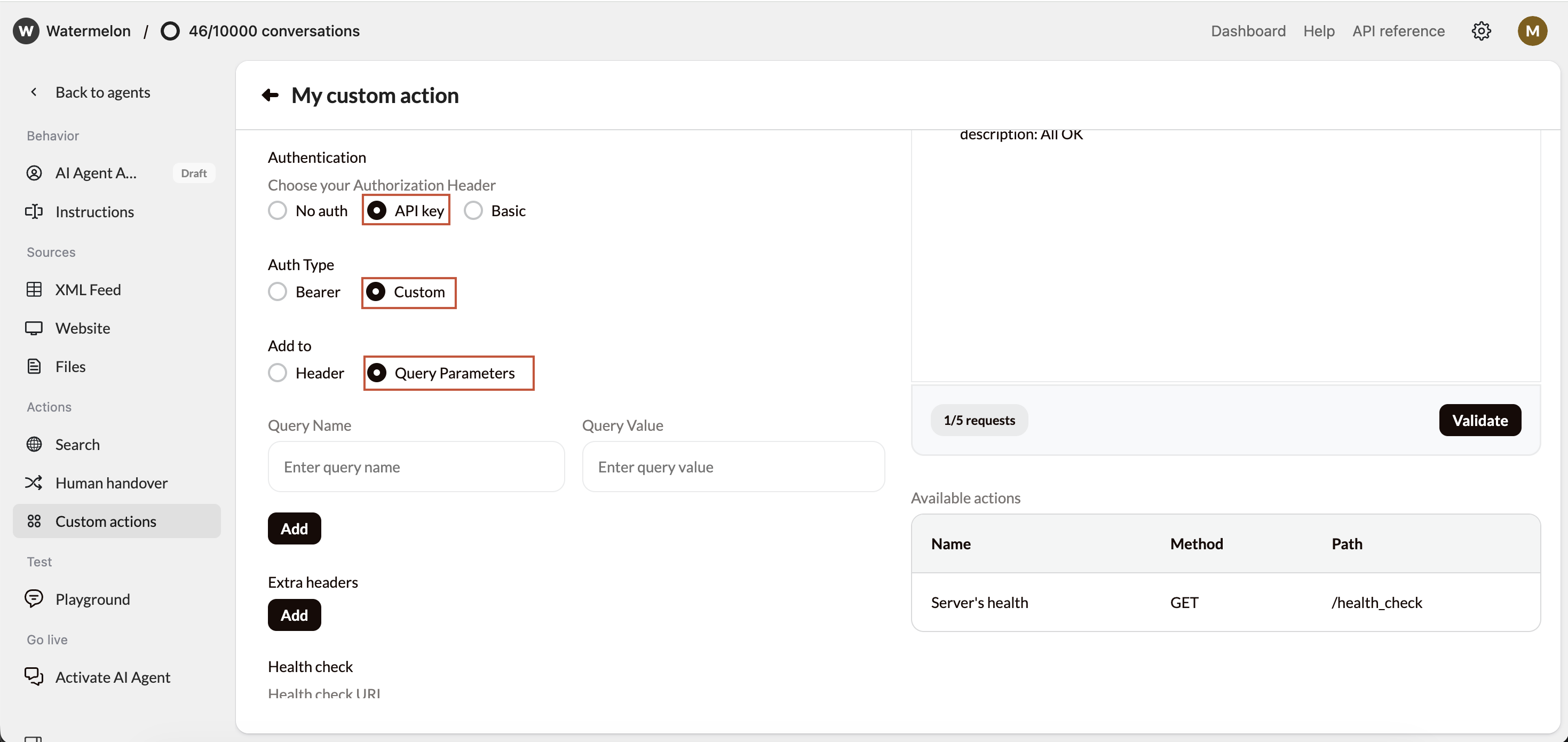 **Setup in Watermelon:**
1. Choose **Custom Authentication**.
2. Add key–value pairs under **Query Parameters**.
3. You can add up to **10 parameters per request**.
**Limit:** Each Action can include **up to 10 headers or 10 query parameters** per request. Combine them carefully to avoid exceeding this limit.
Always check the API docs for the **exact parameter names**. Using the wrong case (e.g. Api\_Key instead of api\_key) will cause the connection to fail.
## **Choosing the Right Method**
| **Situation** | **Recommended Method** |
| :-------------------------------------- | :--------------------- |
| Public endpoint, no login needed | No Authentication |
| Internal system with simple access | Basic Authentication |
| Modern SaaS API (e.g. HubSpot, Shopify) | Bearer Authentication |
| Custom or legacy API | Custom Authentication |
## **Troubleshooting Authentication**
| **Error Code** | **Meaning** | **What to Check** |
| :-------------------- | :---------------------------- | :--------------------------------------------------------- |
| **401 Unauthorized** | Invalid credentials or token | Verify your API key, username/password, or token format |
| **403 Forbidden** | Access denied | Check if your API user has sufficient permissions |
| **404 Not Found** | Wrong endpoint | Verify the URL or BaseURL |
| **500 Server Error** | Server issue | Retry later or contact API provider |
| **Invalid Auth Type** | Wrong selection in Watermelon | Double-check the authentication method required by the API |
If the same credentials work in **Postman**, they should also work in Watermelon. Compare headers and parameters carefully.
## **Security Best Practices**
Use **secure tokens** (Bearer or Custom) whenever possible.
Limit API permissions to the minimum required scope.
Always use **HTTPS** for encrypted communication.
Rotate API keys periodically for added security.
**Setup in Watermelon:**
1. Choose **Custom Authentication**.
2. Add key–value pairs under **Query Parameters**.
3. You can add up to **10 parameters per request**.
**Limit:** Each Action can include **up to 10 headers or 10 query parameters** per request. Combine them carefully to avoid exceeding this limit.
Always check the API docs for the **exact parameter names**. Using the wrong case (e.g. Api\_Key instead of api\_key) will cause the connection to fail.
## **Choosing the Right Method**
| **Situation** | **Recommended Method** |
| :-------------------------------------- | :--------------------- |
| Public endpoint, no login needed | No Authentication |
| Internal system with simple access | Basic Authentication |
| Modern SaaS API (e.g. HubSpot, Shopify) | Bearer Authentication |
| Custom or legacy API | Custom Authentication |
## **Troubleshooting Authentication**
| **Error Code** | **Meaning** | **What to Check** |
| :-------------------- | :---------------------------- | :--------------------------------------------------------- |
| **401 Unauthorized** | Invalid credentials or token | Verify your API key, username/password, or token format |
| **403 Forbidden** | Access denied | Check if your API user has sufficient permissions |
| **404 Not Found** | Wrong endpoint | Verify the URL or BaseURL |
| **500 Server Error** | Server issue | Retry later or contact API provider |
| **Invalid Auth Type** | Wrong selection in Watermelon | Double-check the authentication method required by the API |
If the same credentials work in **Postman**, they should also work in Watermelon. Compare headers and parameters carefully.
## **Security Best Practices**
Use **secure tokens** (Bearer or Custom) whenever possible.
Limit API permissions to the minimum required scope.
Always use **HTTPS** for encrypted communication.
Rotate API keys periodically for added security.