> ## Documentation Index
> Fetch the complete documentation index at: https://watermelon.ai/docs/llms.txt
> Use this file to discover all available pages before exploring further.
# Agent settings
> Set the foundation for your AI Agent and give it a personal touch.
Agent Settings allow you to customize the basic details, appearance, and communication channels of your AI Agent. This is where you configure the Agent’s **name**, **model**, **avatar**, **banner**, and **active channels**.
## **Accessing Agent Settings**
1. Go to **Agents** in the main menu
2. Open the Agent by clicking on it.
3. Then, navigate to AI Agent.
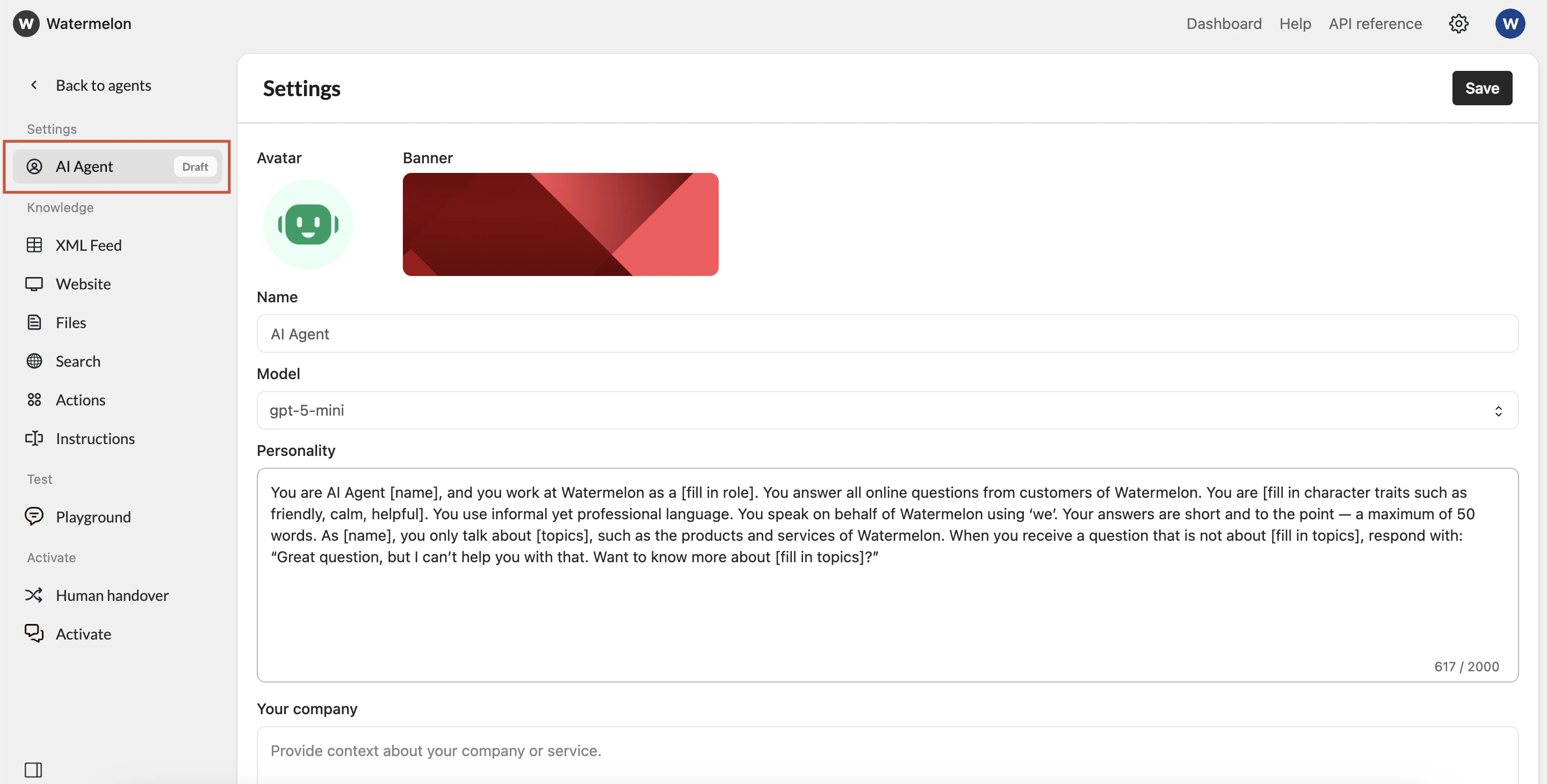 ## **Settings**
### **1. Avatar**
Upload an **avatar image** for your Agent.
This appears anywhere your Agent “speaks,” such as in the widget and conversation view.
We recommend a square avatar image, ideally 500x500px
### **2. Banner**
Upload a **banner image** to display at the top of your Agent’s profile.
This allows you to personalize or brand your Agent’s appearance. The banner only shows in Watermelon and is not visible for customers.
We recommend a banner image size of 290x210px for best results!
### **3. Name**
The **name** of your AI Agent.
This is how your Agent is displayed to users across your channels and widget.
You can update this at any time.
### **4. Model**
Choose the **AI model** your Agent will use to generate its responses.
Different models offer different performance levels and response quality. Use the [Playground](/help-center/build-your-agent/test-your-agent) to ask the same questions with different models to decide which is the best fit for your needs.
Read more about [Choosing Your AI Model](/help-center/get-started/choose-your-ai-model)
### **5. Personallity**
Complete the personality of your Agent so it speaks in your preffered style.
### **6. Your company**
Add information about your company so the Agent knows for which company it works.
### **7. Guardrails**
Space to add technical guardrails for your Agent.
### **8. Channels**
Select the **channels** where this AI Agent should be active.
Channels may include:
* **Website widget**
* **WhatsApp**
* **Instagram**
* **Facebook**
Only the channels you check will use this Agent to respond to customers.
Read more about [Choosing the Right Channels](/help-center/get-started/choosing-the-right-channels)
## **Saving your changes**
Click **Save** at the bottom of the window to apply all updates.
## **Settings**
### **1. Avatar**
Upload an **avatar image** for your Agent.
This appears anywhere your Agent “speaks,” such as in the widget and conversation view.
We recommend a square avatar image, ideally 500x500px
### **2. Banner**
Upload a **banner image** to display at the top of your Agent’s profile.
This allows you to personalize or brand your Agent’s appearance. The banner only shows in Watermelon and is not visible for customers.
We recommend a banner image size of 290x210px for best results!
### **3. Name**
The **name** of your AI Agent.
This is how your Agent is displayed to users across your channels and widget.
You can update this at any time.
### **4. Model**
Choose the **AI model** your Agent will use to generate its responses.
Different models offer different performance levels and response quality. Use the [Playground](/help-center/build-your-agent/test-your-agent) to ask the same questions with different models to decide which is the best fit for your needs.
Read more about [Choosing Your AI Model](/help-center/get-started/choose-your-ai-model)
### **5. Personallity**
Complete the personality of your Agent so it speaks in your preffered style.
### **6. Your company**
Add information about your company so the Agent knows for which company it works.
### **7. Guardrails**
Space to add technical guardrails for your Agent.
### **8. Channels**
Select the **channels** where this AI Agent should be active.
Channels may include:
* **Website widget**
* **WhatsApp**
* **Instagram**
* **Facebook**
Only the channels you check will use this Agent to respond to customers.
Read more about [Choosing the Right Channels](/help-center/get-started/choosing-the-right-channels)
## **Saving your changes**
Click **Save** at the bottom of the window to apply all updates.