> ## Documentation Index
> Fetch the complete documentation index at: https://watermelon.ai/docs/llms.txt
> Use this file to discover all available pages before exploring further.
# Instructions
> Learn how to write, organize, and refine Instructions to guide your AI Agent’s behavior, improve accuracy, and keep communication consistent.
Instructions are available in all plans.
**Instructions** are the guidelines that shape how your AI Agent communicates. They help refine tone, accuracy, and consistency — ensuring that responses always reflect your company’s style and expectations.
This article explains what Instructions are, how to write them effectively, and how to continuously improve them for better performance.
## What are instructions?
**Instructions** tell your AI Agent *how* to use the knowledge it has.
They act as a set of rules and examples that guide **behavior**, from how to greet a customer to how to answer a specific type of question.
You can use Instructions to:
* **Define** tone and communication style
* **Clarify** how and when to use specific knowledge
* **Add** basic knowledge if you’re not using Sources (like Websites or Files)
### **Using Instructions as Knowledge**
If you’re not using other Sources such as document scraping or web crawling, you can also add **knowledge** directly into Instructions.
For example, you can copy and paste information from your website, help articles, or internal documentation.
The AI Agent will then use this information to **generate answers**, just as it would with other sources.
## Setting Up Instructions
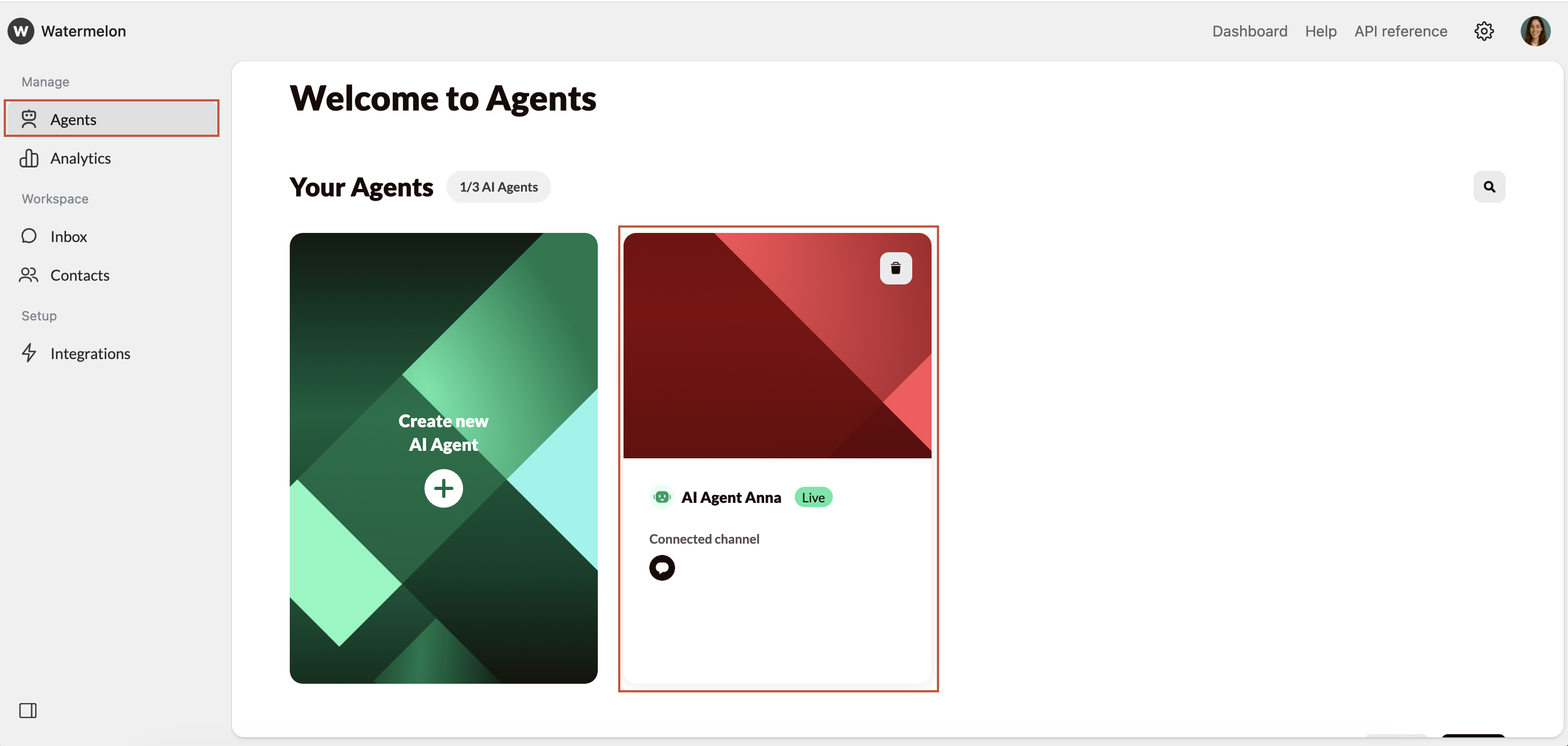
Navigate to **Agents** and create a new Agent or select an existing one.
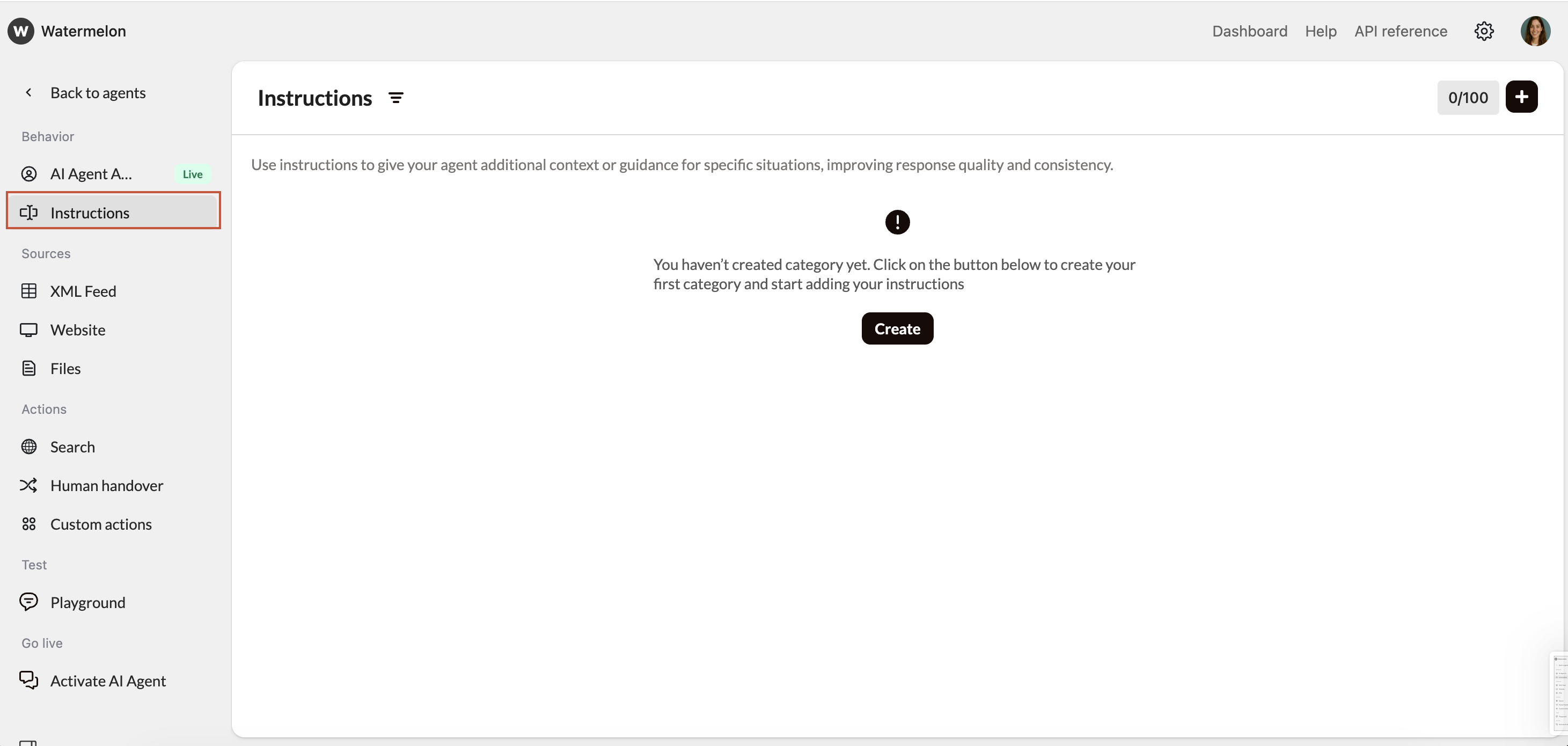
 In the menu, select **Instructions.**
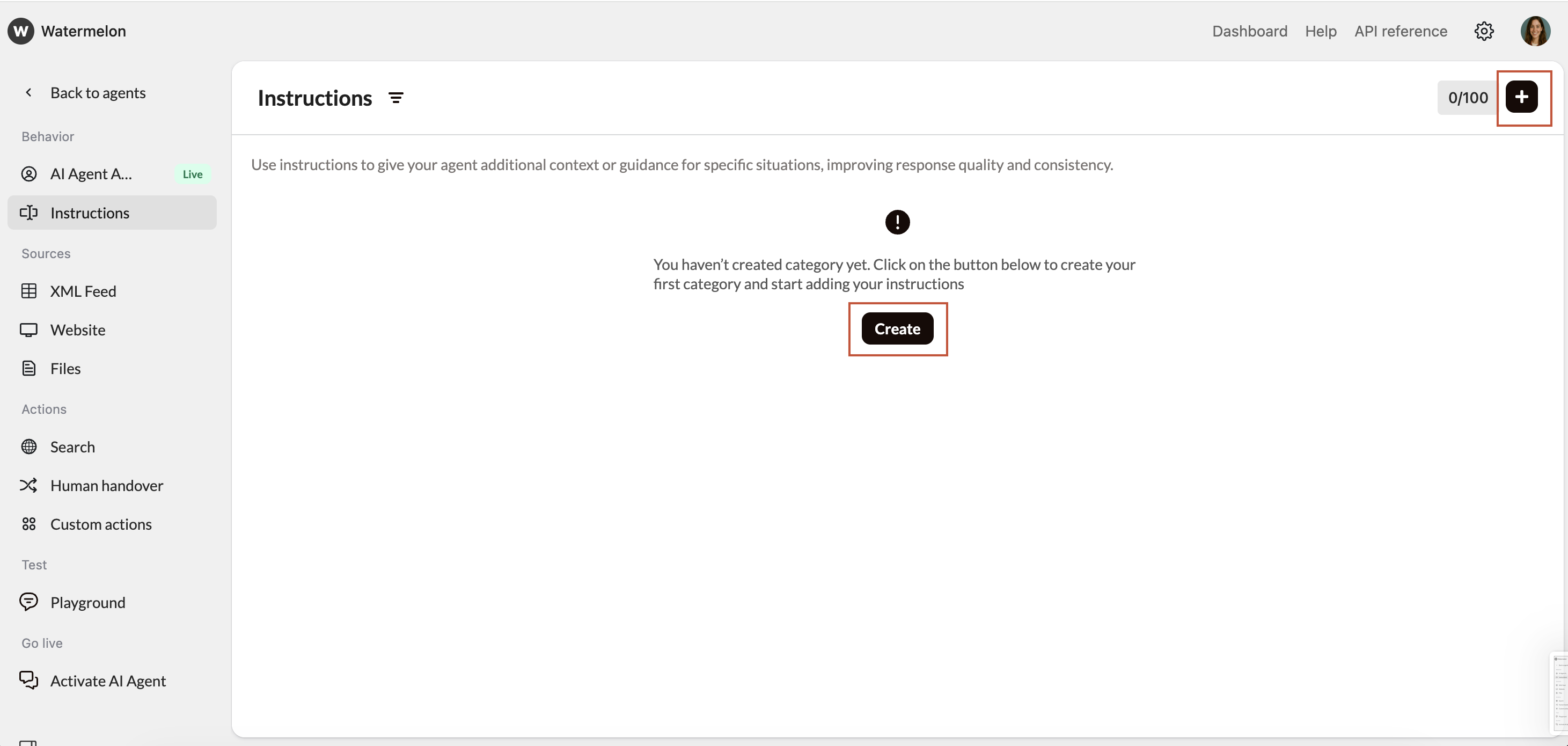
 Categories help you organize your Instructions for easier management.
Click **Create** or the **+** icon in the upper-right corner to add new categories. Name your category.
The AI Agent doesn’t use the category names or order when generating responses — they’re just for your **internal** overview.
Categories help you organize your Instructions for easier management.
Click **Create** or the **+** icon in the upper-right corner to add new categories. Name your category.
The AI Agent doesn’t use the category names or order when generating responses — they’re just for your **internal** overview.
 Add your first instruction within the category, using the **Create** button.
**Example:** Create a category called **Orders** to group all instructions about order status, cancellations, or shipping.
Be as specific and actionable as possible. Each Instruction should describe:
* **The situation** the AI Agent may encounter.
* **The expected behavior** or response.
**Example:** *"When a customer asks about their order status, tell them to check the track-and-trace link in their order confirmation email."*
Avoid general statements — the more **context** you give, the more accurately your AI Agent will respond.
After adding your Instructions, use the [**Playground**](/help-center/build-your-agent/test-your-agent) to check how your AI Agent responds.
If a response isn’t quite right:
* **Refine** the existing Instruction rather than adding new ones.
* **Avoid** creating multiple similar Instructions for the same topic, as this can cause overlap or confusion.
Once your AI Agent is live, continue reviewing its responses.
If you notice unclear or inconsistent answers, use real conversations as examples to **refine** your Instructions.
**Regular updates** to the instructions keep your AI Agent relevant, accurate, and aligned with your company’s policies.
## **Best Practice**
* Keep Instructions **short and clear**, one scenario per Instruction.
* **Avoid duplicates** or overlapping guidance.
* Match your company’s **tone** of voice.
* Use real customer **phrasing** when possible to improve recognition.
* **Test and adjust** regularly.
Add your first instruction within the category, using the **Create** button.
**Example:** Create a category called **Orders** to group all instructions about order status, cancellations, or shipping.
Be as specific and actionable as possible. Each Instruction should describe:
* **The situation** the AI Agent may encounter.
* **The expected behavior** or response.
**Example:** *"When a customer asks about their order status, tell them to check the track-and-trace link in their order confirmation email."*
Avoid general statements — the more **context** you give, the more accurately your AI Agent will respond.
After adding your Instructions, use the [**Playground**](/help-center/build-your-agent/test-your-agent) to check how your AI Agent responds.
If a response isn’t quite right:
* **Refine** the existing Instruction rather than adding new ones.
* **Avoid** creating multiple similar Instructions for the same topic, as this can cause overlap or confusion.
Once your AI Agent is live, continue reviewing its responses.
If you notice unclear or inconsistent answers, use real conversations as examples to **refine** your Instructions.
**Regular updates** to the instructions keep your AI Agent relevant, accurate, and aligned with your company’s policies.
## **Best Practice**
* Keep Instructions **short and clear**, one scenario per Instruction.
* **Avoid duplicates** or overlapping guidance.
* Match your company’s **tone** of voice.
* Use real customer **phrasing** when possible to improve recognition.
* **Test and adjust** regularly.