> ## Documentation Index
> Fetch the complete documentation index at: https://watermelon.ai/docs/llms.txt
> Use this file to discover all available pages before exploring further.
# Search
> Learn how to enable and configure Search so your AI Agent can retrieve accurate, up-to-date information from the web or a specific website.
Enabling **Search** allows your AI Agent to retrieve up-to-date information **directly** from the web or from a **specific website**. This keeps your AI Agent’s answers **accurate and current**, even when information changes frequently or **isn’t included** in your Sources or Instructions.
## What is Search?
**Search** lets your AI Agent:
* Search the **entire internet** or
* Search a **specific website** that you choose
The Agent then uses that search result to **generate a response.**
This is especially helpful when you want **dynamic or frequently changing** information to be available **without manually updating** your AI Agent’s knowledge.
## Enabling Search
By default, the Search action is not active on your agent.
To **activate** it:
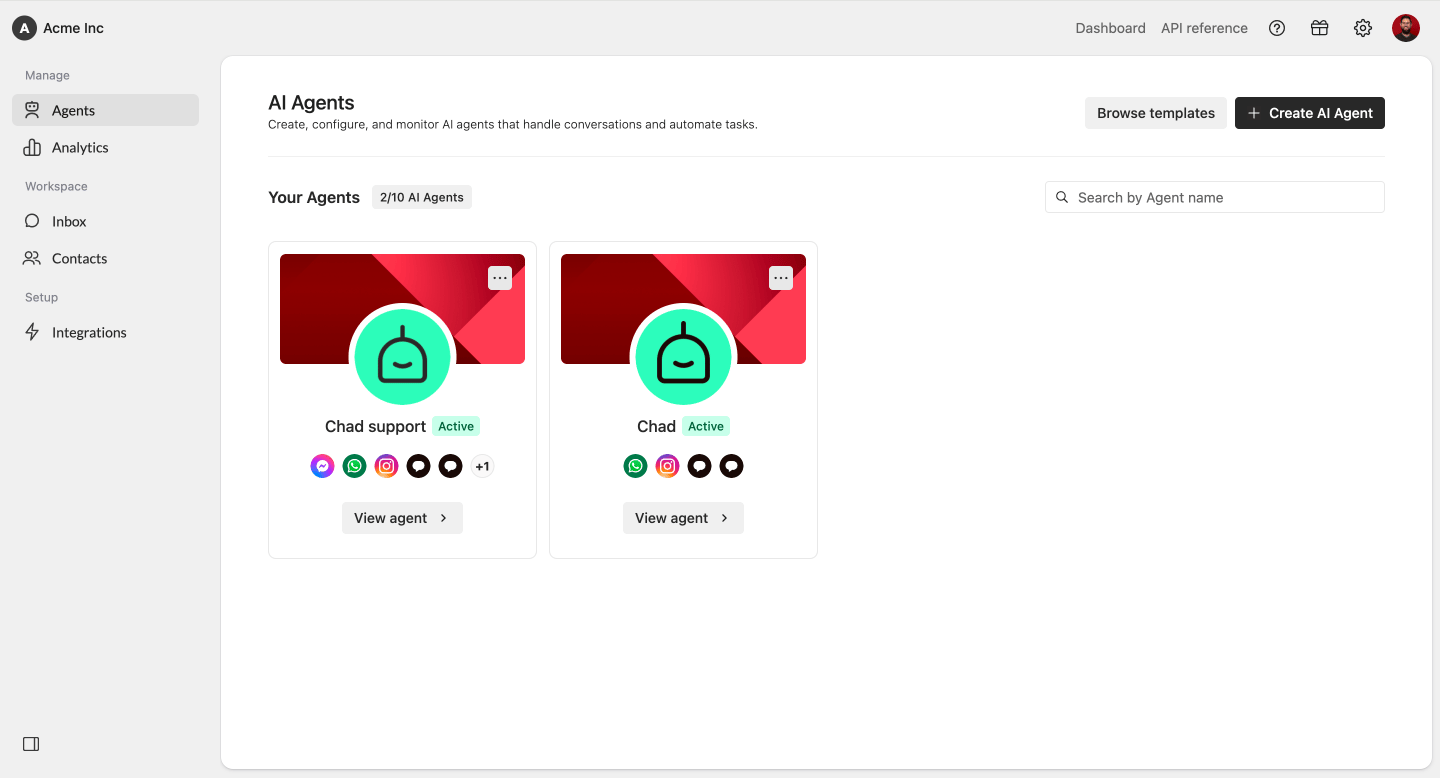
Select which Agent you would like to use Search.
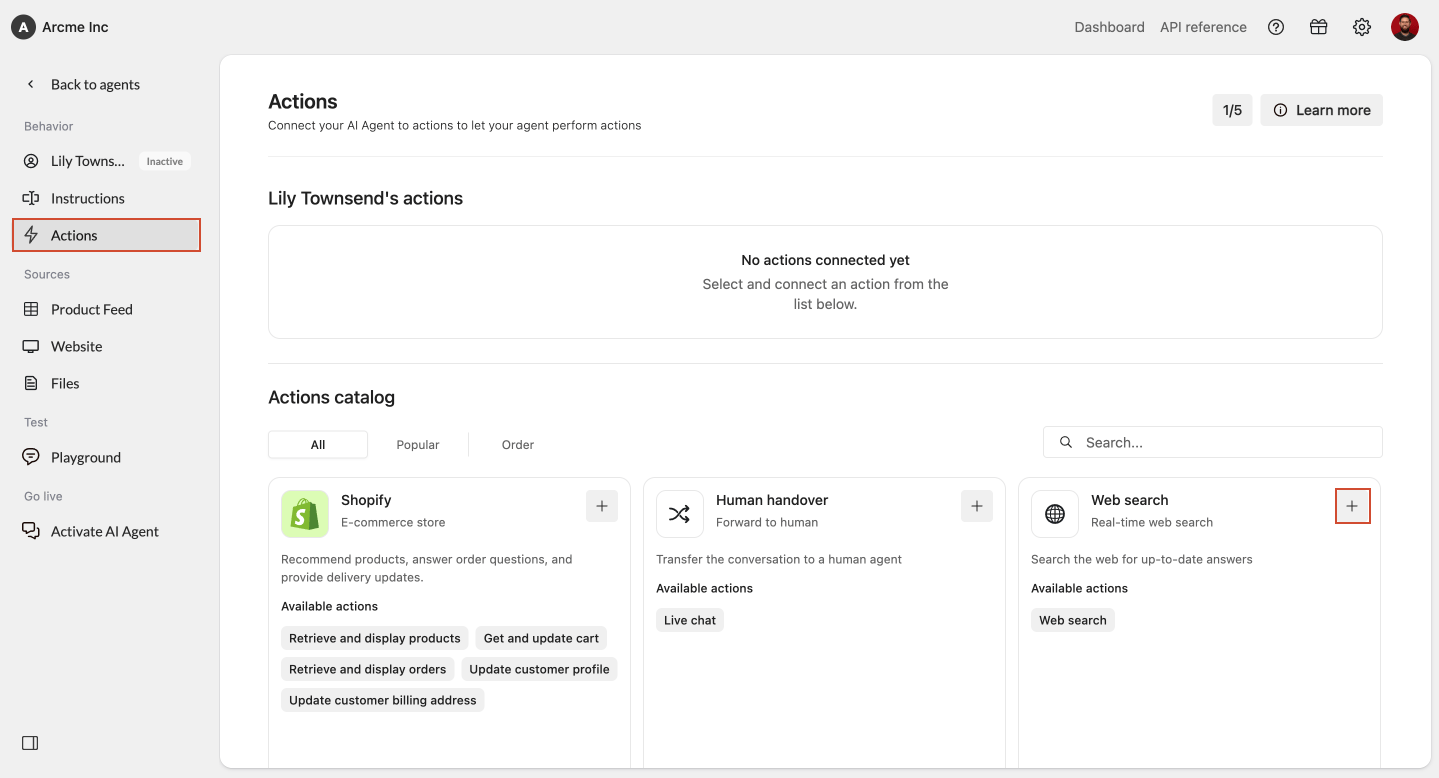
 In the Agent menu, underneath Behavior, select **Actions.** Within Actions, click on the **plus** icon at the **Web Search** action.
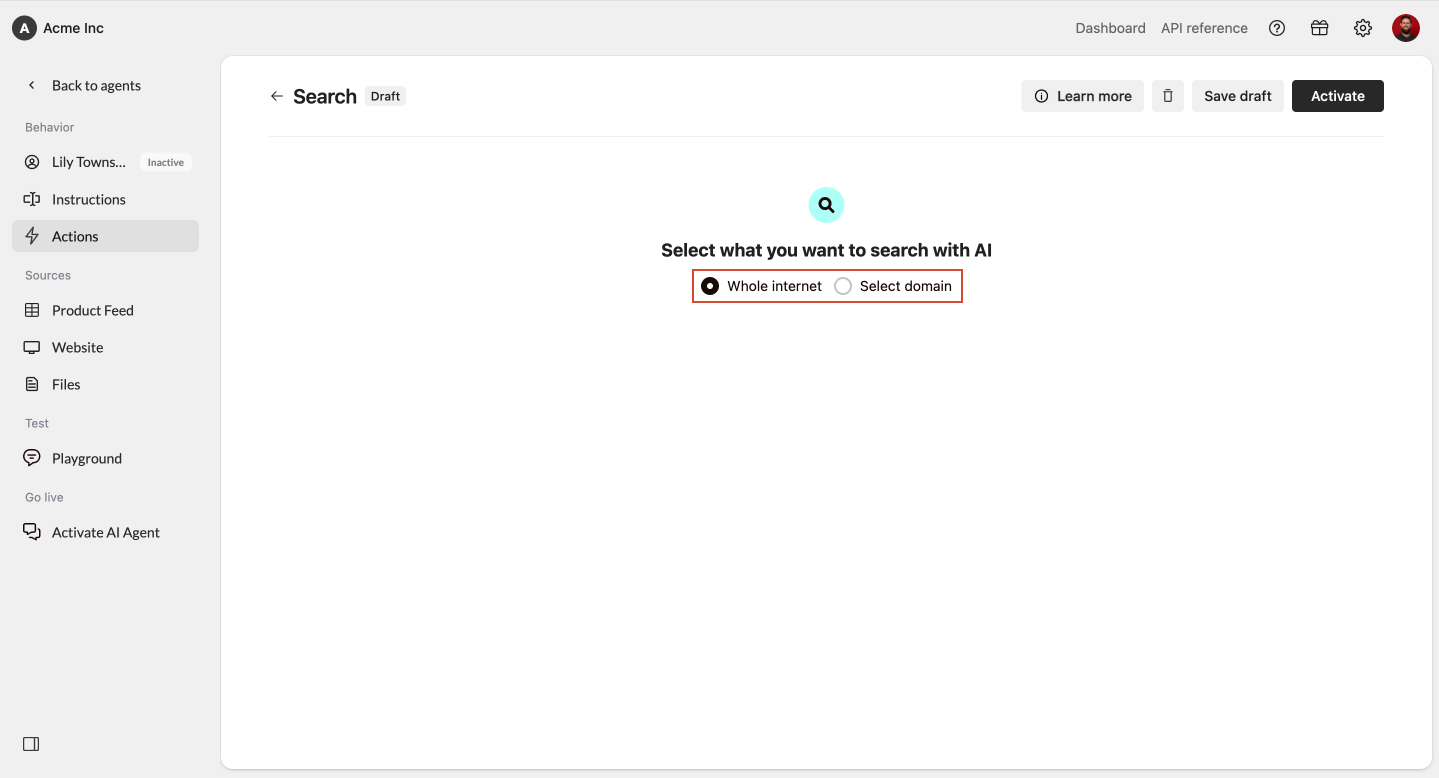
 You can choose between:
1. Searching a **selected URL** (recommended for controlled and consistent results)
2. Searching the **whole internet**
You can choose between:
1. Searching a **selected URL** (recommended for controlled and consistent results)
2. Searching the **whole internet**
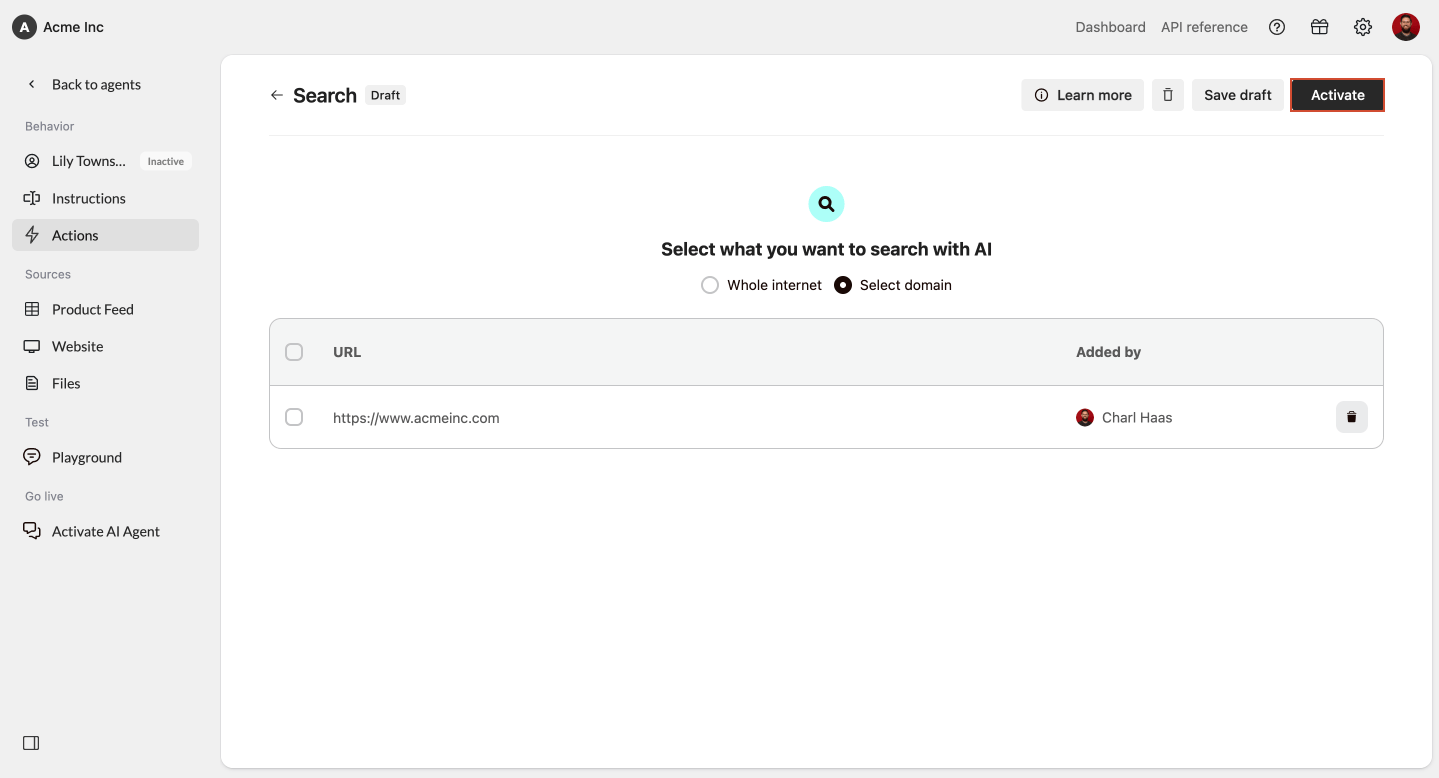
 If you choose to have your AI Agent to only search **one** website:
1. Choose **Selected URL**
2. Enter the domain you want the Agent to search
* If you enter a subpage, it automatically adjusts to the main domain
* Search cannot target a single subpage
3. Click **Add URL**
Your AI Agent will now **only** use search results from that domain.
Lastly, you need to **activate** your search actions. Otherwise your agent will only use Search within the Playground. Click on **Activate** in the top right corner.
If you choose to have your AI Agent to only search **one** website:
1. Choose **Selected URL**
2. Enter the domain you want the Agent to search
* If you enter a subpage, it automatically adjusts to the main domain
* Search cannot target a single subpage
3. Click **Add URL**
Your AI Agent will now **only** use search results from that domain.
Lastly, you need to **activate** your search actions. Otherwise your agent will only use Search within the Playground. Click on **Activate** in the top right corner.
 ### Managing Allowed URLs
To **update or remove** the websites your Agent is allowed to search:
1. **View** the list of added URLs
2. **Select** a URL
3. **Click Delete** or use the **bin icon**
### Managing Allowed URLs
To **update or remove** the websites your Agent is allowed to search:
1. **View** the list of added URLs
2. **Select** a URL
3. **Click Delete** or use the **bin icon**
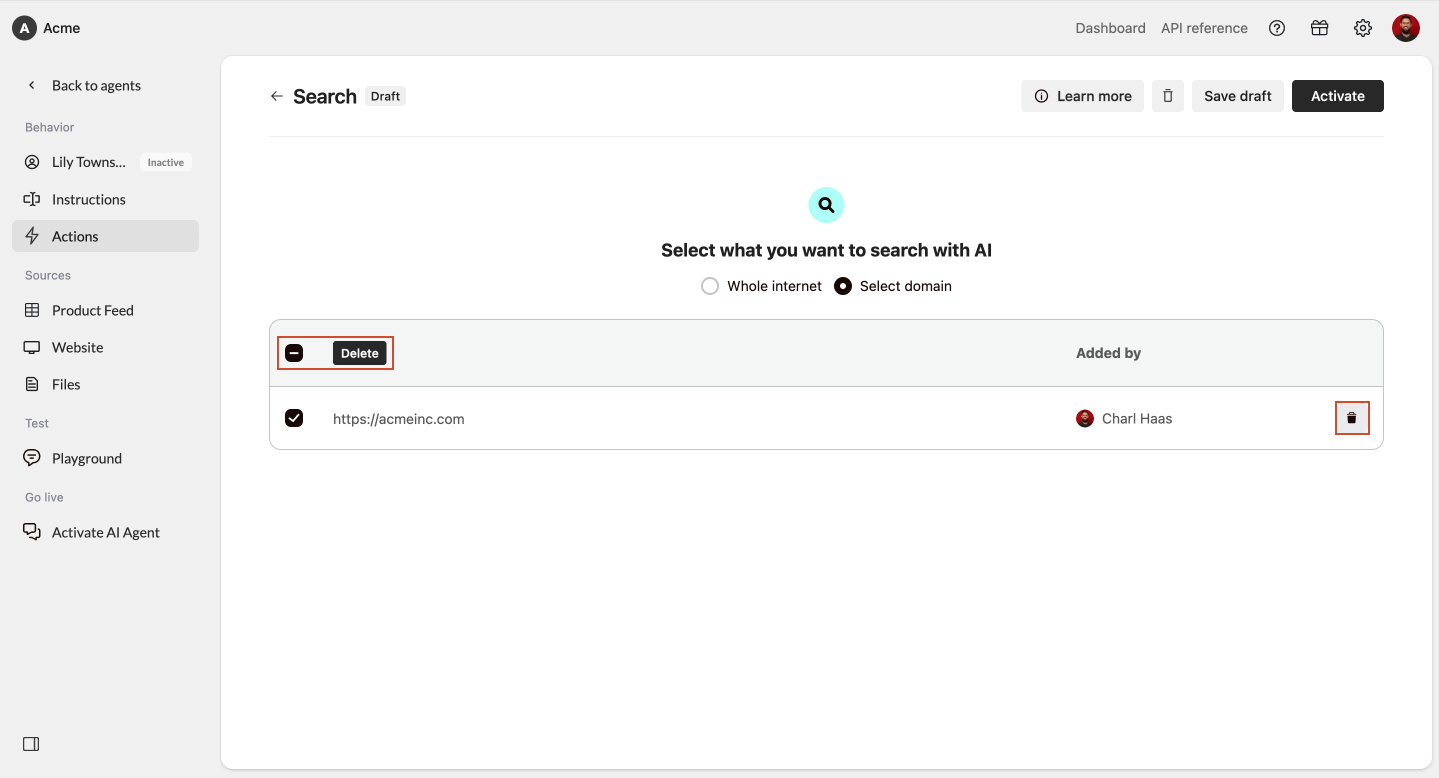 You can add or remove URLs at **any time** to keep your Agent’s search behavior aligned with your needs.
## Technical details
Search works **behind the scenes** as follows:
* Performs a **Google search** based on the customer’s question
* **Retrieves** the top search result
* **Scans** that webpage
* Uses the **extracted content** to generate the answer
* Total search time is limited to **7,500 ms**
## Best practice
* Use **Selected URL** if your company has a reliable website for consistent and brand-safe results
* Use **Search the entire internet** *only* when your customers need broad, dynamic information
* Always **test** your AI Agent in the [**Playground**](/help-center/build-your-agent/test-your-agent) after enabling Search
You can add or remove URLs at **any time** to keep your Agent’s search behavior aligned with your needs.
## Technical details
Search works **behind the scenes** as follows:
* Performs a **Google search** based on the customer’s question
* **Retrieves** the top search result
* **Scans** that webpage
* Uses the **extracted content** to generate the answer
* Total search time is limited to **7,500 ms**
## Best practice
* Use **Selected URL** if your company has a reliable website for consistent and brand-safe results
* Use **Search the entire internet** *only* when your customers need broad, dynamic information
* Always **test** your AI Agent in the [**Playground**](/help-center/build-your-agent/test-your-agent) after enabling Search