> ## Documentation Index
> Fetch the complete documentation index at: https://watermelon.ai/docs/llms.txt
> Use this file to discover all available pages before exploring further.
# Setup your notifications
> Set up your notifications and never miss an incoming conversation.
## Notification options
There are three different options for the notifications, which you can set up to make sure you never miss an incoming conversation.
| Options | Explanation | Recommended use |
| -------------------------------------------------------- | --------------------------------------------------------------------------------------- | ---------------------------------------------------------------- |
| **Receive notifications for AI Agent conversations** | You get notified for every conversation the AI Agent handles | Recommended when training/monitoring the Agent in his first days |
| **Receive notification for New conversations** | You only receive notifications for conversations which are handed off to the New inbox. | Recommended for Support teams which have Human handover setup. |
| **Receive notification for conversations in your inbox** | You only receive notifications for conversations which are handed off to you. | Recommed for Support teams which have Human handover setup. |
You can also choose how often you want to receive notifications.
| Frequency option | Explanation |
| :-------------------- | ----------------------------------------------------------------------- |
| **No notification** | No notifications will be send |
| **Each conversation** | A notification will be send with every new conversation |
| **Each message** | A notification will be send for ever new message within a conversation. |
**Tip:** We recommend enabling notifications for each conversation and each message. This way, you can quickly pick up all live conversatoins
## Setting up Notifications
To set up Notifications, go to **Notifications** in Settings. Select your notification preferences here.
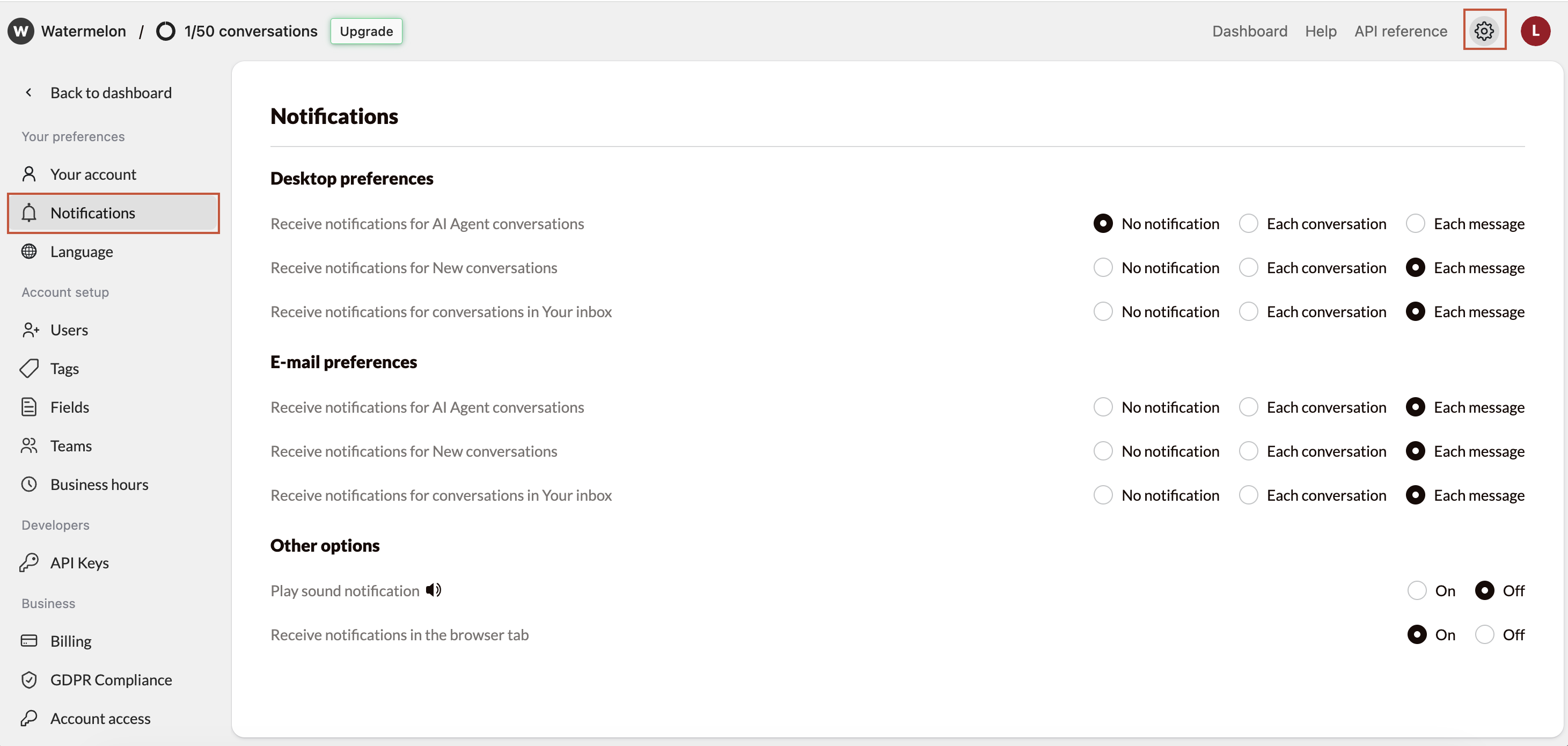 Notifications are a personal set up. Each team member can set their own preferences.
## **Other options**
### **Play sound notification**
Choose whether to hear a sound when a new conversation starts. Click the **speaker** button under Other Options to test the sound.
### **Receive notifications in the browser tab**
Enable notifications in the browser tab when a new conversation comes in. When you click on the notification you will be taken directly to the relevant conversation. We recommend using one of the following browsers:
* Google Chrome
* Mozilla Firefox
* Safari
* Microsoft Edge
You must allow pop-ups for Watermelon in your default browser. If you accidentally block notifications, pop-ups, tab notifications, and sounds may stop working.
## Problem solving
If you don't receive notifications in your browser, check the browser settings to allow notification. You also need to enable notifications for your web browser in your PC settings.
#### **Allowing notifications on Apple**
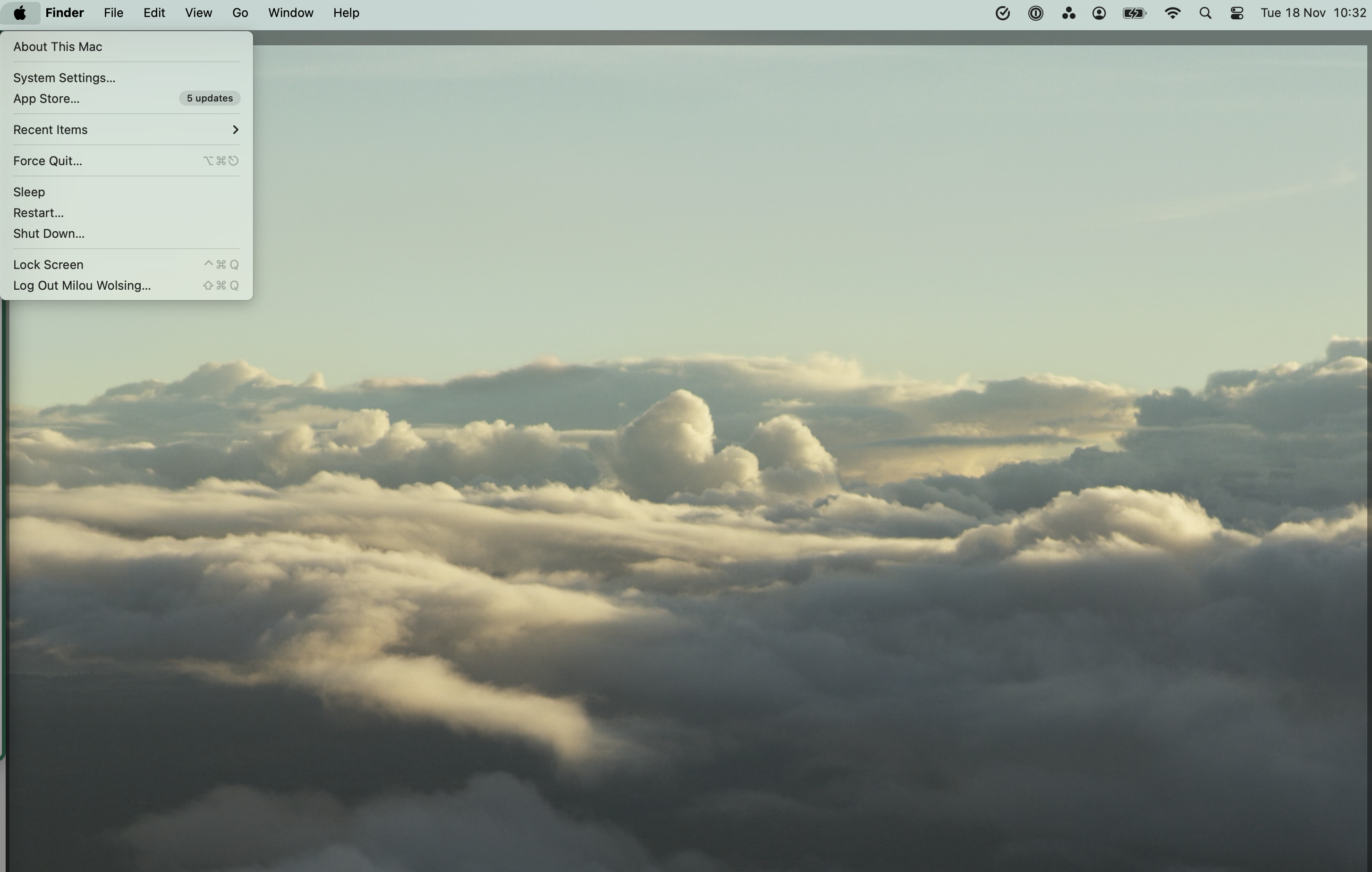
Go to the Apple icon at the top left and open **System Preferences**.
Notifications are a personal set up. Each team member can set their own preferences.
## **Other options**
### **Play sound notification**
Choose whether to hear a sound when a new conversation starts. Click the **speaker** button under Other Options to test the sound.
### **Receive notifications in the browser tab**
Enable notifications in the browser tab when a new conversation comes in. When you click on the notification you will be taken directly to the relevant conversation. We recommend using one of the following browsers:
* Google Chrome
* Mozilla Firefox
* Safari
* Microsoft Edge
You must allow pop-ups for Watermelon in your default browser. If you accidentally block notifications, pop-ups, tab notifications, and sounds may stop working.
## Problem solving
If you don't receive notifications in your browser, check the browser settings to allow notification. You also need to enable notifications for your web browser in your PC settings.
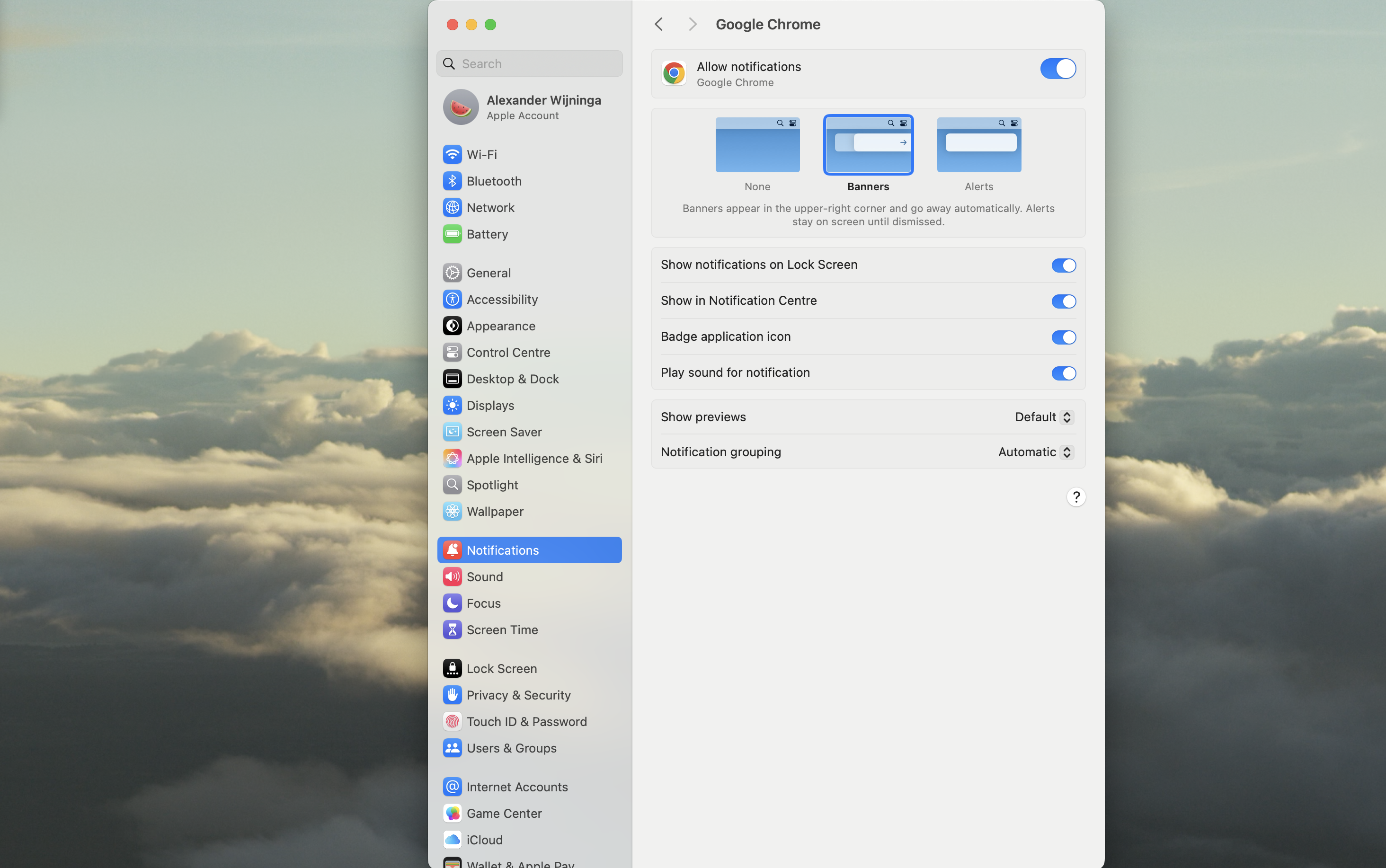
#### **Allowing notifications on Apple**
Go to the Apple icon at the top left and open **System Preferences**.
 Go to **Notifications** and find your default browser in the list.
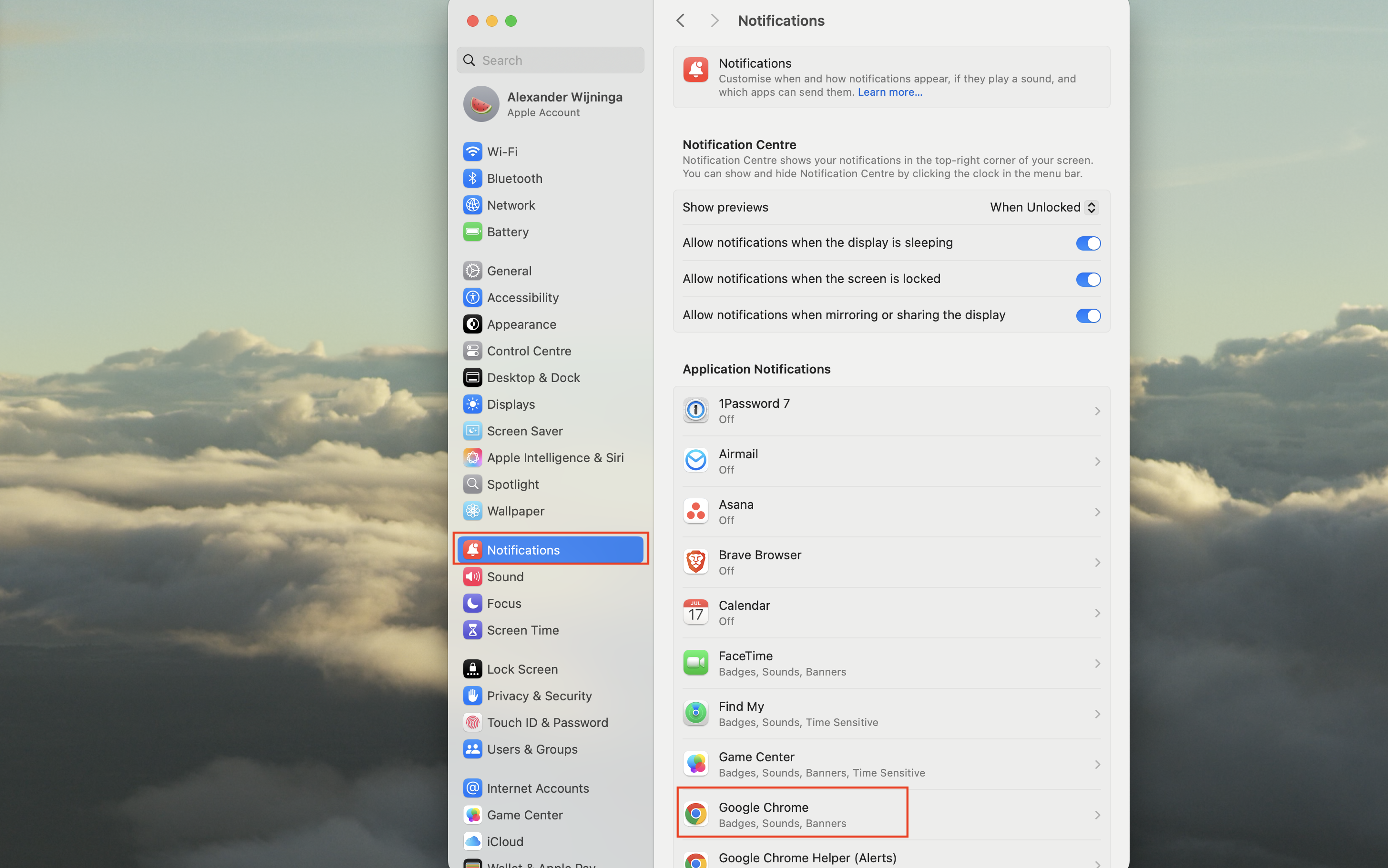 Select how you want to receive notifications.
 #### **Allowing notifications on Windows**
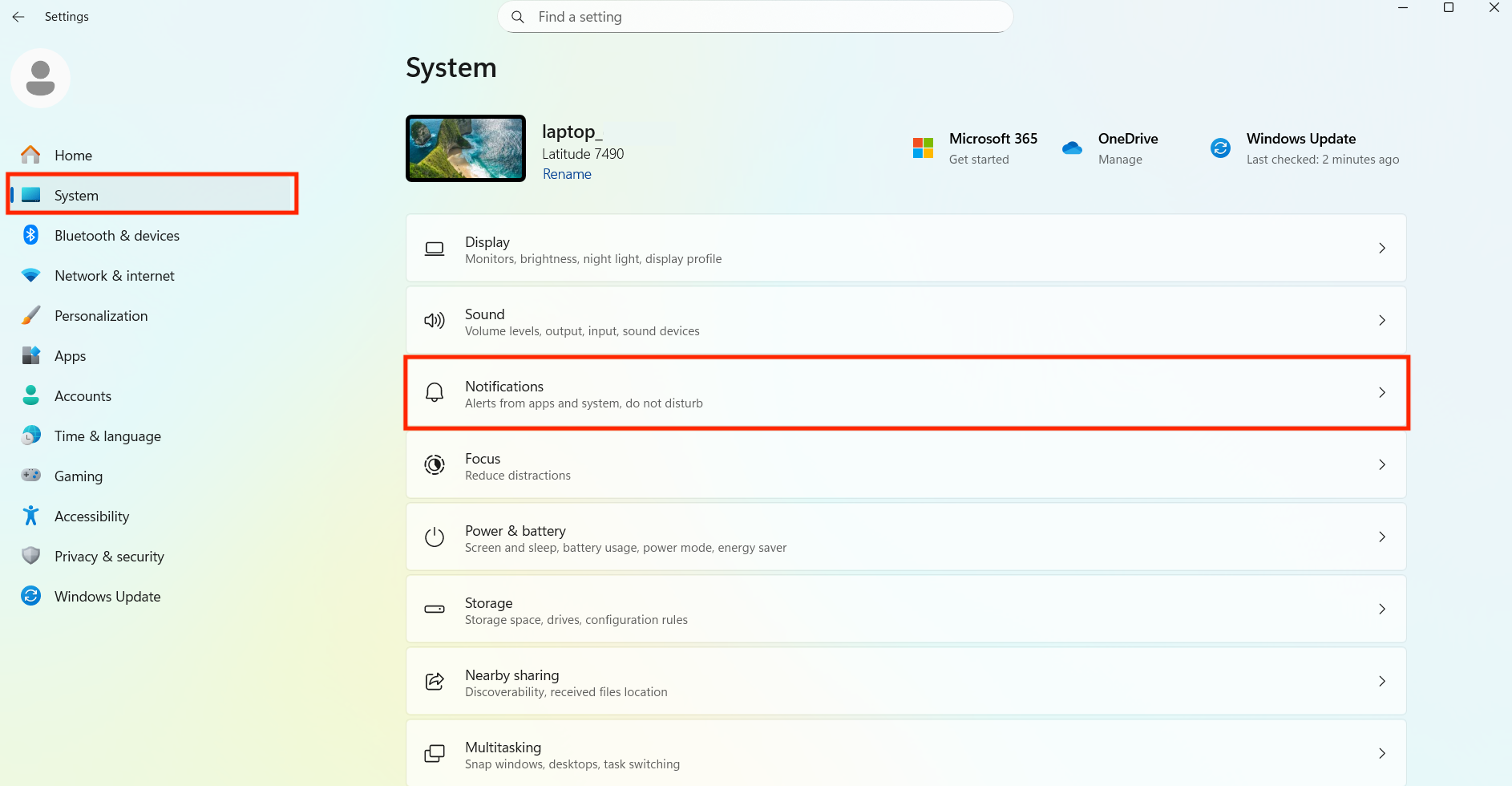
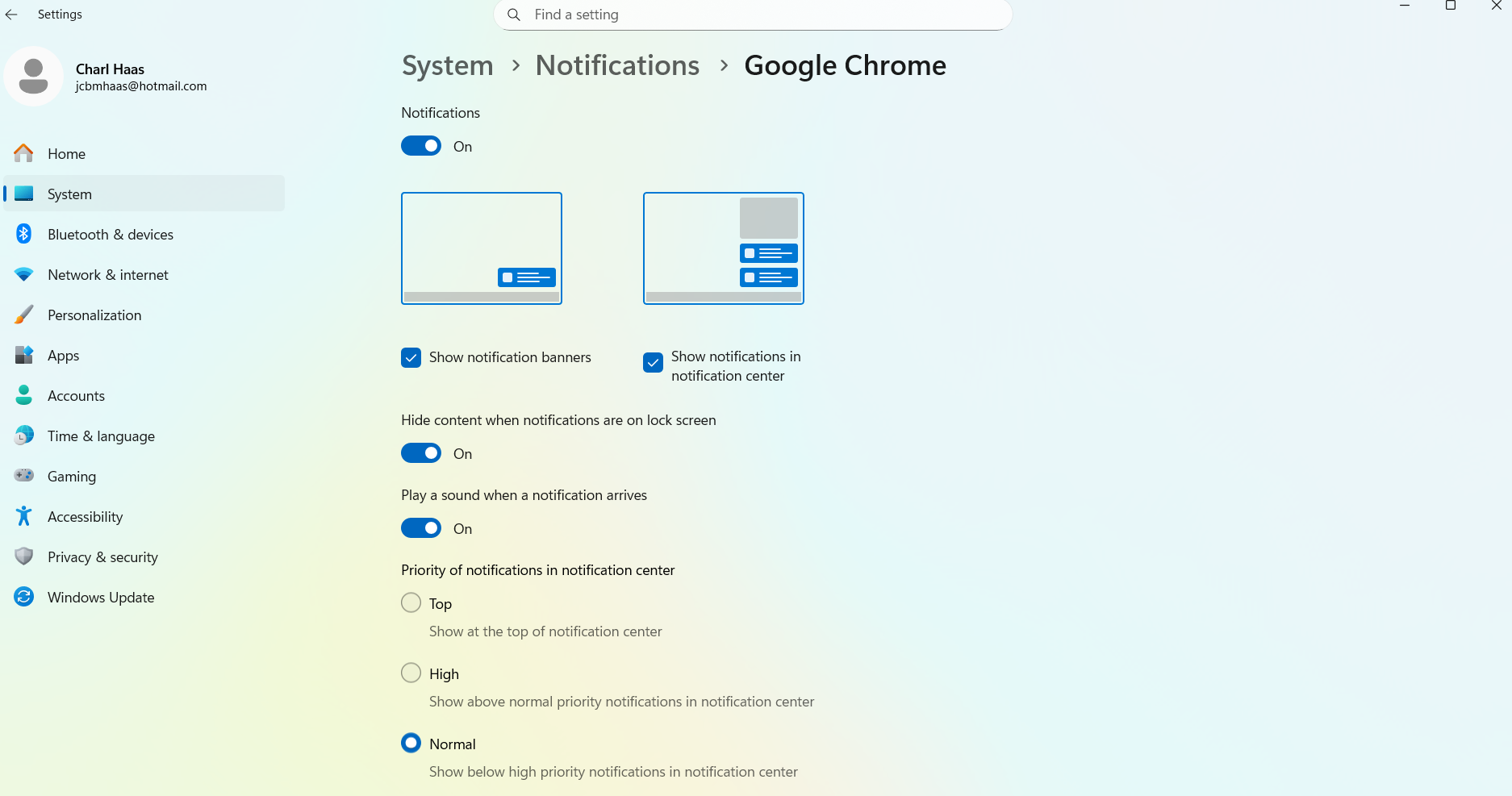
Click the **Windows icon** in the lower left corner to open**Settings** . Click on **Sytem** and open **Notifcations** .
#### **Allowing notifications on Windows**
Click the **Windows icon** in the lower left corner to open**Settings** . Click on **Sytem** and open **Notifcations** .
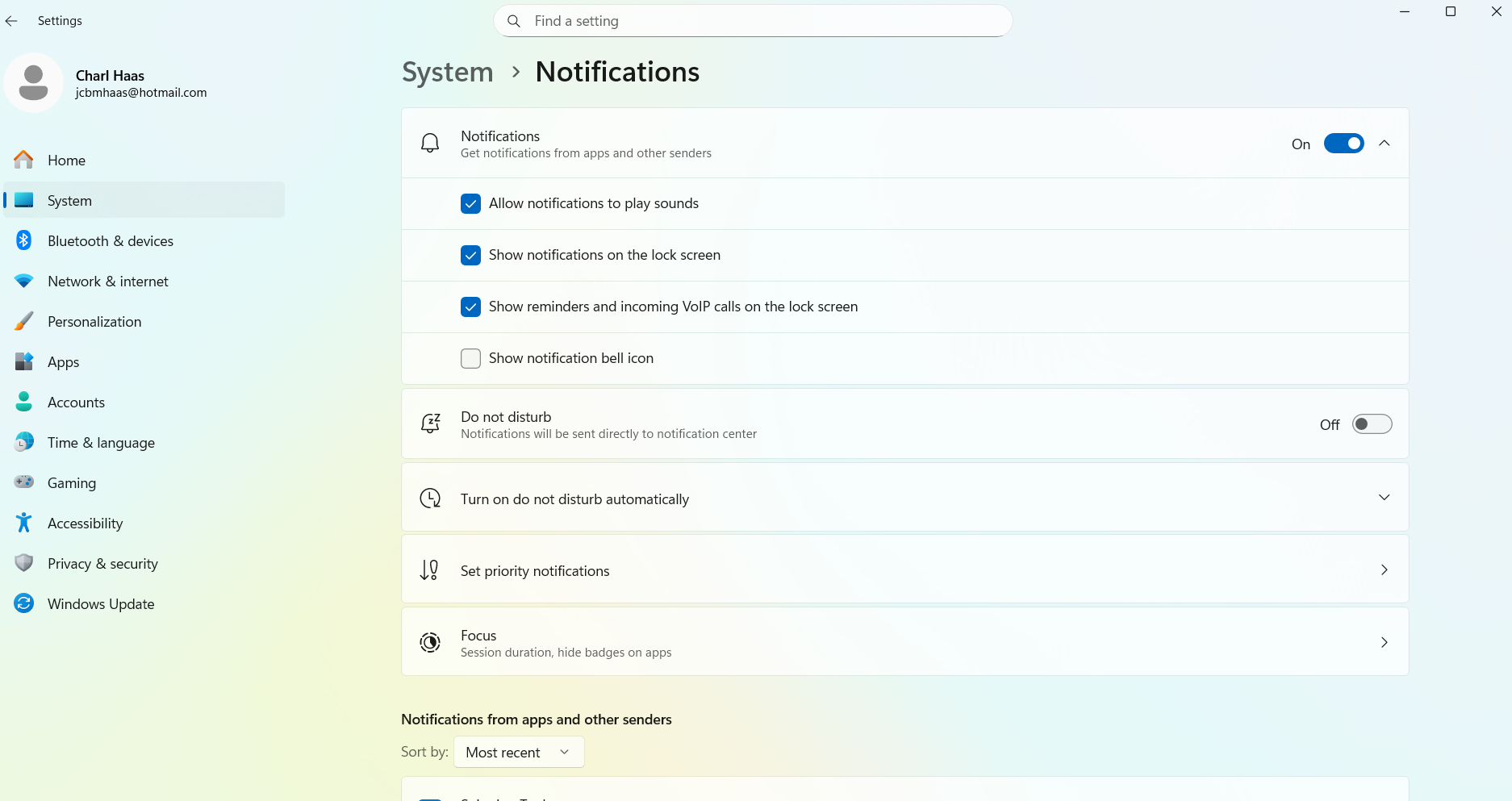
 Set your notification preferences.
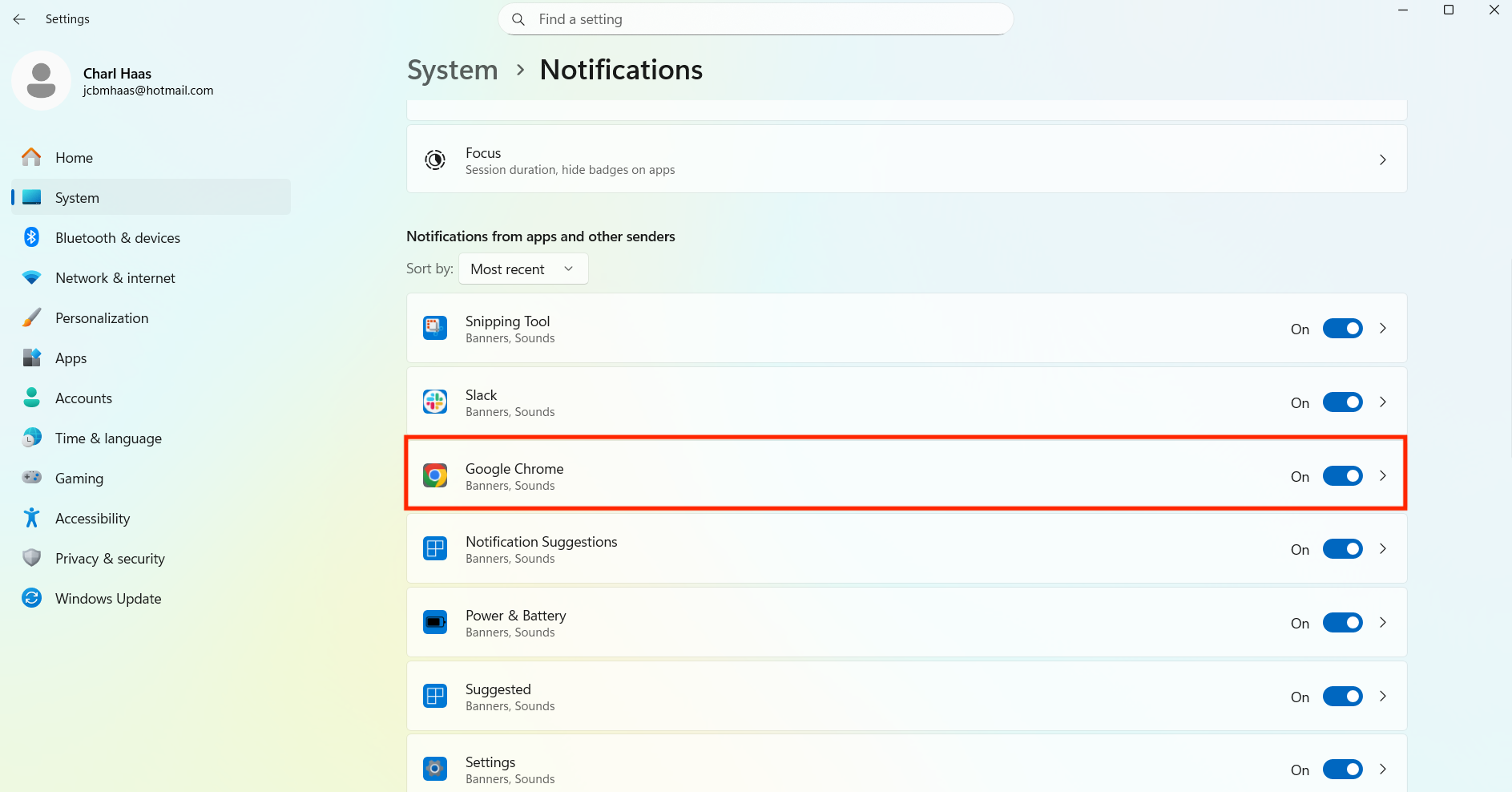
 Scroll down and find your default browser. Select how you want to receive the notifications.
 Let's ensure the Watermelon desktop app has permission to send notifications in your operating systems settings.
#### **For Mac users**
Go to the Apple icon at the top left and open **System Preferences**.
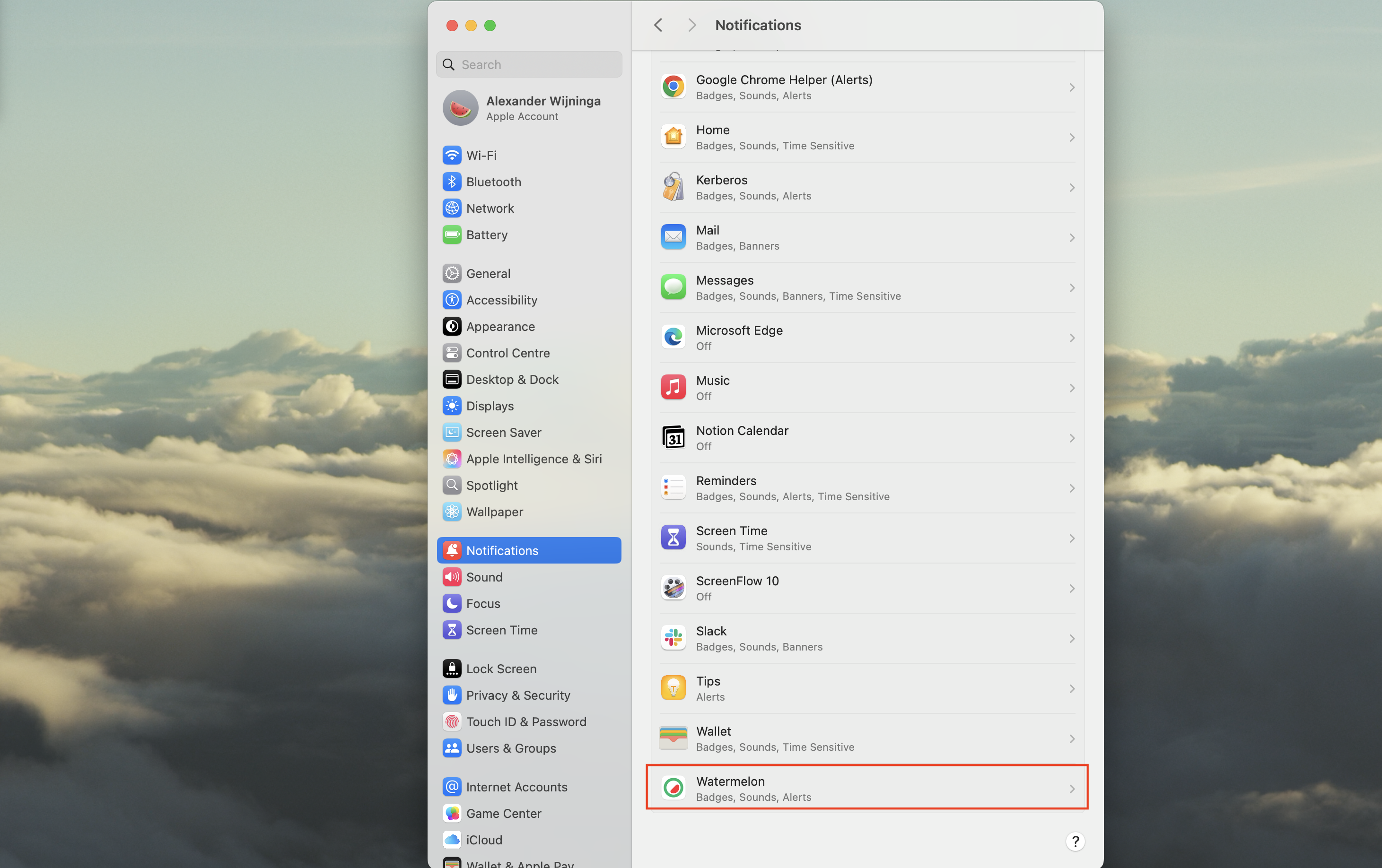
Scroll down to find the **Watermelon Desktop** app.
Let's ensure the Watermelon desktop app has permission to send notifications in your operating systems settings.
#### **For Mac users**
Go to the Apple icon at the top left and open **System Preferences**.
Scroll down to find the **Watermelon Desktop** app.
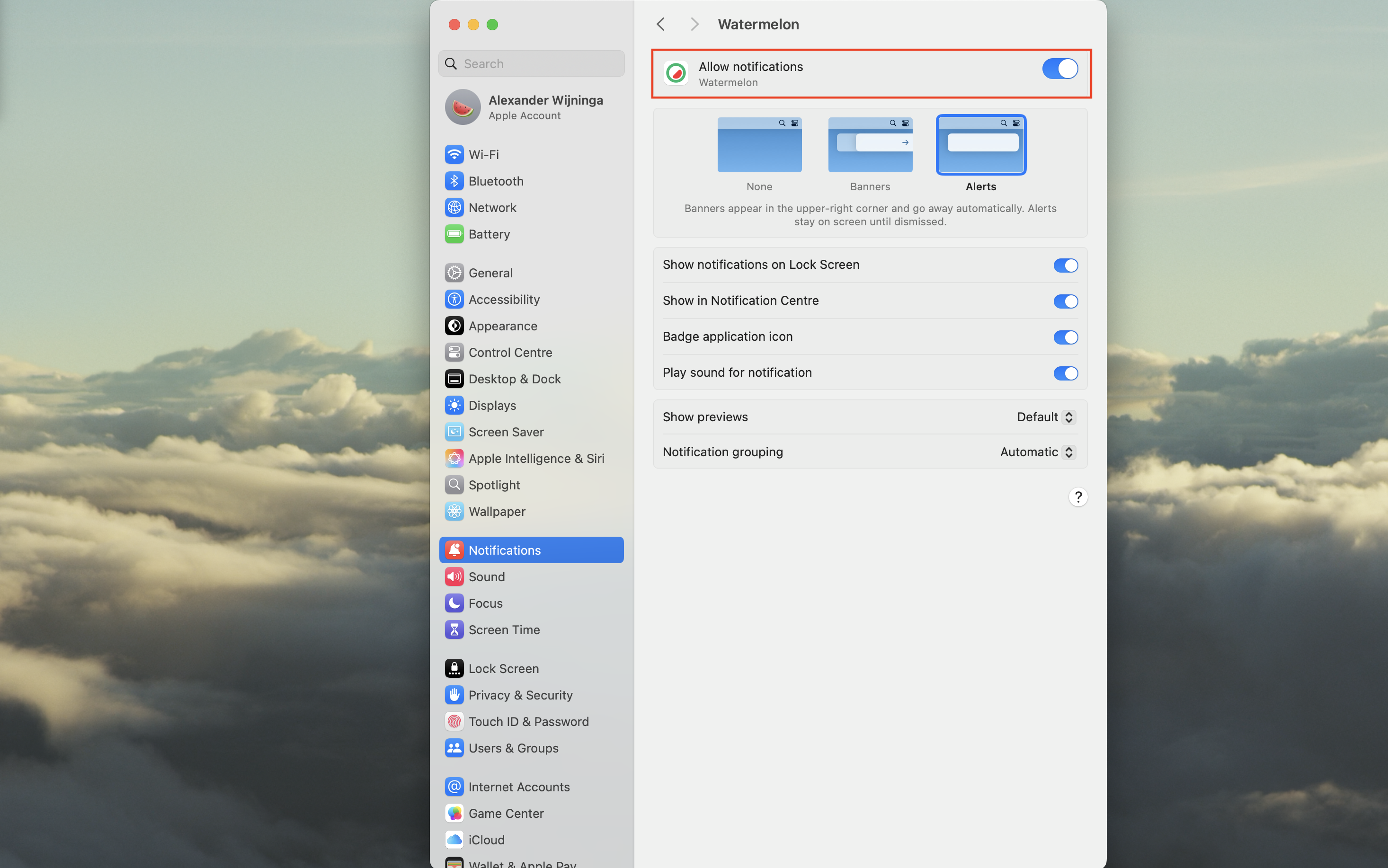
 Switch the **Allow notifications** toggle on top to allow the notifications.
 For email notifications, it's important that your email system is set up to receive emails from Watermelon. If you don’t receive emails after setting up notifications, it might be because the domain used by Watermelon to send notifications is on the 'greylist'. Emails from the "@[watermelon.ai](http://watermelon.ai)" domain may be delayed or blocked. Additionally, your spam filter might mark Watermelon notification emails as spam.
**To resolve this:**
* Contact the administrator of your email system.
* Ask them to add the **@**[**watermelon.ai**](http://watermelon.ai) domain to the 'whitelist'.
* Optionally, ask them to update the email program to the latest version.
Check if your device is not muted. If not, check the sound settings of your device.
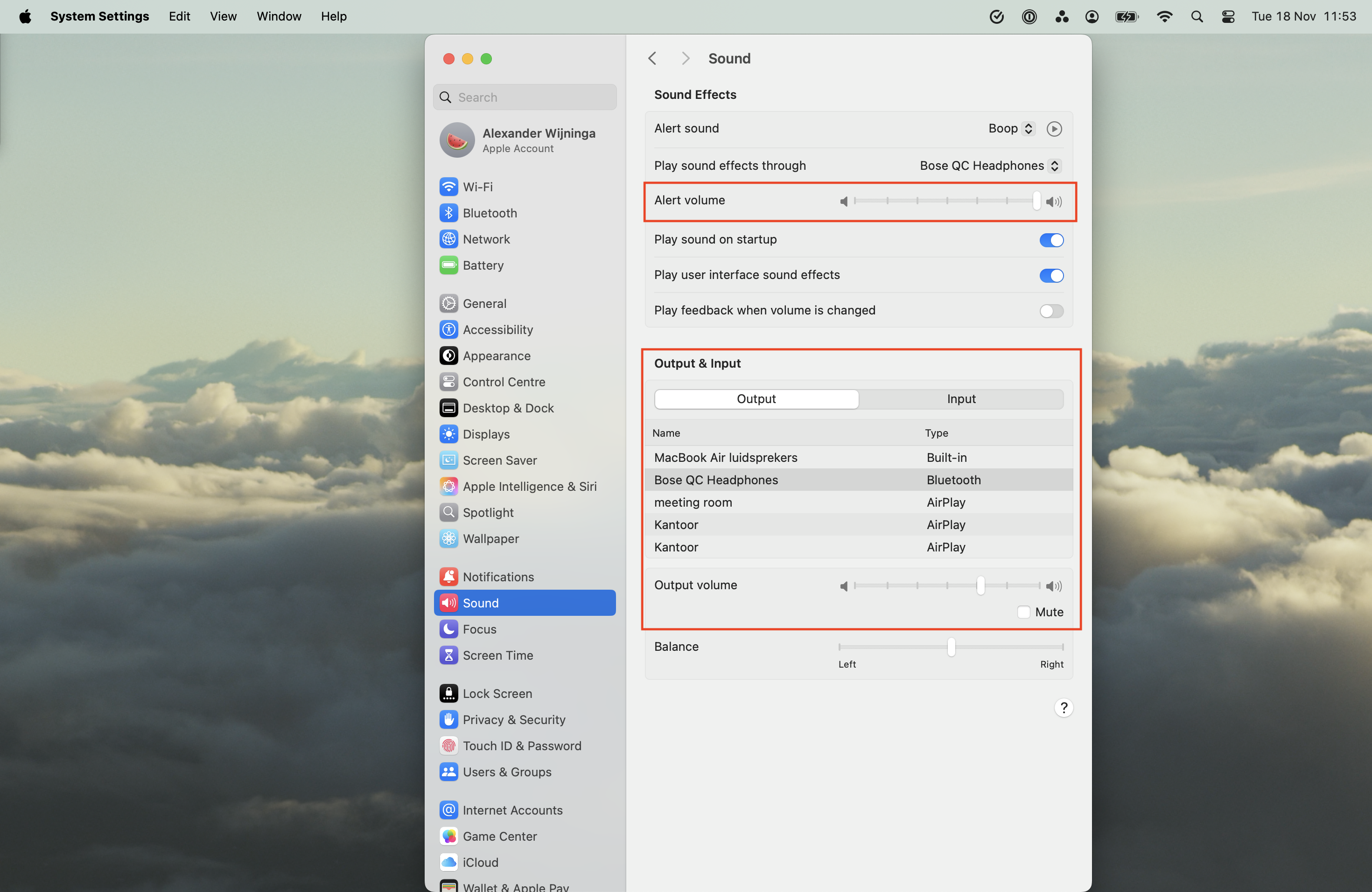
#### Sound settings for Mac users
Go to the Apple icon at the top left and open **System Preferences**.
Click on the **Sound option** in the System Preferences window.
For email notifications, it's important that your email system is set up to receive emails from Watermelon. If you don’t receive emails after setting up notifications, it might be because the domain used by Watermelon to send notifications is on the 'greylist'. Emails from the "@[watermelon.ai](http://watermelon.ai)" domain may be delayed or blocked. Additionally, your spam filter might mark Watermelon notification emails as spam.
**To resolve this:**
* Contact the administrator of your email system.
* Ask them to add the **@**[**watermelon.ai**](http://watermelon.ai) domain to the 'whitelist'.
* Optionally, ask them to update the email program to the latest version.
Check if your device is not muted. If not, check the sound settings of your device.
#### Sound settings for Mac users
Go to the Apple icon at the top left and open **System Preferences**.
Click on the **Sound option** in the System Preferences window.
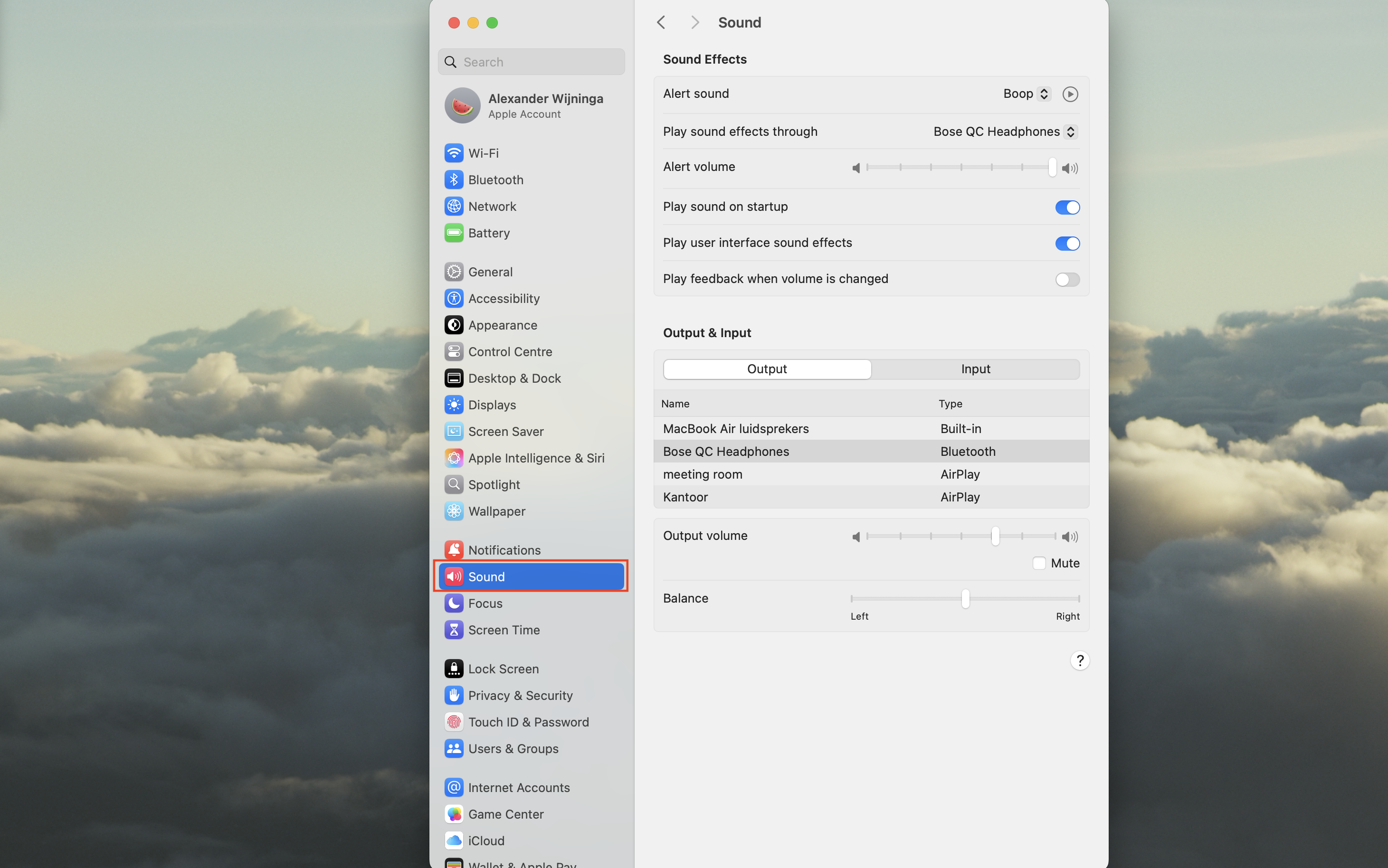 * Check that the **volume is turned up** and that the device you want to use for audio output is selected under the Output tab.
* To adjust the sound for specific apps, click on the **Output tab** and select the app you want to adjust from the list of running apps.
* Check that the **volume is turned up** and that the device you want to use for audio output is selected under the Output tab.
* To adjust the sound for specific apps, click on the **Output tab** and select the app you want to adjust from the list of running apps.
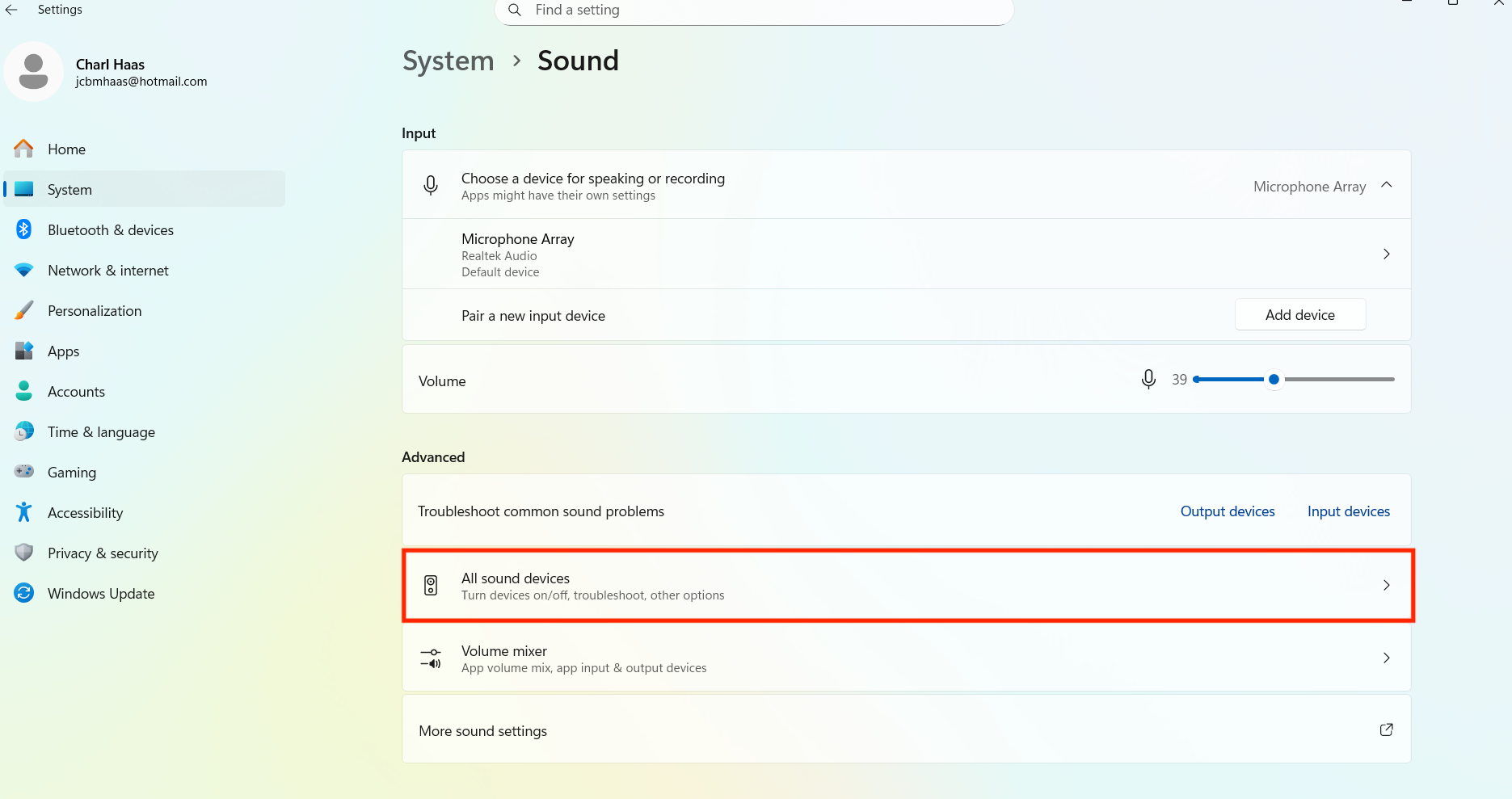
 #### **Sound settings for Windows users**
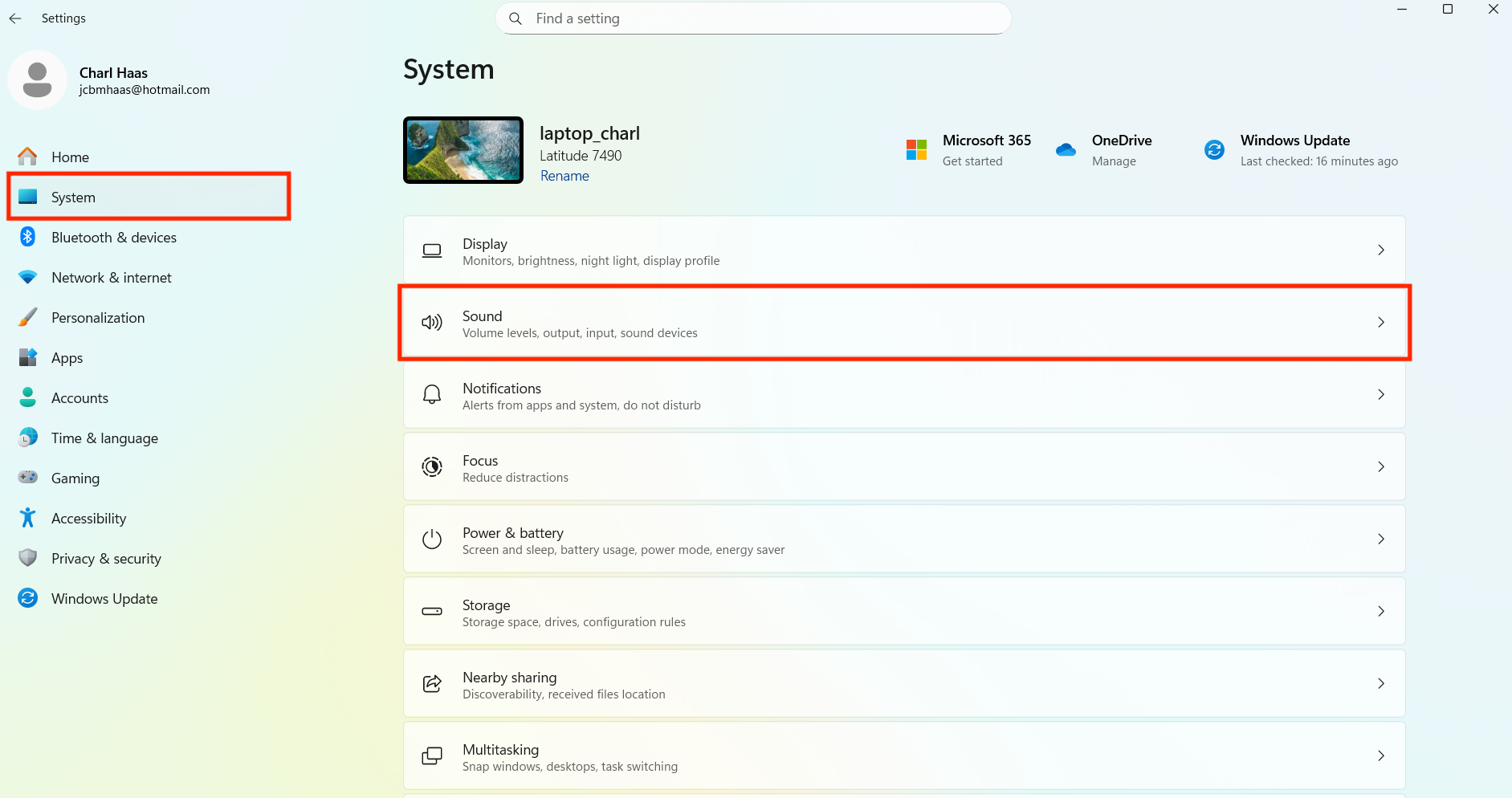
Click the **Windows icon** in the lower left corner to open **Settings** . Click on **Sytem** and open **Notifcations** .
#### **Sound settings for Windows users**
Click the **Windows icon** in the lower left corner to open **Settings** . Click on **Sytem** and open **Notifcations** .
 Check that the volume is turned up and that the device you want to use for audio output is selected under the **Output tab.**
To adjust the sound for specific apps, click on the App volume and device preferences option under the **Advanced sound options** section. Here you can select which device you want to use for audio output and adjust the volume for specific apps.
Check that the volume is turned up and that the device you want to use for audio output is selected under the **Output tab.**
To adjust the sound for specific apps, click on the App volume and device preferences option under the **Advanced sound options** section. Here you can select which device you want to use for audio output and adjust the volume for specific apps.