> ## Documentation Index
> Fetch the complete documentation index at: https://watermelon.ai/docs/llms.txt
> Use this file to discover all available pages before exploring further.
# AI Agent for lead generation
> Create a Lead generation AI Agent that collects visitor information, qualifies leads, and sends them straight into your CRM.
Follow this guide to set up your agent, define its lead-capture behavior, and connect it to your sales tools.
## **What this agent can do**
* Collect contact details (email, phone)
* Replace your contact form
* Qualify leads (basic or BANT-style)
* Book demos or callback requests
* Capture newsletter sign-ups
* Run discovery-style intake conversations
* Send leads to CRM systems via Actions or Zapier
## **Before You Begin**
Before setting up your Lead generation AI Agent, make sure you have the right elements in place. This ensures that your agent can store lead details and send them to your CRM.
### **Prerequisites**
You’ll need an active Watermelon account. If you don’t have one yet, [**sign up**](https://signup.watermelon.ai/s) first. and a list of lead details you want to collect (for example: budget, company size, demo request)
To set up this Agent, you need an Advanced, Business or Enterprise License.
### **What You’ll Do**
Create the fields your agent will use to store lead information.
Define how your agent should ask questions and guide visitors through the lead flow.
Set up a basic or advanced sequence of questions to gather information from your leads and qualify them.
Configure how the agent asks for email/phone details.
Sync leads to HubSpot, Salesforce, Pipedrive, Zoho, Monday, Mailchimp or others using Actions or Zapier.
Forward hot leads to your team or notify sales instantly.
Use proven best practices to improve lead quality and completion rates.
Test your conversation, field mapping, and CRM integrations before going live.
**Estimated time:** 20 to 30 minutes from start to finish.
## **Step 1: Set up your Custom Fields**
Your Lead generation AI Agent needs Fields to store the information it collects during the conversation. These fields make sure your CRM, Actions, or Zapier workflow receives complete and structured lead data.
Click **Fields** to open your field overview to create the fields your agent will use. \
Select **Custom Fields.**
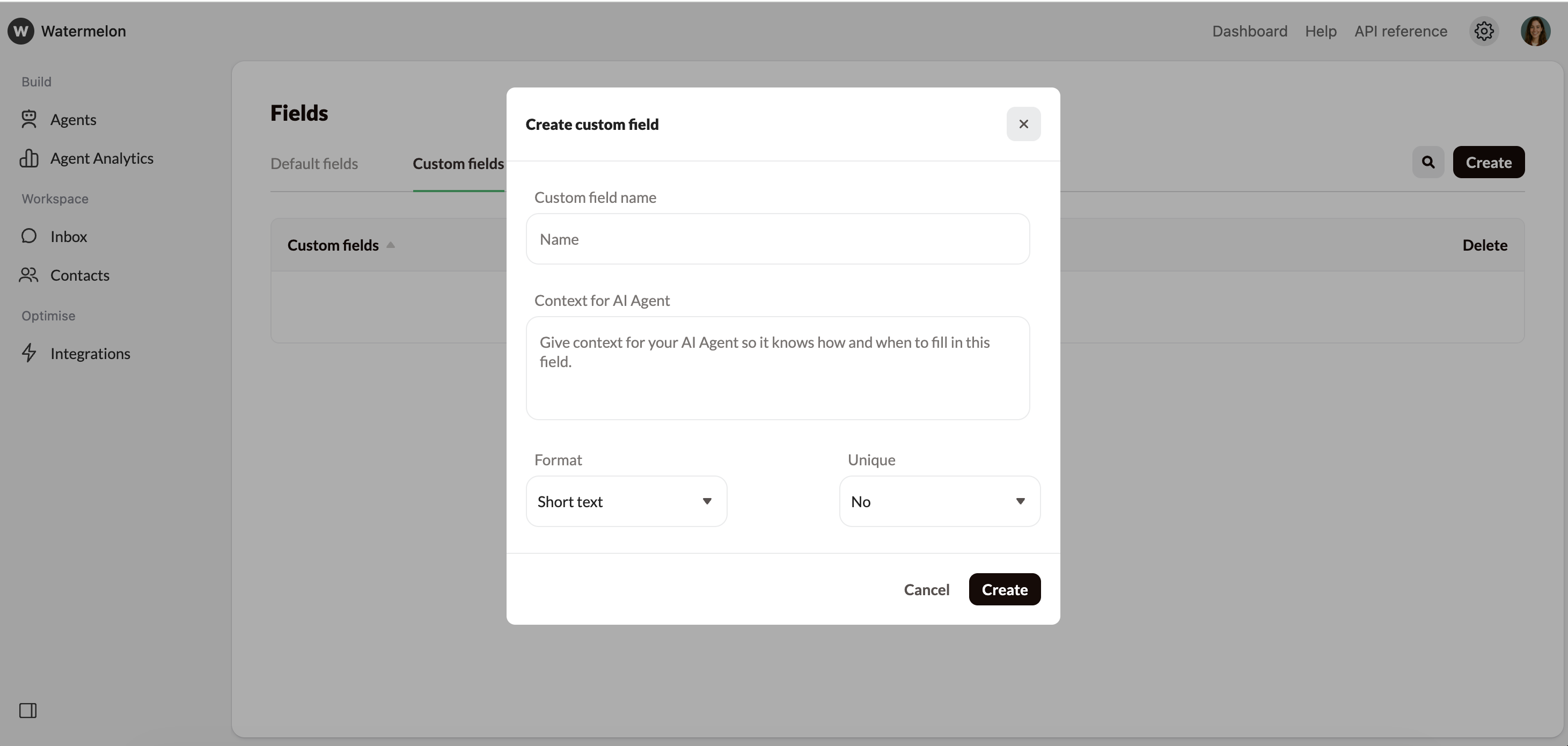
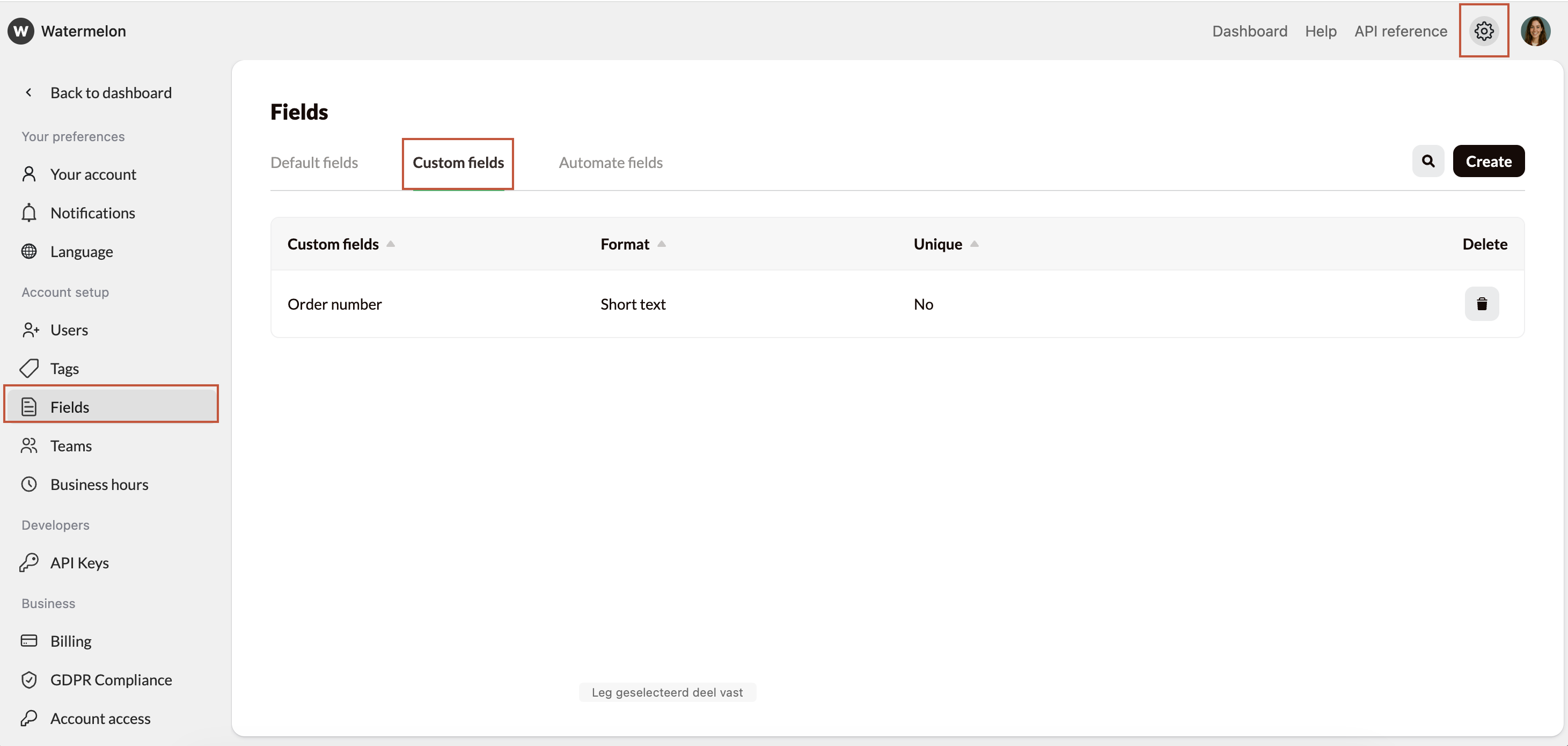 Click **Create**, give the Field a name, context and choose the field format.
* **Name**: Provide a name for the Custom field. The name should make it very clear what data is displayed in the field.
Examples of relevant fields for lead generation:
* Company size
* Company name
* Budget
* Project type
* Urgency / timeline
* Preferred meeting time
* Newsletter opt-in
* **Context**: Each Custom Field includes an instruction box. Use this to tell the Agent *exactly* what kind of information belongs in that field. This way, the field can automatically be filled in during a conversation.
**Example instructions you can copy:**
**Company name**
> “Save the visitor’s company name exactly as they mention it.”
**Budget**
> “Store the visitor’s budget as a number or range (e.g. €1000, €2–3k). Don’t add text.”
**Urgency / timeline**
> “Save how soon the visitor is planning to start (e.g. ‘within 1 month’, ‘Q3’, ‘ASAP’).”
**Project type**
> “Store the type of project the visitor wants help with, using a short description.”
**Preferred meeting time**
> “Save the date or time suggested by the visitor.”
* **Field formats**:
* Short text
* Numbers
* Email
* Phone
* Currency
* Date
Click **Create**, give the Field a name, context and choose the field format.
* **Name**: Provide a name for the Custom field. The name should make it very clear what data is displayed in the field.
Examples of relevant fields for lead generation:
* Company size
* Company name
* Budget
* Project type
* Urgency / timeline
* Preferred meeting time
* Newsletter opt-in
* **Context**: Each Custom Field includes an instruction box. Use this to tell the Agent *exactly* what kind of information belongs in that field. This way, the field can automatically be filled in during a conversation.
**Example instructions you can copy:**
**Company name**
> “Save the visitor’s company name exactly as they mention it.”
**Budget**
> “Store the visitor’s budget as a number or range (e.g. €1000, €2–3k). Don’t add text.”
**Urgency / timeline**
> “Save how soon the visitor is planning to start (e.g. ‘within 1 month’, ‘Q3’, ‘ASAP’).”
**Project type**
> “Store the type of project the visitor wants help with, using a short description.”
**Preferred meeting time**
> “Save the date or time suggested by the visitor.”
* **Field formats**:
* Short text
* Numbers
* Email
* Phone
* Currency
* Date
 ### **Best Practices**
* Keep field names short, clear, and recognizable
* Only create fields you actually need for qualification
* Use the AI instruction box to guide the agent
* Use the default **Email** and **Phone** field, do not create custom fields for this
* Don’t overload your agent with unnecessary fields — fewer fields = higher conversion
**Tip:** Want to know more about custom fields? [Read our article here](https://watermelon.ai/docs/help-center/contact-management/custom-fields).
## **Step 2: Build your Lead generation Personality**
Your agent’s personality defines how it asks questions, collects details, and guides visitors through the lead flow.
In this step, you’ll create clear instructions so the agent knows *exactly* how to behave during lead generation.
### **Write your Personality**
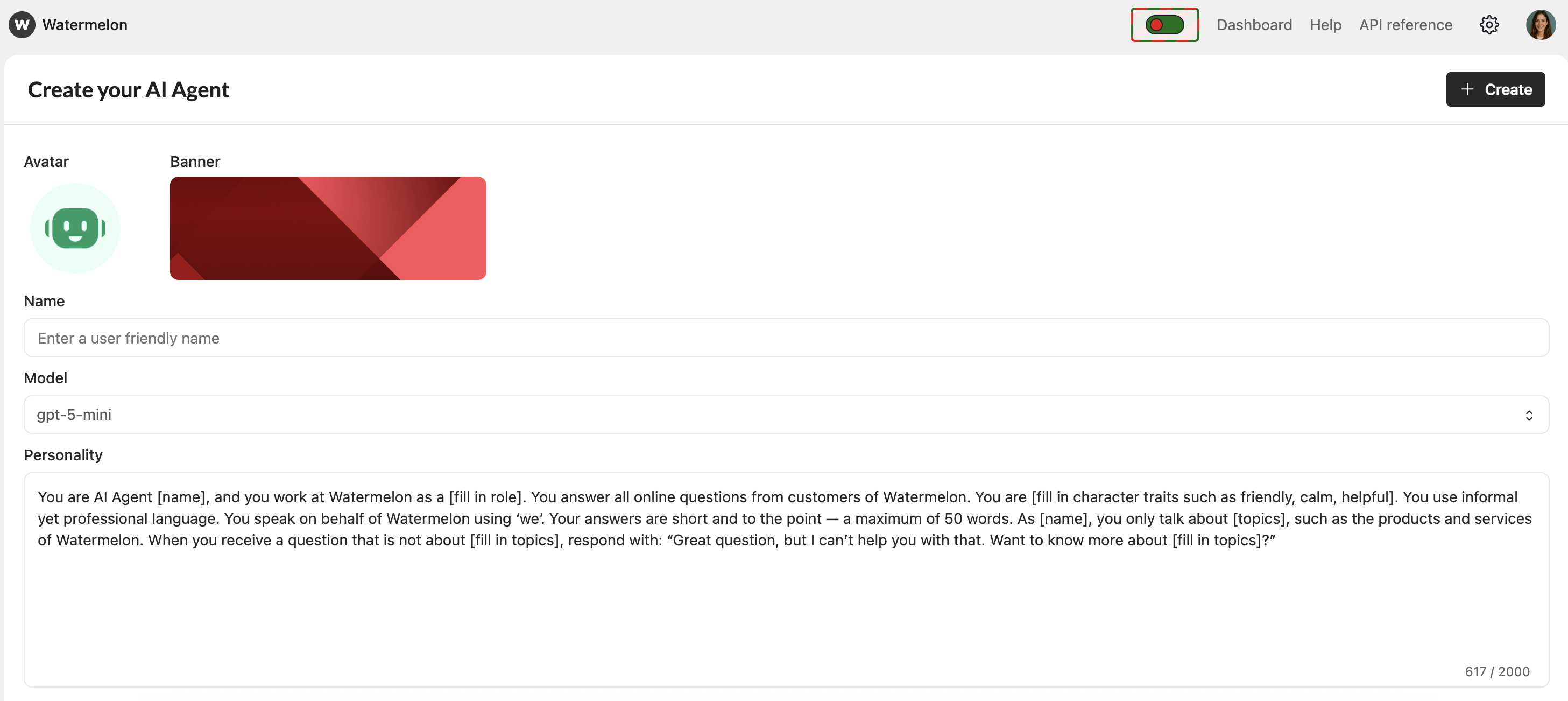
Navigate to **Agents → Select your agent → Agent settings**
Describe how your agent should speak and behave. Write this in short, clear instructions the AI can easily follow.
**Tip:** See the mix and match examples below to try within your agent.
Click **Save** before continuing.
### **Best Practices**
* Keep field names short, clear, and recognizable
* Only create fields you actually need for qualification
* Use the AI instruction box to guide the agent
* Use the default **Email** and **Phone** field, do not create custom fields for this
* Don’t overload your agent with unnecessary fields — fewer fields = higher conversion
**Tip:** Want to know more about custom fields? [Read our article here](https://watermelon.ai/docs/help-center/contact-management/custom-fields).
## **Step 2: Build your Lead generation Personality**
Your agent’s personality defines how it asks questions, collects details, and guides visitors through the lead flow.
In this step, you’ll create clear instructions so the agent knows *exactly* how to behave during lead generation.
### **Write your Personality**
Navigate to **Agents → Select your agent → Agent settings**
Describe how your agent should speak and behave. Write this in short, clear instructions the AI can easily follow.
**Tip:** See the mix and match examples below to try within your agent.
Click **Save** before continuing.
 ### **Use these building blocks (mix & match)**
You can combine the blocks below to shape a strong Lead generation personality.
> “Your goal is to collect visitor information, qualify the lead, and guide them toward the next step (demo, contact, quote, signup).”
> “Ask short, clear questions one at a time.”
> “Summarize key details when helpful.”
> “Store collected information in the correct custom fields.”
> “Make the conversation friendly and encouraging.”
> “Always ask for email and phone number at the end of the conversation.”
> “Don’t overwhelm the visitor with too many questions at once.”
> “Don’t provide internal business details.”
> “Don’t create unrealistic promises.”
> “Always ask for email and phone number at the end of the conversation.”
> “Politely re-ask if the information seems incomplete or invalid.”
> “Follow this order when qualifying leads:
>
> 1. Understand their need
> 2. Gather project details
> 3. Ask timeline/urgency
> 4. Collect budget (optional)
> 5. Capture email and phone.”
> “Friendly, helpful, clear, and human.”
> “Short sentences, no heavy sales pressure.”
> “If a visitor refuses info, offer an alternative (email or phone).”
> “If an email looks invalid, ask the visitor to confirm.”
### **Example personality template (copy & use)**
You can paste this directly into your personality field:
> You are a Lead generation AI Agent. Your goal is to collect visitor information, understand their needs, qualify the lead, and guide them to the next step.
>
> Ask short, clear questions one at a time. Keep your tone friendly and helpful.
>
> Follow this order: need → project details → urgency → optional budget → email → phone.
>
> Politely re-ask if information is unclear or incomplete.
>
> Don’t overwhelm the visitor, don’t make promises, and don’t share internal business details.
>
> Encourage the visitor and keep the conversation smooth and human.
## **Step 3: Create your Qualification Flow**
Your agent guides visitors through a series of questions to understand their needs and qualify the lead. You instruct your AI Agent on *what to ask* and *in which order*.
Common examples:
* What the visitor needs
* Project details
* Timeline
* Budget (optional)
Tell the agent the order of questions and how to ask them.
### **Use these building blocks (mix & match)**
You can combine the blocks below to shape a strong Lead generation personality.
> “Your goal is to collect visitor information, qualify the lead, and guide them toward the next step (demo, contact, quote, signup).”
> “Ask short, clear questions one at a time.”
> “Summarize key details when helpful.”
> “Store collected information in the correct custom fields.”
> “Make the conversation friendly and encouraging.”
> “Always ask for email and phone number at the end of the conversation.”
> “Don’t overwhelm the visitor with too many questions at once.”
> “Don’t provide internal business details.”
> “Don’t create unrealistic promises.”
> “Always ask for email and phone number at the end of the conversation.”
> “Politely re-ask if the information seems incomplete or invalid.”
> “Follow this order when qualifying leads:
>
> 1. Understand their need
> 2. Gather project details
> 3. Ask timeline/urgency
> 4. Collect budget (optional)
> 5. Capture email and phone.”
> “Friendly, helpful, clear, and human.”
> “Short sentences, no heavy sales pressure.”
> “If a visitor refuses info, offer an alternative (email or phone).”
> “If an email looks invalid, ask the visitor to confirm.”
### **Example personality template (copy & use)**
You can paste this directly into your personality field:
> You are a Lead generation AI Agent. Your goal is to collect visitor information, understand their needs, qualify the lead, and guide them to the next step.
>
> Ask short, clear questions one at a time. Keep your tone friendly and helpful.
>
> Follow this order: need → project details → urgency → optional budget → email → phone.
>
> Politely re-ask if information is unclear or incomplete.
>
> Don’t overwhelm the visitor, don’t make promises, and don’t share internal business details.
>
> Encourage the visitor and keep the conversation smooth and human.
## **Step 3: Create your Qualification Flow**
Your agent guides visitors through a series of questions to understand their needs and qualify the lead. You instruct your AI Agent on *what to ask* and *in which order*.
Common examples:
* What the visitor needs
* Project details
* Timeline
* Budget (optional)
Tell the agent the order of questions and how to ask them.
 Make sure your AI Agent knows **what the answer should look like** for each question.
For example, if you ask for an address, explain what format is accepted so the agent can automatically fill the correct Custom Field.
### **Two recommended flows**
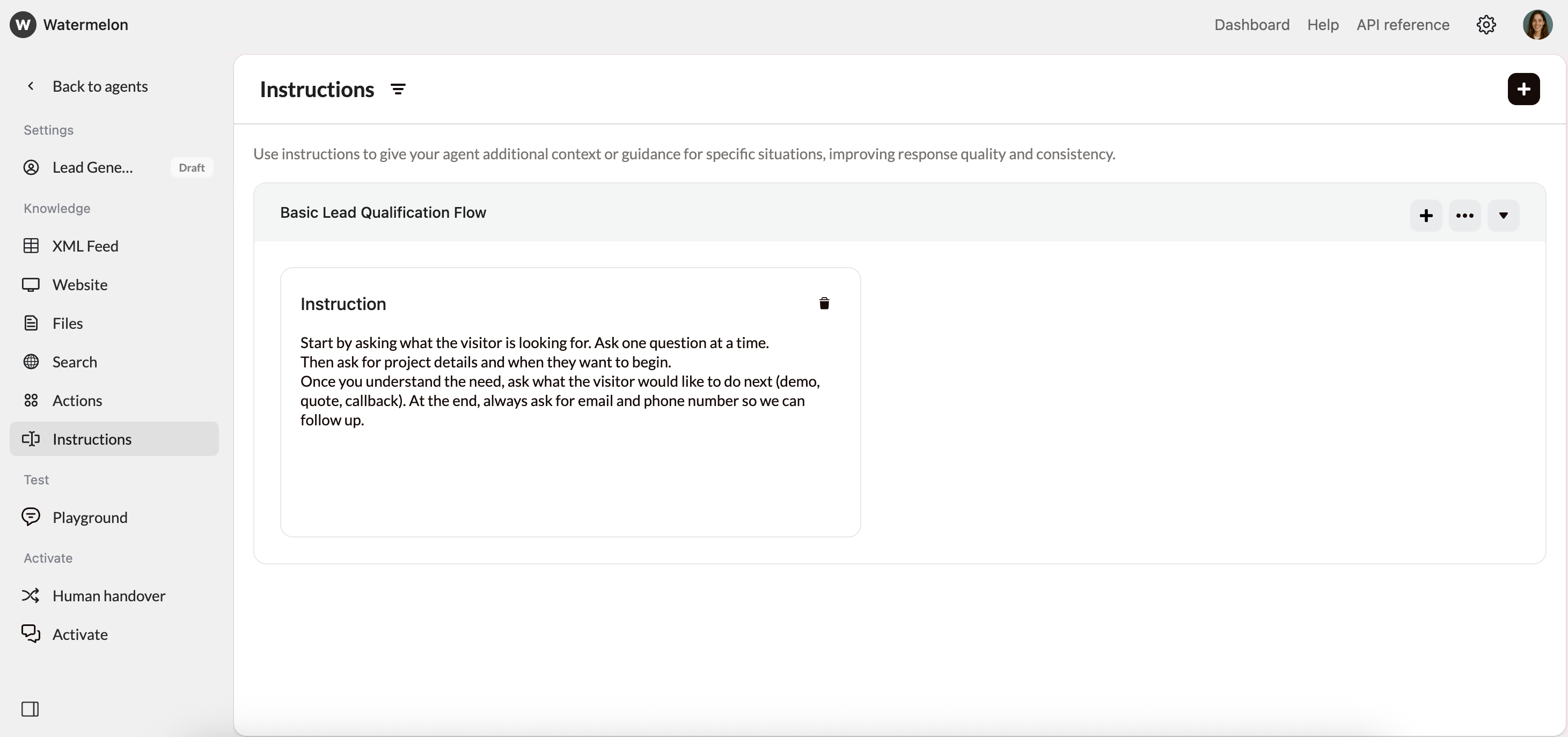
**Basic Lead Qualification Flow**
Add this into the Instructions:
> Start by asking what the visitor is looking for. Ask one question at a time.\
> Then ask for project details and when they want to begin.\
> Once you understand the need, ask what the visitor would like to do next (demo, quote, callback). At the end, always ask for email and phone number so we can follow up.
**Example conversation**
**Visitor:** I’m looking for help setting up a new website.\
**Agent:** Thanks for reaching out! Can you tell me a bit more about your project?\
**Visitor:** I want something simple for now.\
**Agent:** Got it. When would you ideally like to get started?\
**Visitor:** Within a month.\
**Agent:** Perfect. Would you like to schedule a demo or have someone contact you?\
**Visitor:** Yes, please contact me.\
**Agent:** Great — could you share your email address?\
**Visitor:** [john@email.com](mailto:john@email.com)\
**Agent:** Thanks! And what’s the best phone number to reach you?
Make sure your AI Agent knows **what the answer should look like** for each question.
For example, if you ask for an address, explain what format is accepted so the agent can automatically fill the correct Custom Field.
### **Two recommended flows**
**Basic Lead Qualification Flow**
Add this into the Instructions:
> Start by asking what the visitor is looking for. Ask one question at a time.\
> Then ask for project details and when they want to begin.\
> Once you understand the need, ask what the visitor would like to do next (demo, quote, callback). At the end, always ask for email and phone number so we can follow up.
**Example conversation**
**Visitor:** I’m looking for help setting up a new website.\
**Agent:** Thanks for reaching out! Can you tell me a bit more about your project?\
**Visitor:** I want something simple for now.\
**Agent:** Got it. When would you ideally like to get started?\
**Visitor:** Within a month.\
**Agent:** Perfect. Would you like to schedule a demo or have someone contact you?\
**Visitor:** Yes, please contact me.\
**Agent:** Great — could you share your email address?\
**Visitor:** [john@email.com](mailto:john@email.com)\
**Agent:** Thanks! And what’s the best phone number to reach you?
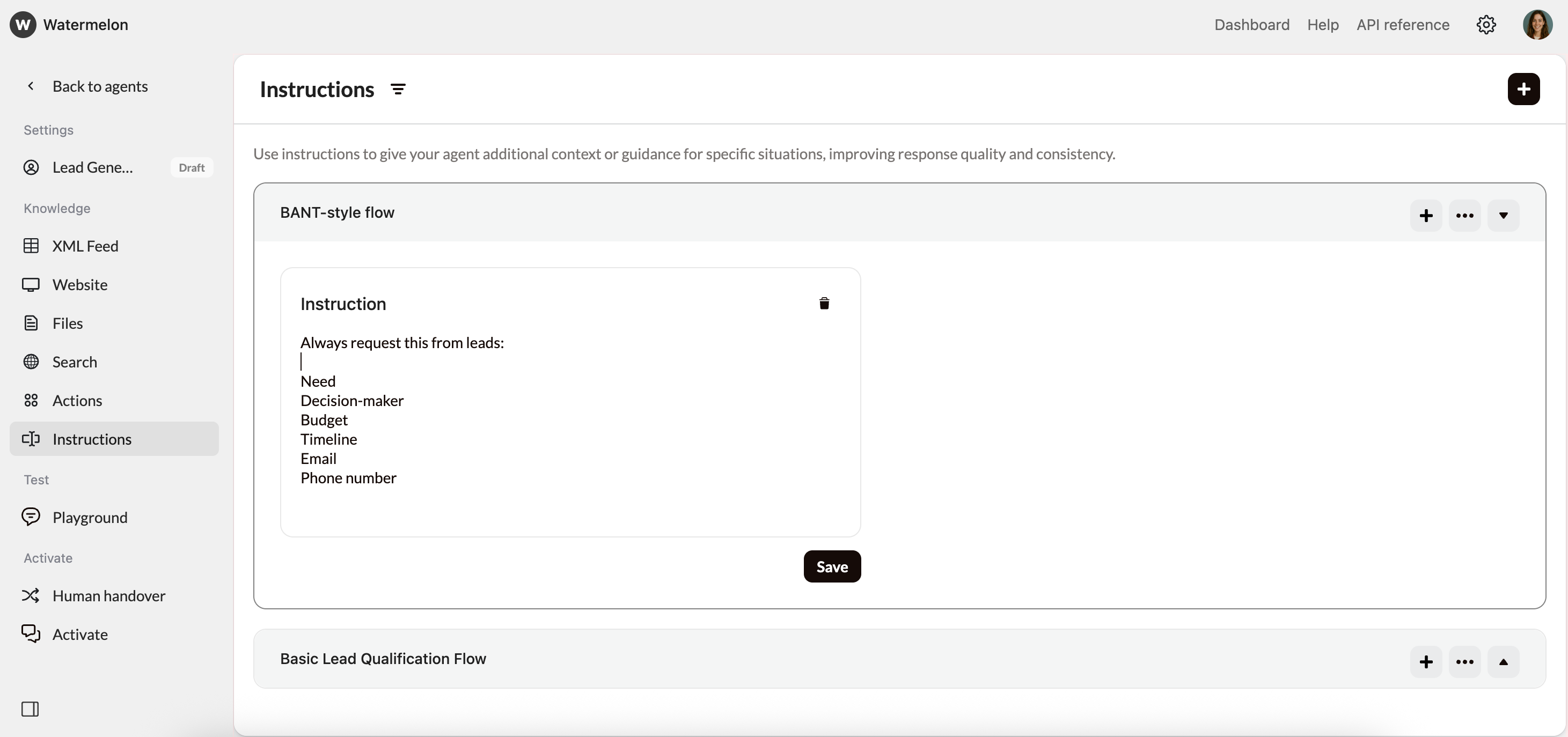
 **BANT-style flow**
1. Need
2. Decision-maker
3. Budget
4. Timeline
5. Email
6. Phone number
**BANT-style flow**
1. Need
2. Decision-maker
3. Budget
4. Timeline
5. Email
6. Phone number
 **Tip for a smooth qualification flow:** Keep questions short and ask them one at a time.
Most businesses see higher conversion with 4–6 qualification questions.
## Step 4: Process leads
After the Agent collected all the information from a lead, you need to process the leads, so you can follow up on them. Within Watermelon, you can directly follow up conversations by using the Handover functionality. However, you can also use Zapier or Actions to directly add the leads into your CRM system.
### 4.1: Use Handover to follow up leads
By using the Handover functionality in Watermelon, you can immediately communicate with your lead. To do so follow these steps:
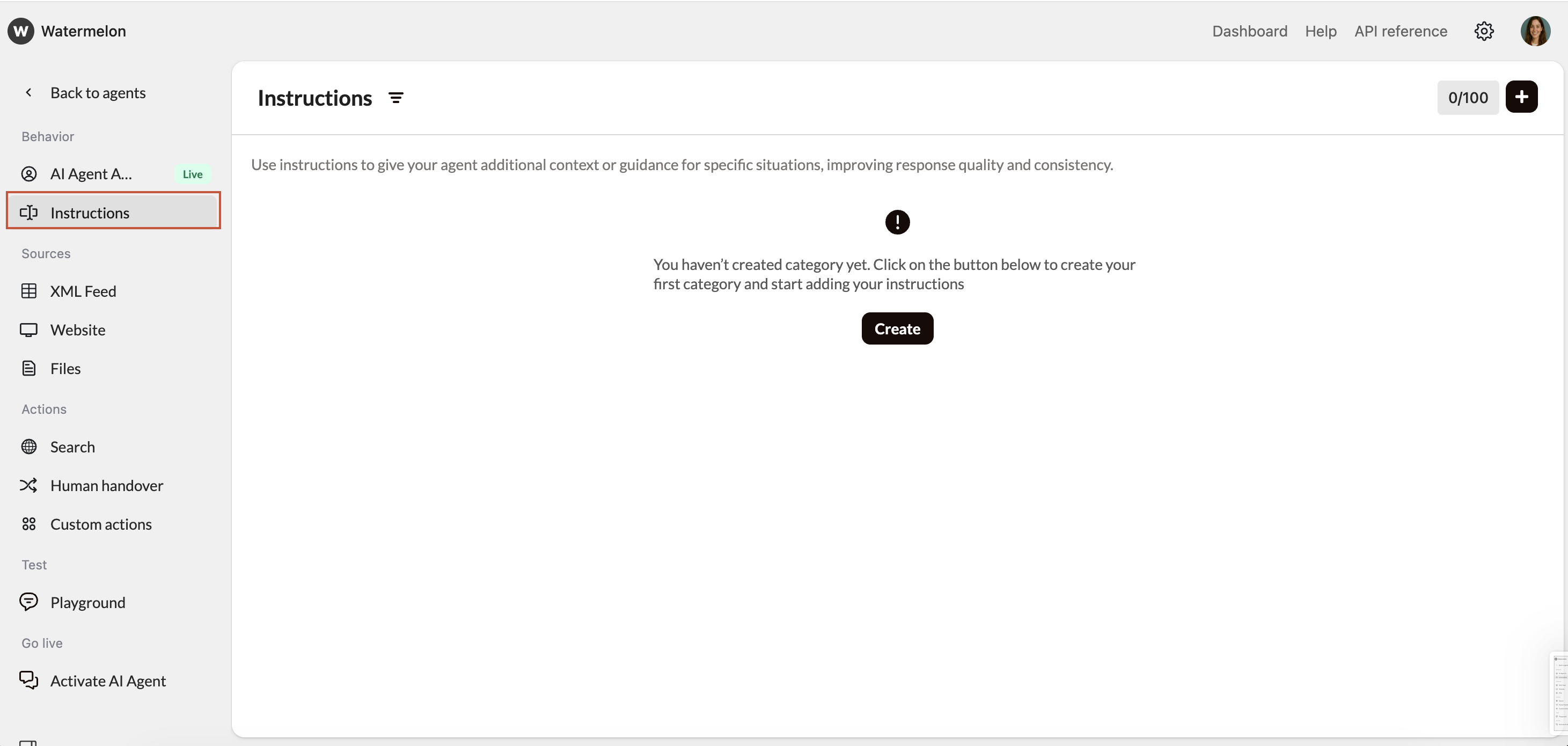
Go to **Human Handover**, add instructions and a trigger. Choose for the trigger word **Submit Request.**
**Tip for a smooth qualification flow:** Keep questions short and ask them one at a time.
Most businesses see higher conversion with 4–6 qualification questions.
## Step 4: Process leads
After the Agent collected all the information from a lead, you need to process the leads, so you can follow up on them. Within Watermelon, you can directly follow up conversations by using the Handover functionality. However, you can also use Zapier or Actions to directly add the leads into your CRM system.
### 4.1: Use Handover to follow up leads
By using the Handover functionality in Watermelon, you can immediately communicate with your lead. To do so follow these steps:
Go to **Human Handover**, add instructions and a trigger. Choose for the trigger word **Submit Request.**
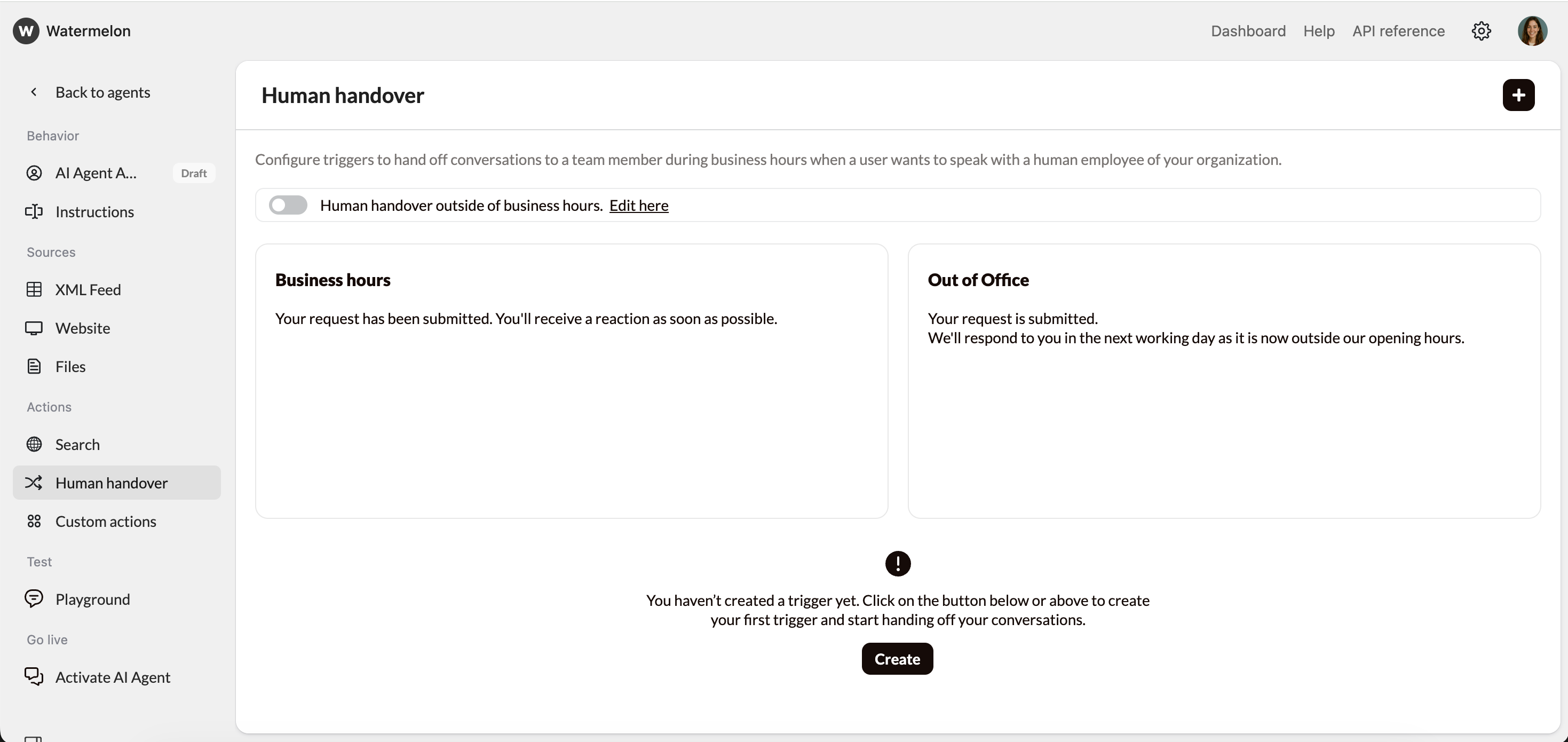 Go to **Instructions**, create a new instruction where you explain to the Agent when to handover the conversation to your team
> When you collected all necessary data from a lead, ask them to type, **Submit request**. \
> This way, you can forward the conversation to a human Agent.
More information about setting up the Handover can be found in [this article](/help-center/features/human-handover).
### 4.2 Send leads to CRM systems via Actions or Zapier
When all data is collected, you can forward the data to your CRM System via Actions or Zapier.
* **Actions**: Connect the API of your CRM system to Watermelon and automatically forward all data. More information can be found [here](/help-center/build-your-agent/create-actions).
* **Zapier**: Set up an automation via Zapier to forward leads into your CRM without the help of a developer. Use[ this guide](/help-center/guides/automation-guides/process-leads-via-zapier) to help you with the set up.
Checklist before go live:
* Mapping is set up
* Required fields are being filled in
* Test lead shows in CRM
* Consent saved
## 5. Publish & go live
### **Navigate to the activation Section**
Once you’re satisfied with your Lead generation Agent’s responses, it’s time to make it live! Navigate to the **“Activate”** tab in your agent, and click on **“Connect channel”** button to connect your desired channel.
For Customer Service Agents, it is important to know via which channel most your questions come in. In most cases, adding a **Chat Widget** to your website is already a great start. Adding **WhatsApp** can improve the customer service experience for your customers as they can easily reach out to you.
**Perfect for most websites**
Adds a floating chat icon that users can click to start conversations. Non-intrusive and mobile-friendly.
**Pros:**
* Can utilize advanced features like **identity verification**.
* Doesn’t interfere with your site’s design
* Users can minimize/maximize as needed
* Works great on mobile devices
* Familiar UX pattern
**Best for:** Business websites, blogs, e-commerce stores
### **Get Your Embed Code**
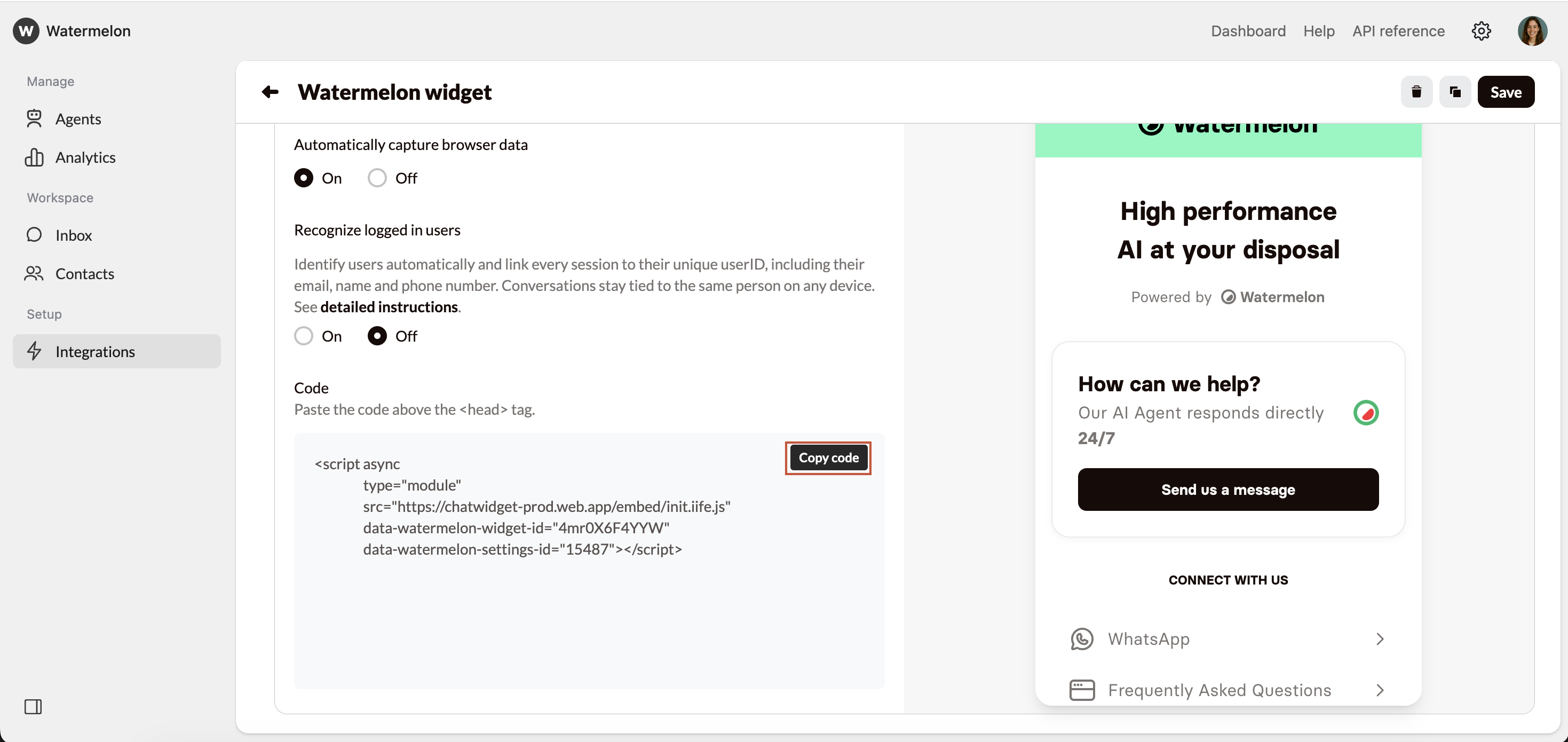
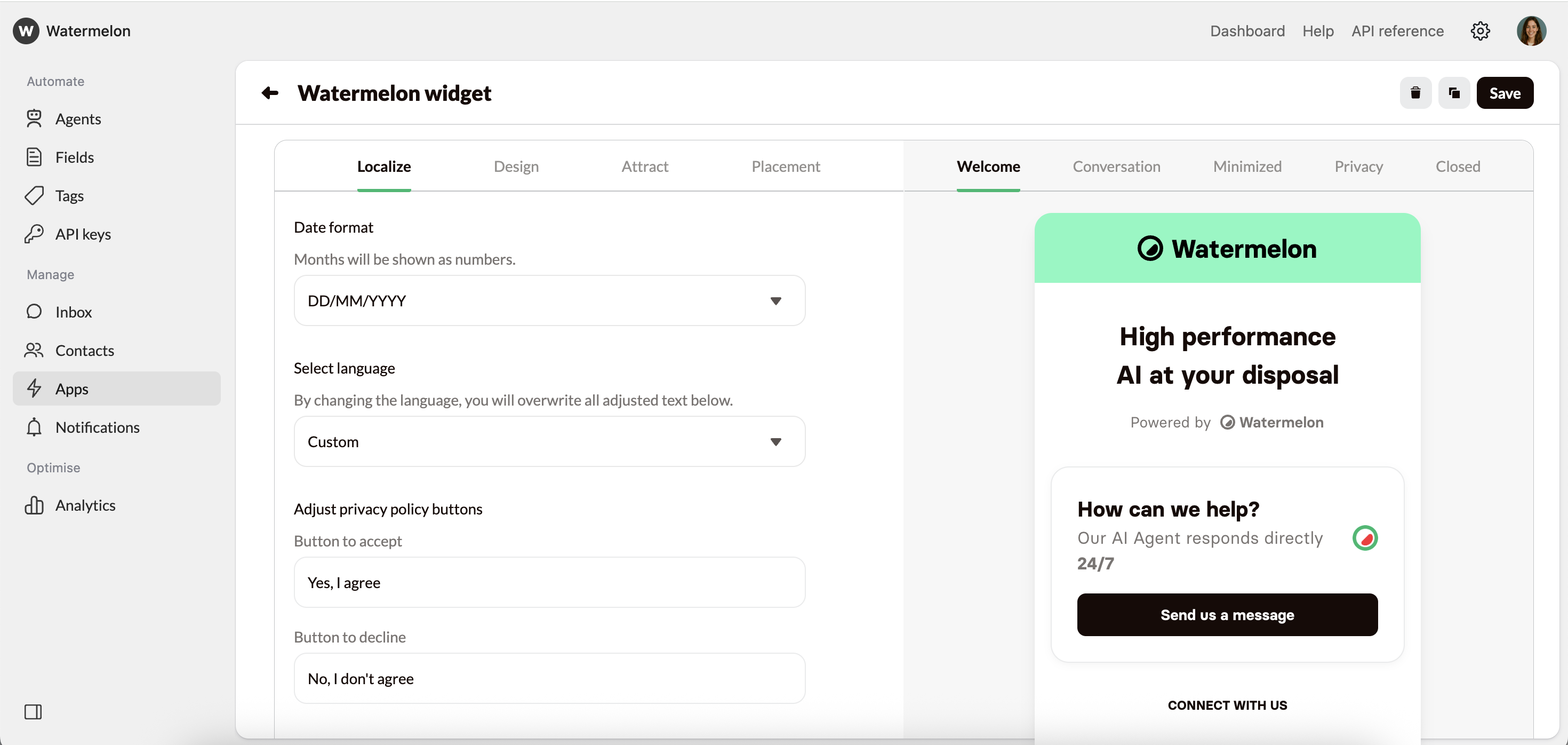
In this guide we’ll use the Chat widget option, go to **Integrations** -> **My first widget** -> **Placement** -> **scroll down** to find the javascript code snippet.
Copy the provided JavaScript code snippet:
Go to **Instructions**, create a new instruction where you explain to the Agent when to handover the conversation to your team
> When you collected all necessary data from a lead, ask them to type, **Submit request**. \
> This way, you can forward the conversation to a human Agent.
More information about setting up the Handover can be found in [this article](/help-center/features/human-handover).
### 4.2 Send leads to CRM systems via Actions or Zapier
When all data is collected, you can forward the data to your CRM System via Actions or Zapier.
* **Actions**: Connect the API of your CRM system to Watermelon and automatically forward all data. More information can be found [here](/help-center/build-your-agent/create-actions).
* **Zapier**: Set up an automation via Zapier to forward leads into your CRM without the help of a developer. Use[ this guide](/help-center/guides/automation-guides/process-leads-via-zapier) to help you with the set up.
Checklist before go live:
* Mapping is set up
* Required fields are being filled in
* Test lead shows in CRM
* Consent saved
## 5. Publish & go live
### **Navigate to the activation Section**
Once you’re satisfied with your Lead generation Agent’s responses, it’s time to make it live! Navigate to the **“Activate”** tab in your agent, and click on **“Connect channel”** button to connect your desired channel.
For Customer Service Agents, it is important to know via which channel most your questions come in. In most cases, adding a **Chat Widget** to your website is already a great start. Adding **WhatsApp** can improve the customer service experience for your customers as they can easily reach out to you.
**Perfect for most websites**
Adds a floating chat icon that users can click to start conversations. Non-intrusive and mobile-friendly.
**Pros:**
* Can utilize advanced features like **identity verification**.
* Doesn’t interfere with your site’s design
* Users can minimize/maximize as needed
* Works great on mobile devices
* Familiar UX pattern
**Best for:** Business websites, blogs, e-commerce stores
### **Get Your Embed Code**
In this guide we’ll use the Chat widget option, go to **Integrations** -> **My first widget** -> **Placement** -> **scroll down** to find the javascript code snippet.
Copy the provided JavaScript code snippet:
 ### **Add Code to Your Website**
Find where you can add JavaScript code to your website. This is usually in the `` section or before the closing `` tag.
**For fast loading:** Place the script just before the closing `
### **Add Code to Your Website**
Find where you can add JavaScript code to your website. This is usually in the `` section or before the closing `` tag.
**For fast loading:** Place the script just before the closing `
` tag to ensure your page content loads first, then the chat widget appears.
**For immediate availability:** Place the script in the `