> ## Documentation Index
> Fetch the complete documentation index at: https://watermelon.ai/docs/llms.txt
> Use this file to discover all available pages before exploring further.
# Process leads via Zapier
> When leads come into your Agent, you can forward them to your CRM system via Zapier.
Process leads via Zapier is available on the following plans: Advanced, Business and Enterprise.
You can set up an automation to forward leads to your CRM. This helps you to follow up leads and get more commercial value from your Agent. To make this happen, we need to tell the Agent when to forward the lead, which data it needs to collect and we need to build an automation to make sure the data is forwarded. To do so you need to do 3 things:
1. Set up Handover in Watermelon
2. Write instruction in Watermelon
3. Create automation in Zapier.
For this automation, you need a paid Zapier account
How does handover work?
Agent collects details → customer types trigger → Human Handover fires → CRM Action runs.
## 1. Set up Handover
Start by setting up Human Handover in Watermelon. The Handover is needed so the Agent knows in which cases the Agent needs to forward leads. The handover triggers the automation in Zapier which forwards the leads to your CRM.
Open your Agent and go to Human Handover.
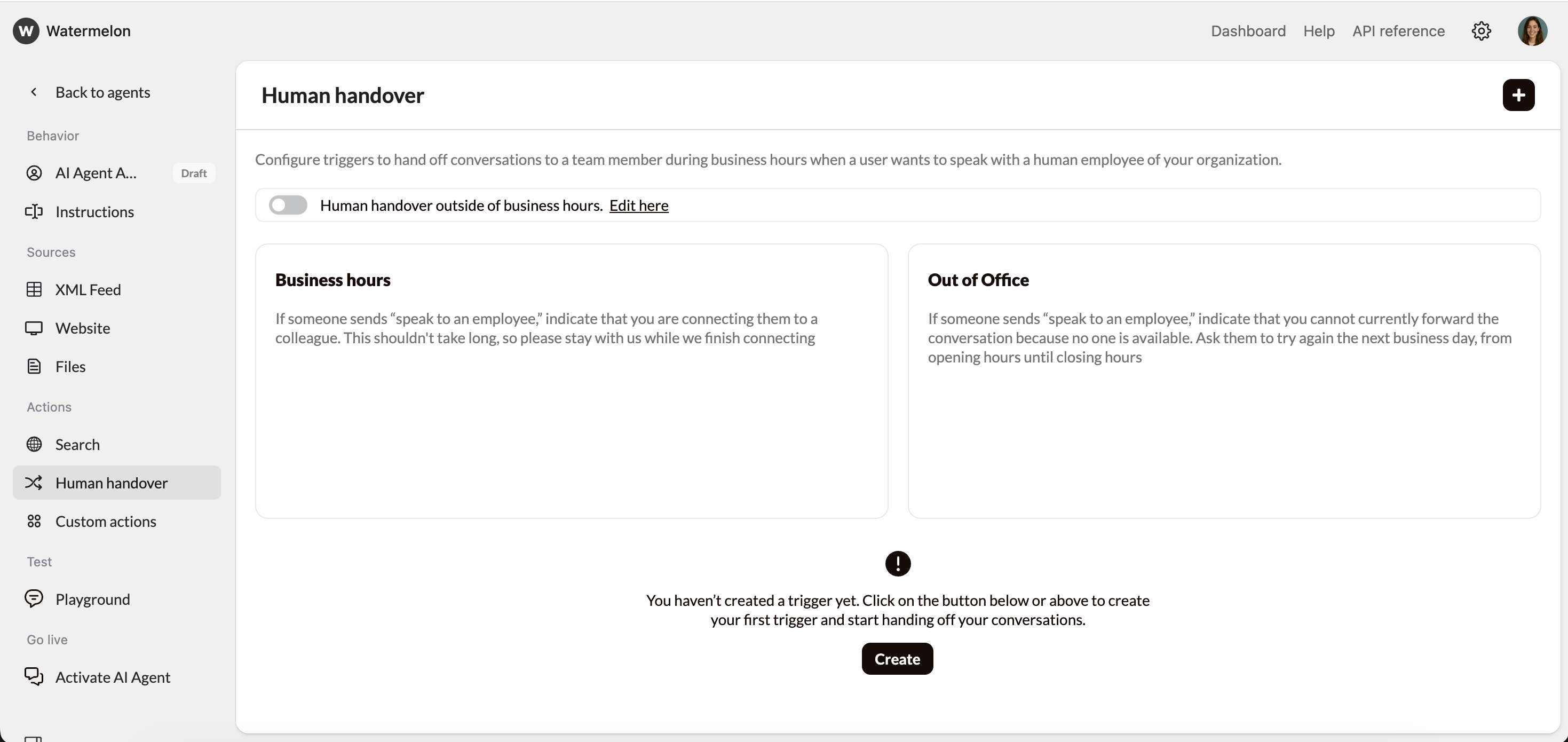 Decide if you want to forward leads outside office hours. We recommend to switch the toggle so leads outside business hours will also be forwarded to your CRM.
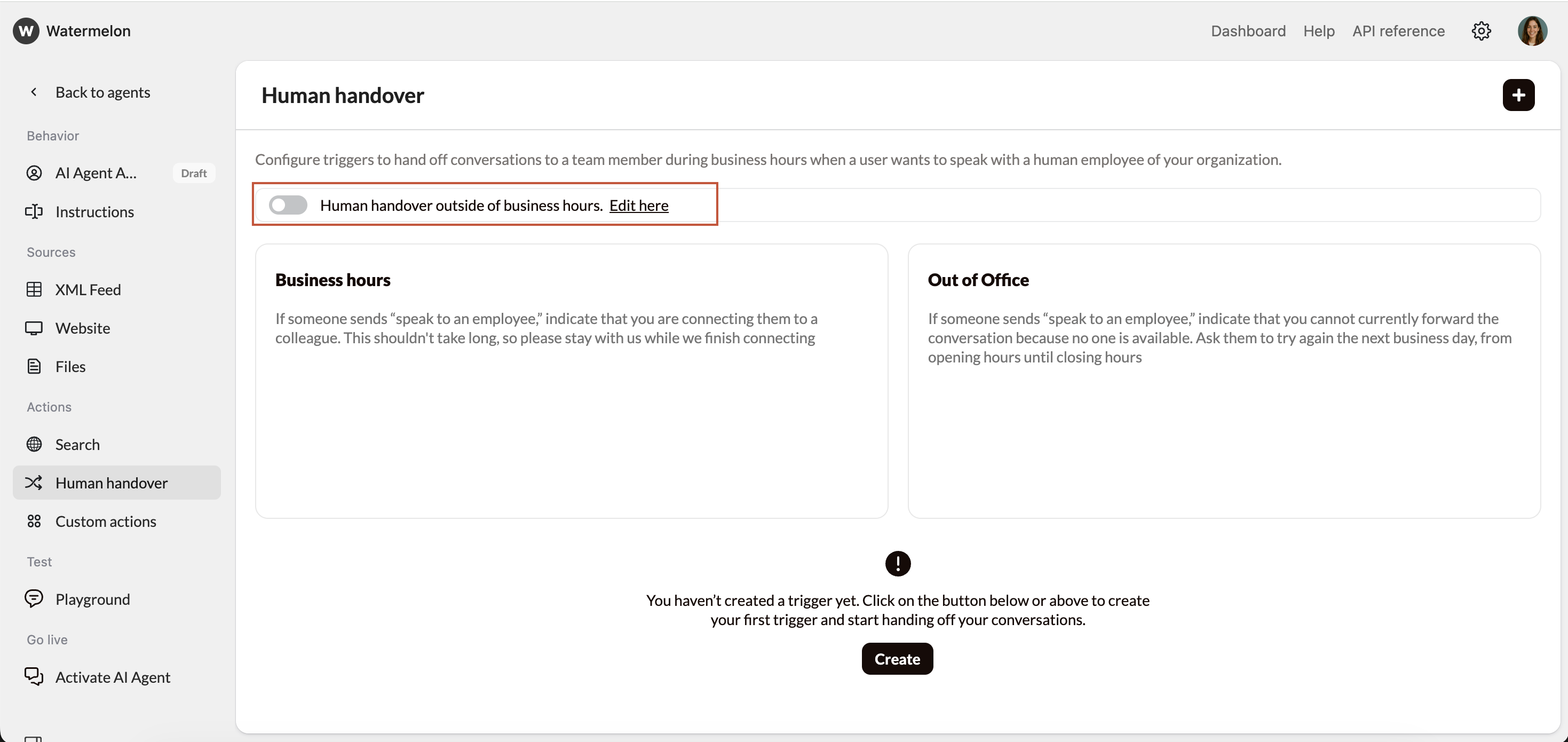 To manage expectations for the end-user, you can add instructions for the Agent what it needs to say during/outside office hours. Example:
> Your request has been submitted. Our team will reach out as soon as possible.
To manage expectations for the end-user, you can add instructions for the Agent what it needs to say during/outside office hours. Example:
> Your request has been submitted. Our team will reach out as soon as possible.
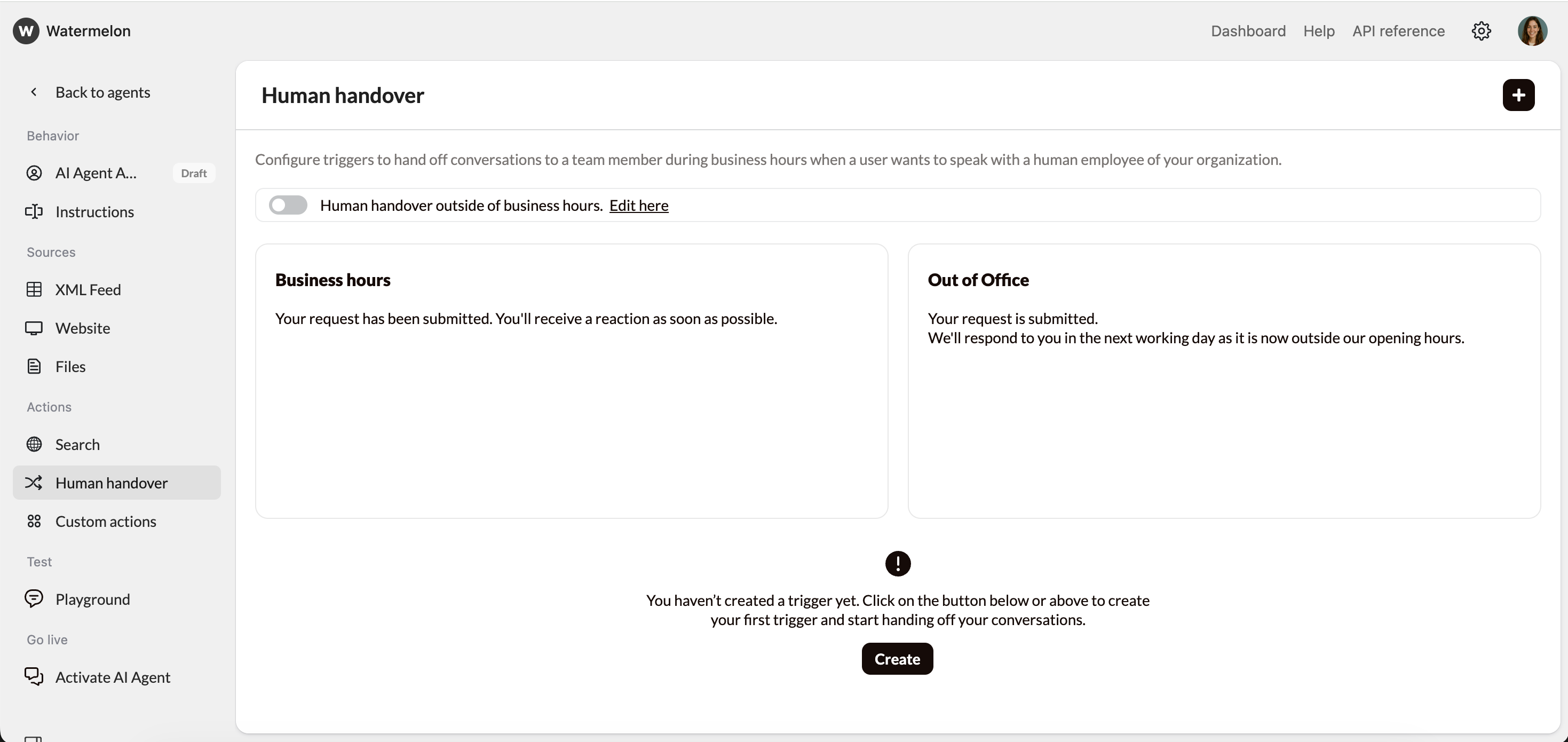 Be aware that after the handover your Agent has left the Chat. You can include this information in the instructions above.
To technically trigger the handover, we need a code word. We call this code word a trigger. When a customer types this trigger, the message is automatically forwarded.
Click **Create** to create a new Trigger and select **new** in the dropdown menu.
Suggested trigger: **Submit request.**
Be aware that after the handover your Agent has left the Chat. You can include this information in the instructions above.
To technically trigger the handover, we need a code word. We call this code word a trigger. When a customer types this trigger, the message is automatically forwarded.
Click **Create** to create a new Trigger and select **new** in the dropdown menu.
Suggested trigger: **Submit request.**
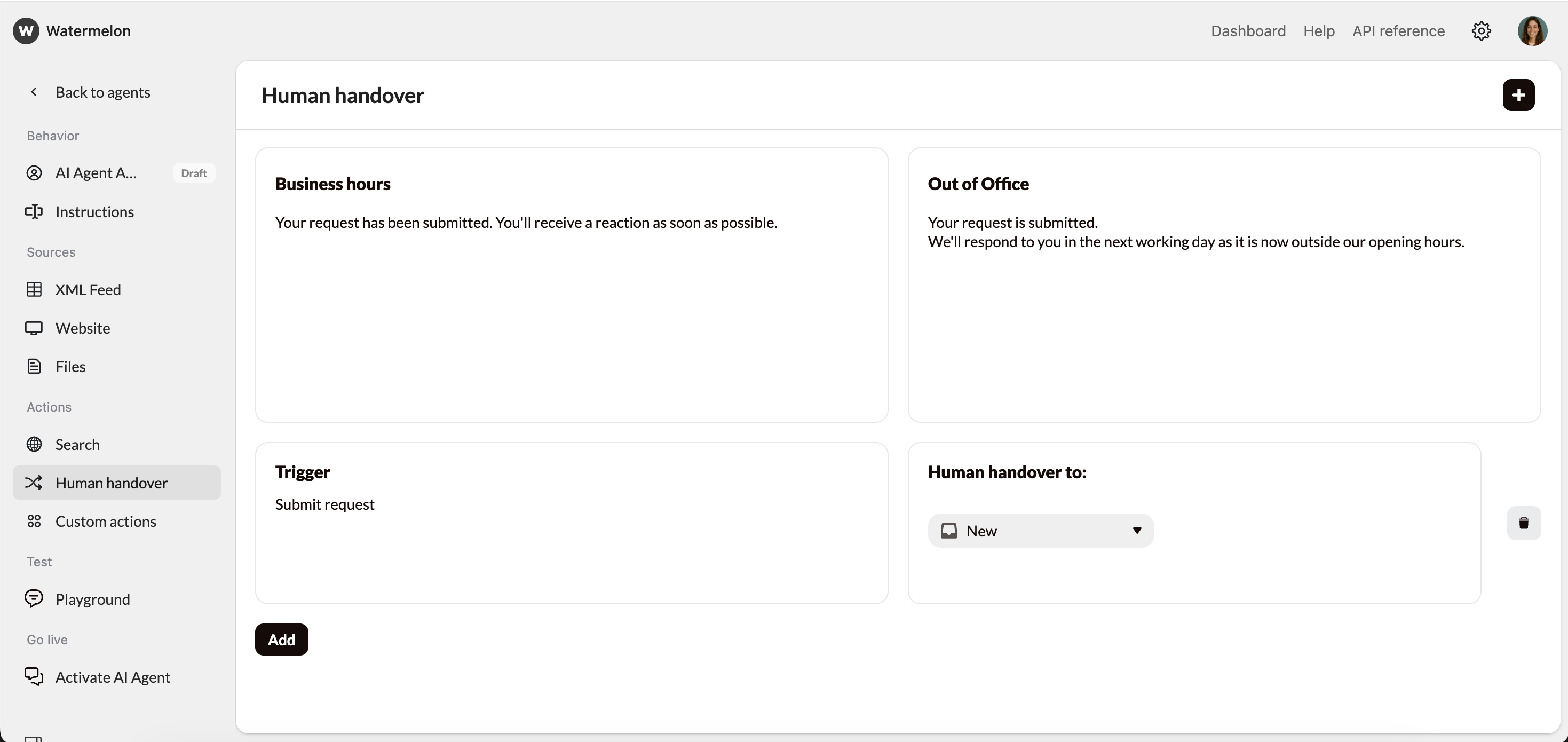 It's important to choose a trigger sentence which is not used in conversations often. Otherwise the automation might be triggered without all necessary data.
## 2. Write instruction
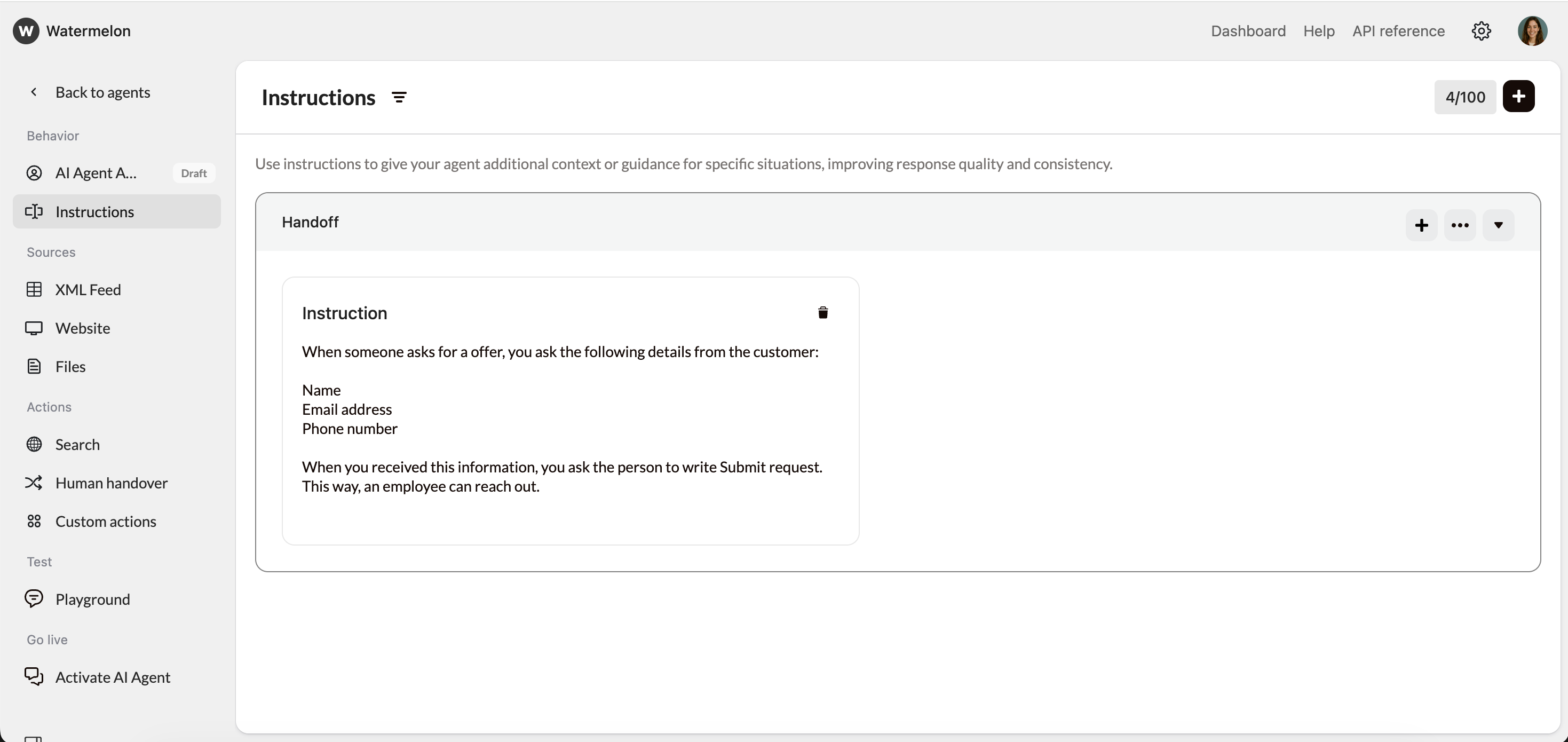
You'll now write an instruction where you explain when a customer needs to write **Submit request**.
In the Agent settings, go to **Instructions** and click **Create** to create a new instruction.
Write an instruction where you explain the following to the Agent:
1. In which case does the Agent forward the lead.
2. Add a list of all items the Agent needs to collect before the handover.
3. Lastly add the handover trigger. This trigger should be the same combination of words you used in the set up of the Handover above.
\
Example:
> When someone asks for a offer, you ask the following details from the customer:
>
> 1. Name
> 2. Email address
> 3. Phone number
>
> When you received this information, you ask the person to write **Submit request**. This way, an employee can reach out.
It's important to choose a trigger sentence which is not used in conversations often. Otherwise the automation might be triggered without all necessary data.
## 2. Write instruction
You'll now write an instruction where you explain when a customer needs to write **Submit request**.
In the Agent settings, go to **Instructions** and click **Create** to create a new instruction.
Write an instruction where you explain the following to the Agent:
1. In which case does the Agent forward the lead.
2. Add a list of all items the Agent needs to collect before the handover.
3. Lastly add the handover trigger. This trigger should be the same combination of words you used in the set up of the Handover above.
\
Example:
> When someone asks for a offer, you ask the following details from the customer:
>
> 1. Name
> 2. Email address
> 3. Phone number
>
> When you received this information, you ask the person to write **Submit request**. This way, an employee can reach out.
 ## 3. Create automation
Now everything is set up in Watermelon, we can create the automation in Zapier. This automation will make sure your chats will actually be forwarded to your CRM System.
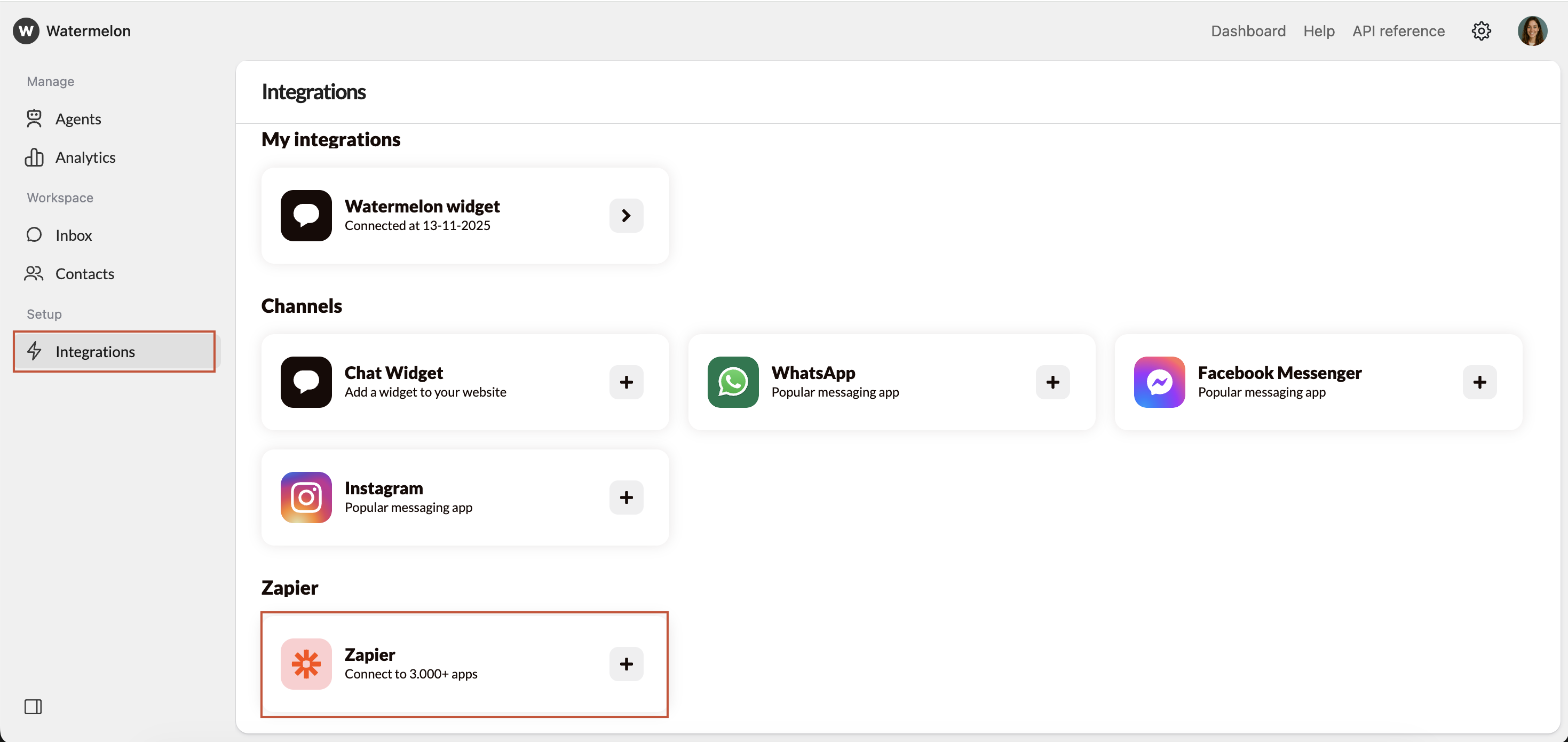
In Watermelon, go to **Integrations** and open **Zapier**.
## 3. Create automation
Now everything is set up in Watermelon, we can create the automation in Zapier. This automation will make sure your chats will actually be forwarded to your CRM System.
In Watermelon, go to **Integrations** and open **Zapier**.
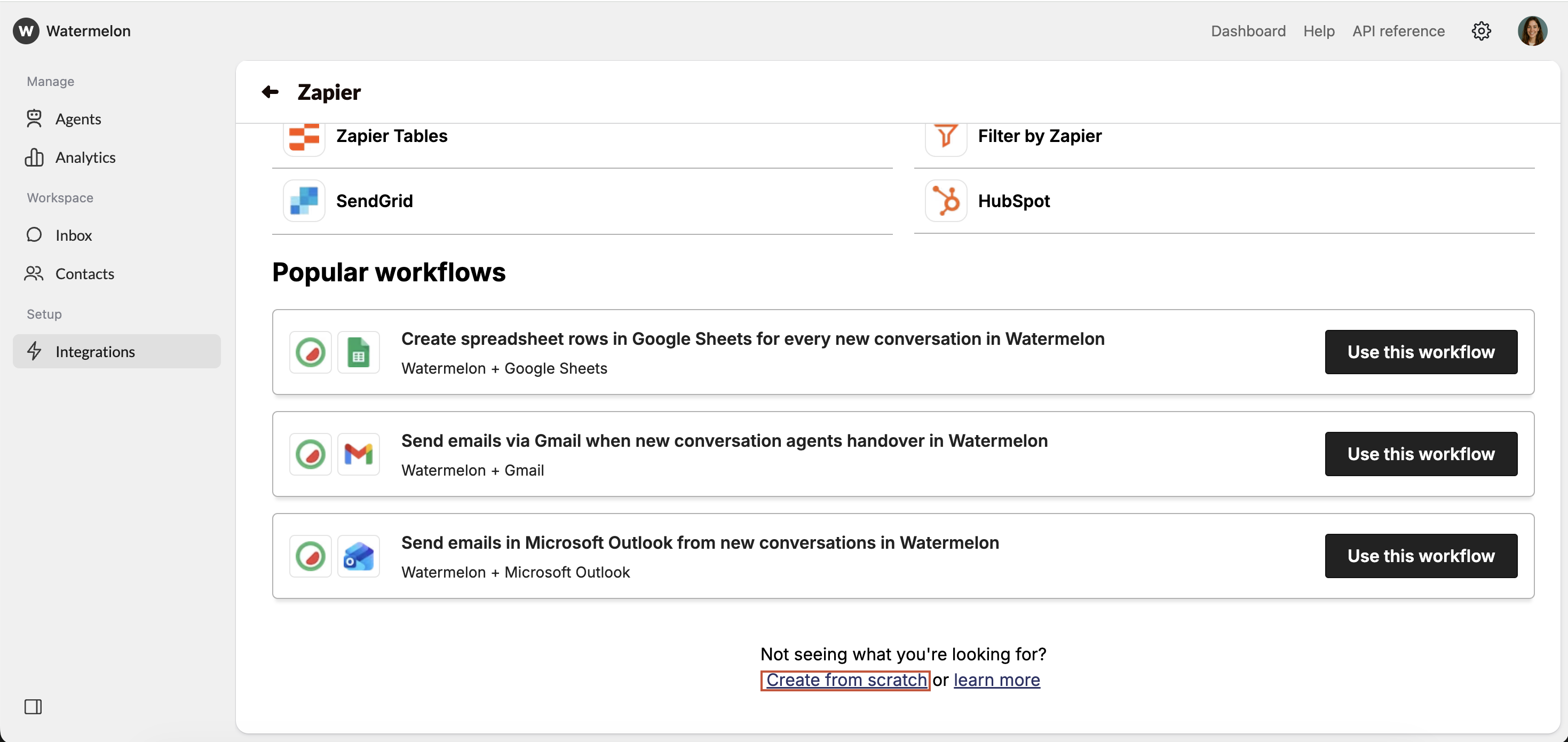
 In the next screen, select **Create from scratch** at the bottom of the page.
 Zapier will open in a new screen. It should show as the image below. Click **Select** to connect Watermelon to Zapier.
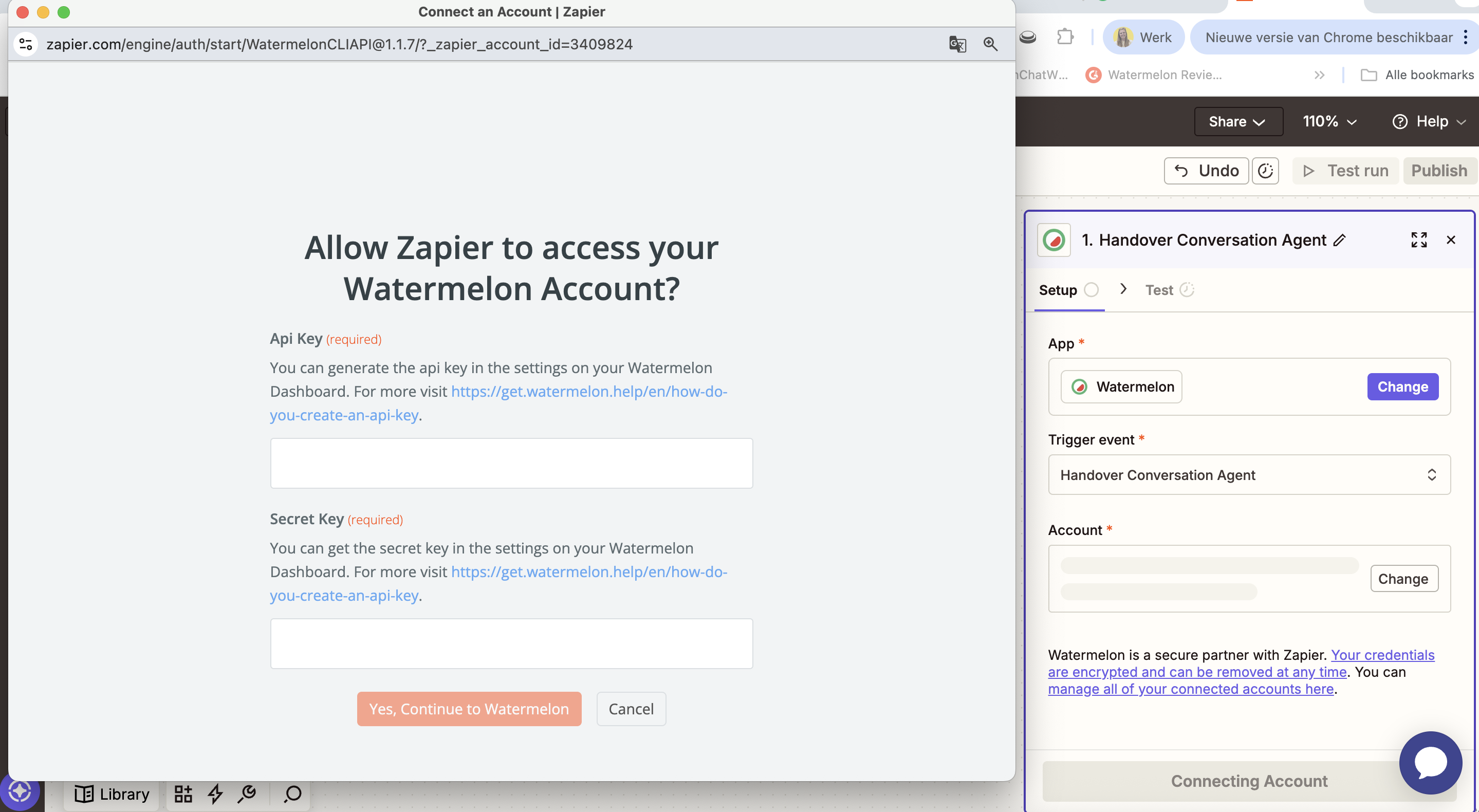
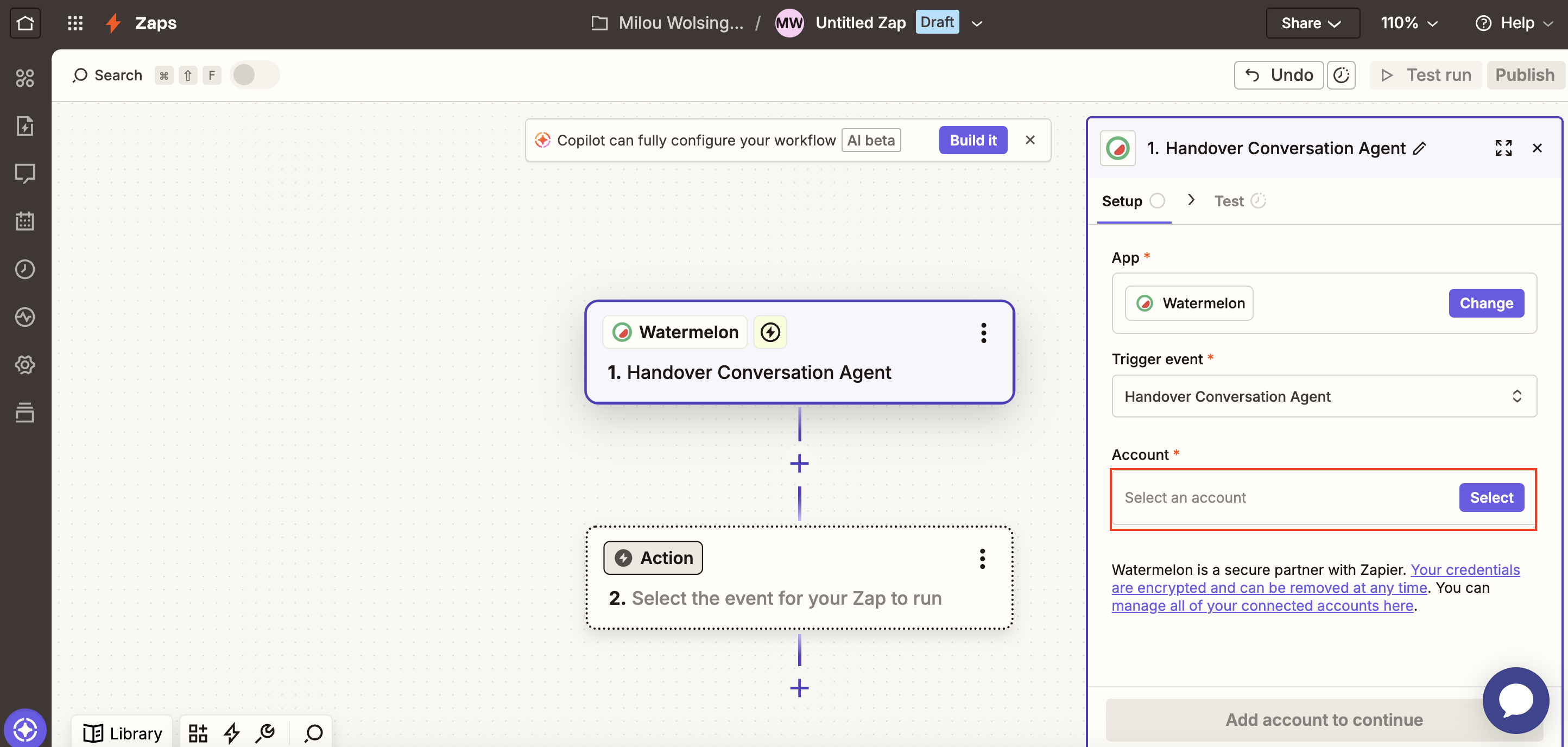 A new screen will open where you need to add API keys.
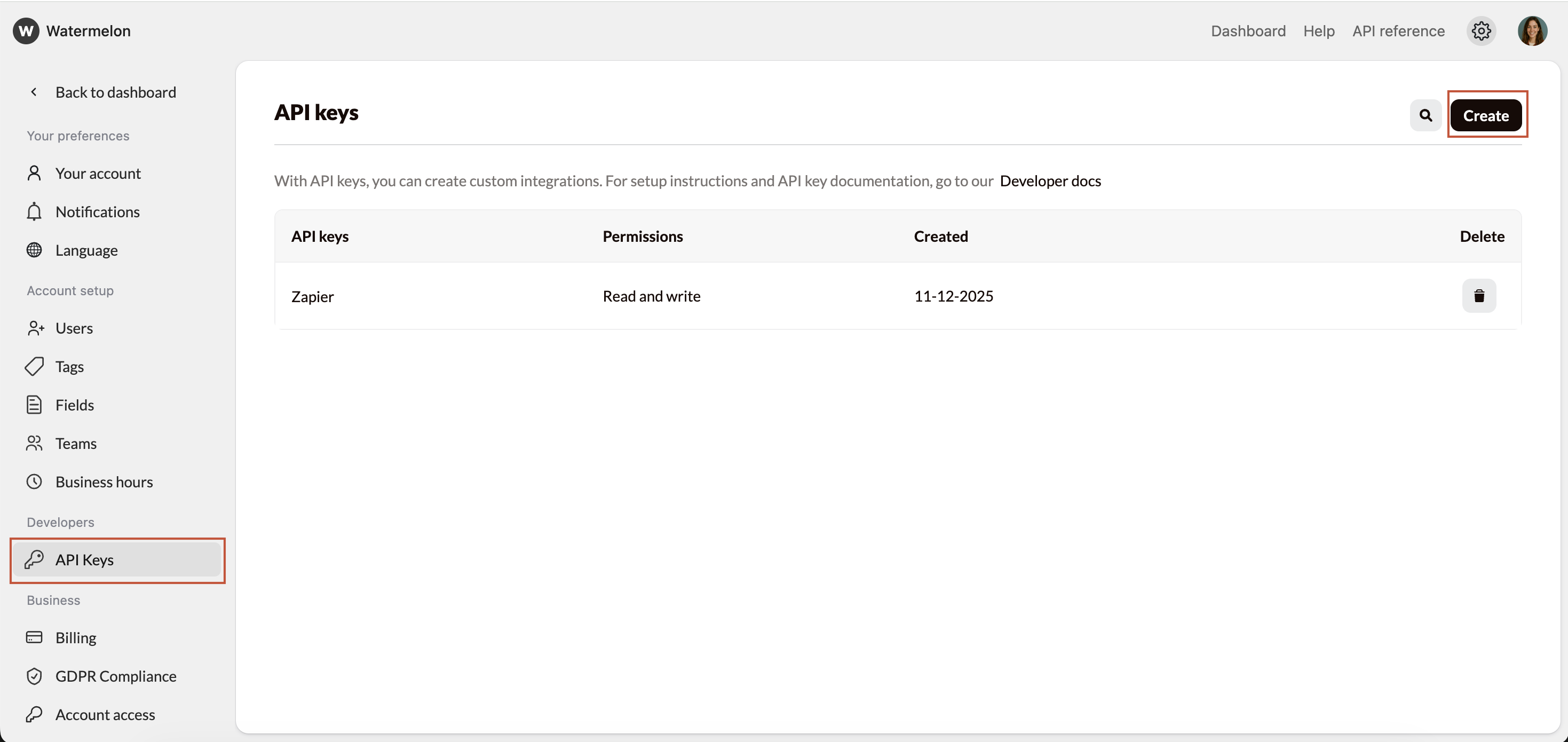
 In Watermelon, go to API keys and click **Create** to create a new API key.
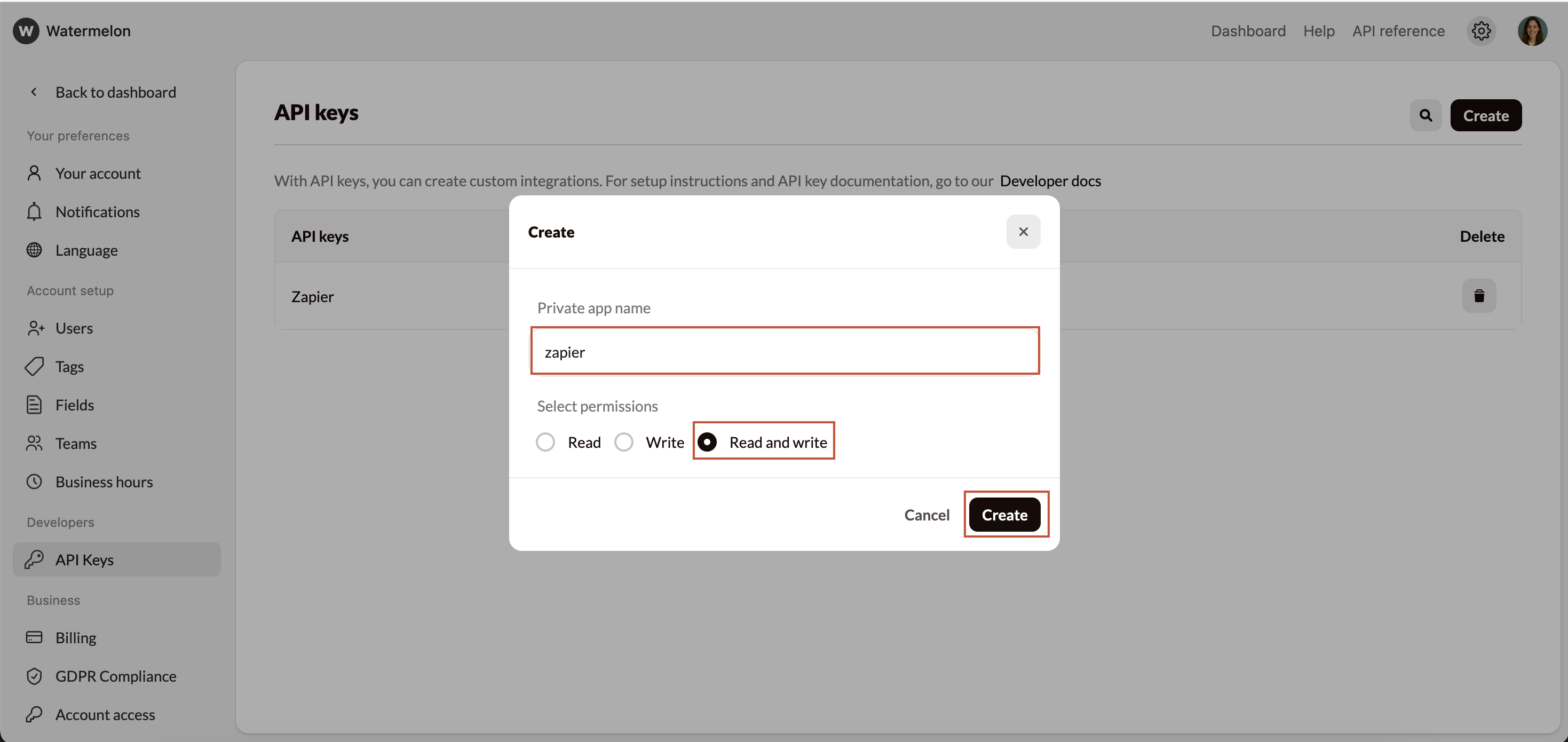
Give the API Key a name and make sure to select **Read and write**. Add the keys to the Zapier fields.
In Watermelon, go to API keys and click **Create** to create a new API key.
Give the API Key a name and make sure to select **Read and write**. Add the keys to the Zapier fields.
 In Zapier, click on continue to test the connection with Watermelon.
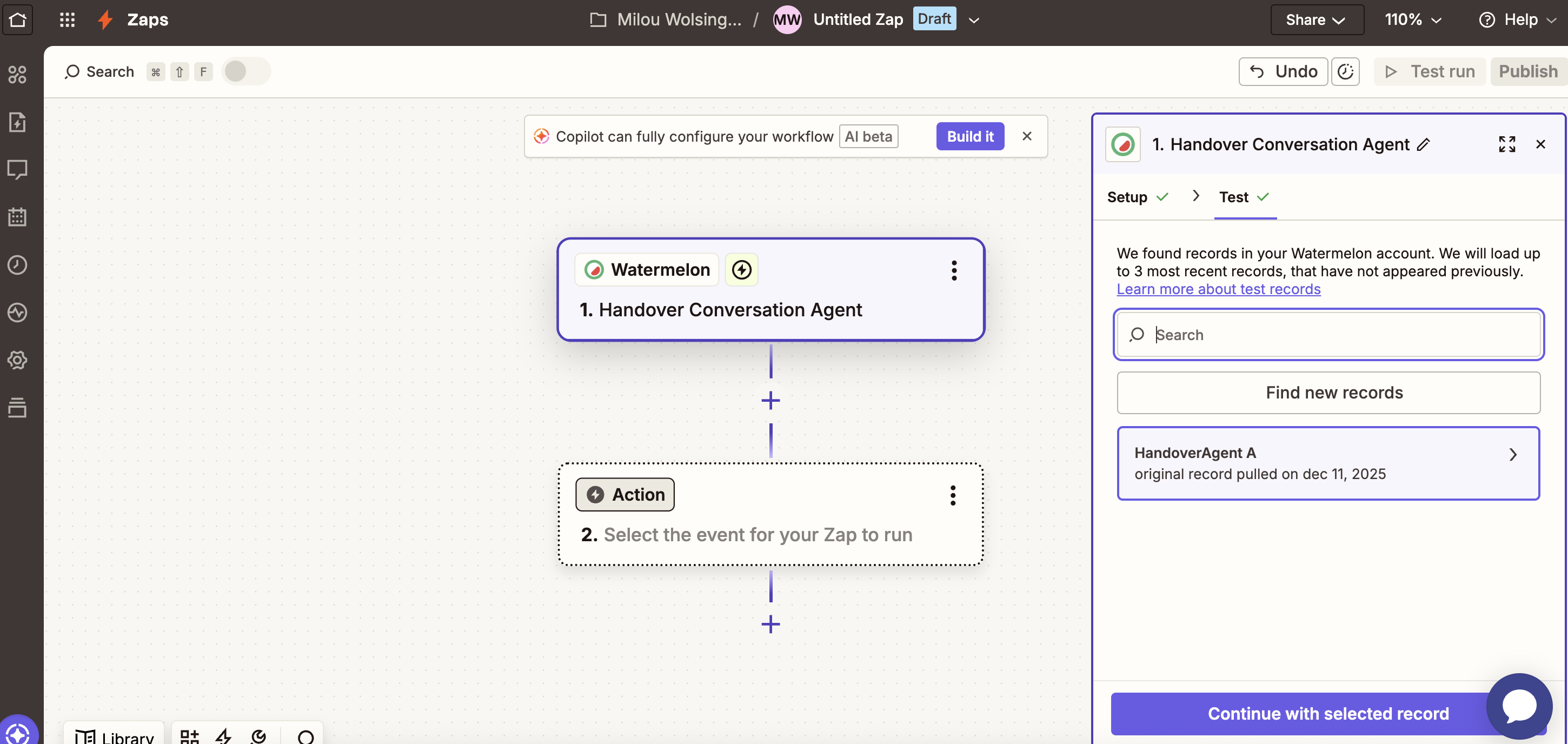 You need a conversation in your inbox to test this step. Follow these steps if no conversations are handed off:
1. Open your Chat Widget
2. Start a conversation
3. Use the Trigger word you set up in step 1 of this article.
4. After the conversation is handed off in Watermelon, click **Find new records** in Zapier.
Your new conversation should show up.
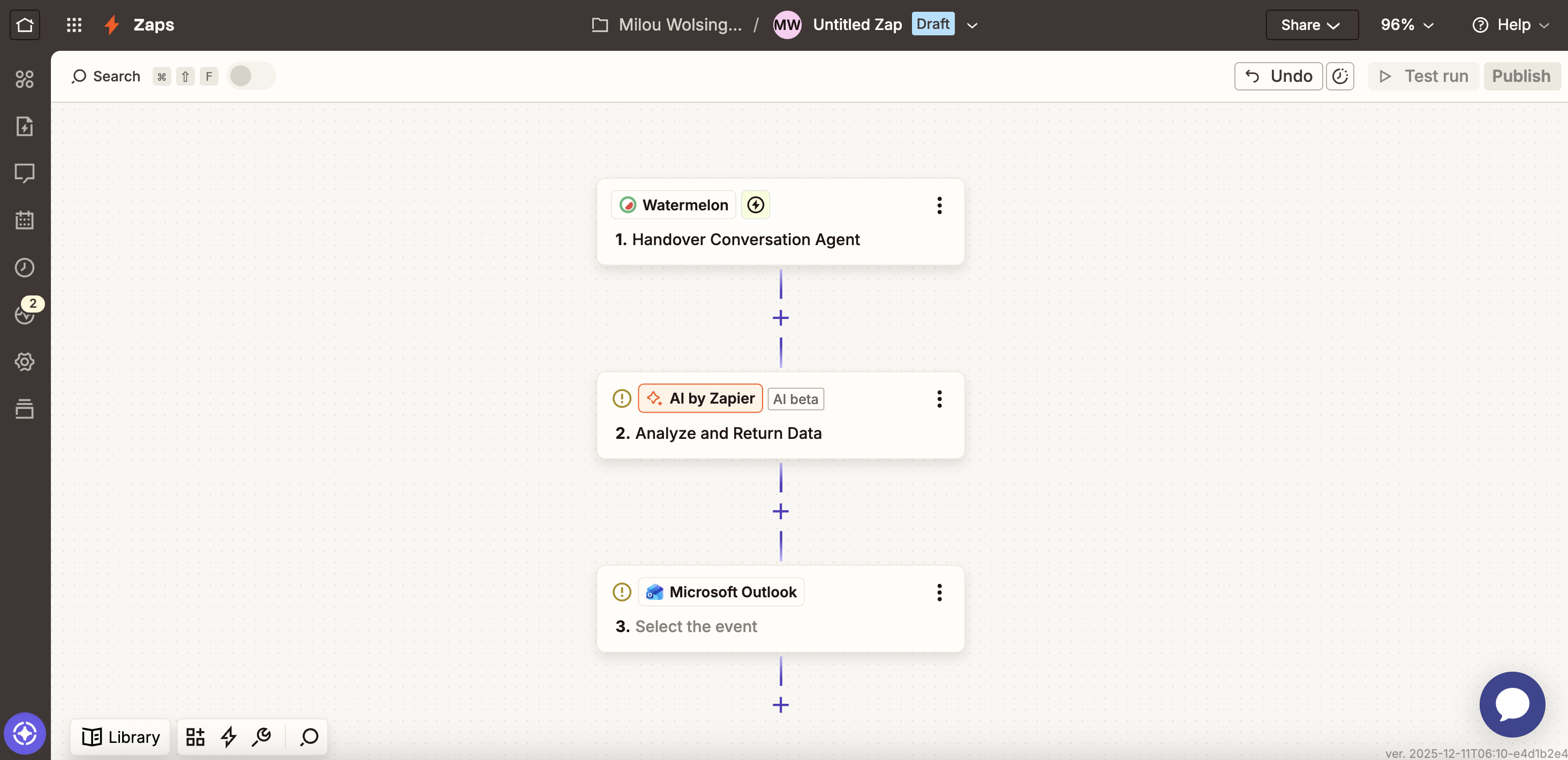
Click on the plus button to add an extra step and select **AI by Zapier**.
You need a conversation in your inbox to test this step. Follow these steps if no conversations are handed off:
1. Open your Chat Widget
2. Start a conversation
3. Use the Trigger word you set up in step 1 of this article.
4. After the conversation is handed off in Watermelon, click **Find new records** in Zapier.
Your new conversation should show up.
Click on the plus button to add an extra step and select **AI by Zapier**.
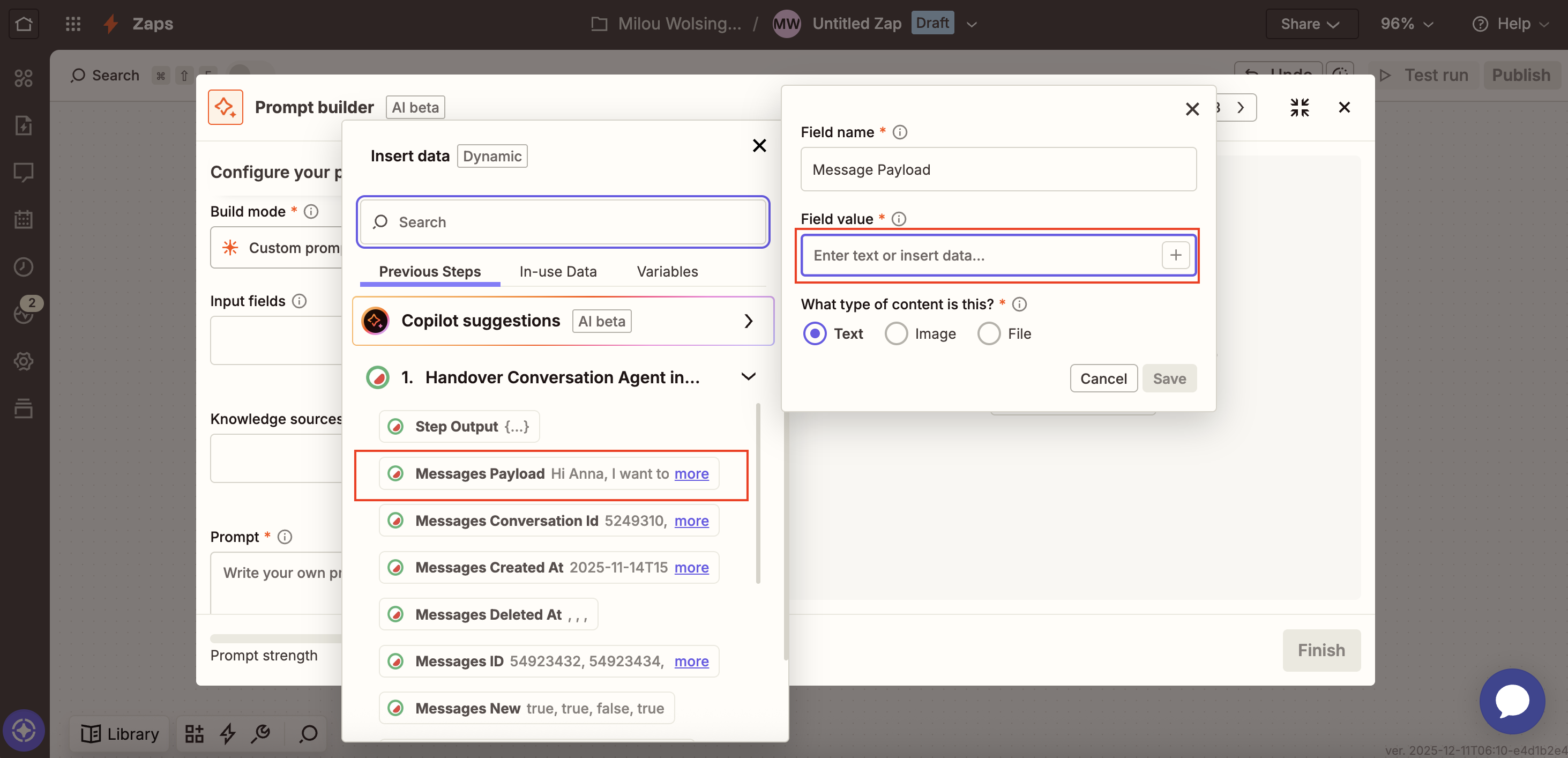
 1. In the **input field**, click on the Plus button and select **Message payload**.
 2. Add the following prompt:
> Get the details from the Message payload
2. Add the following prompt:
> Get the details from the Message payload
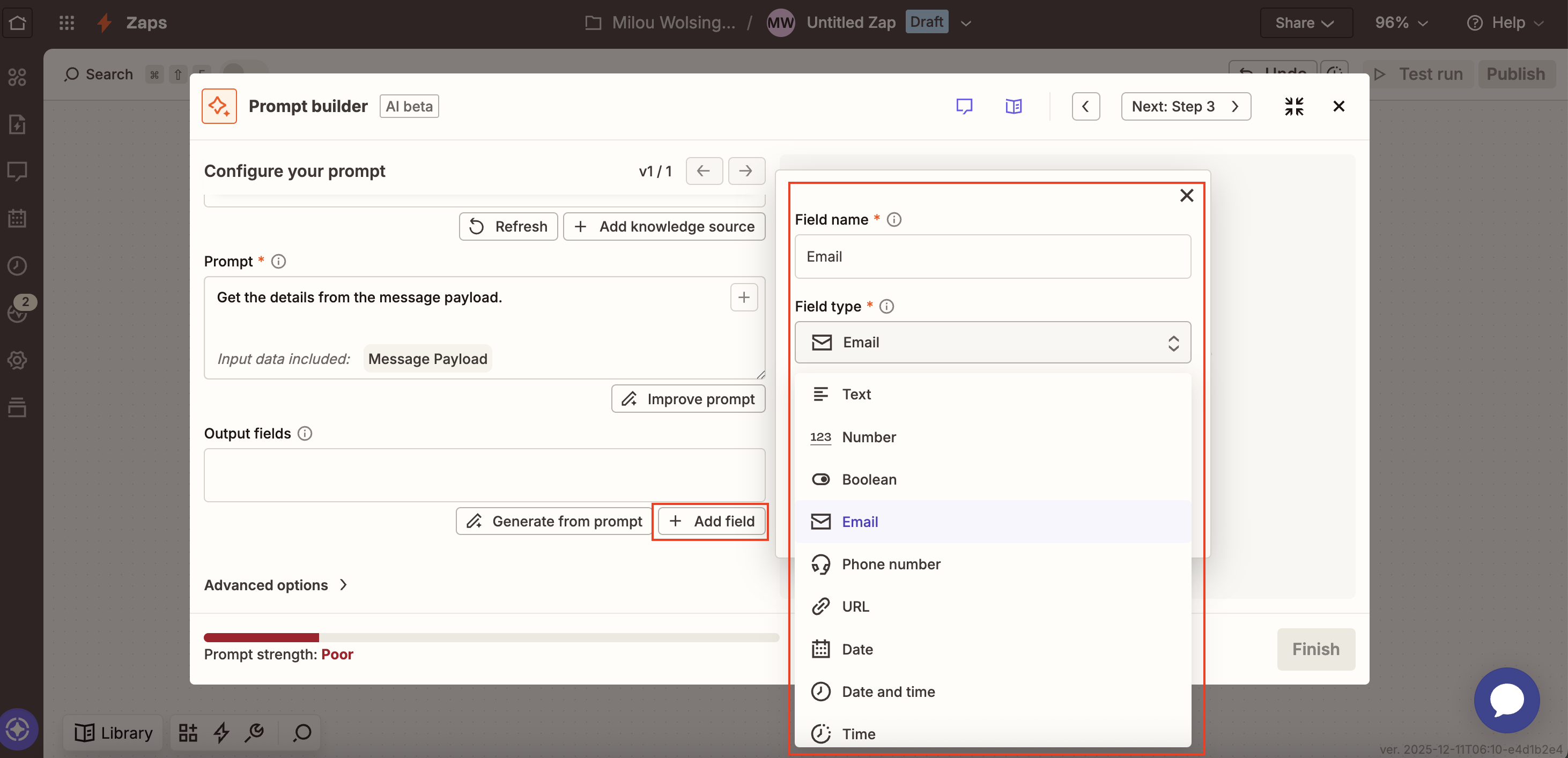
 3. At **Output fields**, click **add field**. Give the fields a name and select the field type. Repeat this for all desired data.
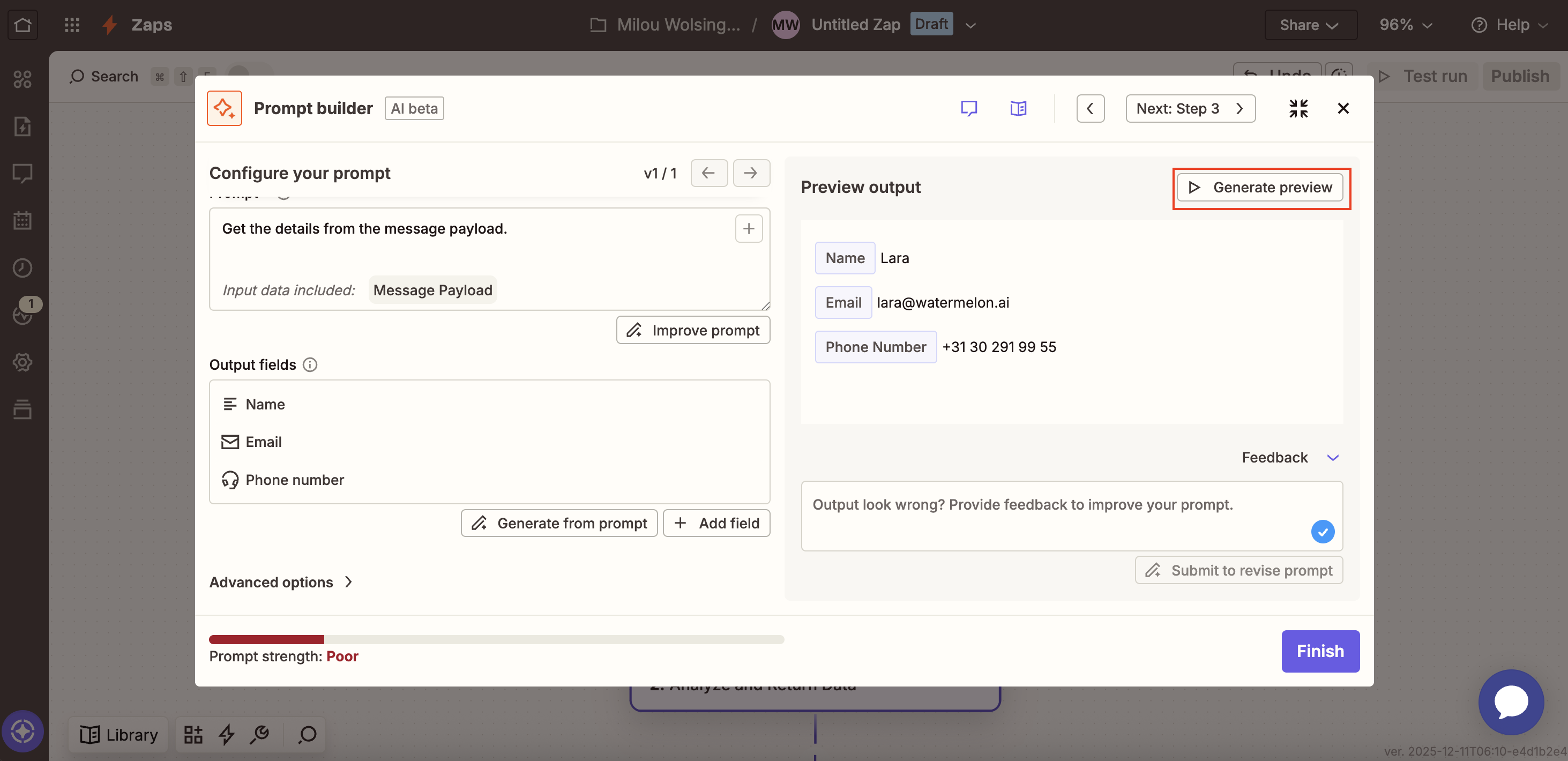
 4. Click **Generate preview** to see the outcome of your prompt and click **Finish.**
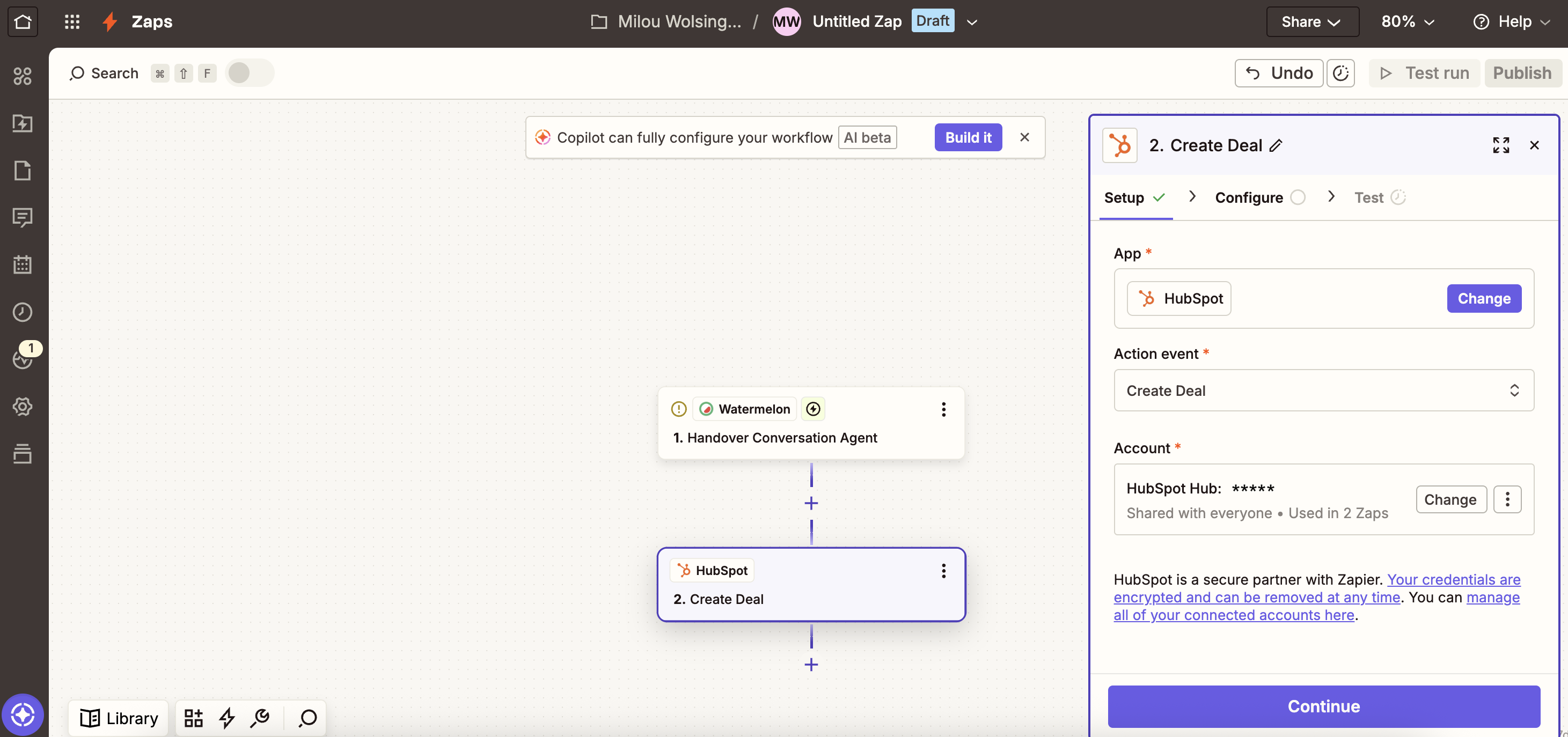
 Select your CRM, in this example we'll use Hubspot. \
At **Action event,** you can select the action you'd like e.g. **Create Deal** or **Create contact**.
In account, select your CRM and follow the steps to connect your CRM.
Select your CRM, in this example we'll use Hubspot. \
At **Action event,** you can select the action you'd like e.g. **Create Deal** or **Create contact**.
In account, select your CRM and follow the steps to connect your CRM.
 Now you are going to configure your CRM settings.
1. **Name**: Provide a name for the new deals. With the + button, you can add details from the message payload such as Name of customer.
Now you are going to configure your CRM settings.
1. **Name**: Provide a name for the new deals. With the + button, you can add details from the message payload such as Name of customer.
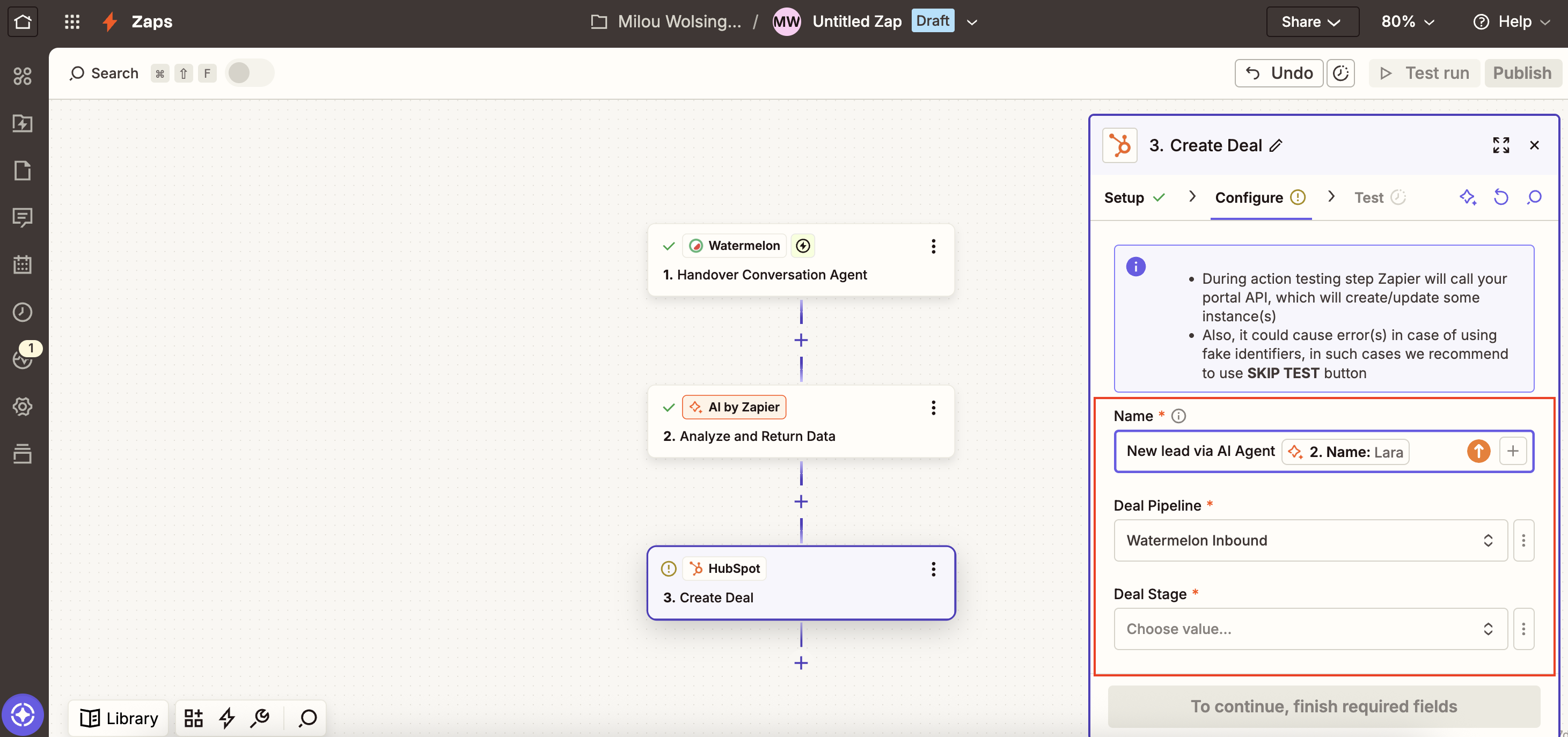 2. **Deal** **Pipeline**: Select the Deal pipeline where the lead has to go in your CRM.
3. **Deal** **Stage**: Select the stage where the lead should end up.
4. Fill in other fields, you need for your lead. Optionally, you can add an extra step where you create a note in the deal where you add the Message Payload. This way, you'll have the complete chat conversation in your deal.
Click on **Continue** and test the step.
When the data is received correctly, you can **Publish** your workflow by clicking **Publish**.
Your automation is now completed. You can test your automation in the Chat Widget. The handover functionality and automation do not work in the **Playground**.
2. **Deal** **Pipeline**: Select the Deal pipeline where the lead has to go in your CRM.
3. **Deal** **Stage**: Select the stage where the lead should end up.
4. Fill in other fields, you need for your lead. Optionally, you can add an extra step where you create a note in the deal where you add the Message Payload. This way, you'll have the complete chat conversation in your deal.
Click on **Continue** and test the step.
When the data is received correctly, you can **Publish** your workflow by clicking **Publish**.
Your automation is now completed. You can test your automation in the Chat Widget. The handover functionality and automation do not work in the **Playground**.