> ## Documentation Index
> Fetch the complete documentation index at: https://watermelon.ai/docs/llms.txt
> Use this file to discover all available pages before exploring further.
# Let the Chat Widget open automatically
> You can draw more attention to your Chat Widget by having it open automatically.
Automatically opening your Chat Widget helps draw visitors’ attention to the AI Agent on your website. The Chat Widget opens automatically **once per browser and device**. This is based on a **cookie / local storage** in the visitor’s browser.
If a visitor uses a different browser or device, or clears their cookies or local storage, the widget may open automatically again.
If a visitor minimizes the chat, it won’t reopen automatically when they navigate to another page. Instead, only the launcher and, if enabled, the Eye Catcher remain visible. The Eye Catcher is not visible when the Widget is open.
To set up the Eye Catcher, follow the steps in [this article](/help-center/developer-resources/chat-widget-customization).
## Automatically open the Chat Widget:
Follow the steps below to automatically open the Chat Widget.
Navigate to **Integrations** and open your Chat Widget.
 Go to **Placement**.
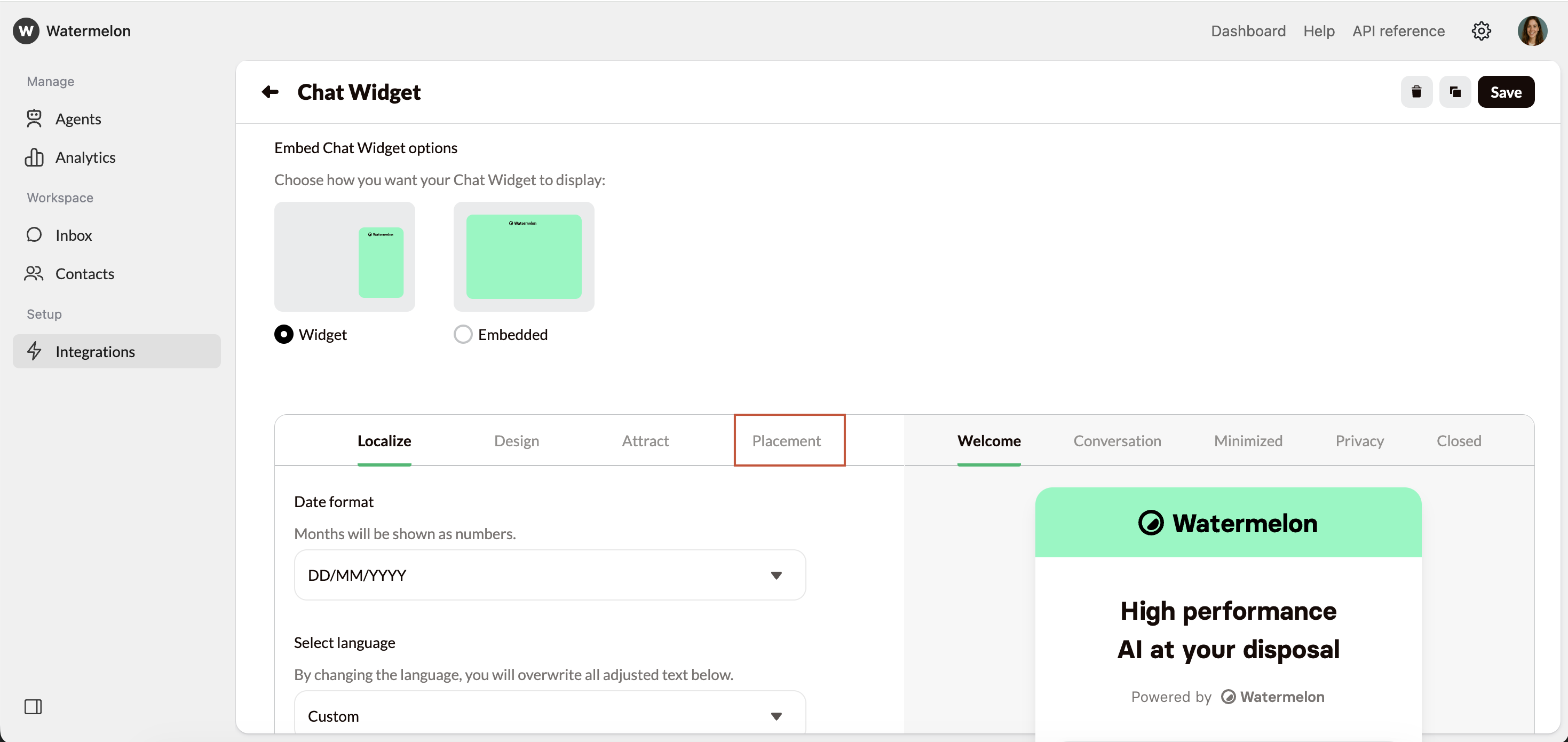 Under **Automatically open once**, select **On**. The Chat Widget will now open automatically on your website. Press **Save** on the top right corner.
 You can then choose to enable or disable automatic opening on mobile devices. On a mobile device, opening automatically can feel intrusive.
 To test whether your Chat Widget opens automatically for first-time visitors, open your website in a **private / incognito window**. This simulates a new visitor without existing cookies or local storage. See intructions below on how to open a private/incognito window.
* Click **File** in the top menu
* Select **New private window**
* Open your website in the new window
* If your Widget opens, the set up was successful
* Click the three dots in the top-right corner
* Select **New incognito window**
* Open your website in the new window
* If your Widget opens, the set up was successful
* Click the three dots in the top-right corner
* Select **New InPrivate window**
* Open your website in the new window
* If your Widget opens, the set up was successful
To test whether your Chat Widget opens automatically for first-time visitors, open your website in a **private / incognito window**. This simulates a new visitor without existing cookies or local storage. See intructions below on how to open a private/incognito window.
* Click **File** in the top menu
* Select **New private window**
* Open your website in the new window
* If your Widget opens, the set up was successful
* Click the three dots in the top-right corner
* Select **New incognito window**
* Open your website in the new window
* If your Widget opens, the set up was successful
* Click the three dots in the top-right corner
* Select **New InPrivate window**
* Open your website in the new window
* If your Widget opens, the set up was successful