> ## Documentation Index
> Fetch the complete documentation index at: https://watermelon.ai/docs/llms.txt
> Use this file to discover all available pages before exploring further.
# Create teams
> Learn how to create teams and manage team members to organize conversations and collaborate more effectively.
Teams help you organize conversations and collaborate efficiently. By assigning conversations to specific teams, you ensure that the right people handle the right topics, which improves response time and clarity.
Teams are available in Business and Enterprice licenses.
## Creating a Team
Only administrators can create teams, and add or remove users.
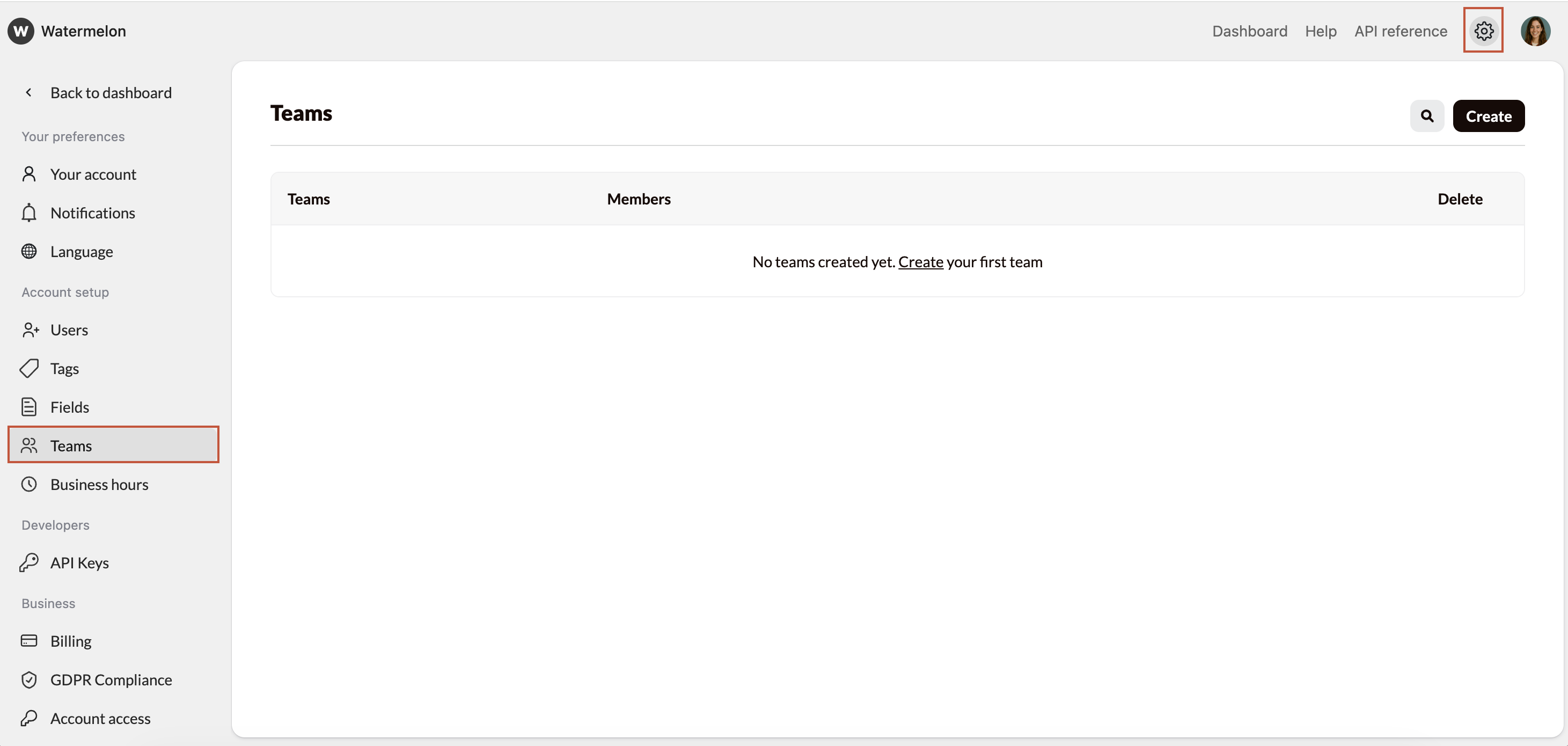
Navigate to **Settings**, then **Teams**
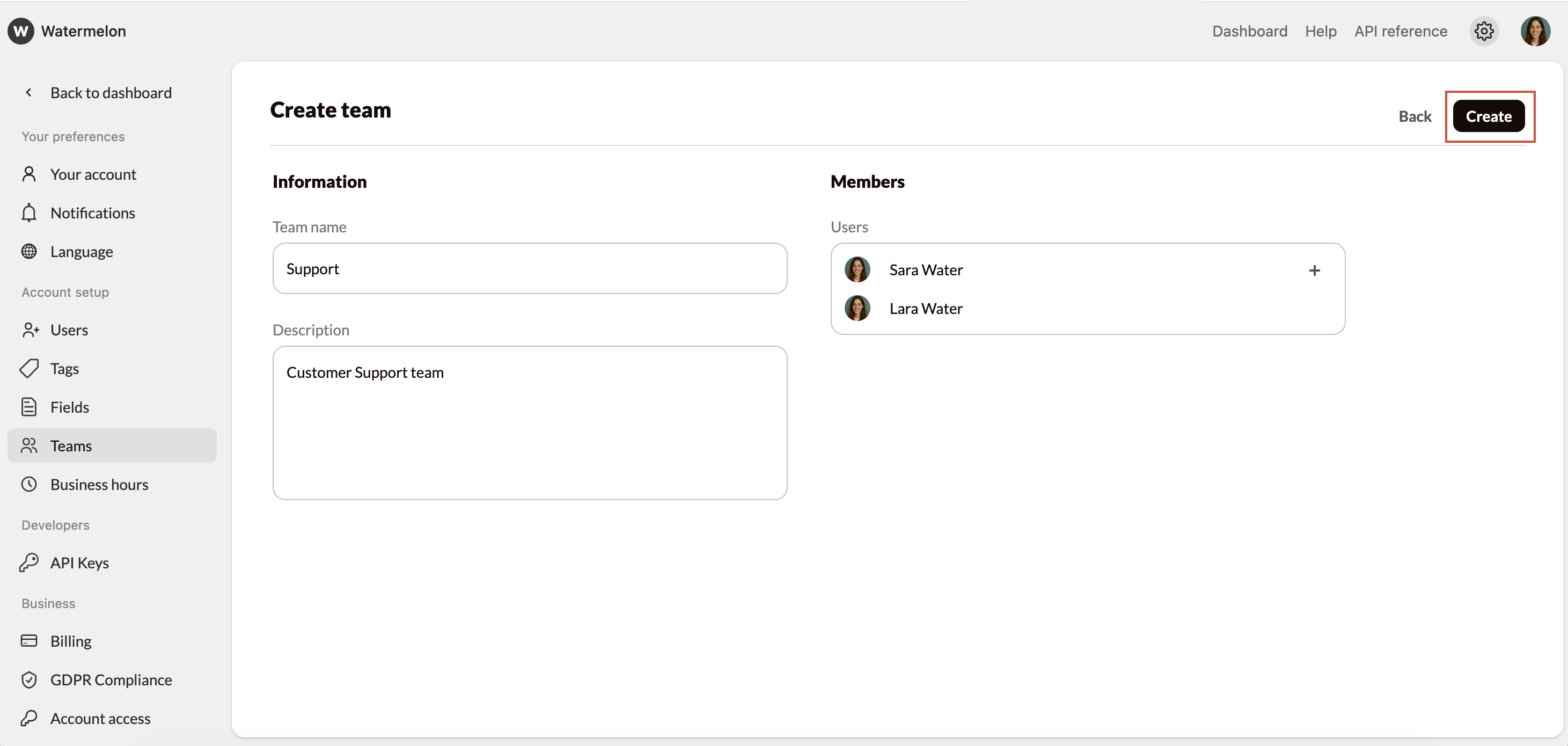
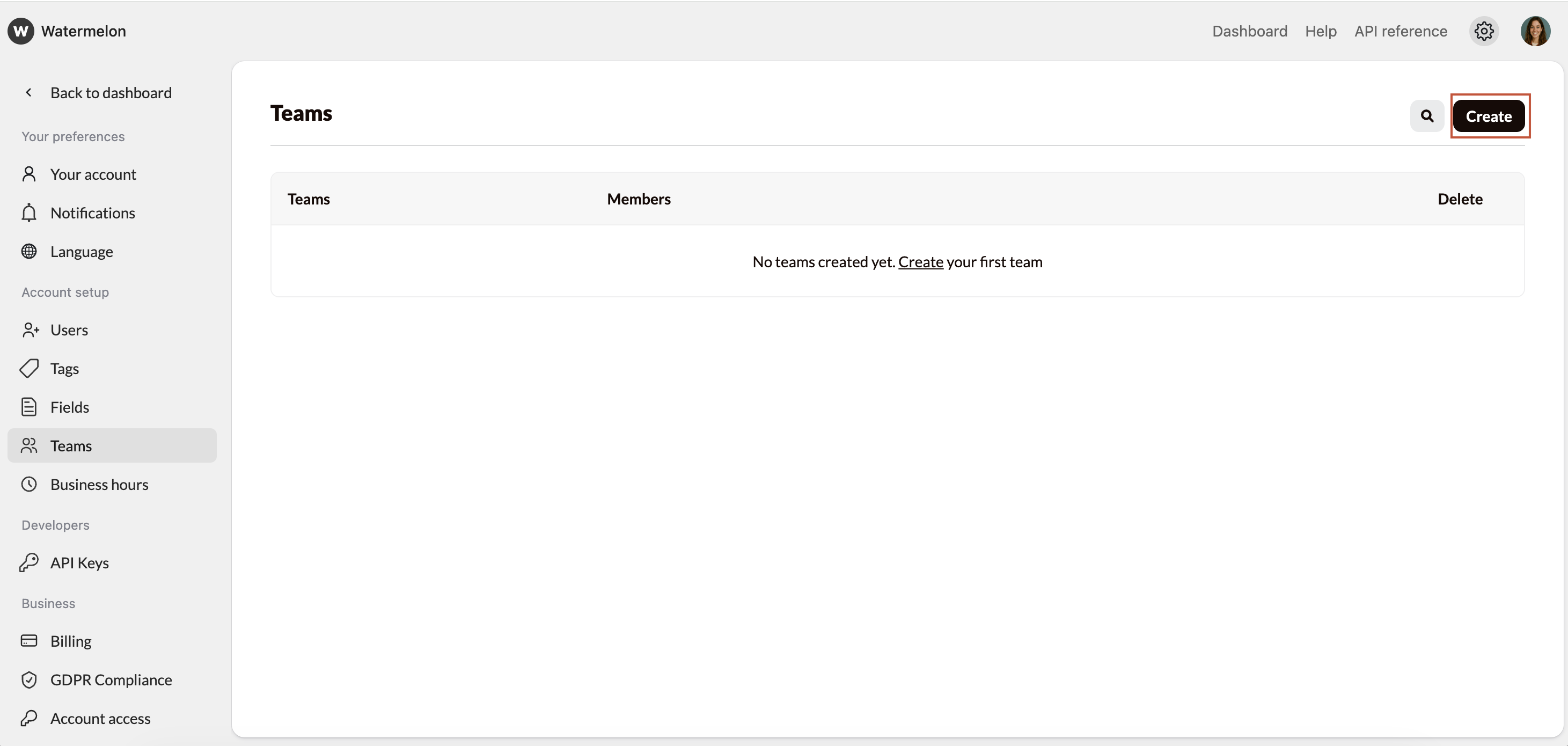 * Enter a team name and (optional) description
* Under Users, **select the team members** who should be part of the team.
* When all members are added, click **Create**.
You can return to the Users section any time to add or remove team members.
You are added automatically, since every team requires at least one member.
* Enter a team name and (optional) description
* Under Users, **select the team members** who should be part of the team.
* When all members are added, click **Create**.
You can return to the Users section any time to add or remove team members.
You are added automatically, since every team requires at least one member.
 Your team is ready!