> ## Documentation Index
> Fetch the complete documentation index at: https://watermelon.ai/docs/llms.txt
> Use this file to discover all available pages before exploring further.
# Filters
> Learn how to use filters in your Inbox to view conversations by type, team, AI Agent, or live user and how administrators can oversee all conversations across the organization.
Filters help you navigate your Inbox and quickly find the conversations that matter most. You can view conversations at different levels — across all teams, within a specific team, by AI Agent, or by live user.
Watermelon offers **four main types of filters:**
* **General**
* **Teams**
* **Users (admin only)**
* **Agents (admin only)**
## **General Filters**
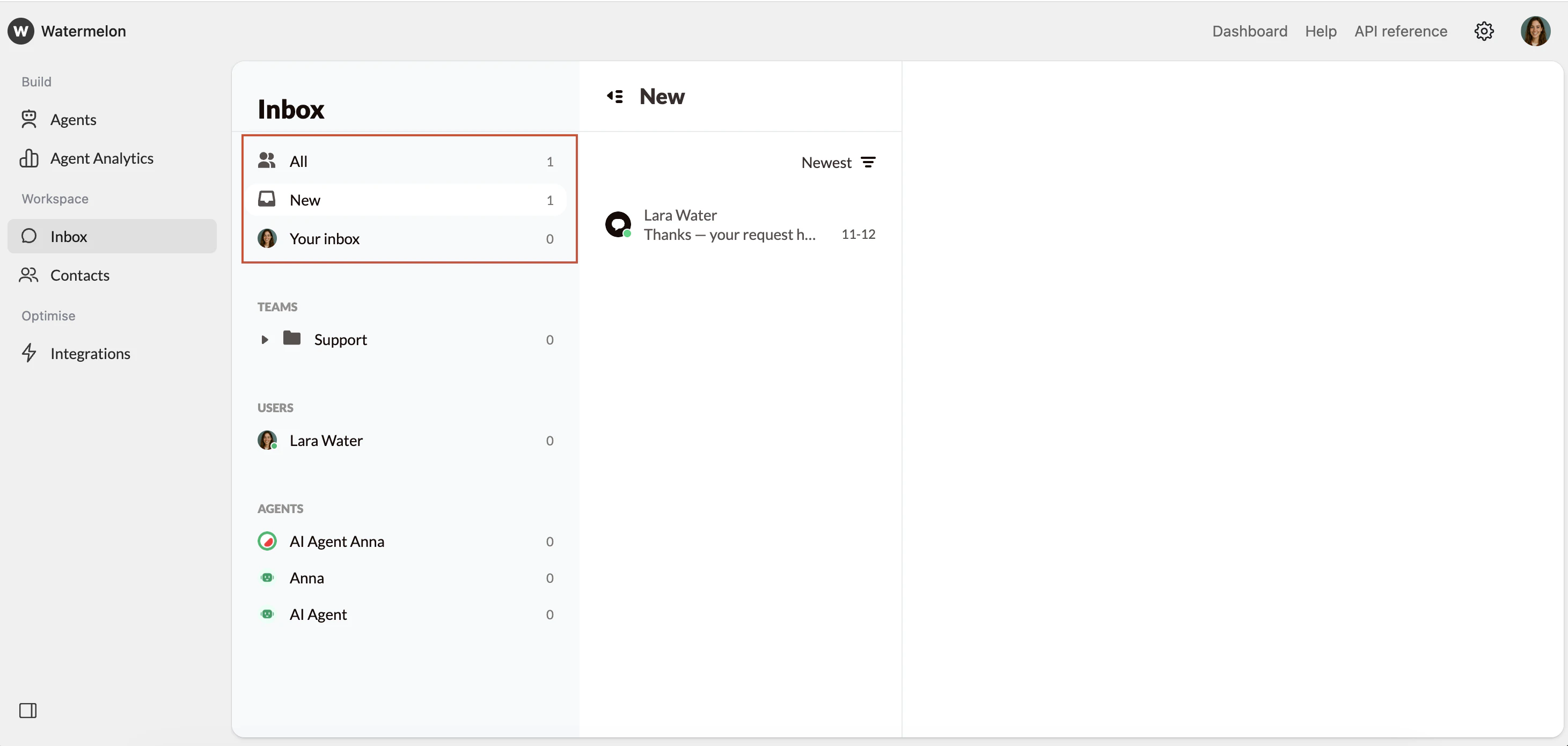
The **General filters** appear at the top left of your Inbox: **All**, **New**, and **Your Inbox**.
These filters give you a high-level view of incoming and assigned conversations.
* **All:** Displays all conversations in your organization (available to administrators only).
* **New:** Shows all new, unassigned conversations that have not yet been picked up.
* **Your Inbox:** Displays only the conversations currently assigned to you.
Use these filters to keep track of your workload and make sure no new messages are missed.
 ## **Teams Filters**
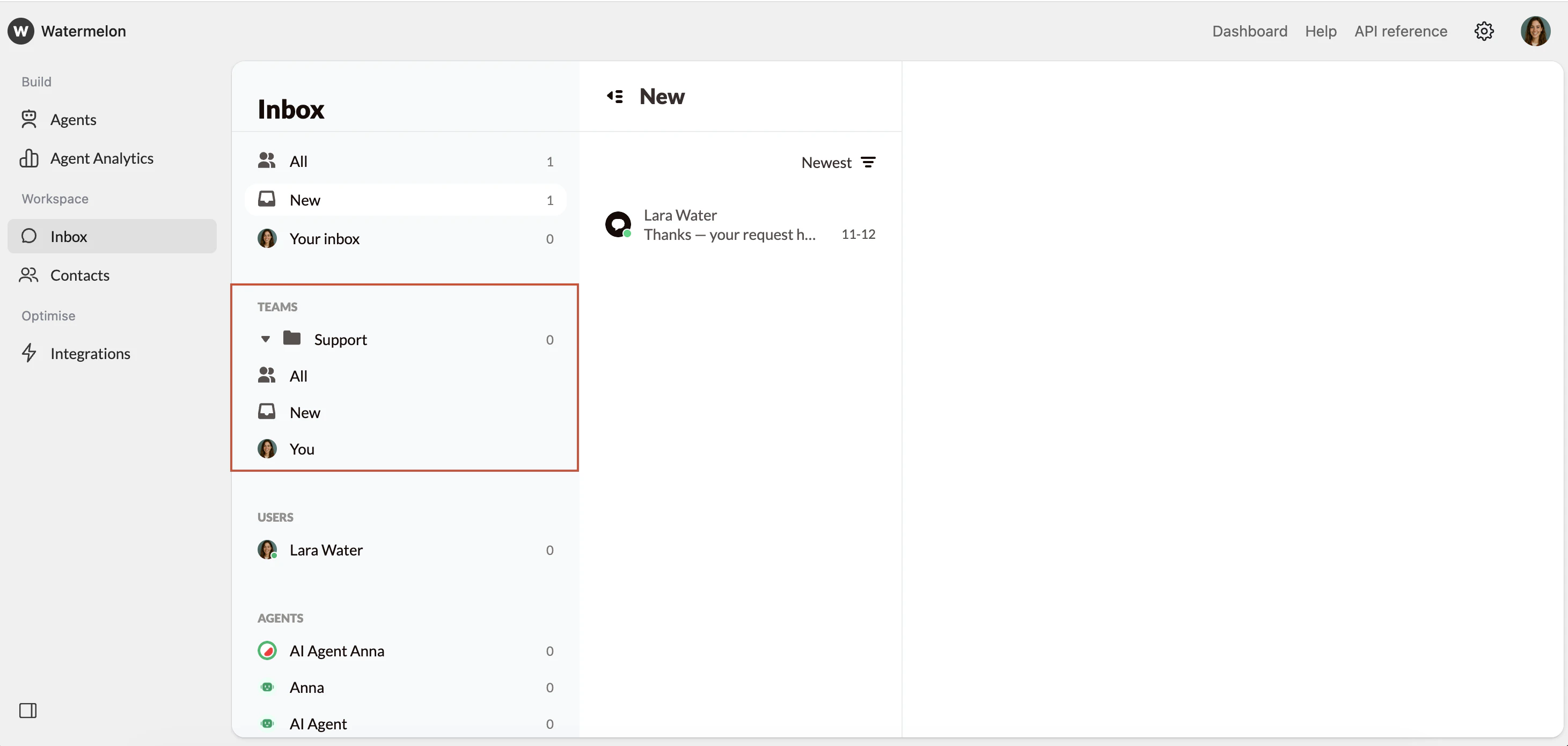
Each team in Watermelon has its own set of filters to help organize conversations within that group.
**Team filters** appear under each team’s name in the Inbox and typically include:
* **All:** Every chat handled by your team (visible to administrators and team members).
* **New:** Chats that have not yet been claimed within your team.
* **You:** Only the conversations currently assigned to you.
Team filters give each group its own workspace, so conversations stay focused and easy to manage.
## **Teams Filters**
Each team in Watermelon has its own set of filters to help organize conversations within that group.
**Team filters** appear under each team’s name in the Inbox and typically include:
* **All:** Every chat handled by your team (visible to administrators and team members).
* **New:** Chats that have not yet been claimed within your team.
* **You:** Only the conversations currently assigned to you.
Team filters give each group its own workspace, so conversations stay focused and easy to manage.
 ## **Users Filter**
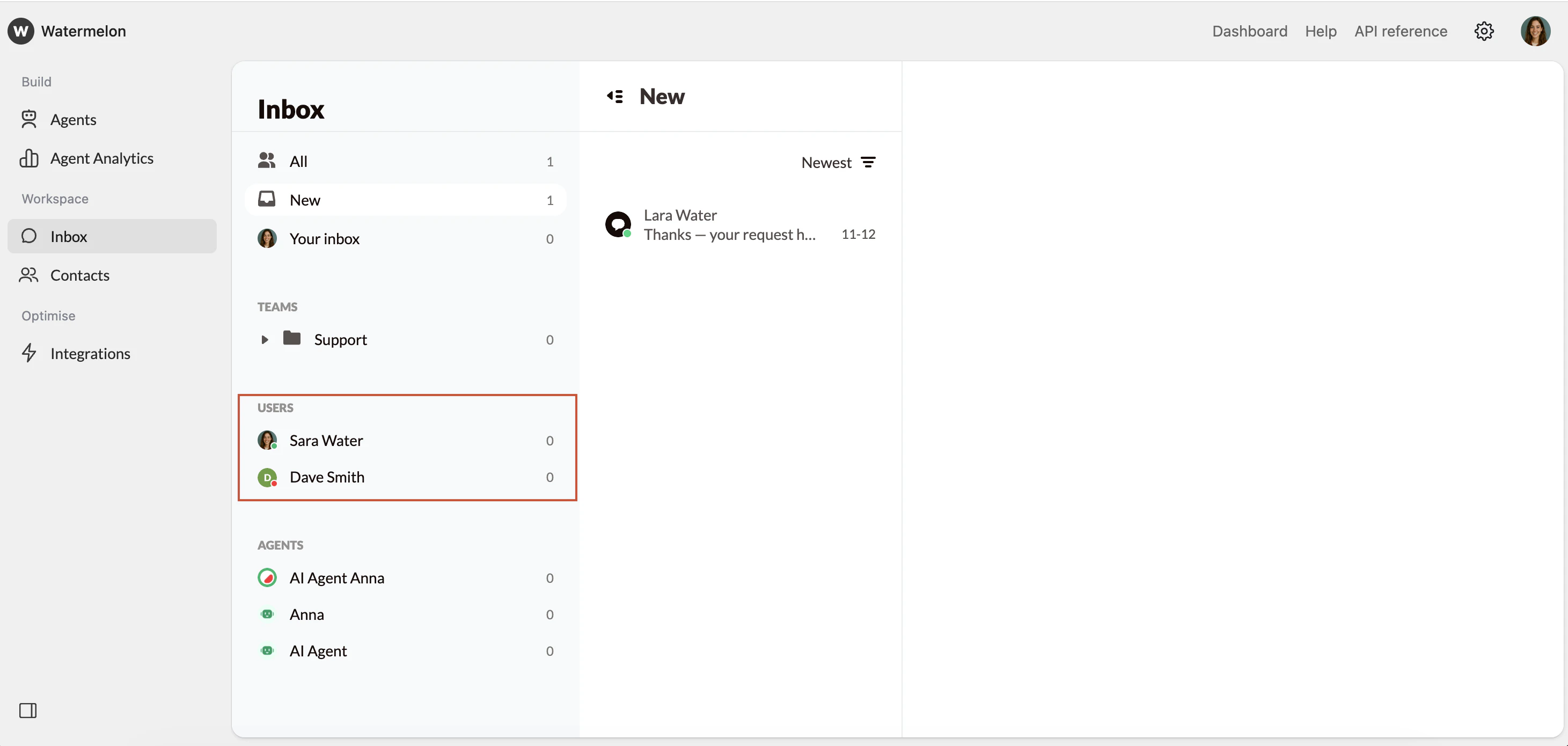
The **Users filter** shows conversations assigned to live users.
This section is visible only to Administrators, who can view the activity of each user in order to monitor workloads, review active conversations, or reassign chats if a user is unavailable.
## **Users Filter**
The **Users filter** shows conversations assigned to live users.
This section is visible only to Administrators, who can view the activity of each user in order to monitor workloads, review active conversations, or reassign chats if a user is unavailable.
 ## **Agents Filter**
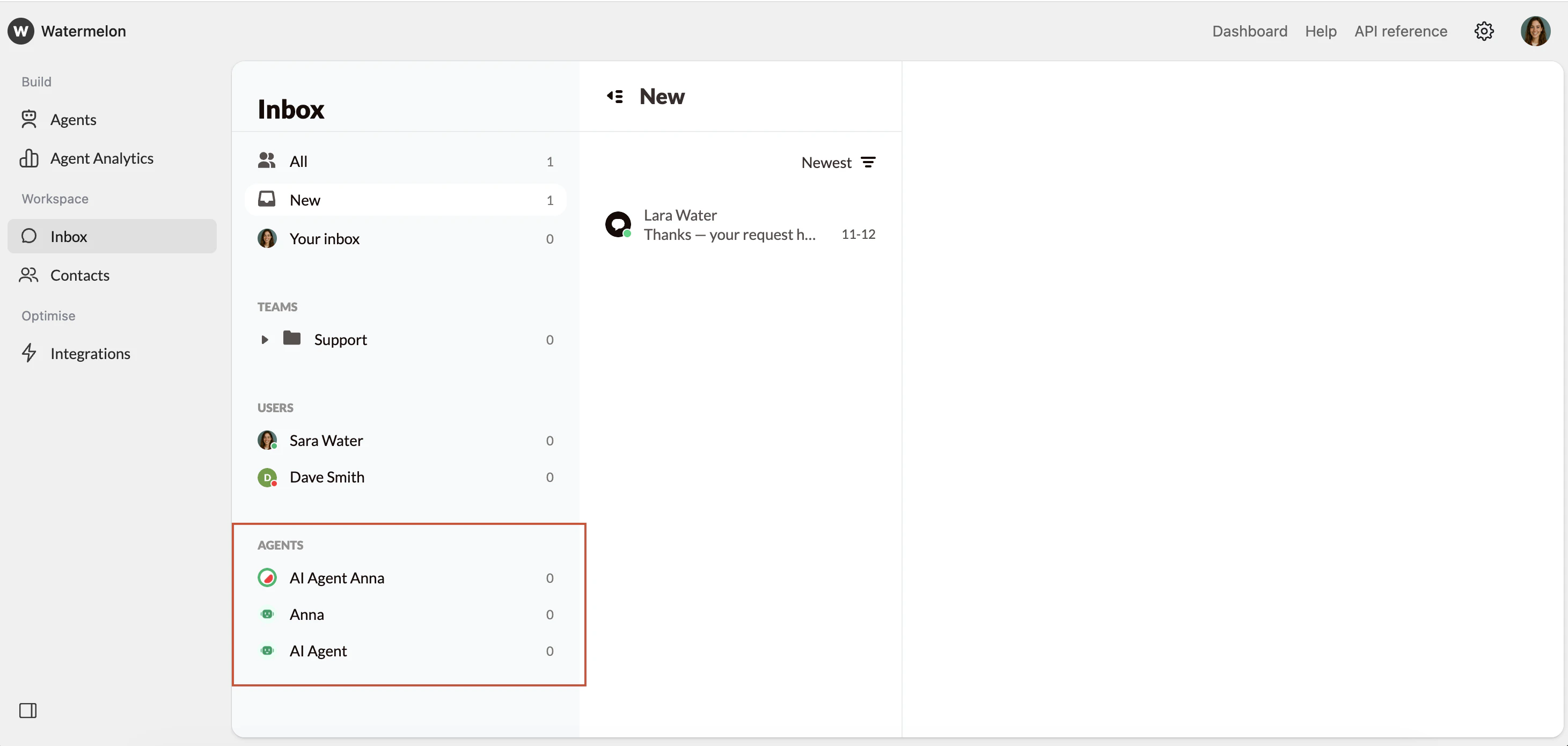
The **Agents filter** lets administrators monitor how AI Agents are performing and view all active and past conversations handled by each Agent.
## **Agents Filter**
The **Agents filter** lets administrators monitor how AI Agents are performing and view all active and past conversations handled by each Agent.
 Use filters together with search or tags to quickly find specific conversations. For example, all *Product Questions* handled by your AI Agent this week.