> ## Documentation Index
> Fetch the complete documentation index at: https://watermelon.ai/docs/llms.txt
> Use this file to discover all available pages before exploring further.
# Manage conversations
> Learn how to manage conversations in Watermelon using features that help you and your team stay organized and responsive.
Managing conversations in Watermelon helps you stay **organised,** collaborate efficiently with your team, and provide fast, consistent support to your customers. From fielding **new** messages, to adding **notes** or **archiving** conversations, Watermelon gives you a **clear workflow** to keep everything running smoothly.
## New Conversations
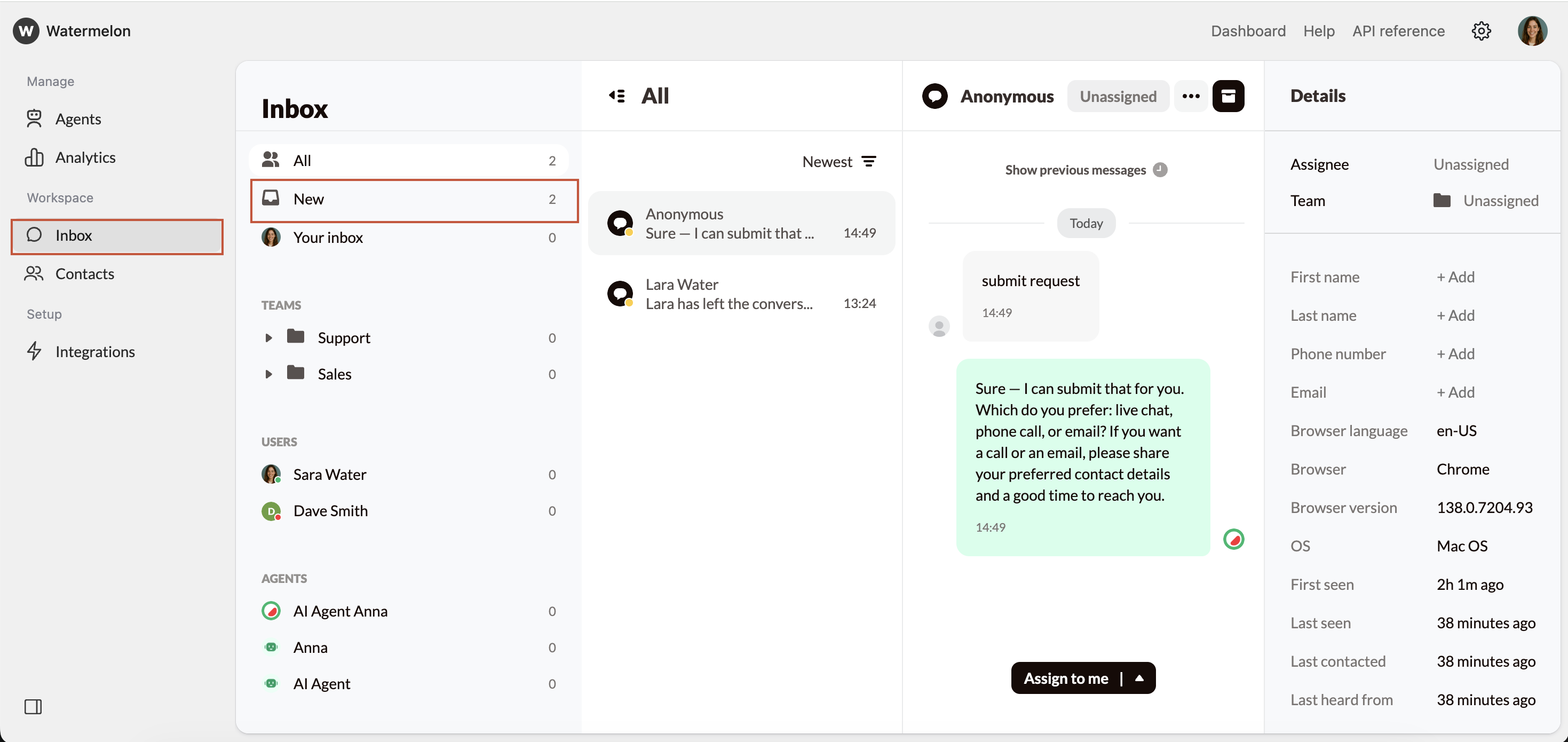
All new customer messages appear in the **New** inbox.
A **badge** next to New shows how many conversations are **waiting** to be picked up.
 ### Picking up a new conversation
1. Open **Inbox**
2. Select **New**
3. Click **Assign to me** to take ownership
### Picking up a new conversation
1. Open **Inbox**
2. Select **New**
3. Click **Assign to me** to take ownership
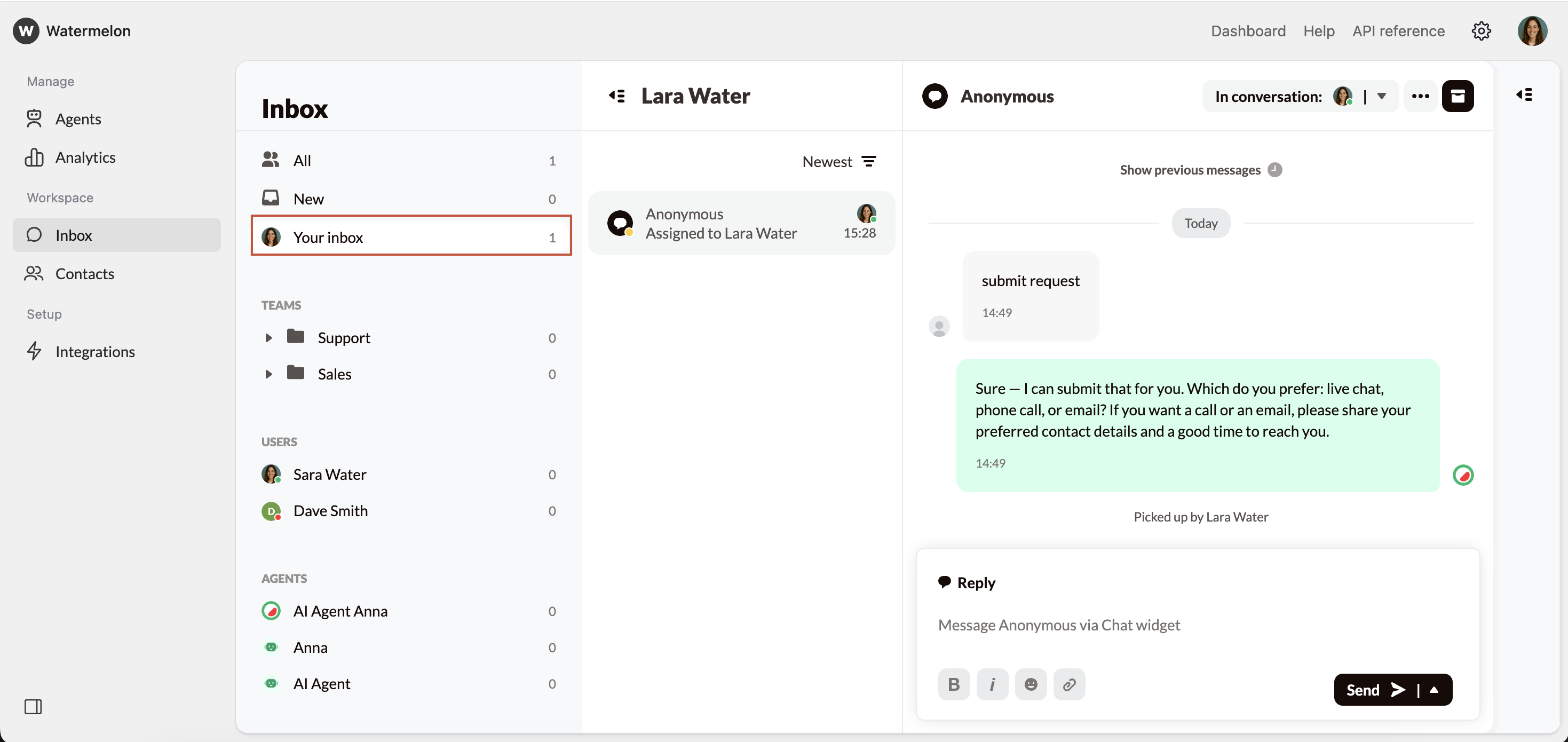
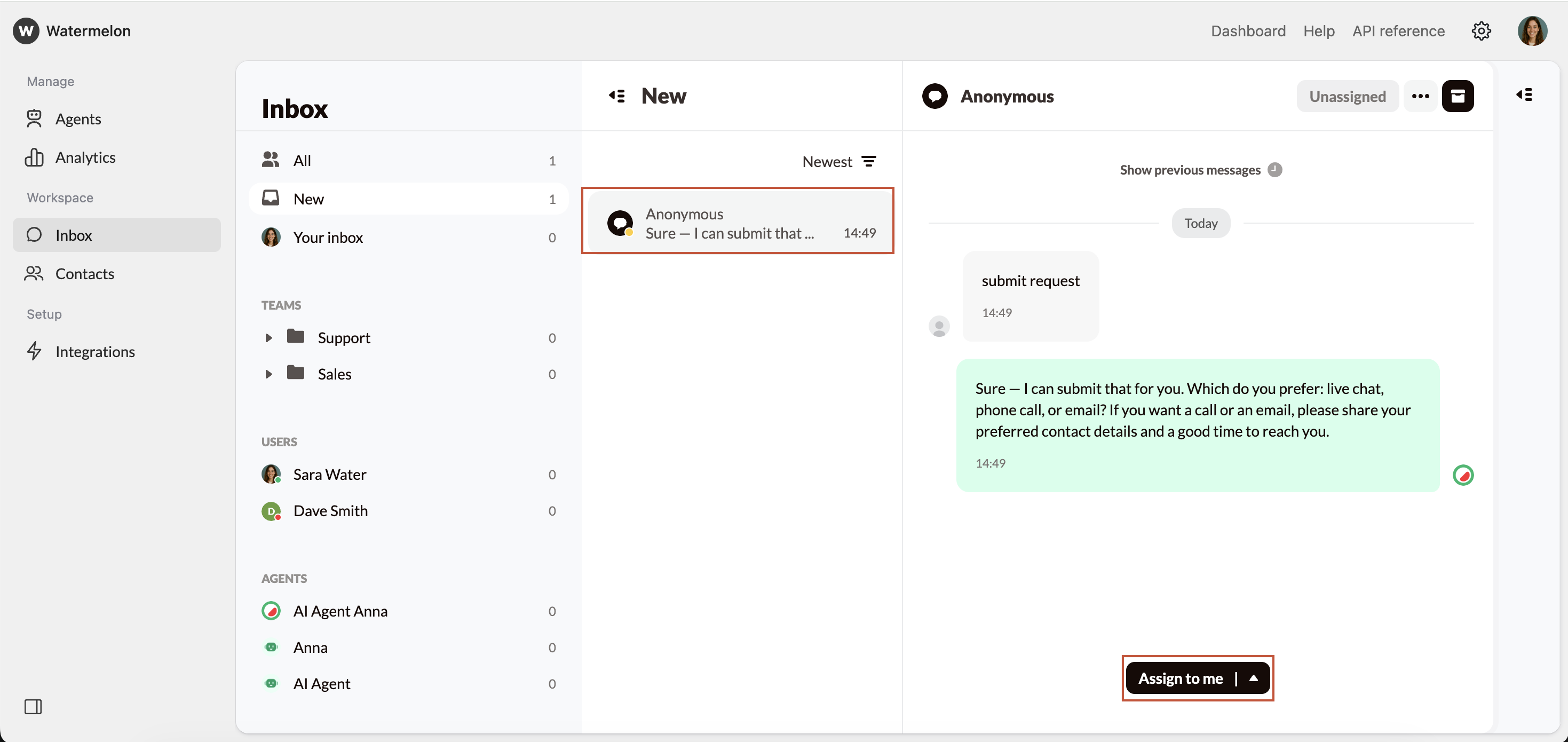 Once you **pick up** a conversation, it moves to **Your inbox**.
 ## Active Conversations
Your inbox contains all conversations that:
* You **picked up**
* Someone **assigned** to you
* You **took over** from another agent
* **Were transferred** from an AI Agent
From here, you can:
* Reply to the customer
* [Customize your inbox](/help-center/inbox/customizing-your-inbox-view) view
* [Forward to another user or team](/help-center/inbox/forwarding-conversations)
* Add [Notes](/help-center/inbox/notes) to keep internal information
* Add [Tags](/help-center/inbox/tags) to help categorize the conversation
* Use [Filters](/help-center/inbox/filters) to organize what you see
* [Take over a conversation](/help-center/inbox/take-over-conversations) already handled by another agent or the AI Agent
Administrators can see conversations across all teams, users, and AI Agents
### Replying to the Customer
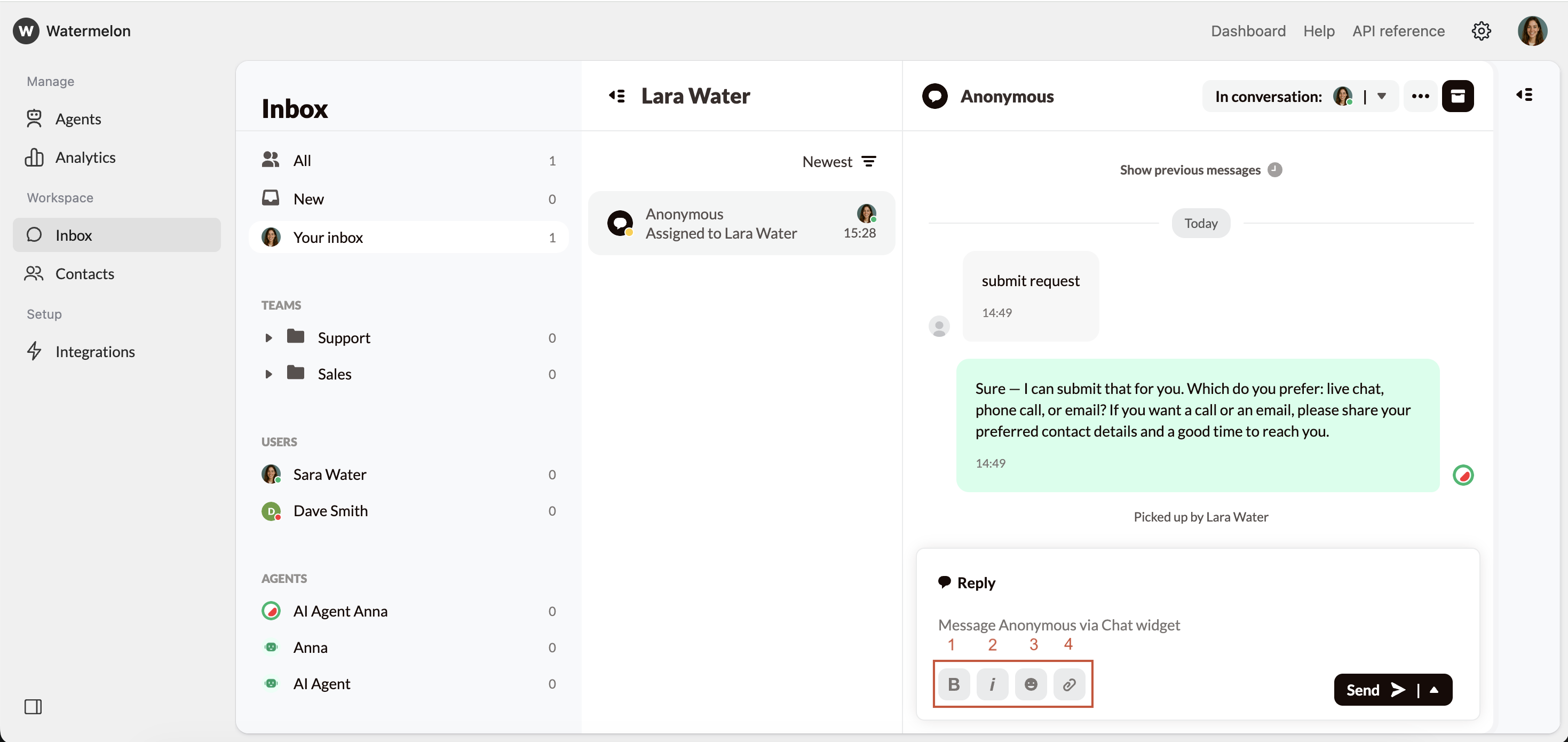
When you’re in an **active conversation**, you can reply to the customer using the message bar at the bottom of the conversation. You can **format** your message with **bold**(1), *italic* (2), or emojis (3) to keep your communication clear and friendly. You can also **upload** files or images (4) directly into the conversation when you need to **share** documents, screenshots, or other attachments.
## Active Conversations
Your inbox contains all conversations that:
* You **picked up**
* Someone **assigned** to you
* You **took over** from another agent
* **Were transferred** from an AI Agent
From here, you can:
* Reply to the customer
* [Customize your inbox](/help-center/inbox/customizing-your-inbox-view) view
* [Forward to another user or team](/help-center/inbox/forwarding-conversations)
* Add [Notes](/help-center/inbox/notes) to keep internal information
* Add [Tags](/help-center/inbox/tags) to help categorize the conversation
* Use [Filters](/help-center/inbox/filters) to organize what you see
* [Take over a conversation](/help-center/inbox/take-over-conversations) already handled by another agent or the AI Agent
Administrators can see conversations across all teams, users, and AI Agents
### Replying to the Customer
When you’re in an **active conversation**, you can reply to the customer using the message bar at the bottom of the conversation. You can **format** your message with **bold**(1), *italic* (2), or emojis (3) to keep your communication clear and friendly. You can also **upload** files or images (4) directly into the conversation when you need to **share** documents, screenshots, or other attachments.
 Next to the message field, you’ll find the **Send** button. Clicking the arrow opens two options:
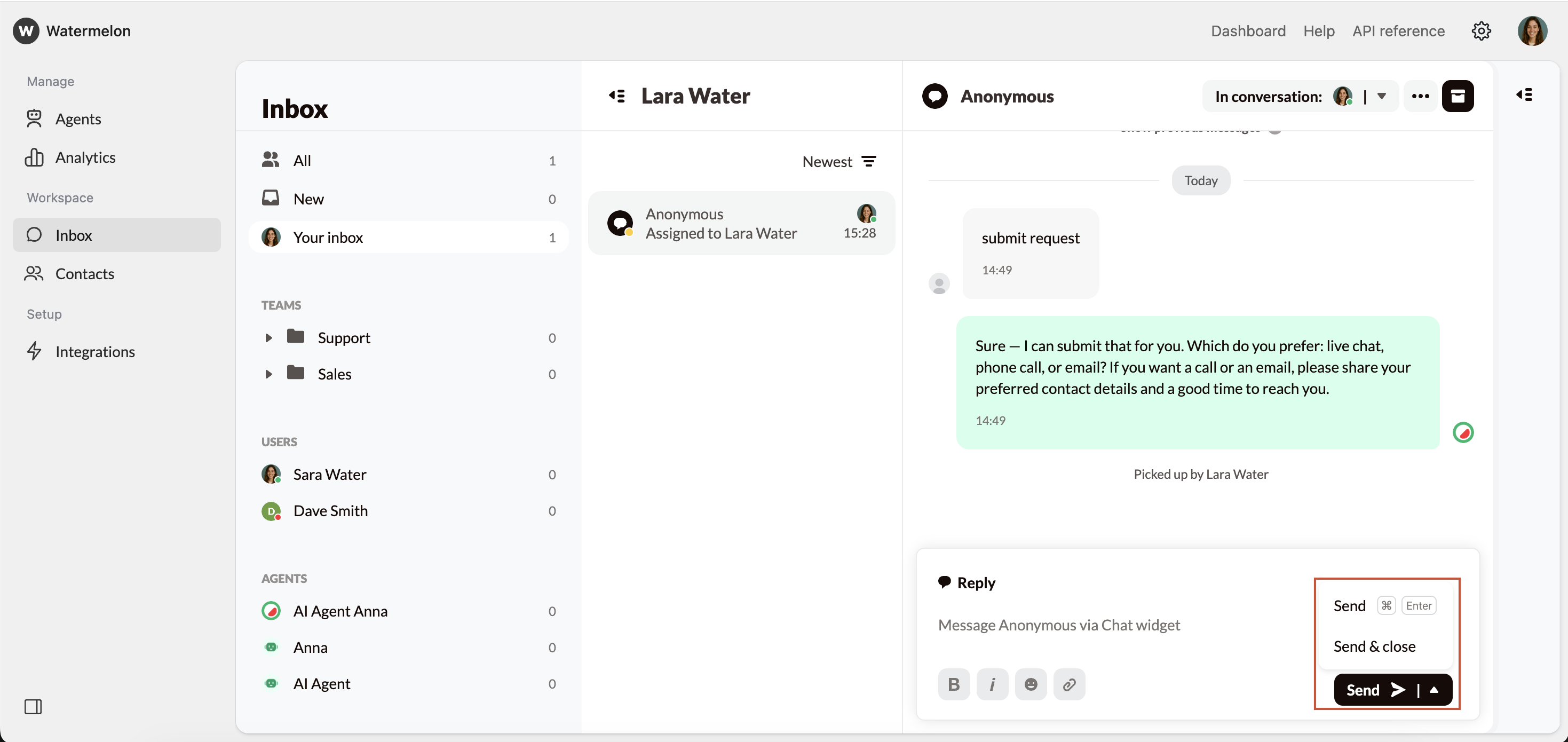 * **Send** — deliver your message and keep the conversation open
* **Send & close** — send your final message and immediately close the conversation
This makes it easy to respond in the way that best fits your workflow.
### Notes & Tags
During an active conversation, you can add internal information using the Details Panel:
• [**Notes:**](/help-center/inbox/notes) internal-only comments about context, follow-up items, or important details
• [**Tags:**](/help-center/inbox/tags) labels that help organize, search, or categorize conversations
### Forwarding & Reassigning Conversations
If a conversation needs to be handled by someone else, you can:
* Forward to another **user**
* Forward to a **team**
* **Remove** yourself from the conversation (returns it to unassigned)
See: [Forwarding Conversations.](/help-center/inbox/forwarding-conversations)
Admins can also take over or assign conversations from Support Agents or AI Agents.
See: [Taking Over Conversations.](/help-center/inbox/take-over-conversations)
### Teams
If your company operates in **teams** (e.g., Support, Sales, Regions, or follow-up teams), you can manage conversations inside your team workspace:
* **Send** — deliver your message and keep the conversation open
* **Send & close** — send your final message and immediately close the conversation
This makes it easy to respond in the way that best fits your workflow.
### Notes & Tags
During an active conversation, you can add internal information using the Details Panel:
• [**Notes:**](/help-center/inbox/notes) internal-only comments about context, follow-up items, or important details
• [**Tags:**](/help-center/inbox/tags) labels that help organize, search, or categorize conversations
### Forwarding & Reassigning Conversations
If a conversation needs to be handled by someone else, you can:
* Forward to another **user**
* Forward to a **team**
* **Remove** yourself from the conversation (returns it to unassigned)
See: [Forwarding Conversations.](/help-center/inbox/forwarding-conversations)
Admins can also take over or assign conversations from Support Agents or AI Agents.
See: [Taking Over Conversations.](/help-center/inbox/take-over-conversations)
### Teams
If your company operates in **teams** (e.g., Support, Sales, Regions, or follow-up teams), you can manage conversations inside your team workspace:
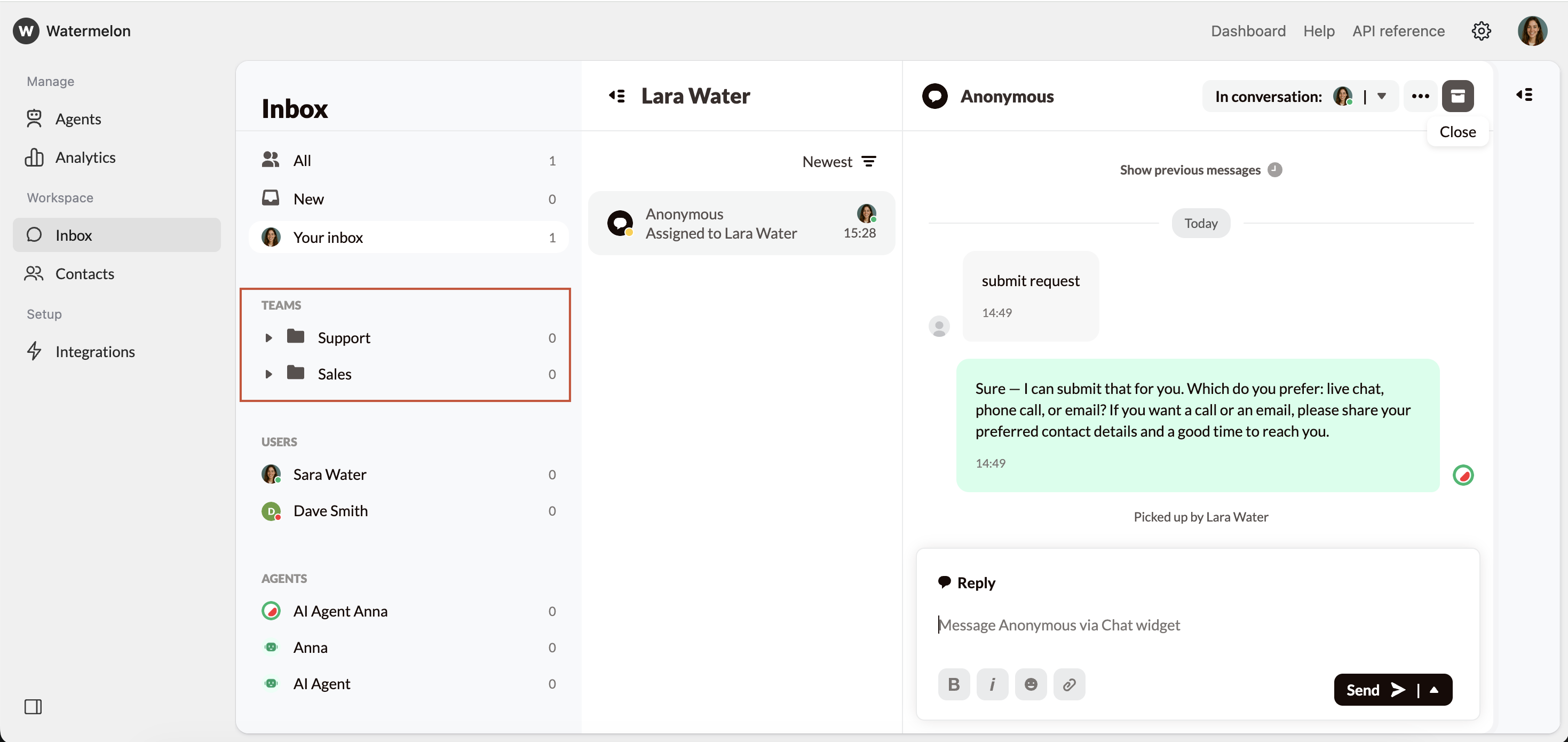 * Team → **Unassigned**: conversations waiting for someone in **your team**
* Team → **My Conversations**: assigned to **you**
* Team → **All**: visible to**all** team members
See: [Creating Teams](/help-center/inbox/create-teams) and [Working in Teams](/help-center/inbox/working-in-teams)
## Closing Conversations
When you’re **finished** helping a customer, **close** the conversation to complete the lifecycle by clicking **Close conversation** above the conversation screen.
* Team → **Unassigned**: conversations waiting for someone in **your team**
* Team → **My Conversations**: assigned to **you**
* Team → **All**: visible to**all** team members
See: [Creating Teams](/help-center/inbox/create-teams) and [Working in Teams](/help-center/inbox/working-in-teams)
## Closing Conversations
When you’re **finished** helping a customer, **close** the conversation to complete the lifecycle by clicking **Close conversation** above the conversation screen.
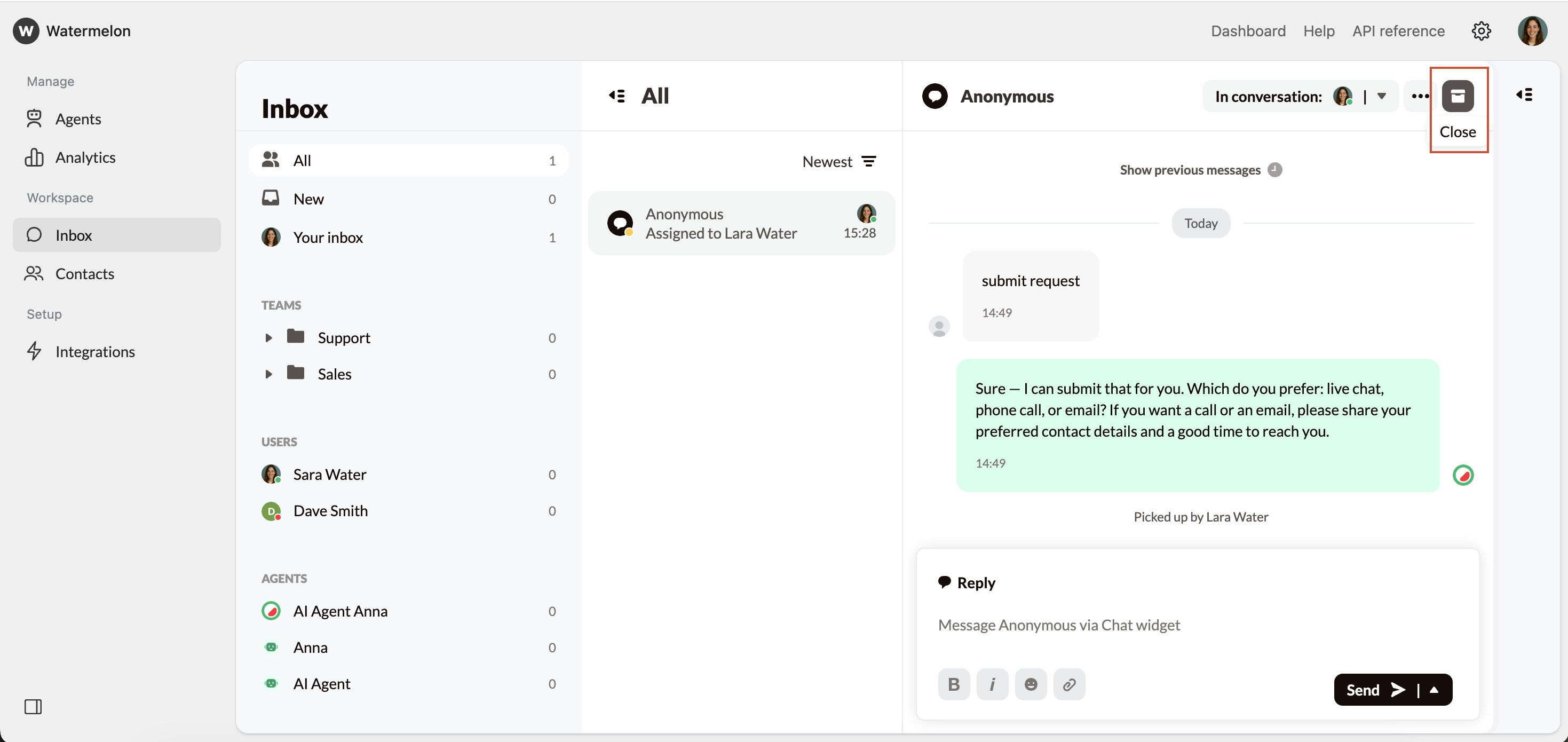 Closing a conversation will:
* **Save** the conversation
* **Update** your analytics
* **Move** the conversation out of your active inbox
Watermelon will also **auto-close** conversations that remain inactive for four days, helping you keep a clean inbox.
### Where to Find Closed Conversations
You can filter Closed Conversations in all inbox filters:
* All
* New
* Your inbox
* Teams
* Users
* Agents
#### **How it works**
Go to Inbox and select any inbox filter. For example All.
Closing a conversation will:
* **Save** the conversation
* **Update** your analytics
* **Move** the conversation out of your active inbox
Watermelon will also **auto-close** conversations that remain inactive for four days, helping you keep a clean inbox.
### Where to Find Closed Conversations
You can filter Closed Conversations in all inbox filters:
* All
* New
* Your inbox
* Teams
* Users
* Agents
#### **How it works**
Go to Inbox and select any inbox filter. For example All.
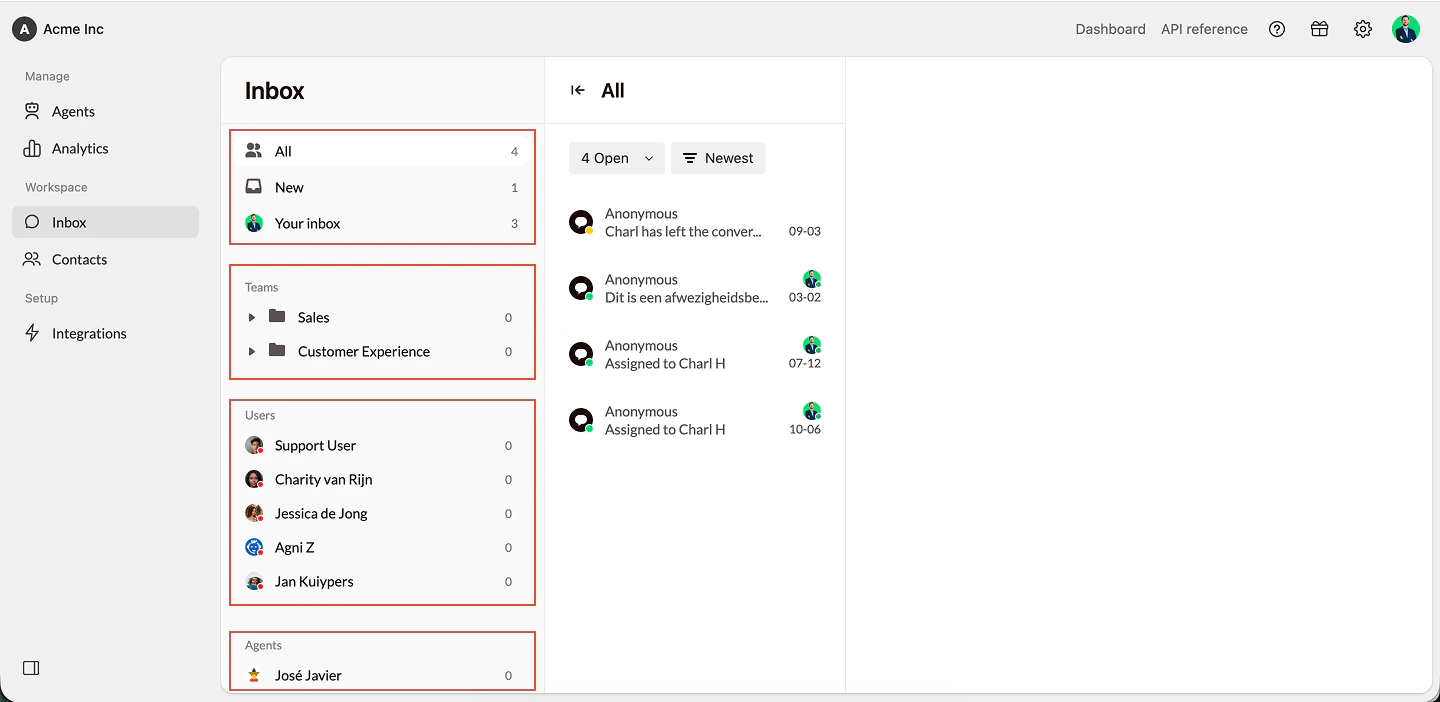 Click within the conversation list at the top left on the button that says "Open"
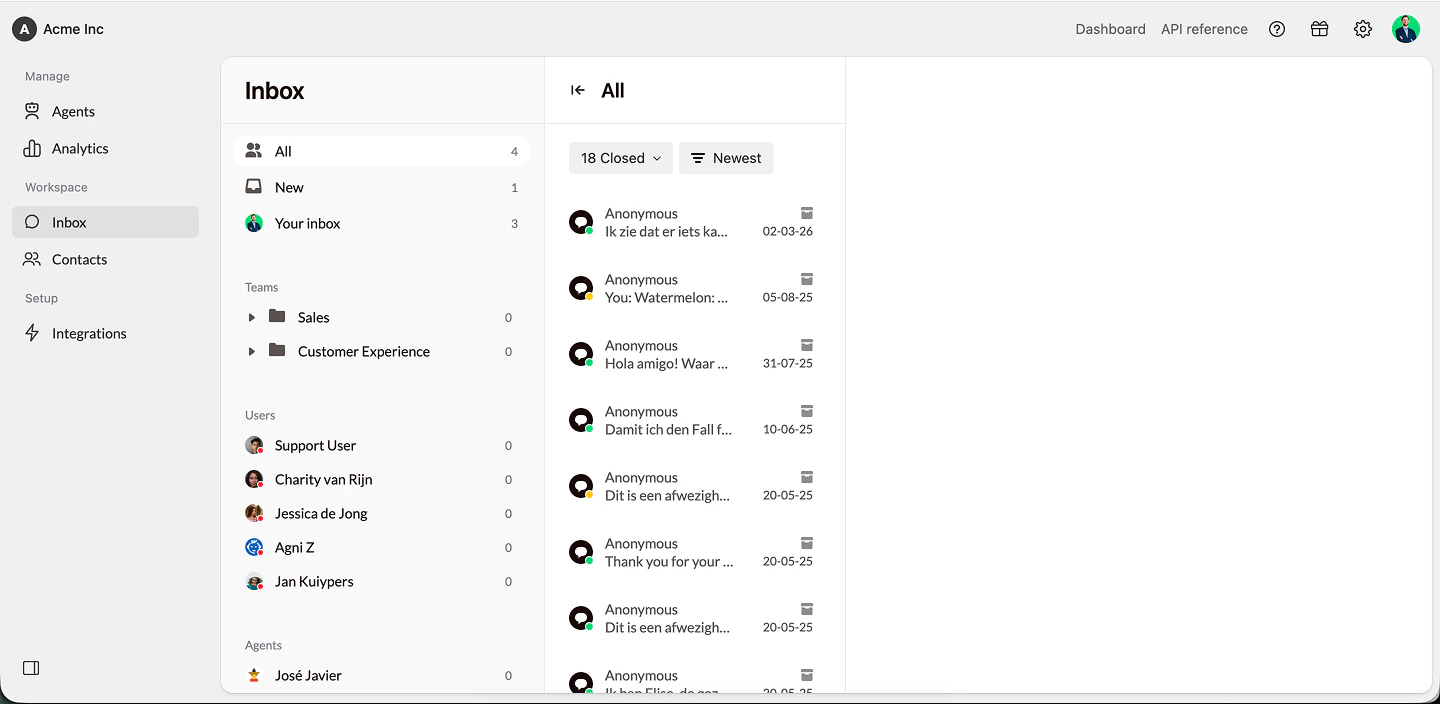
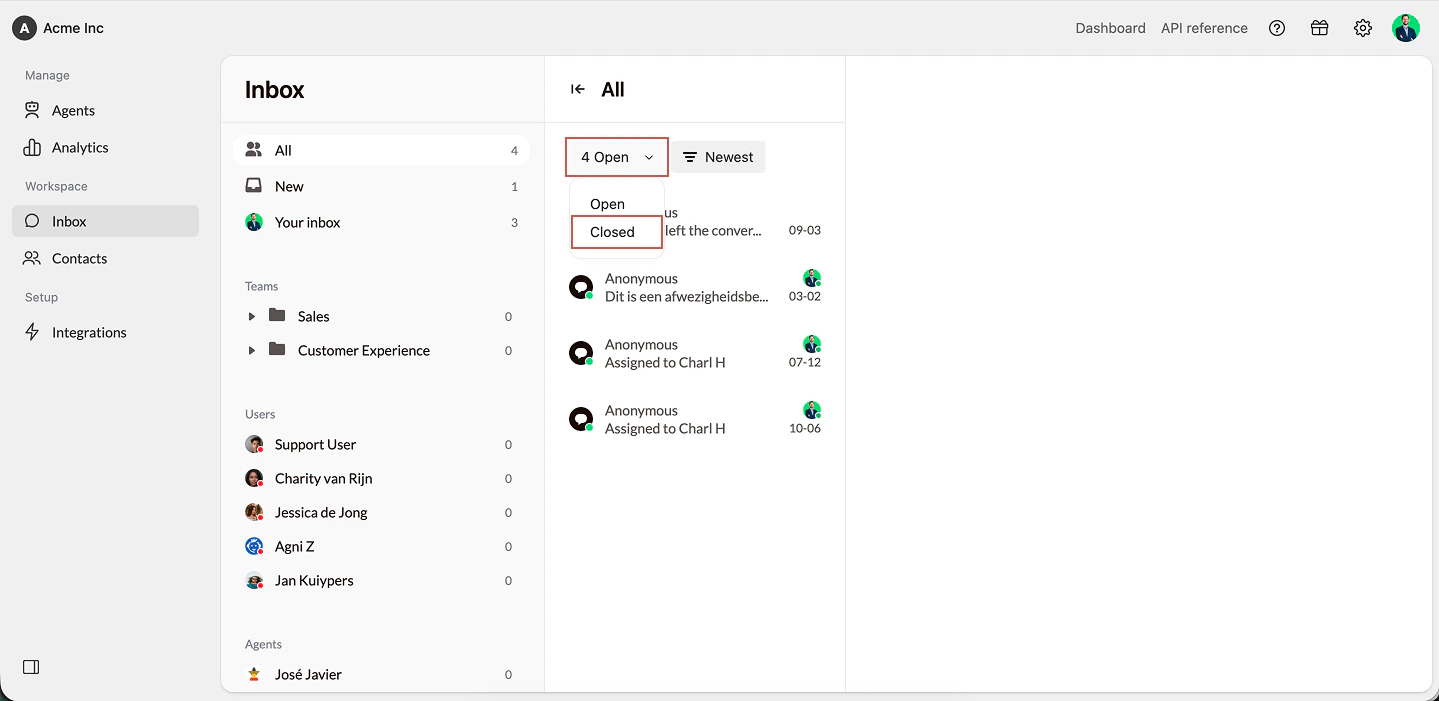 You’ll now see a full overview of all closed conversations
 **Closed conversations in Contacts**
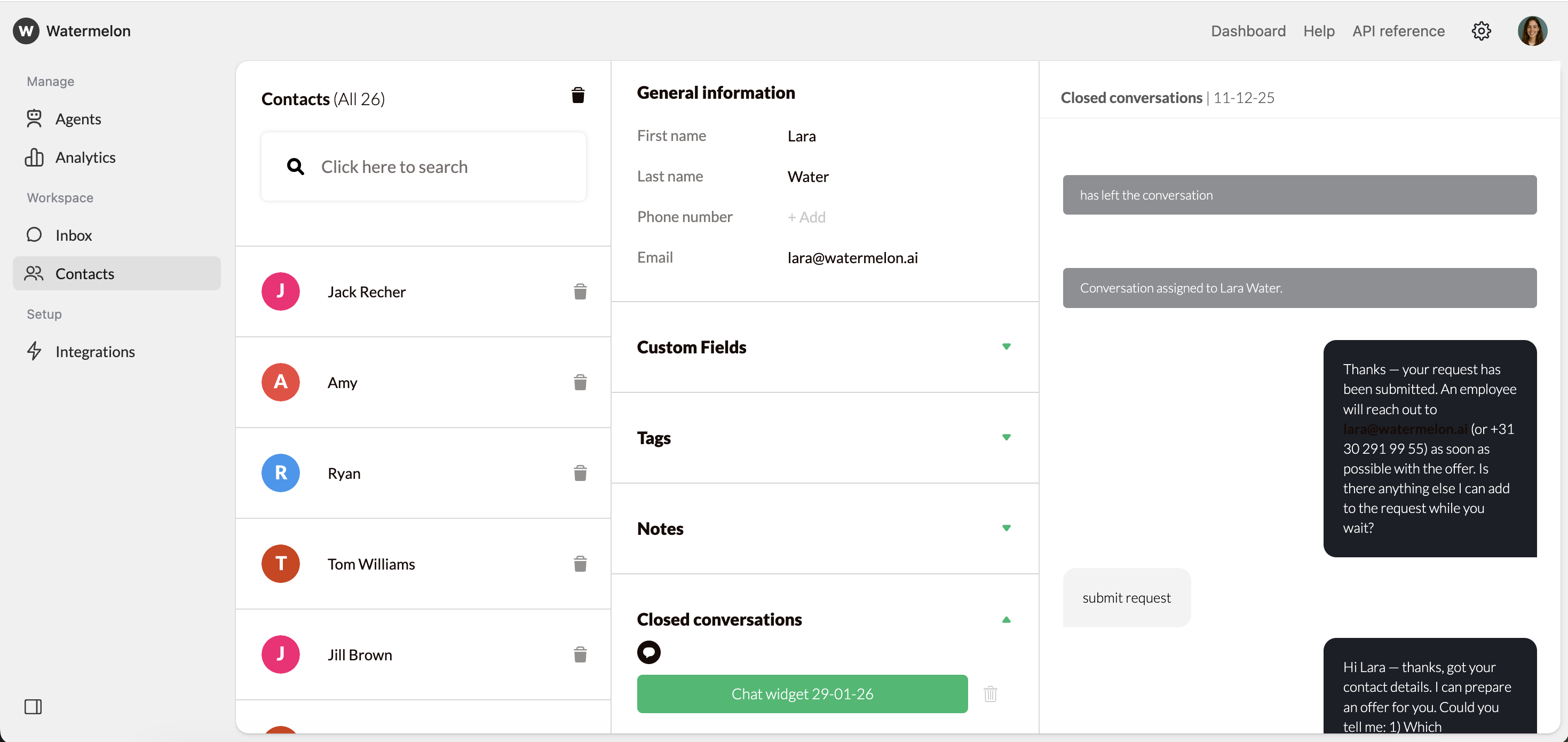
Closed conversations are stored under **Contacts.**
To view a closed conversation:
1. Go to **Contacts**
2. Search for the **customer**
3. Open the **contact**
4. Select **Closed conversations**
5. Click a **Date** to view the full conversation
**Closed conversations in Contacts**
Closed conversations are stored under **Contacts.**
To view a closed conversation:
1. Go to **Contacts**
2. Search for the **customer**
3. Open the **contact**
4. Select **Closed conversations**
5. Click a **Date** to view the full conversation
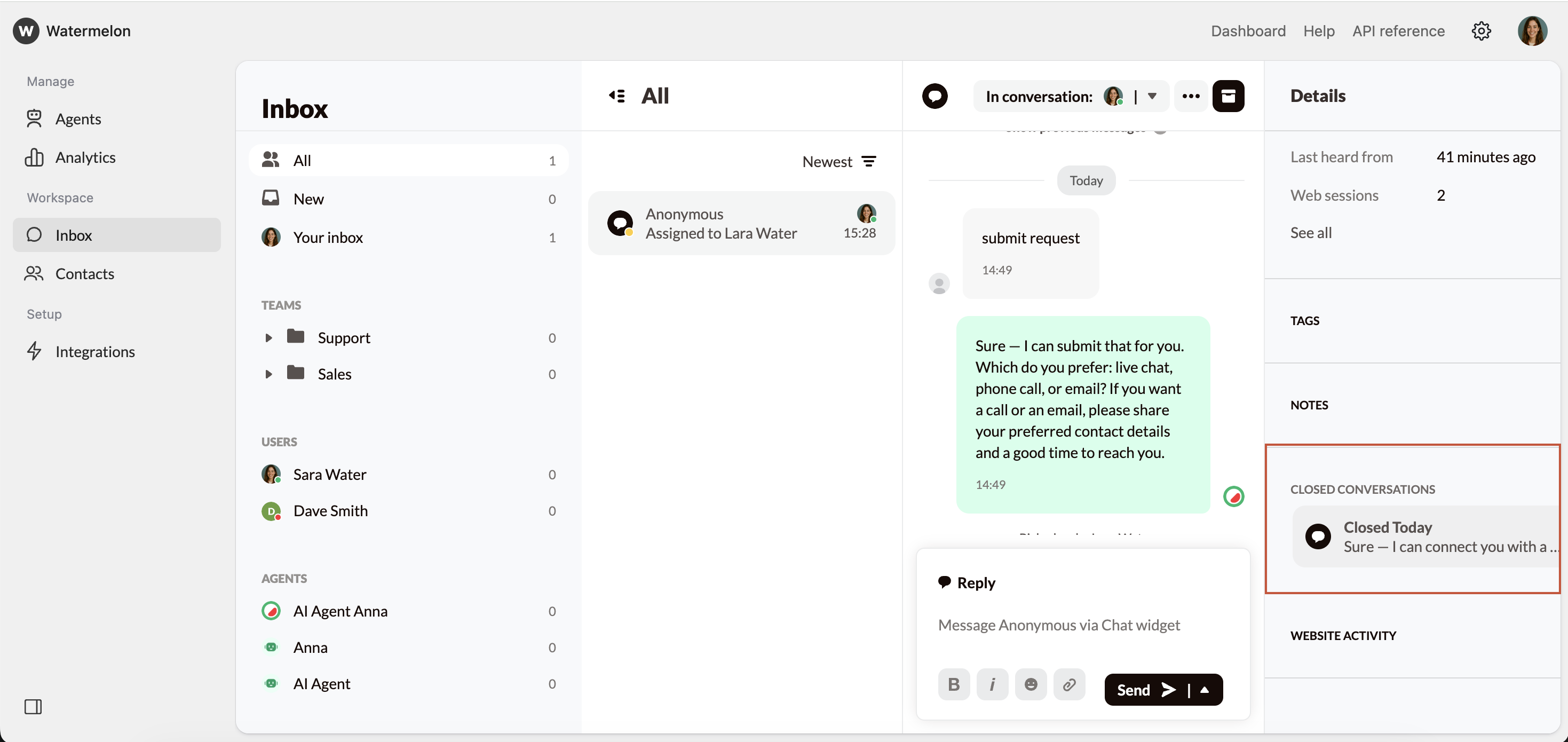
 You can also **access** closed conversations directly from the **Details Pane**l of an active conversation if you are speaking with a **returning** customer.
 **What information is needed to see a closed conversation in Contacts?**
* Instagram, Facebook, and WhatsApp automatically include the needed contact data
* Website widget conversations appear once the customer submits their details
## Deleting Conversations & Data
You may want to **delete** conversations to keep Watermelon tidy or for **privacy compliance**.
To do this from Your **Inbox**:
**Note:** Deletions are permanent and cannot be undone.
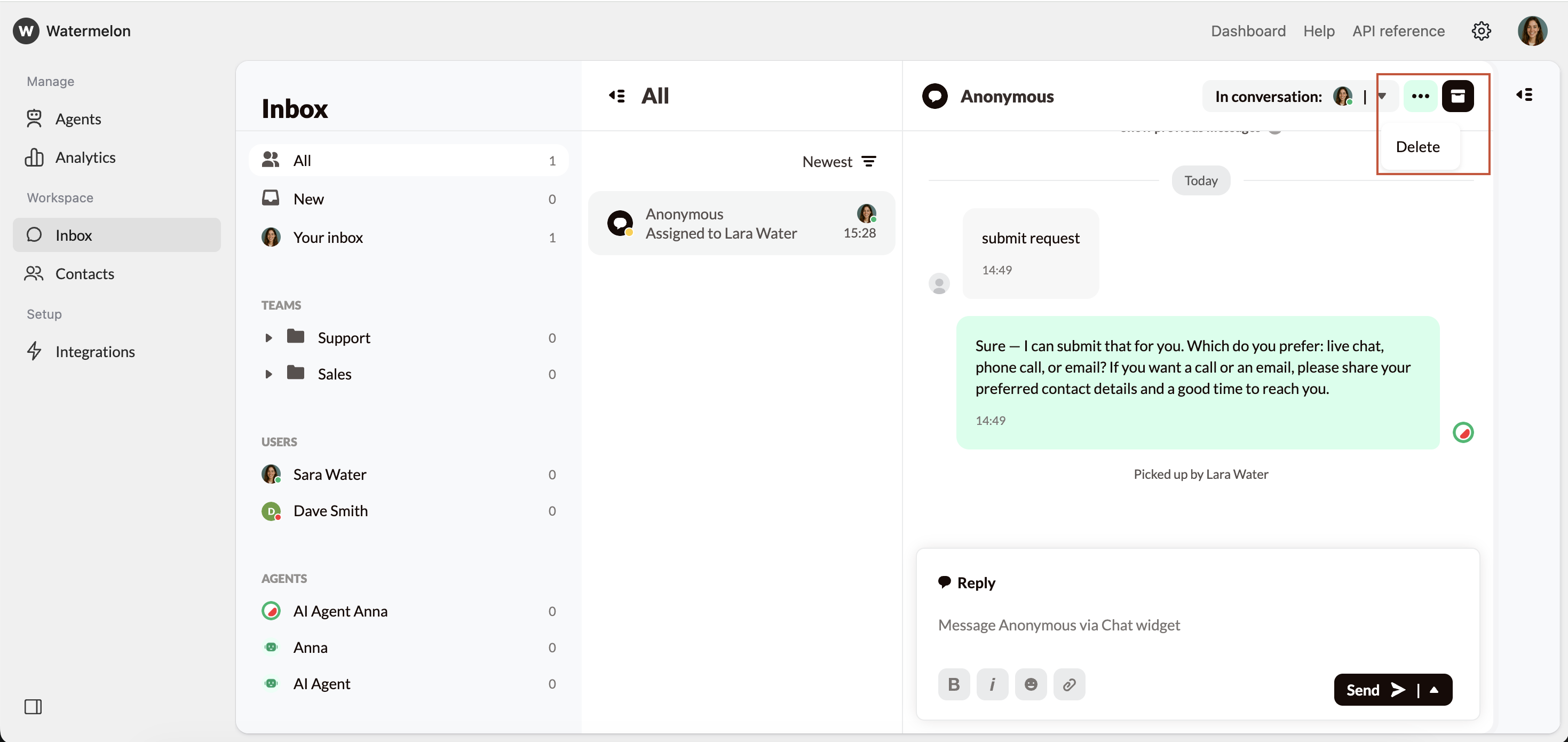
1. Open the **conversation**
2. Click the **three dots**
3. Choose **Delete**
This **permanently** removes the conversation and all customer data from analytics.
**What information is needed to see a closed conversation in Contacts?**
* Instagram, Facebook, and WhatsApp automatically include the needed contact data
* Website widget conversations appear once the customer submits their details
## Deleting Conversations & Data
You may want to **delete** conversations to keep Watermelon tidy or for **privacy compliance**.
To do this from Your **Inbox**:
**Note:** Deletions are permanent and cannot be undone.
1. Open the **conversation**
2. Click the **three dots**
3. Choose **Delete**
This **permanently** removes the conversation and all customer data from analytics.
 To delete all conversations for a **specific contact:**
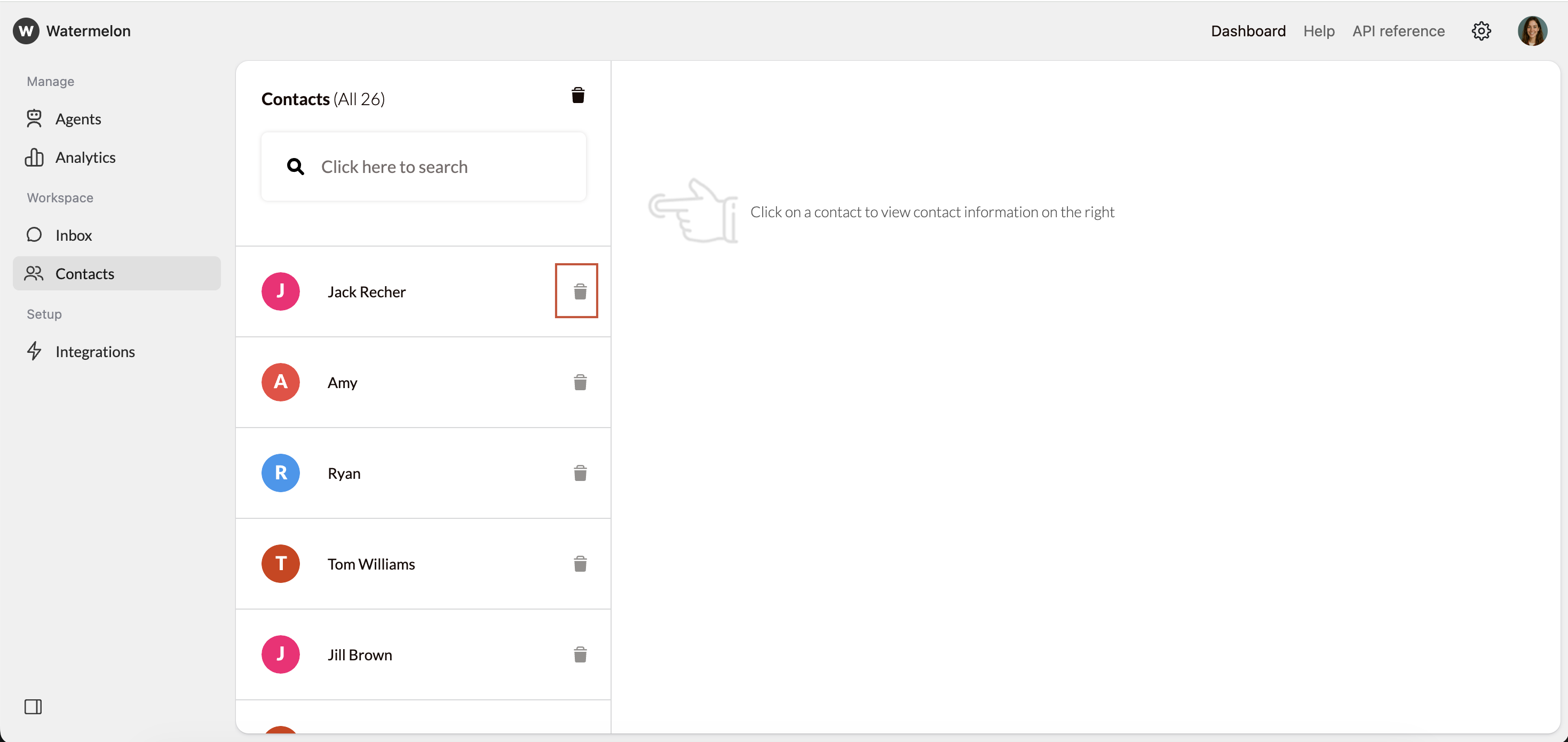
1. Go to **Contacts**
2. Find the **customer**
3. Click the **trash** can icon
This deletes:
* All **conversations**
* All associated **contact information**
To delete all conversations for a **specific contact:**
1. Go to **Contacts**
2. Find the **customer**
3. Click the **trash** can icon
This deletes:
* All **conversations**
* All associated **contact information**
 You can also configure **automatic deletion** through:
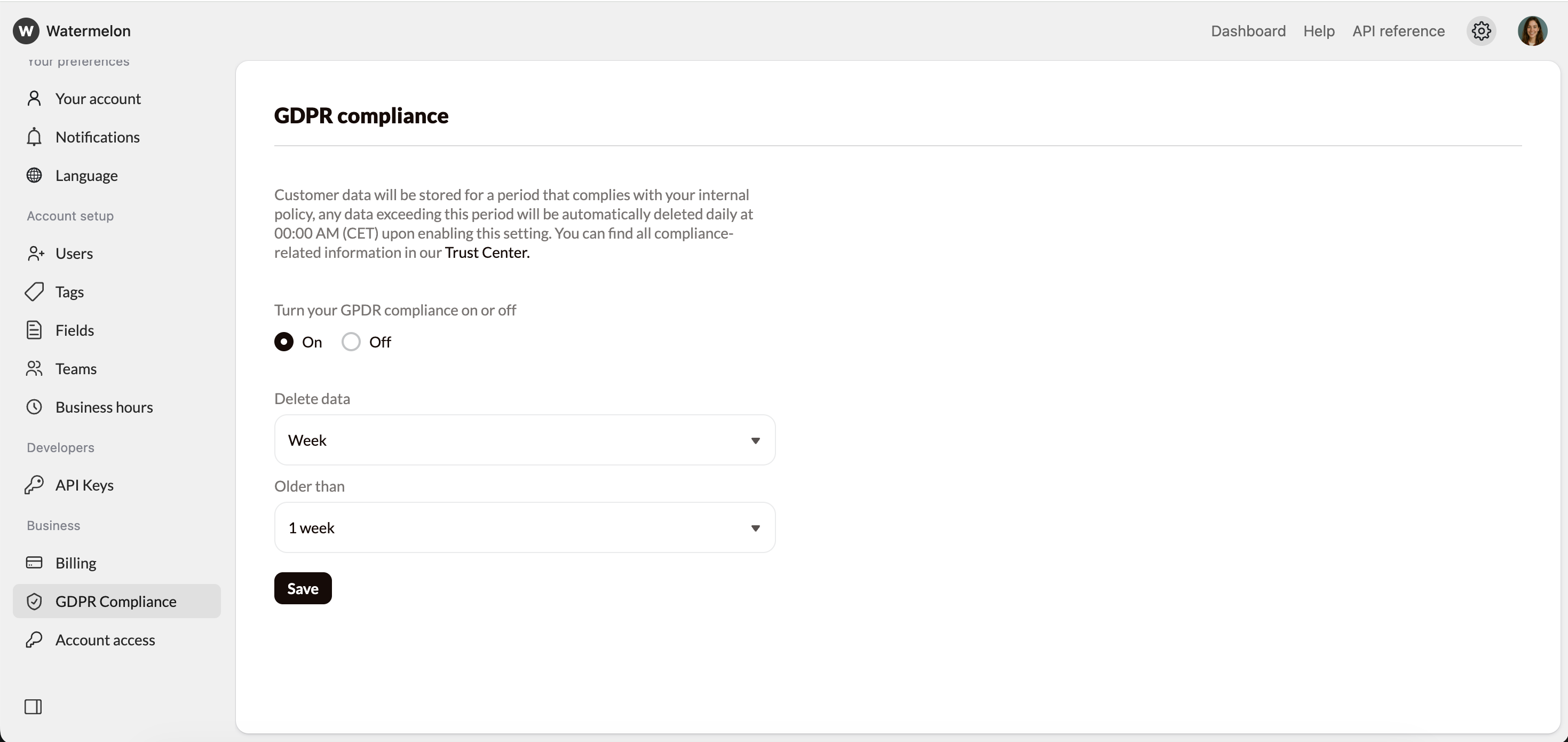
1. Settings → **GDPR** compliance
2. **Toggle On** GDPR Compliance
3. Select a **timeframe** to delete (week, month, year) and **how long** to wait before deleting.
4. Click **Save**
You can also configure **automatic deletion** through:
1. Settings → **GDPR** compliance
2. **Toggle On** GDPR Compliance
3. Select a **timeframe** to delete (week, month, year) and **how long** to wait before deleting.
4. Click **Save**
 This removes all conversations—**open, closed, archived**—and their associated data automatically, after the indicated amount of time.