> ## Documentation Index
> Fetch the complete documentation index at: https://watermelon.ai/docs/llms.txt
> Use this file to discover all available pages before exploring further.
# Setting your status
> Learn how to set your own user status and check the availability of teammates to manage conversations more effectively.
User status lets your team see who is available to handle conversations in real time. By setting your status correctly, you help ensure that chats are assigned to the right person and that customers receive timely support.
## **Setting Your Status**
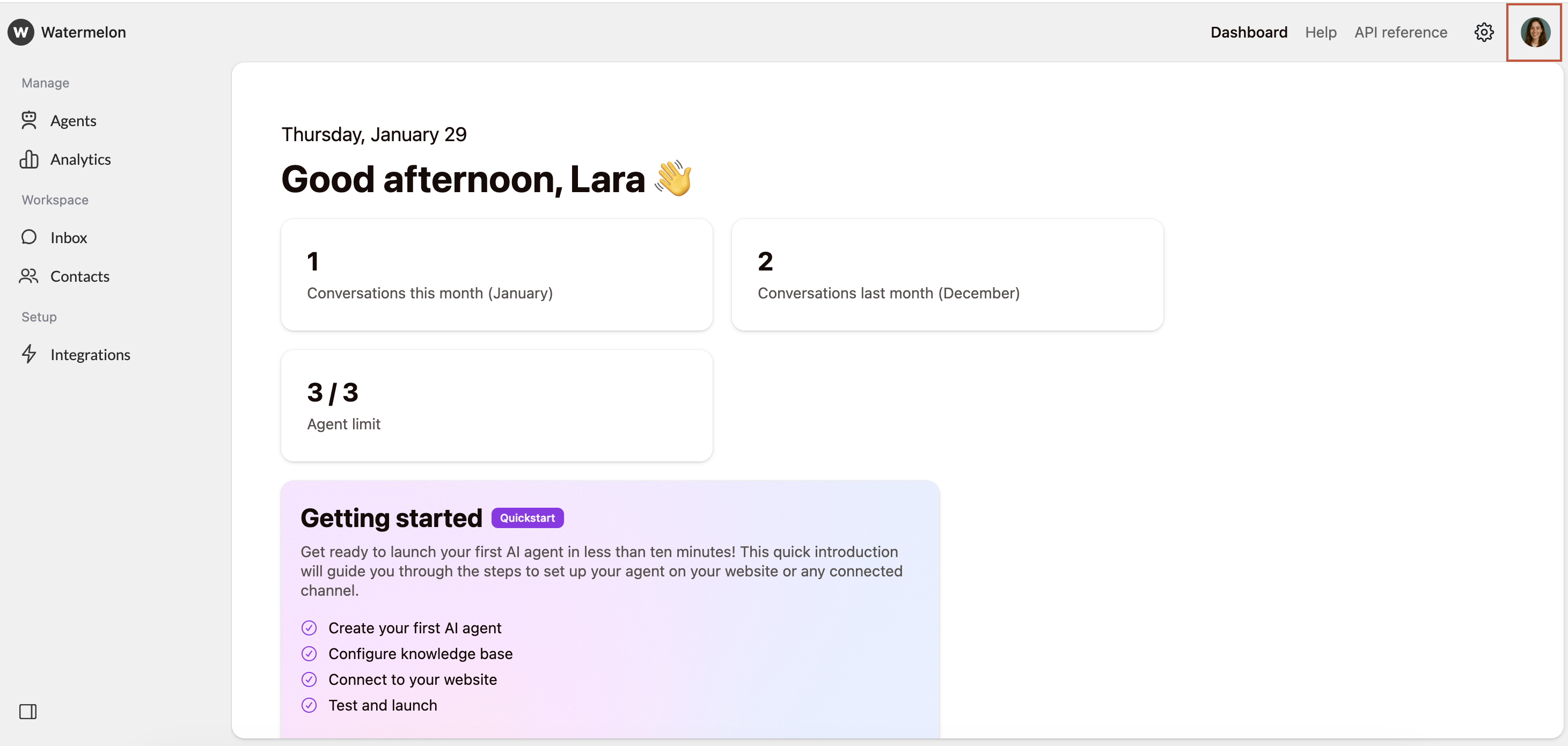
Click your avatar in the top right corner.
 Select either "Online" or "Away" to set your status
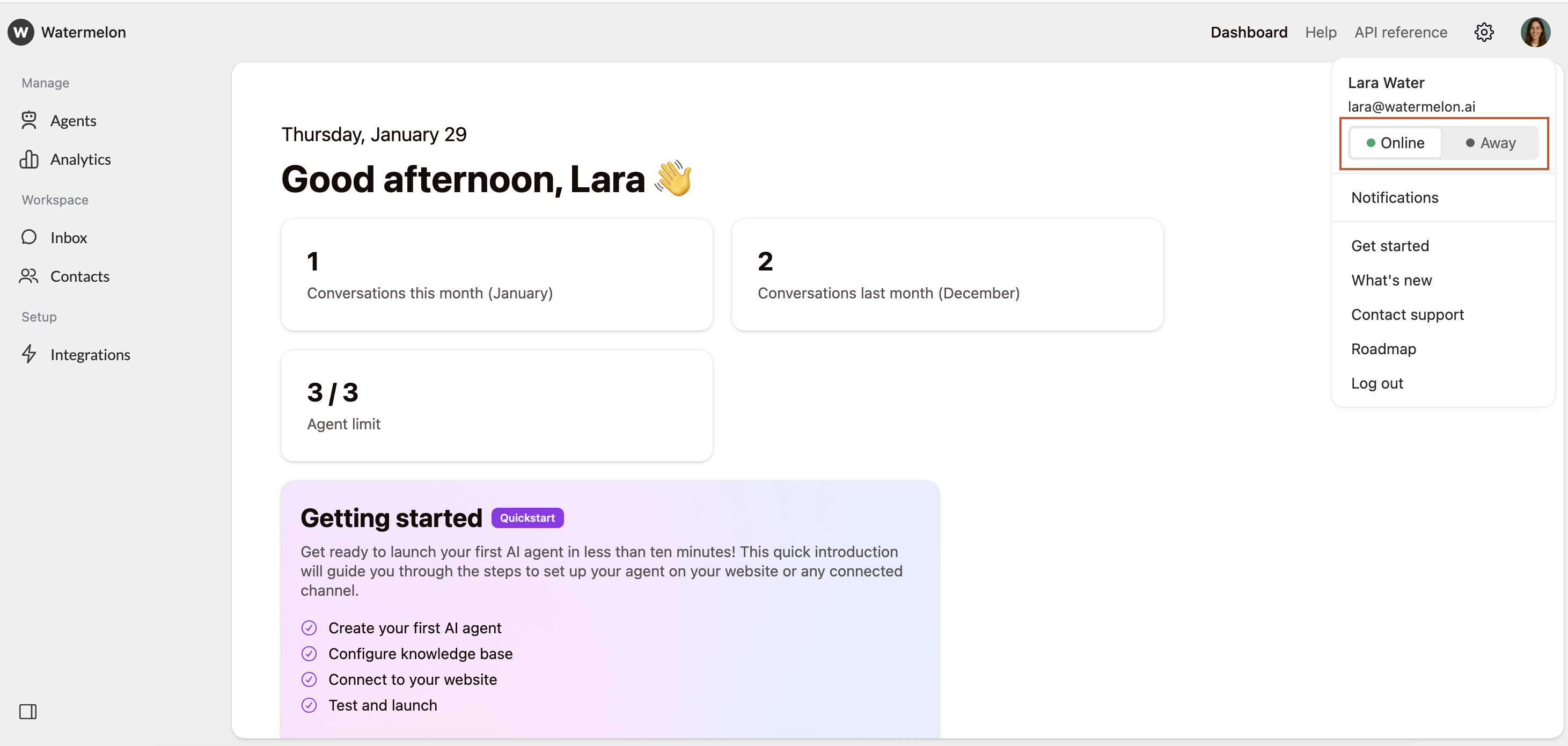 Status does not automatically update, for example, in response to inactivity or ongoing meetings. If you know you will be unable to respond, remember to set your status to **Away.**
| **Status** | **Meaning** |
| ----------------------- | ---------------------------------------------------------------------------------------------------- |
| 🟢 **Online** (default) | You are available to handle conversations. |
| 🟡 **Away** | You are currently unavailable, but you will still receive messages and notifications. |
| 🔴 **Offline** | The Offline status is automatic and appears when you are logged out. It cannot be selected manually. |
You can see the status of other team members in two places:
1. **In the Inbox**: Under "Users" in your inbox you can see your team members' names, alongside a colored status icon.
2. **When assigning a conversation:** When you assign a conversation to a team member, their status icon appears next to their name, helping you choose the right person based on availability
Status does not automatically update, for example, in response to inactivity or ongoing meetings. If you know you will be unable to respond, remember to set your status to **Away.**
| **Status** | **Meaning** |
| ----------------------- | ---------------------------------------------------------------------------------------------------- |
| 🟢 **Online** (default) | You are available to handle conversations. |
| 🟡 **Away** | You are currently unavailable, but you will still receive messages and notifications. |
| 🔴 **Offline** | The Offline status is automatic and appears when you are logged out. It cannot be selected manually. |
You can see the status of other team members in two places:
1. **In the Inbox**: Under "Users" in your inbox you can see your team members' names, alongside a colored status icon.
2. **When assigning a conversation:** When you assign a conversation to a team member, their status icon appears next to their name, helping you choose the right person based on availability