> ## Documentation Index
> Fetch the complete documentation index at: https://watermelon.ai/docs/llms.txt
> Use this file to discover all available pages before exploring further.
# Tags
> Tags help you categorize and track conversations across your inbox. By tagging chats, you can easily organize topics, monitor trends, and generate insights about what customers are asking most.
## **Why Use Tags**
Tags make it easier to keep conversations organized and to analyze patterns over time. They can be used for:
* Grouping related conversations (e.g., *Billing*, *Technical Issue*, *Product Feedback*)
* Tracking campaign or issue types (e.g., *Spring Sale*, *Bug Report*, *Feature Request*)
* Identifying recurring customer topics
* Filtering or reporting on conversation types in analytics
## Create Tags
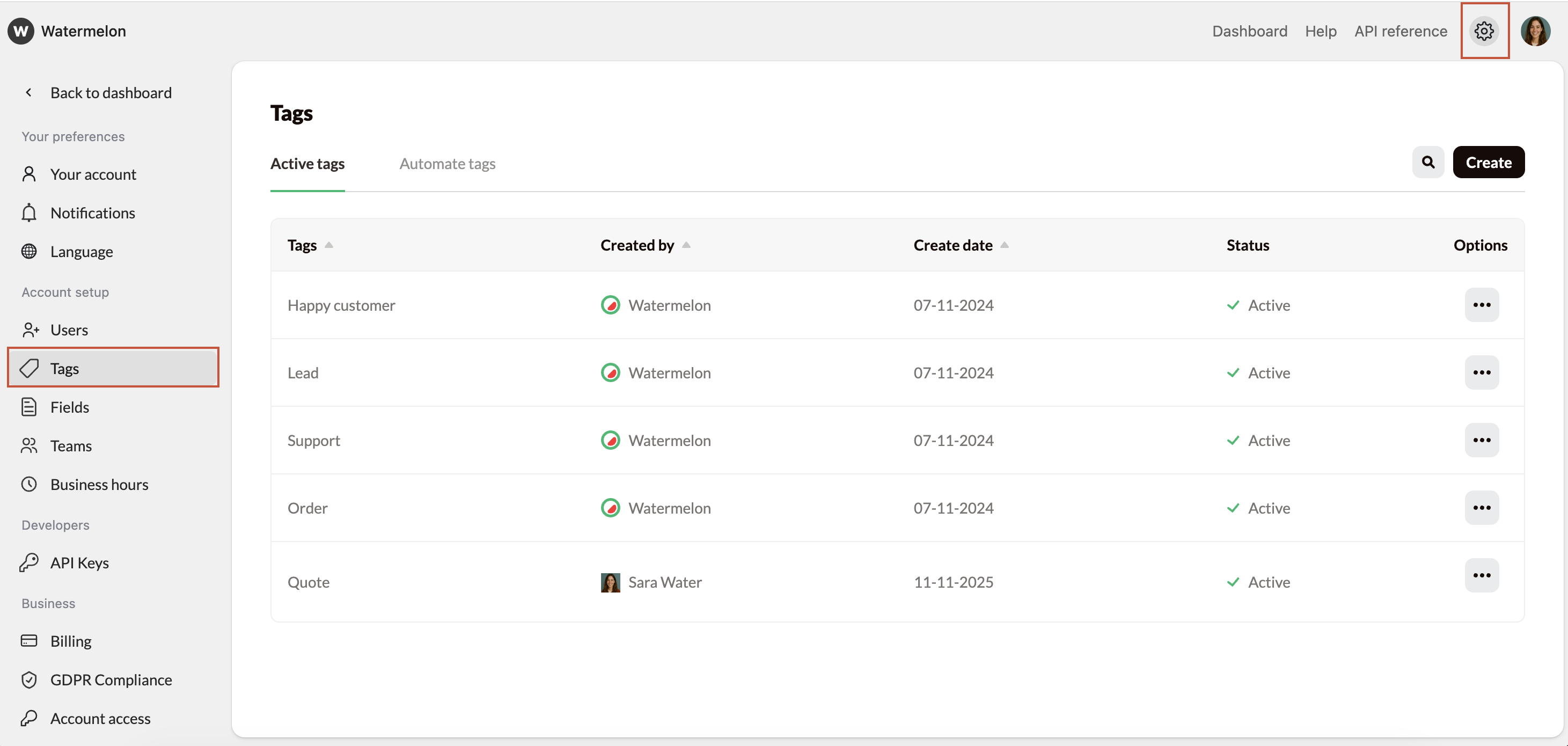
You can set up Tags by selecting Tags from the far left menu pane. This is the quickest place to add multiple tags when you are getting started, or periodically review and edit for unused tags. You can also create tags as from within a conversation, if a relevant tag is not already available.
 ## Using Tags
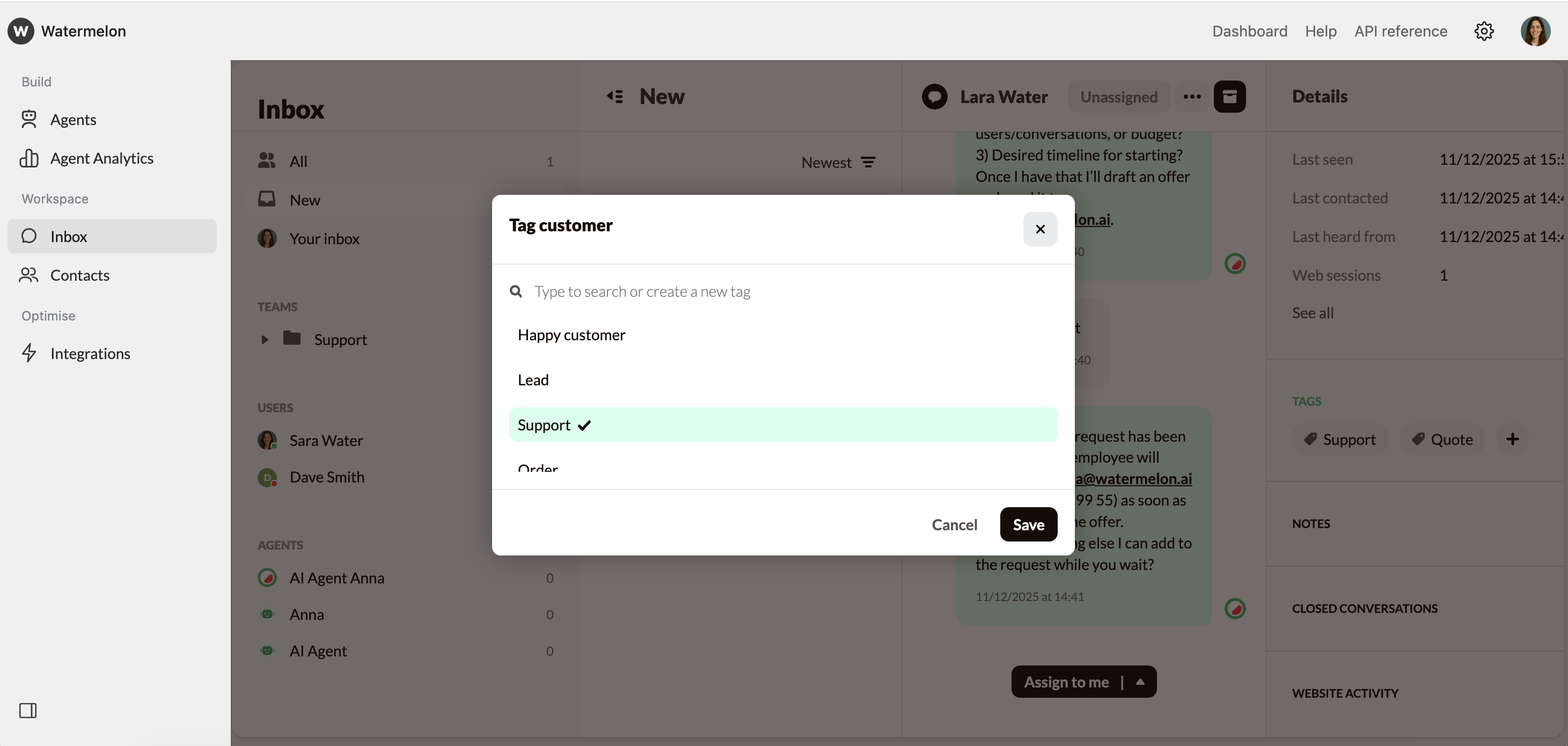
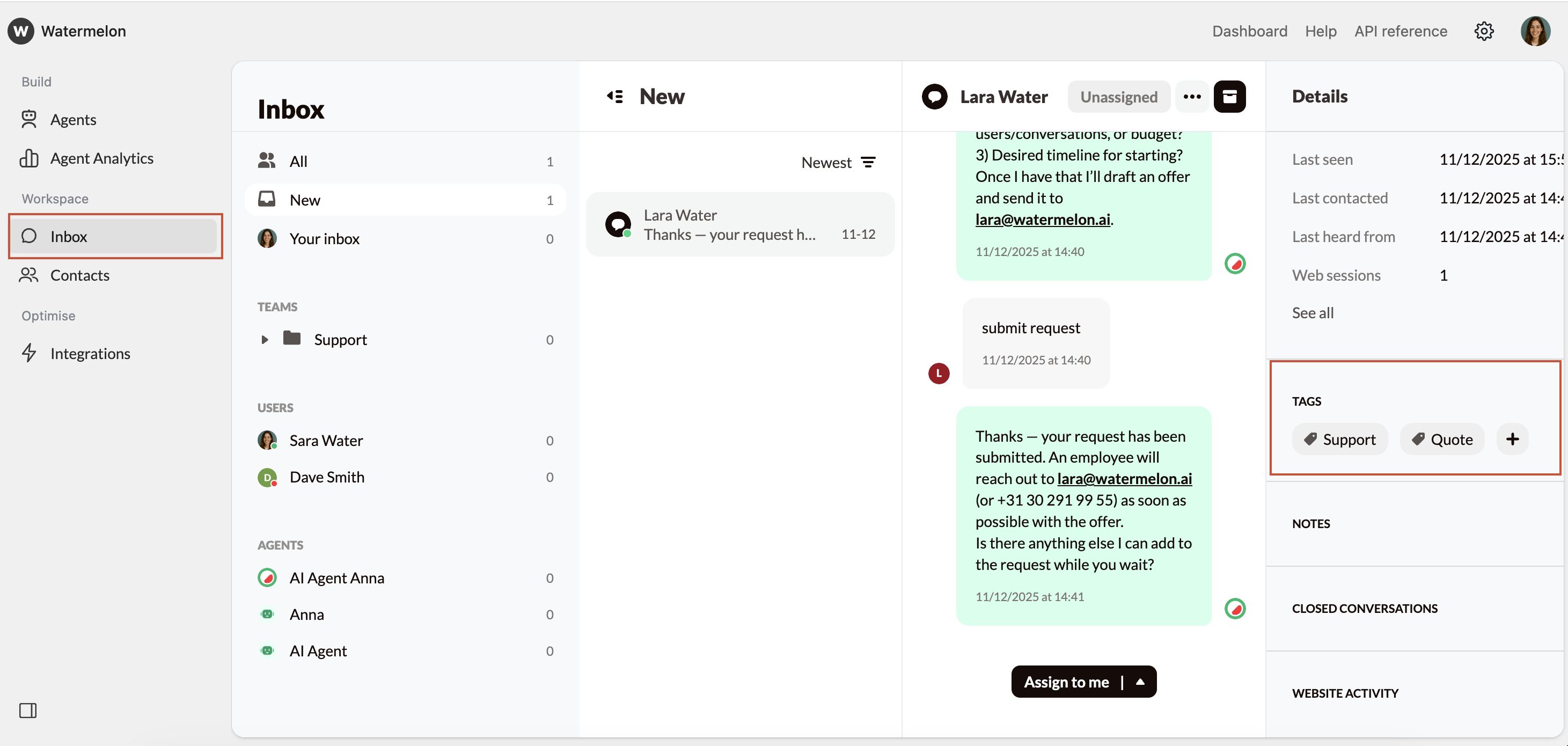
To add tags to a conversations, navigate to your inbox, select the conversation, and open the Tags section in the Details Pane.
## Using Tags
To add tags to a conversations, navigate to your inbox, select the conversation, and open the Tags section in the Details Pane.
 Click the plus sign (+), then select an existing tag from the list or create a new one by typing the tag you want and selecting "Create". The tag will be added in the Tags area of the Details pane for future reference.