> ## Documentation Index
> Fetch the complete documentation index at: https://watermelon.ai/docs/llms.txt
> Use this file to discover all available pages before exploring further.
# Email
Connect your email to Watermelon and let your AI Agent automatically handle incoming messages. You can start with a generated email address, and optionally send replies from your own company email address.
## **Overview**
The Email integration allows your AI Agent to manage conversations via email, just like it does in chat channels.
## **How it works**
* When you **create the email channel**, Watermelon **generates** a **unique email address** for you
* **Emails sent or forwarded to this address** are received in Watermelon, and can be **handled by your AI Agent**
* **The Agent replies automatically**:
* From the default Watermelon email, or
* From your own email address (after DNS setup)
## **Prerequisites**
Before setting up email:
* You are on a **paid plan** (Starter or higher)
* Access to your **email provider settings** (for forwarding)
* Access to your **DNS settings** (only for custom domains)
## **Connecting email**
Follow the steps below to connect email to Watermelon:
Go to **Integrations** and click on **Email.**
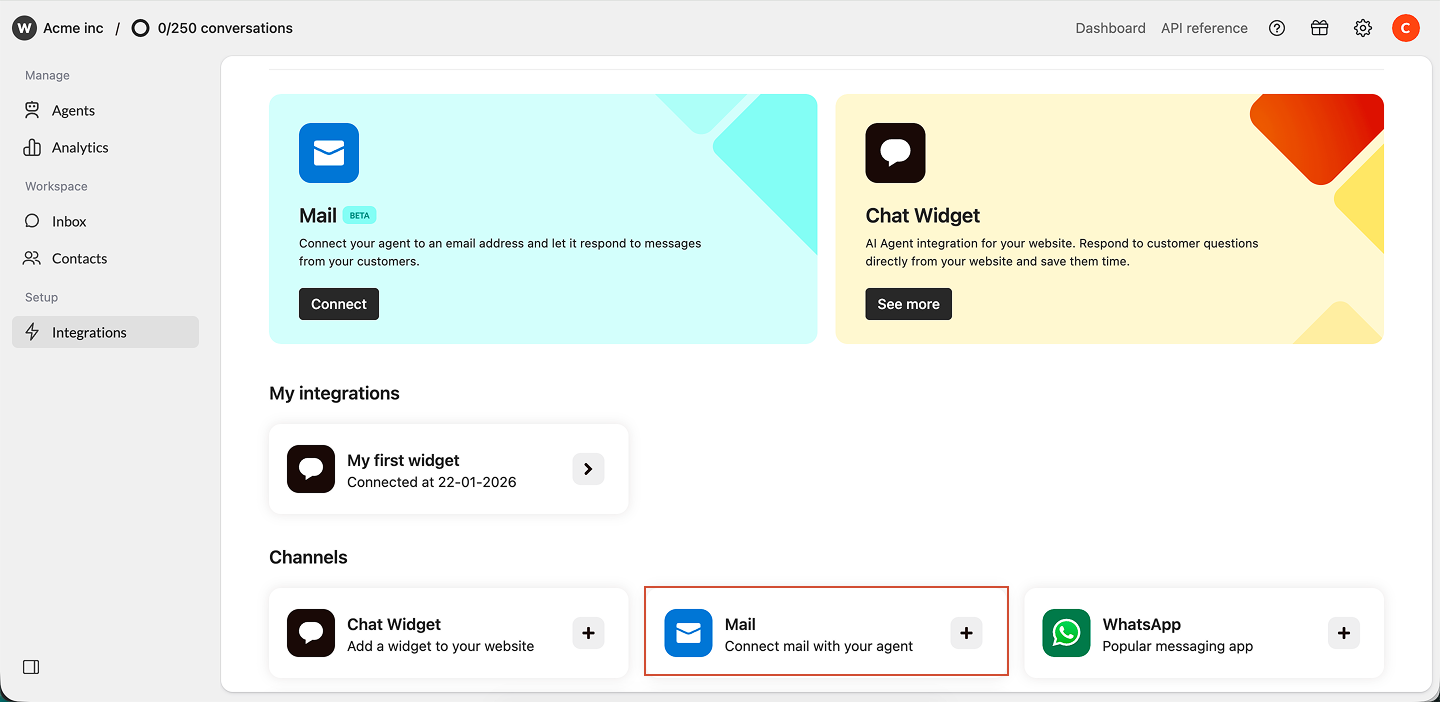 Click on **Connect** to generate your email address.
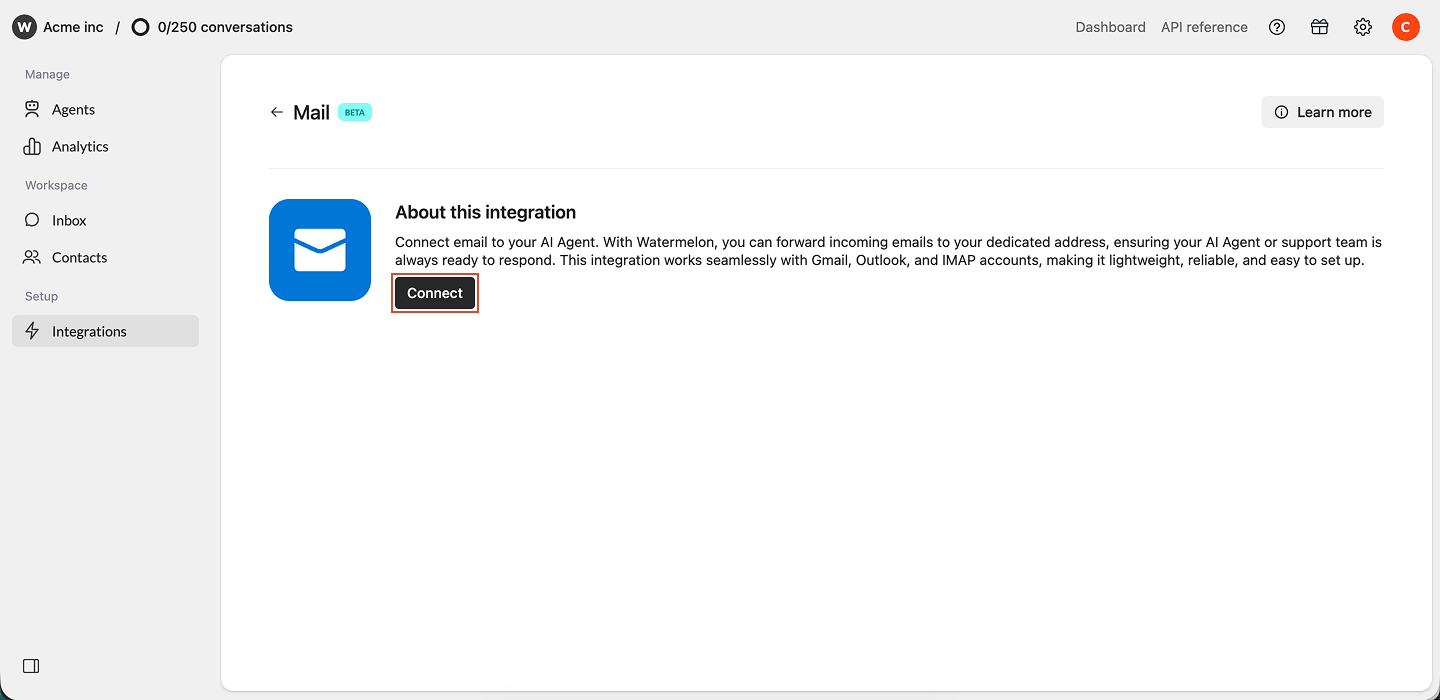 Your generated mail adres will feature a unique random-id. This can be found underneath Agent email address.
\[random-id][.agent@watermelon-mail.com](mailto:.agent@watermelon-mail.com)
## **Using the agent email directly**
You can start using email immediately — but first, make sure your AI Agent is **active on the mail channel**, if you want to automatically answers emails via your AI agent.
Your AI Agent must be published on the mail channel before it can reply to emails. See: [**Publish your agent on mail**](/help-center/publish-your-agent/publish-on-email)
## **Forwarding flow**
To use your own email address (e.g. [support@company.com](mailto:support@company.com)), you need to set up **automatic forwarding**.
### **How forwarding works**
1. A customer **emails**
2. Your email provider **automatically forwards** the message to your agent email
3. The **AI Agent processes the email**
4. A **reply** is **sent** **back** to the customer
You can also set up forwarding **without a custom domain setup**.
Your AI agent will not respond to no-reply mail addresses, automatic messages and newsletters. These mails will not count as received conversations.
For example:
* **Forward emails** → to **your agent email**
* **The AI Agent replies** → from the **generated Watermelon email**
* You can also **manually forward** an e-mail to this mail address
This is useful if you want to get started quickly.
## **Step 1: Add a custom sender email**
After **forwarding** is set up, add your email address in Watermelon.
In **Email configuration**, click the **New email address** button to start the setup process.
**Enter the email address** you want to use (for example, [support@watermelon.ai](mailto:support@watermelon.ai)). This will be the sender address for all outgoing emails from this mail channel.
Click **Continue** to proceed to the email forwarding configuration step.
## **Step 2: Set up forwarding in your email provider**
The exact steps depend on your provider, but generally:
1. Go to your **email provider settings**
2. Find **Forwarding**, **Rules**, or **Filters**
3. Create a rule to **automatically forward** emails to your agent email
4. Confirm **verification** if required
Some providers require verification of the forwarding address. You’ll receive this email inside the Watermelon inbox.
You must configure automatic forwarding for at least one email address on the domain before you can complete DNS authentication and send from that domain.
### **Configure email forwarding in Google Workspace (Admin Console)**
This approach is **recommended** for Google Workspace because it **doesn’t have rate limits** and **doesn’t require creating a mailbox** for the address you’re forwarding.
You need **Google Workspace administrator access** to complete these steps.
Sign in to the [**Admin Console**](https://admin.google.com/).
Navigate to **Apps** → **Google Workspace** → **Gmail**. Go to **Default routing**, then click **Configure** or **add another rule** to create a new routing rule.
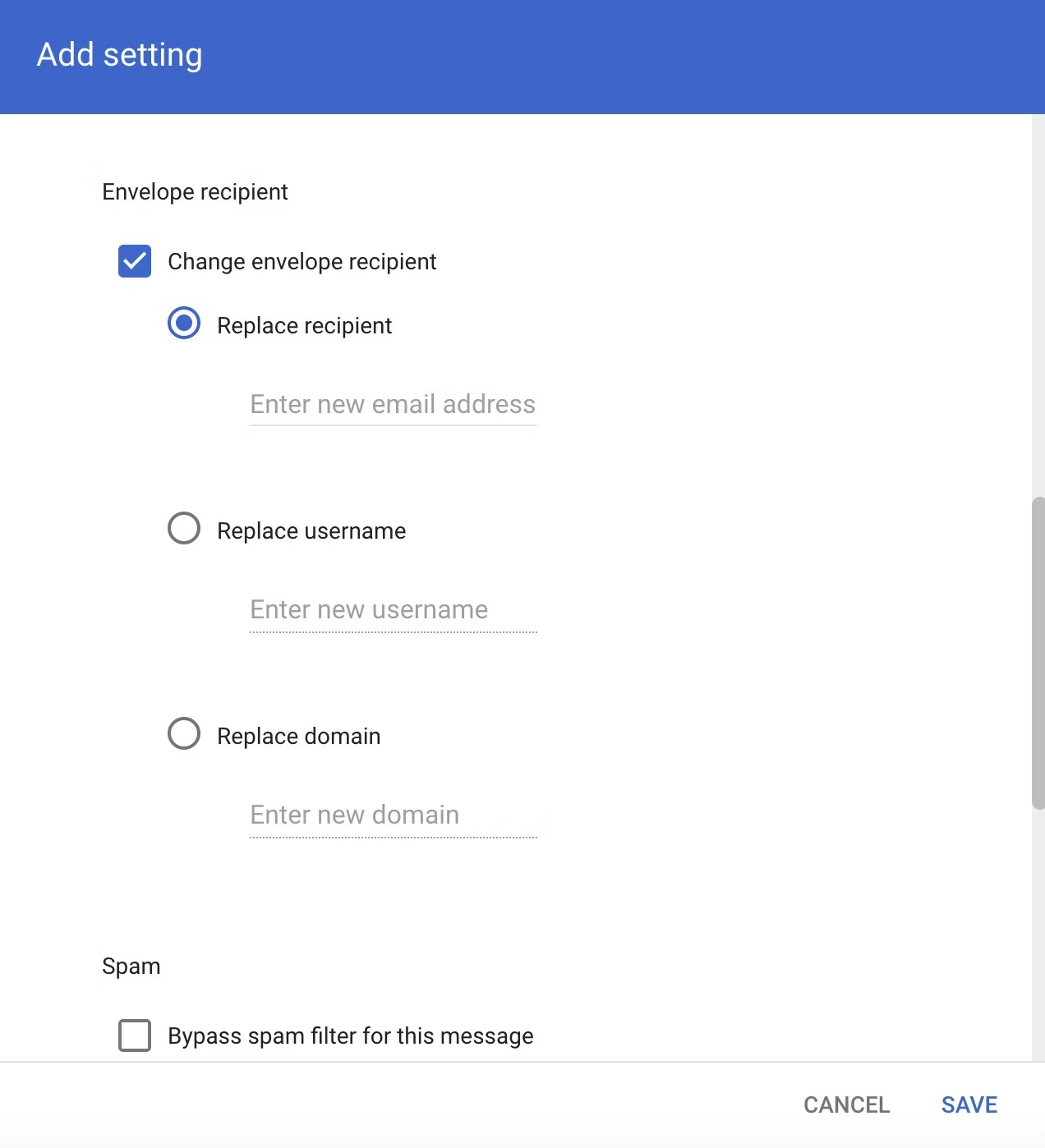
When adding the setting:
* Set **Envelope Recipient** to the email address you want customers to use (for example, `support@yourdomain.com`).
* Under **Envelope Recipient**, select **Change Envelope Recipient**.
* In **Replace Recipient**, enter your **Watermelon email address** (for example, `random-id].agent@watermelon-mail.com`).
Your generated mail adres will feature a unique random-id. This can be found underneath Agent email address.
\[random-id][.agent@watermelon-mail.com](mailto:.agent@watermelon-mail.com)
## **Using the agent email directly**
You can start using email immediately — but first, make sure your AI Agent is **active on the mail channel**, if you want to automatically answers emails via your AI agent.
Your AI Agent must be published on the mail channel before it can reply to emails. See: [**Publish your agent on mail**](/help-center/publish-your-agent/publish-on-email)
## **Forwarding flow**
To use your own email address (e.g. [support@company.com](mailto:support@company.com)), you need to set up **automatic forwarding**.
### **How forwarding works**
1. A customer **emails**
2. Your email provider **automatically forwards** the message to your agent email
3. The **AI Agent processes the email**
4. A **reply** is **sent** **back** to the customer
You can also set up forwarding **without a custom domain setup**.
Your AI agent will not respond to no-reply mail addresses, automatic messages and newsletters. These mails will not count as received conversations.
For example:
* **Forward emails** → to **your agent email**
* **The AI Agent replies** → from the **generated Watermelon email**
* You can also **manually forward** an e-mail to this mail address
This is useful if you want to get started quickly.
## **Step 1: Add a custom sender email**
After **forwarding** is set up, add your email address in Watermelon.
In **Email configuration**, click the **New email address** button to start the setup process.
**Enter the email address** you want to use (for example, [support@watermelon.ai](mailto:support@watermelon.ai)). This will be the sender address for all outgoing emails from this mail channel.
Click **Continue** to proceed to the email forwarding configuration step.
## **Step 2: Set up forwarding in your email provider**
The exact steps depend on your provider, but generally:
1. Go to your **email provider settings**
2. Find **Forwarding**, **Rules**, or **Filters**
3. Create a rule to **automatically forward** emails to your agent email
4. Confirm **verification** if required
Some providers require verification of the forwarding address. You’ll receive this email inside the Watermelon inbox.
You must configure automatic forwarding for at least one email address on the domain before you can complete DNS authentication and send from that domain.
### **Configure email forwarding in Google Workspace (Admin Console)**
This approach is **recommended** for Google Workspace because it **doesn’t have rate limits** and **doesn’t require creating a mailbox** for the address you’re forwarding.
You need **Google Workspace administrator access** to complete these steps.
Sign in to the [**Admin Console**](https://admin.google.com/).
Navigate to **Apps** → **Google Workspace** → **Gmail**. Go to **Default routing**, then click **Configure** or **add another rule** to create a new routing rule.
When adding the setting:
* Set **Envelope Recipient** to the email address you want customers to use (for example, `support@yourdomain.com`).
* Under **Envelope Recipient**, select **Change Envelope Recipient**.
* In **Replace Recipient**, enter your **Watermelon email address** (for example, `random-id].agent@watermelon-mail.com`).
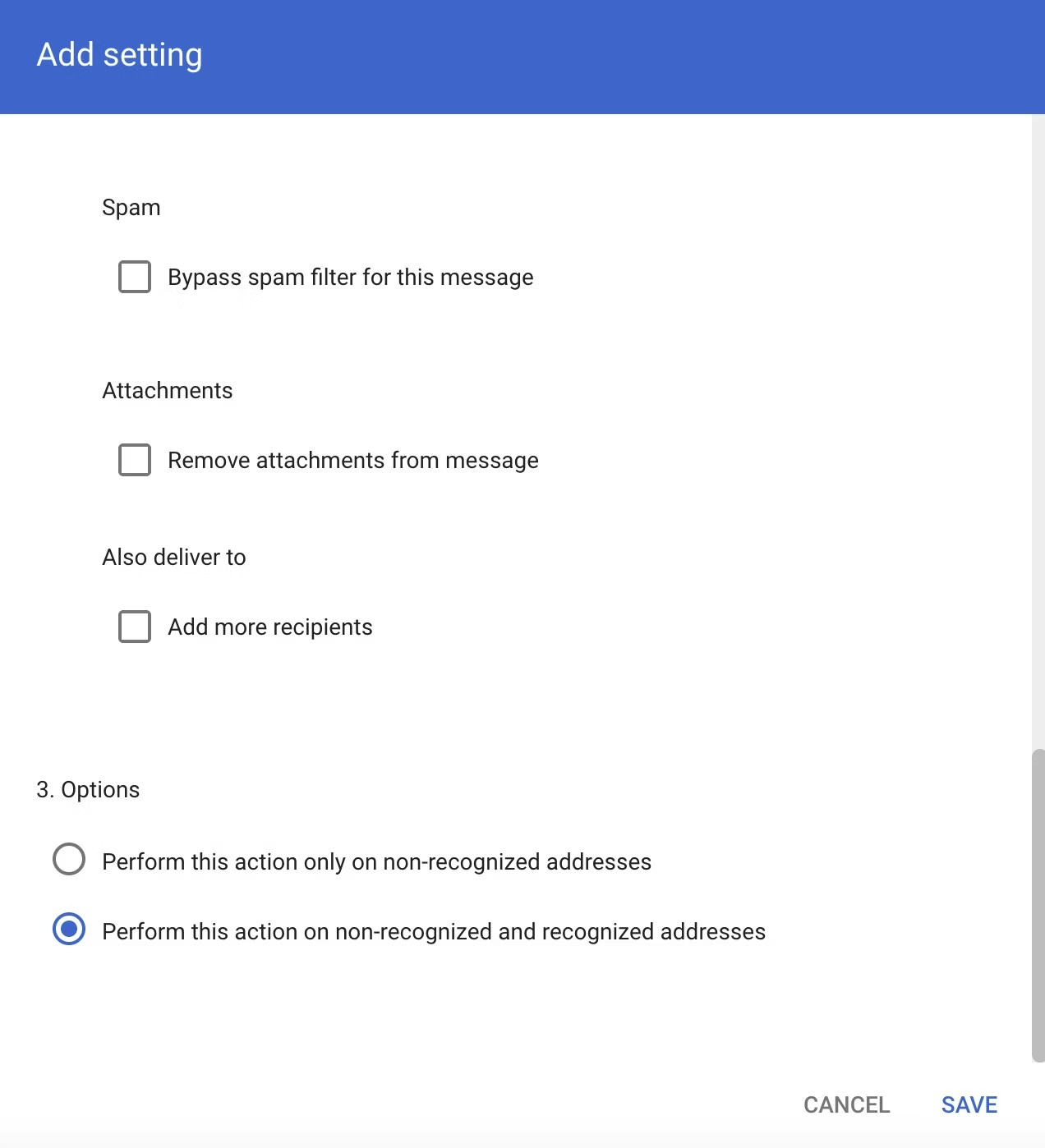
 Before saving, make sure the option is set to: **Perform this action on non-recognized and recognized addresses** and **save** your changes.
 Return to **Email configuration** in Watermelon and click **Verify**.
### **Configure email forwarding in Gmail**
Navigate to Gmail and **sign into the account** that you want to forward emails from.
In the top right, click **Settings → All settings**. Click the **Forwarding and POP/IMAP** or **Forwarding** tab.
In the 'Forwarding' section, click **Add a forwarding address**. Enter the email address that you want to forward messages to.
Return to **Email configuration** in Watermelon and click **Verify**.
### **Configure email forwarding in Gmail**
Navigate to Gmail and **sign into the account** that you want to forward emails from.
In the top right, click **Settings → All settings**. Click the **Forwarding and POP/IMAP** or **Forwarding** tab.
In the 'Forwarding' section, click **Add a forwarding address**. Enter the email address that you want to forward messages to.
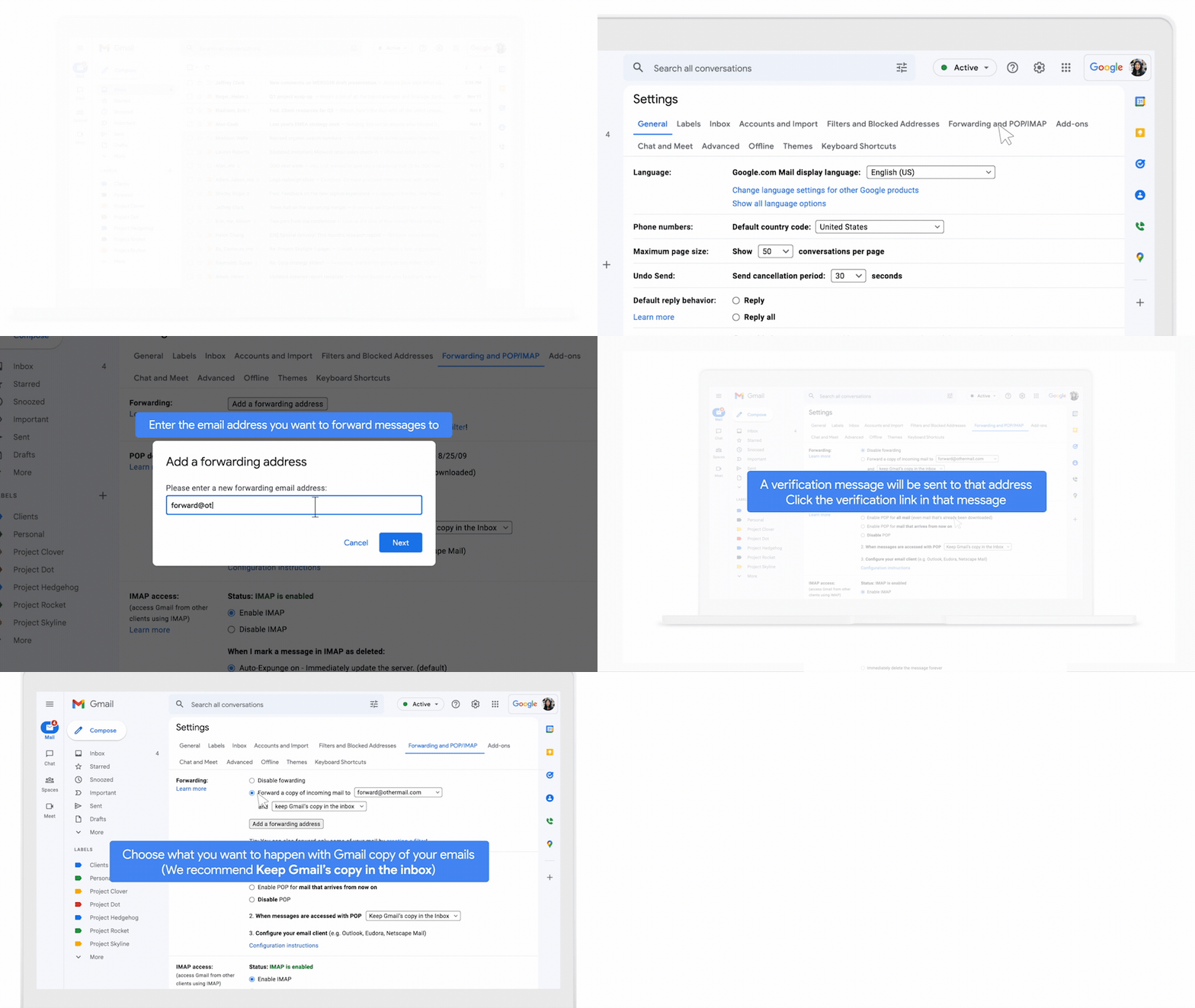 In Watermelon's inbox, you will now **receive** a **verification link** via **mail**. Select this **mail** and **click** on the **verification link**. Return to the '**Settings**' page in Gmail and refresh your browser.
Click again on the **Forwarding and POP/IMAP** or **Forwarding** tab. In the 'Forwarding' section, select **Forward a copy of incoming emails to**.
Choose what you want to happen with the Gmail copy of your emails. It's recommended that you select **Keep Gmail's copy in the inbox**.
At the bottom of the page, click **Save changes**.
### **Configure email forwarding in Outlook**
This guide explains how to setup forwarding for the new Outlook. Looking for help to set this up in the old outlook? Click [here](https://support.microsoft.com/en-gb/office/turn-on-automatic-forwarding-in-outlook-7f2670a1-7fff-4475-8a3c-5822d63b0c8e#picktab=classic_outlook).
Navigate to Outlook and **sign into the account** that you want to forward emails from.
At the top window of the new Outlook, select **Settings** (the cog icon)
Select **Mail** > **Forwarding and Imap**.
In Watermelon's inbox, you will now **receive** a **verification link** via **mail**. Select this **mail** and **click** on the **verification link**. Return to the '**Settings**' page in Gmail and refresh your browser.
Click again on the **Forwarding and POP/IMAP** or **Forwarding** tab. In the 'Forwarding' section, select **Forward a copy of incoming emails to**.
Choose what you want to happen with the Gmail copy of your emails. It's recommended that you select **Keep Gmail's copy in the inbox**.
At the bottom of the page, click **Save changes**.
### **Configure email forwarding in Outlook**
This guide explains how to setup forwarding for the new Outlook. Looking for help to set this up in the old outlook? Click [here](https://support.microsoft.com/en-gb/office/turn-on-automatic-forwarding-in-outlook-7f2670a1-7fff-4475-8a3c-5822d63b0c8e#picktab=classic_outlook).
Navigate to Outlook and **sign into the account** that you want to forward emails from.
At the top window of the new Outlook, select **Settings** (the cog icon)
Select **Mail** > **Forwarding and Imap**.
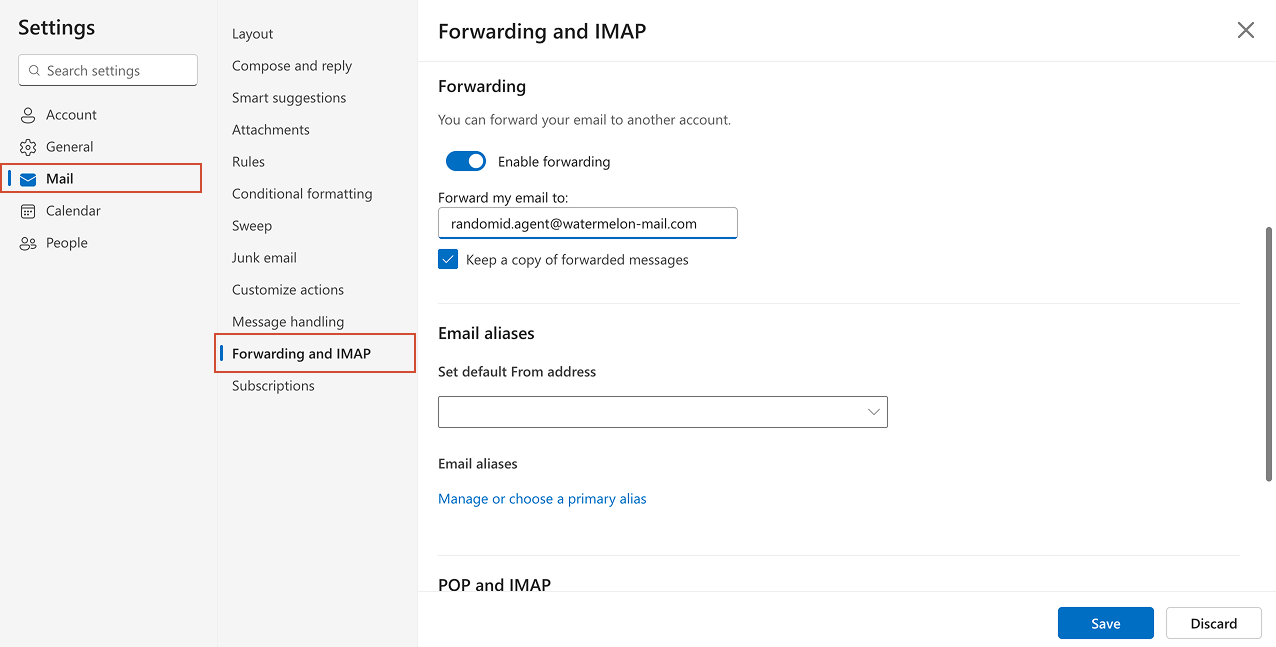 Toggle the **Enable forwarding** switch, enter the forwarding email address, and select **Save**.
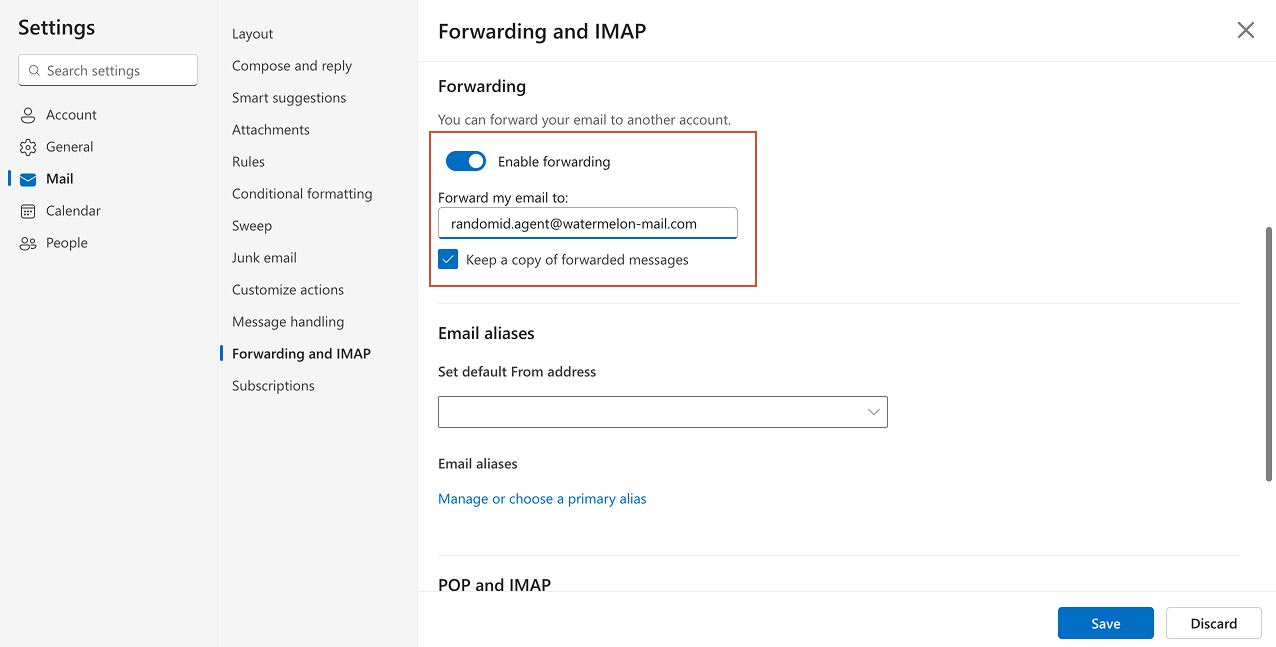 \*\*Note: \*\*If you want a copy of the original message to remain in your mailbox, select **Keep a copy of forwarded messages**.
### **Other providers**
Search for:
* “email forwarding”
* “mail rules”
* “routing”
## **Step 3: Authenticate your domain (DNS)**
Once we **detect automatic forwarding**, you’ll be able to **proceed** to **DNS authentication**. This step allows Watermelon to send emails **on your behalf from your custom domain**.
### **View your DNS records**
After forwarding is verified, you’ll see the DNS records you need to add. These show in **in the pop-up at step 3**. These include **3 CNAME records** and **1 TXT record**
Copy these exactly as shown.
You can close the setup pop-up at any time. To continue later:
* Go to Email configuration
* Click the edit (pencil) icon next to your email
You’ll return to the same setup step.
### **Add records to your DNS provider**
1. Log in to your **DNS provider**
2. Open **DNS settings**
3. **Add** the records **exactly** as **shown**
4. **Save** changes
### **Provider specific DNS guides**
#### **DNS hosting providers**
* **Google Cloud DNS →** This [article](https://cloud.google.com/dns/docs/records) explains how to set it up.
* **Amazon Route 53 →** This [article](https://docs.aws.amazon.com/Route53/latest/DeveloperGuide/resource-record-sets-creating.html) explains how to set it up.
* **Azure DNS →** This [article](https://learn.microsoft.com/en-us/azure/dns/dns-operations-recordsets-portal) explains how to set it up.
* **Cloudflare →** This [article](https://developers.cloudflare.com/dns/manage-dns-records/how-to/create-dns-records/) explains how to set it up.
#### **Domain registrars**
* **GoDaddy** → This [article](https://www.godaddy.com/en-uk/help/manage-dns-records-680) explains how to set it up.
* **TransIP →** This [article](https://www.transip.eu/knowledgebase/407-setting-a-cname-record/) explains how to set it up.
* **Hostnet →** This [article](https://helpdesk.hostnet.nl/hc/nl-nl/articles/360014581437-DNS-wijzigen) explains how to set it up.
* **Mijndomein →** This [article](https://mijndomein.zendesk.com/hc/nl/articles/8662529546769-DNS-Instellen) explains how to set it up.
* **Yourhosting →** This [article](https://www.yourhosting.nl/kennisbank/domeinnamen-dns/dns-records-van-een-domeinnaam-beheren/) explains how to set it up.
### **Verify your domain**
1. Return to Watermelon
2. Click **Validate**. This can be done either in the pop-up, or in the table later on if you closed the pop-up.
DNS changes can take time to propagate (usually a few minutes, sometimes up to 24 hours).
## **Adding and managing email addresses**
* Each **email integration supports one email address**
* You can create **multiple integrations (also on the same domain)**
* If a domain is already verified:
* You will skip the DNS step
* The email will appear directly in the table
## **Testing your setup**
1. Send a **test email** to your connected address
2. Check if:
* The **email appears in Watermelon**
* The **AI Agent replies**
* The **sender matches your configuration**
## **Mail settings & Instructions**
### **Mail settings**
Configure how your emails look and behave. You will find these options there.
Internal name for your team
This name shows to recipients in the "From" field of your emails. You see a preview of this on the right of the settings screen.
A message shown in every email indicating AI usage. Per default this is already filled in for you. Required (cannot be empty due to regulations like the EU AI Act)
Show or hide Watermelon branding in emails.
Available in **Business and enterprise plan** or via add-on €99 on the advanced plan
Signature shown at the bottom of every email.
### **Instructions**
Define how your AI Agent writes emails.
Pre-configured behavior optimized for email:
* **Clear structure**
* **Professional tone**
* **Easy to read**
Use this if you want more control over how emails are written.\
For example:
* **Adjust tone** (formal, friendly, sales-driven)
* **Add formatting rules**
* **Define how specific types of emails should be handled**
Custom instructions override the default email behavior, but your agent still uses its existing knowledge and training.
## **Troubleshooting**
**Emails not appearing in Watermelon**
* Check **forwarding rules**
* Verify the **correct agent email**
* Confirm **forwarding verification**
* Check **spam** or **filters** in your email provider
\
**Replies not arriving in your inbox**
* Check your **spam** folder
* Verify the **recipient email address**
* Make sure the **correct email integration** is used
* Confirm your **AI Agent is active** on the mail channel
\
**Emails going to spam**
* Make sure **DNS records are correctly configured** (SPF, DKIM, DMARC)
* Avoid spam-like wording (too many links, caps, etc.)
* Check your **domain reputation** → [https://mxtoolbox.com/](https://mxtoolbox.com/)
\
**DNS verification fails**
* Double-check **record values** (no typos)
* Make sure **records are added to the correct domain**
* **Wait for propagation** (can take up to 24 hours)
* **Remove conflicting** or **duplicate records**
\*\*Note: \*\*If you want a copy of the original message to remain in your mailbox, select **Keep a copy of forwarded messages**.
### **Other providers**
Search for:
* “email forwarding”
* “mail rules”
* “routing”
## **Step 3: Authenticate your domain (DNS)**
Once we **detect automatic forwarding**, you’ll be able to **proceed** to **DNS authentication**. This step allows Watermelon to send emails **on your behalf from your custom domain**.
### **View your DNS records**
After forwarding is verified, you’ll see the DNS records you need to add. These show in **in the pop-up at step 3**. These include **3 CNAME records** and **1 TXT record**
Copy these exactly as shown.
You can close the setup pop-up at any time. To continue later:
* Go to Email configuration
* Click the edit (pencil) icon next to your email
You’ll return to the same setup step.
### **Add records to your DNS provider**
1. Log in to your **DNS provider**
2. Open **DNS settings**
3. **Add** the records **exactly** as **shown**
4. **Save** changes
### **Provider specific DNS guides**
#### **DNS hosting providers**
* **Google Cloud DNS →** This [article](https://cloud.google.com/dns/docs/records) explains how to set it up.
* **Amazon Route 53 →** This [article](https://docs.aws.amazon.com/Route53/latest/DeveloperGuide/resource-record-sets-creating.html) explains how to set it up.
* **Azure DNS →** This [article](https://learn.microsoft.com/en-us/azure/dns/dns-operations-recordsets-portal) explains how to set it up.
* **Cloudflare →** This [article](https://developers.cloudflare.com/dns/manage-dns-records/how-to/create-dns-records/) explains how to set it up.
#### **Domain registrars**
* **GoDaddy** → This [article](https://www.godaddy.com/en-uk/help/manage-dns-records-680) explains how to set it up.
* **TransIP →** This [article](https://www.transip.eu/knowledgebase/407-setting-a-cname-record/) explains how to set it up.
* **Hostnet →** This [article](https://helpdesk.hostnet.nl/hc/nl-nl/articles/360014581437-DNS-wijzigen) explains how to set it up.
* **Mijndomein →** This [article](https://mijndomein.zendesk.com/hc/nl/articles/8662529546769-DNS-Instellen) explains how to set it up.
* **Yourhosting →** This [article](https://www.yourhosting.nl/kennisbank/domeinnamen-dns/dns-records-van-een-domeinnaam-beheren/) explains how to set it up.
### **Verify your domain**
1. Return to Watermelon
2. Click **Validate**. This can be done either in the pop-up, or in the table later on if you closed the pop-up.
DNS changes can take time to propagate (usually a few minutes, sometimes up to 24 hours).
## **Adding and managing email addresses**
* Each **email integration supports one email address**
* You can create **multiple integrations (also on the same domain)**
* If a domain is already verified:
* You will skip the DNS step
* The email will appear directly in the table
## **Testing your setup**
1. Send a **test email** to your connected address
2. Check if:
* The **email appears in Watermelon**
* The **AI Agent replies**
* The **sender matches your configuration**
## **Mail settings & Instructions**
### **Mail settings**
Configure how your emails look and behave. You will find these options there.
Internal name for your team
This name shows to recipients in the "From" field of your emails. You see a preview of this on the right of the settings screen.
A message shown in every email indicating AI usage. Per default this is already filled in for you. Required (cannot be empty due to regulations like the EU AI Act)
Show or hide Watermelon branding in emails.
Available in **Business and enterprise plan** or via add-on €99 on the advanced plan
Signature shown at the bottom of every email.
### **Instructions**
Define how your AI Agent writes emails.
Pre-configured behavior optimized for email:
* **Clear structure**
* **Professional tone**
* **Easy to read**
Use this if you want more control over how emails are written.\
For example:
* **Adjust tone** (formal, friendly, sales-driven)
* **Add formatting rules**
* **Define how specific types of emails should be handled**
Custom instructions override the default email behavior, but your agent still uses its existing knowledge and training.
## **Troubleshooting**
**Emails not appearing in Watermelon**
* Check **forwarding rules**
* Verify the **correct agent email**
* Confirm **forwarding verification**
* Check **spam** or **filters** in your email provider
\
**Replies not arriving in your inbox**
* Check your **spam** folder
* Verify the **recipient email address**
* Make sure the **correct email integration** is used
* Confirm your **AI Agent is active** on the mail channel
\
**Emails going to spam**
* Make sure **DNS records are correctly configured** (SPF, DKIM, DMARC)
* Avoid spam-like wording (too many links, caps, etc.)
* Check your **domain reputation** → [https://mxtoolbox.com/](https://mxtoolbox.com/)
\
**DNS verification fails**
* Double-check **record values** (no typos)
* Make sure **records are added to the correct domain**
* **Wait for propagation** (can take up to 24 hours)
* **Remove conflicting** or **duplicate records**