> ## Documentation Index
> Fetch the complete documentation index at: https://watermelon.ai/docs/llms.txt
> Use this file to discover all available pages before exploring further.
# Instagram DM
> Let your Agent handle all your incoming Direct Messages on Instagram.
## Connecting Instagram
Follow the steps below to connect Instagram to Watermelon. Before you start:
To connect Instagram to Watermelon, your Instagram Business account should be connected to your Facebook Business account. You must be an administrator of the Instagram account that you are trying to connect.
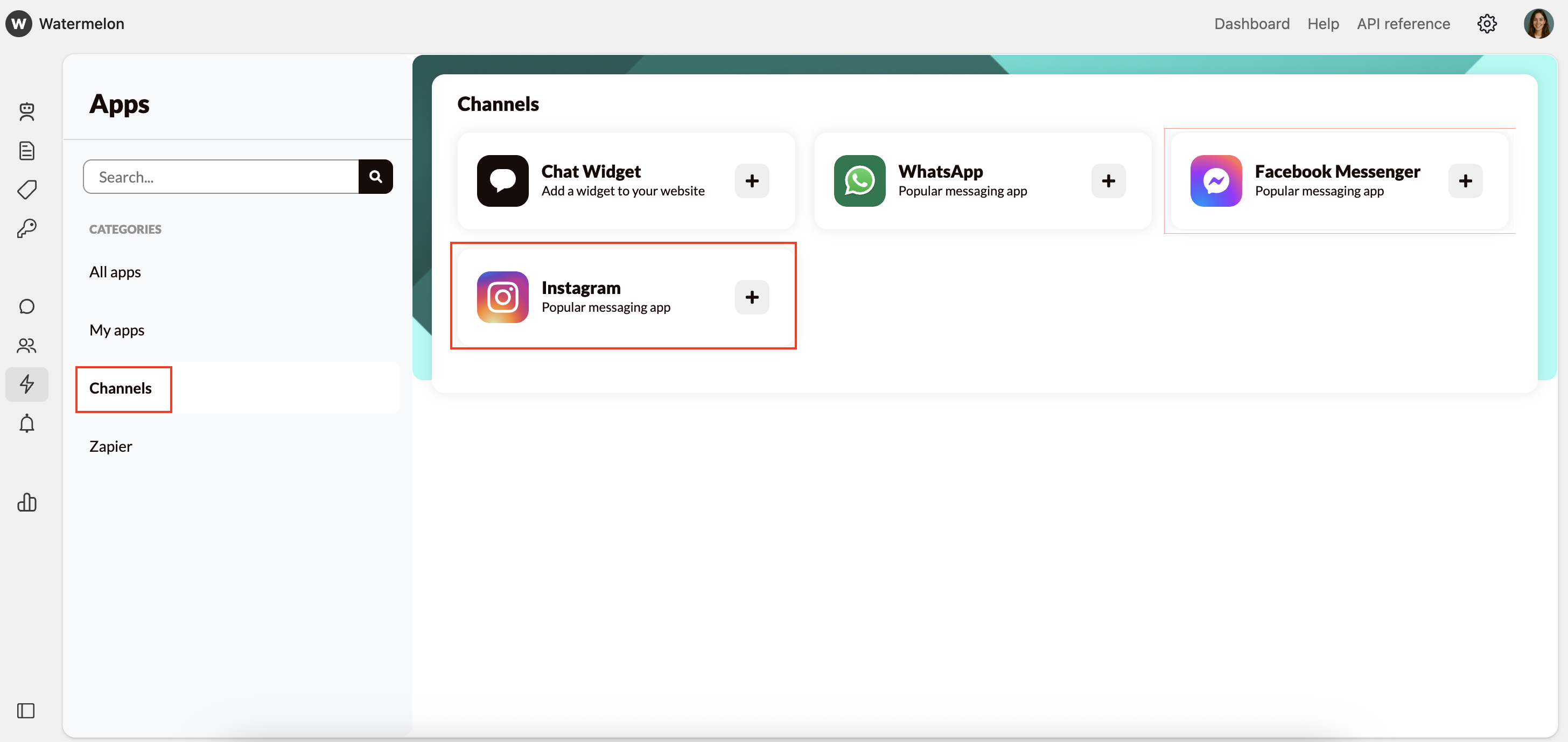
Navigate to **Apps** in the menu. \
Go to the section **Channels** and click on the **Instagram** integration to start connecting.
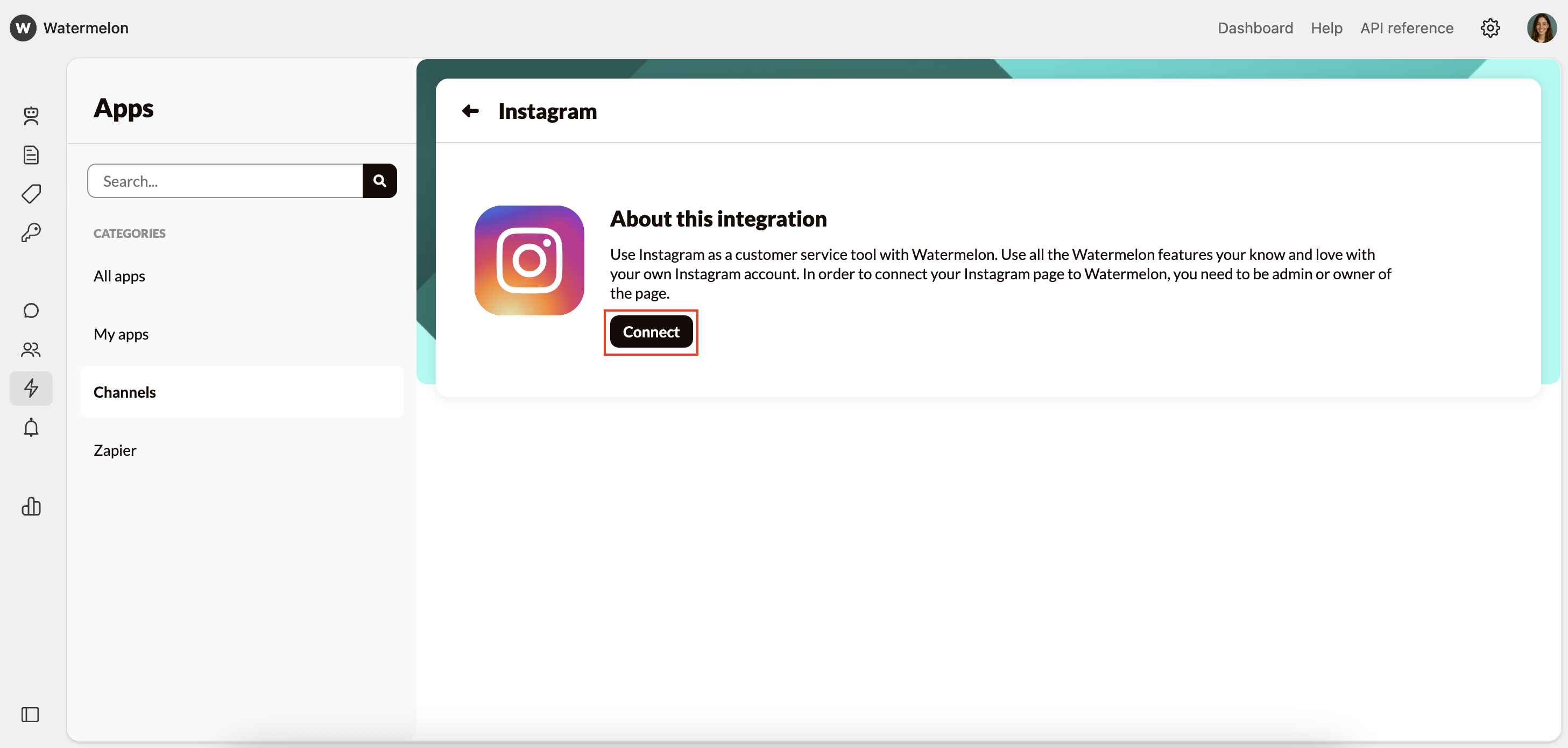
 If your Facebook account has already been connected, you skip Steps 3-5 and continue to Step 6.
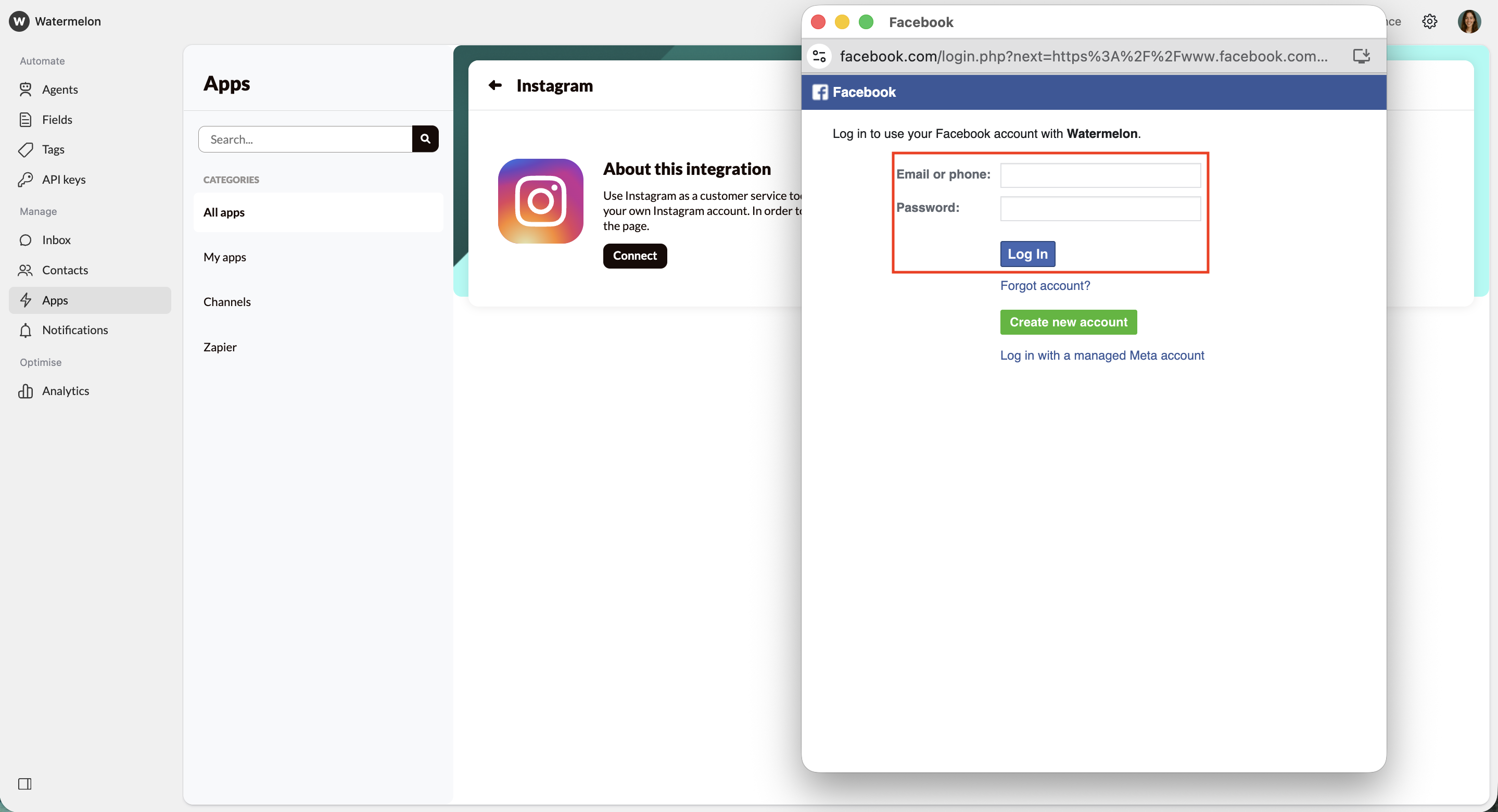
 A pop-up screen will open where you can log in with your Facebook account.
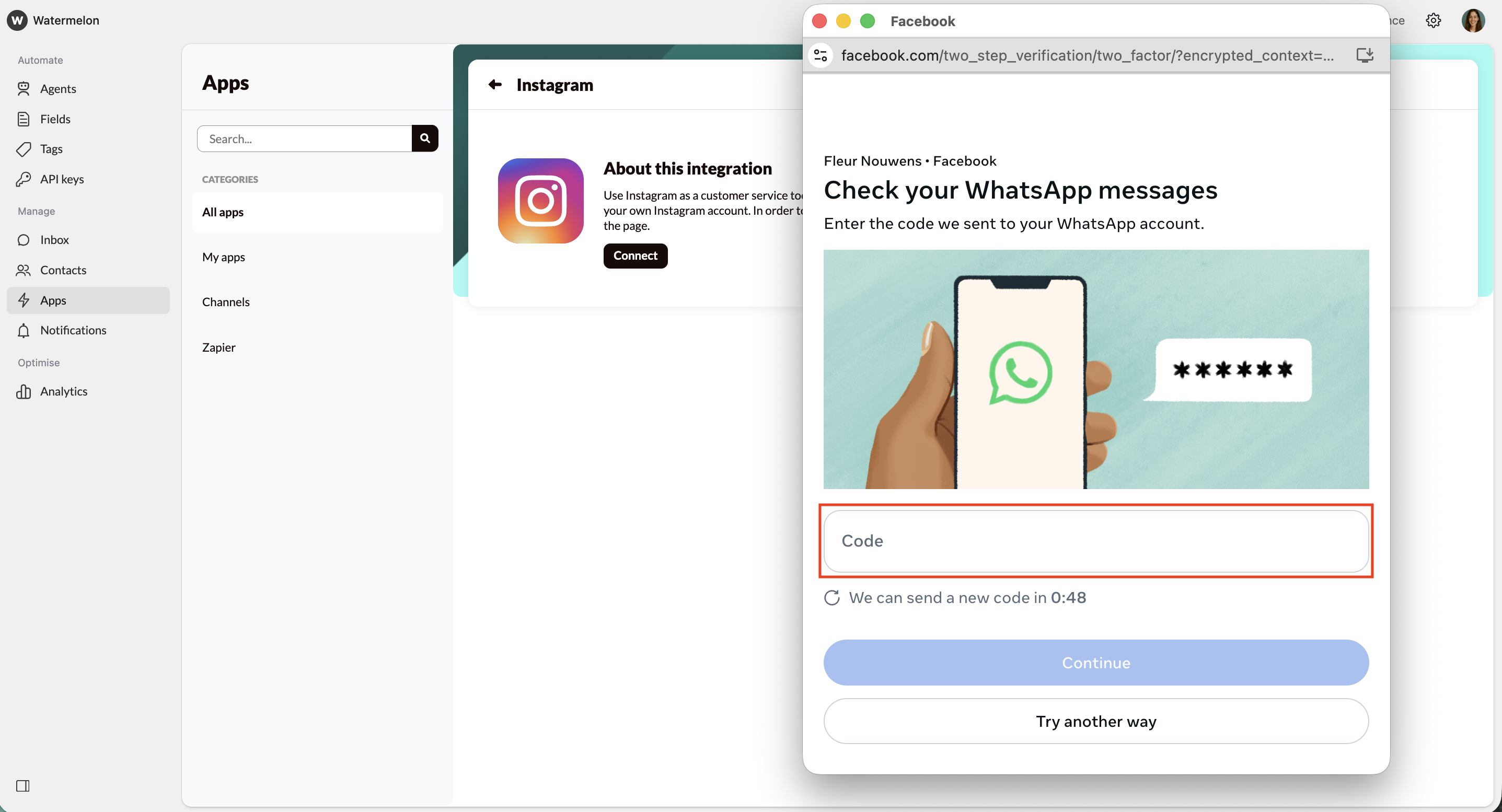
 You’ll need to verify your account. You can get a text message, use your authenticator app or get a WhatsApp message to verify the account.
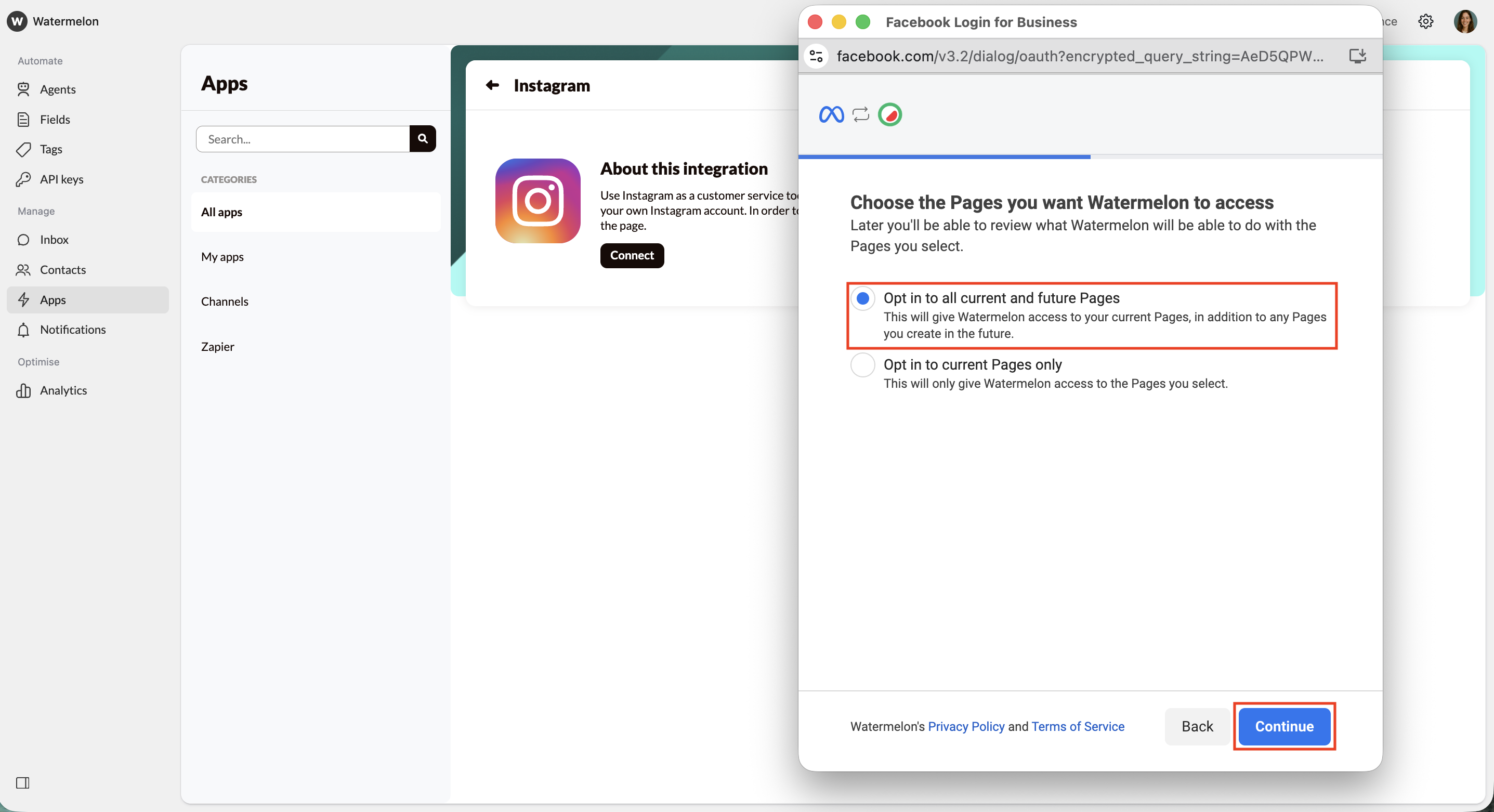
 In the next screen, you can give Watermelon access to all current and future Pages or, you can choose to select specific Pages. We advise selecting **Opt in to all current and future Pages.**
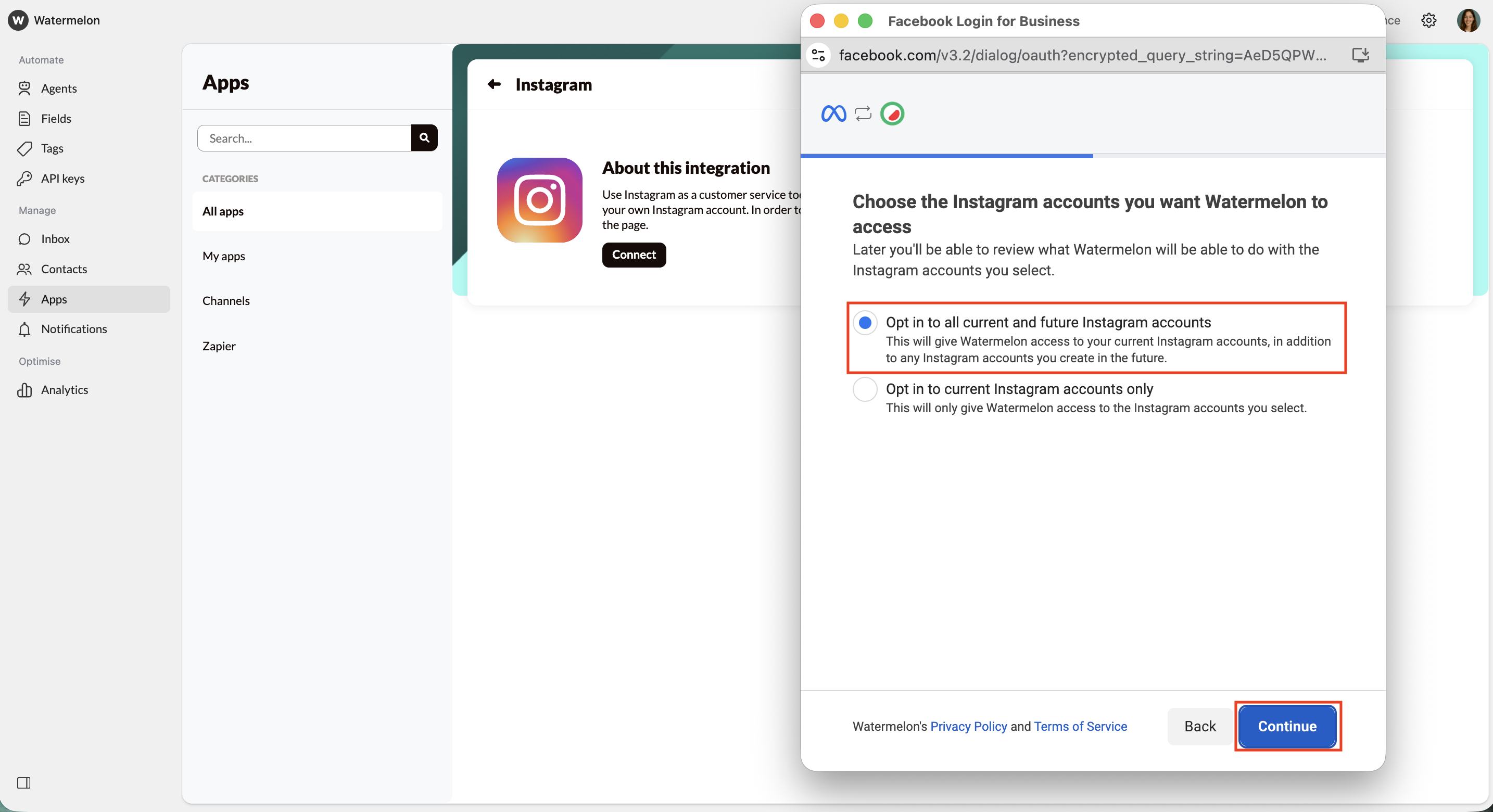
 Select the Instagram accounts you want Watermelon to access. We advise: **Opt in to all current and future Instagram accounts**.
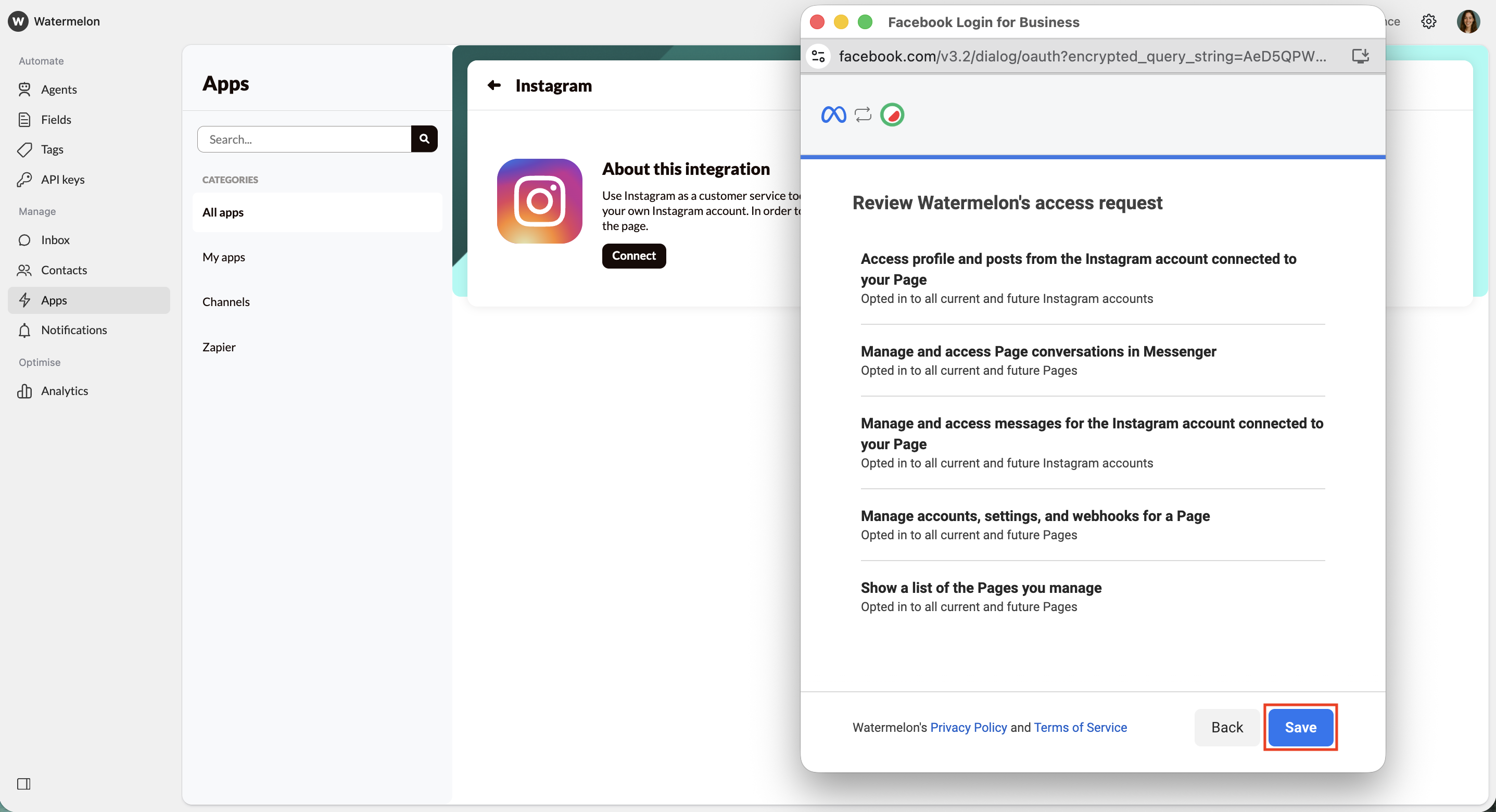
 After your selection, you will see a summary page of the rights you have given. Click on **Save**.
 You’ll now get a confirmation that you’ve connected your account. Click **Got it**.
You will automatically return to your Watermelon account, select from the dropdown menu the page you want to link to Watermelon.
You’ll now get a confirmation that you’ve connected your account. Click **Got it**.
You will automatically return to your Watermelon account, select from the dropdown menu the page you want to link to Watermelon.
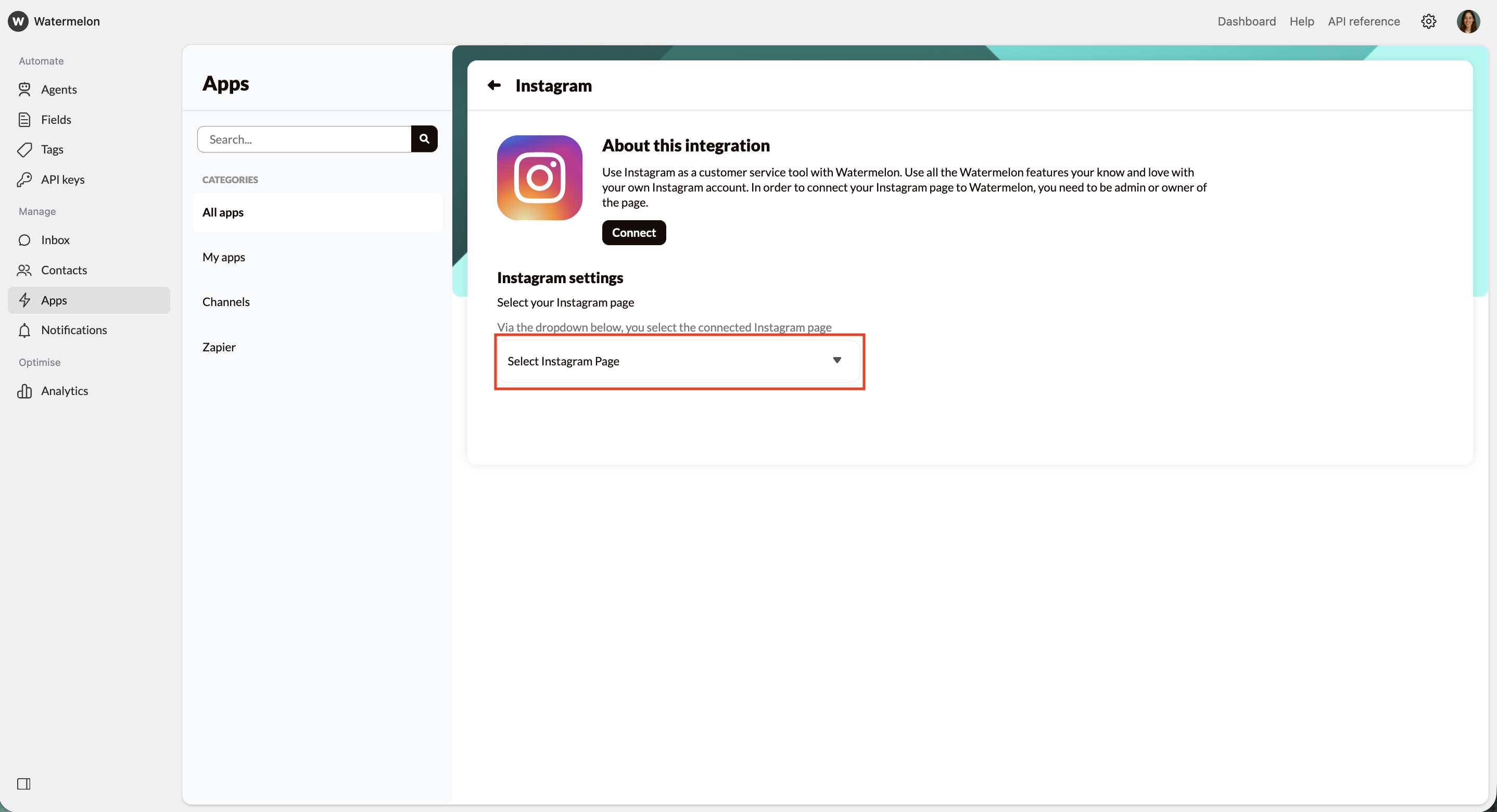
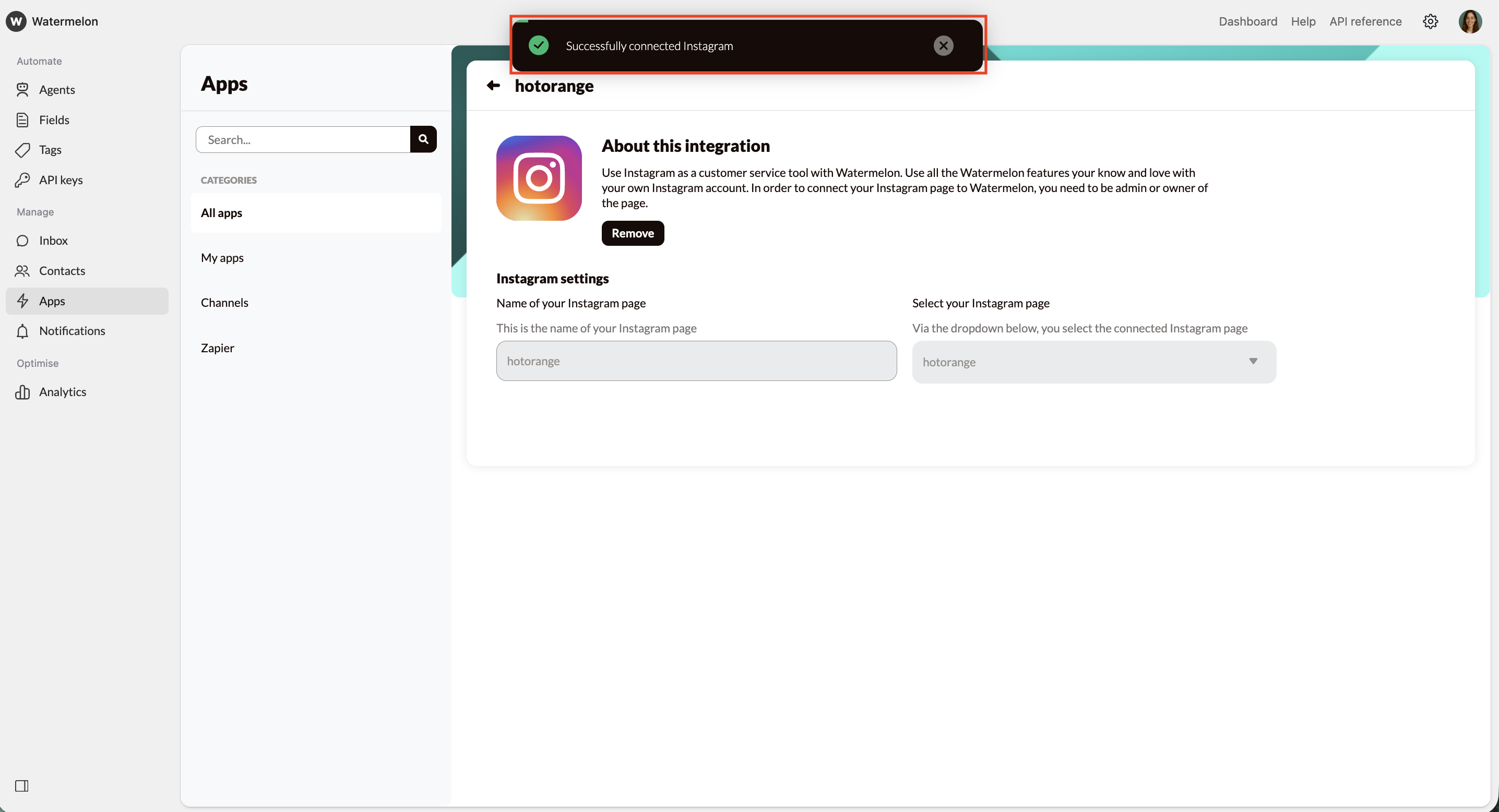 You’ve now connected Instagram to Watermelon. Your Direct Messages will now show in your Watermelon Inbox and can be answered from here.