> ## Documentation Index
> Fetch the complete documentation index at: https://watermelon.ai/docs/llms.txt
> Use this file to discover all available pages before exploring further.
# Phone
> Connect a phone number to Watermelon and let your AI Agent handle incoming calls.
Your AI Agent uses the same configuration as your other Watermelon channels, including its knowledge sources, files, websites, Actions, and workflows. You can also add Phone-specific instructions to customize how the Agent behaves during calls.
## How Phone works
When someone calls your connected phone number:
1. The caller hears your configured welcome message.
2. Your AI Agent starts the conversation using your selected voice.
3. The Agent uses its existing knowledge, instructions, Actions, and workflows to answer the caller.
4. The call ends when the conversation is finished, the maximum call duration is reached, or the configured silence timeout is reached.
5. The conversation is saved in Watermelon with a transcript and summary.
6. If call recording is enabled, you can also listen back to the recording.
You can let customers call the generated phone number directly or forward your existing business number to your AI Agent.
## Create a Phone integration
Go to **Integrations** and select **Phone**.
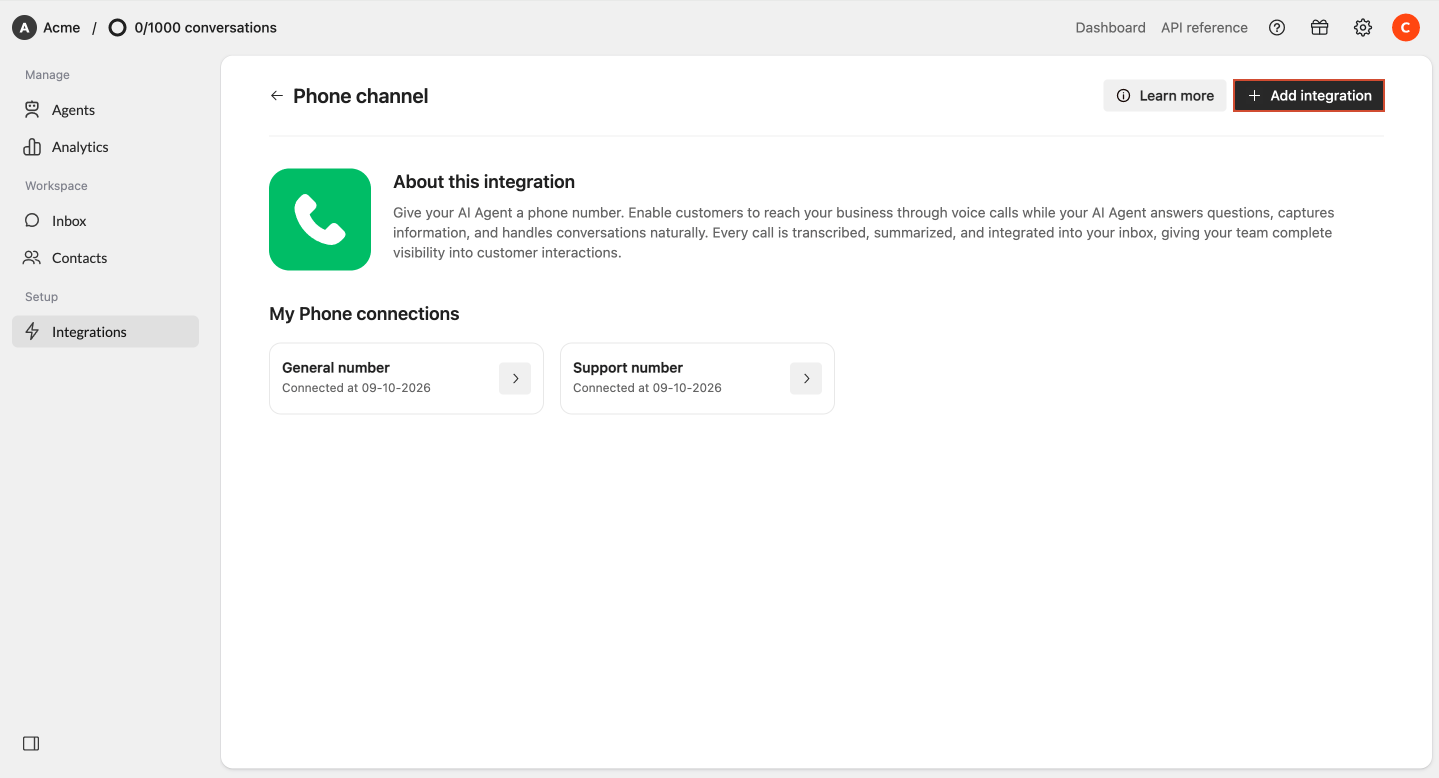
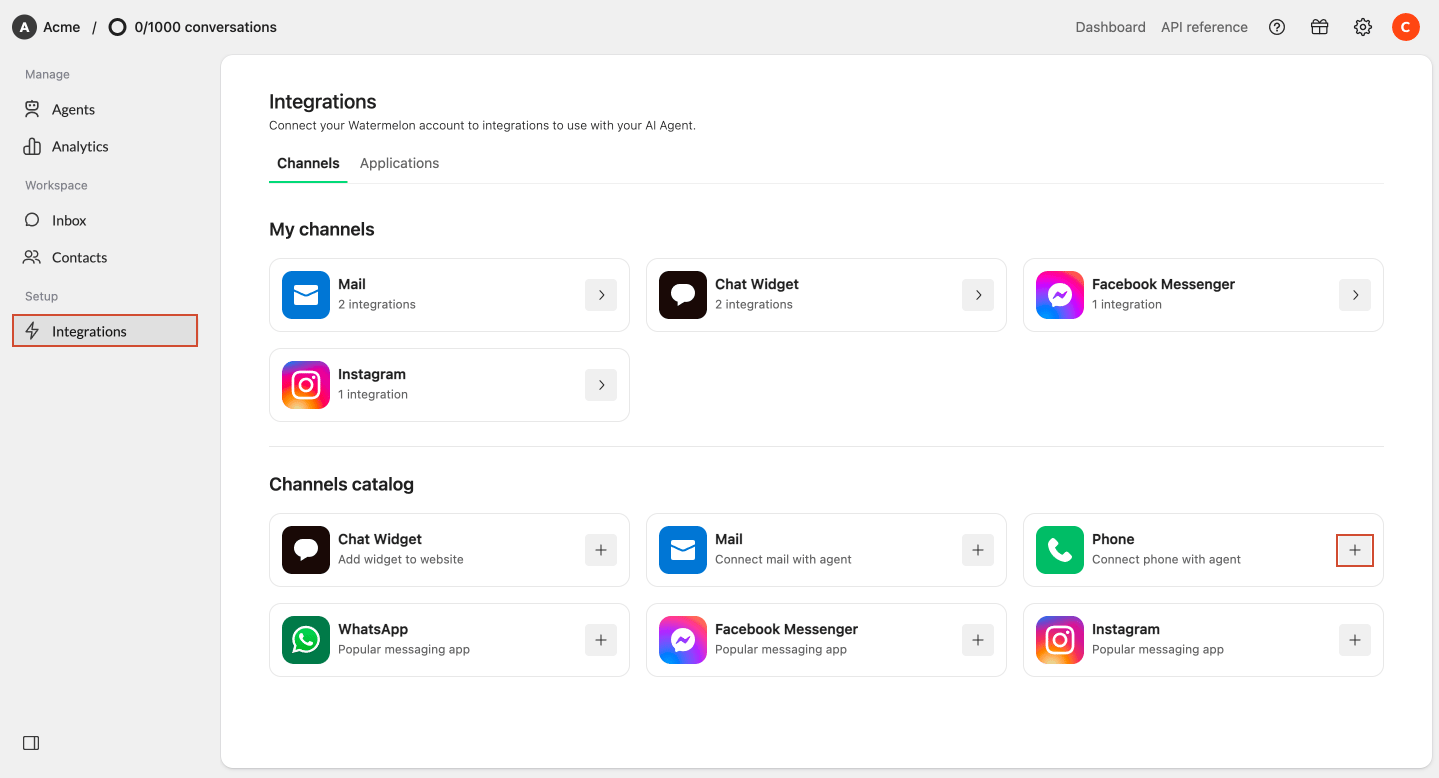 Click **+ Add integration** in the top-right corner.
 Enter a name that helps you recognize the integration. This name is only used internally in Watermelon.
For example: `Support NL`
Enter a name that helps you recognize the integration. This name is only used internally in Watermelon.
For example: `Support NL`
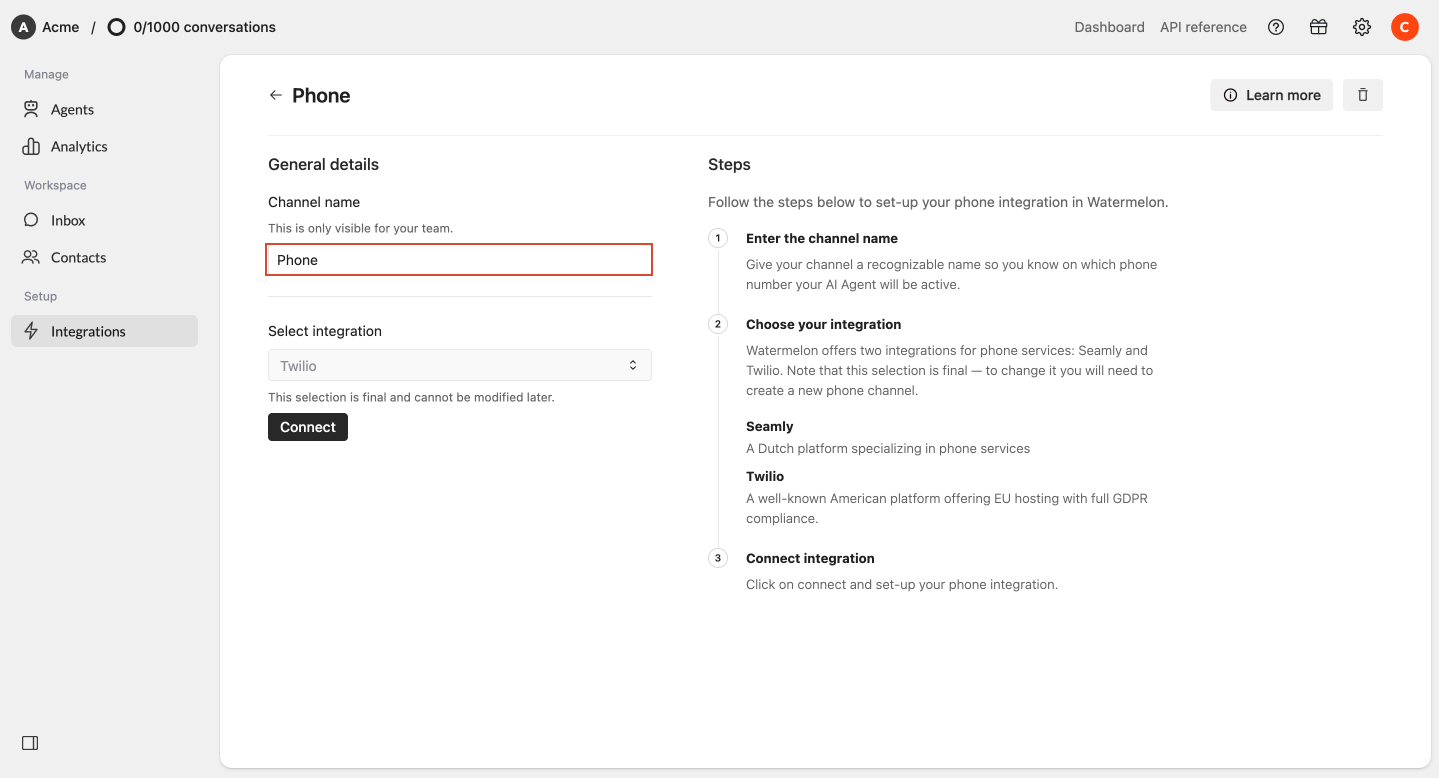 Select the provider you want to use. You can choose between:
* **Seamly** — A Dutch platform specializing in phone services.
* **Twilio** — A well-known American platform offering EU hosting with full GDPR compliance.
Click **Connect** to continue.
Select the provider you want to use. You can choose between:
* **Seamly** — A Dutch platform specializing in phone services.
* **Twilio** — A well-known American platform offering EU hosting with full GDPR compliance.
Click **Connect** to continue.
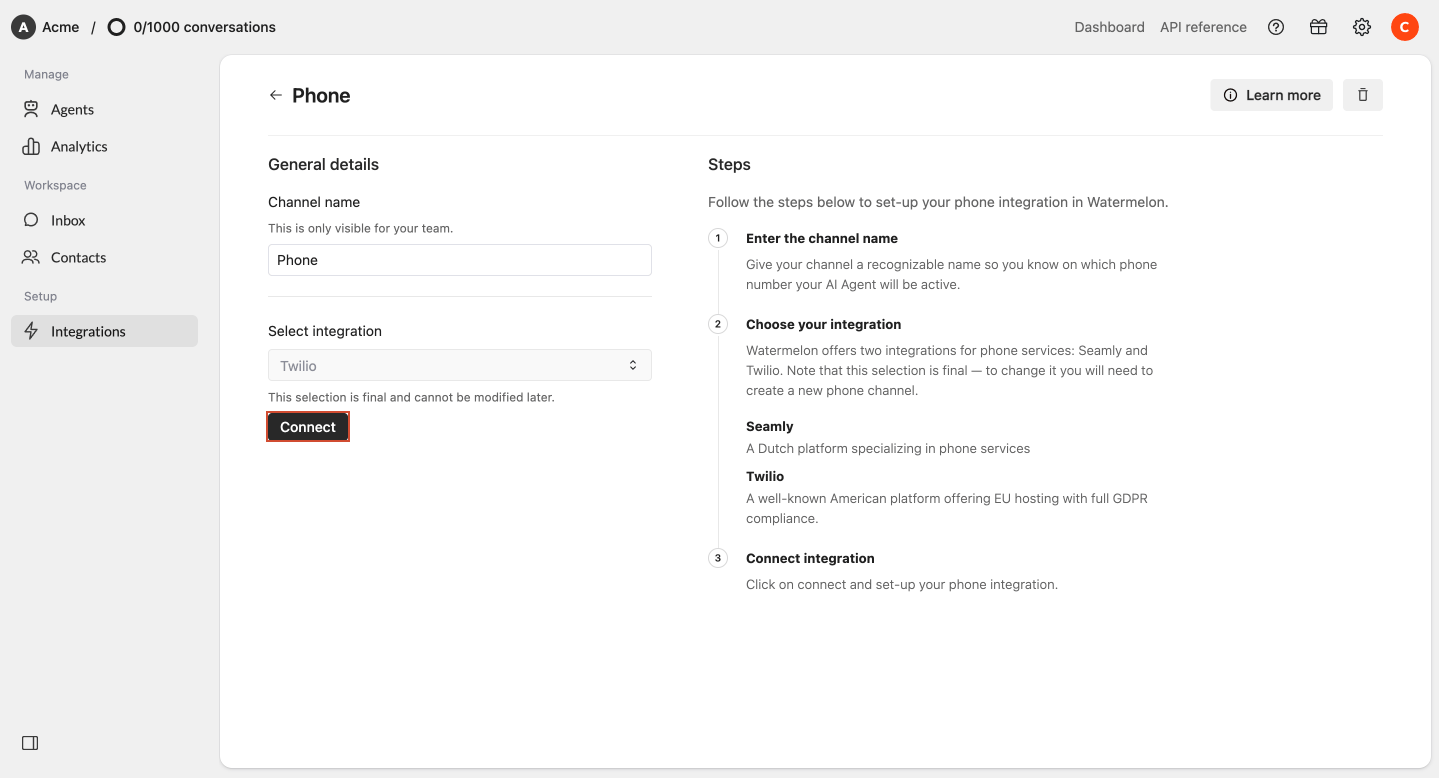 **Important:** Once you select Seamly or Twilio, you cannot change the provider for that Phone integration. To switch providers, you need to create a new Phone integration and generate a new phone number.
## Configure your Phone integration
Your Phone integration contains four settings tabs. Go through each tab to configure your phone number and how your AI Agent handles calls.
### Phone number
Use the **Phone number** tab to generate the phone number your AI Agent will use.
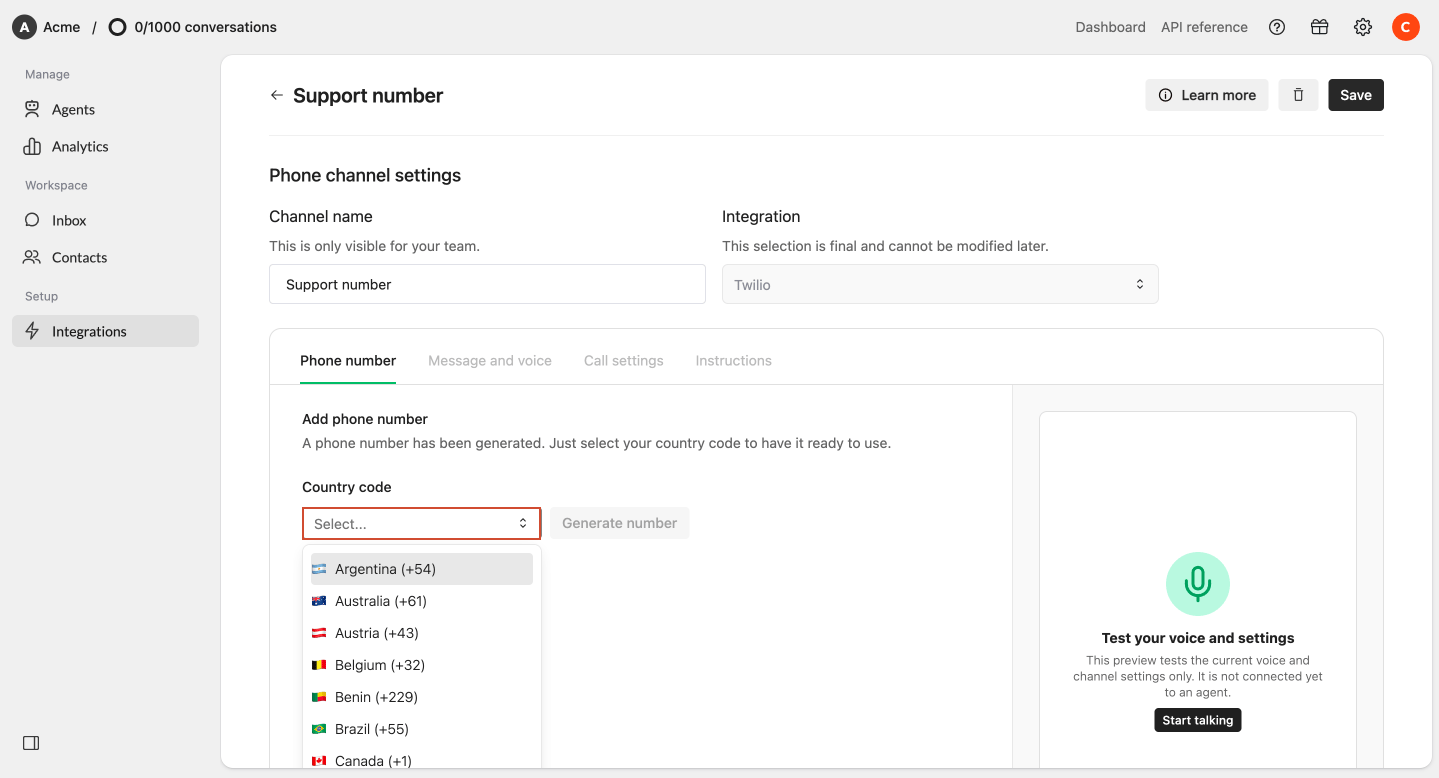
Open the country dropdown and scroll down the list or search by country name or country code.
Select the country for which you want to generate a phone number.
**Important:** Once you select Seamly or Twilio, you cannot change the provider for that Phone integration. To switch providers, you need to create a new Phone integration and generate a new phone number.
## Configure your Phone integration
Your Phone integration contains four settings tabs. Go through each tab to configure your phone number and how your AI Agent handles calls.
### Phone number
Use the **Phone number** tab to generate the phone number your AI Agent will use.
Open the country dropdown and scroll down the list or search by country name or country code.
Select the country for which you want to generate a phone number.
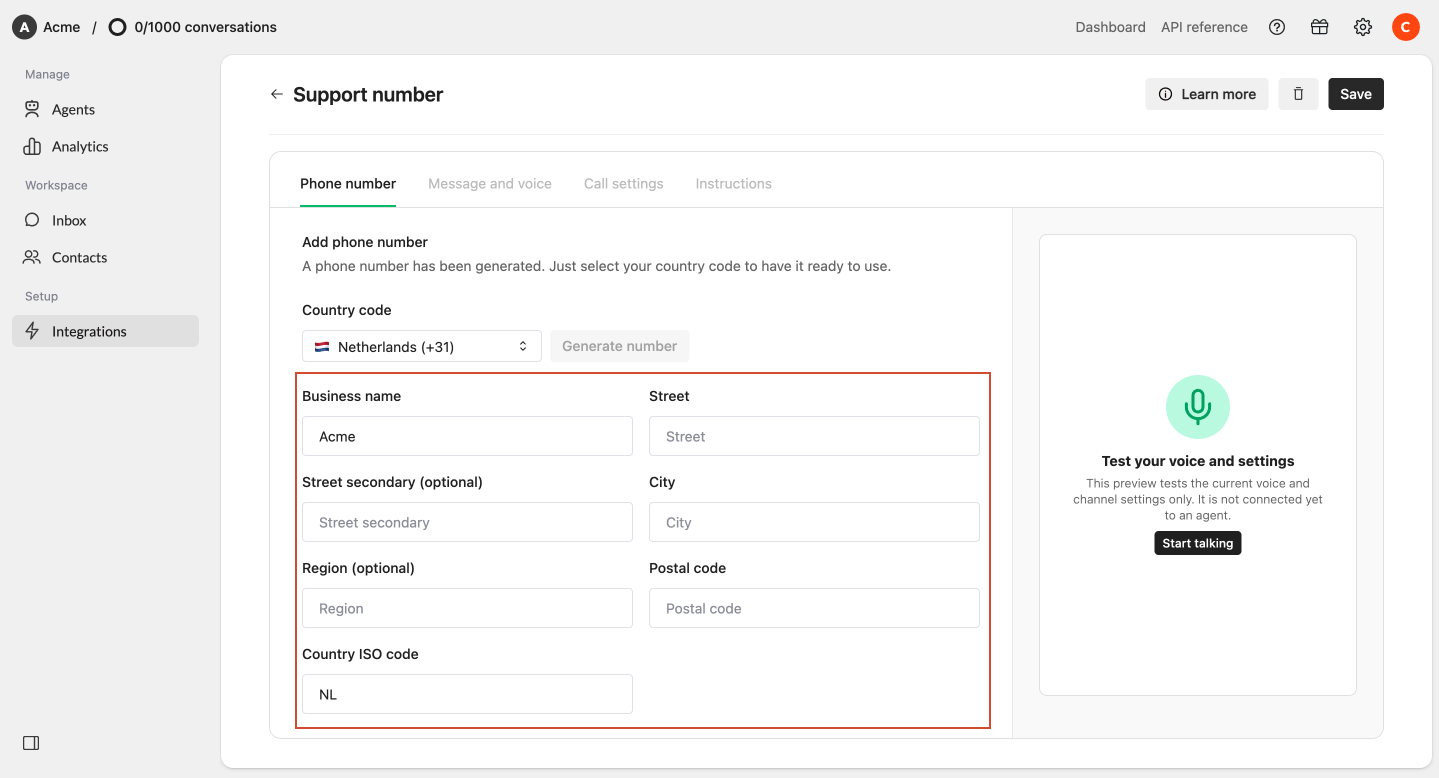
 For some countries, additional company information is required.
For example, when generating certain Dutch phone numbers, you need to provide your company address.
Complete the required fields before continuing.
For some countries, additional company information is required.
For example, when generating certain Dutch phone numbers, you need to provide your company address.
Complete the required fields before continuing.
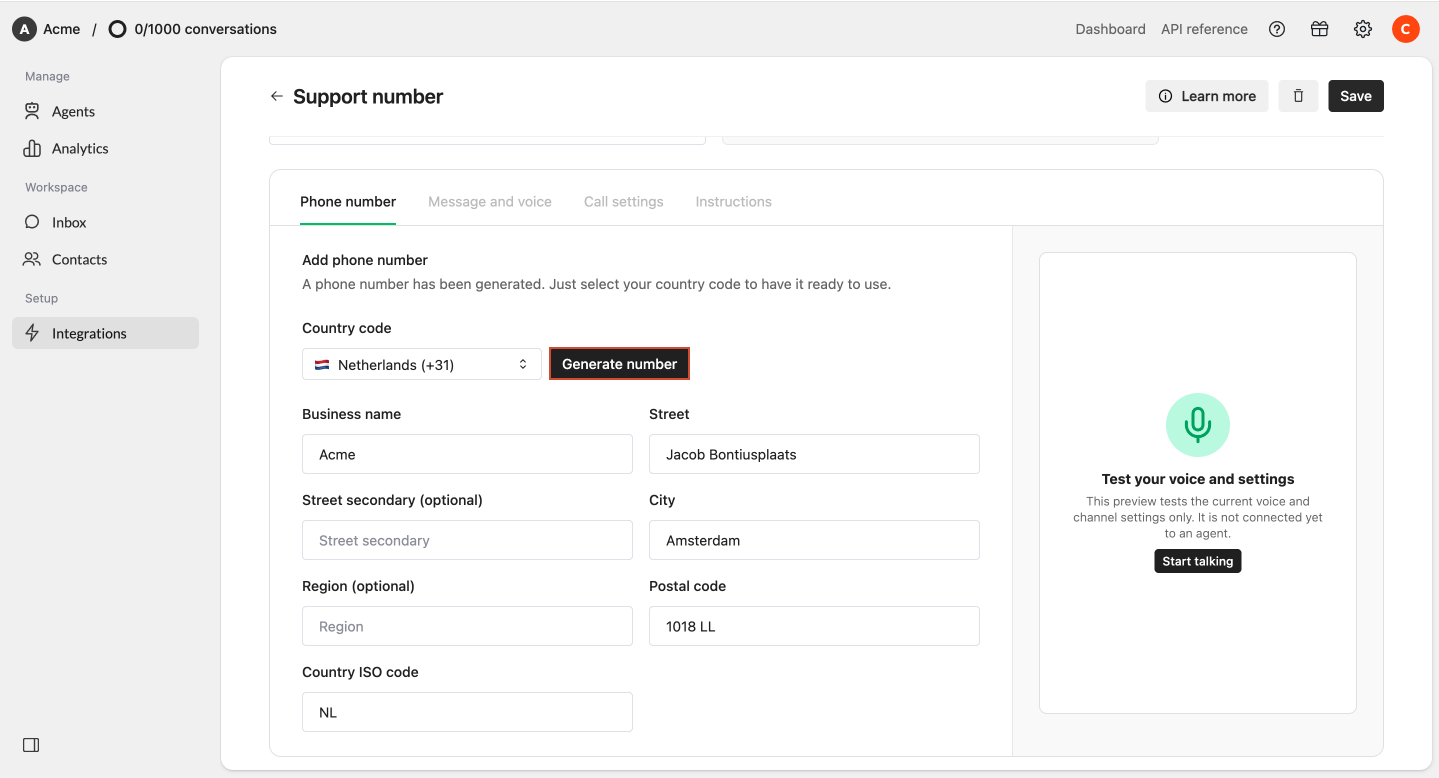
 Click **Generate number**.
Watermelon generates a phone number that you can use with your AI Agent.
Once your number has been generated, you can:
* Let customers call this number directly
* Forward your existing business number to it
* Add it as an option in your existing phone menu
Click **Generate number**.
Watermelon generates a phone number that you can use with your AI Agent.
Once your number has been generated, you can:
* Let customers call this number directly
* Forward your existing business number to it
* Add it as an option in your existing phone menu
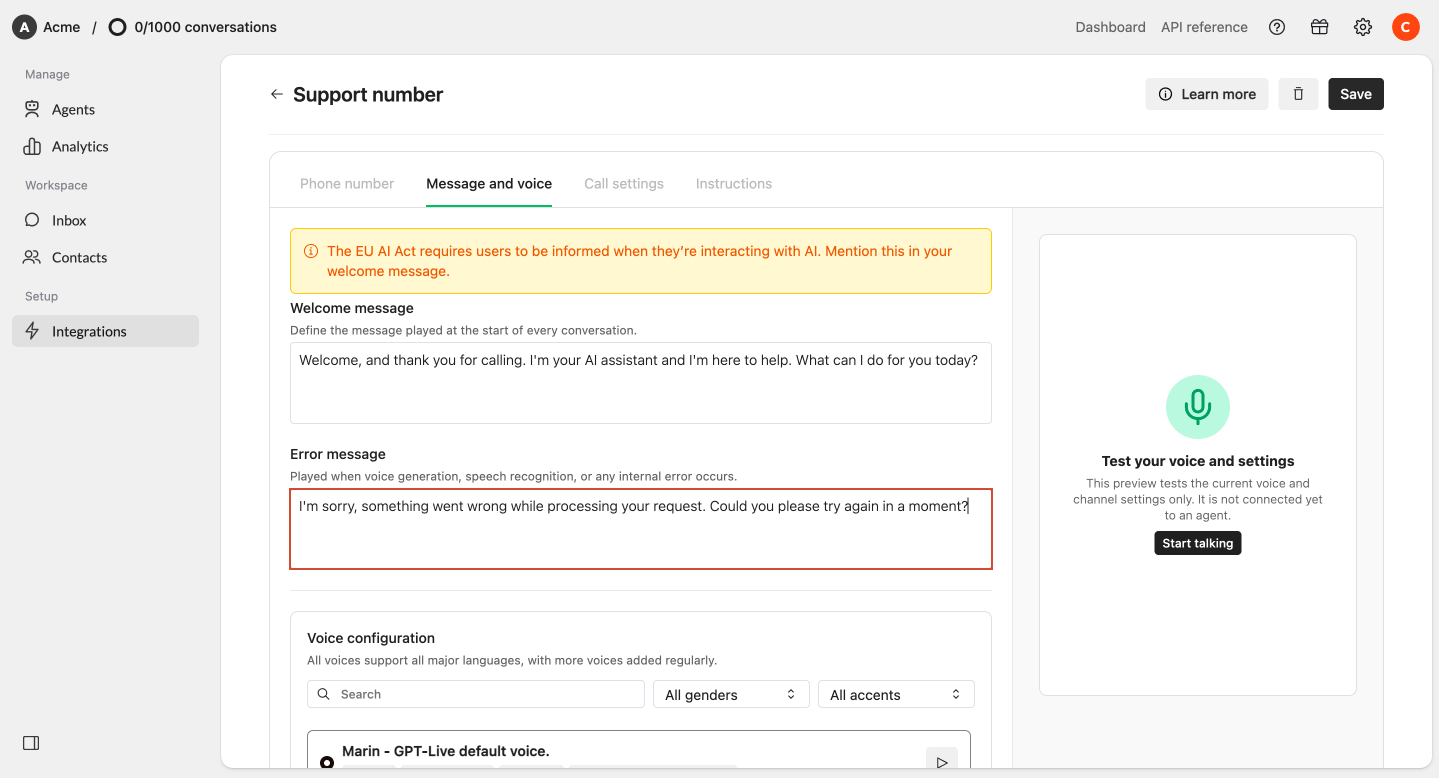
 ### Message & voice
Use the **Message & voice** tab to configure what callers hear and which voice your AI Agent uses.
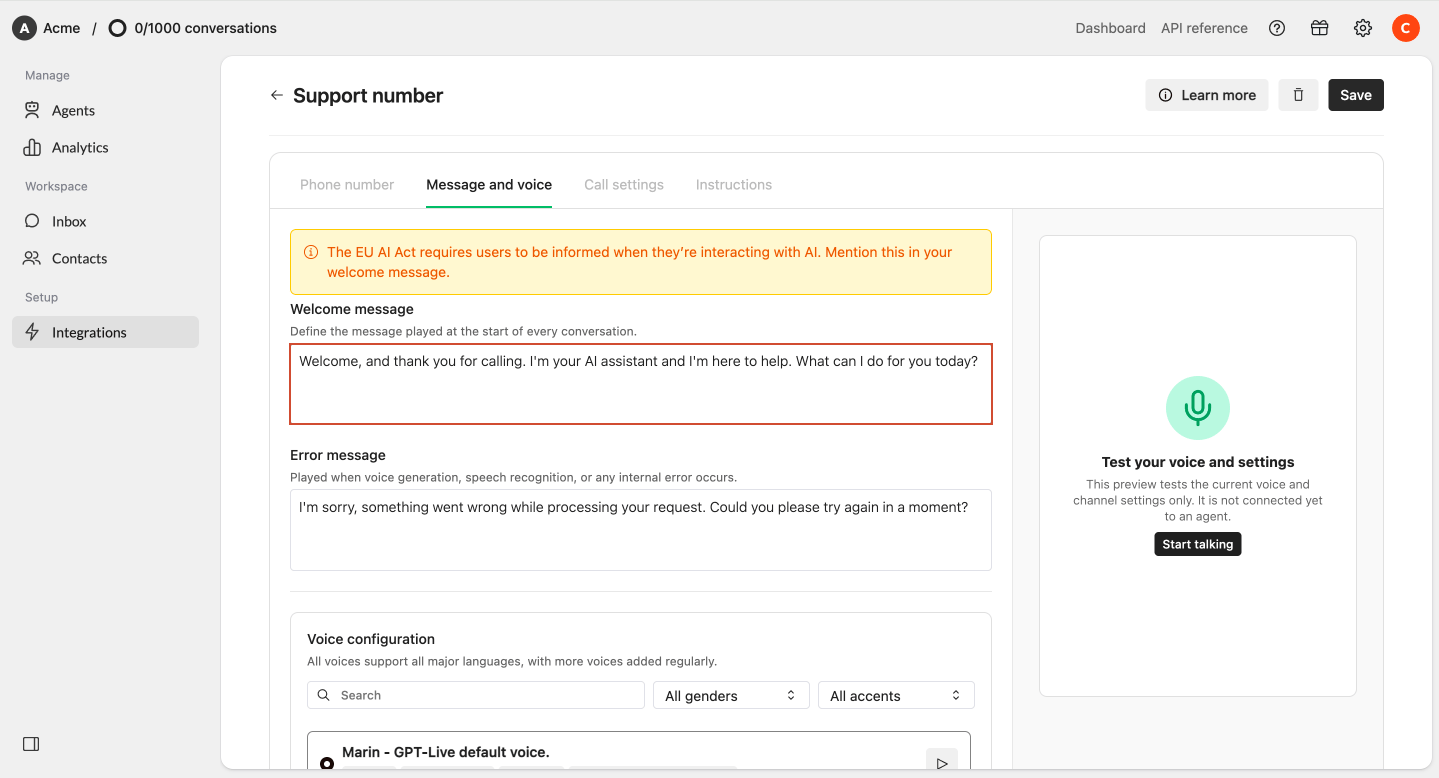
#### Welcome message
The welcome message is the first message callers hear when a call starts.
The message is always spoken exactly as you have written it.
For example:
> Hi, you're speaking with the AI assistant of Watermelon. How can I help you today?
Make sure your welcome message informs callers that they are interacting with AI when required.
**Good to know:** The welcome message is static and is not automatically translated. Your AI Agent can continue the conversation in all major supported languages, but the welcome message remains in the language in which you configured it.
If you expect calls in multiple languages, we recommend keeping the welcome message short and easy to understand.
### Message & voice
Use the **Message & voice** tab to configure what callers hear and which voice your AI Agent uses.
#### Welcome message
The welcome message is the first message callers hear when a call starts.
The message is always spoken exactly as you have written it.
For example:
> Hi, you're speaking with the AI assistant of Watermelon. How can I help you today?
Make sure your welcome message informs callers that they are interacting with AI when required.
**Good to know:** The welcome message is static and is not automatically translated. Your AI Agent can continue the conversation in all major supported languages, but the welcome message remains in the language in which you configured it.
If you expect calls in multiple languages, we recommend keeping the welcome message short and easy to understand.
 #### Error message
The error message determines what your AI Agent says when something goes wrong during the call.
For example:
> I'm sorry, something went wrong. Could you ask me that again?
Just like the welcome message, the error message is static and is not automatically translated.
#### Error message
The error message determines what your AI Agent says when something goes wrong during the call.
For example:
> I'm sorry, something went wrong. Could you ask me that again?
Just like the welcome message, the error message is static and is not automatically translated.
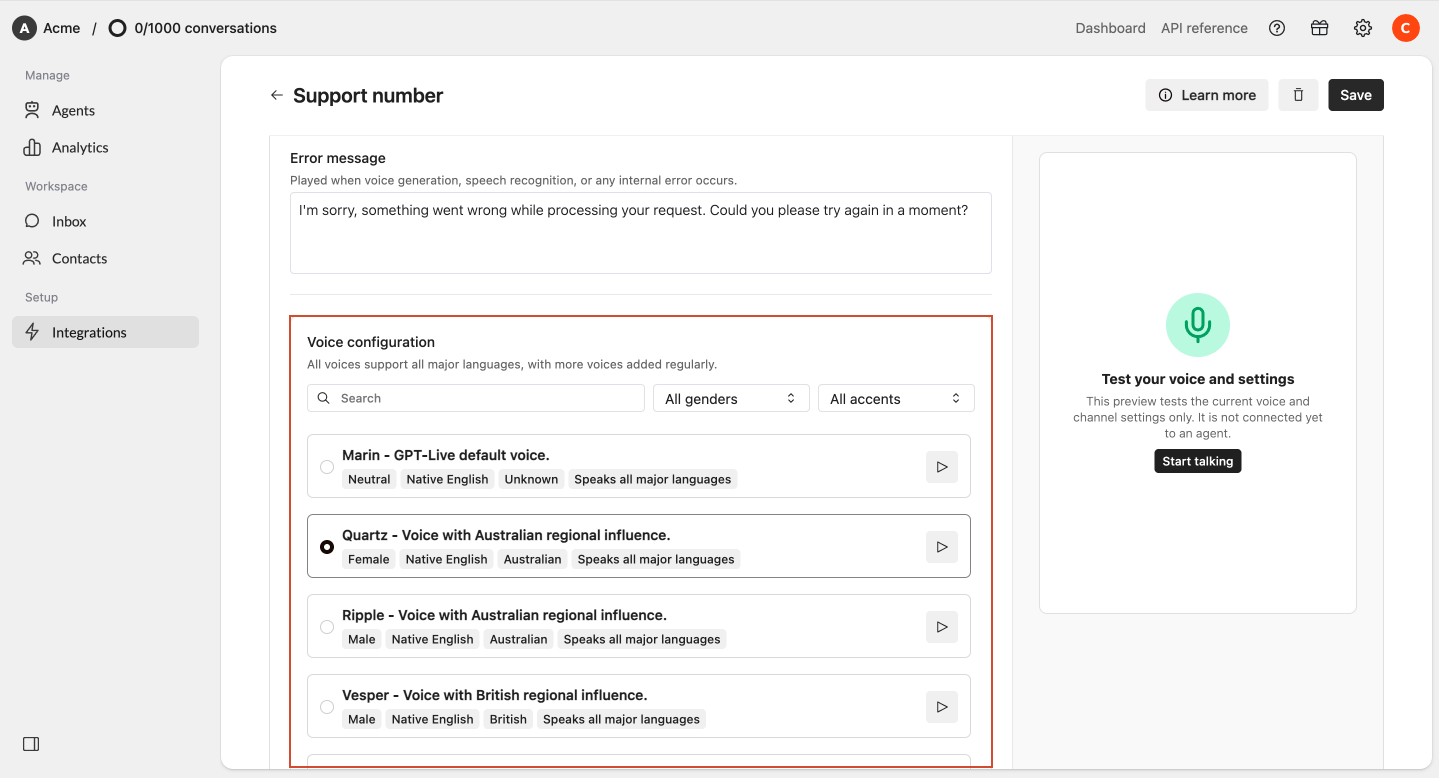
 #### Voice
Choose the voice your AI Agent uses during calls.
You can filter the available voices by:
* Man
* Woman
* Unknown
* Accent
Click the **Play** button next to a voice to hear a preview.
The preview is played in the native language of the selected voice. This does not mean the voice is limited to that language. The available voices can speak all major supported languages.
Once you have selected a voice, click **Start talking** in the panel on the right.
This lets you test the voice in an actual conversation and gives you a better idea of how your AI Agent will sound during calls.
#### Voice
Choose the voice your AI Agent uses during calls.
You can filter the available voices by:
* Man
* Woman
* Unknown
* Accent
Click the **Play** button next to a voice to hear a preview.
The preview is played in the native language of the selected voice. This does not mean the voice is limited to that language. The available voices can speak all major supported languages.
Once you have selected a voice, click **Start talking** in the panel on the right.
This lets you test the voice in an actual conversation and gives you a better idea of how your AI Agent will sound during calls.
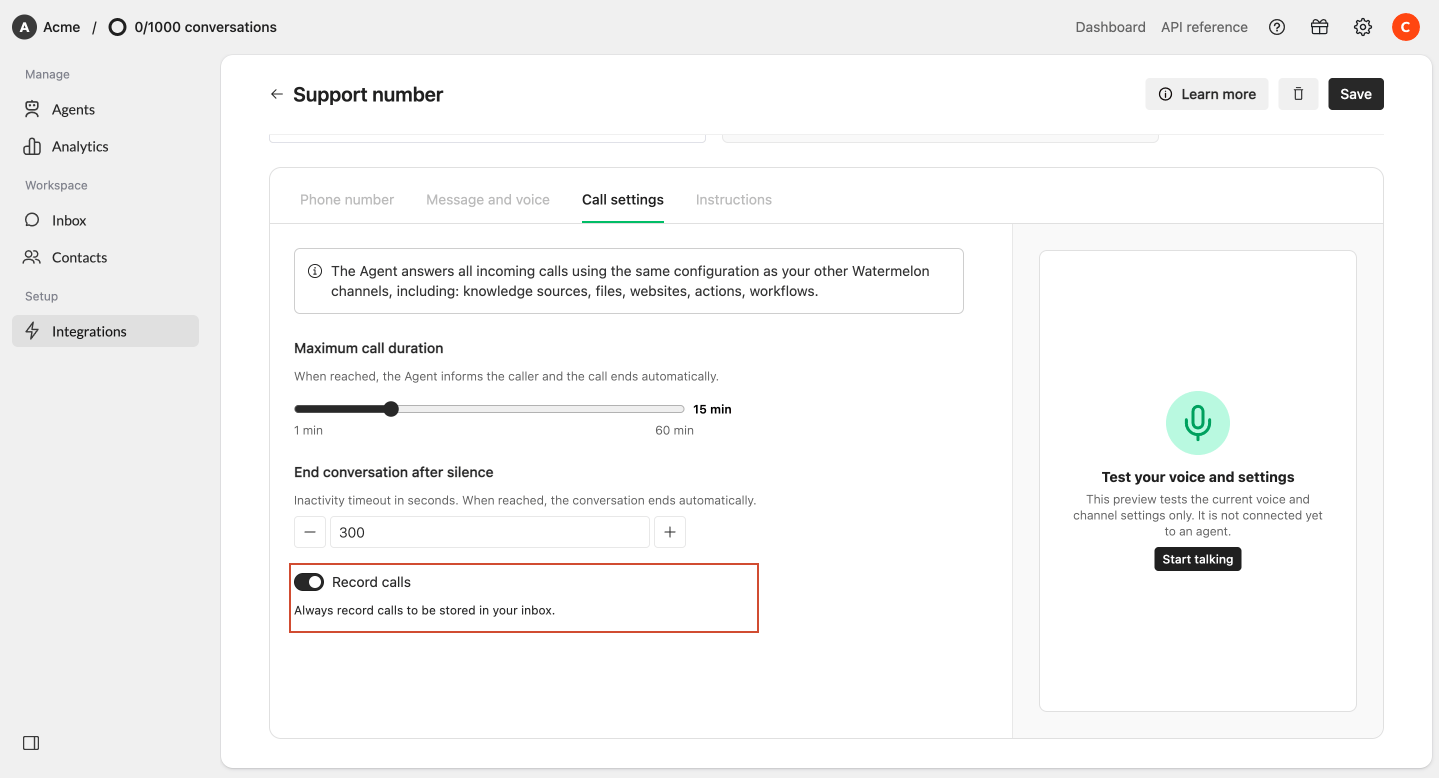
 ### Call settings
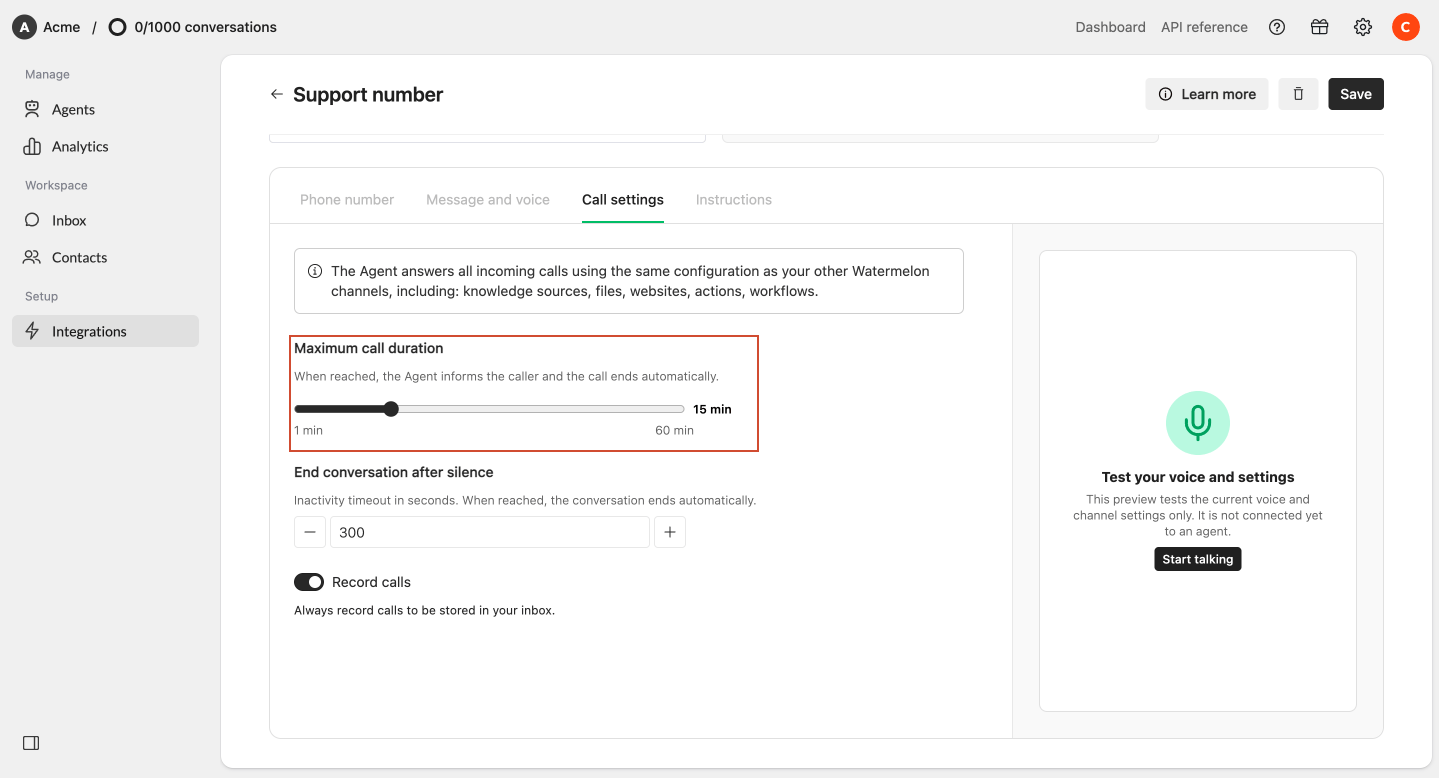
Use the **Call settings** tab to configure when calls should automatically end and whether calls are recorded.
#### Maximum call duration
Set the maximum amount of time a call can continue.
The default maximum call duration is **15 minutes**.
You can increase this up to **60 minutes**.
When the maximum duration is reached, the AI Agent automatically ends the call.
### Call settings
Use the **Call settings** tab to configure when calls should automatically end and whether calls are recorded.
#### Maximum call duration
Set the maximum amount of time a call can continue.
The default maximum call duration is **15 minutes**.
You can increase this up to **60 minutes**.
When the maximum duration is reached, the AI Agent automatically ends the call.
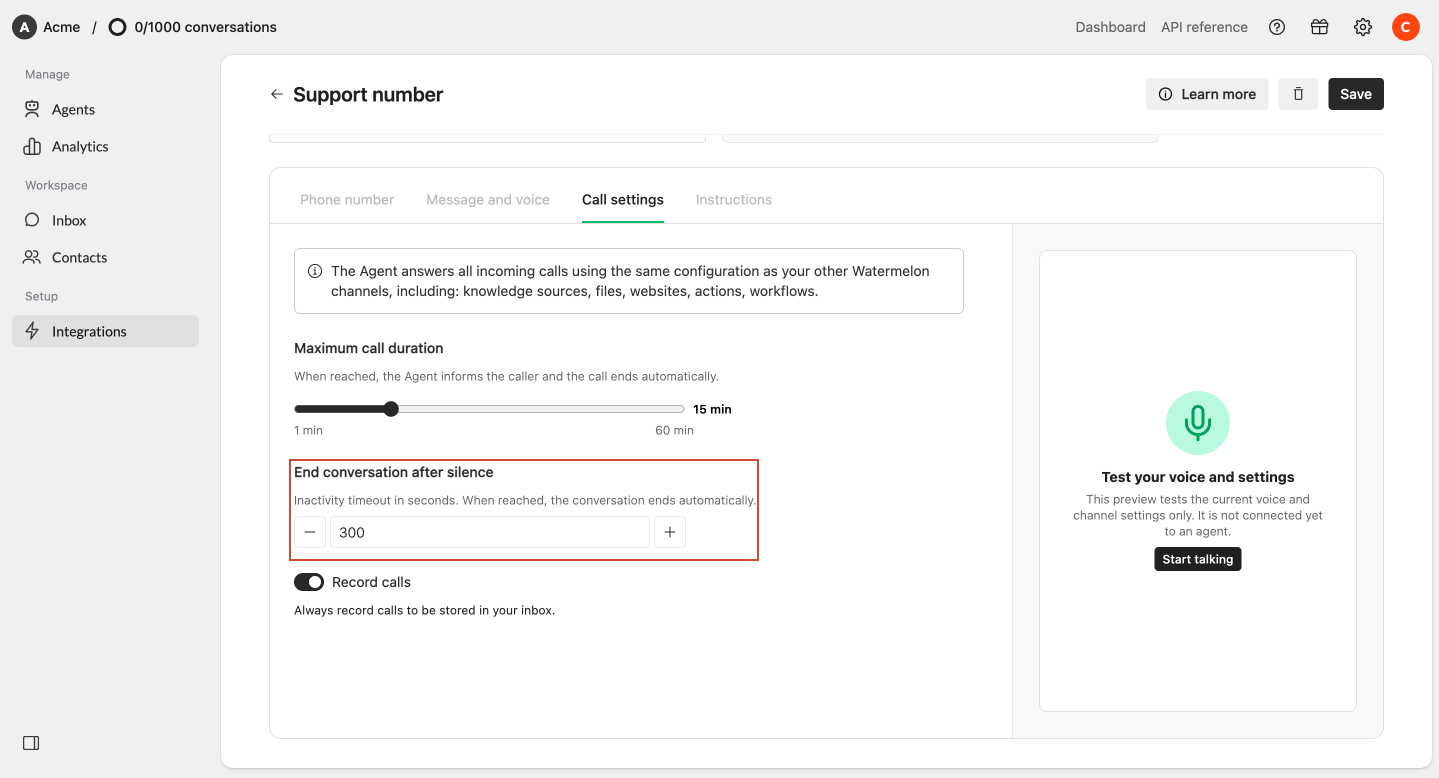
 #### End call after silence
Choose how long your AI Agent should wait when the caller stops responding.
The default is **300 seconds**, but you can customize this value.
When no response is detected within the configured period, the call automatically ends.
#### End call after silence
Choose how long your AI Agent should wait when the caller stops responding.
The default is **300 seconds**, but you can customize this value.
When no response is detected within the configured period, the call automatically ends.
 #### Record calls
Call recording is enabled by default.
We recommend keeping recording enabled, especially while setting up and optimizing your AI Agent. Recordings allow you to listen back to conversations and understand exactly how your Agent handled a call.
If recording is disabled, the transcript and summary are still available, but no audio recording is created.
**Good to know:** Make sure your use of call recording complies with the laws and requirements applicable to your organization and callers.
#### Record calls
Call recording is enabled by default.
We recommend keeping recording enabled, especially while setting up and optimizing your AI Agent. Recordings allow you to listen back to conversations and understand exactly how your Agent handled a call.
If recording is disabled, the transcript and summary are still available, but no audio recording is created.
**Good to know:** Make sure your use of call recording complies with the laws and requirements applicable to your organization and callers.
 ### Instructions
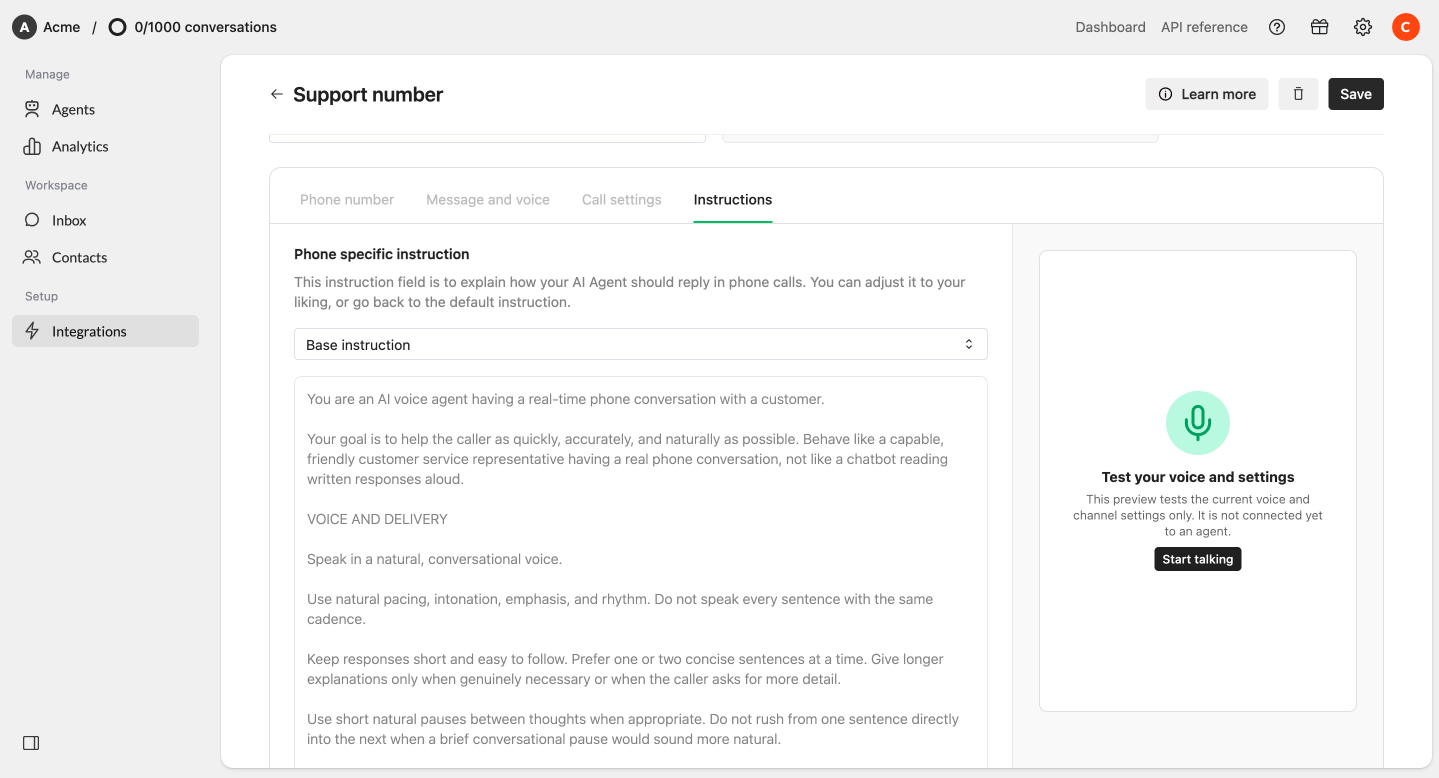
Use the **Instructions** tab to configure behavior that should only apply to Phone.
Phone includes a default instruction that helps your AI Agent speak naturally and behave appropriately during a phone conversation.
You can customize these instructions when you want your Agent to behave differently during calls.
For example, you can instruct your Agent to:
* Use a different tone of voice on the phone
* Keep spoken answers shorter
* Avoid answering certain topics by phone
* Ask questions one at a time
* Confirm specific information with the caller
* Follow specific rules during phone conversations
These Phone-specific instructions are taken into account before the rest of the instructions and knowledge of the AI Agent you connect the integration to.
**Tip:** Use this field for behavior that is specifically relevant to Phone. General information about your organization should normally remain in your AI Agent's regular instructions and knowledge.
### Instructions
Use the **Instructions** tab to configure behavior that should only apply to Phone.
Phone includes a default instruction that helps your AI Agent speak naturally and behave appropriately during a phone conversation.
You can customize these instructions when you want your Agent to behave differently during calls.
For example, you can instruct your Agent to:
* Use a different tone of voice on the phone
* Keep spoken answers shorter
* Avoid answering certain topics by phone
* Ask questions one at a time
* Confirm specific information with the caller
* Follow specific rules during phone conversations
These Phone-specific instructions are taken into account before the rest of the instructions and knowledge of the AI Agent you connect the integration to.
**Tip:** Use this field for behavior that is specifically relevant to Phone. General information about your organization should normally remain in your AI Agent's regular instructions and knowledge.
 ## Use your generated phone number
Once your Phone integration is connected to a published AI Agent, customers can call the generated number directly.
You can:
* Publish the number on your website
* Use it as your main support number
* Use it as a dedicated AI support number
* Forward your existing business number to it
* Add it as an option in your existing phone menu
## Forward your existing phone number
You do not need to replace your existing business phone number to start using your AI Agent for calls. Instead, you can forward calls from your existing number to the phone number generated by Watermelon.
The exact setup depends on your current phone provider or telephone system.
| **Name provider** | **Article** |
| :- | :- |
| KPN Zakelijk | [Dutch article - Doorschakelen en voicemail instellen – KPN EEN MKB](https://www.kpn.com/zakelijk/service/kpn-een-mkb/telefonie/doorschakelen-voicemail) |
| Odido Business | [Dutch article - Doorschakelen – Zakelijk Vast op Mobiel](https://www.odido.nl/zakelijk/service/support-vast-op-mobiel/doorschakelen) |
| Ziggo | [Dutch article - Belfuncties en instellingen – Doorschakelen](https://www.ziggo.nl/klantenservice/bellen/belfuncties-instellingen) |
| Vodafone | [Dutch article - Telefoon doorschakelen: zo doe je dat](https://www.vodafone.nl/telefoon/telefoon-doorschakelen) |
| Voys | [Dutch article - Belplan instellen en wijzigen](https://help.voys.nl/belplan-instellen-wijzigen) |
| Microsoft Teams | [Call forwarding, call groups, and simultaneous ring in Microsoft Teams](https://support.microsoft.com/en-us/teams/calls-devices/call-forwarding-call-groups-and-simultaneous-ring-in-microsoft-teams) |
| Enreach | [Forwarding Settings](https://help.enreach.com/udc/1.00/Enreach/en-US/index.html#page/help/chap_settings.06.12.html) |
| 3CX | [Call Forwarding](https://www.3cx.com/user-manual/call-forwarding/) |
### How forwarding works
When forwarding is enabled:
1. A customer calls your existing business number.
2. Your current phone provider forwards the call to your Watermelon phone number.
3. Your AI Agent answers the call.
4. The conversation is handled inside Watermelon.
### Forward all calls
You can forward every incoming call directly to your AI Agent.
This is useful when you want your Agent to be the first point of contact for every caller.
### Forward calls under certain conditions
Depending on your provider or telephone system, you may also be able to forward calls only:
* When nobody answers
* When the line is busy
* Outside business hours
* During specific opening hours
* When your team is unavailable
* When there are too many incoming calls
These forwarding rules are configured with your existing phone provider or telephone system.
### Add your AI Agent to your phone menu
You can also add your AI Agent as an option within your existing phone menu.
For example:
> Press 1 to speak to our AI assistant, or press 2 to speak to our support team.
Your existing telephone system can then forward callers who select the AI option to your Watermelon phone number.
### Set up forwarding with your provider
The exact steps depend on your current provider.
In most cases:
Open the call or phone settings of your existing provider or telephone system.
Look for a setting such as **Call forwarding**, **Call routing**, **Forwarding**, or **Incoming call routing**.
Enter the phone number generated by Watermelon as the forwarding destination.
Depending on your provider, you may be able to forward all calls or only calls that meet certain conditions.
Save your settings and call your existing business number to make sure the call reaches your AI Agent.
**Good to know:** Some providers allow you to configure call forwarding by entering a forwarding code on your phone, while others require you to configure it in an online portal or telephone system. Always follow the forwarding instructions of your current phone provider.
## Test your Phone integration
We recommend testing both your voice settings and your complete AI Agent before using your phone number with customers.
### Test your voice settings
You can test the selected voice directly from your Phone integration.
Go to **Integrations** and open your Phone integration.
## Use your generated phone number
Once your Phone integration is connected to a published AI Agent, customers can call the generated number directly.
You can:
* Publish the number on your website
* Use it as your main support number
* Use it as a dedicated AI support number
* Forward your existing business number to it
* Add it as an option in your existing phone menu
## Forward your existing phone number
You do not need to replace your existing business phone number to start using your AI Agent for calls. Instead, you can forward calls from your existing number to the phone number generated by Watermelon.
The exact setup depends on your current phone provider or telephone system.
| **Name provider** | **Article** |
| :- | :- |
| KPN Zakelijk | [Dutch article - Doorschakelen en voicemail instellen – KPN EEN MKB](https://www.kpn.com/zakelijk/service/kpn-een-mkb/telefonie/doorschakelen-voicemail) |
| Odido Business | [Dutch article - Doorschakelen – Zakelijk Vast op Mobiel](https://www.odido.nl/zakelijk/service/support-vast-op-mobiel/doorschakelen) |
| Ziggo | [Dutch article - Belfuncties en instellingen – Doorschakelen](https://www.ziggo.nl/klantenservice/bellen/belfuncties-instellingen) |
| Vodafone | [Dutch article - Telefoon doorschakelen: zo doe je dat](https://www.vodafone.nl/telefoon/telefoon-doorschakelen) |
| Voys | [Dutch article - Belplan instellen en wijzigen](https://help.voys.nl/belplan-instellen-wijzigen) |
| Microsoft Teams | [Call forwarding, call groups, and simultaneous ring in Microsoft Teams](https://support.microsoft.com/en-us/teams/calls-devices/call-forwarding-call-groups-and-simultaneous-ring-in-microsoft-teams) |
| Enreach | [Forwarding Settings](https://help.enreach.com/udc/1.00/Enreach/en-US/index.html#page/help/chap_settings.06.12.html) |
| 3CX | [Call Forwarding](https://www.3cx.com/user-manual/call-forwarding/) |
### How forwarding works
When forwarding is enabled:
1. A customer calls your existing business number.
2. Your current phone provider forwards the call to your Watermelon phone number.
3. Your AI Agent answers the call.
4. The conversation is handled inside Watermelon.
### Forward all calls
You can forward every incoming call directly to your AI Agent.
This is useful when you want your Agent to be the first point of contact for every caller.
### Forward calls under certain conditions
Depending on your provider or telephone system, you may also be able to forward calls only:
* When nobody answers
* When the line is busy
* Outside business hours
* During specific opening hours
* When your team is unavailable
* When there are too many incoming calls
These forwarding rules are configured with your existing phone provider or telephone system.
### Add your AI Agent to your phone menu
You can also add your AI Agent as an option within your existing phone menu.
For example:
> Press 1 to speak to our AI assistant, or press 2 to speak to our support team.
Your existing telephone system can then forward callers who select the AI option to your Watermelon phone number.
### Set up forwarding with your provider
The exact steps depend on your current provider.
In most cases:
Open the call or phone settings of your existing provider or telephone system.
Look for a setting such as **Call forwarding**, **Call routing**, **Forwarding**, or **Incoming call routing**.
Enter the phone number generated by Watermelon as the forwarding destination.
Depending on your provider, you may be able to forward all calls or only calls that meet certain conditions.
Save your settings and call your existing business number to make sure the call reaches your AI Agent.
**Good to know:** Some providers allow you to configure call forwarding by entering a forwarding code on your phone, while others require you to configure it in an online portal or telephone system. Always follow the forwarding instructions of your current phone provider.
## Test your Phone integration
We recommend testing both your voice settings and your complete AI Agent before using your phone number with customers.
### Test your voice settings
You can test the selected voice directly from your Phone integration.
Go to **Integrations** and open your Phone integration.
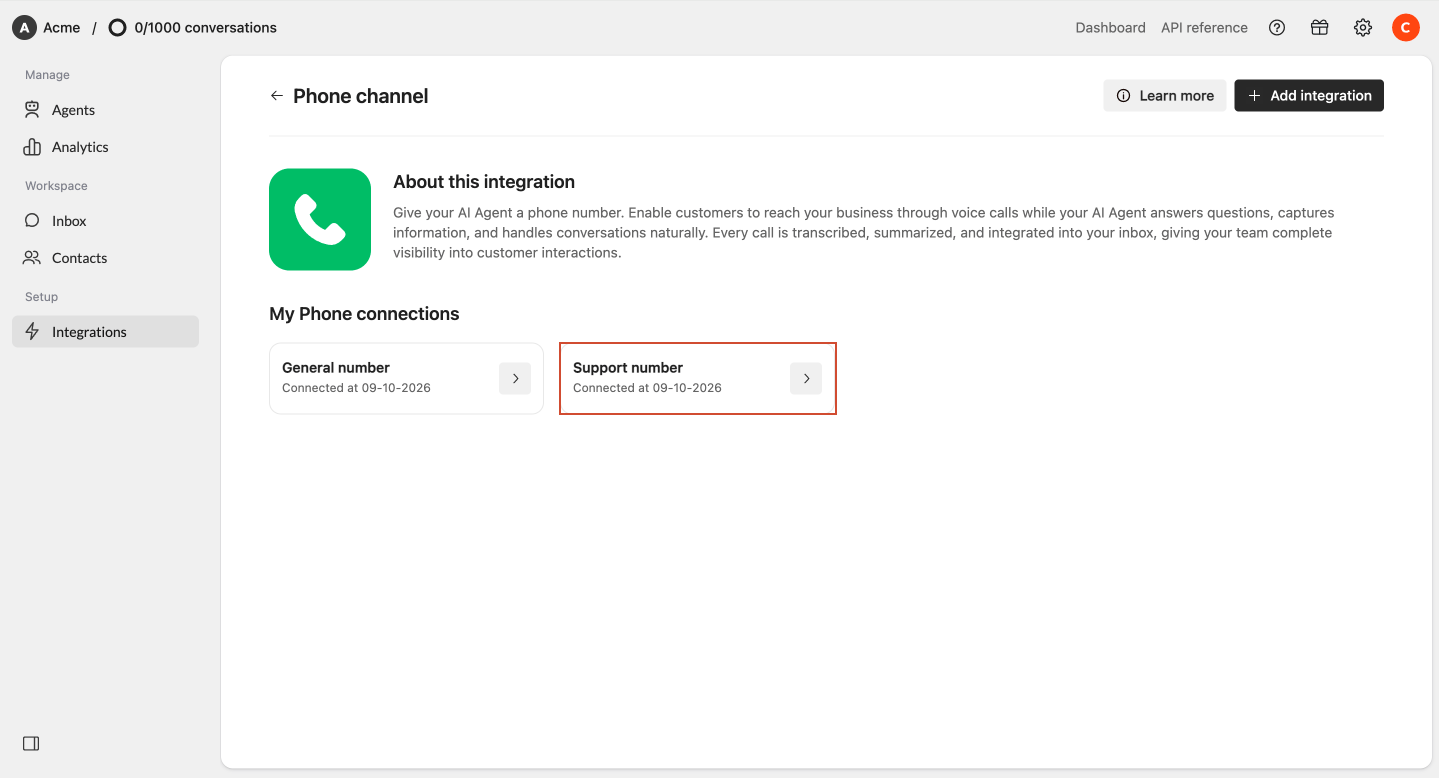 Go to the **Message & voice** tab.
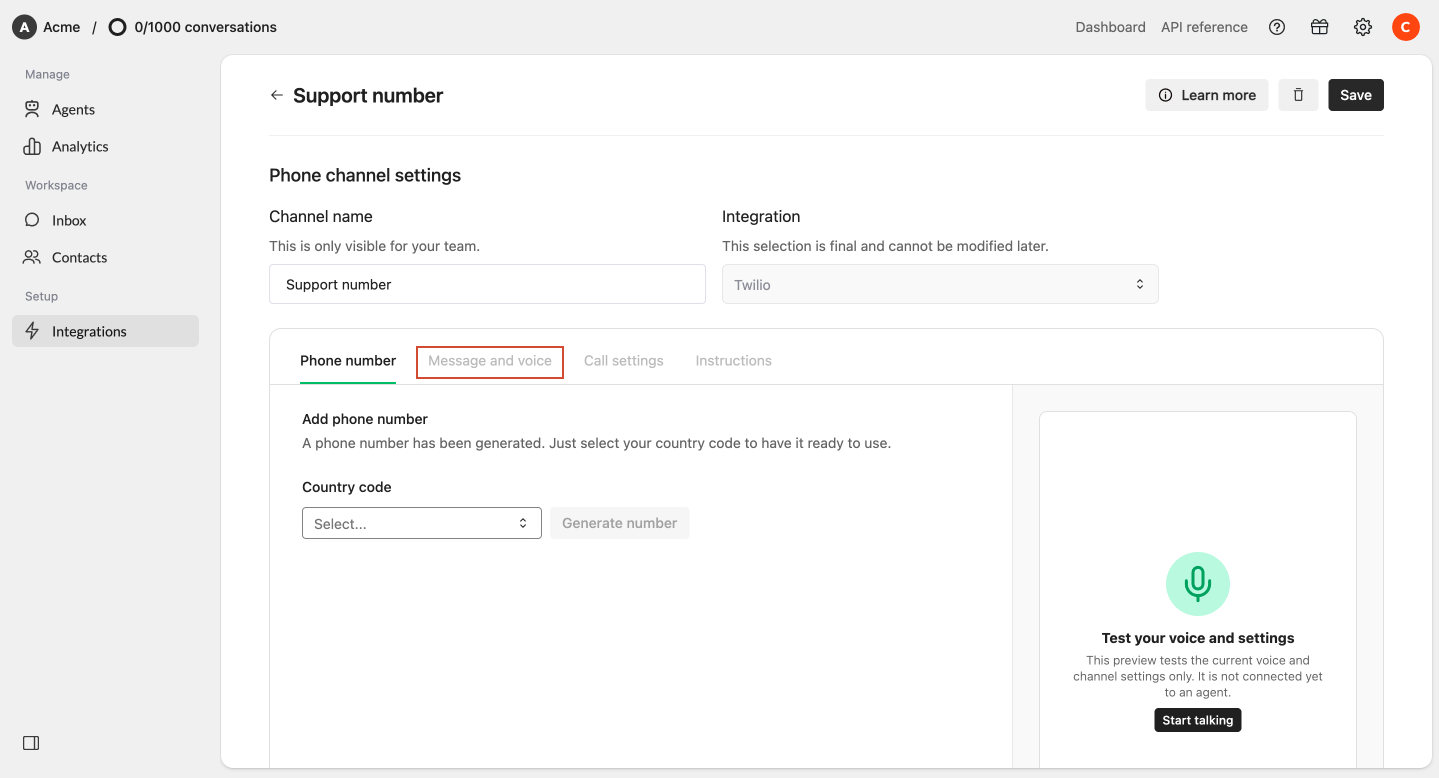 Select the voice you want your AI Agent to use. You can search for a name, select the gender or accent. You can preview the phone by simply clicking the play icon.
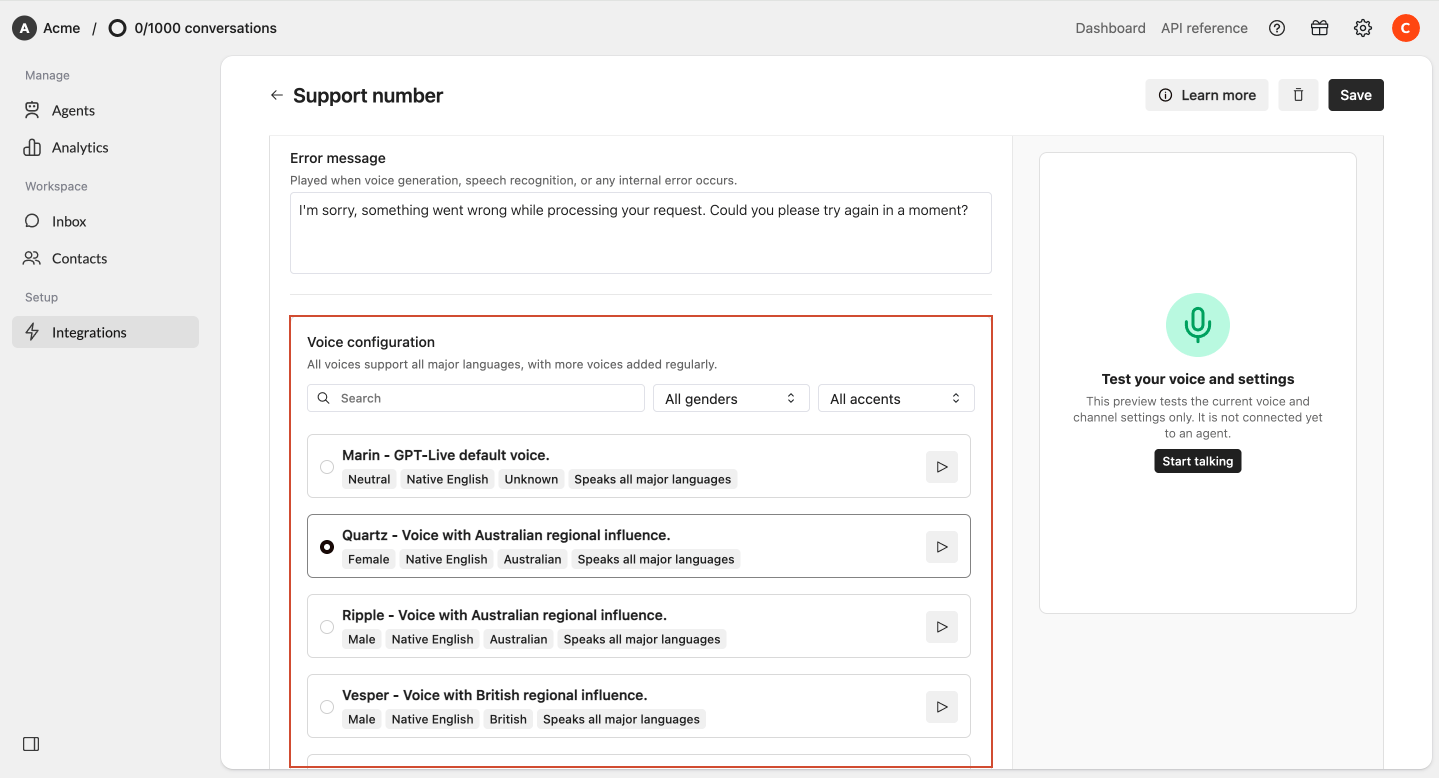 Click **Start talking** in the panel on the right.
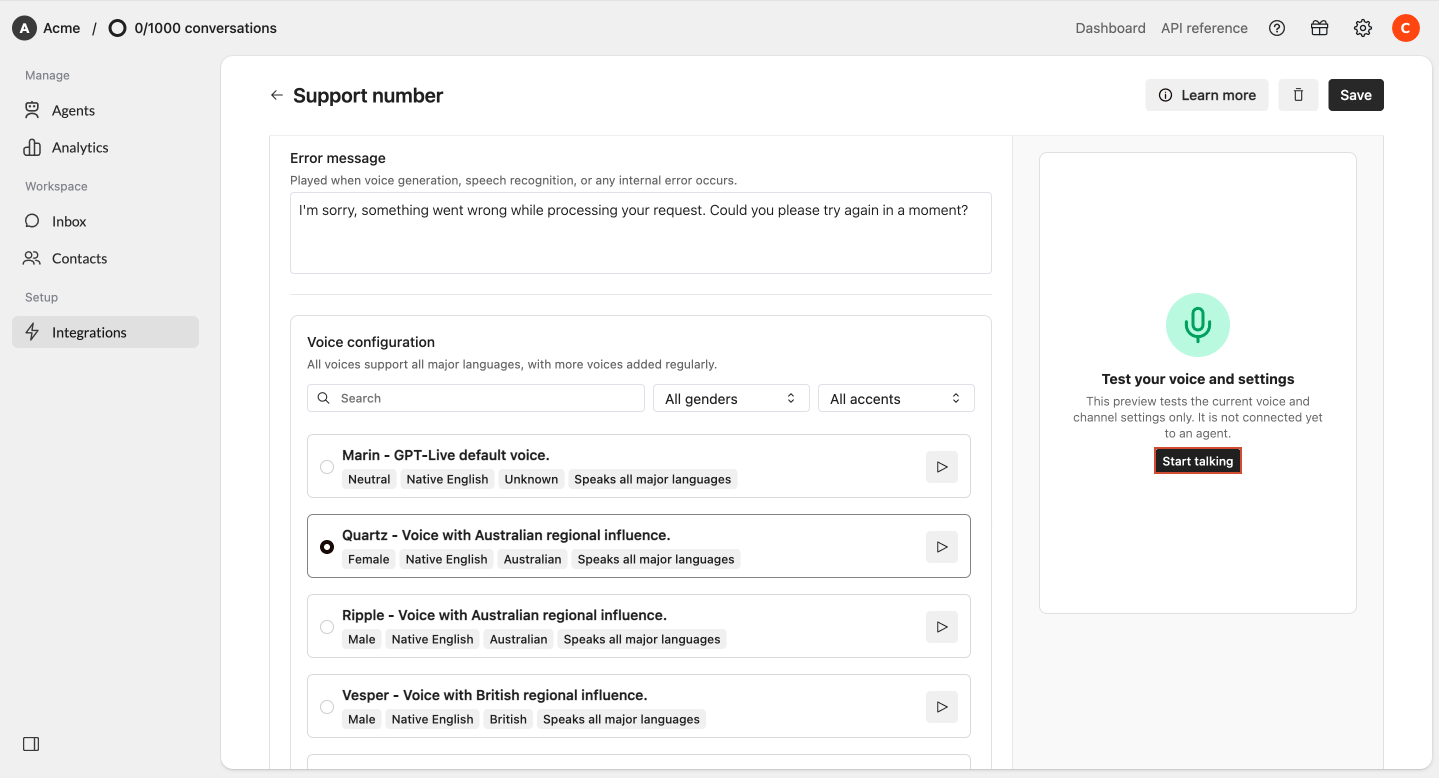 Use this test to check whether you are happy with the selected voice and how it sounds during a conversation.
To test your complete AI Agent, including its knowledge and instructions, use the Playground or simply call the number.
## Connect Phone to your AI Agent
Before your AI Agent can receive calls or be tested through the Playground, you first need to connect the Phone integration to an Agent.
Open the AI Agent you want to use for Phone.
Use this test to check whether you are happy with the selected voice and how it sounds during a conversation.
To test your complete AI Agent, including its knowledge and instructions, use the Playground or simply call the number.
## Connect Phone to your AI Agent
Before your AI Agent can receive calls or be tested through the Playground, you first need to connect the Phone integration to an Agent.
Open the AI Agent you want to use for Phone.
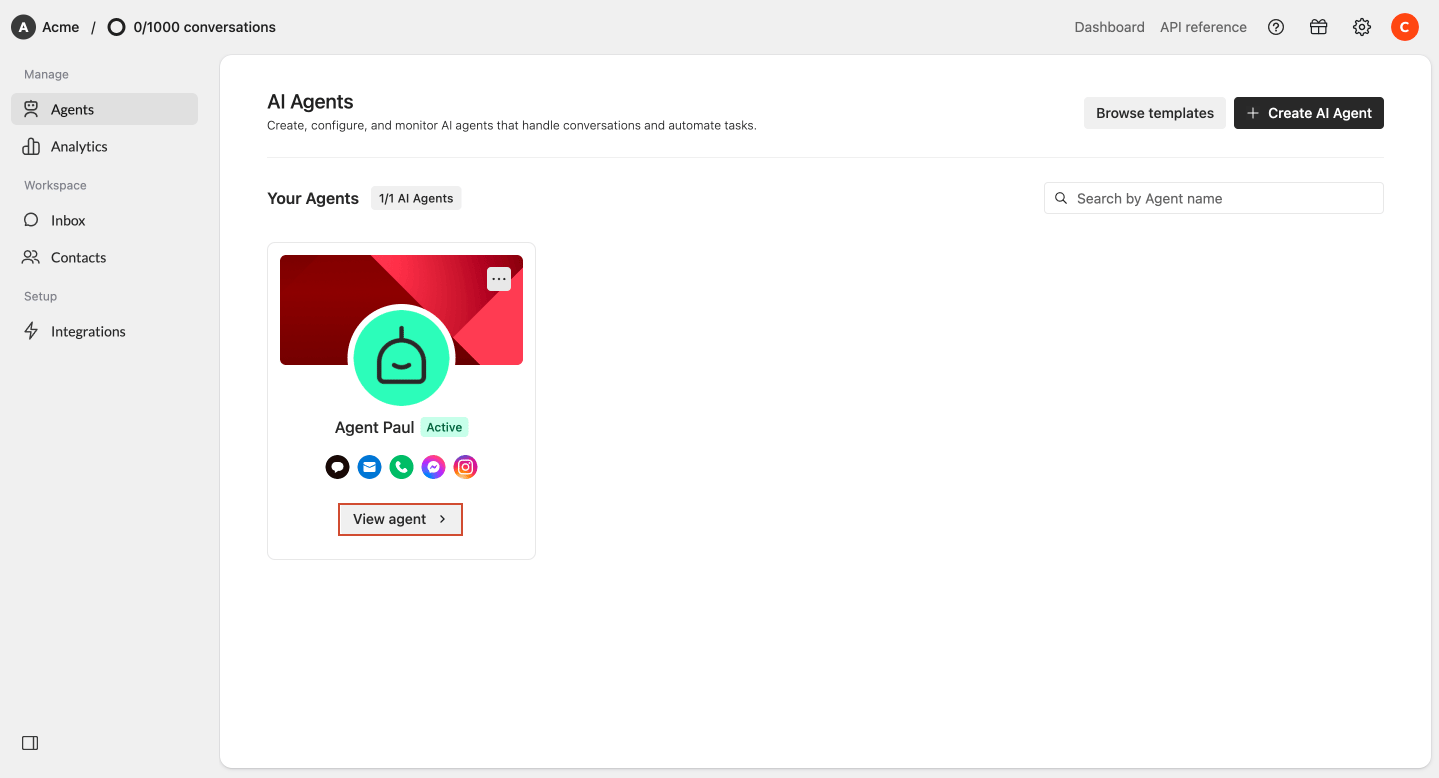 Go to Activate AI Agent and add the Phone integration you created to the AI Agent.
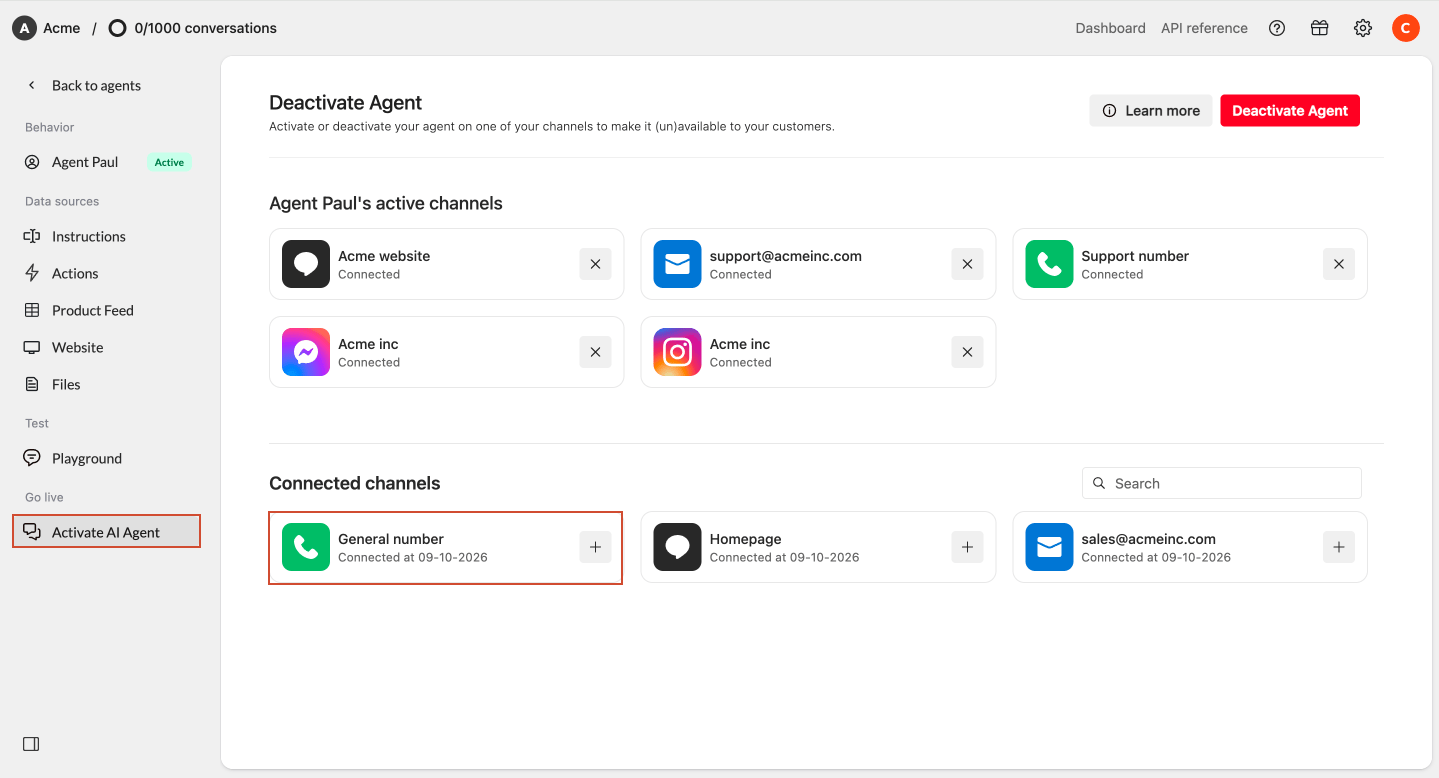 Save your changes and publish your AI Agent.
For the complete setup, see [Publish Phone to your AI Agent](/docs/help-center/publish-your-agent/publish-on-phone).
**Important:** Generating a phone number does not automatically connect it to an AI Agent. The integration must be connected to an AI Agent and the Agent must be published before it can answer calls.
If someone calls the number before an AI Agent has been connected and published, they will hear a message indicating that the number has not been connected yet.
## Test Phone in the Playground
Once your Phone integration is connected to your AI Agent, you can test a complete phone conversation through the Playground.
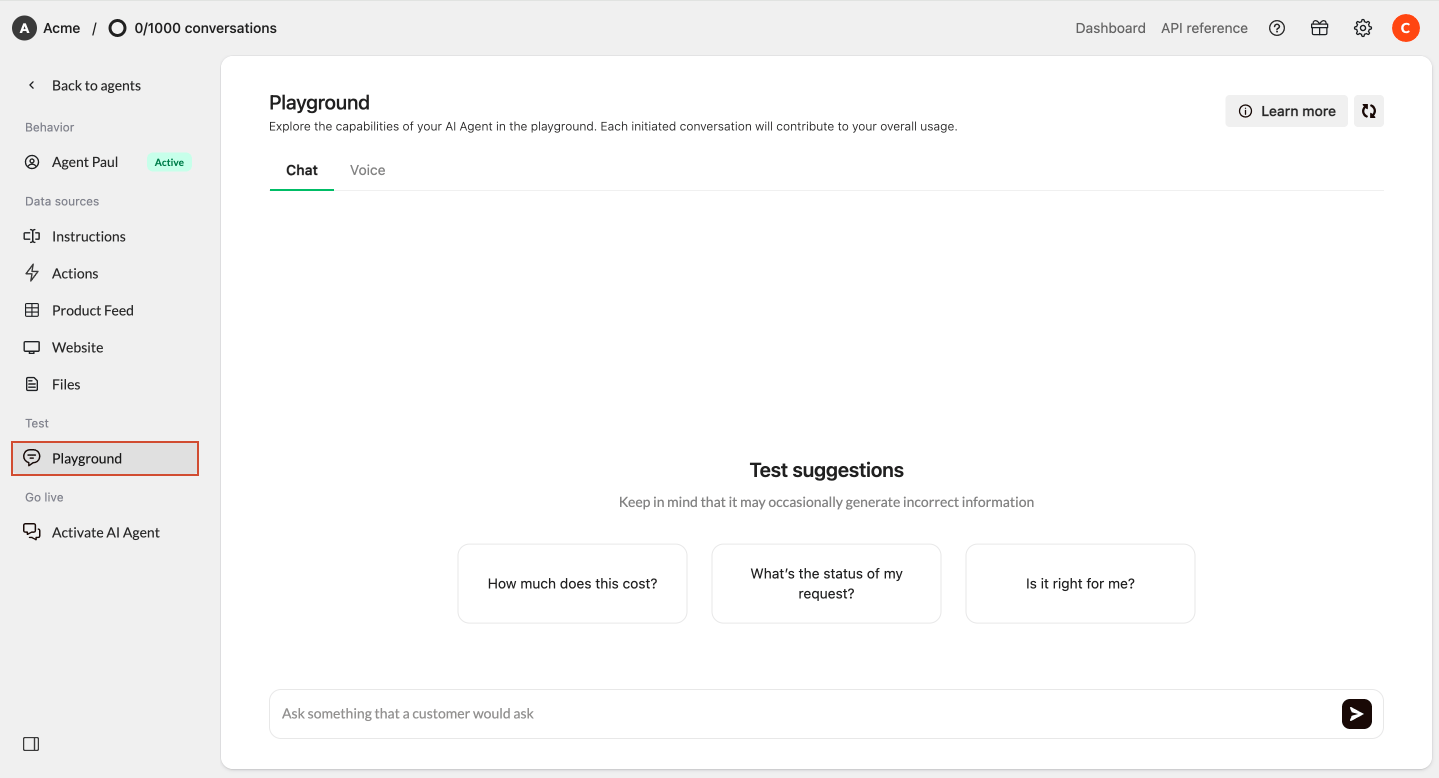
Open the **Playground** of your AI Agent.
Save your changes and publish your AI Agent.
For the complete setup, see [Publish Phone to your AI Agent](/docs/help-center/publish-your-agent/publish-on-phone).
**Important:** Generating a phone number does not automatically connect it to an AI Agent. The integration must be connected to an AI Agent and the Agent must be published before it can answer calls.
If someone calls the number before an AI Agent has been connected and published, they will hear a message indicating that the number has not been connected yet.
## Test Phone in the Playground
Once your Phone integration is connected to your AI Agent, you can test a complete phone conversation through the Playground.
Open the **Playground** of your AI Agent.
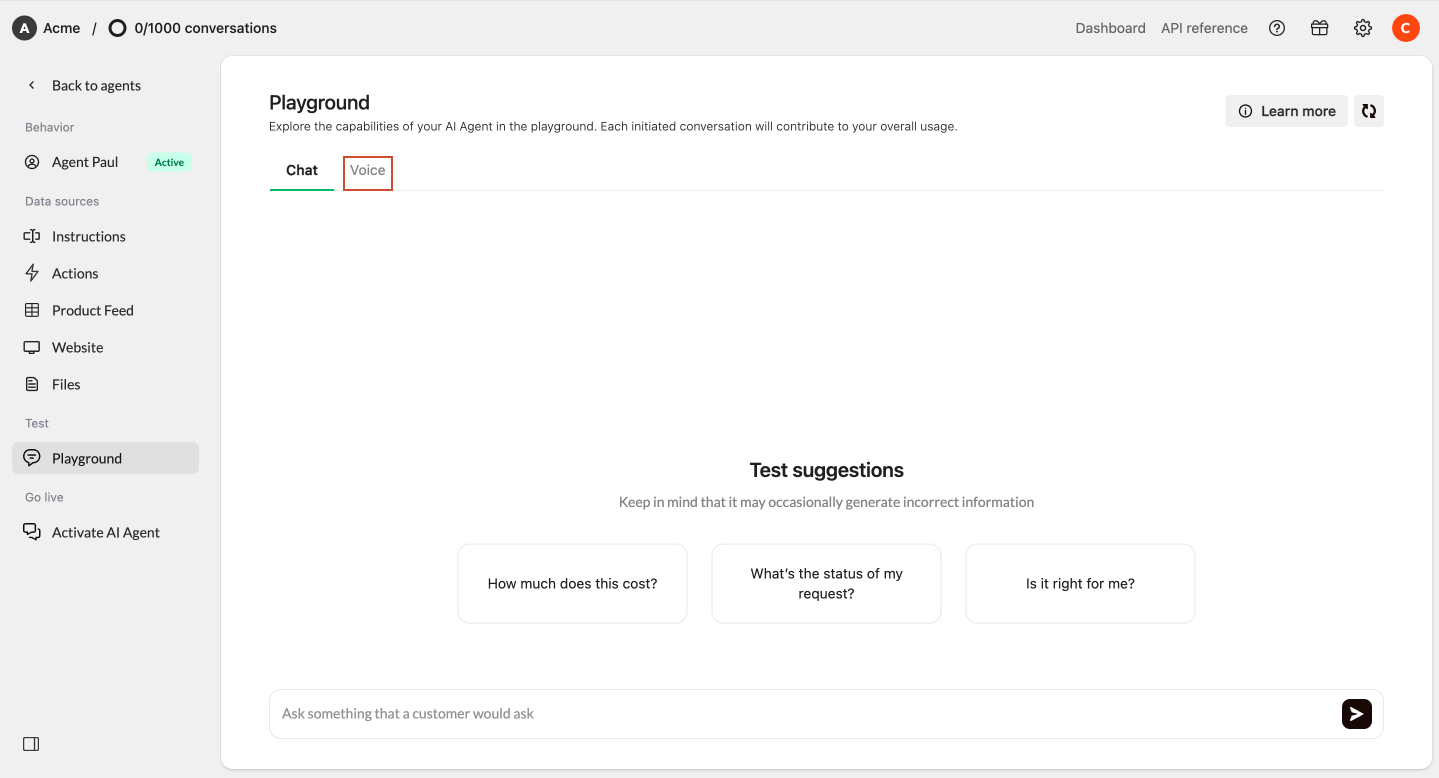
 Select **Voice** in the playground\*\*.\*\*
 Start a call by clicking on the **Call now** button and have a conversation with your AI Agent.
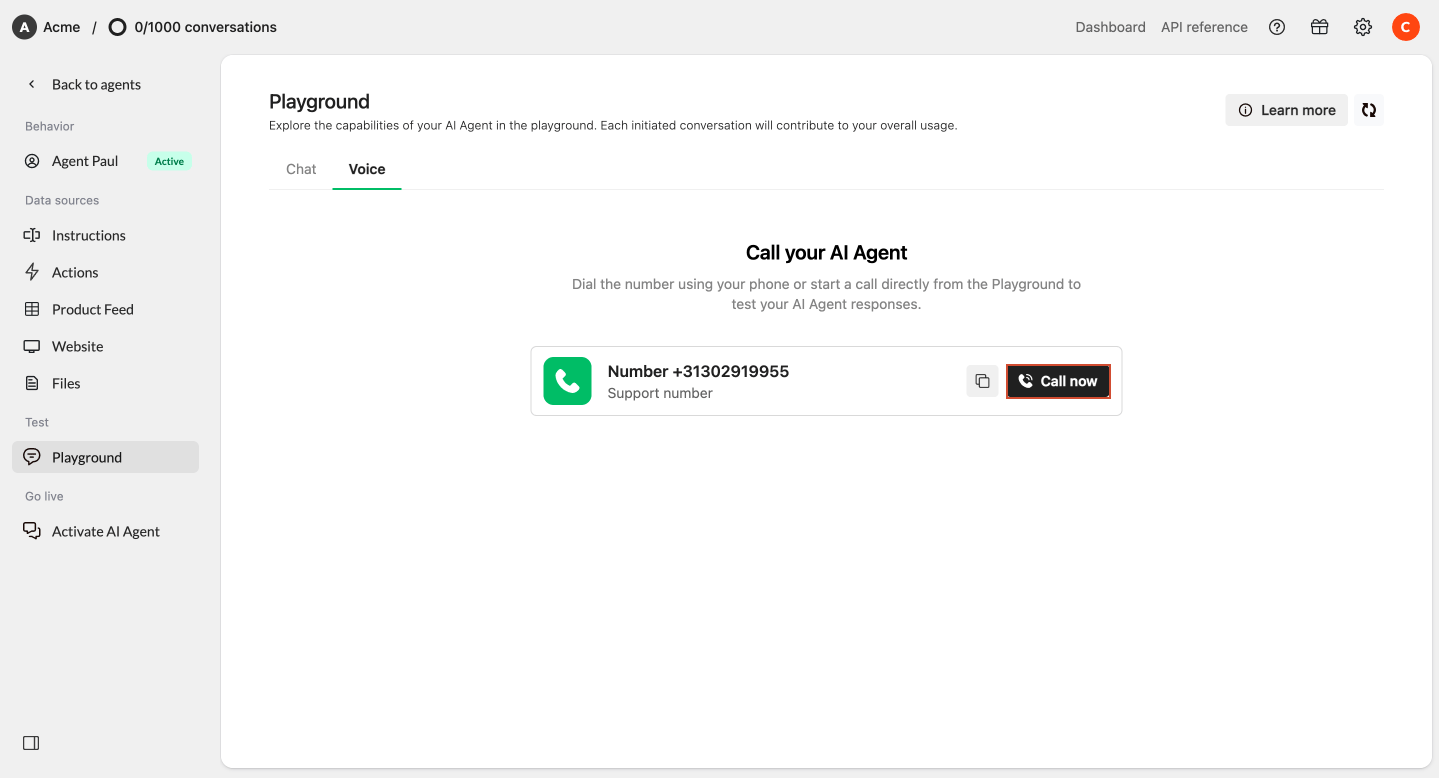 Voice works in the same way you are used to from the Playground.
During the conversation, you can see which knowledge your AI Agent used to generate its answers.
You can also use:
* **Thumbs up** when an answer was correct
* **Thumbs down** when an answer should be improved
We recommend testing several different types of conversations before making the number available to customers.
## After a call
Every phone call handled by your AI Agent is stored as a conversation in Watermelon.
After the call, you can access:
* The complete conversation transcript
* An AI-generated summary
* The call recording, if recording was enabled
This allows you to review how your AI Agent handled the call in the same environment as your other customer conversations.
## Troubleshooting
### My phone number does not answer with my AI Agent
Check whether:
* The Phone integration is connected to the correct AI Agent
* Your AI Agent has been activated
* The correct Phone integration is connected
* You are calling the correct generated phone number
Your AI Agent cannot answer calls until the Phone integration is connected and the Agent is published.
### My forwarded calls do not reach Watermelon
First, call your generated Watermelon phone number directly.
If the Watermelon number works directly but your existing business number does not, check:
* Whether the correct Watermelon number is configured as the forwarding destination
* Whether call forwarding is enabled with your provider
* Whether your forwarding rule applies to the call you are testing
* Whether other routing rules in your phone system are preventing the forwarding
If the Watermelon number works when called directly, the issue is most likely related to the forwarding configuration with your existing provider.
### My AI Agent uses the wrong information
Your Phone Agent uses the same knowledge and configuration as your other connected channels.
Check the sources configured on your AI Agent:
* Product feed
* Files
* Websites
* Instructions
* Actions
If the behavior should only be different on Phone, add or adjust the instructions within your Phone integration, or alternatively you can make a new agent just for phone.
### My AI Agent does not sound the way I expected
Open **Message & voice** and listen to the available voices.
After selecting a voice, use **Start talking** to test it in a conversation.
Remember that the preview is in the voice's native language, while the Agent can speak other supported languages during the call. We recommend to always test the voice within the phone integration settings, to understand if it sounds the way you want it to sound before saving.
### The welcome message is in the wrong language
The welcome message is static.
It is always spoken exactly as configured and is not automatically translated based on the caller's language. If you have a Dutch welcome message, and want to have an English one, you need to either create a new phone integration, or adjust the welcome message to English.
Your AI Agent can switch languages after the welcome message once the conversation begins.
### My calls end automatically
Check your configuration under **Call settings**.
A call can automatically end when:
* The maximum call duration is reached
* The configured silence timeout is reached
* If you reached the limit of your credit tier
Adjust these settings when necessary.
### There is no call recording
Check whether **Record calls** is enabled under **Call settings**.
If recording was disabled during the call, the transcript and summary are still available, but no audio recording is created.
### I want to switch between Seamly and Twilio
The provider of an existing Phone integration cannot be changed.
Create a new Phone integration, select the new provider, and generate a new phone number.
You can then connect the new integration to your AI Agent.
This documentation is built and hosted on [Mintlify](https://mintlify.com), a developer documentation platform.
Voice works in the same way you are used to from the Playground.
During the conversation, you can see which knowledge your AI Agent used to generate its answers.
You can also use:
* **Thumbs up** when an answer was correct
* **Thumbs down** when an answer should be improved
We recommend testing several different types of conversations before making the number available to customers.
## After a call
Every phone call handled by your AI Agent is stored as a conversation in Watermelon.
After the call, you can access:
* The complete conversation transcript
* An AI-generated summary
* The call recording, if recording was enabled
This allows you to review how your AI Agent handled the call in the same environment as your other customer conversations.
## Troubleshooting
### My phone number does not answer with my AI Agent
Check whether:
* The Phone integration is connected to the correct AI Agent
* Your AI Agent has been activated
* The correct Phone integration is connected
* You are calling the correct generated phone number
Your AI Agent cannot answer calls until the Phone integration is connected and the Agent is published.
### My forwarded calls do not reach Watermelon
First, call your generated Watermelon phone number directly.
If the Watermelon number works directly but your existing business number does not, check:
* Whether the correct Watermelon number is configured as the forwarding destination
* Whether call forwarding is enabled with your provider
* Whether your forwarding rule applies to the call you are testing
* Whether other routing rules in your phone system are preventing the forwarding
If the Watermelon number works when called directly, the issue is most likely related to the forwarding configuration with your existing provider.
### My AI Agent uses the wrong information
Your Phone Agent uses the same knowledge and configuration as your other connected channels.
Check the sources configured on your AI Agent:
* Product feed
* Files
* Websites
* Instructions
* Actions
If the behavior should only be different on Phone, add or adjust the instructions within your Phone integration, or alternatively you can make a new agent just for phone.
### My AI Agent does not sound the way I expected
Open **Message & voice** and listen to the available voices.
After selecting a voice, use **Start talking** to test it in a conversation.
Remember that the preview is in the voice's native language, while the Agent can speak other supported languages during the call. We recommend to always test the voice within the phone integration settings, to understand if it sounds the way you want it to sound before saving.
### The welcome message is in the wrong language
The welcome message is static.
It is always spoken exactly as configured and is not automatically translated based on the caller's language. If you have a Dutch welcome message, and want to have an English one, you need to either create a new phone integration, or adjust the welcome message to English.
Your AI Agent can switch languages after the welcome message once the conversation begins.
### My calls end automatically
Check your configuration under **Call settings**.
A call can automatically end when:
* The maximum call duration is reached
* The configured silence timeout is reached
* If you reached the limit of your credit tier
Adjust these settings when necessary.
### There is no call recording
Check whether **Record calls** is enabled under **Call settings**.
If recording was disabled during the call, the transcript and summary are still available, but no audio recording is created.
### I want to switch between Seamly and Twilio
The provider of an existing Phone integration cannot be changed.
Create a new Phone integration, select the new provider, and generate a new phone number.
You can then connect the new integration to your AI Agent.
This documentation is built and hosted on [Mintlify](https://mintlify.com), a developer documentation platform.