> ## Documentation Index
> Fetch the complete documentation index at: https://watermelon.ai/docs/llms.txt
> Use this file to discover all available pages before exploring further.
# Shopware 6
> Connect your Shopware 6 store to Watermelon and let your AI agent retrieve products and orders.
Available on: **Starter, Advanced, Business, and Enterprise**.
Shopware 6 uses **Actions**. Free plans do not include Actions.
Before connecting Shopware 6, make sure:
* You are on a plan that includes Actions.
* You have access to the Watermelon agent you want to connect.
* You know the base URL of your Shopware store.
* You have the Store API Access Key from your Shopware sales channel.
* You have the Admin API Key and Admin Secret for your Shopware integration.
## What you'll do
1. **Select your agent** Choose the AI agent you want to connect to Shopware 6.
2. **Add Shopware 6 as an action** Go to Actions and select Shopware 6.
3. **Choose the allowed Shopware actions** Choose which Shopware actions your agent is allowed to use.
4. **Enter your Shopware credentials** Enter your Shopware Base URL, Store API Access Key, Admin API Key, and Admin Secret.
5. **Connect and activate** Connect your Shopware store. The action is activated as soon as the connection succeeds.
## Connect Shopware 6 from Watermelon
Connect Shopware 6 directly from Watermelon to choose the agent you want to use and configure which Shopware actions the agent can access.
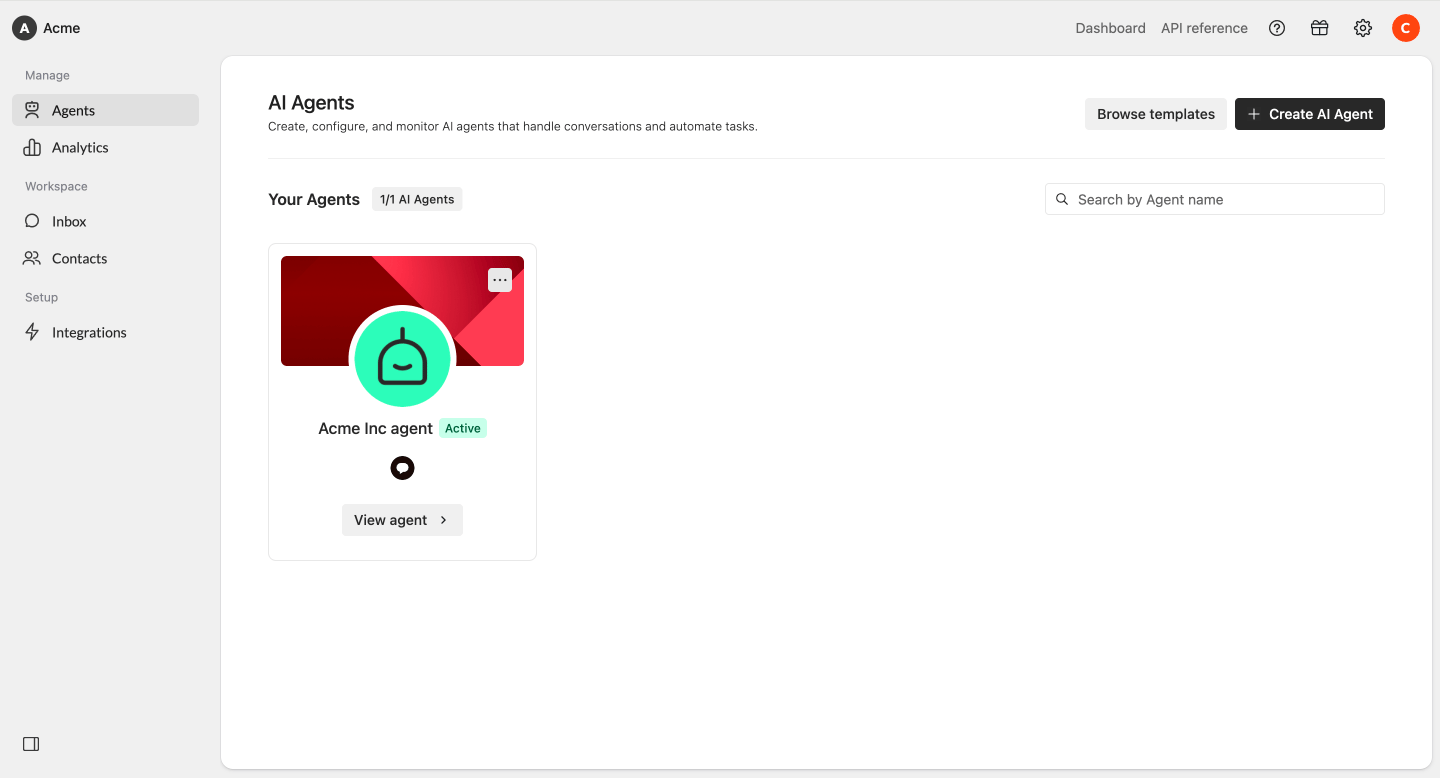
In Watermelon, go to **Agents**.
Select the agent you want to connect to Shopware 6.
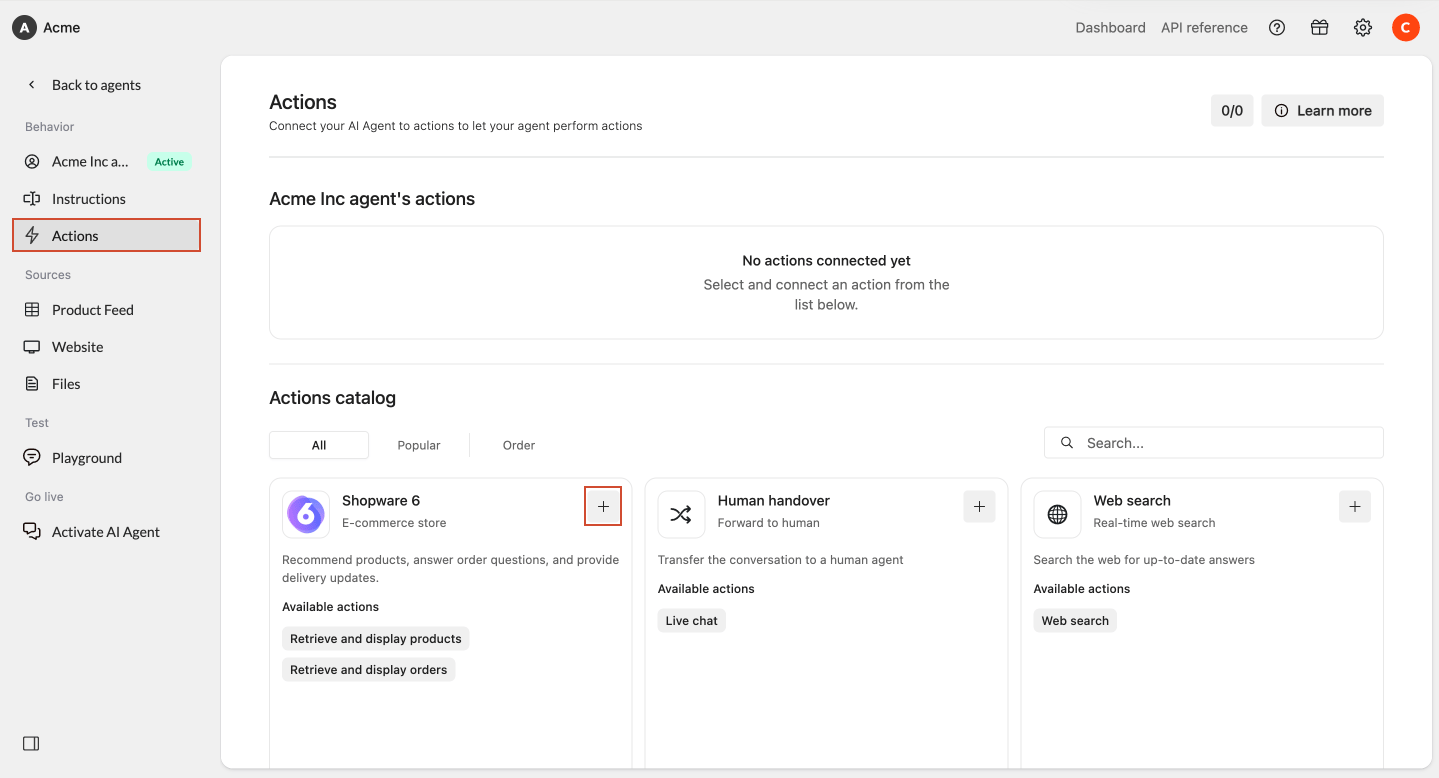
 In the selected agent, navigate to **Actions**.
Click **Actions**, then select **Shopware 6**.
In the selected agent, navigate to **Actions**.
Click **Actions**, then select **Shopware 6**.
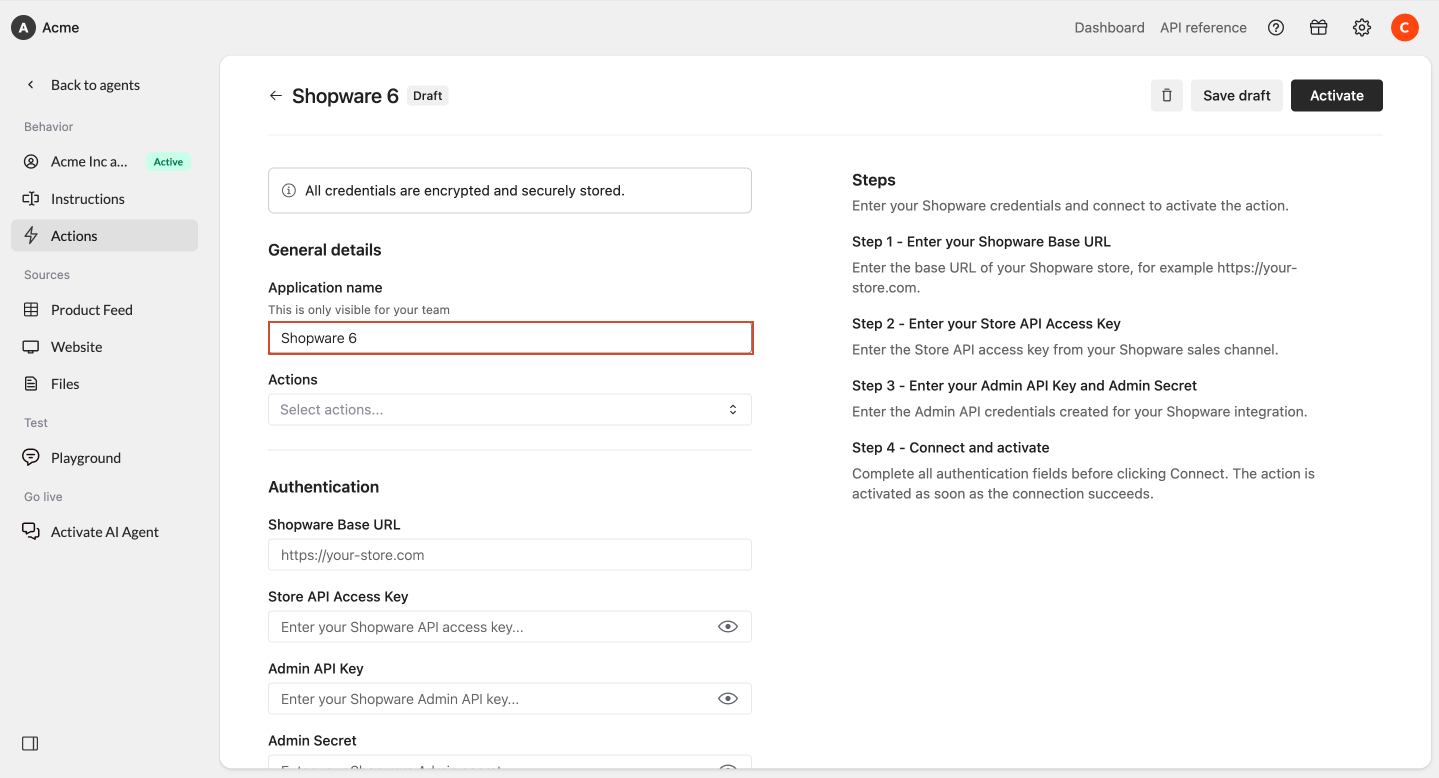
 Give this Shopware connection a clear name.
For example:
* `Shopware store`
* `Main webshop`
* `Watermelon Shopware connection`
Use a name that helps your team recognize the connection later.
Give this Shopware connection a clear name.
For example:
* `Shopware store`
* `Main webshop`
* `Watermelon Shopware connection`
Use a name that helps your team recognize the connection later.
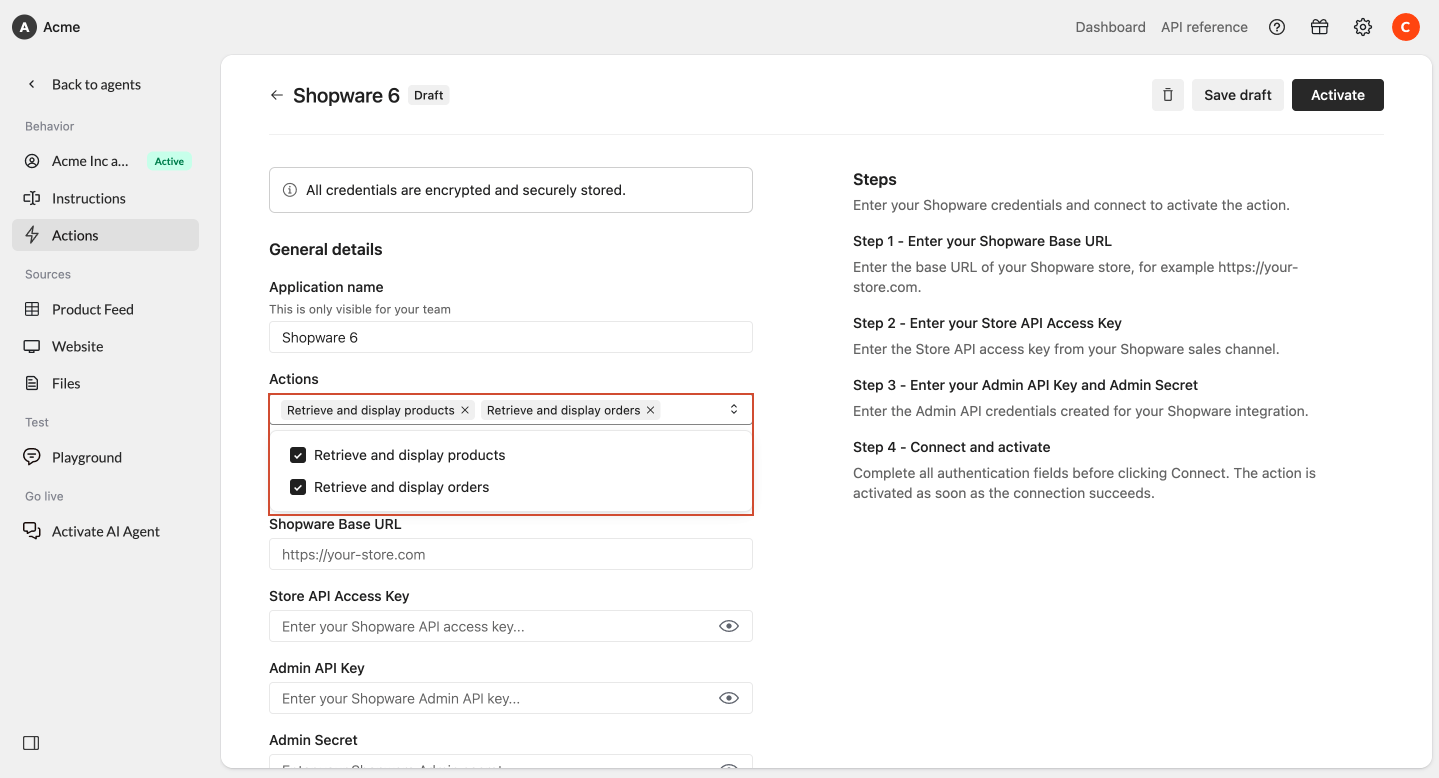
 Choose which Shopware actions your Watermelon agent is allowed to use.
You can select one or both of the following actions:
Allows your agent to retrieve products from Shopware and show them to customers in the chat.
Allows your agent to retrieve order information from Shopware and display it in the chat.
These are currently the only actions available for the Shopware 6 integration.
Choose which Shopware actions your Watermelon agent is allowed to use.
You can select one or both of the following actions:
Allows your agent to retrieve products from Shopware and show them to customers in the chat.
Allows your agent to retrieve order information from Shopware and display it in the chat.
These are currently the only actions available for the Shopware 6 integration.
 Enter the base URL of your Shopware store.
For example:
`https://your-store.com`
Enter the base URL of your Shopware store.
For example:
`https://your-store.com`
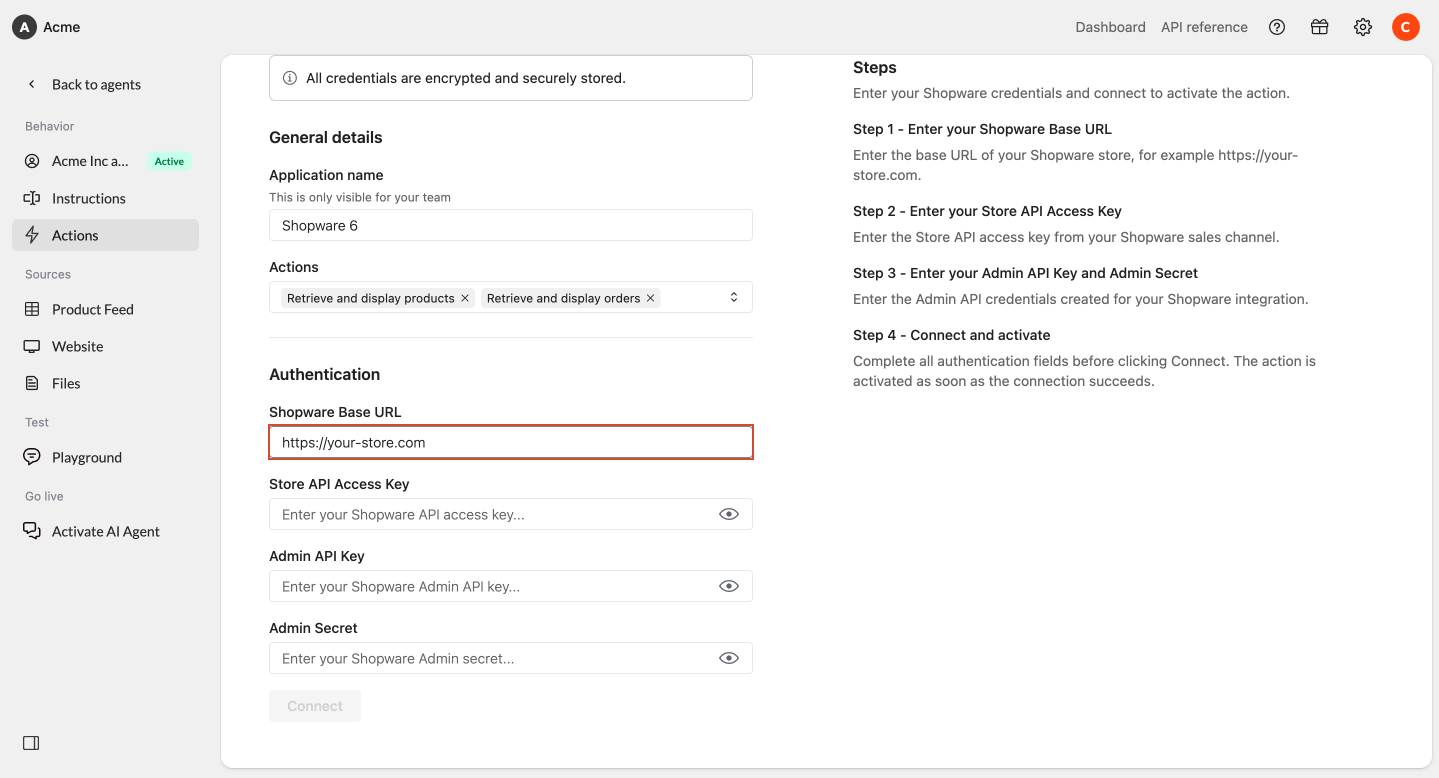 Enter the **Store API Access Key** from your Shopware sales channel.
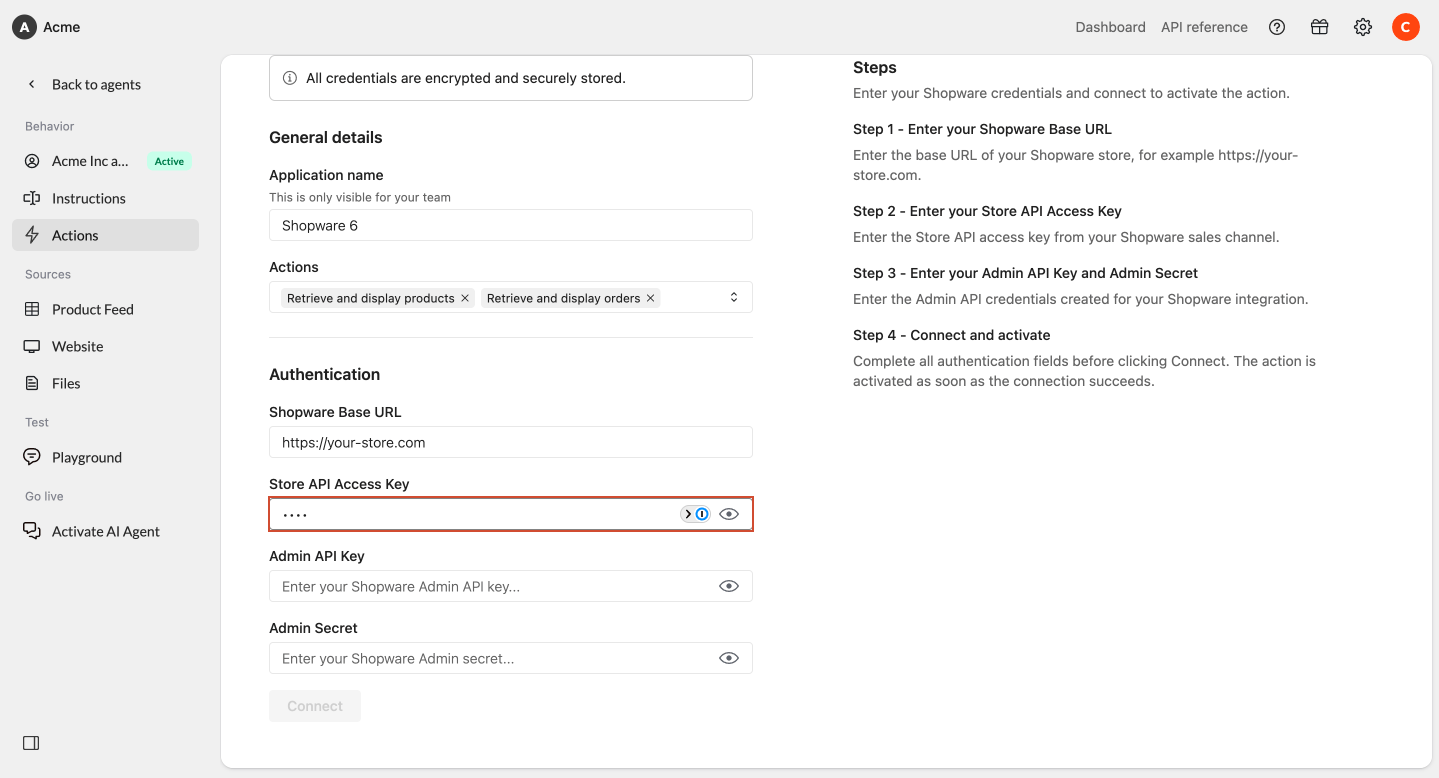 Enter the **Admin API Key** and **Admin Secret** created for your Shopware integration.
Make sure both credentials belong to the Shopware store you want to connect.
Enter the **Admin API Key** and **Admin Secret** created for your Shopware integration.
Make sure both credentials belong to the Shopware store you want to connect.
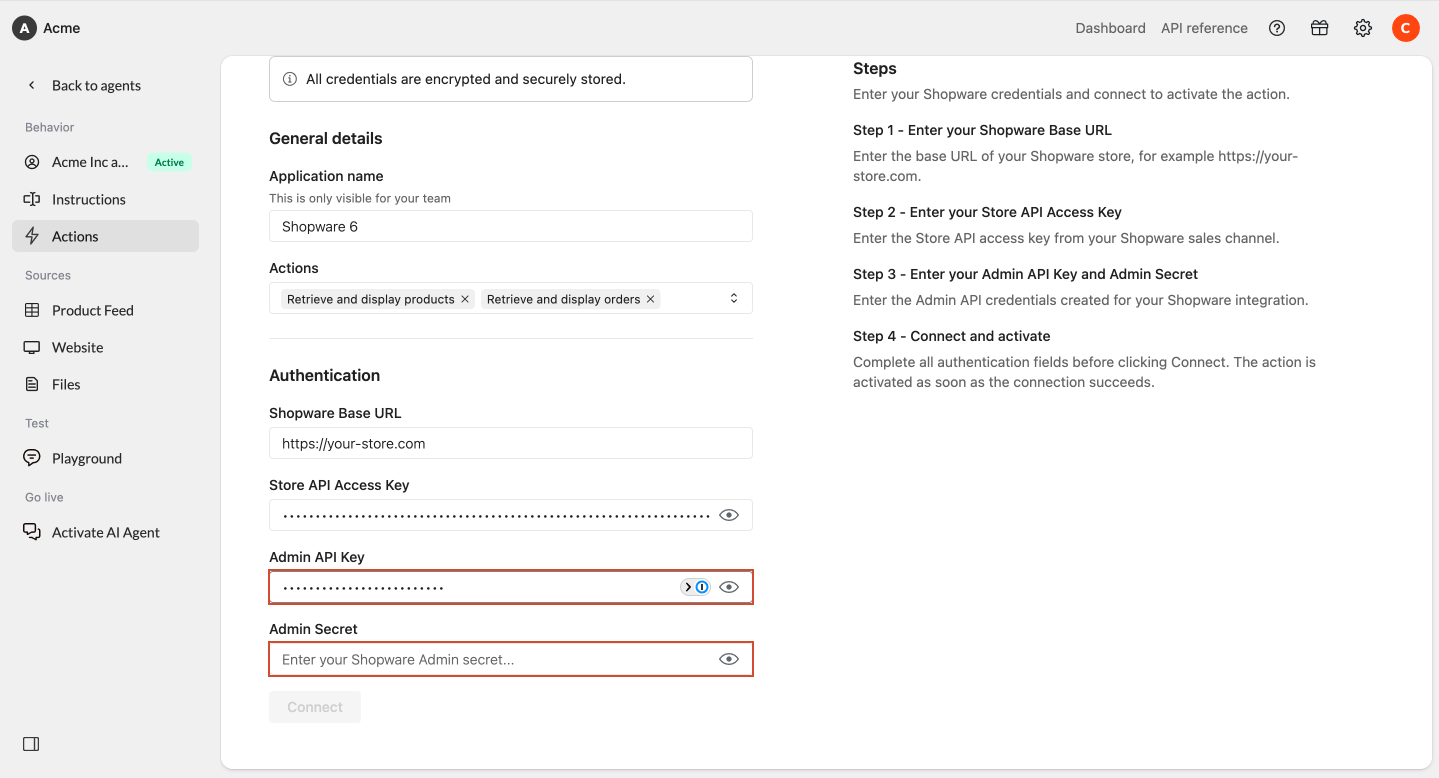 Complete all authentication fields before clicking **Connect**.
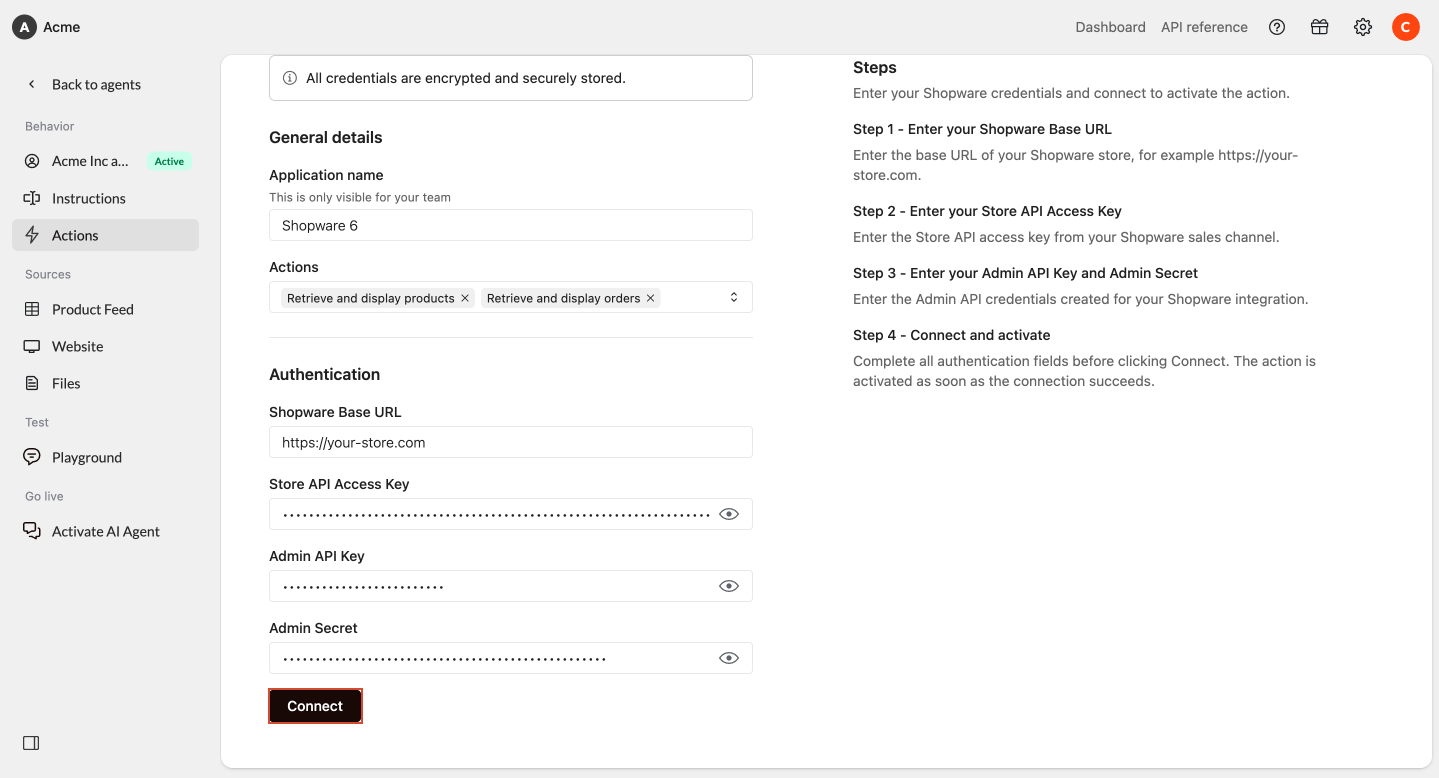
The Shopware action is activated as soon as the connection succeeds.
There is no separate activation step. Your Shopware action becomes active immediately after a successful connection.
Complete all authentication fields before clicking **Connect**.
The Shopware action is activated as soon as the connection succeeds.
There is no separate activation step. Your Shopware action becomes active immediately after a successful connection.
 After connecting Shopware 6, use the **Playground** to check whether your agent can use the enabled actions correctly.
For example:
"Can you show me blue sneakers?"
"Can you help me check my order?"
Check whether the agent gives accurate answers and uses the Shopware actions as expected.
## Next steps
Once Shopware 6 is connected, test the available actions to make sure your agent handles product and order questions as expected.
Ask your agent to find and display products available in your connected Shopware store.
Ask your agent to retrieve an order and check whether the correct order information is displayed.
## Troubleshooting
### I entered my Shopware Base URL but cannot connect
Check that the Base URL is correct and belongs to the Shopware store you want to connect.
For example:
`https://your-store.com`
Also check that all authentication fields have been completed before clicking **Connect**.
### My Store API Access Key is not working
Check that you are using the **Store API Access Key** from the Shopware sales channel you want to connect.
Make sure the key belongs to the same Shopware store as the Base URL you entered.
### My Admin API credentials are not working
Check that both the **Admin API Key** and **Admin Secret** are correct.
Make sure you are using the credentials created for your Shopware integration and that they belong to the Shopware store you want to connect.
### The connection succeeds, but the agent does not show products
Make sure the **Retrieve and display products** action is enabled.
Also check whether the product exists in the connected Shopware store.
Use the Playground to test the product flow again.
### The agent says it cannot access order information
Make sure the **Retrieve and display orders** action is enabled.
The customer also needs to provide enough order details for the agent to identify the order.
Use the Playground to test the order flow again.
### I want to change the enabled Shopware actions later
Go back to the Shopware action settings in Watermelon and update the selected actions.
Currently, the available Shopware actions are:
* **Retrieve and display products**
* **Retrieve and display orders**
After making changes, test the flow again in the Playground.
### I already connected a Shopware store
Check whether the current agent already has a Shopware action configured.
If you want to connect a different store, create or update the Shopware action for that agent.
After connecting Shopware 6, use the **Playground** to check whether your agent can use the enabled actions correctly.
For example:
"Can you show me blue sneakers?"
"Can you help me check my order?"
Check whether the agent gives accurate answers and uses the Shopware actions as expected.
## Next steps
Once Shopware 6 is connected, test the available actions to make sure your agent handles product and order questions as expected.
Ask your agent to find and display products available in your connected Shopware store.
Ask your agent to retrieve an order and check whether the correct order information is displayed.
## Troubleshooting
### I entered my Shopware Base URL but cannot connect
Check that the Base URL is correct and belongs to the Shopware store you want to connect.
For example:
`https://your-store.com`
Also check that all authentication fields have been completed before clicking **Connect**.
### My Store API Access Key is not working
Check that you are using the **Store API Access Key** from the Shopware sales channel you want to connect.
Make sure the key belongs to the same Shopware store as the Base URL you entered.
### My Admin API credentials are not working
Check that both the **Admin API Key** and **Admin Secret** are correct.
Make sure you are using the credentials created for your Shopware integration and that they belong to the Shopware store you want to connect.
### The connection succeeds, but the agent does not show products
Make sure the **Retrieve and display products** action is enabled.
Also check whether the product exists in the connected Shopware store.
Use the Playground to test the product flow again.
### The agent says it cannot access order information
Make sure the **Retrieve and display orders** action is enabled.
The customer also needs to provide enough order details for the agent to identify the order.
Use the Playground to test the order flow again.
### I want to change the enabled Shopware actions later
Go back to the Shopware action settings in Watermelon and update the selected actions.
Currently, the available Shopware actions are:
* **Retrieve and display products**
* **Retrieve and display orders**
After making changes, test the flow again in the Playground.
### I already connected a Shopware store
Check whether the current agent already has a Shopware action configured.
If you want to connect a different store, create or update the Shopware action for that agent.