> ## Documentation Index
> Fetch the complete documentation index at: https://watermelon.ai/docs/llms.txt
> Use this file to discover all available pages before exploring further.
# WhatsApp
> When you connect WhatsApp to Watermelon, your AI Agent can automatically handle incoming WhatsApp messages. All conversations will appear in your Watermelon Inbox.
## **Before you start**
Before connecting WhatsApp to Watermelon, there are a few things you should have prepared.
### Facebook Business ID
Make sure you have a **Facebook Business ID**, as WhatsApp Business API runs through Meta.
Below you can find how to check if you have a Facebook Business ID, and if not, how to create a Facebook Business Manager account.
1. Go to [**business.facebook.com**](http://business.facebook.com) and log in with your personal Facebook account.
2. If you already have a Business Manager, it will appear in your dashboard.
3. Click **Business Settings** in the left menu.
4. Open **Business Info** at the top-left corner.
5. Your **Business Manager ID** will be listed here if a Business Manager exists.
If you do not see a Business Manager or Business ID, you likely do not have one yet. Then, create one (see next tab).
1. Go to [**business.facebook.com/create**](https://business.facebook.com/create).
2. Log in with your personal Facebook account.
3. Enter your **business name**, your **own name**, and a **business email address**.
4. Follow the prompts to complete the setup.
5. Once finished, Facebook will generate a new **Business Manager ID**.
Verification may take up to **48 hours**. During that time, you can connect up to **two** WhatsApp numbers to Watermelon.
### Disconnect from other tools
If your WhatsApp number is currently used privately or through another tool, you must remove that connection first. Make sure the number is not connected to:
* WhatsApp Business API
* WhatsApp Business App
* A personal WhatsApp account
After linking, you can only use this number for WhatsApp via Watermelon, not via your mobile app or any other tool.
## Connecting WhatsApp
Follow the steps below to connect WhatsApp to Watermelon:
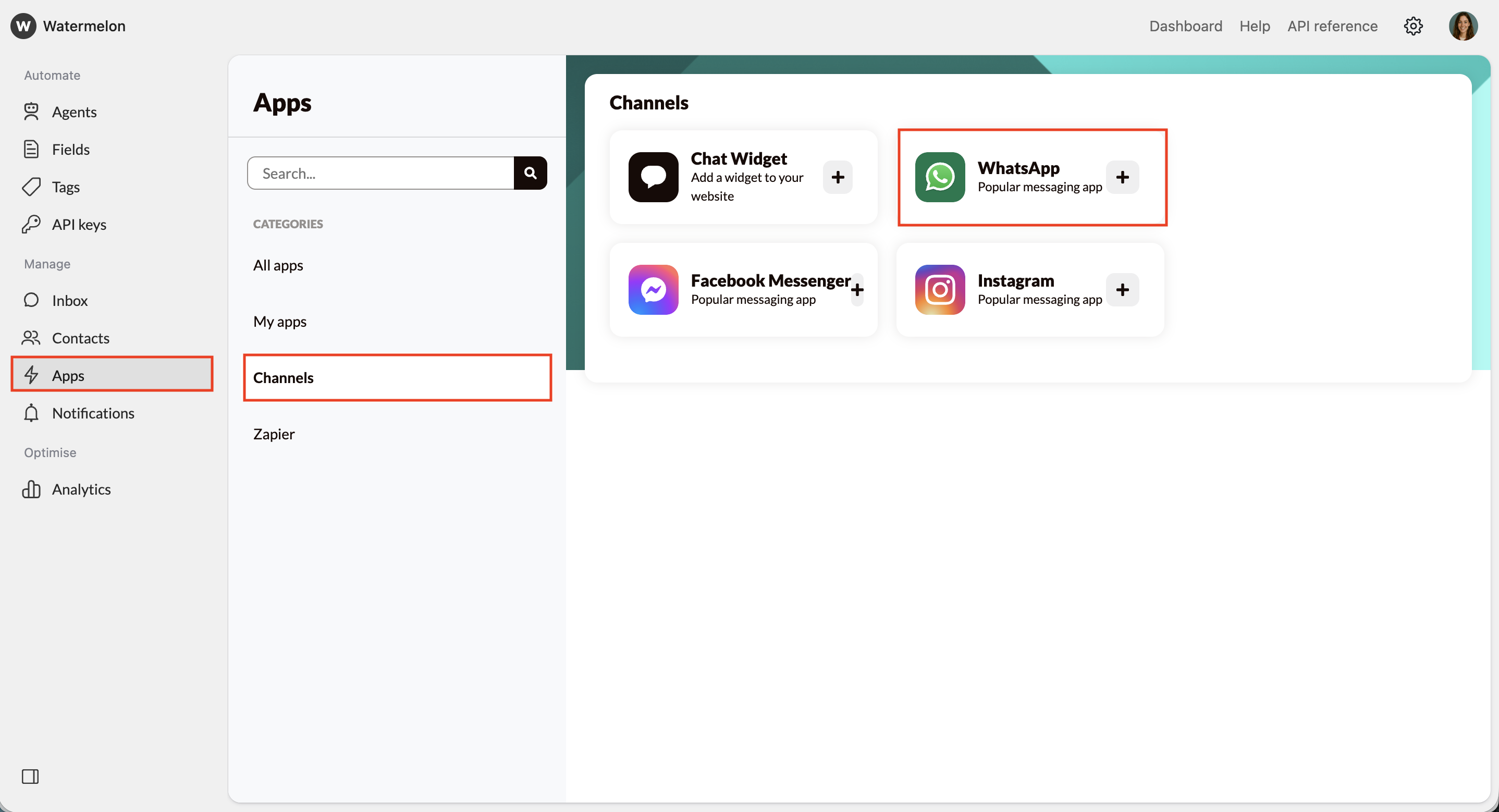 Click **Connect**.
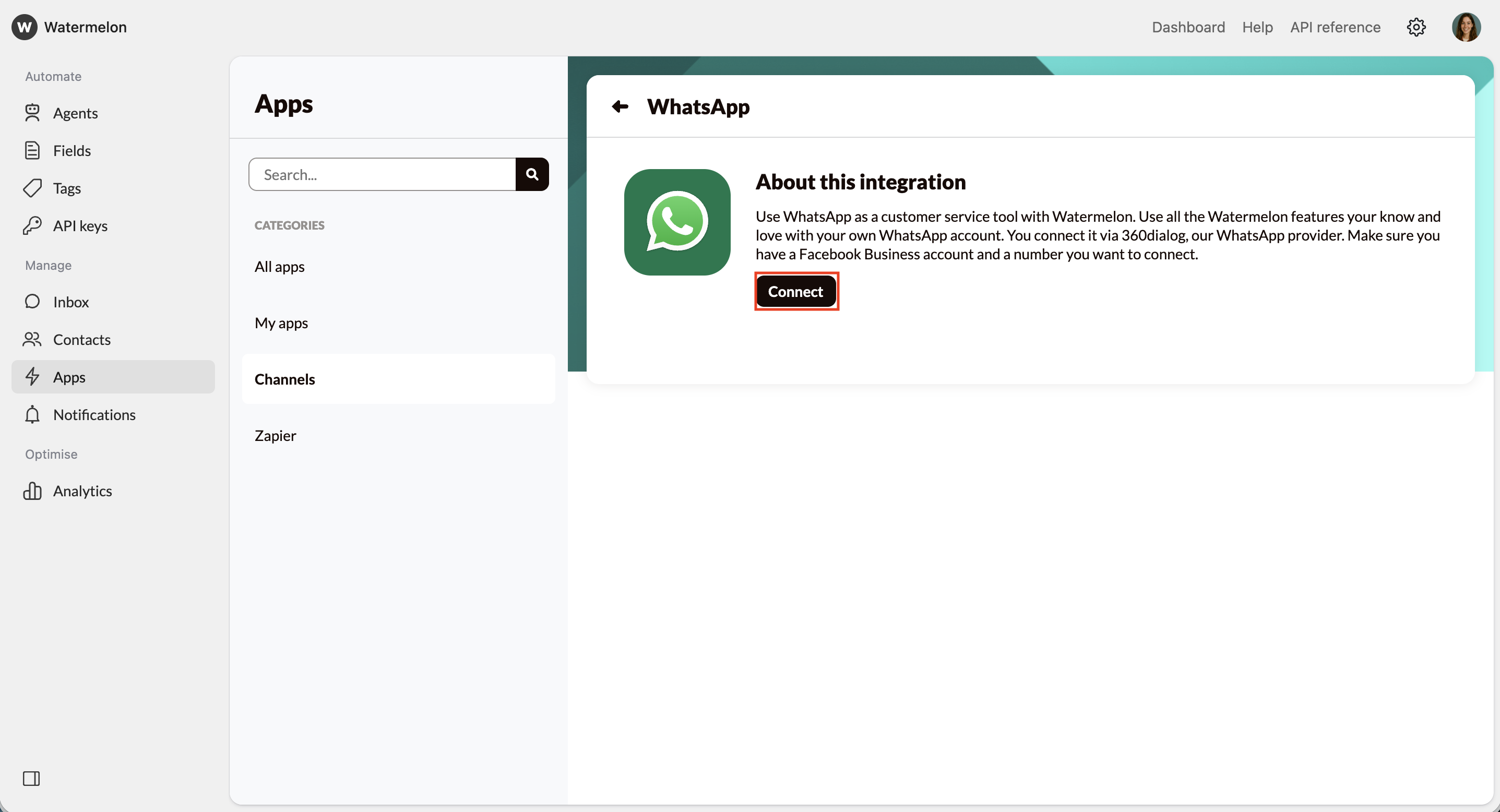 Watermelon uses **360Dialog** to verify and activate your WhatsApp Business API account.
A pop-up will appear to guide you through the setup.
Watermelon uses **360Dialog** to verify and activate your WhatsApp Business API account.
A pop-up will appear to guide you through the setup.
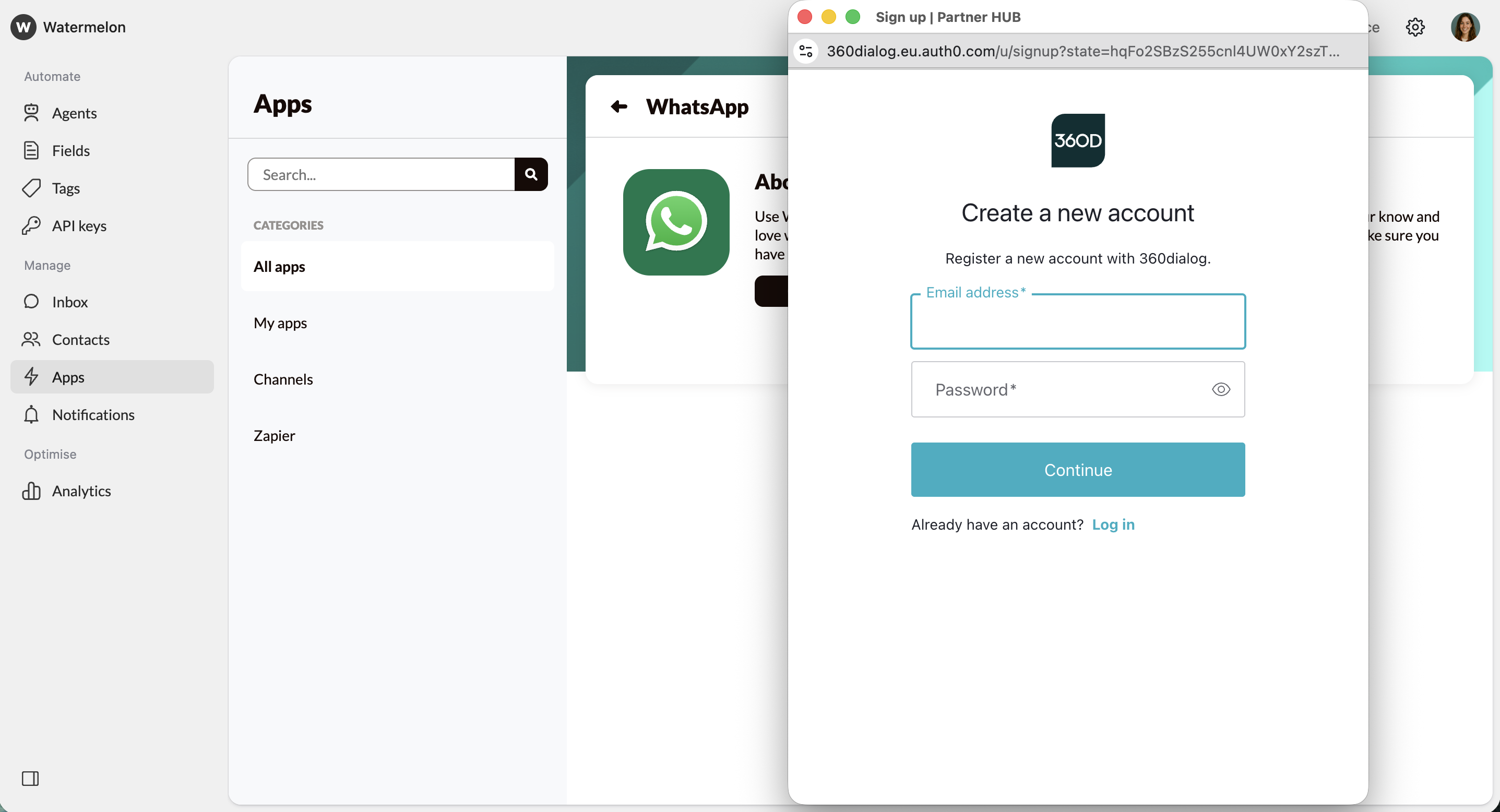 After logging in to your account, follow these steps:
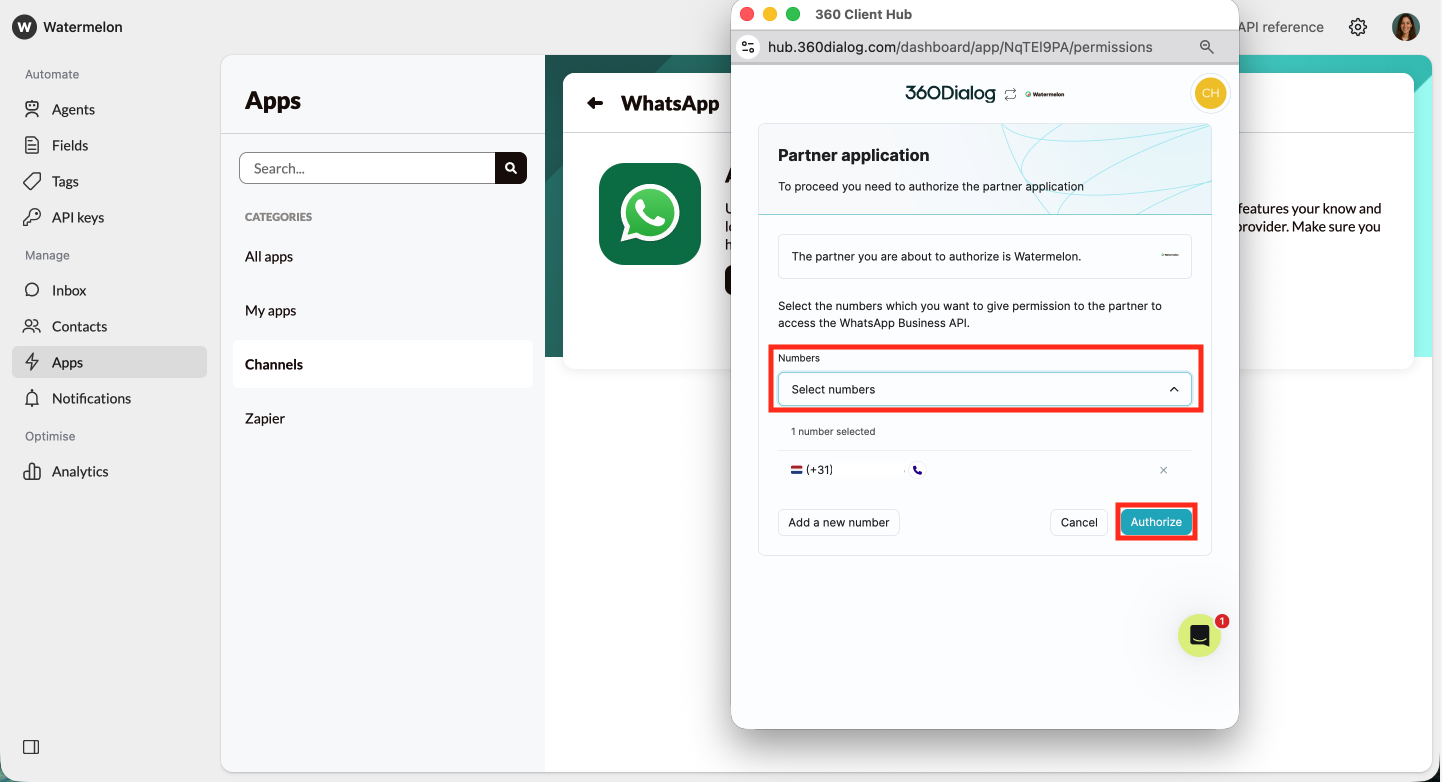 Then click **Authorize**.
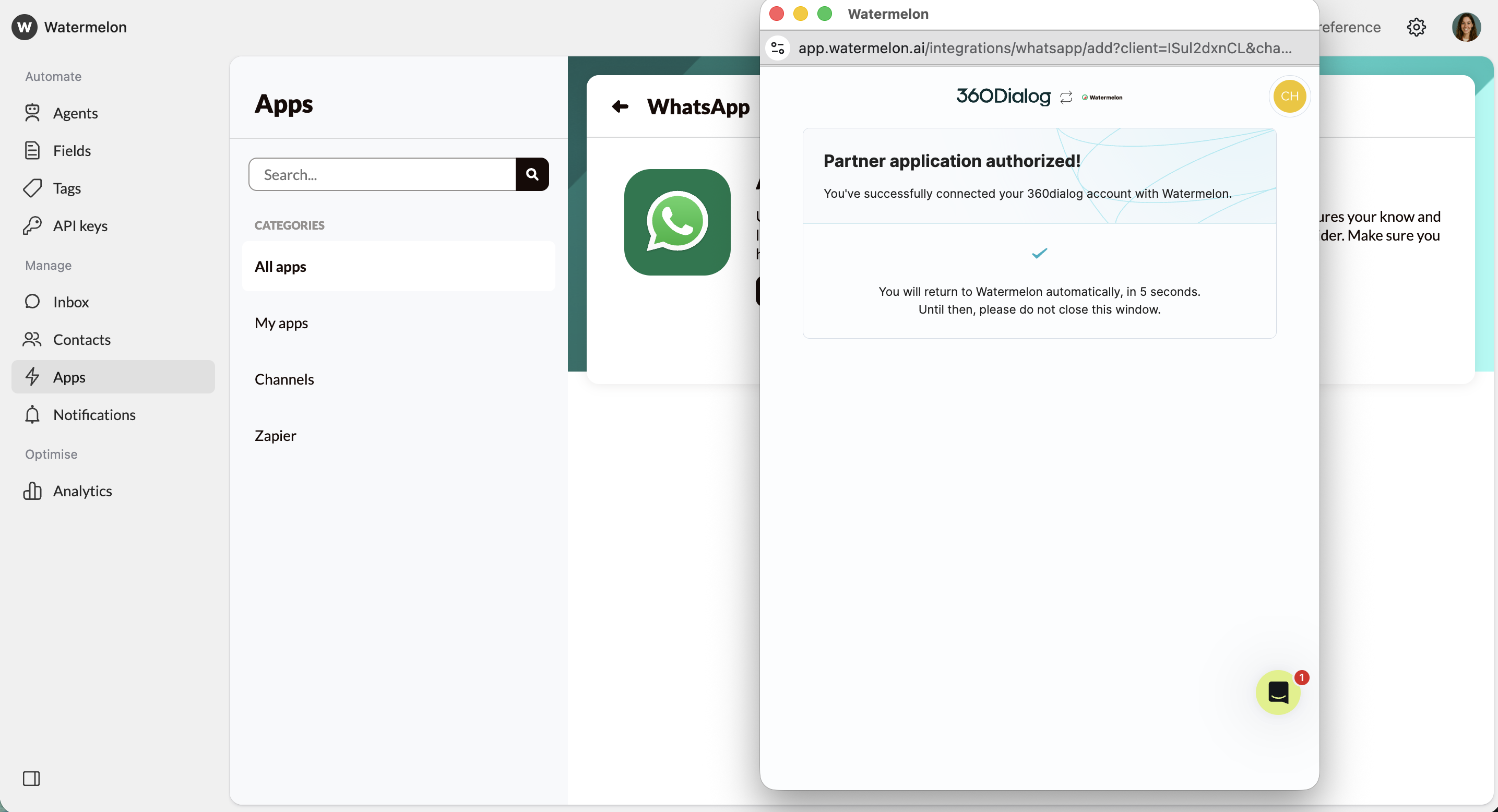
You'll get a confirmation that the partner application is authorized. You will return to Watermelon automatically. Until then, do not close the window.
Then click **Authorize**.
You'll get a confirmation that the partner application is authorized. You will return to Watermelon automatically. Until then, do not close the window.
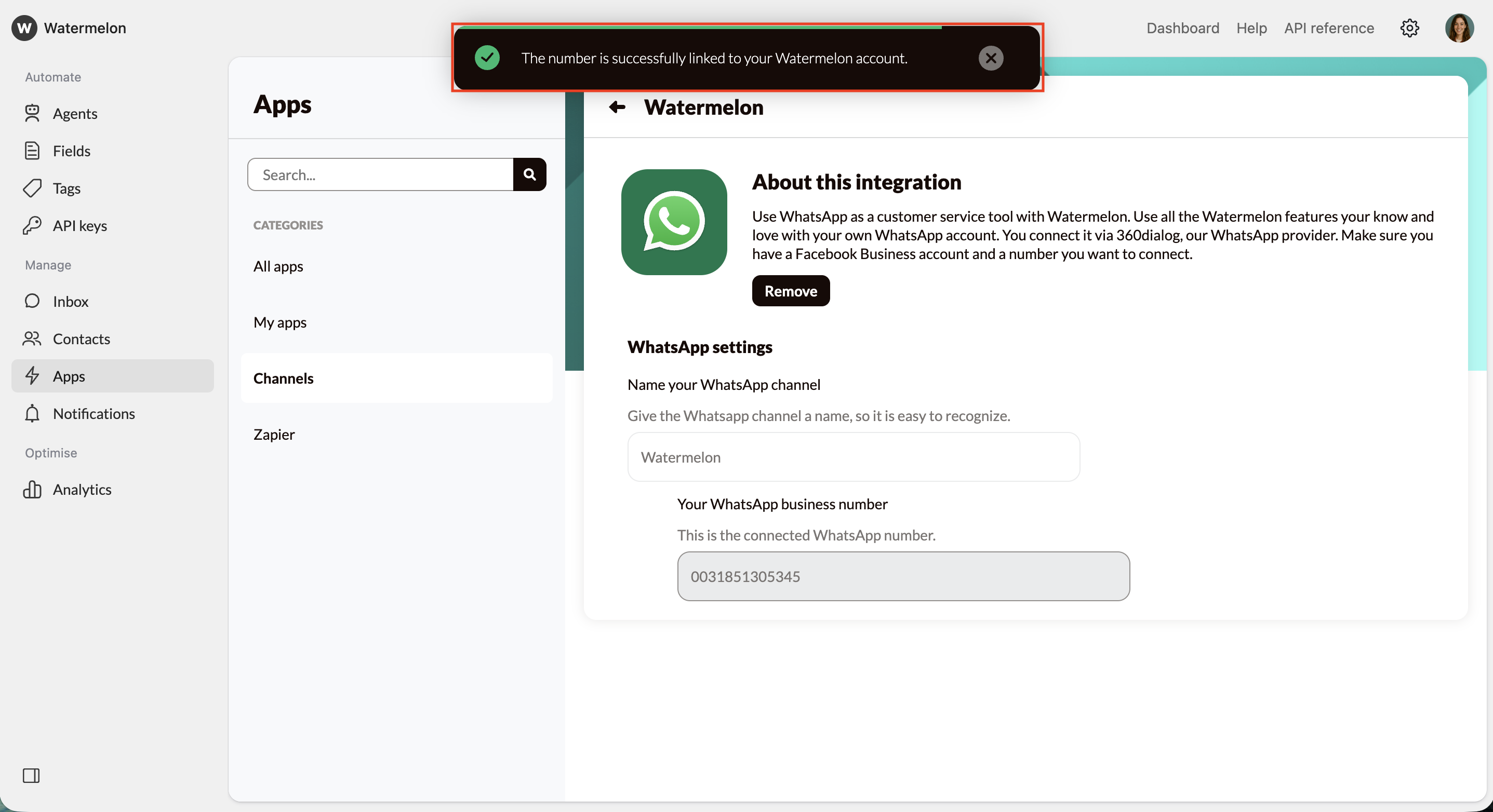
 You'll get a notification that the number is successfully linked to your Watermelon account.
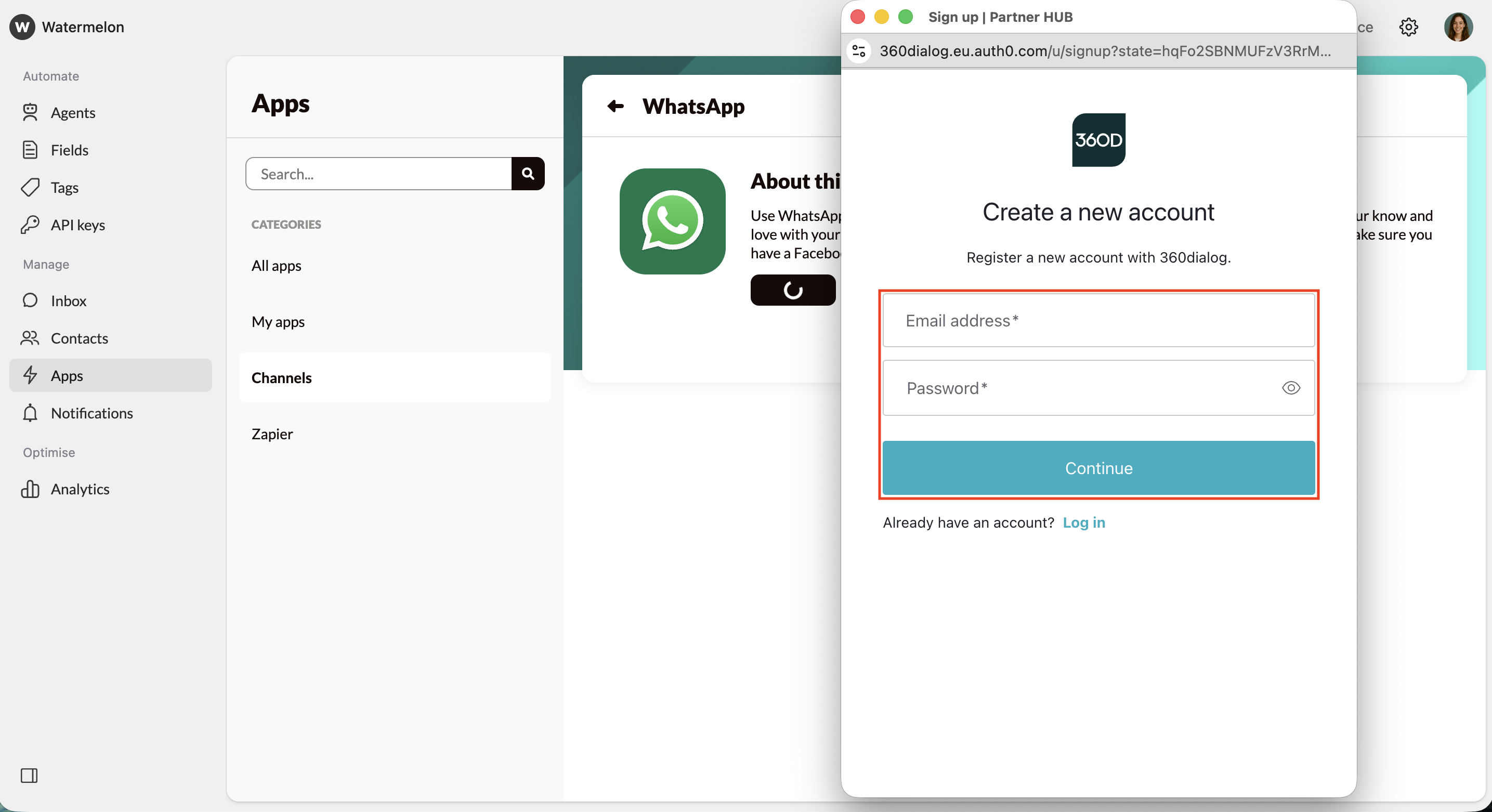
 If you need to create a new 360Dialog account, first ensure that:
* Your number can receive SMS or voice calls.
* There is no phone menu blocking calls.
Then, follow these steps:
Add your email address and password and click **Continue**.
**Save your login details**. You will need them later to edit your WhatsApp Business profile.
If you need to create a new 360Dialog account, first ensure that:
* Your number can receive SMS or voice calls.
* There is no phone menu blocking calls.
Then, follow these steps:
Add your email address and password and click **Continue**.
**Save your login details**. You will need them later to edit your WhatsApp Business profile.
 You'll receive an email from 360Dialog. In there, click the **Verify Your Account** button.
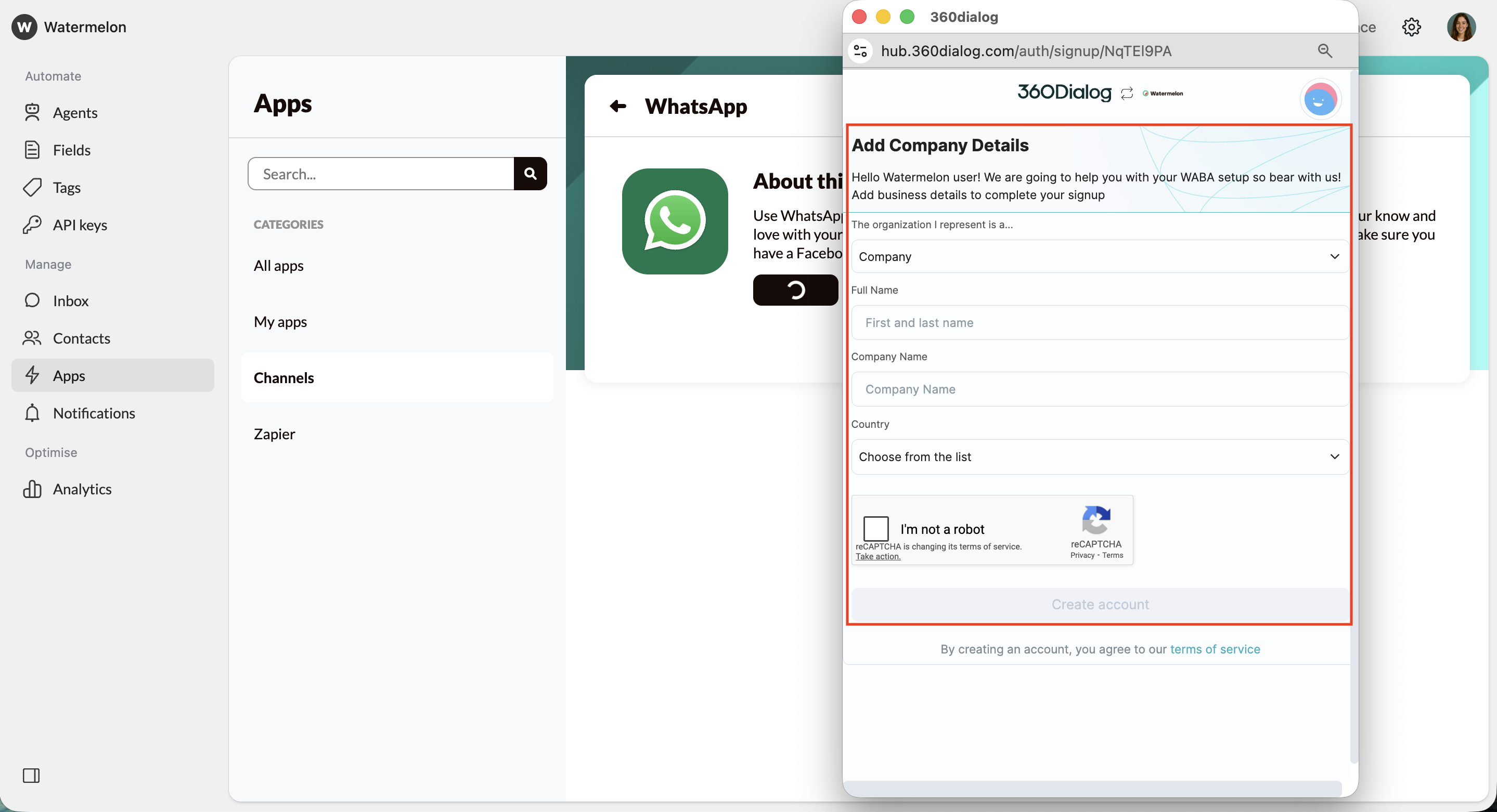
* Select whether the organization you represent is a **Company** **or** **Government agency**.
* Add your own **Full Name** (first and last name).
* Fill in your official **Company Name**.
* Choose a **Country** from the list.
* Select you're not a robot.
* Click **Create account**.
You'll receive an email from 360Dialog. In there, click the **Verify Your Account** button.
* Select whether the organization you represent is a **Company** **or** **Government agency**.
* Add your own **Full Name** (first and last name).
* Fill in your official **Company Name**.
* Choose a **Country** from the list.
* Select you're not a robot.
* Click **Create account**.
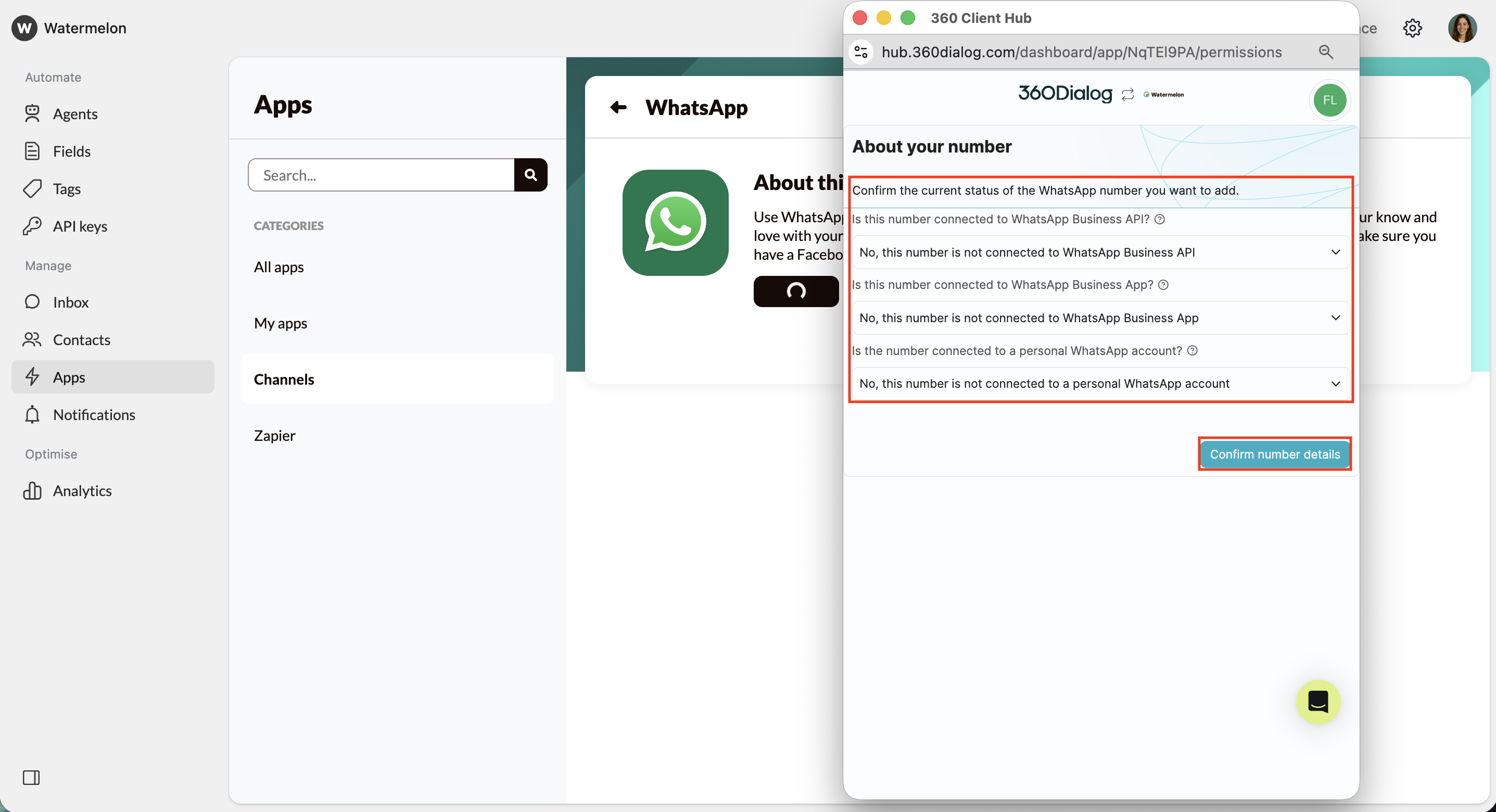
 Select the number is not connected to WhatsApp Business API, WhatsApp Business App nor a personal WhatsApp account. Then, **Confirm number details**.
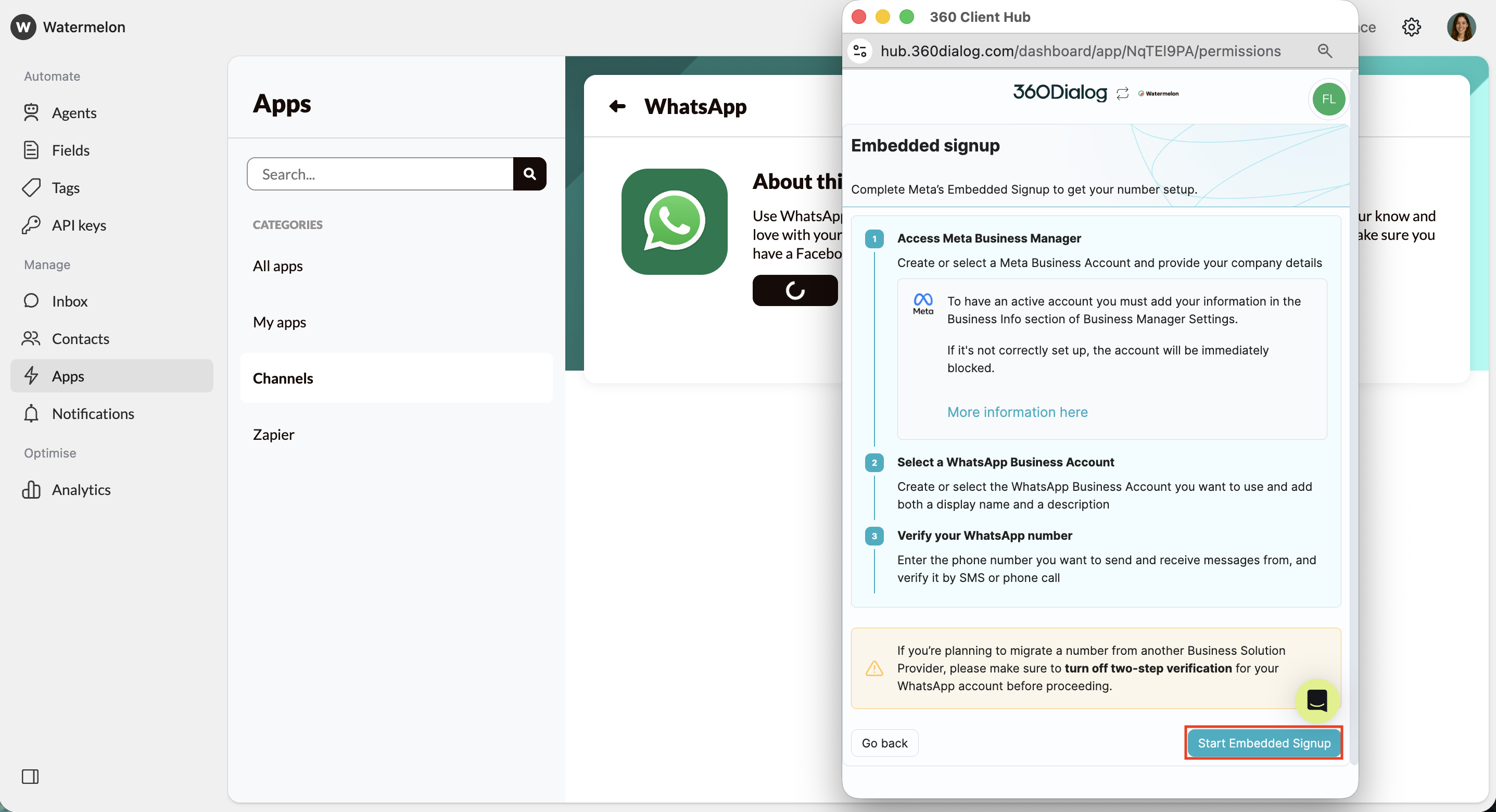
 Read through the steps and click **Start Embedded Signup**.
 A new pop-up will appear. Go through all steps that appear on your screen.
1. If you already have a Meta Business Manager account, log in with the same personal Facebook account linked to your Business Page.
2. Choose the Business account you want to link to WhatsApp.
3. Add your phone number. Enter the phone number you want to connect to WhatsApp Business API.
4. Verify your number. You’ll receive a **6-digit verification code** via SMS or voice call. Enter the code.
5. **WhatsApp is connected!** You’ll receive a confirmation when the number is successfully verified. This may take a few minutes.
You've now connected WhatsApp to Watermelon. Your WhatsApp messages will now show in your Watermelon Inbox and can be answered from here.
## Setting up your WhatsApp Business profile
Once your number is connected:
* Open the 360Dialog Client Hub and click WhatsApp Business Account in the left menu.
* Click **Show Details**.
* Go to **Profile**.
* Profile picture (192×192 px)
* Business name
* Contact information
* Short business description
You may receive an email to validate the profile changes.
## **Error messages linking WhatsApp/360Dialog**
While connecting WhatsApp, there's a couple of error messages you can get. Below, you can find these error messages, their reasons and solutions.
* **Error message: Sharing API Key permissions not allowed.**
* **Reason:** The WhatsApp number is already in use with 360.
* **Solution:**
1. Request a partner migration through 360 by following the steps in [this article](https://docs.360dialog.com/docs/insights/partner-change).
2. The partner ID for Watermelon is **NqTEl9PA**.
3. Email [support@watermelon.ai](mailto:support@watermelon.ai) so that we can approve the migration.
We do not receive an automatic notification about this. For a quick resolution, it is essential to contact us directly.
* **Error message: Number was not set up correctly.**
* **(Possible) reason**: The WhatsApp number is still linked to the WhatsApp Business App. This prevents the number from being registered on the WhatsApp Business API.
* **Solution**:
1. Remove the number from the WhatsApp Business App.
2. Once the number has been successfully removed, you can proceed with registering it as a new number on the WhatsApp Business API (via Watermelon).
3. After that, you can link WhatsApp.
* **Error: Failed to get WhatsApp commerce settings**
* **(Possible) reason:** The integration has not been created for this number, which is why this error appears. Most likely, an incorrect flow was followed (for example, a migration instead of adding the number as new).
* **Solution:**
1. Contact 360Dialog via their chat.
2. Submit a request to remove the number from the system.
3. You will receive a notification once this has been completed.
4. You can onboard the number again.
We notice that Meta regularly introduces changes and bugs on their end. This means that certain steps in this Help Center article may not always fully match what you see in practice.
If something does not work as expected or you cannot complete the steps, **please contact our Support team**. We are happy to help you get everything set up correctly.
A new pop-up will appear. Go through all steps that appear on your screen.
1. If you already have a Meta Business Manager account, log in with the same personal Facebook account linked to your Business Page.
2. Choose the Business account you want to link to WhatsApp.
3. Add your phone number. Enter the phone number you want to connect to WhatsApp Business API.
4. Verify your number. You’ll receive a **6-digit verification code** via SMS or voice call. Enter the code.
5. **WhatsApp is connected!** You’ll receive a confirmation when the number is successfully verified. This may take a few minutes.
You've now connected WhatsApp to Watermelon. Your WhatsApp messages will now show in your Watermelon Inbox and can be answered from here.
## Setting up your WhatsApp Business profile
Once your number is connected:
* Open the 360Dialog Client Hub and click WhatsApp Business Account in the left menu.
* Click **Show Details**.
* Go to **Profile**.
* Profile picture (192×192 px)
* Business name
* Contact information
* Short business description
You may receive an email to validate the profile changes.
## **Error messages linking WhatsApp/360Dialog**
While connecting WhatsApp, there's a couple of error messages you can get. Below, you can find these error messages, their reasons and solutions.
* **Error message: Sharing API Key permissions not allowed.**
* **Reason:** The WhatsApp number is already in use with 360.
* **Solution:**
1. Request a partner migration through 360 by following the steps in [this article](https://docs.360dialog.com/docs/insights/partner-change).
2. The partner ID for Watermelon is **NqTEl9PA**.
3. Email [support@watermelon.ai](mailto:support@watermelon.ai) so that we can approve the migration.
We do not receive an automatic notification about this. For a quick resolution, it is essential to contact us directly.
* **Error message: Number was not set up correctly.**
* **(Possible) reason**: The WhatsApp number is still linked to the WhatsApp Business App. This prevents the number from being registered on the WhatsApp Business API.
* **Solution**:
1. Remove the number from the WhatsApp Business App.
2. Once the number has been successfully removed, you can proceed with registering it as a new number on the WhatsApp Business API (via Watermelon).
3. After that, you can link WhatsApp.
* **Error: Failed to get WhatsApp commerce settings**
* **(Possible) reason:** The integration has not been created for this number, which is why this error appears. Most likely, an incorrect flow was followed (for example, a migration instead of adding the number as new).
* **Solution:**
1. Contact 360Dialog via their chat.
2. Submit a request to remove the number from the system.
3. You will receive a notification once this has been completed.
4. You can onboard the number again.
We notice that Meta regularly introduces changes and bugs on their end. This means that certain steps in this Help Center article may not always fully match what you see in practice.
If something does not work as expected or you cannot complete the steps, **please contact our Support team**. We are happy to help you get everything set up correctly.