> ## Documentation Index
> Fetch the complete documentation index at: https://watermelon.ai/docs/llms.txt
> Use this file to discover all available pages before exploring further.
# Attract your website visitors
> The file briefly explains how to attract website visitors through the Attract section of the Watermelon widget, including all adjustable screens, texts, buttons, and options.
### Welcome screen
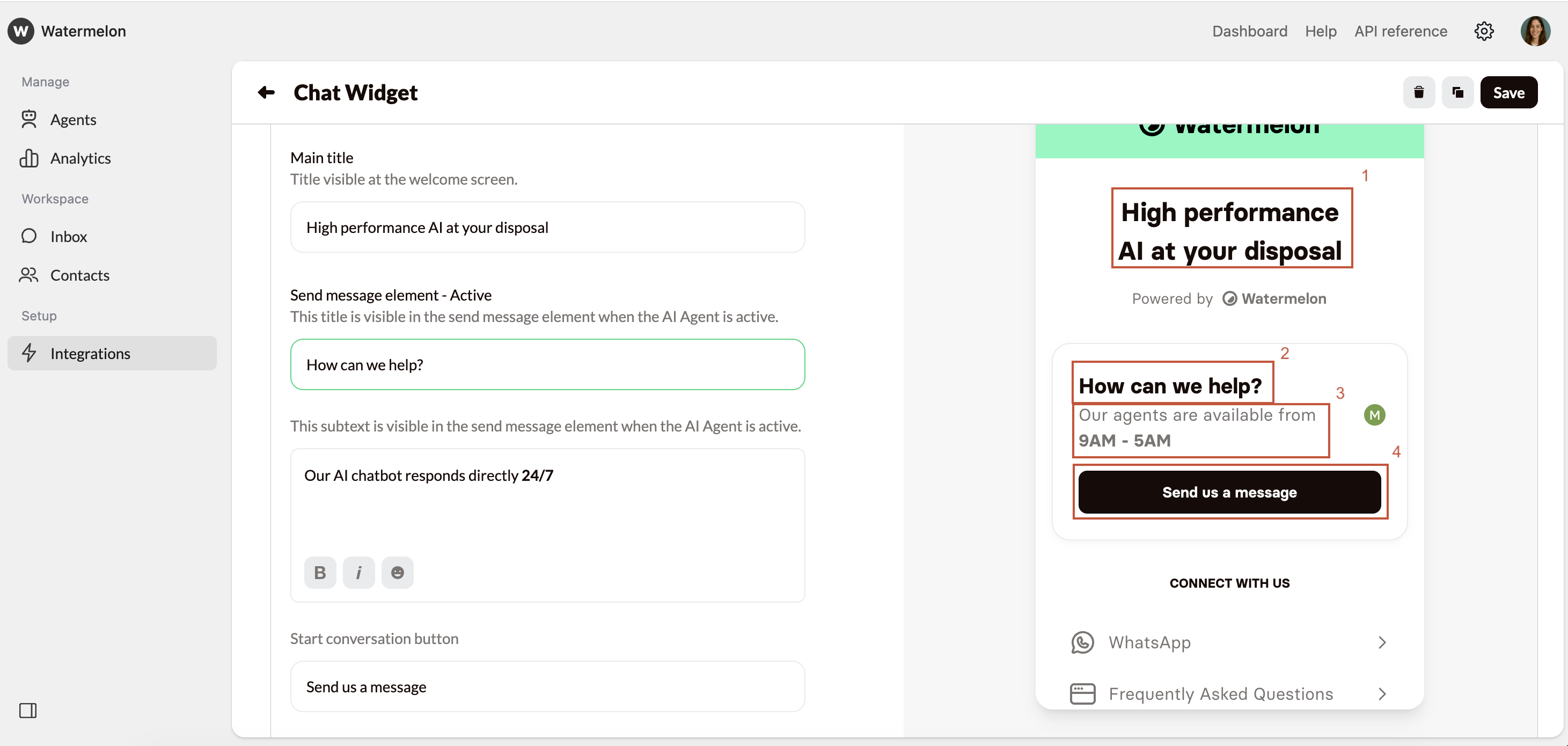
The first option under Attract is the welcome screen. You can switch this on or off whenever you want. If you turn it off, customers will go straight to the chat screen so they can start chatting right away.
If you turn on the Welcome screen, you have a lot of options to customize texts. You can set different texts for when the AI Agent is Active or Inactive.
| | Explanation | Example in image below |
| ------------------------ | ----------------------------------------------------------------------------------------- | ---------------------------------------------------- |
| **Main title** | Title visible at the welcome screen. | 1: High performance AI at your disposal |
| **Send message element** | This title is visible in the send message element when the AI Agent is active/inactive. | 2: How can we Help? |
| **Send message subtext** | This subtext is visible in the send message element when the AI Agent is active/inactive. | 3: Our Human agents are available from **9AM -5AM**. |
| **Start chat button** | Change the text of the start button. | 4: Send us a Message |
 #### Closed screen
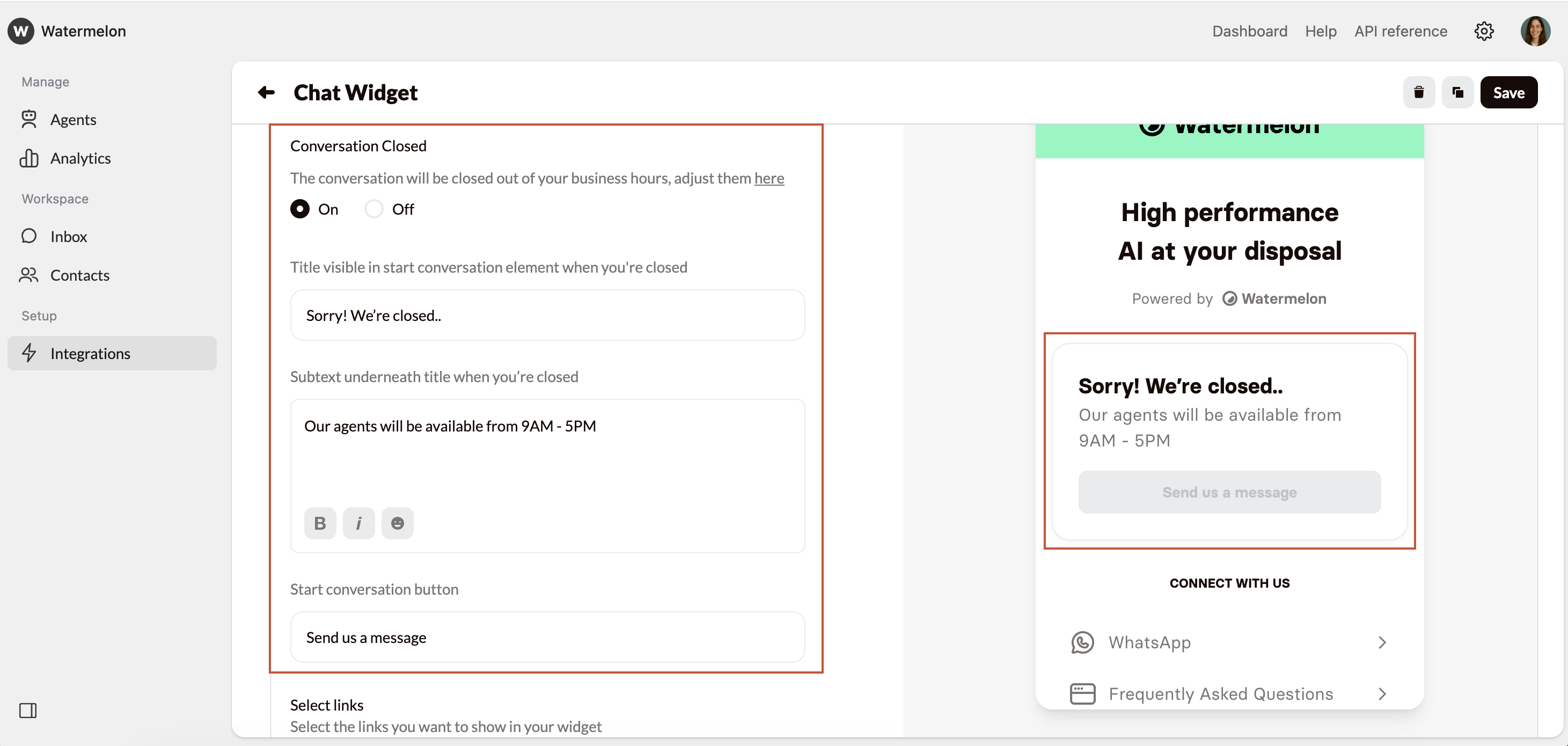
The closed screen is only available when the Welcome screen is set to **On**.
Within the **Business** **hours** in **Settings**, you can set when your live chat is available. The **Closed screen** is the screen customers see when live chat is not available and your AI Agent is **Inactive**.
* **On**: Website visitors will not be able to chat with the AI Agent or with a human agent. You can set which text appears in the widget outside opening hours.
* **Off**: The normal welcome screen will show.
#### Closed screen
The closed screen is only available when the Welcome screen is set to **On**.
Within the **Business** **hours** in **Settings**, you can set when your live chat is available. The **Closed screen** is the screen customers see when live chat is not available and your AI Agent is **Inactive**.
* **On**: Website visitors will not be able to chat with the AI Agent or with a human agent. You can set which text appears in the widget outside opening hours.
* **Off**: The normal welcome screen will show.
 #### Select links
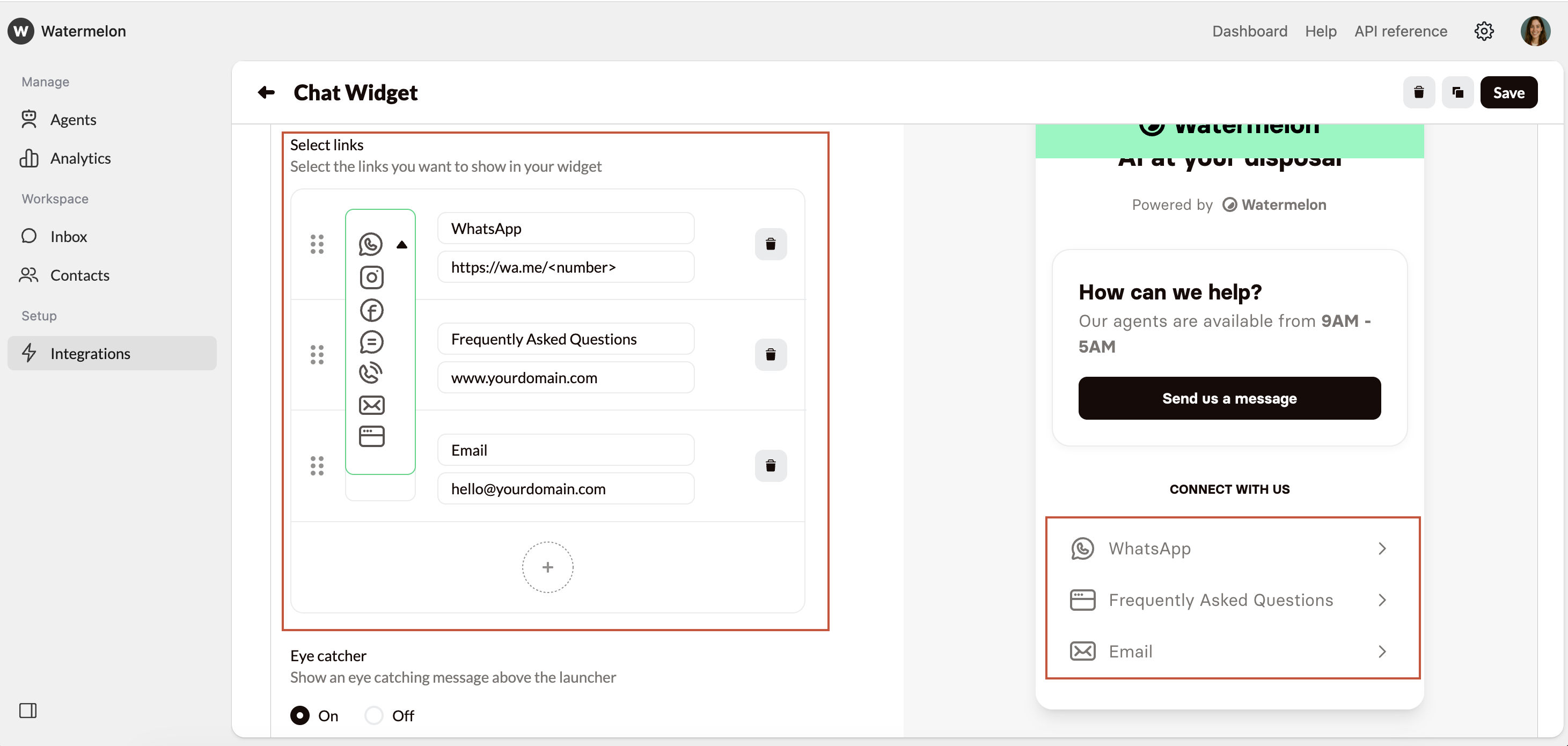
Indicate through which channels you are reachable. These are not only the channels linked to Watermelon but also, email, phone, or the frequently asked questions page on your website. Choose the correct icon and add text and the URL to which this button should lead.
You can change the text "Connect with us" above the links under the **Localize** tab.
Set the language to **Custom** and change the text under **Title above links**.
#### Select links
Indicate through which channels you are reachable. These are not only the channels linked to Watermelon but also, email, phone, or the frequently asked questions page on your website. Choose the correct icon and add text and the URL to which this button should lead.
You can change the text "Connect with us" above the links under the **Localize** tab.
Set the language to **Custom** and change the text under **Title above links**.
 When adding your Whatsapp number, replace \ with your phone number. Example: [https://wa.me/0612345678](https://wa.me/0612345678)
When adding the countrycode to your phone number, please use the + symbol. Example: +31 instead of 0031
### Eye-catcher
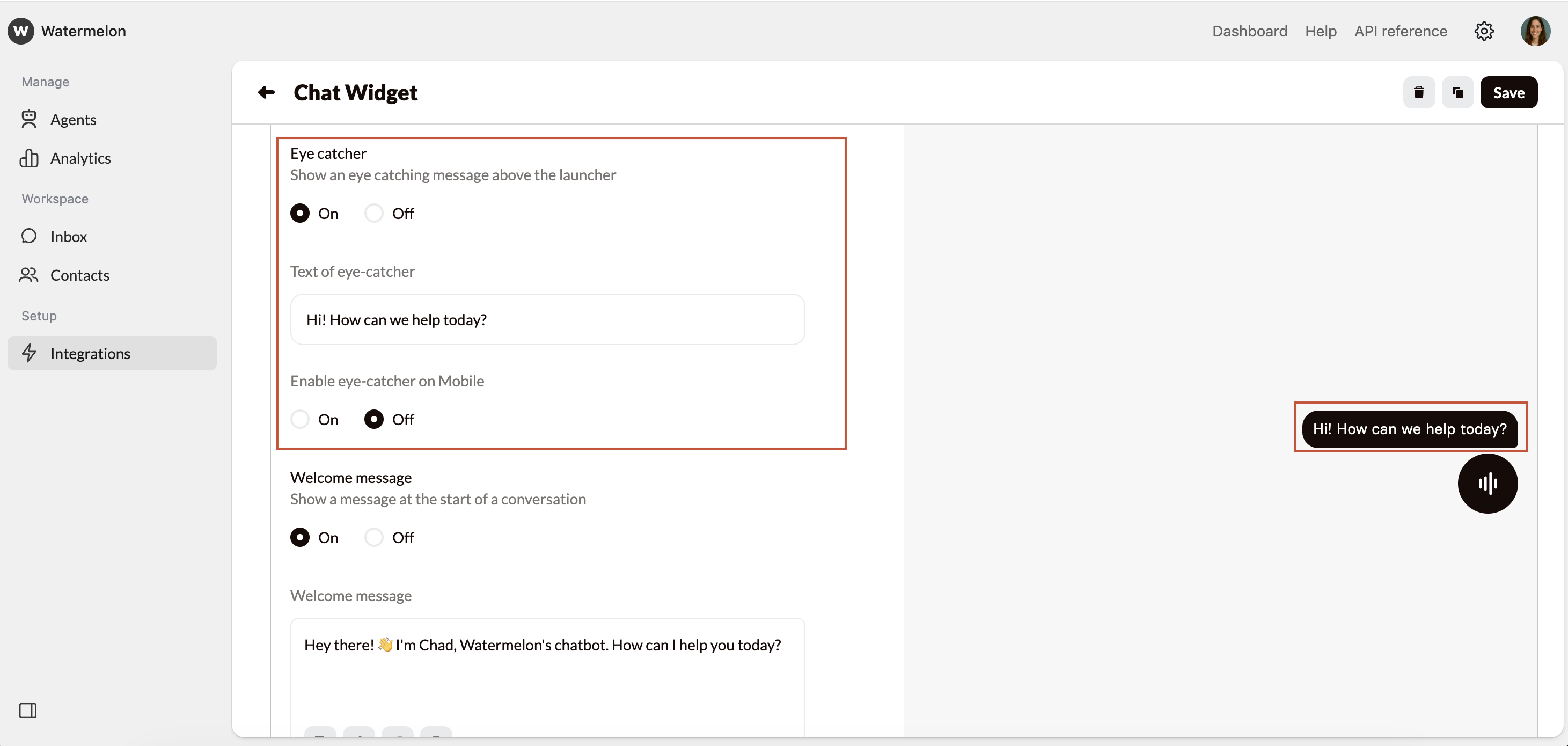
This is the message that appears above the icon when the chat is minimized. You can see how it looks on the right under **Minimized**. You can choose to enable or disable the eye-catcher and set a text.
* **Eye catcher on mobile:** Choose whether to show or not to show the eye-catcher on mobile devices. Not showing is recommended when the eye-catcher is obstructing part of your website.
We recommend turning on the Eye catcher to draw attention to your Chat Widget.
When adding your Whatsapp number, replace \ with your phone number. Example: [https://wa.me/0612345678](https://wa.me/0612345678)
When adding the countrycode to your phone number, please use the + symbol. Example: +31 instead of 0031
### Eye-catcher
This is the message that appears above the icon when the chat is minimized. You can see how it looks on the right under **Minimized**. You can choose to enable or disable the eye-catcher and set a text.
* **Eye catcher on mobile:** Choose whether to show or not to show the eye-catcher on mobile devices. Not showing is recommended when the eye-catcher is obstructing part of your website.
We recommend turning on the Eye catcher to draw attention to your Chat Widget.
 ### Welcome message
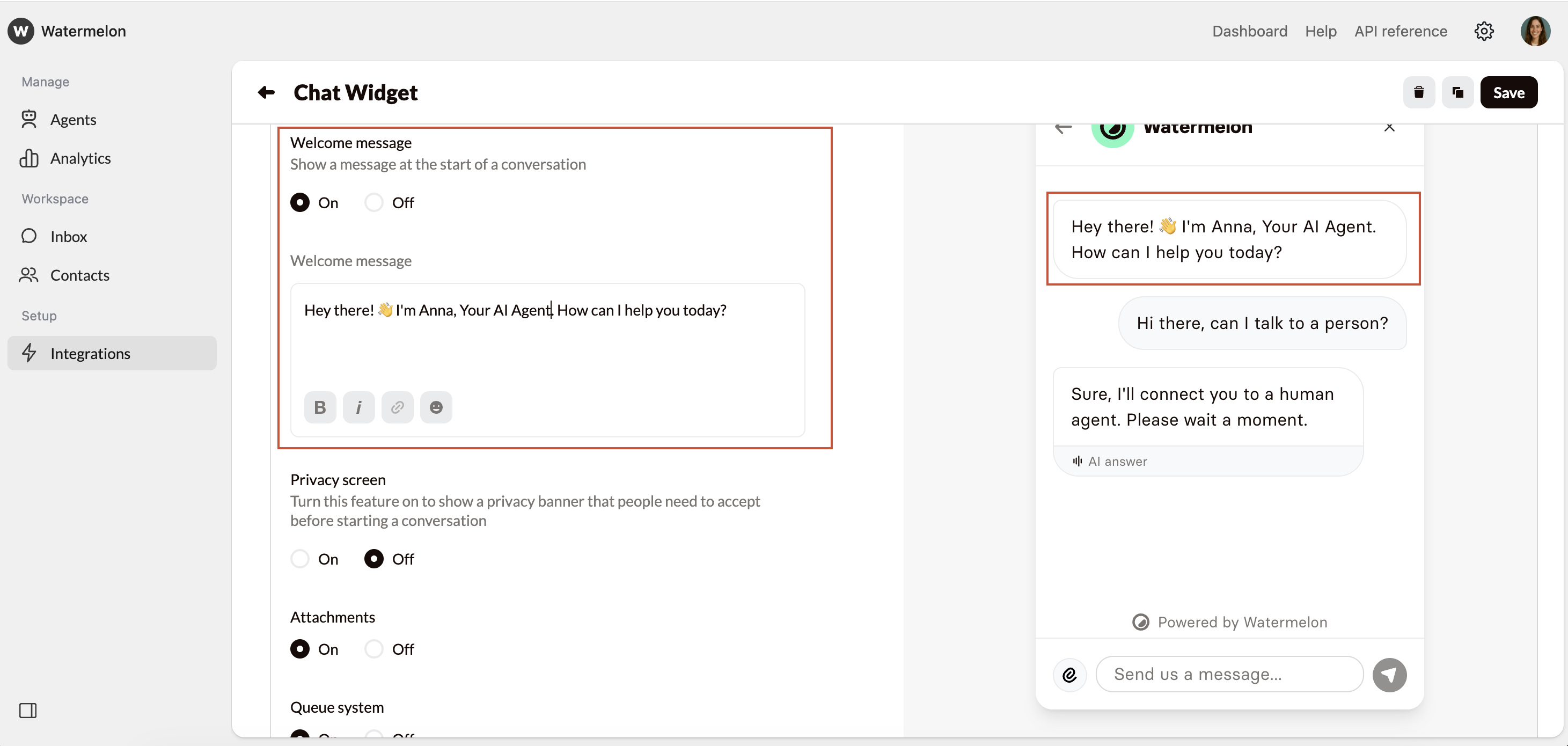
This is a fixed message which end-users will see when opening the Chat Widget. The preview is visible under the tab **Chat**. You can choose to set the Welcome message **On** or **Off**.
We advise to turn the Welcome message on to help end-users understand how the AI Agent can help them. Start with introducing the Agent and add examples on where the Agent can help with e.g.
> Hi! I'm AI Agent Anna, the digital assistant of \[Company name]. I can help you with all your questions about our products.
### Welcome message
This is a fixed message which end-users will see when opening the Chat Widget. The preview is visible under the tab **Chat**. You can choose to set the Welcome message **On** or **Off**.
We advise to turn the Welcome message on to help end-users understand how the AI Agent can help them. Start with introducing the Agent and add examples on where the Agent can help with e.g.
> Hi! I'm AI Agent Anna, the digital assistant of \[Company name]. I can help you with all your questions about our products.
 ### Privacy screen
You can choose to add a privacy screen, asking end users to agree to the privacy policy before starting the chat. You can enable or disable this and amend the text for the title and subtitle. Activating the **Privacy screen** is advised when handling personal and private details over chat.
### Privacy screen
You can choose to add a privacy screen, asking end users to agree to the privacy policy before starting the chat. You can enable or disable this and amend the text for the title and subtitle. Activating the **Privacy screen** is advised when handling personal and private details over chat.
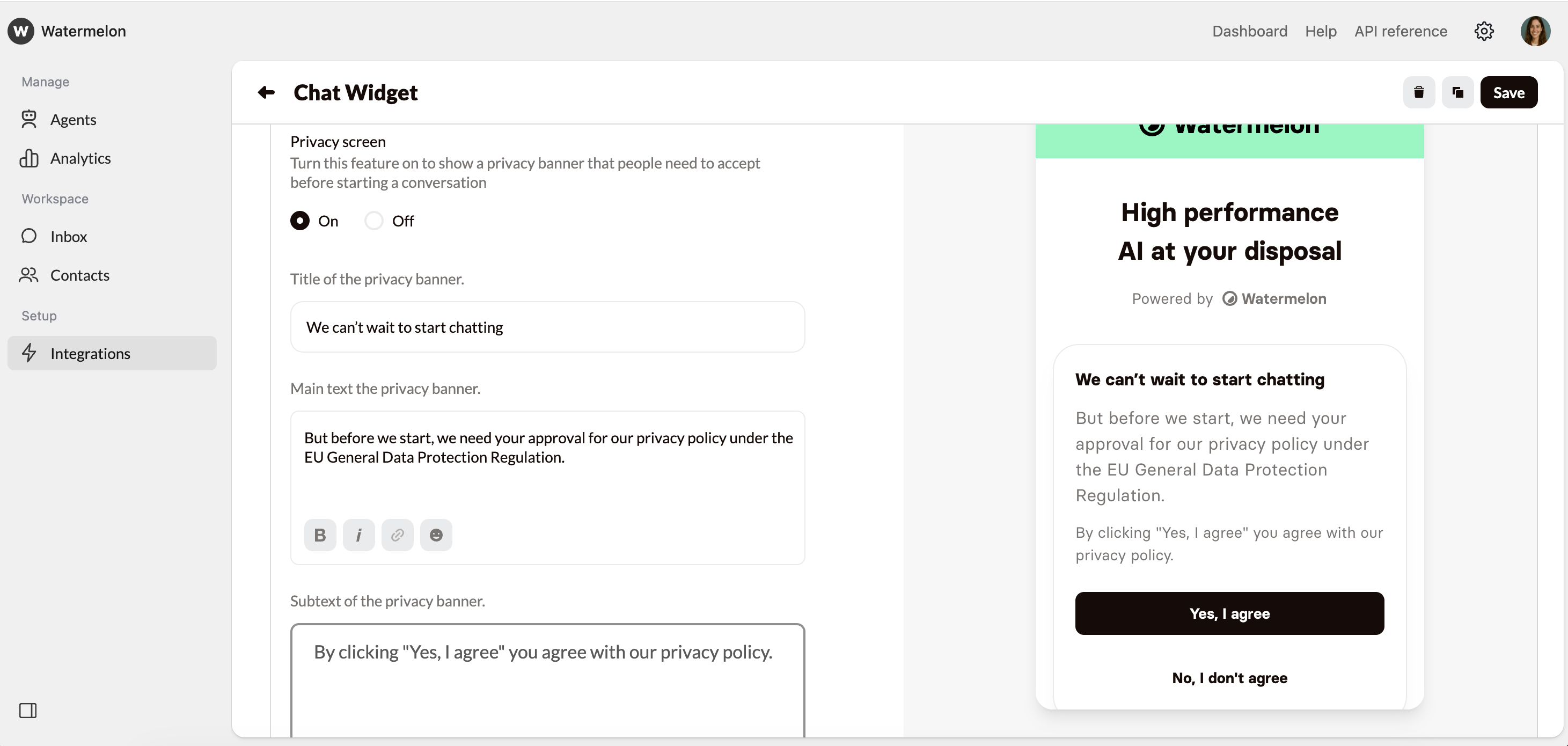 You can change the text of the buttons under the **Localize** tab.
Set the language to **Custom** and change the text under **Adjust privacy policy buttons.**
### Attachments
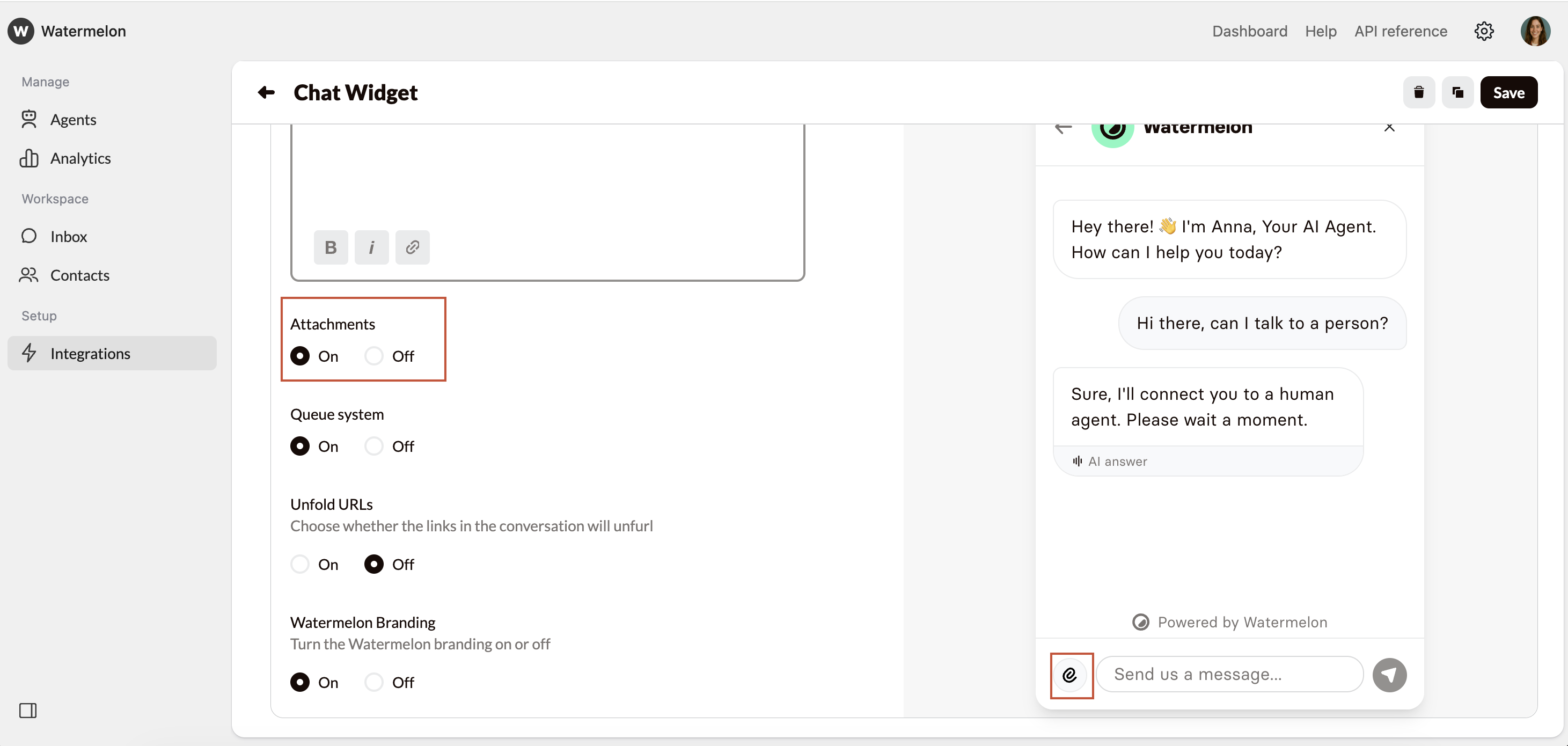
Choose whether users are allowed to send attachments in the Chat Widget. The AI Agent can't see the content of the attachments. This is advised for live-chat.
When enabled, a small paperclip will show next to the chatbox for end-users.
You can change the text of the buttons under the **Localize** tab.
Set the language to **Custom** and change the text under **Adjust privacy policy buttons.**
### Attachments
Choose whether users are allowed to send attachments in the Chat Widget. The AI Agent can't see the content of the attachments. This is advised for live-chat.
When enabled, a small paperclip will show next to the chatbox for end-users.
 ### Queue system
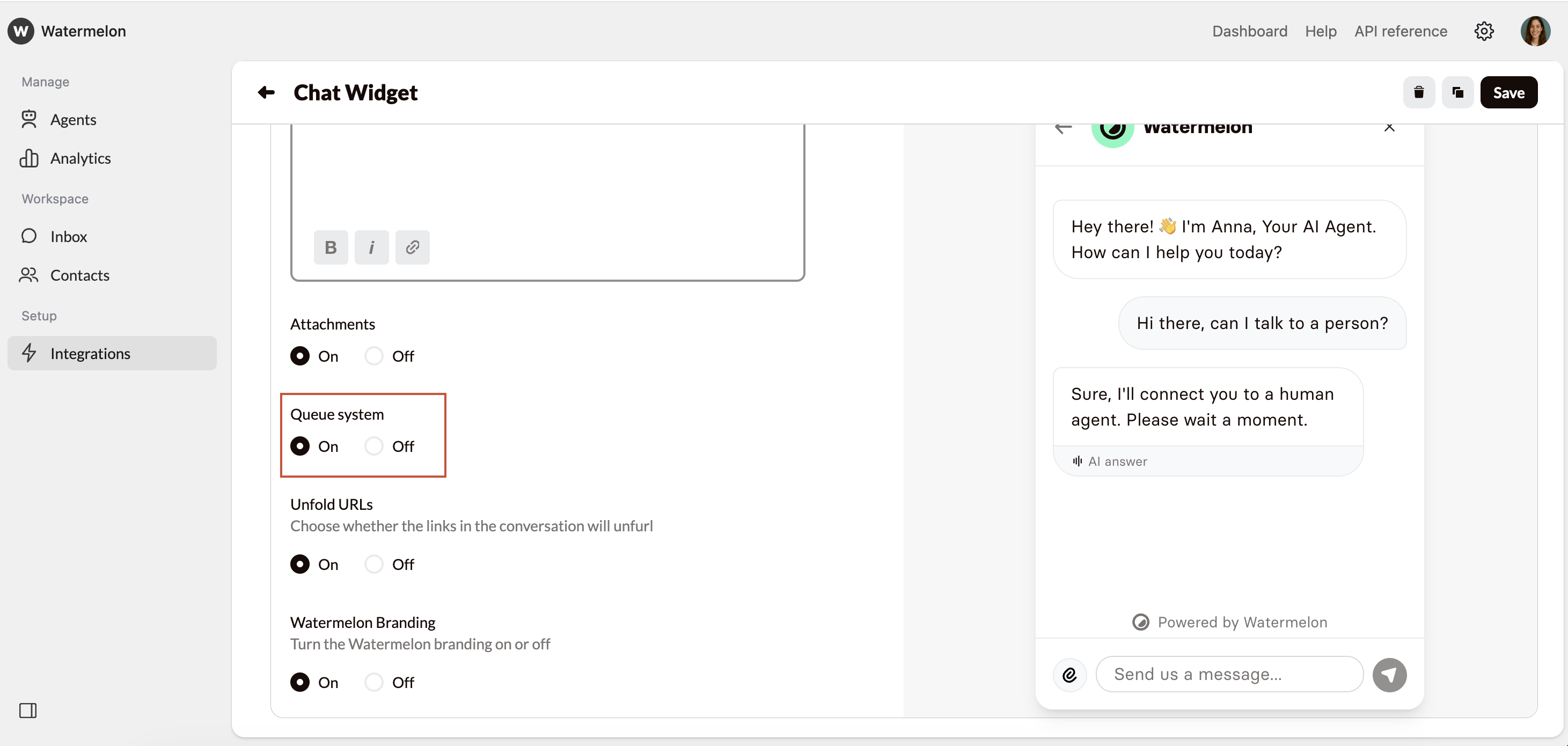
When **Human handover** is enabled, it can be useful to turn on the Queue. This allows chatters to estimate how long they will have to wait before they are helped. \
If no **handover** is set, queue is not advised.
### Queue system
When **Human handover** is enabled, it can be useful to turn on the Queue. This allows chatters to estimate how long they will have to wait before they are helped. \
If no **handover** is set, queue is not advised.
 You can change the text of the buttons under the **Localize** tab.
Set the language to **Custom** and change the queue texts.
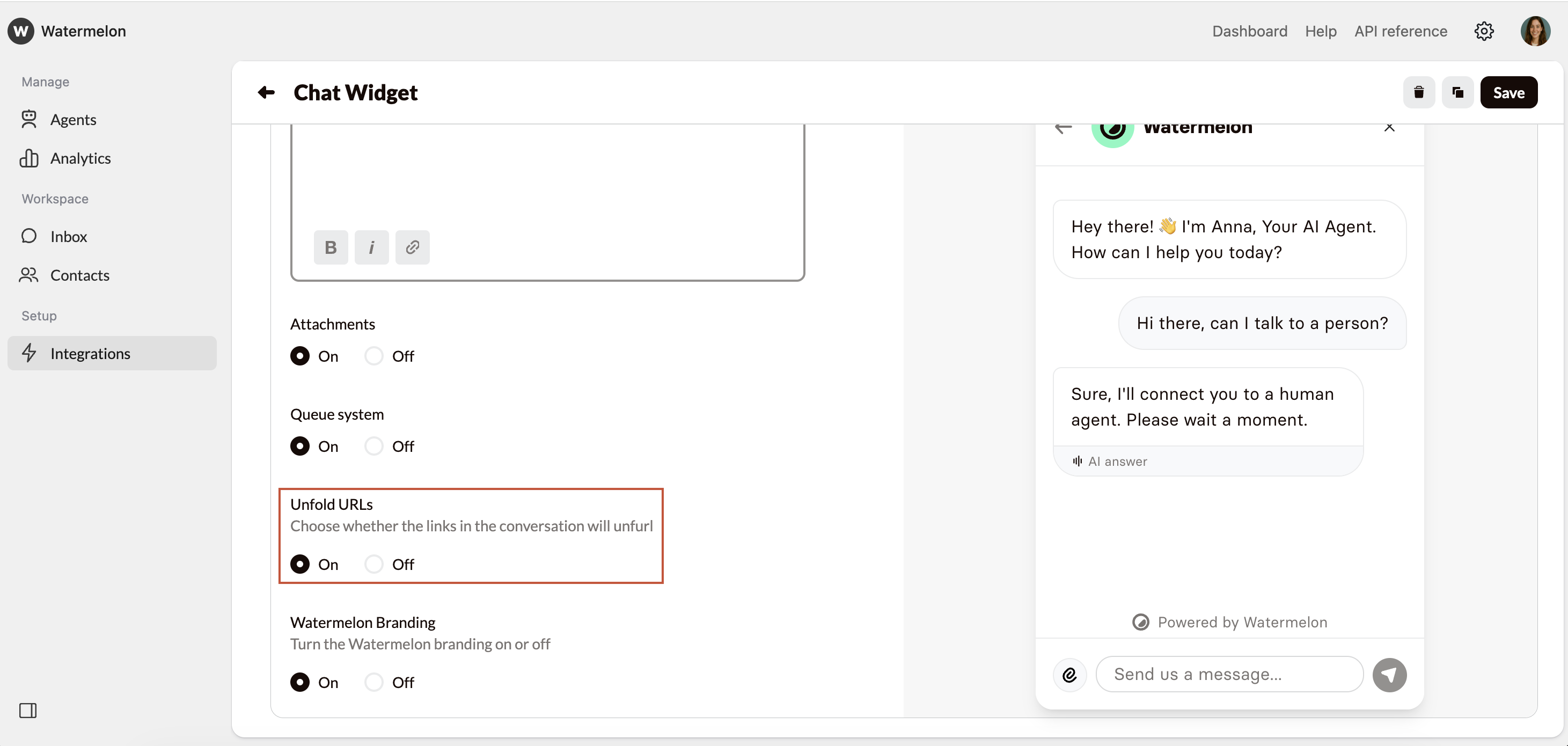
### Unfold URLs
Here, you can enable or disable the expansion of URLs.
You can change the text of the buttons under the **Localize** tab.
Set the language to **Custom** and change the queue texts.
### Unfold URLs
Here, you can enable or disable the expansion of URLs.
 ### Shopify widget elements
If your chat widget is connected to an agent with Shopify Actions, you can enable Shopify-specific elements in the widget.
These elements help your AI Agent display Shopify information visually in the chat widget, such as product cards or order details.
Show Shopify products as product cards in the chat widget.
Show Shopify order information clearly in the chat widget.
Shopify widget elements are only available for the chat widget and require Shopify Actions.
### Watermelon branding
See our [Branding guide](/help-center/publish-your-agent/remove-watermelon-branding) for more information.
Don't forget to save your changes by clicking **Save** on the top of your screen
### Shopify widget elements
If your chat widget is connected to an agent with Shopify Actions, you can enable Shopify-specific elements in the widget.
These elements help your AI Agent display Shopify information visually in the chat widget, such as product cards or order details.
Show Shopify products as product cards in the chat widget.
Show Shopify order information clearly in the chat widget.
Shopify widget elements are only available for the chat widget and require Shopify Actions.
### Watermelon branding
See our [Branding guide](/help-center/publish-your-agent/remove-watermelon-branding) for more information.
Don't forget to save your changes by clicking **Save** on the top of your screen