> ## Documentation Index
> Fetch the complete documentation index at: https://watermelon.ai/docs/llms.txt
> Use this file to discover all available pages before exploring further.
# Pre-chat form
Collect visitor details before a conversation starts by adding a form to your chat widget.
The pre-chat form appears when a visitor opens the chat widget. You can use it to collect information such as their name, email address, company, or other details relevant to your business.
The pre-chat form is available on **paid plans only**. It is not available on the Free plan.
You can add up to **5 fields** to the form.
When **Form required** is enabled, visitors must complete the form before they can start chatting. This option is enabled by default.
## Set up the pre-chat form
In your Watermelon dashboard, go to **Integrations**.
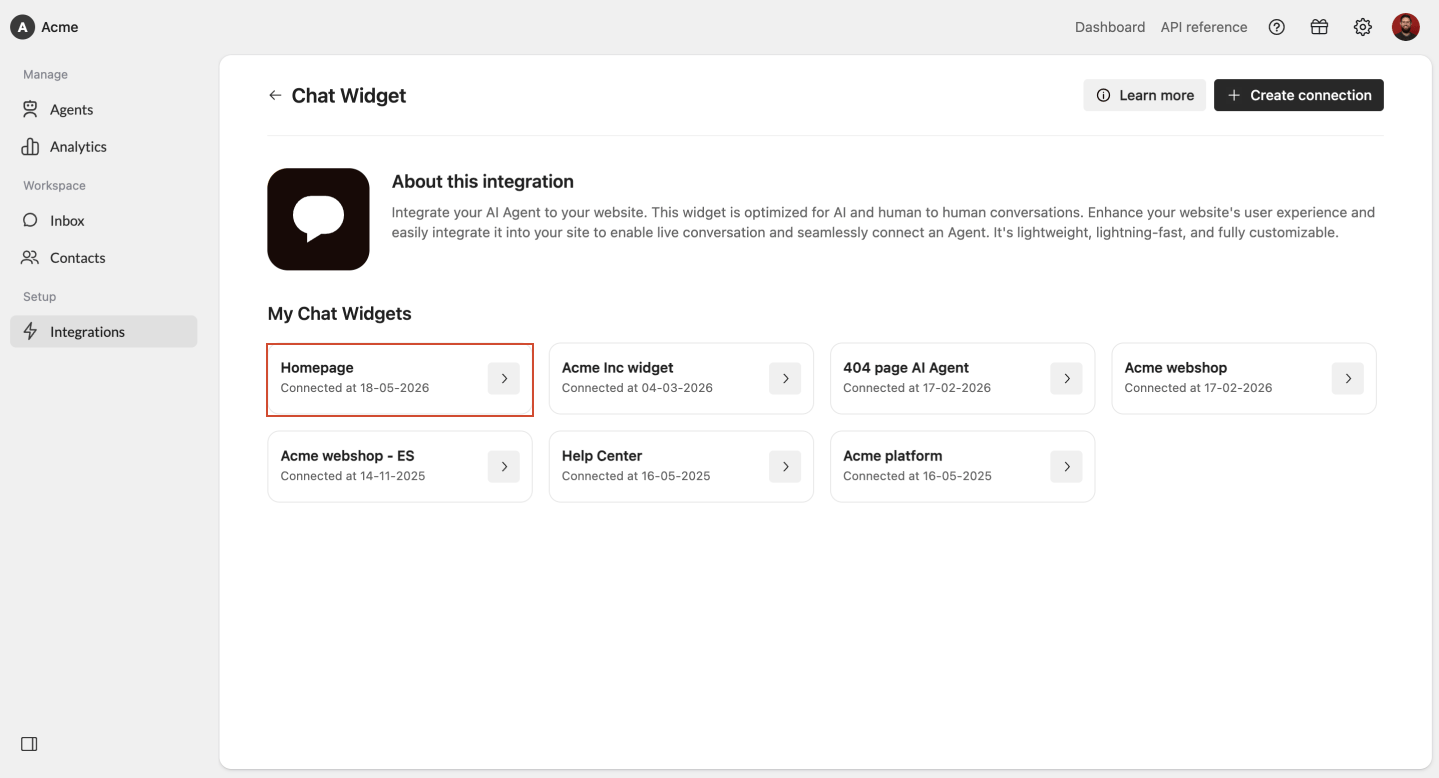
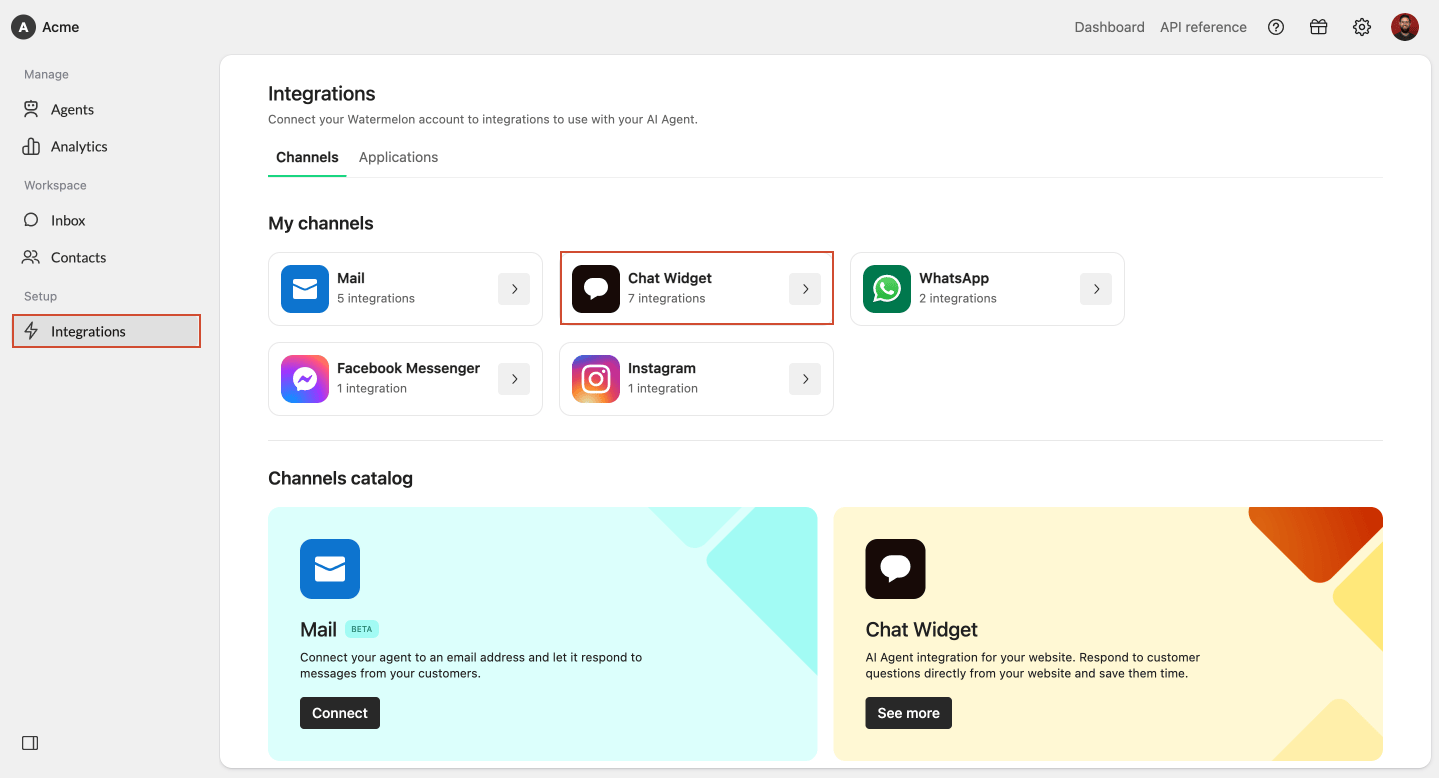 Select **Chat Widget** from the integrations overview. Open the chat widget you want to edit.
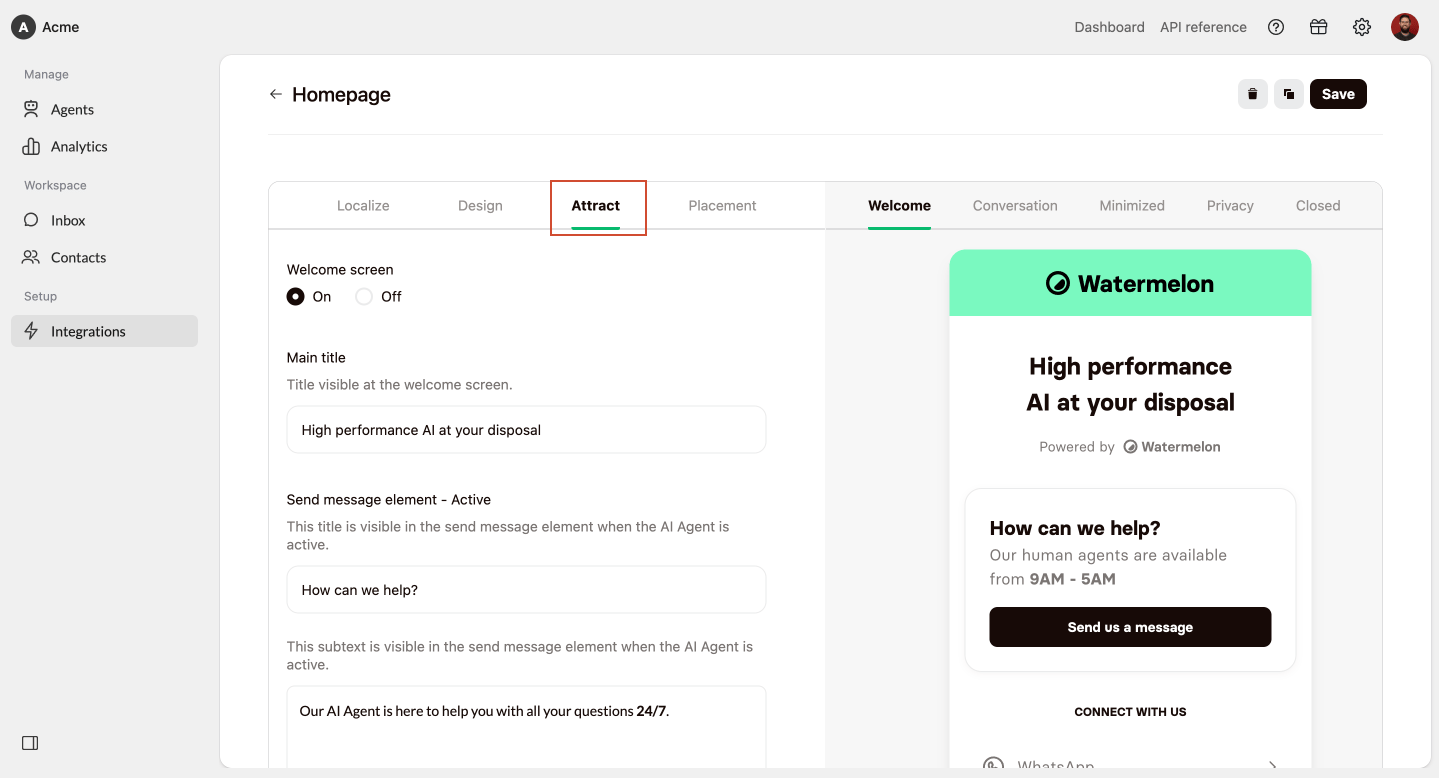
 Click **Attract** in the chat widget settings.
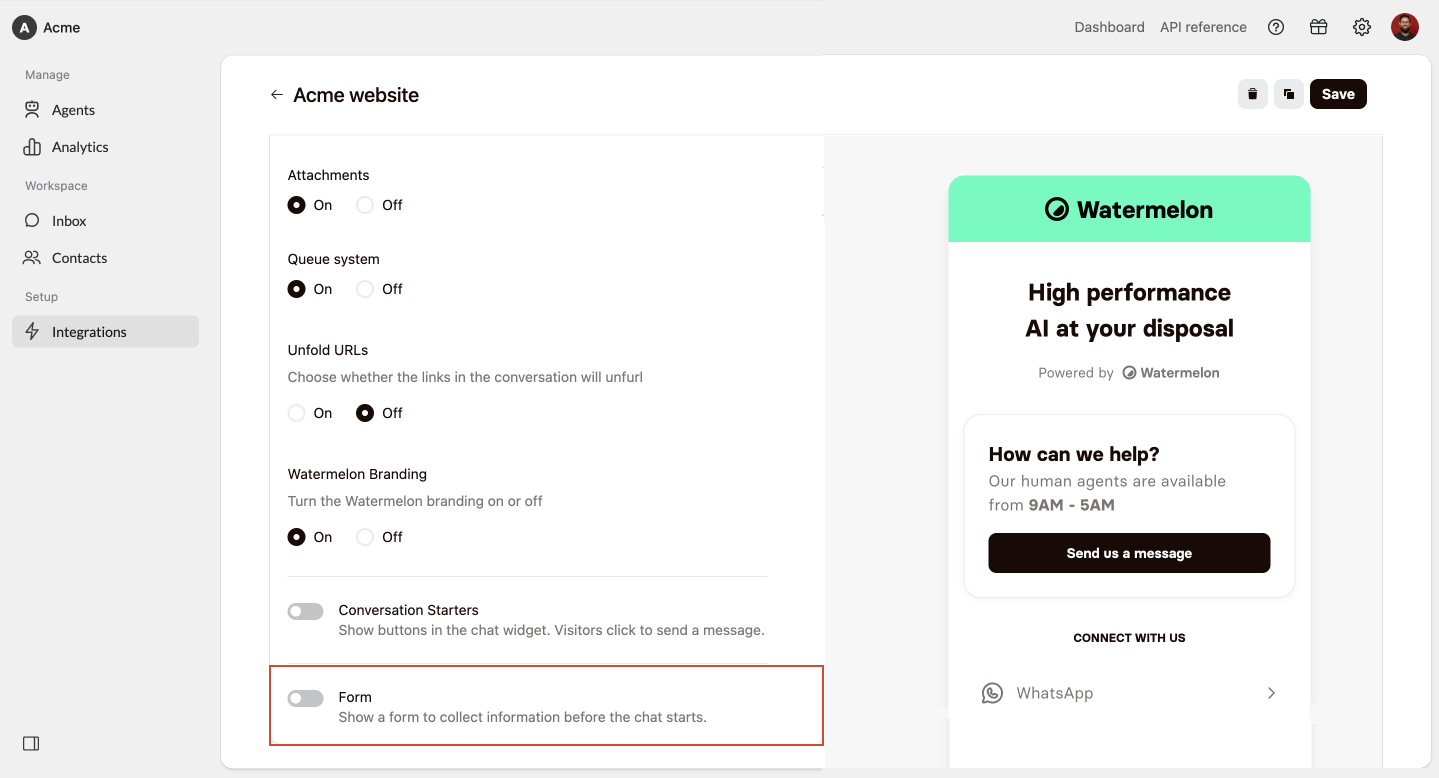
 Scroll down in the Attract settings till you see **Form. Click on the toggle at** **Form** to enable the pre-chat form settings.
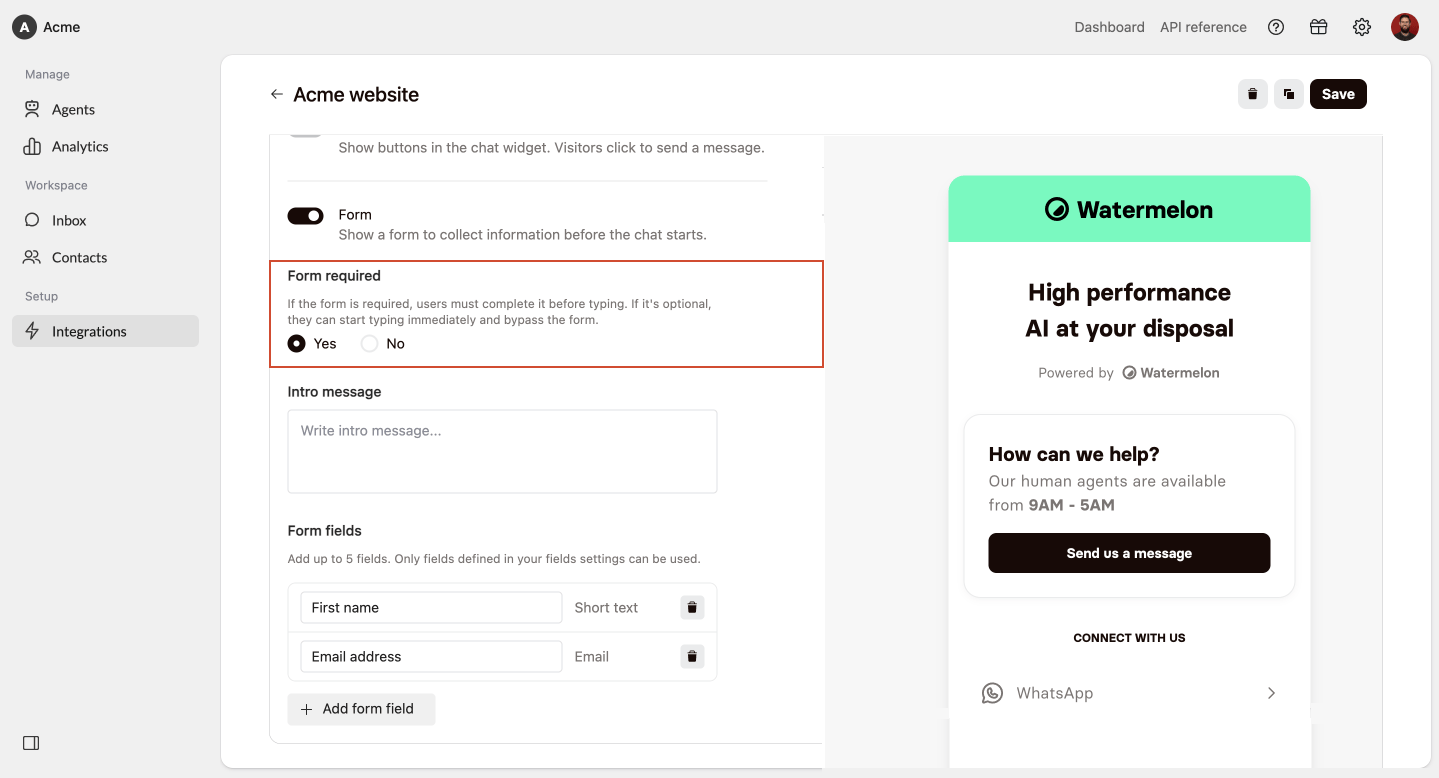
 Keep **Form required** enabled when visitors must complete the form before starting a conversation. This option is enabled by default.
When you disable it, visitors can skip the form and start chatting without entering their details.
Keep **Form required** enabled when visitors must complete the form before starting a conversation. This option is enabled by default.
When you disable it, visitors can skip the form and start chatting without entering their details.
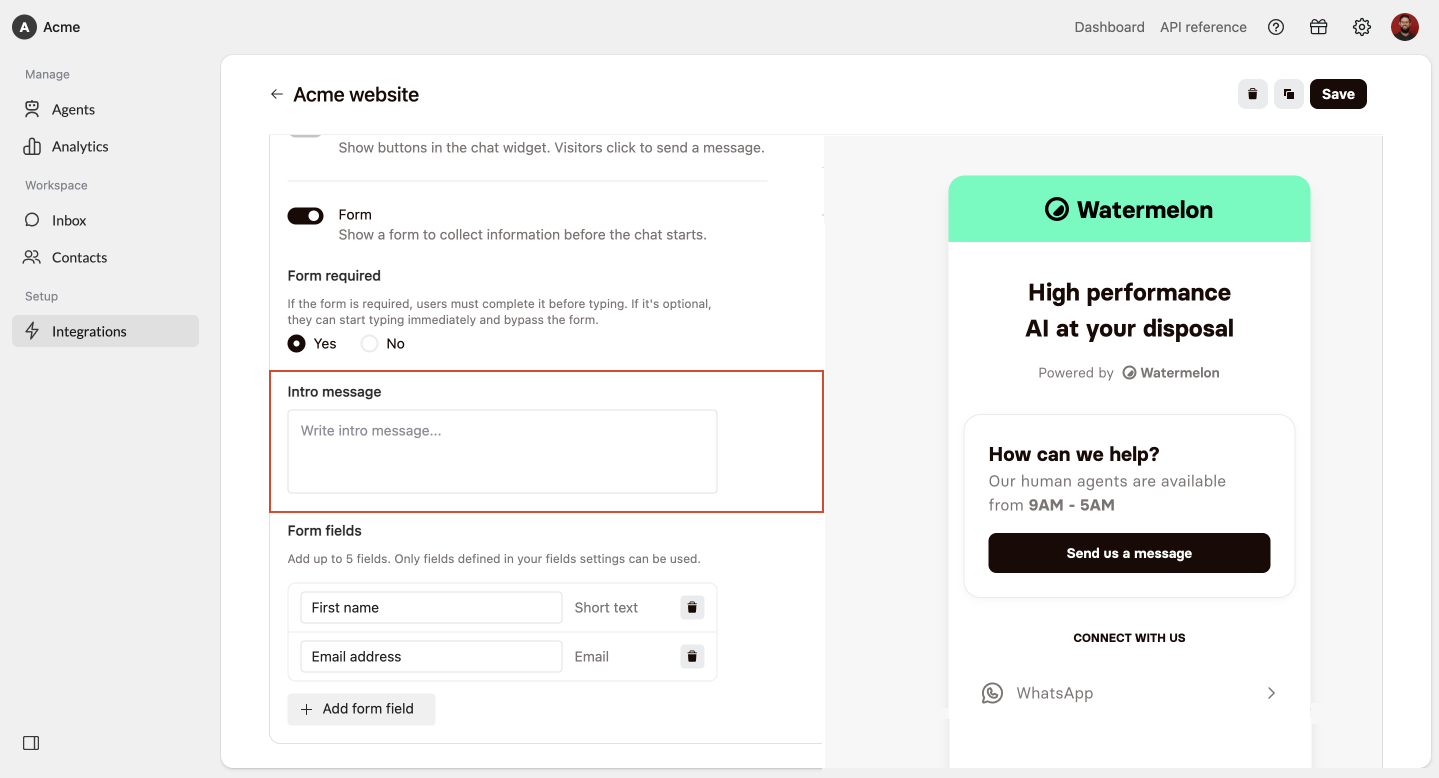
 Enter an intro message to explain why you are asking visitors for their information.
The message appears directly above the form fields in the chat widget.
Enter an intro message to explain why you are asking visitors for their information.
The message appears directly above the form fields in the chat widget.
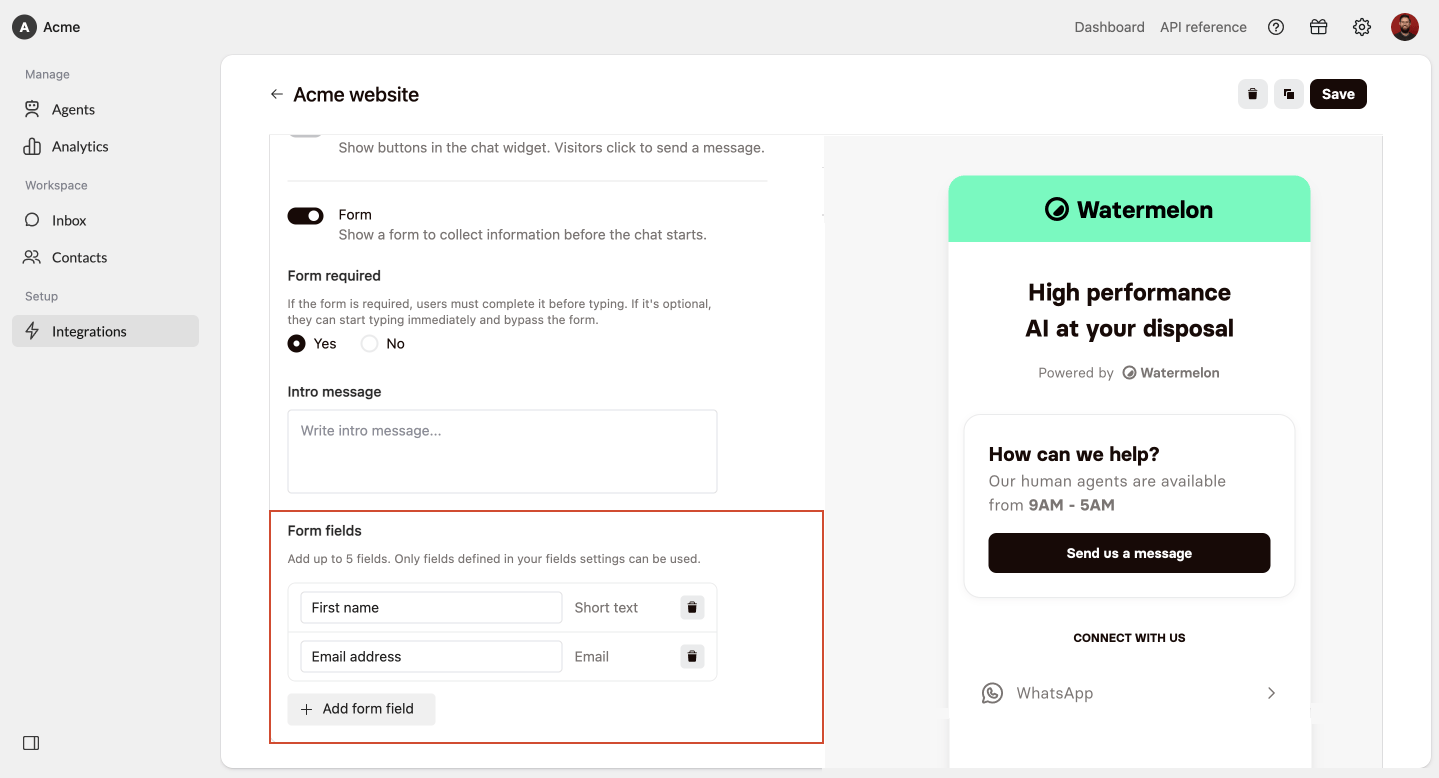
 Add up to **5 fields** for visitors to complete.
You can use default fields, such as **First name** and **Email address**, or select [custom fields](/docs/help-center/contact-management/custom-fields) you created to collect information specific to your business.
You can adjust the placeholder the end user sees in the widget, by adjusting the text in the added field underneath **Form fields**.
Add up to **5 fields** for visitors to complete.
You can use default fields, such as **First name** and **Email address**, or select [custom fields](/docs/help-center/contact-management/custom-fields) you created to collect information specific to your business.
You can adjust the placeholder the end user sees in the widget, by adjusting the text in the added field underneath **Form fields**.
 Click **Save** to publish the changes to your chat widget.
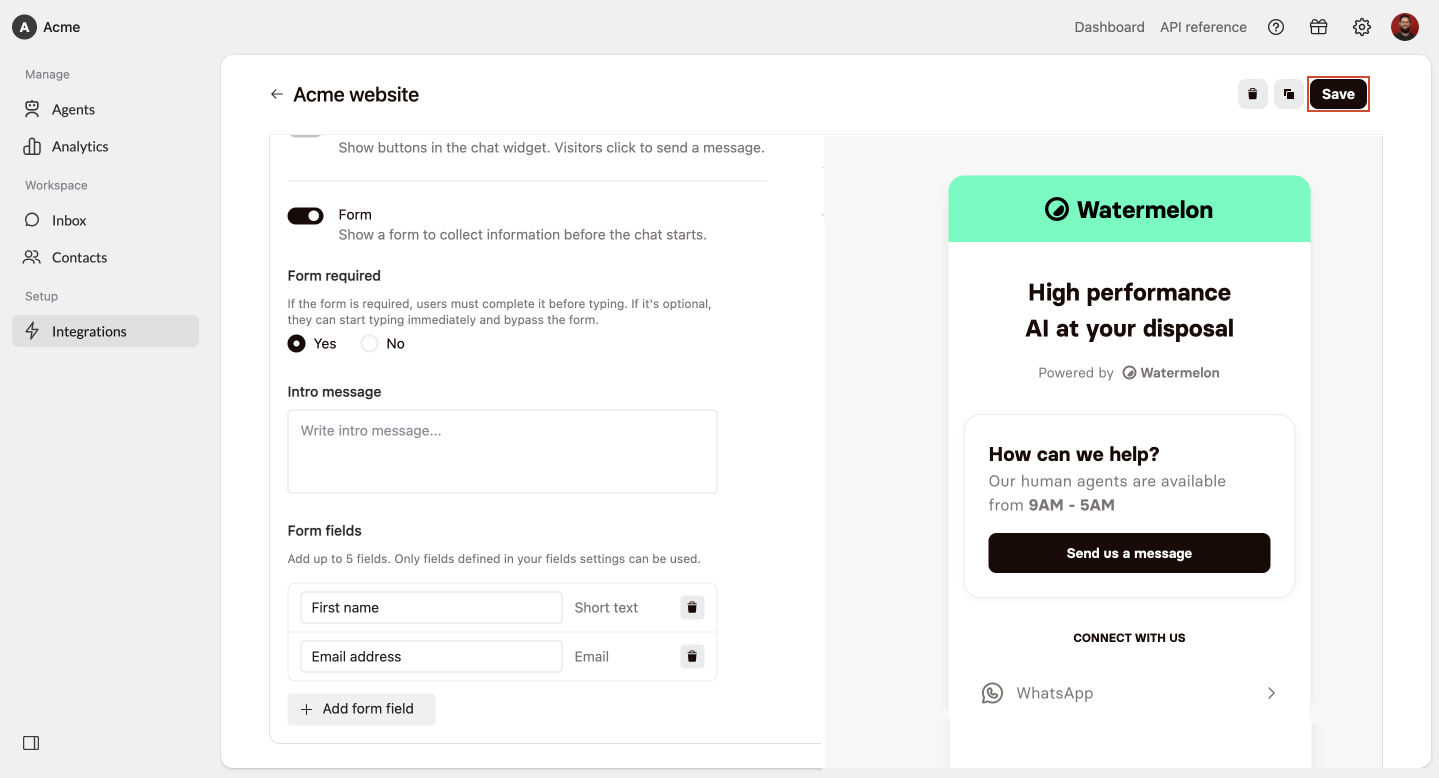 Once saved, the form will appear when visitors open the chat widget.
## Disable the pre-chat form
Go to **Integrations** > **Chat Widget** and select the chat widget you want to edit.
Click **Attract**, and scroll down till you see **Form**. Click on the toggle to disable **Form**.
Click **Save** to save your changes.
After you save, visitors will no longer see the form when they open the chat widget.
## Best practices
Only add fields that are necessary. Short forms are faster to complete and create less friction.
Use the intro message to tell visitors how their information will help you assist them.
Add custom fields when the information helps you identify, route, or support the visitor more effectively.
Make sure each field is easy to understand, so visitors know exactly what information to enter.
Once saved, the form will appear when visitors open the chat widget.
## Disable the pre-chat form
Go to **Integrations** > **Chat Widget** and select the chat widget you want to edit.
Click **Attract**, and scroll down till you see **Form**. Click on the toggle to disable **Form**.
Click **Save** to save your changes.
After you save, visitors will no longer see the form when they open the chat widget.
## Best practices
Only add fields that are necessary. Short forms are faster to complete and create less friction.
Use the intro message to tell visitors how their information will help you assist them.
Add custom fields when the information helps you identify, route, or support the visitor more effectively.
Make sure each field is easy to understand, so visitors know exactly what information to enter.