> ## Documentation Index
> Fetch the complete documentation index at: https://watermelon.ai/docs/llms.txt
> Use this file to discover all available pages before exploring further.
# Publish on Email
Connect your Agent to the Email channel.
When you’ve created a Mail integration in Watermelon, you’ll need to connect your Agent to the email channel. This ensures your Agent can automatically reply to incoming emails.
You can publish your Agent on mail via the **Agent Profile** or via the **Activate tab**.
Make sure you’ve set up the Email integration first in **Integrations → Mail** before connecting your Agent. This [documentation](/help-center/integrations/email) explains how.
## **Publishing via Agent Profile**
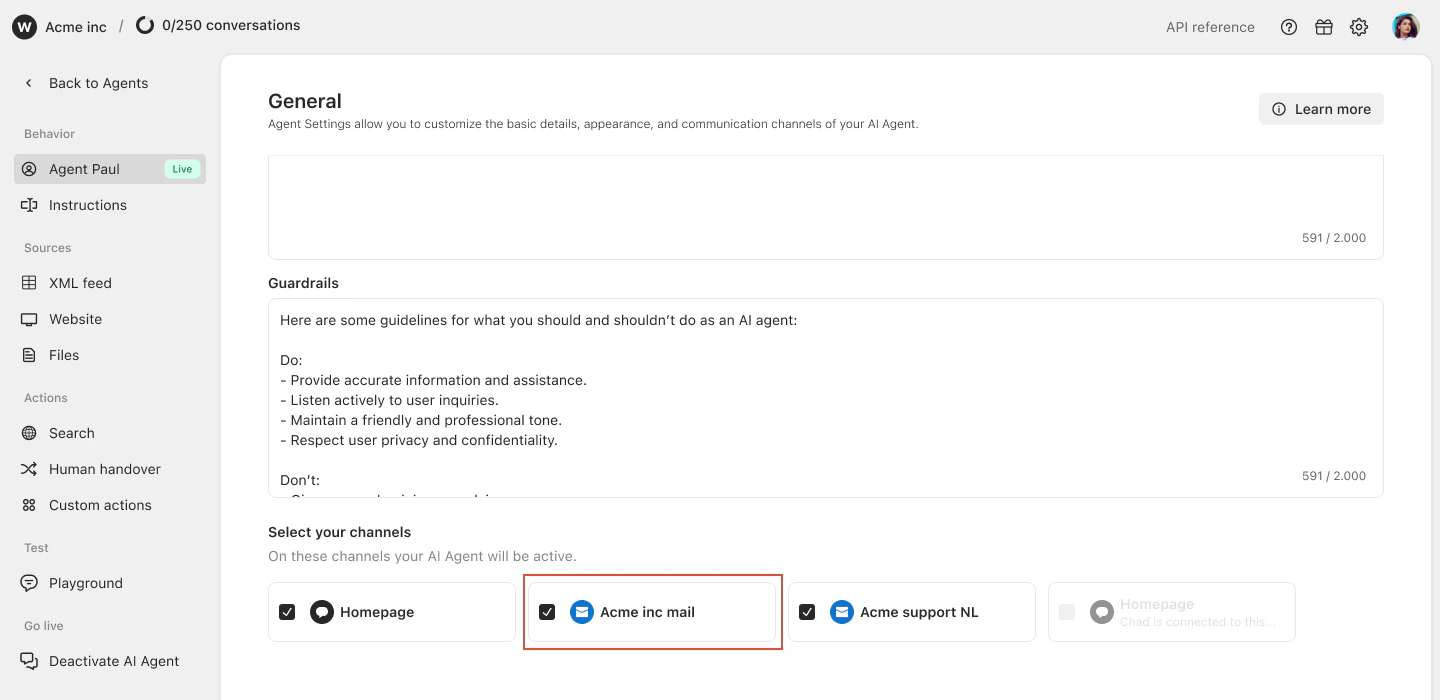
Open your **Agent**. Navigate to your AI Agent name underneath Behavior. Scroll down to **Select your channels**.
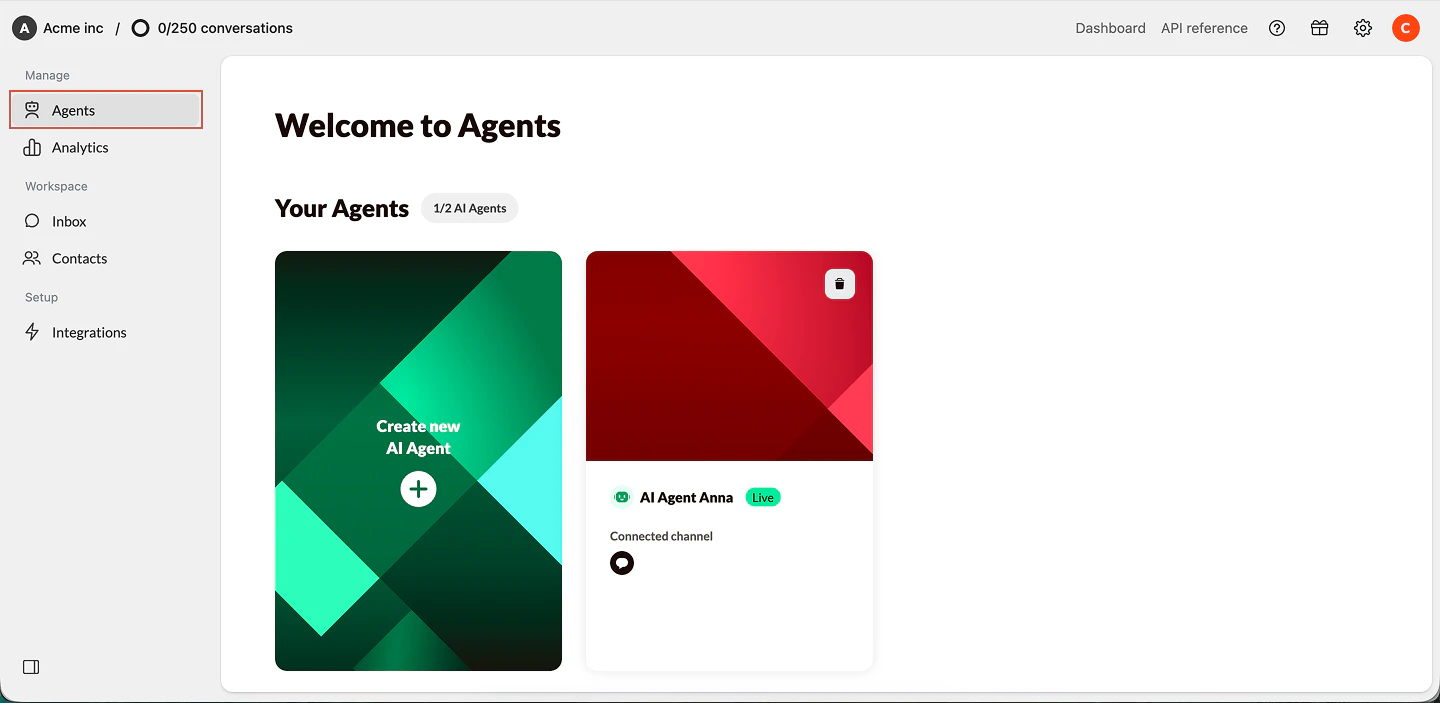
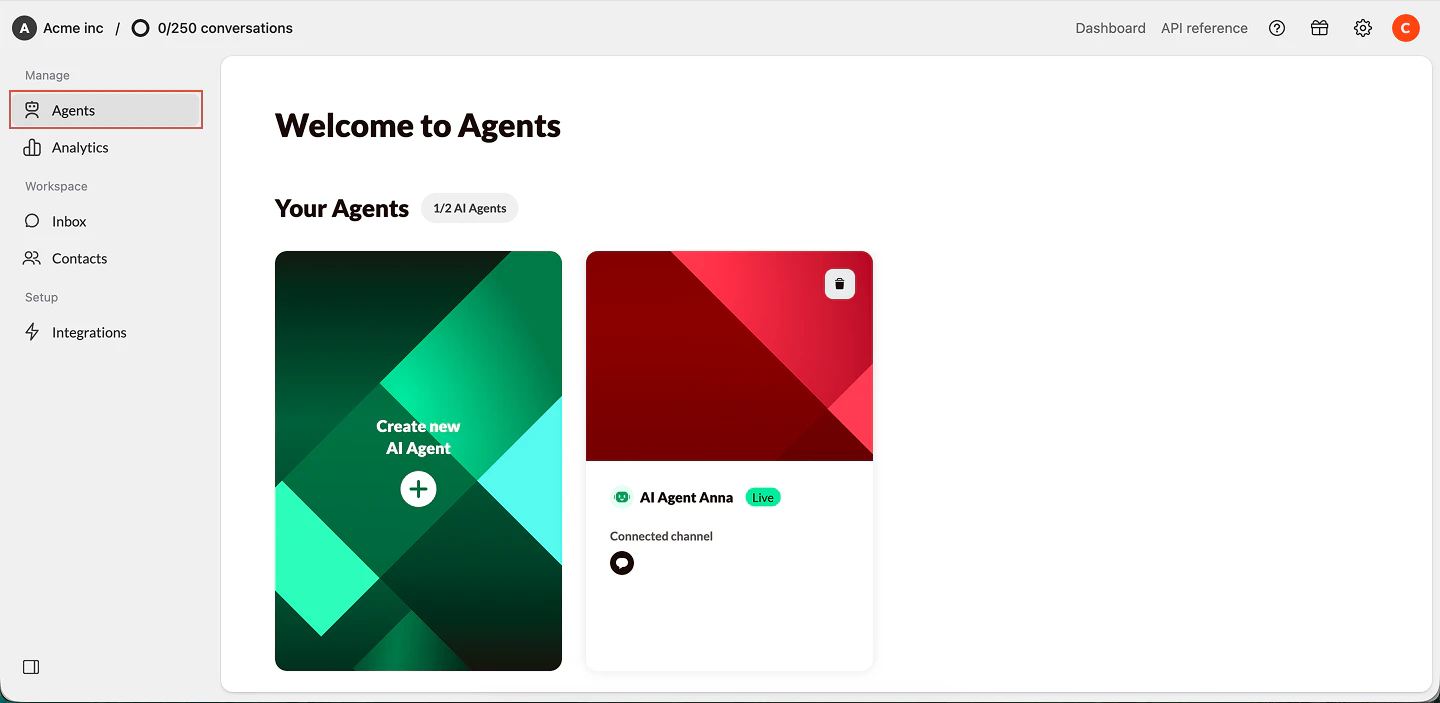 **Select** the mail channel you want to **connect** and click **Save**.
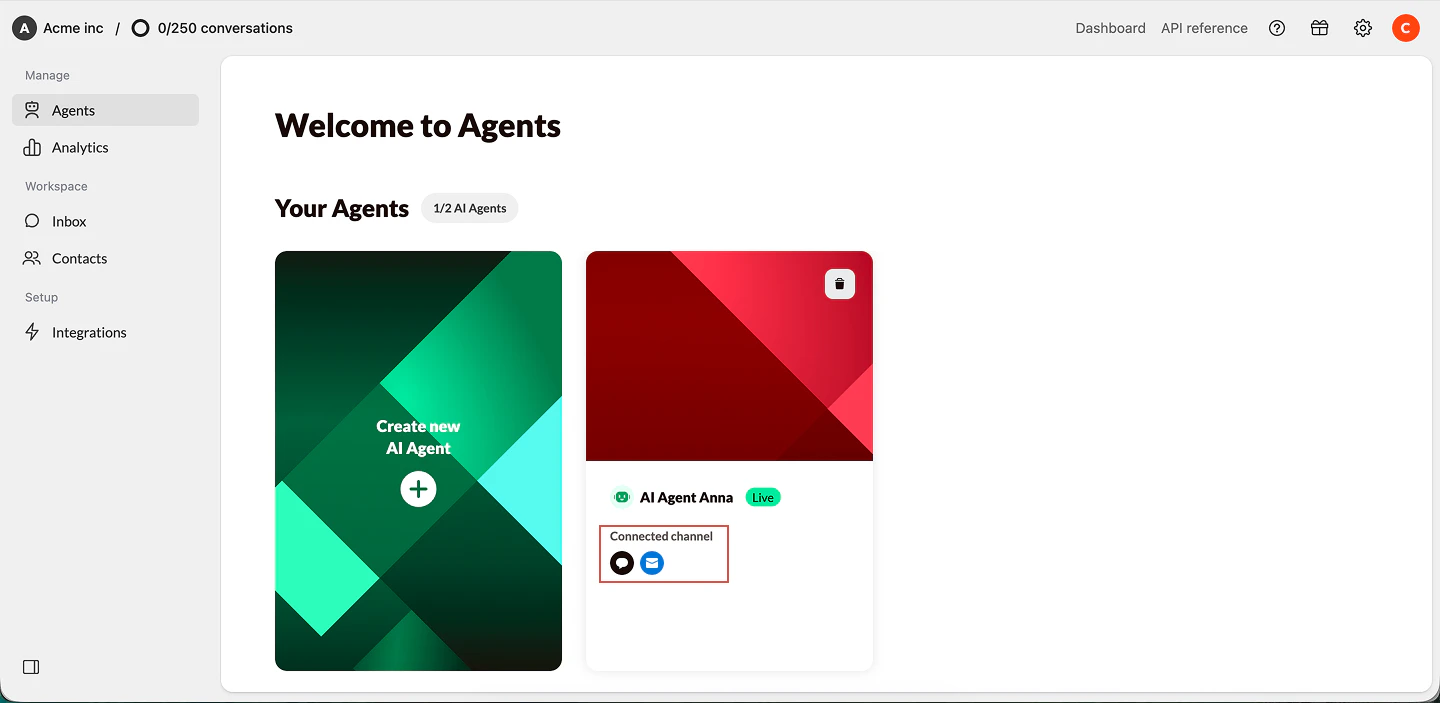
 Your Agent is now **connected** to the email channel.
 Make sure your Agent is **Active**, otherwise it won’t reply to incoming emails.
## **What happens next?**
Once your Agent is published on mail:
* Incoming emails will appear in your **Inbox**
* Your Agent will automatically reply (if enabled)
* You can still take over conversations manually
If your Agent is not active: Emails will still arrive in Watermelon, but they will **not be answered automatically**
Make sure your Agent is **Active**, otherwise it won’t reply to incoming emails.
## **What happens next?**
Once your Agent is published on mail:
* Incoming emails will appear in your **Inbox**
* Your Agent will automatically reply (if enabled)
* You can still take over conversations manually
If your Agent is not active: Emails will still arrive in Watermelon, but they will **not be answered automatically**