> ## Documentation Index
> Fetch the complete documentation index at: https://watermelon.ai/docs/llms.txt
> Use this file to discover all available pages before exploring further.
# Shopify widget elements
> Enable Shopify-specific elements in the chat widget, such as product carousels and order detail cards.
Shopify widget elements let your AI Agent show Shopify information visually inside the chat widget.
You can enable:
* **Product carousel**: show Shopify products as product cards.
* **Order details**: show order status and order details in a card.
Available on: **Starter, Advanced, Business, and Enterprise**.\
Shopify widget elements require **Shopify Actions**. Free plans do not include Actions.
Shopify widget elements are only available for the **chat widget**. They are not available for other channels.
## Before you start
Before enabling Shopify widget elements, make sure:
* Shopify is connected to your Watermelon agent. [This article](https://app.mintlify.com/watermelon/watermelon/editor/main/~/7361d629-22e7-44ae-a131-4ce5471c31ad) explains how.
* The chat widget is connected to the same agent where Shopify is connected.
* The right Shopify Actions are enabled for your agent.
* You have access to the chat widget settings in Watermelon.
Shopify widget elements appear when your agent uses Shopify results in a conversation. They do not appear for every message.
## Available Shopify widget elements
### 1. Product carousel
The product carousel shows Shopify products as product cards in the chat widget.
Customers can browse products directly inside the conversation. Depending on your settings, product cards can include prices and links to the product page.
Helping customers discover products, compare options, and continue browsing in your Shopify store.
**Required Shopify Action:** Retrieve and display products
#### Setup instructions
In Watermelon, go to **Integrations**.
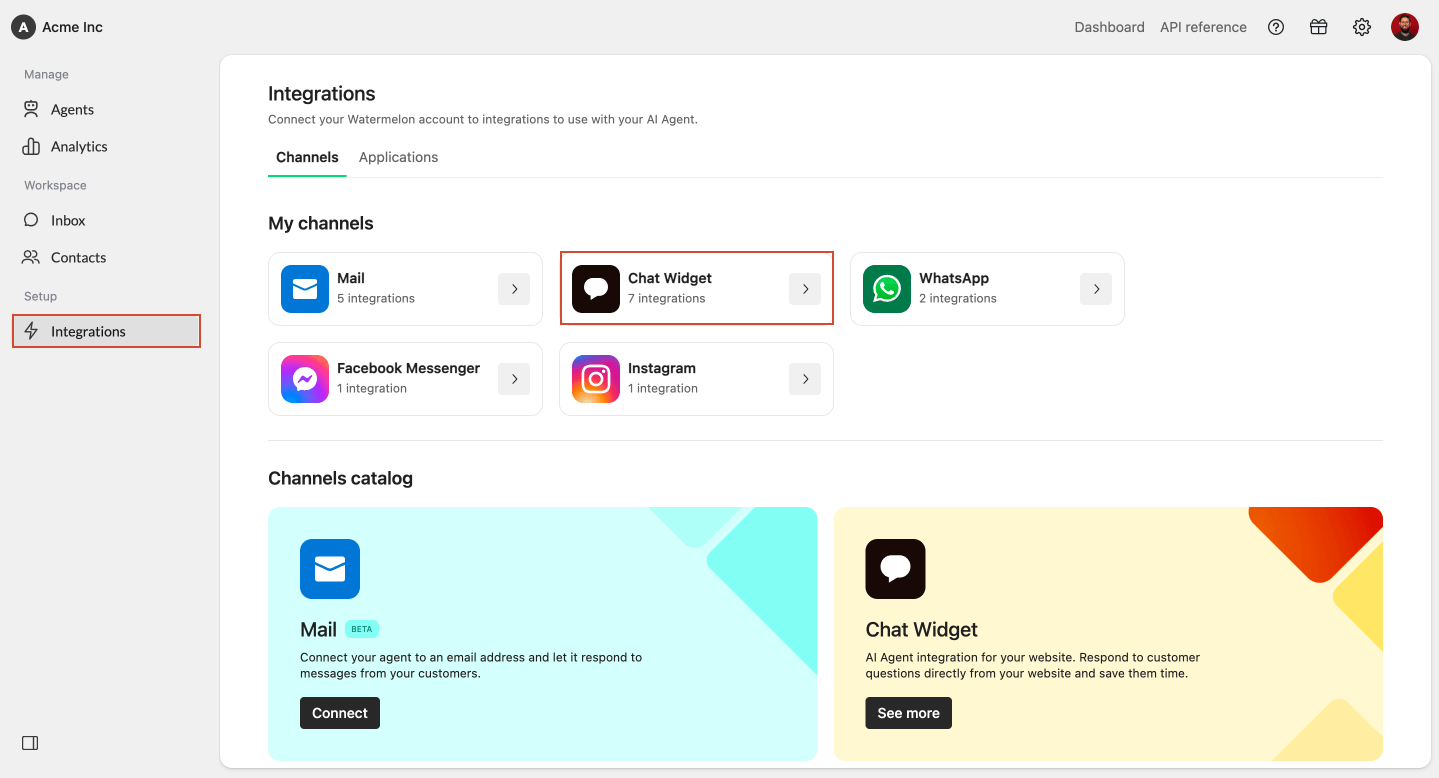 Select the **Chat Widget** integration from the integrations overview.
Select the chat widget that is connected to your Shopify agent.
Make sure this is the same agent where Shopify is connected.
Select the **Chat Widget** integration from the integrations overview.
Select the chat widget that is connected to your Shopify agent.
Make sure this is the same agent where Shopify is connected.
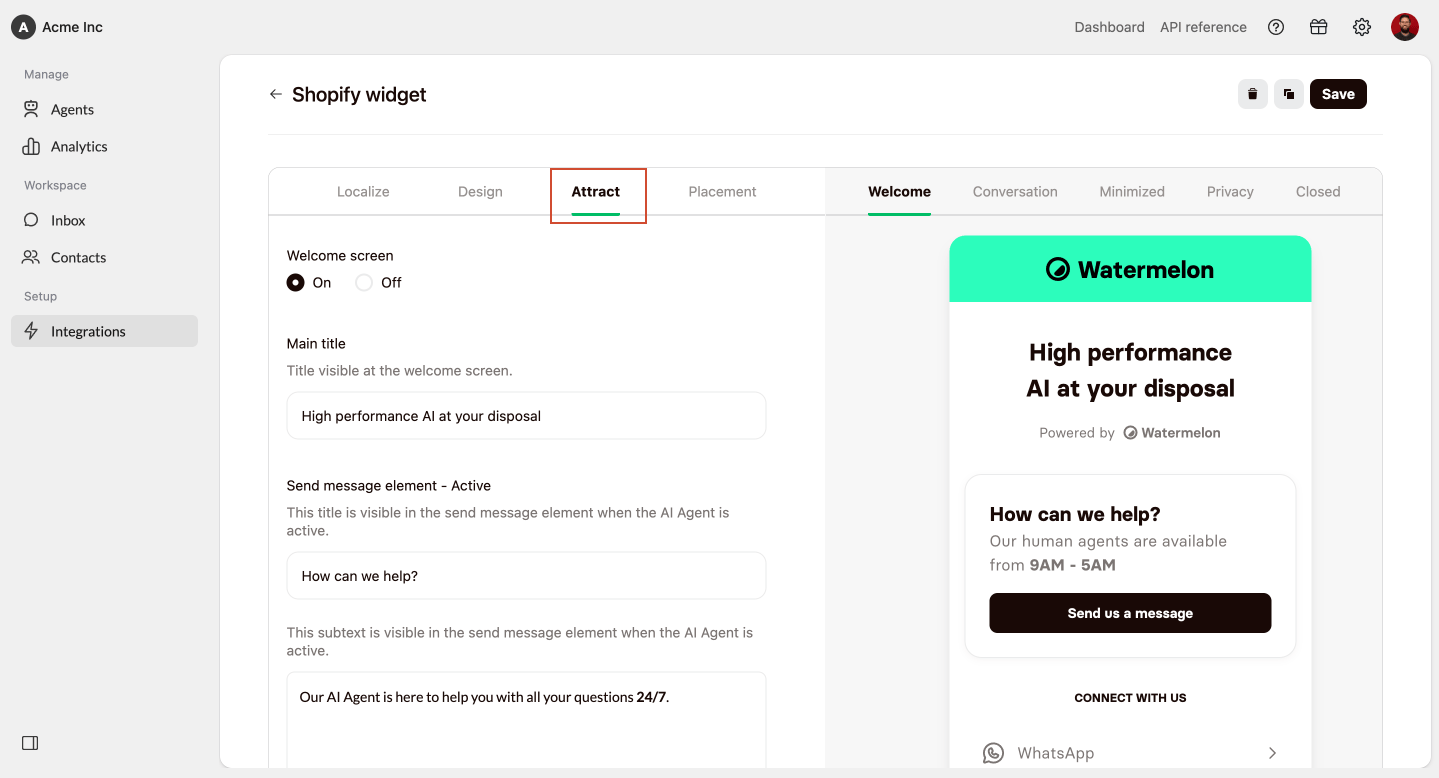
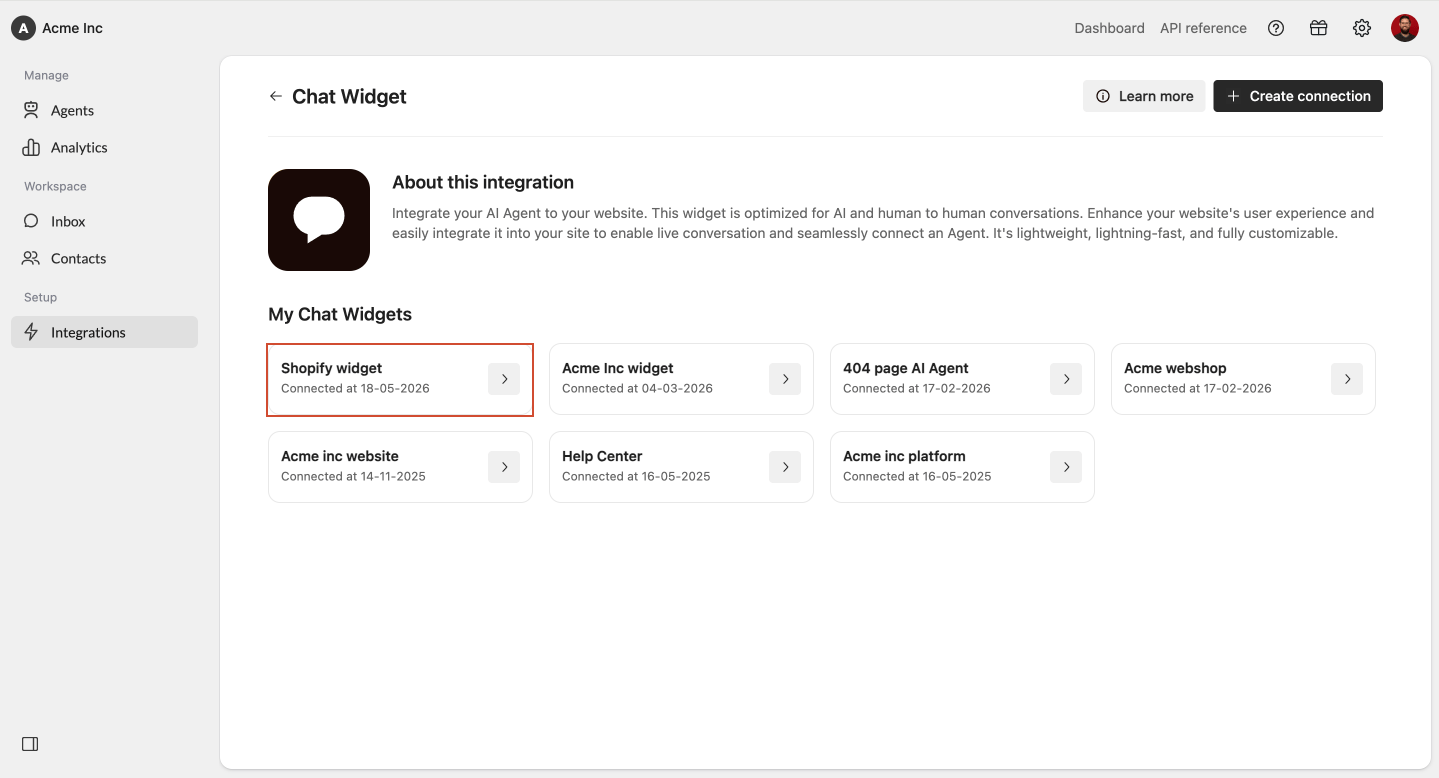 In the chat widget settings, go to **Attract**.
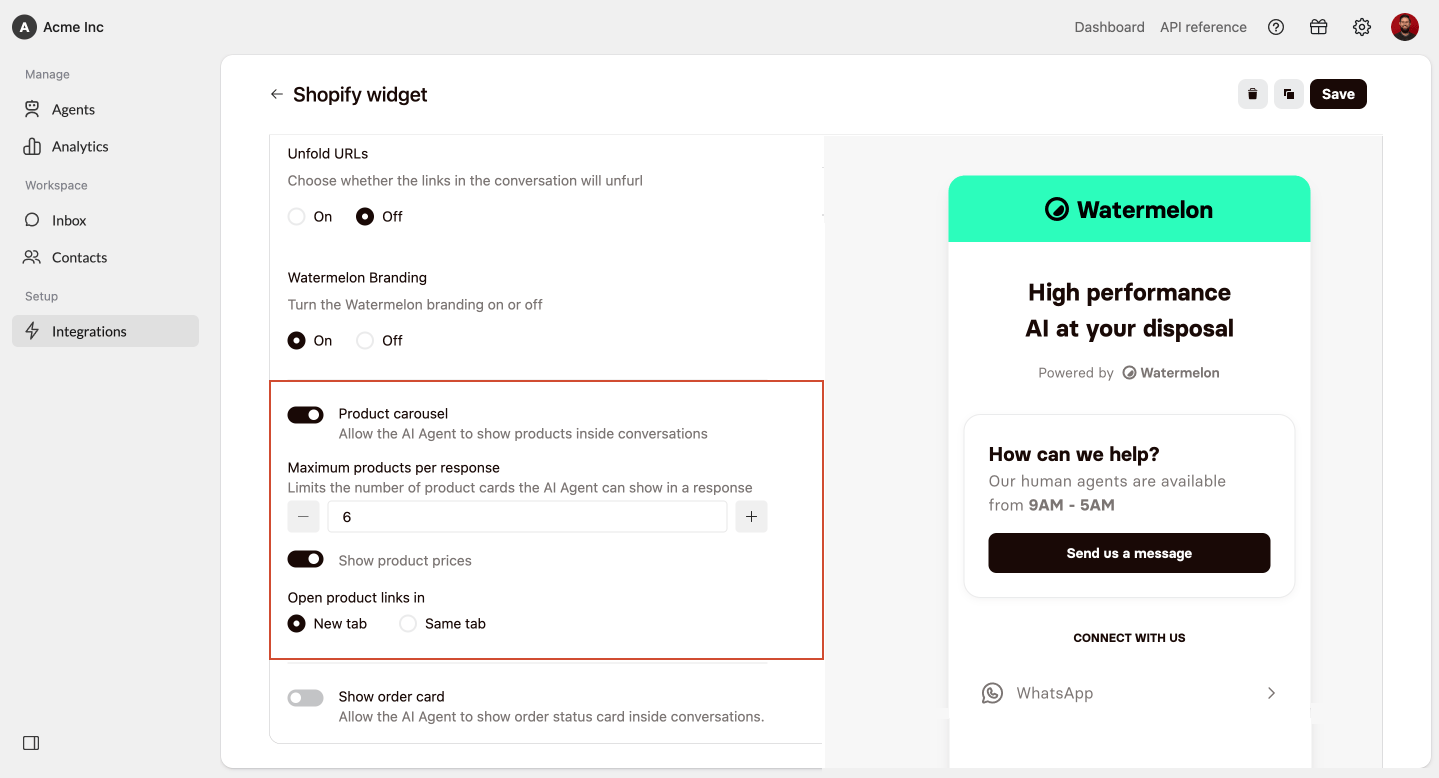
 Scroll down until you find the **Product carousel** setting.
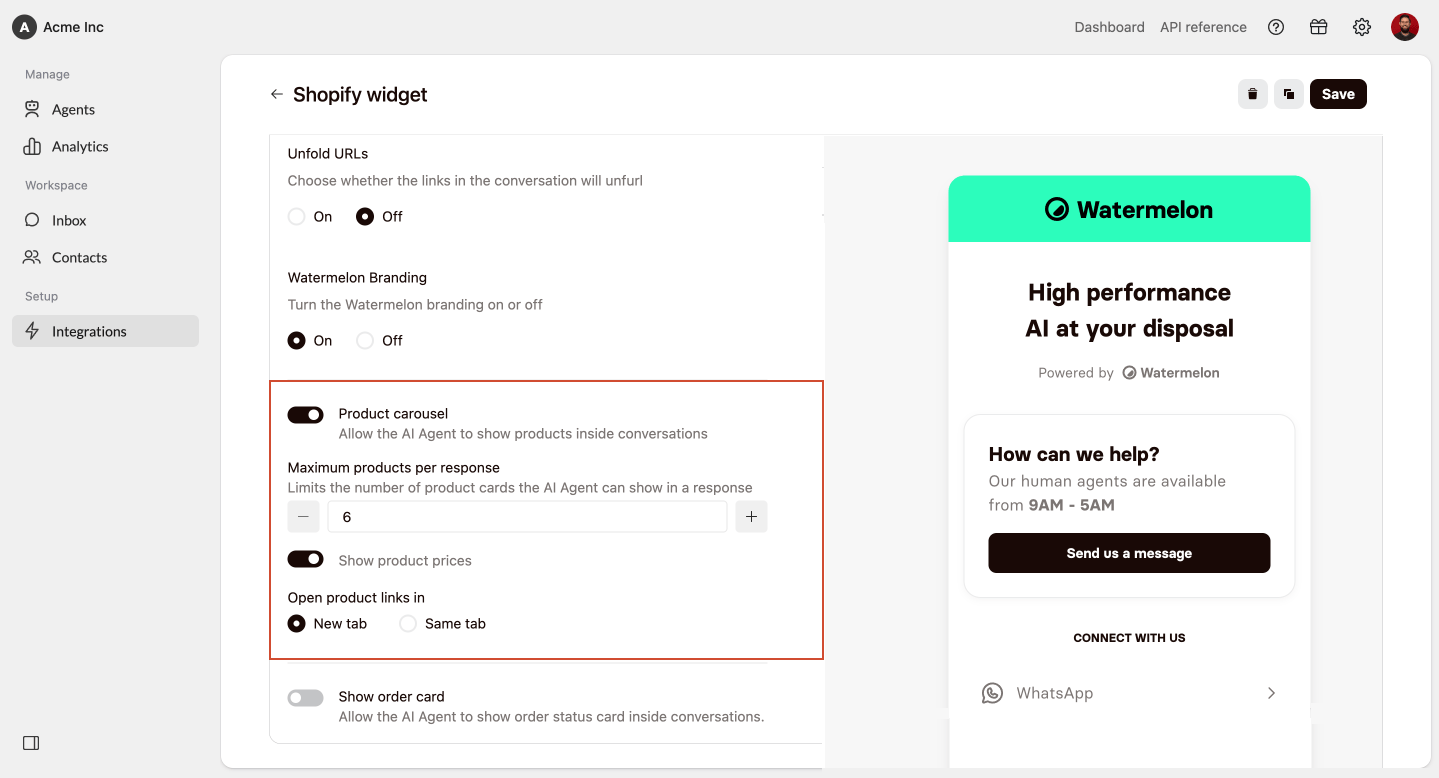 Turn the product carousel **on**.
Choose how products should appear in the chat widget.
You can configure:
* **Maximum products per response**: limits the number of product cards the AI Agent can show in one response. You can choose between **1 and 10**. The default is **3**.
* **Show product prices**: choose whether product prices are shown in the carousel.
* **Open product links in**: choose whether product links open in a **new tab** or the **same tab**.
Turn the product carousel **on**.
Choose how products should appear in the chat widget.
You can configure:
* **Maximum products per response**: limits the number of product cards the AI Agent can show in one response. You can choose between **1 and 10**. The default is **3**.
* **Show product prices**: choose whether product prices are shown in the carousel.
* **Open product links in**: choose whether product links open in a **new tab** or the **same tab**.
 Click **Save**.
The product carousel is now enabled for the selected chat widget.
#### Test the product carousel
Test the chat widget that is connected to your Shopify agent.
Ask product-related questions, such as:
* “Can you show me your most popular products?”
* “Do you have black sneakers?”
* “Can you show me products under €50?”
* “Can you show me a few similar products?”
Check whether the agent shows product cards and whether the carousel settings match your preferences.
***
### 2. Order details
The order details element shows Shopify order information in a card inside the chat widget.
Customers can use this card to see the status of their order and details of what the order contains.
Helping customers check order status and review what is included in their order.
**Required Shopify Action:** Retrieve and display orders
#### Setup instructions
In Watermelon, go to **Integrations**.
Select the **Chat Widget** integration from the integrations overview.
Select the chat widget that is connected to your Shopify agent.
Make sure this is the same agent where Shopify is connected.
Click **Save**.
The product carousel is now enabled for the selected chat widget.
#### Test the product carousel
Test the chat widget that is connected to your Shopify agent.
Ask product-related questions, such as:
* “Can you show me your most popular products?”
* “Do you have black sneakers?”
* “Can you show me products under €50?”
* “Can you show me a few similar products?”
Check whether the agent shows product cards and whether the carousel settings match your preferences.
***
### 2. Order details
The order details element shows Shopify order information in a card inside the chat widget.
Customers can use this card to see the status of their order and details of what the order contains.
Helping customers check order status and review what is included in their order.
**Required Shopify Action:** Retrieve and display orders
#### Setup instructions
In Watermelon, go to **Integrations**.
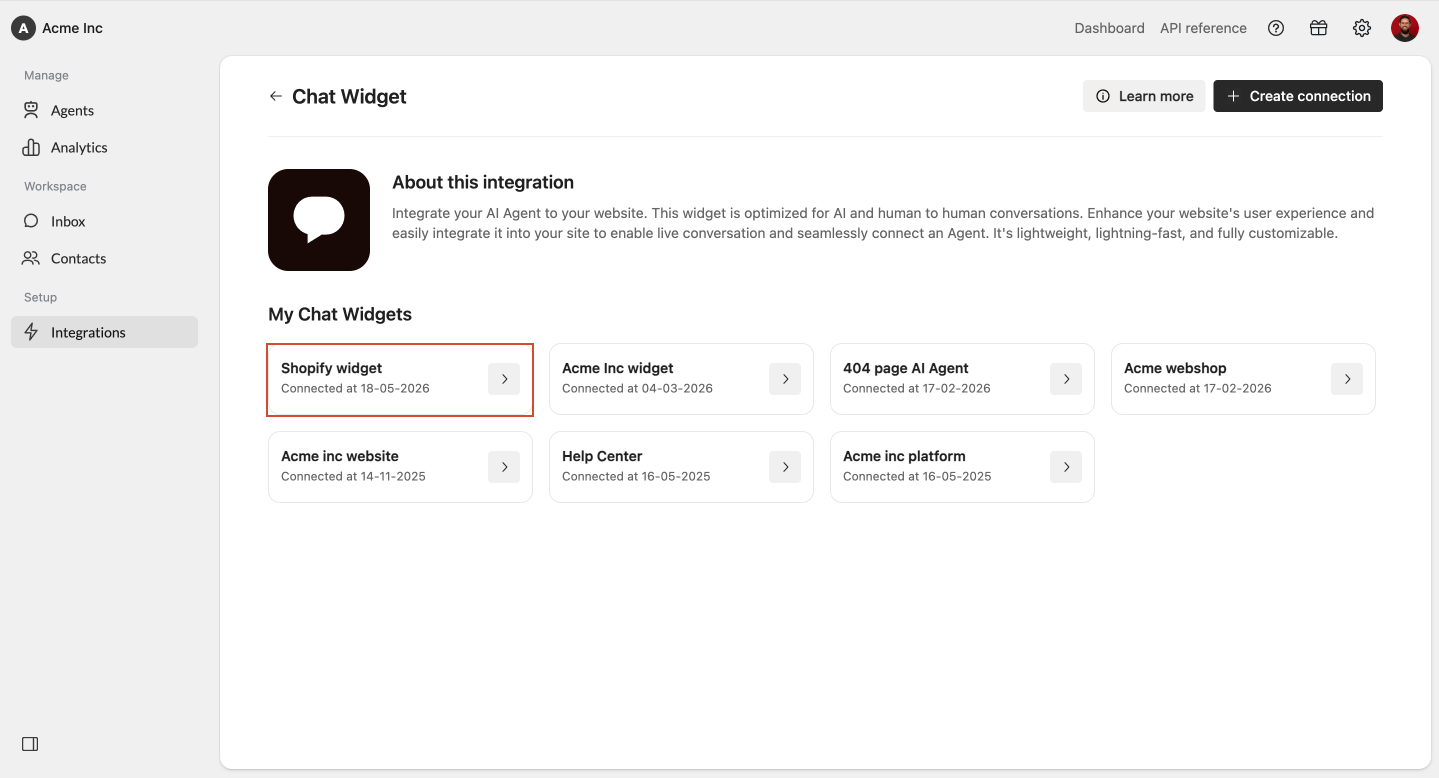
Select the **Chat Widget** integration from the integrations overview.
Select the chat widget that is connected to your Shopify agent.
Make sure this is the same agent where Shopify is connected.
 In the chat widget settings, go to **Attract**.
Scroll down until you find the **Order details** setting.
In the chat widget settings, go to **Attract**.
Scroll down until you find the **Order details** setting.
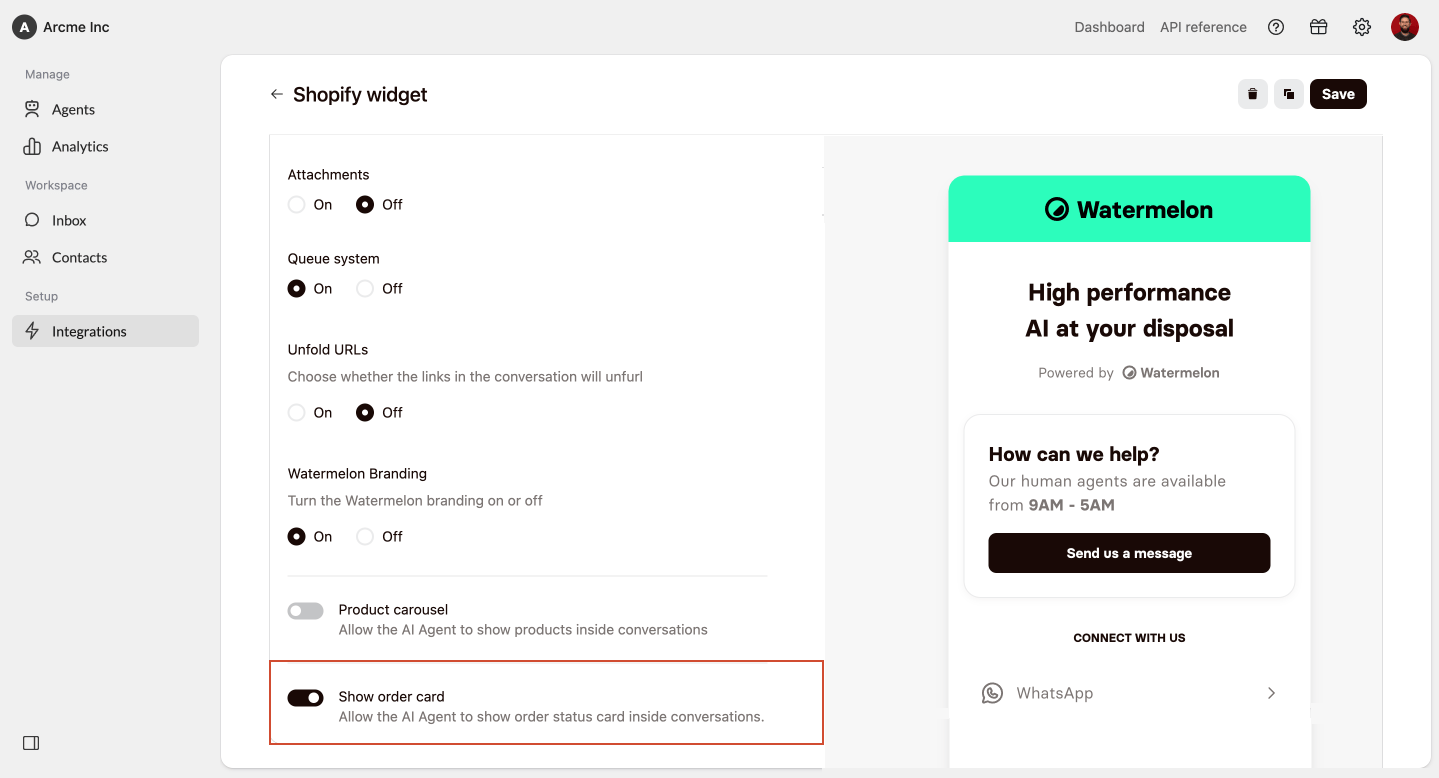 Turn order details **on**.
When enabled, customers can see an order card in the chat widget with the order status and order details.
Click **Save**.
Order details are now enabled for the selected chat widget.
#### Test order details
Test the chat widget that is connected to your Shopify agent.
Ask order-related questions, such as:
* “Where is my order?”
* “Can you show me the details of my order?”
* “What is the status of my latest order?”
* “Can you check order #1234?”
Check whether the agent shows an order card with the correct order status and order details.
The order card can only show information that is available in Shopify. The customer may need to provide enough order details for the AI Agent to find the right order.
Turn order details **on**.
When enabled, customers can see an order card in the chat widget with the order status and order details.
Click **Save**.
Order details are now enabled for the selected chat widget.
#### Test order details
Test the chat widget that is connected to your Shopify agent.
Ask order-related questions, such as:
* “Where is my order?”
* “Can you show me the details of my order?”
* “What is the status of my latest order?”
* “Can you check order #1234?”
Check whether the agent shows an order card with the correct order status and order details.
The order card can only show information that is available in Shopify. The customer may need to provide enough order details for the AI Agent to find the right order.