> ## Documentation Index
> Fetch the complete documentation index at: https://watermelon.ai/docs/llms.txt
> Use this file to discover all available pages before exploring further.
# Chat Widget settings
> Amend the Chat Widget settings, so your Agent always shows in your preferred way.
You can make changes to the Chat Widget so it always matches the look and feel of your website.
To make changes to your Widget, go to **Integrations** and open your Chat Widget.
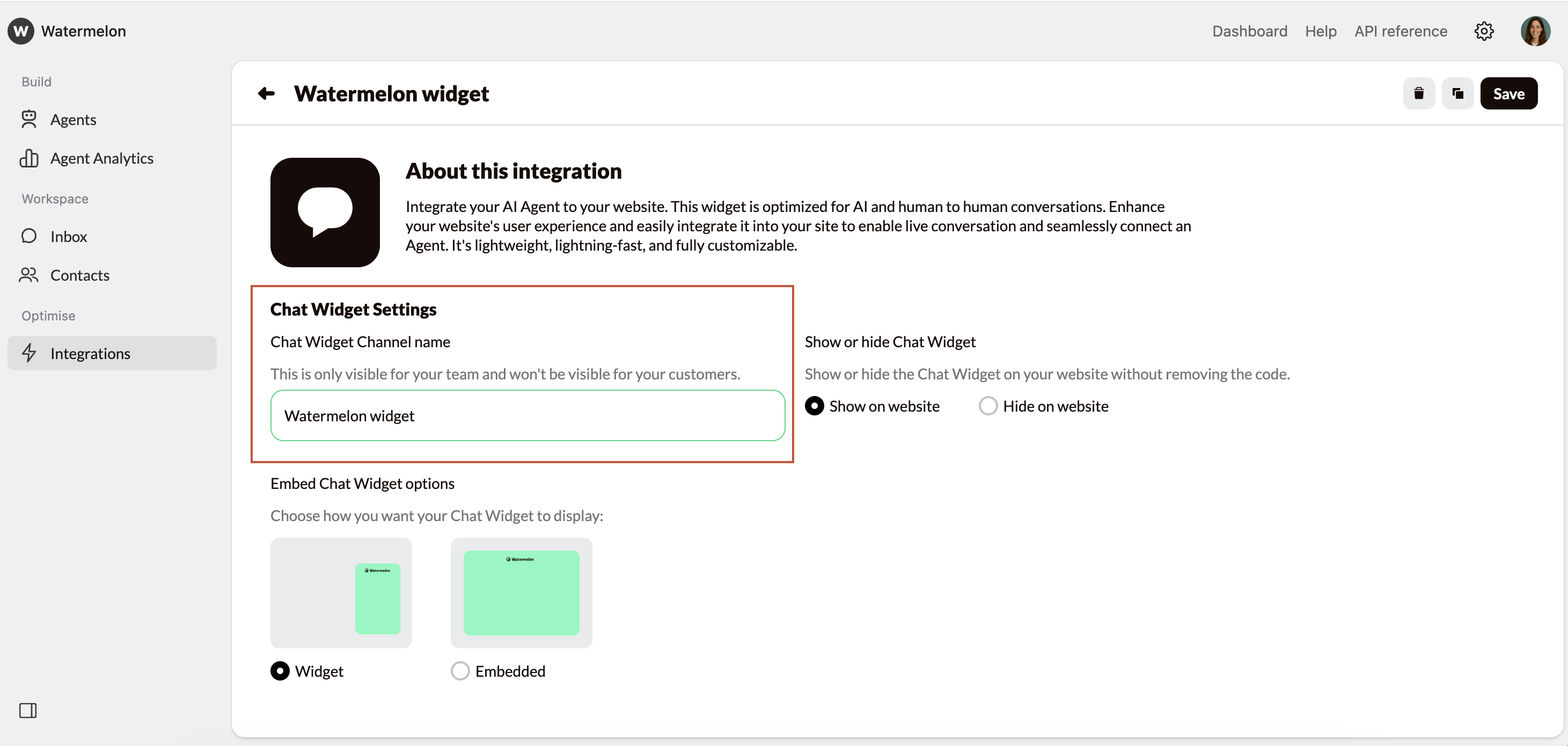
### Chat Widget Channel name
You can customize the Widget name according to your preference. The name is not visible to customers. We advise changing the name if you have multiple Chat Widgets.
 ### Show or hide Chat Widget
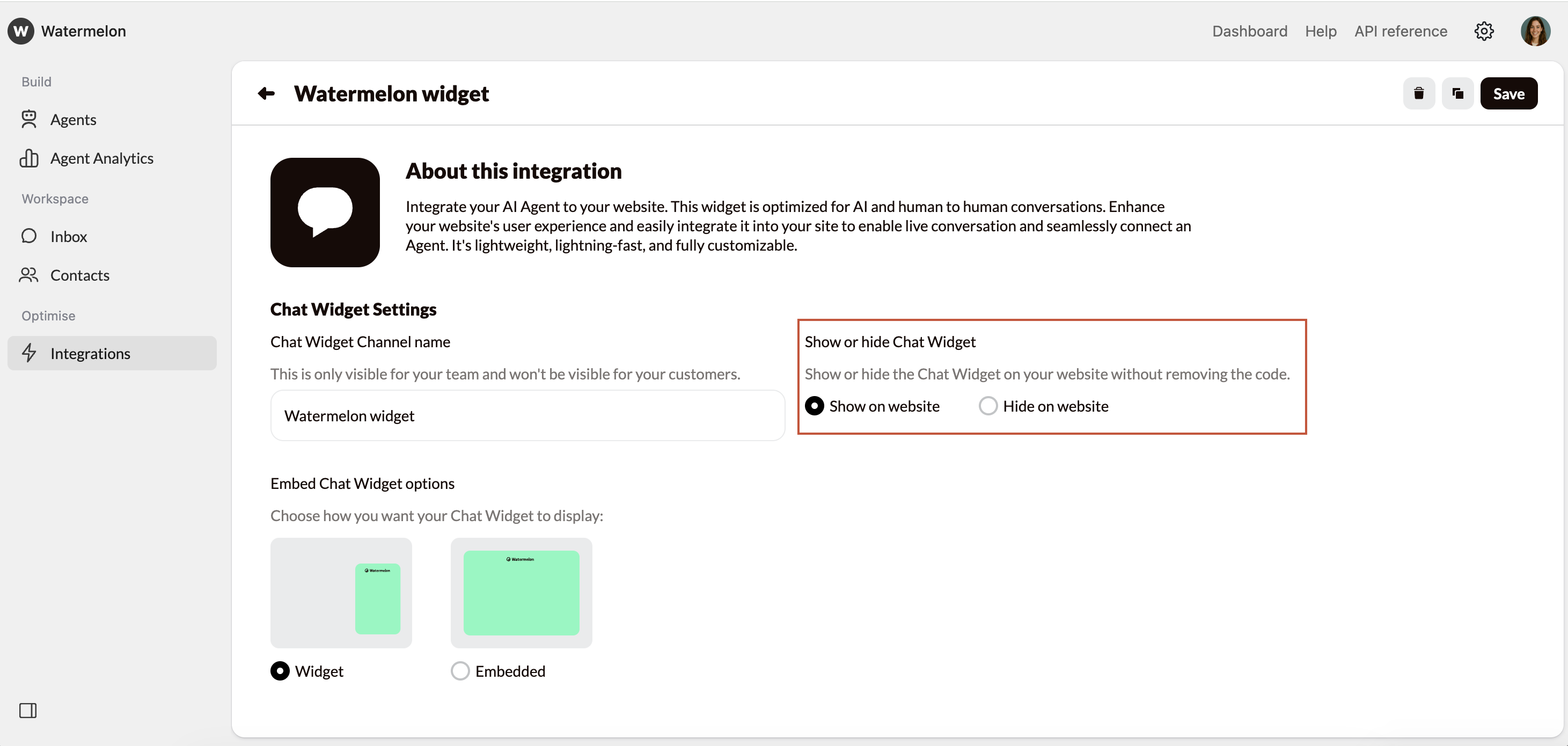
With **Show or hide chat widget**, you decide if the Agent is visible on your website. \
Once the widget code is placed, you no longer need a developer. Simply toggle the setting to show or hide the entire chat widget without removing any code.
### Show or hide Chat Widget
With **Show or hide chat widget**, you decide if the Agent is visible on your website. \
Once the widget code is placed, you no longer need a developer. Simply toggle the setting to show or hide the entire chat widget without removing any code.
 Place the code under **Placement** early in your building process. When your Agent is ready, you can go live right away without waiting on a developer.
### Embeded Chat Widget options
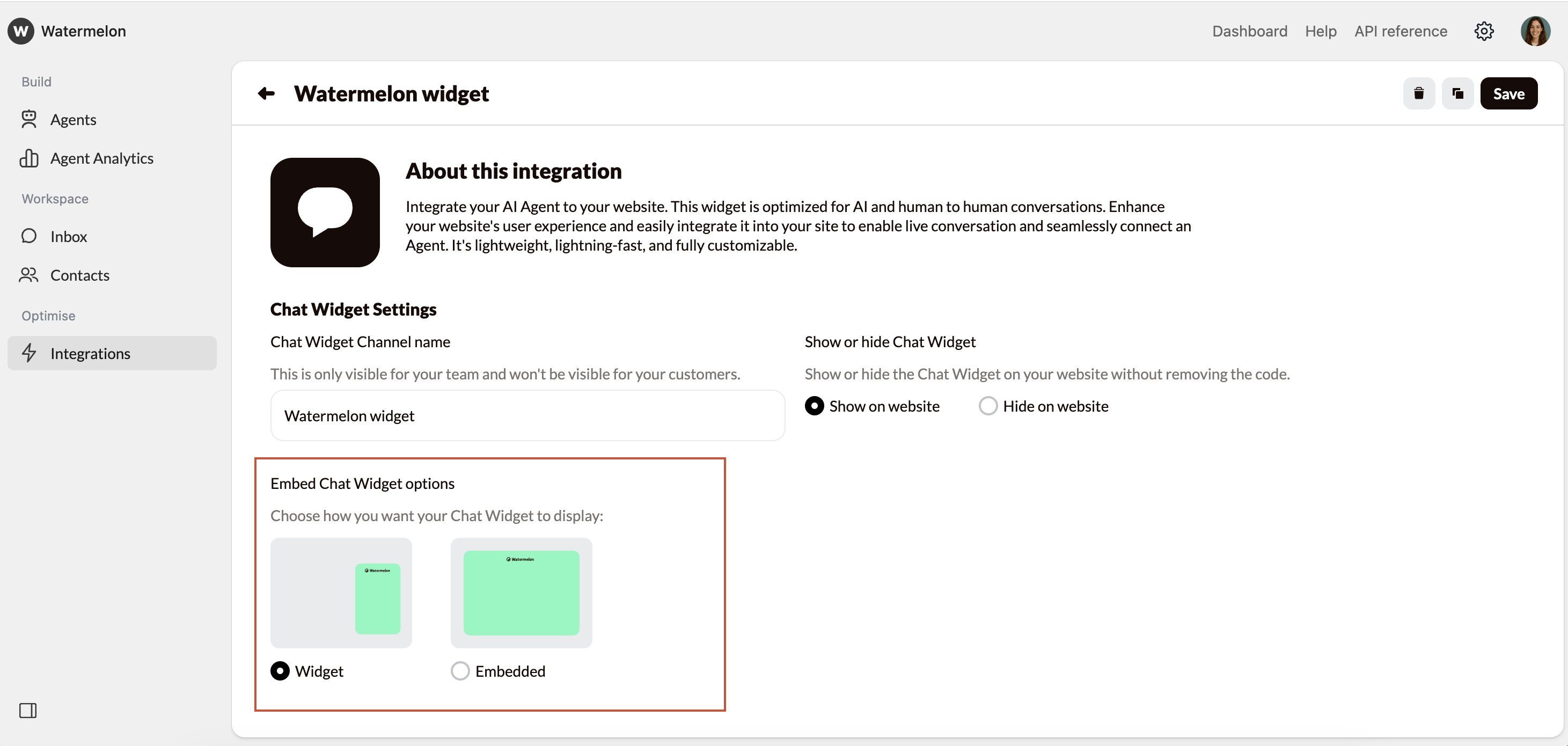
Within the embedding options, you can choose how to display your Chat Widget.
* **Widget**: A chat widget appears in the corner of your website, allowing visitors to start a conversation from any page.
* **Embedded**: You can embed the widget so it opens in an iframe or in full screen on a page.
Place the code under **Placement** early in your building process. When your Agent is ready, you can go live right away without waiting on a developer.
### Embeded Chat Widget options
Within the embedding options, you can choose how to display your Chat Widget.
* **Widget**: A chat widget appears in the corner of your website, allowing visitors to start a conversation from any page.
* **Embedded**: You can embed the widget so it opens in an iframe or in full screen on a page.
 ### Preview changes
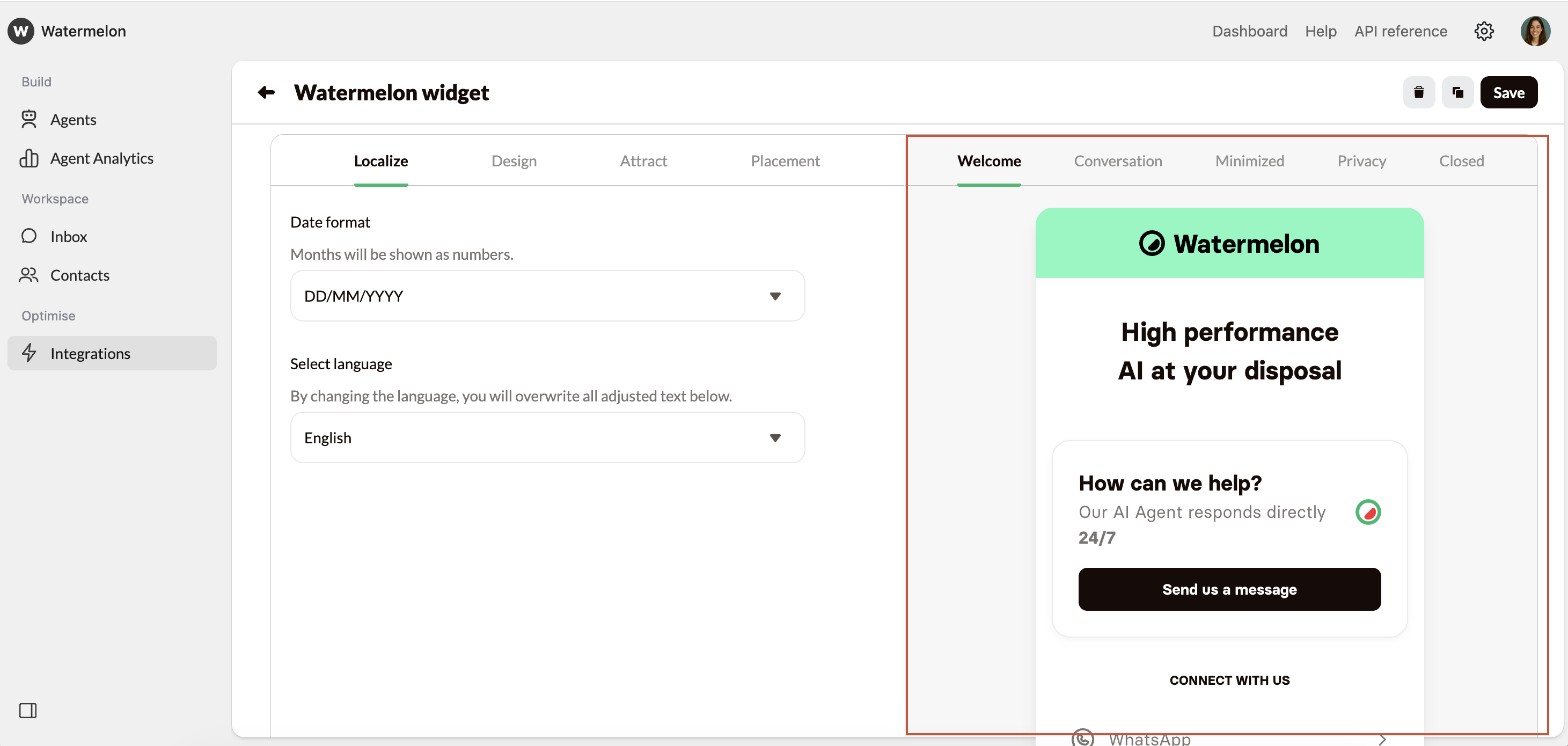
Each time you make a change, you will see the update on the right side as a preview of the chat widget, just as the customer will see it. There are various tabs where you can preview different forms of the Chat Widget:
* **Welcome** is the Welcome screen of the chat, the first thing people see when they open the chat.
* **Chat** is when someone is engaged in a conversation.
* **Minimized** shows how your AI Agent looks when someone has not opened the chat or has minimized it using the minimize button.
* **Privacy** for the privacy policy.
* **Closed** is out of business hours, it is then only possible to send messages when the AI Agent is active.
### Preview changes
Each time you make a change, you will see the update on the right side as a preview of the chat widget, just as the customer will see it. There are various tabs where you can preview different forms of the Chat Widget:
* **Welcome** is the Welcome screen of the chat, the first thing people see when they open the chat.
* **Chat** is when someone is engaged in a conversation.
* **Minimized** shows how your AI Agent looks when someone has not opened the chat or has minimized it using the minimize button.
* **Privacy** for the privacy policy.
* **Closed** is out of business hours, it is then only possible to send messages when the AI Agent is active.