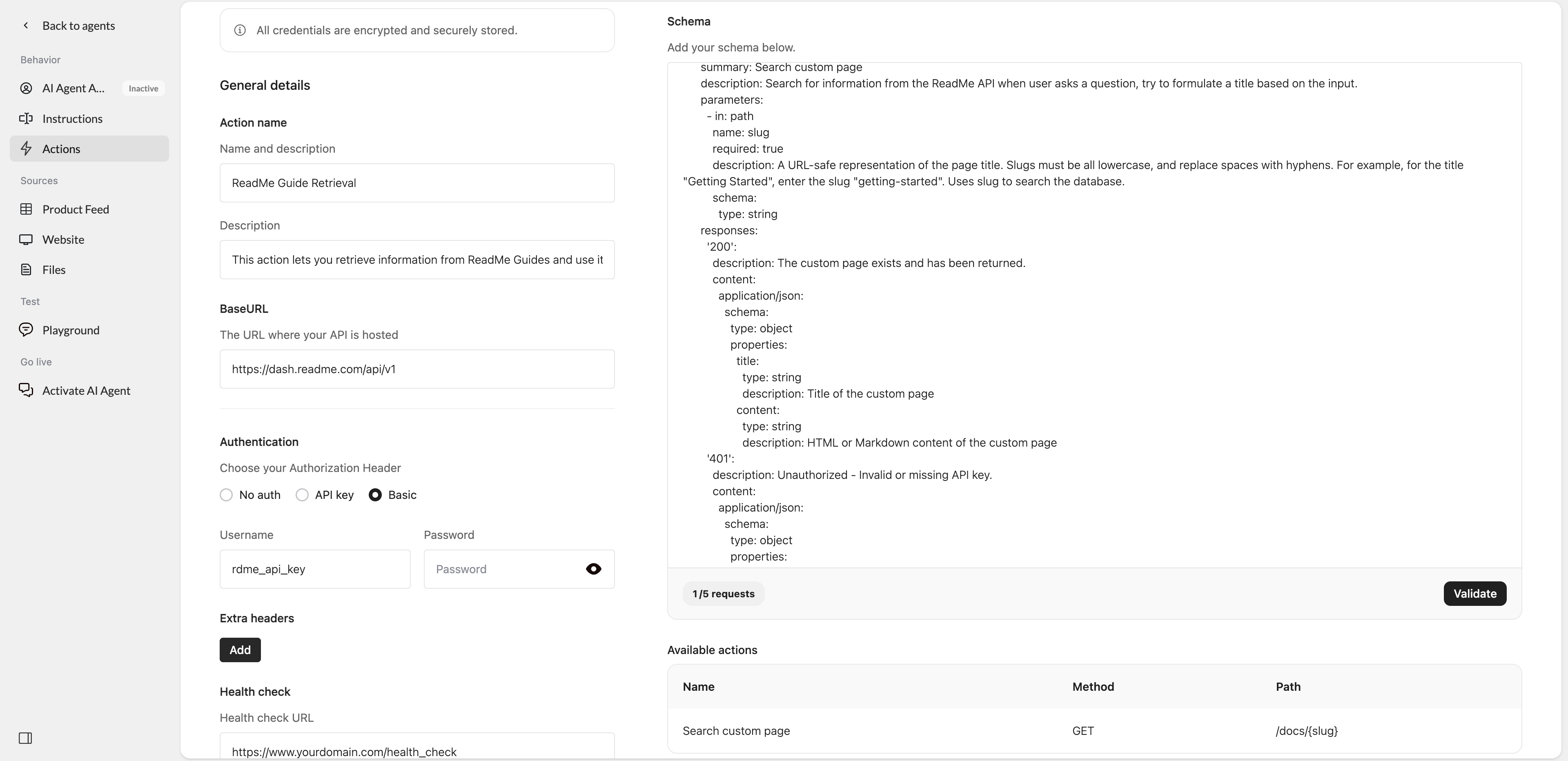
- A predefined OpenAPI schema for ReadMe
- Basic authentication
- The required ReadMe API BaseURL
- A health check configuration
Set up the action
- Go to Actions in Watermelon.
- In the Actions catalog, click Custom action.
- Click Create new Action.
- Fill in the fields below.
General details
Action nameReadMe Guide Retrieval
DescriptionThis action lets you retrieve information from ReadMe Guides and use it when answering customer questions.
BaseURLhttps://dash.readme.com/api/v1
Authentication
For Authorization Header, select Basic. Usernamerdme_api_key
Replace this with your ReadMe API key.
PasswordLeave this field empty.
Health check
Health check URLhttps://www.yourdomain.com/health_check
Replace this URL with the health check endpoint you want Watermelon to use.
Instruction
You should respond with the following message or a similar variation: Sorry, something went wrong on our end. Can I assist you with anything else? Please let me know how I can help.
Schema
Paste the ReadMe schema into the Schema field:Example in Watermelon