Step-by-step guide for installing and integrating the Watermelon Widget on your website or app, including setup, login, and logout instructions.
It only takes a few minutes to install the Widget on your website. Once installed, you’ll be able to answer Frequently Asked Questions automatically in no-time.You have two ways to install your widget:
For visitors on your website – the widget appears for anyone browsing your site. Conversations will be saved in the browser via a cookie.
For both visitors and logged-in users – the widget is available across your website and inside your platform or app. The widget will show information like customer names and previous conversations across devices.
We recommend installing the Widget for both visitors and logged-in users to give everyone instant access to your team.
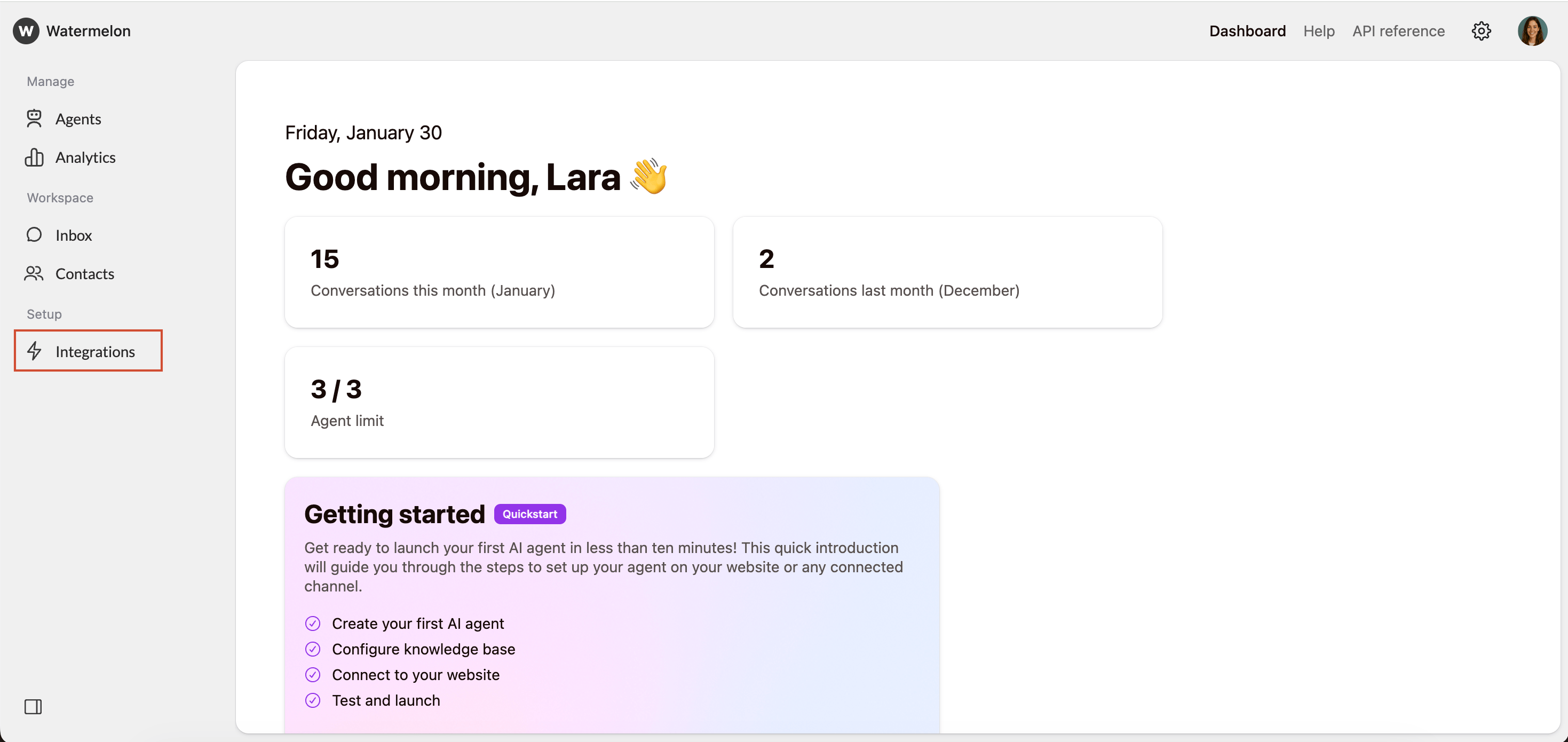
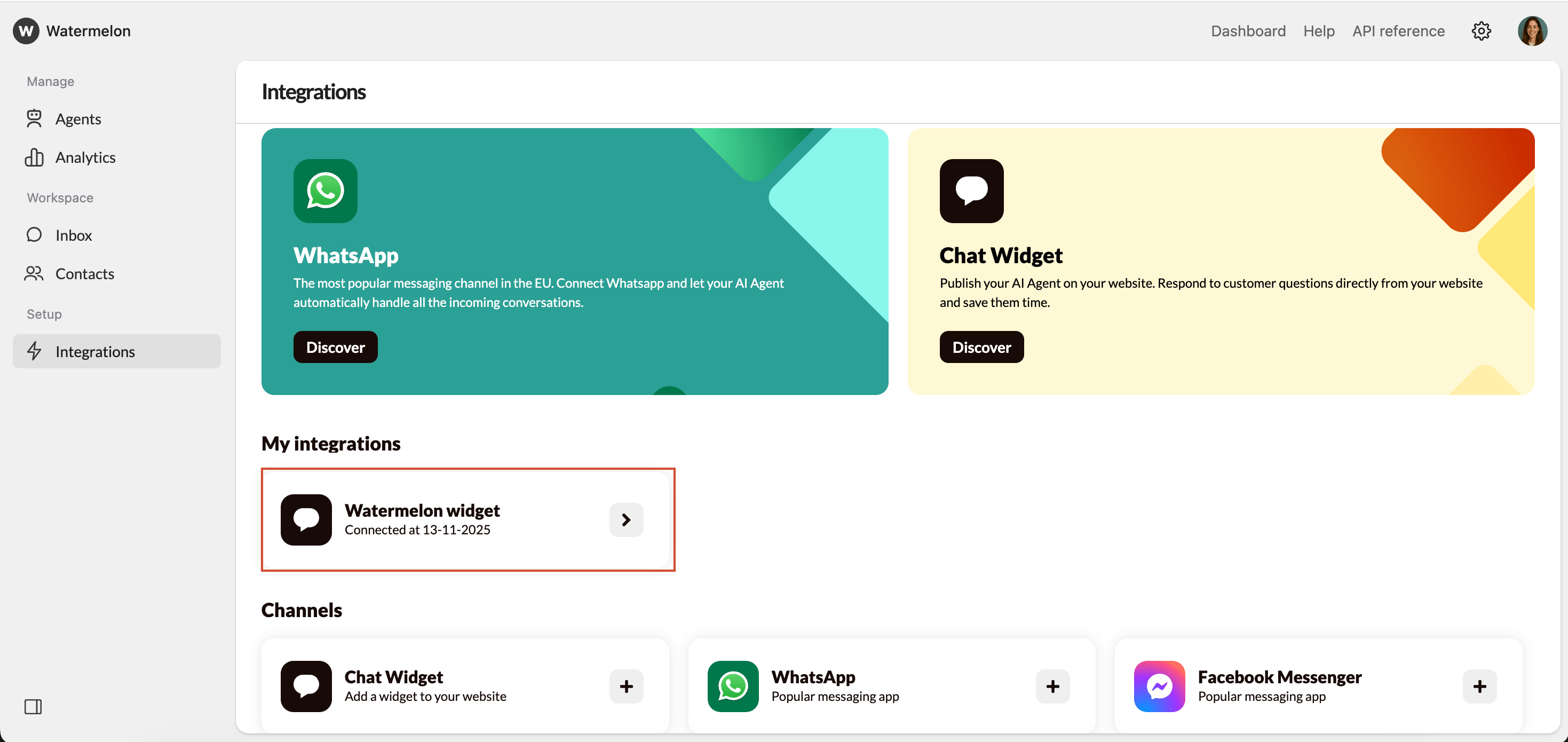
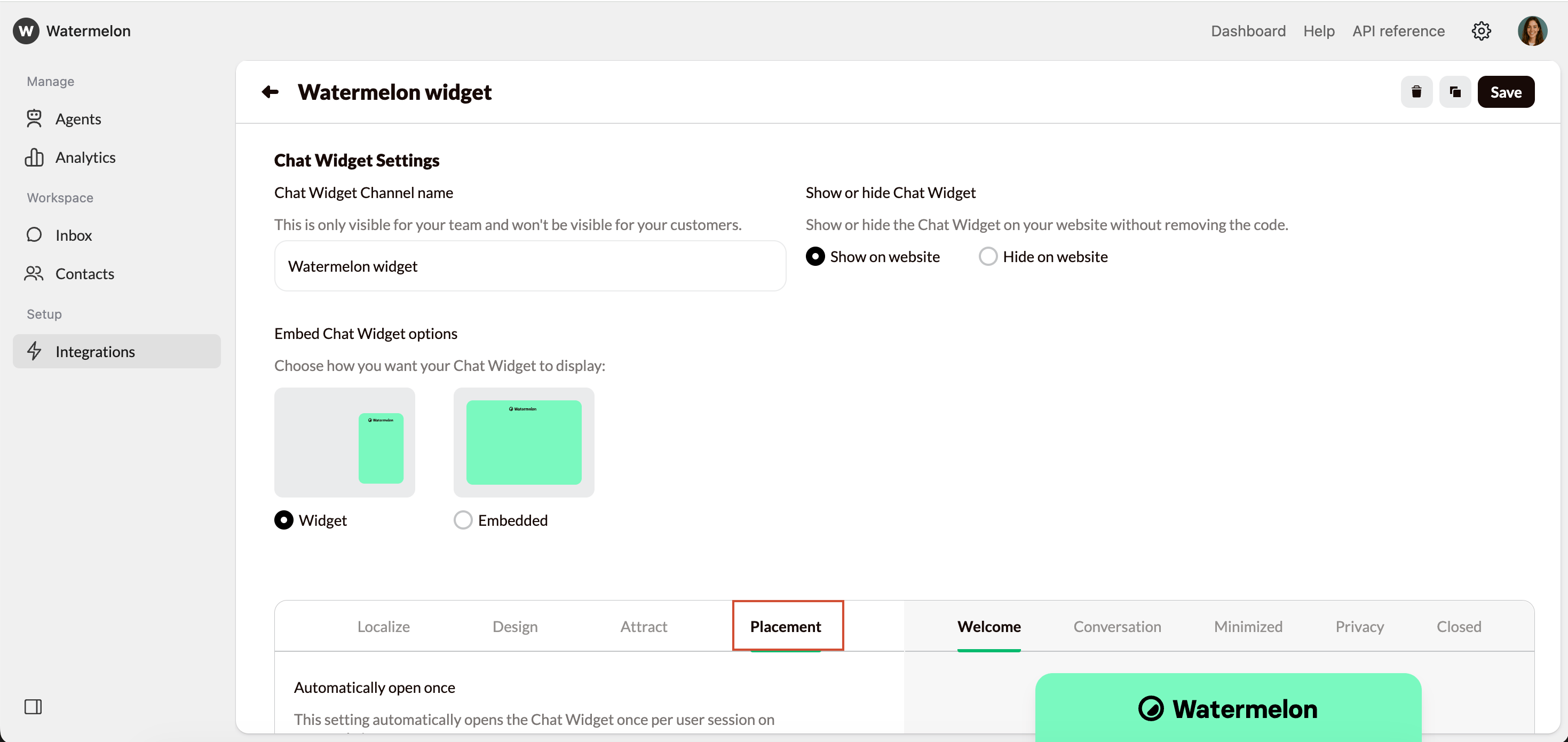
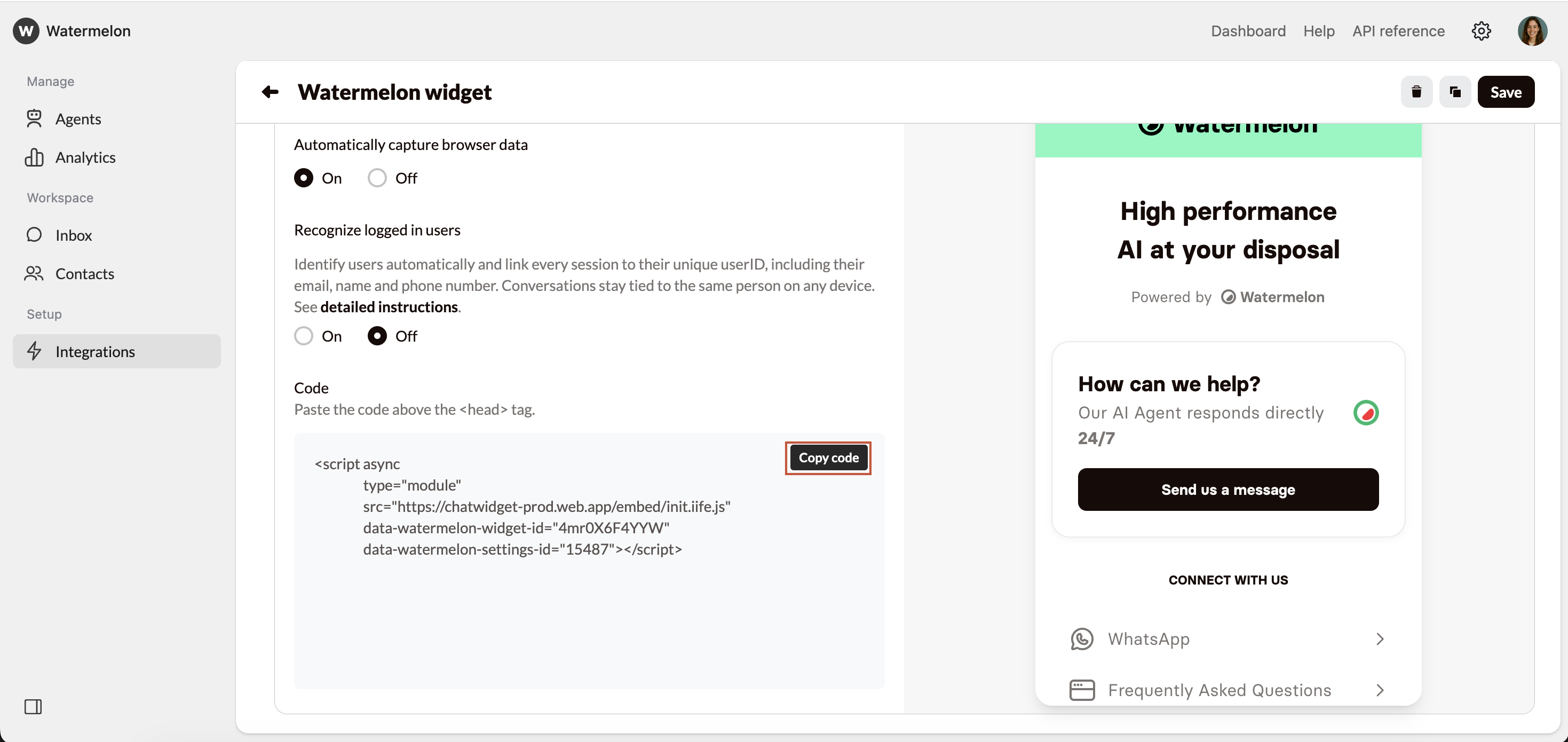
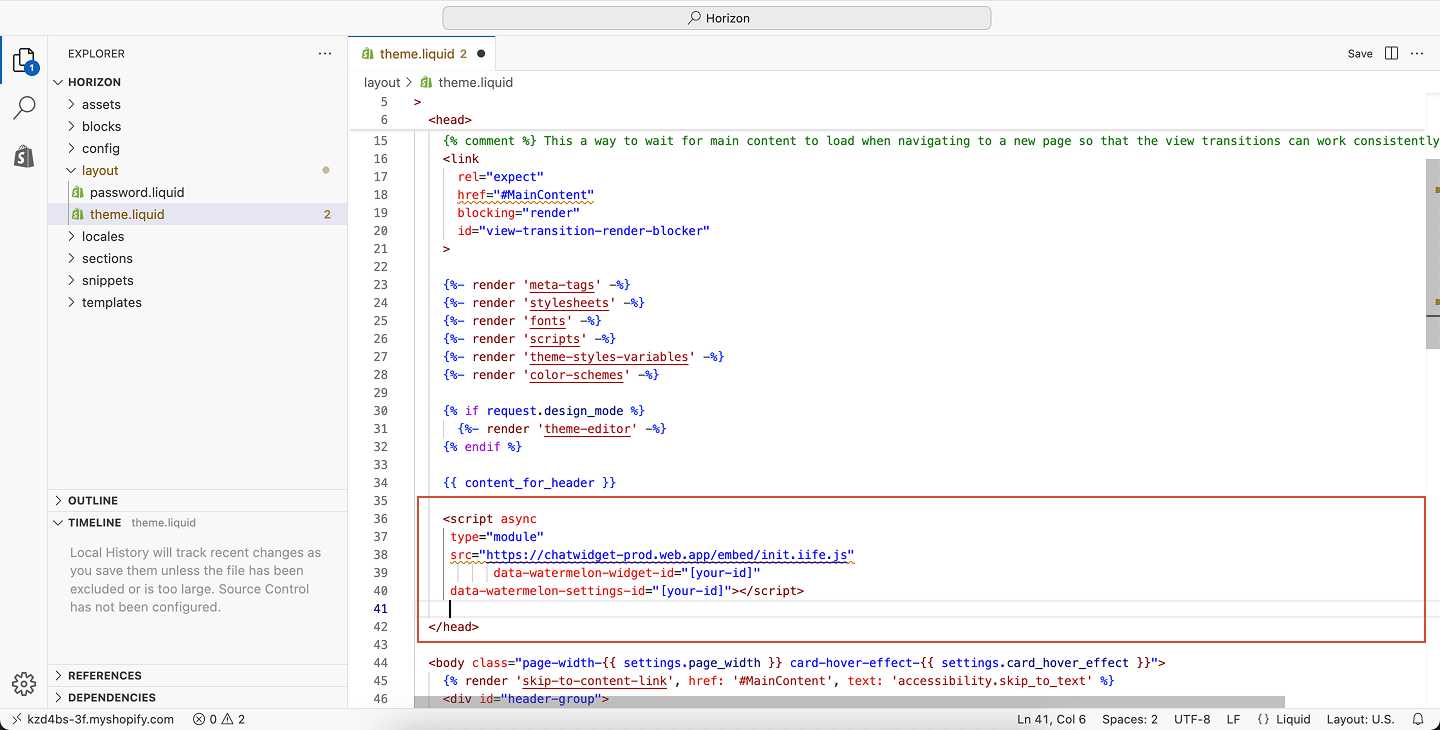
Click Copy code and paste it before the </head> tag on every page you want the Widget to appear on your app and website.After adding the code, open your app and website and the Widget will appear.You can also use one of our guides to install the widget in a CMS:
Wordpress
Wix
Lightspeed
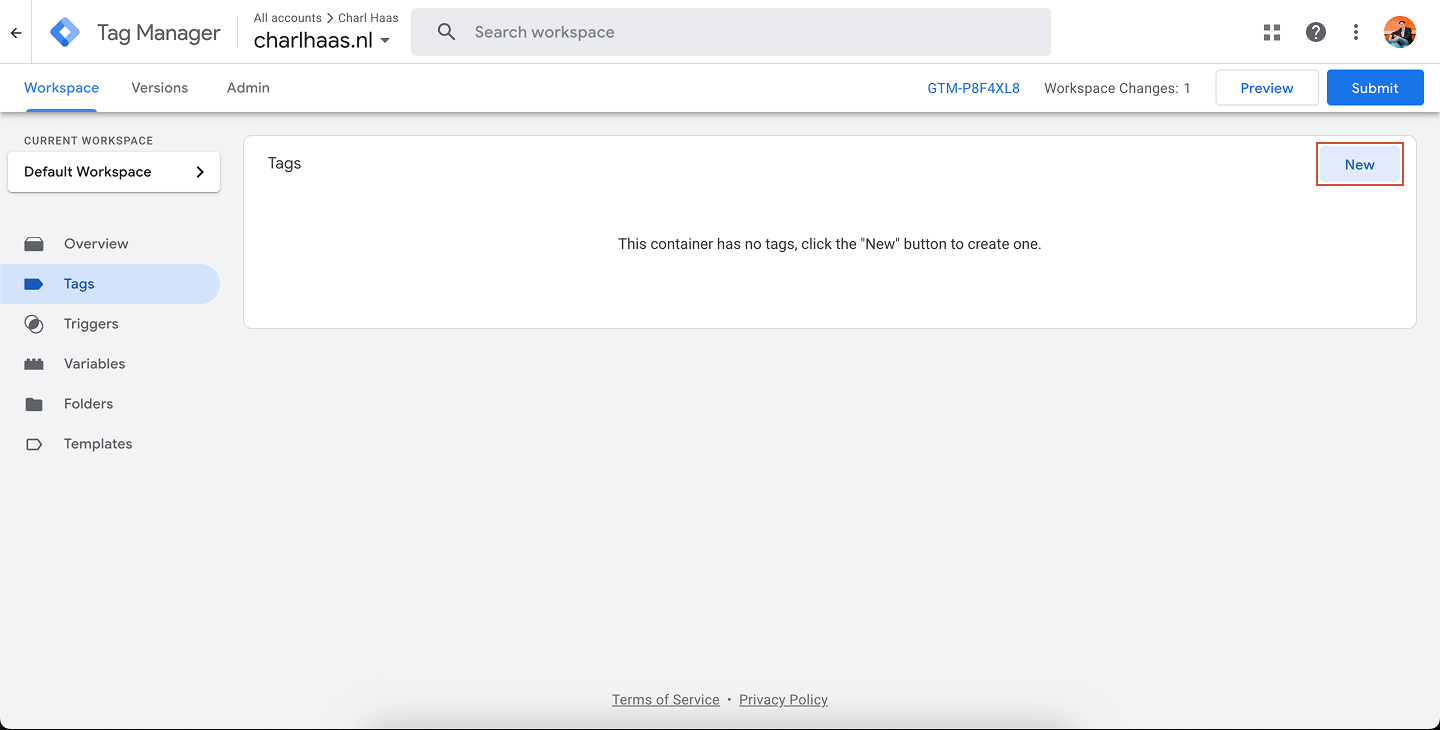
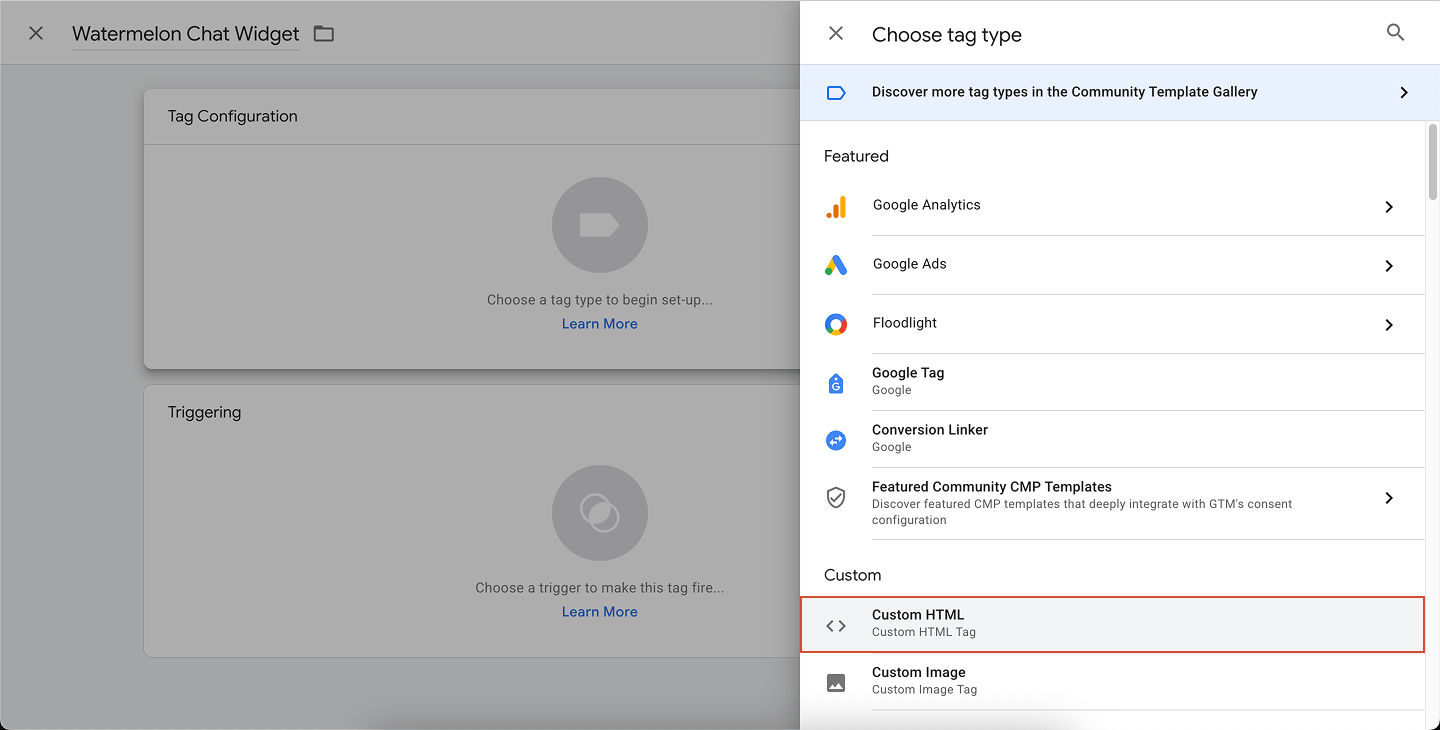
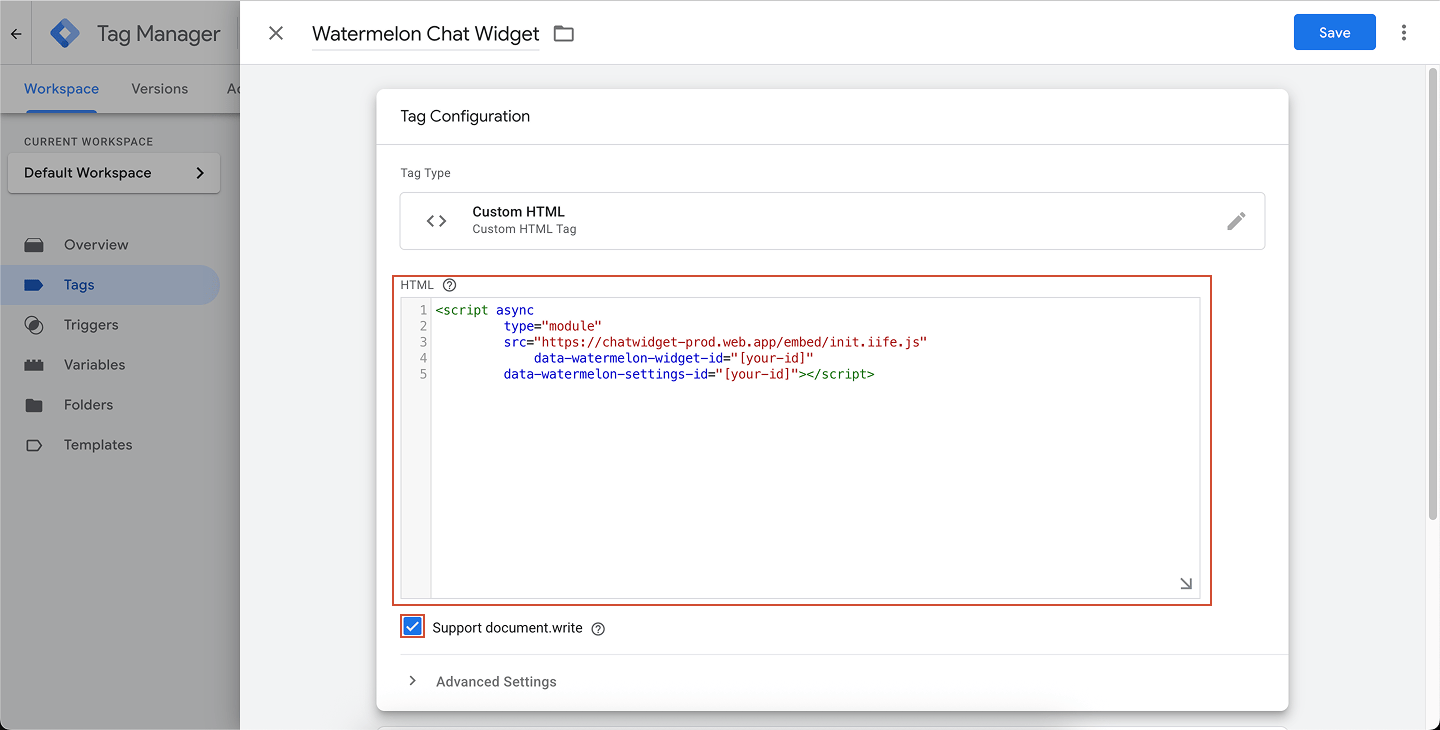
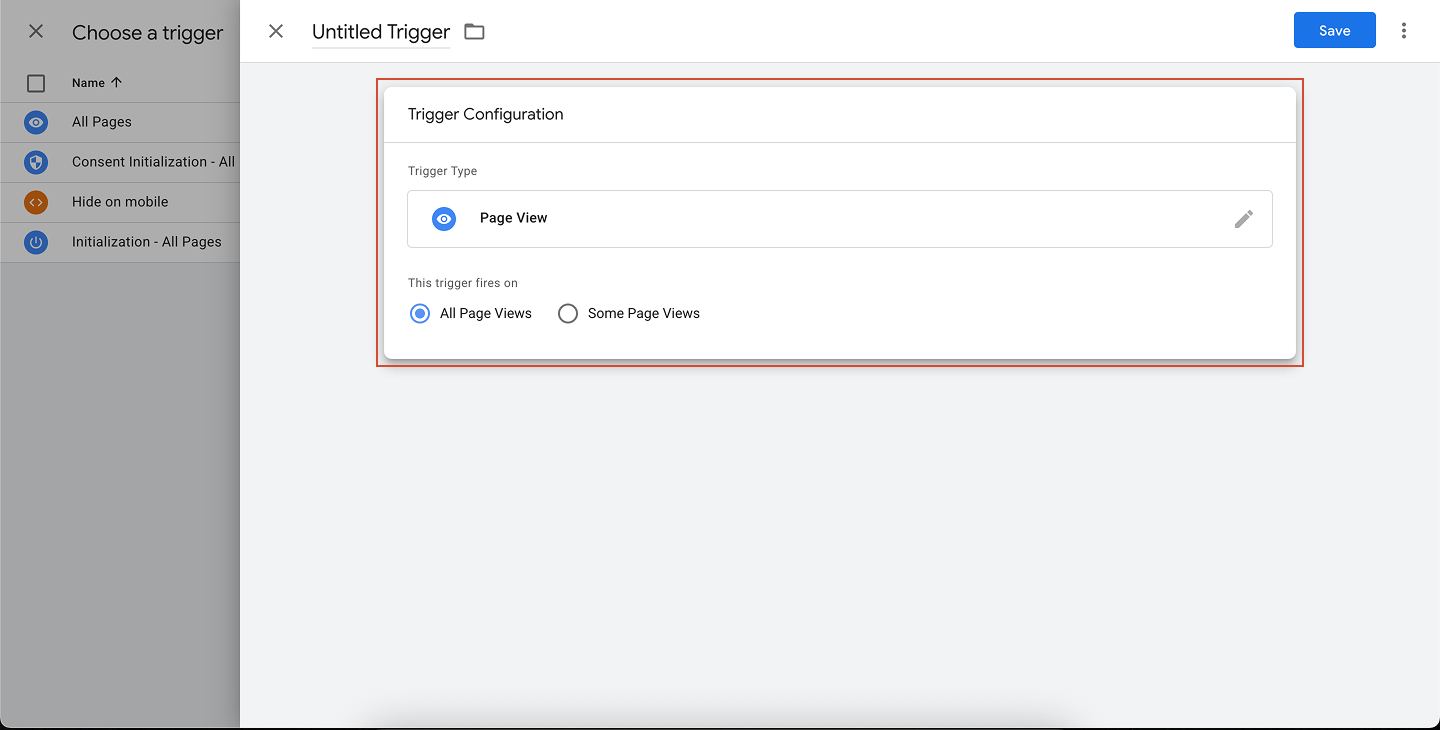
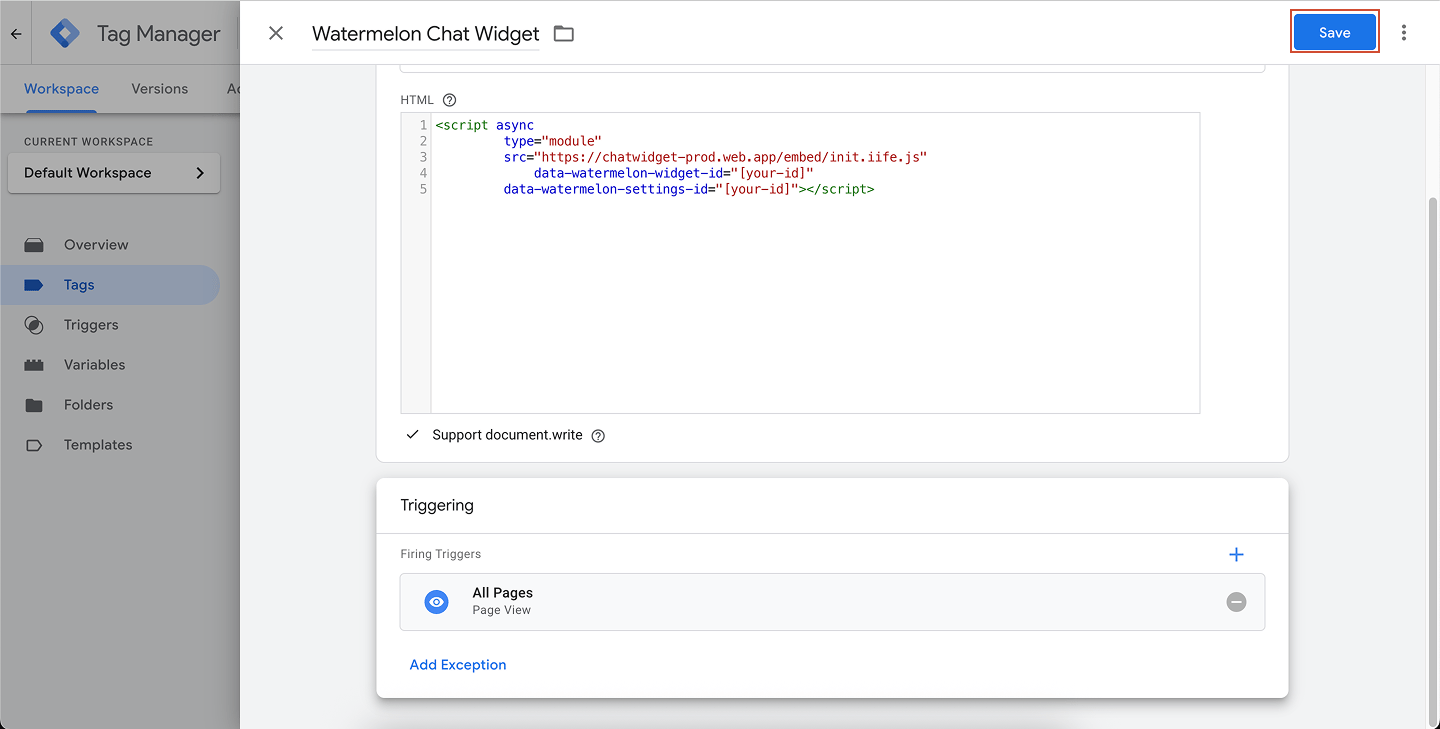
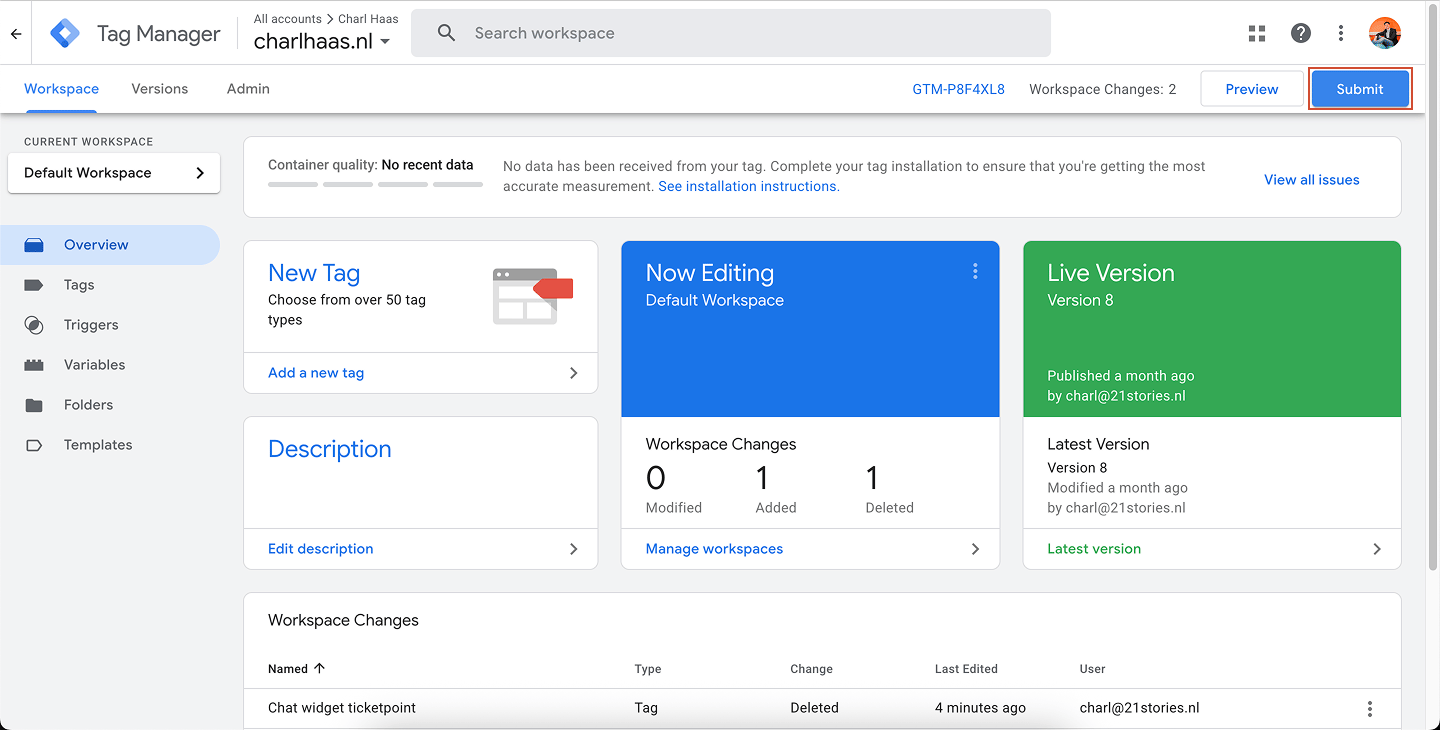
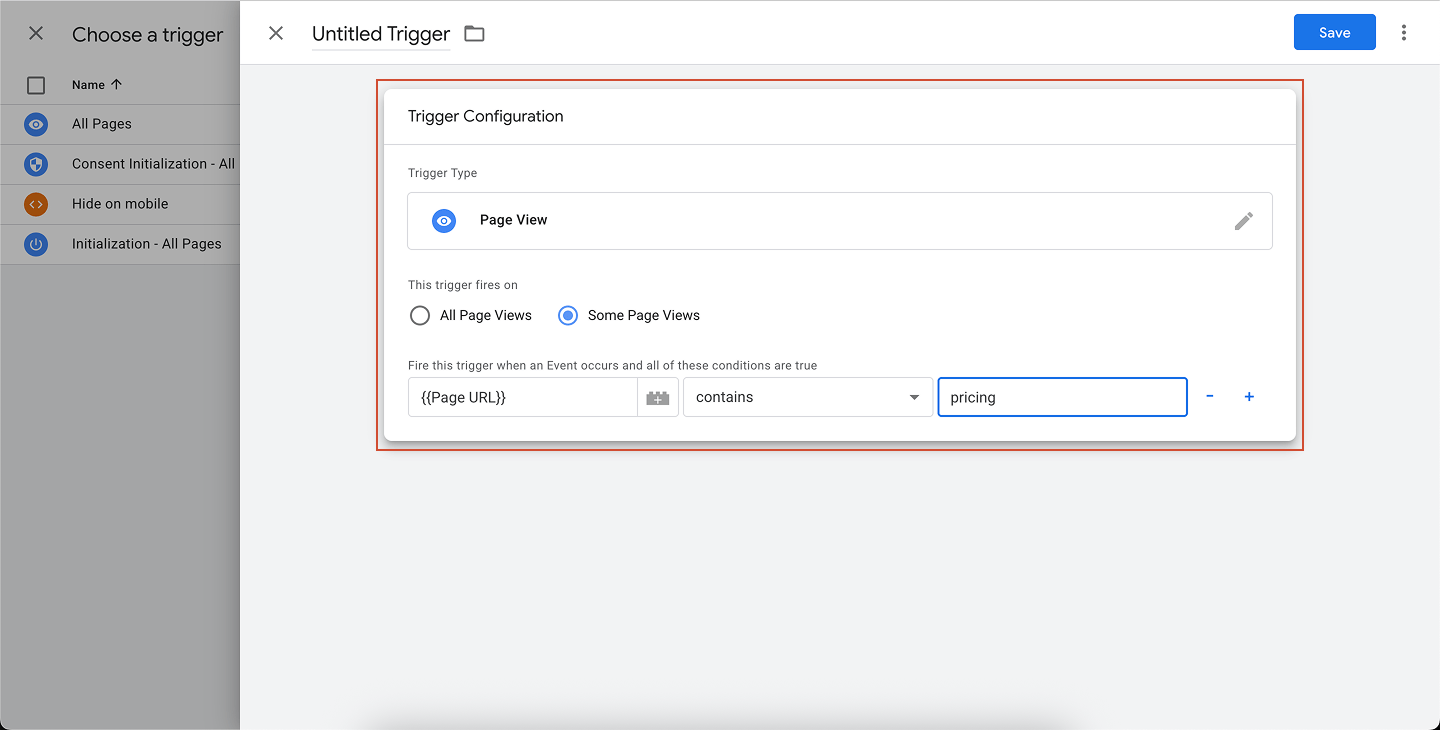
Google tag manager
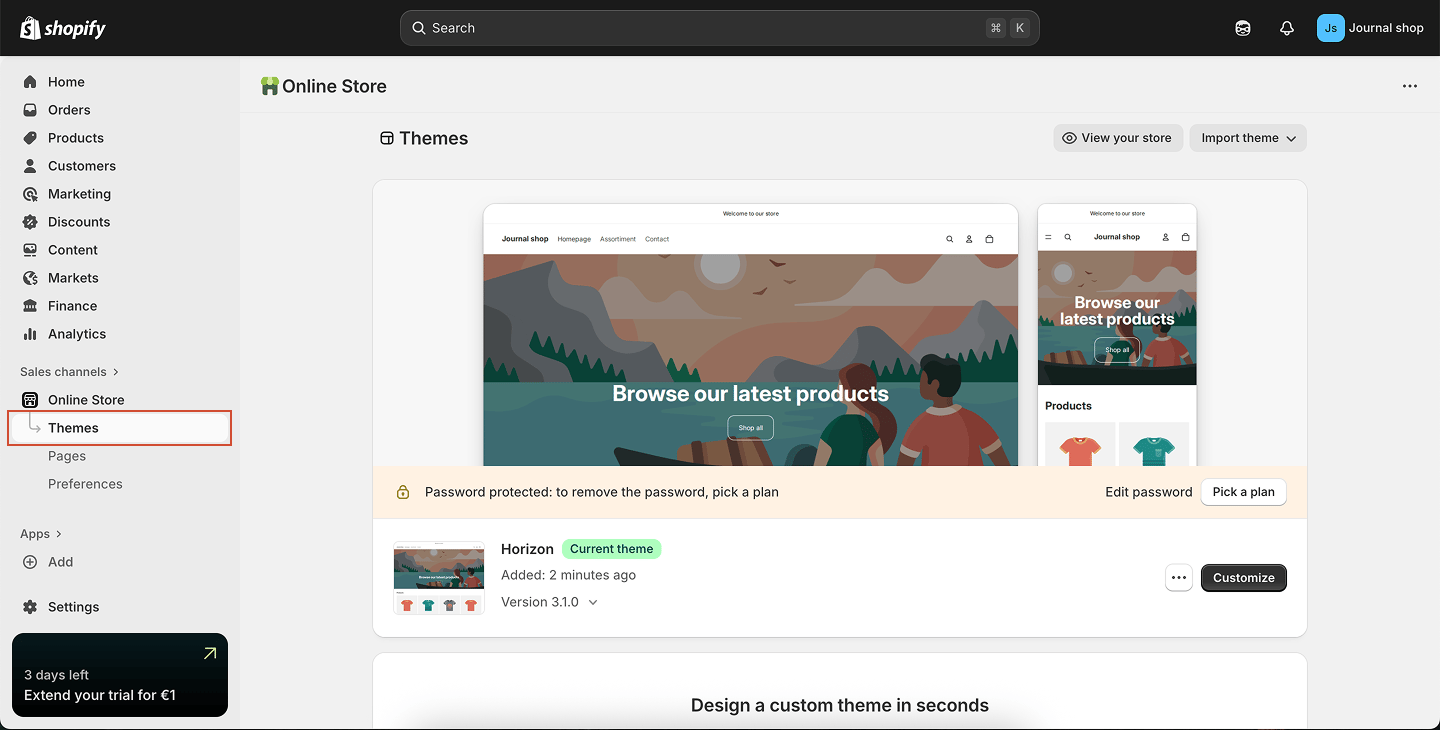
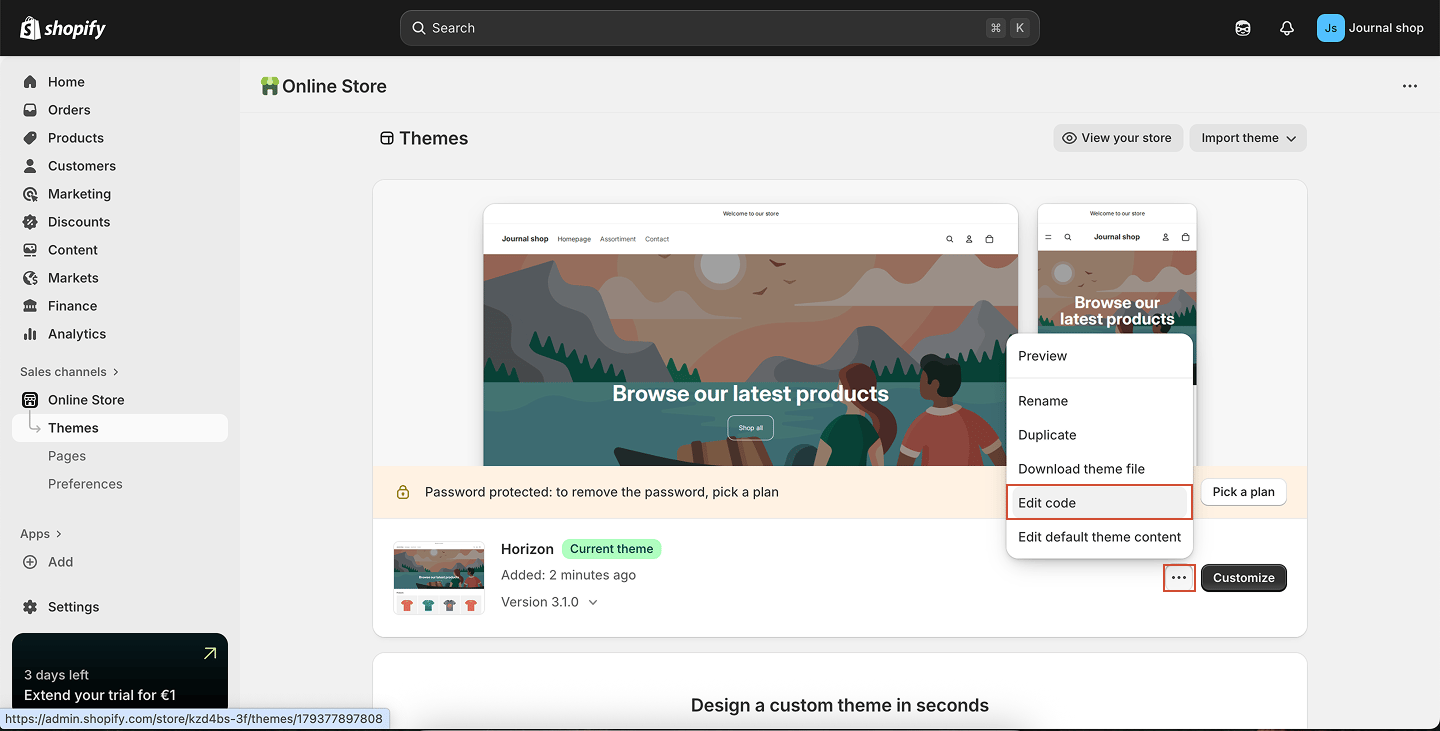
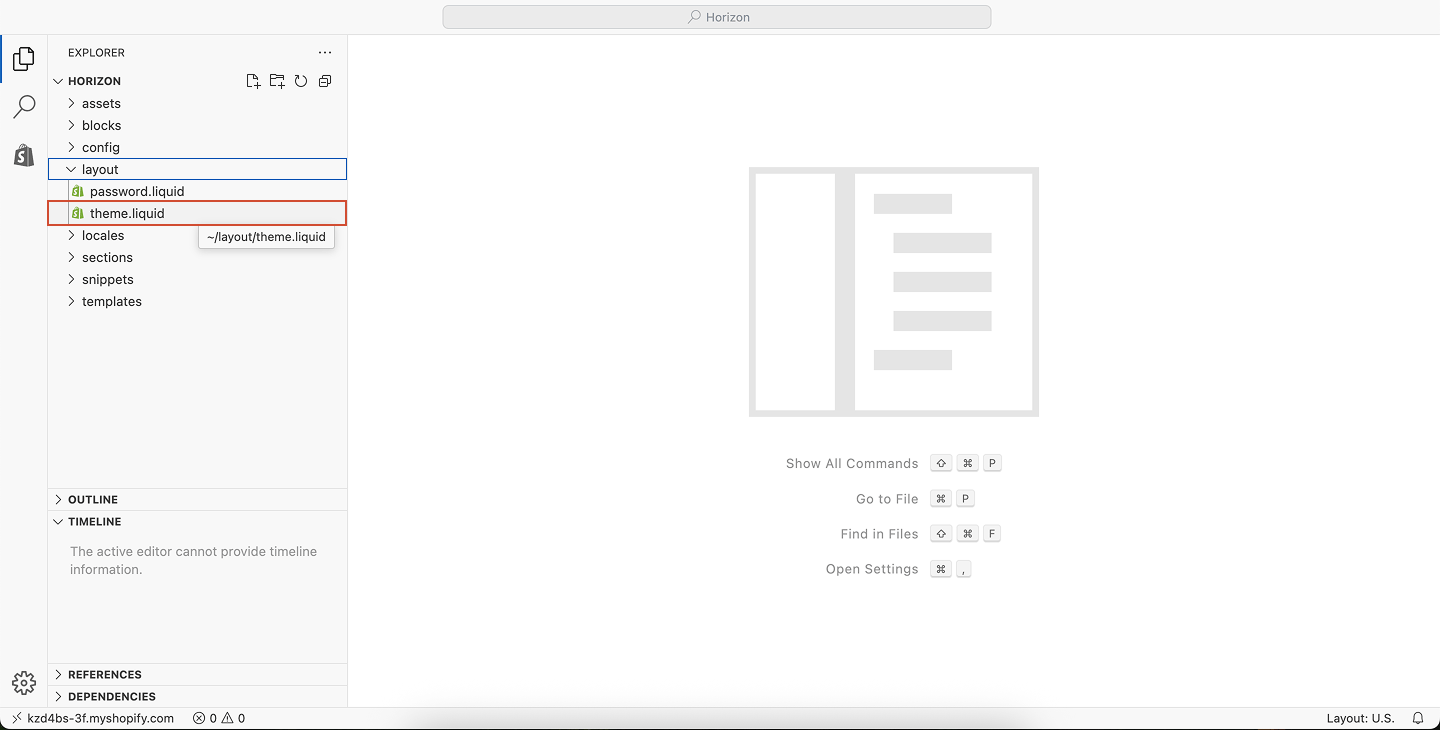
Shopify
Joomla
Squarespace
Framer
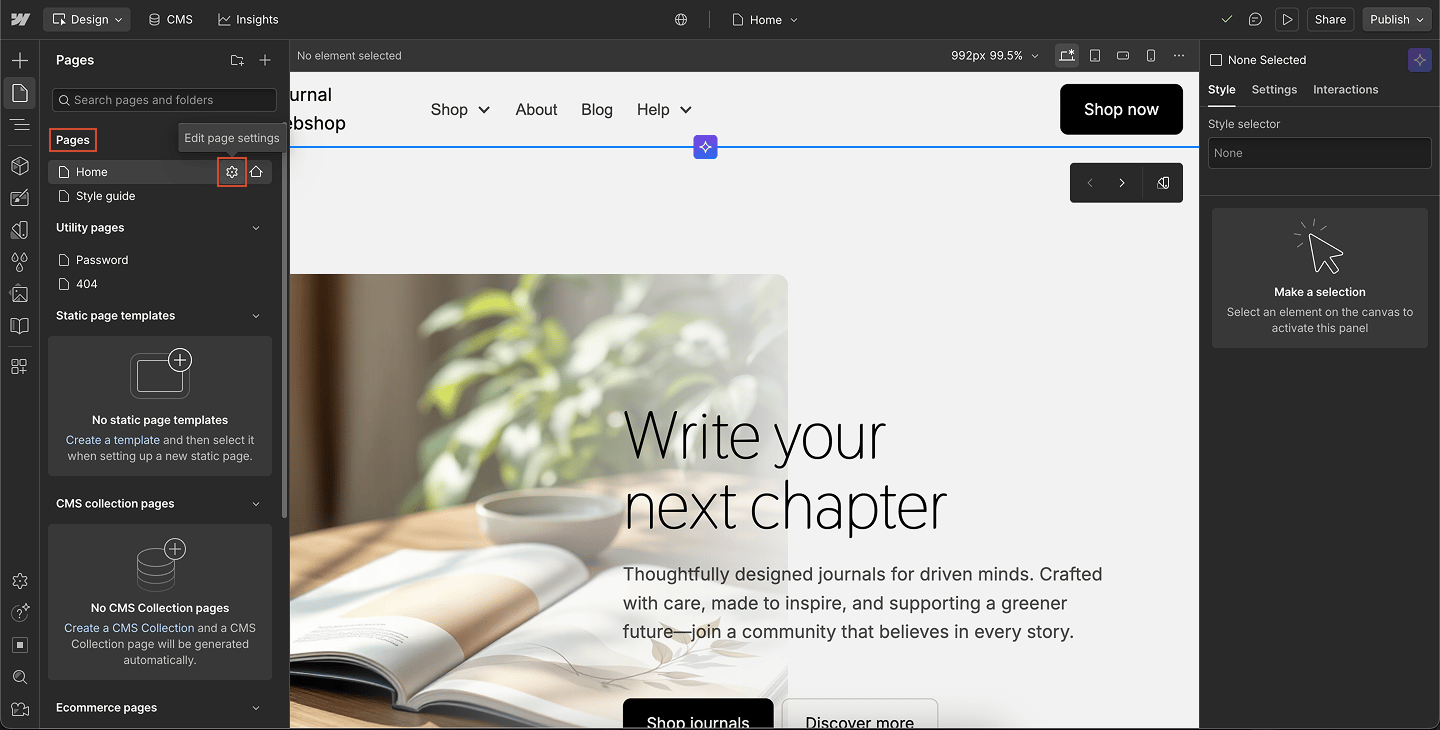
Webflow
BigCommerce
Weebly
Add your chat widget to your WordPress website so visitors can chat directly with your team or AI Agent. You can install the widget in two ways:
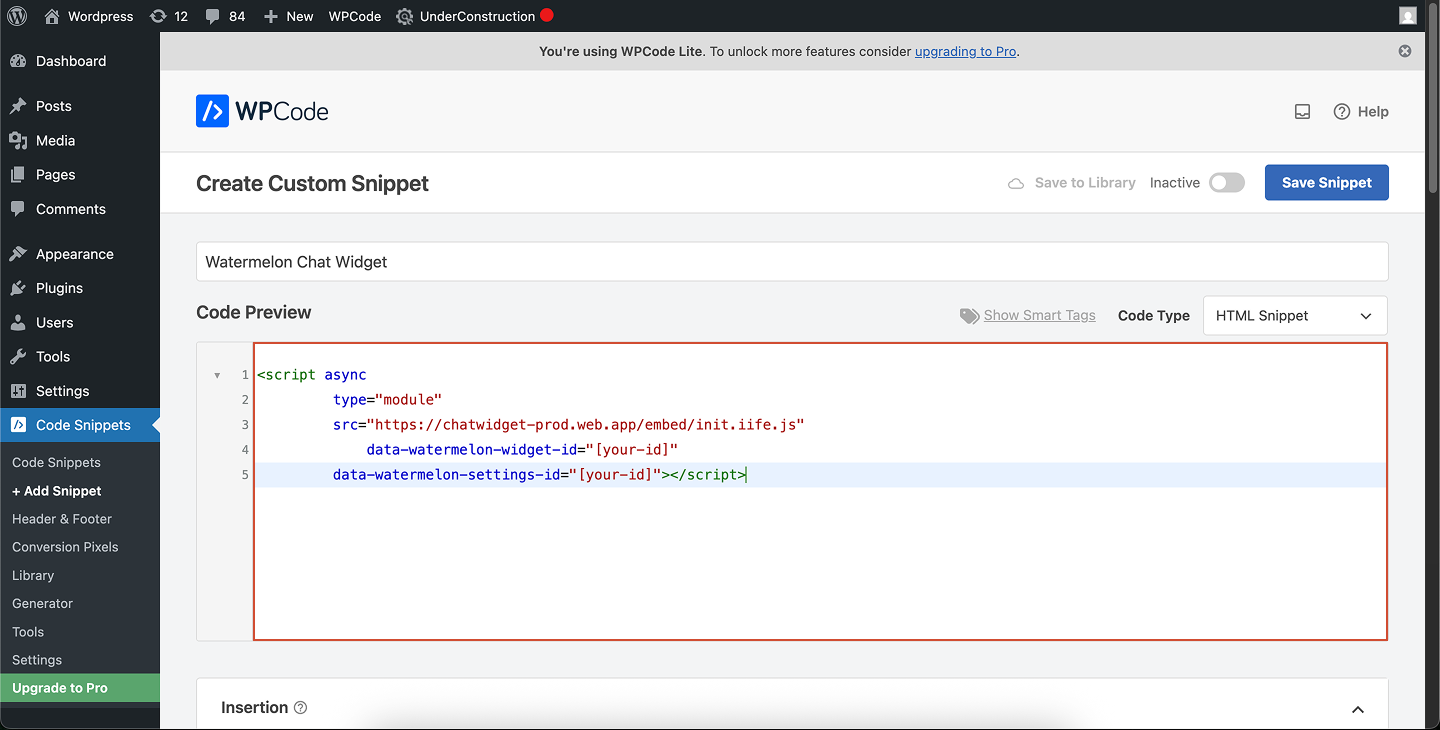
By adding your snippet directly to your theme’s footer
Add your chat widget via your theme (Theme File Editor)
1
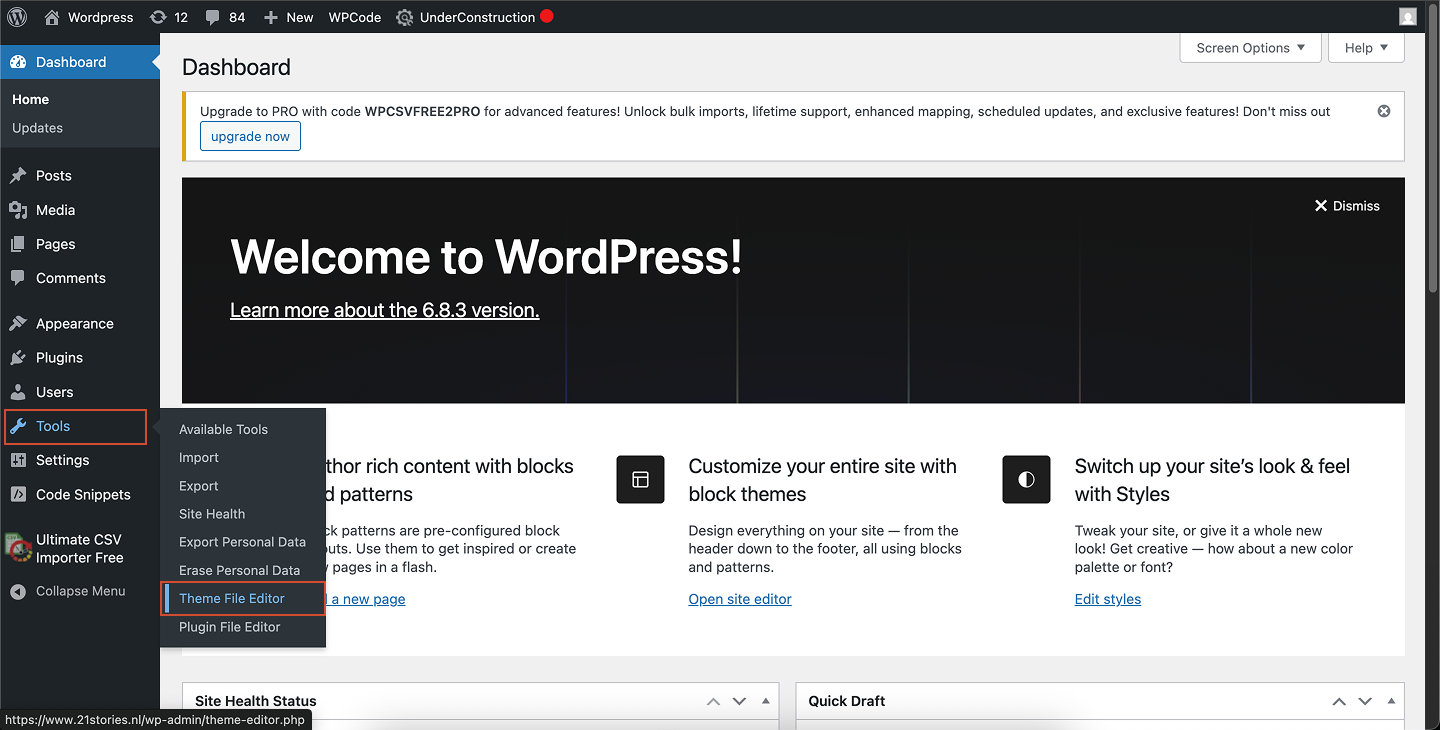
Open the Theme File Editor
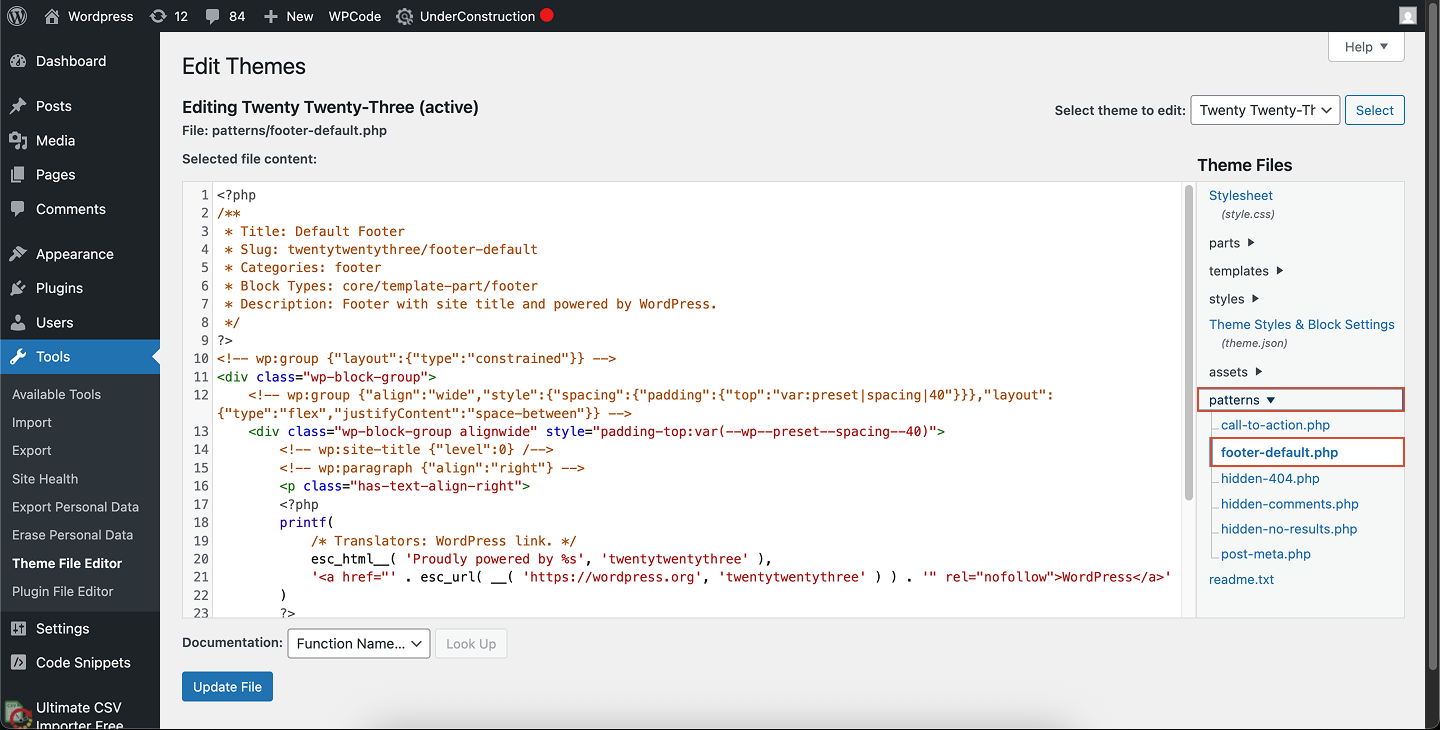
In your WordPress admin panel, go to Tools → Theme File Editor.
2
Open the footer file
In the file list, expand Patterns and select Footer-default.php.
3
Paste your chat widget code
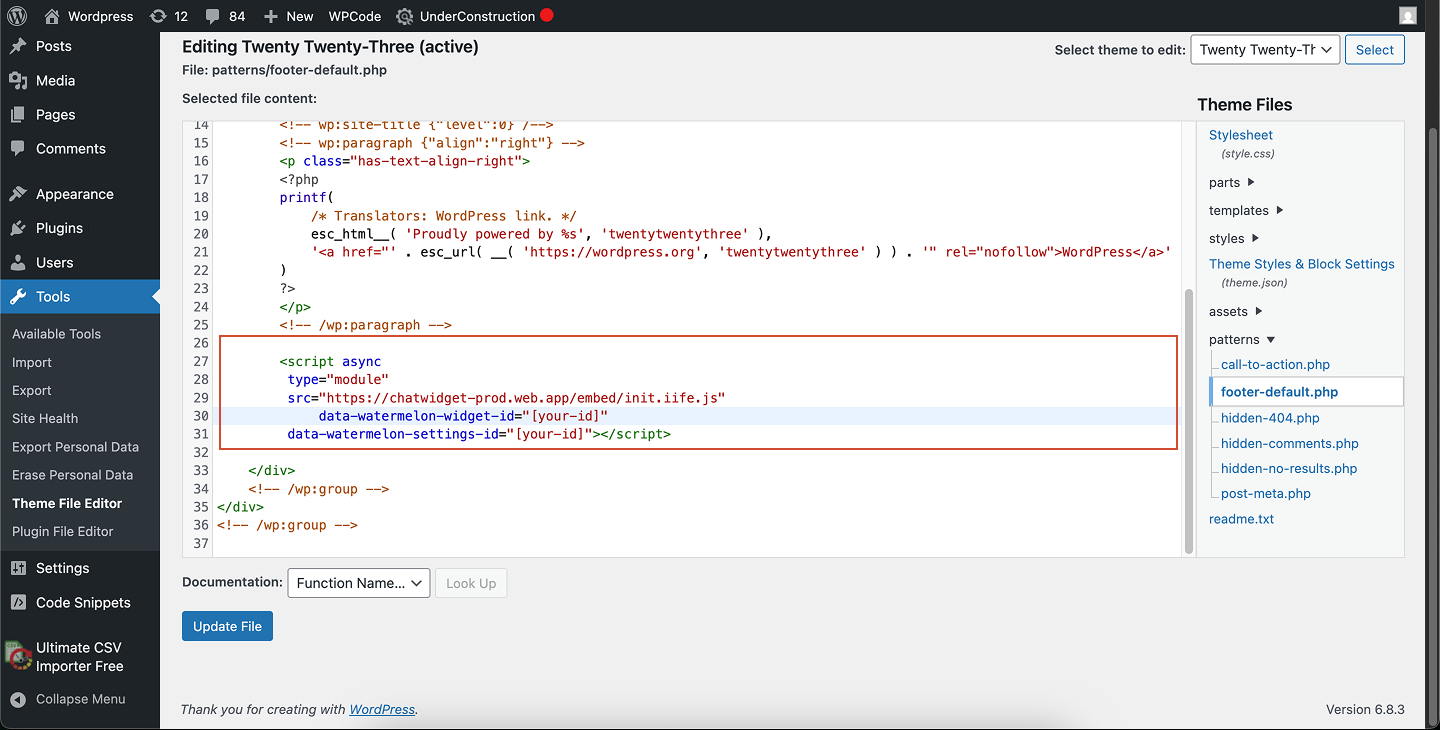
Scroll to the bottom of the file and paste your chat widget snippet.Place it just before the closing </body> tag if present.
4
Save your changes
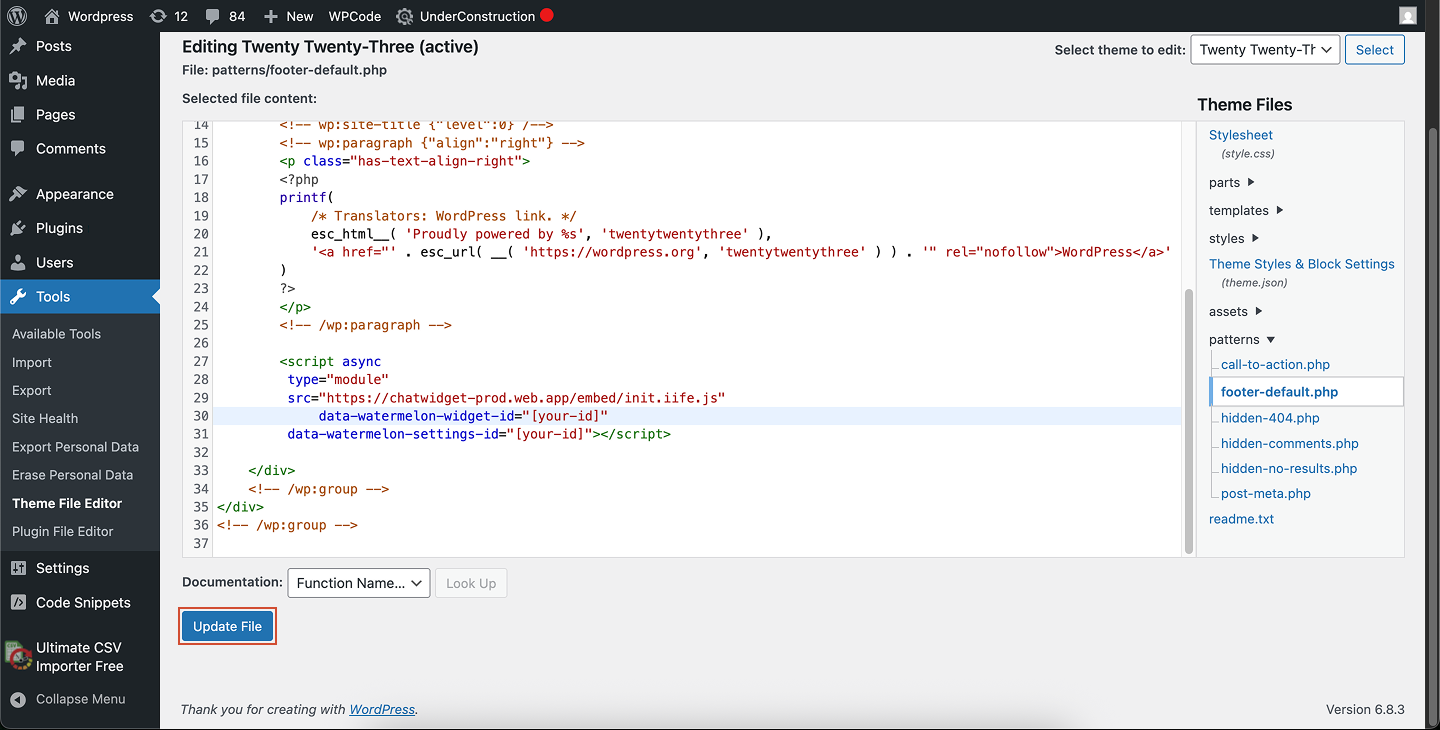
Click Update File at the bottom of the code editor to apply your changes.
5
Preview your site
Open your website in a browser (not the editor preview) to confirm your chat widget is now live.
Editing theme files directly requires caution. If you switch or update your theme, your changes may be lost.If you prefer a safer option, use the WPCode plugin instead.
Add your chat widget using the WPCode plugin (recommended)
1
Install WPCode
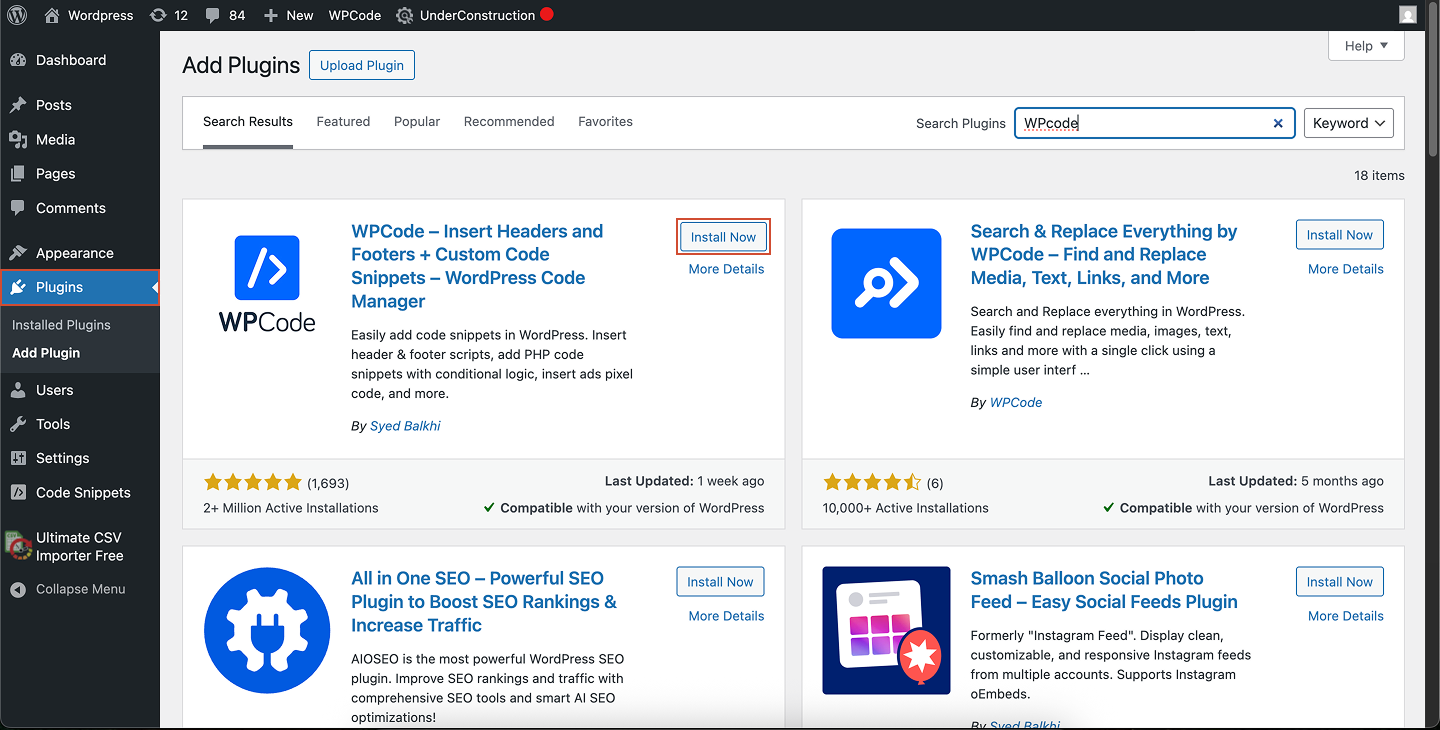
Install and activate the WPCode plugin (formerly Insert Headers and Footers).
2
Create a new snippet
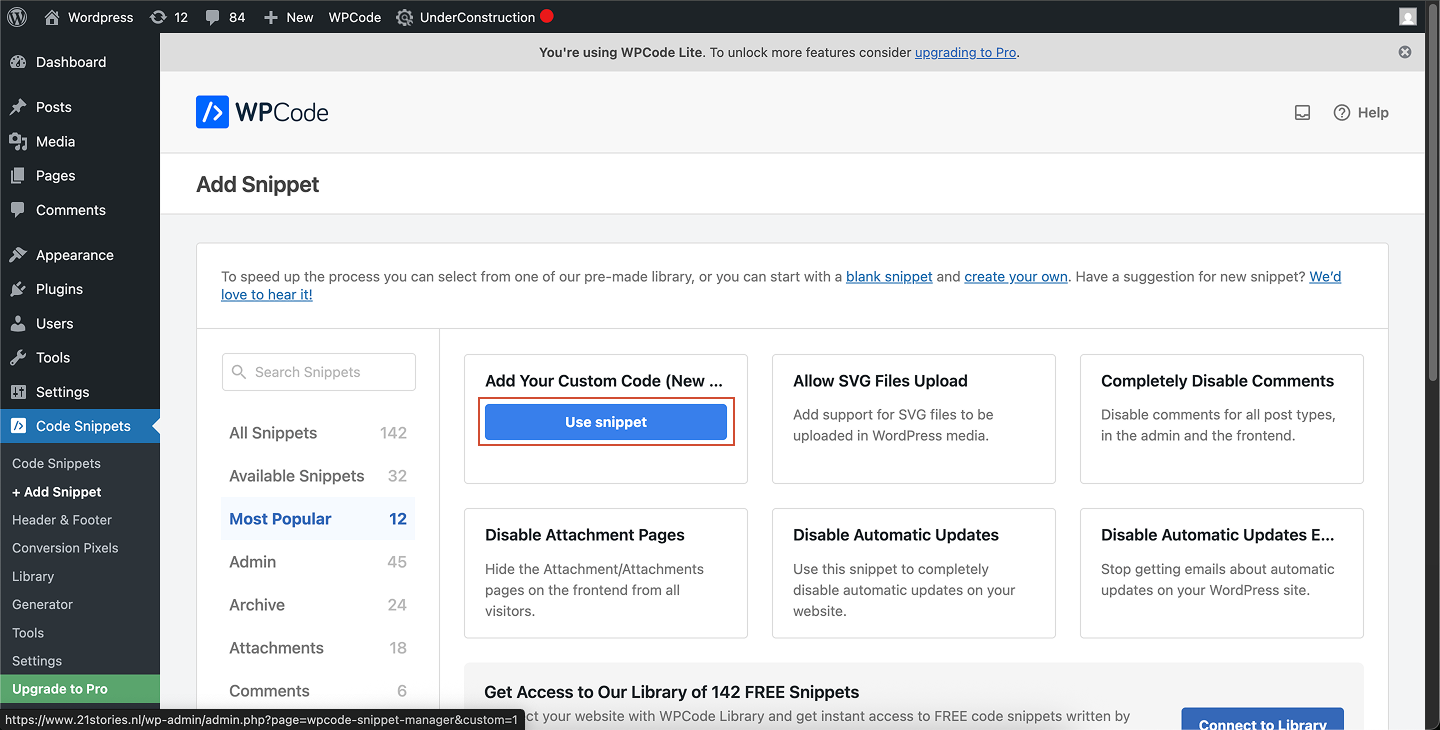
Go to Code Snippets → + Add Snippet.Hover over Add Your Custom Code (New Snippet) and click Use Snippet.
3
Configure your snippet
Give your snippet a title (e.g., “Chat widget”).
Set Code Type to JavaScript Snippet.
Paste your widget code in the Code Preview area.
4
Choose where to load the snippet
Under Insertion, select where the script should appear:
Header (most reliable)
Footer (better performance)
Or target specific pages using WPCode’s conditional logic
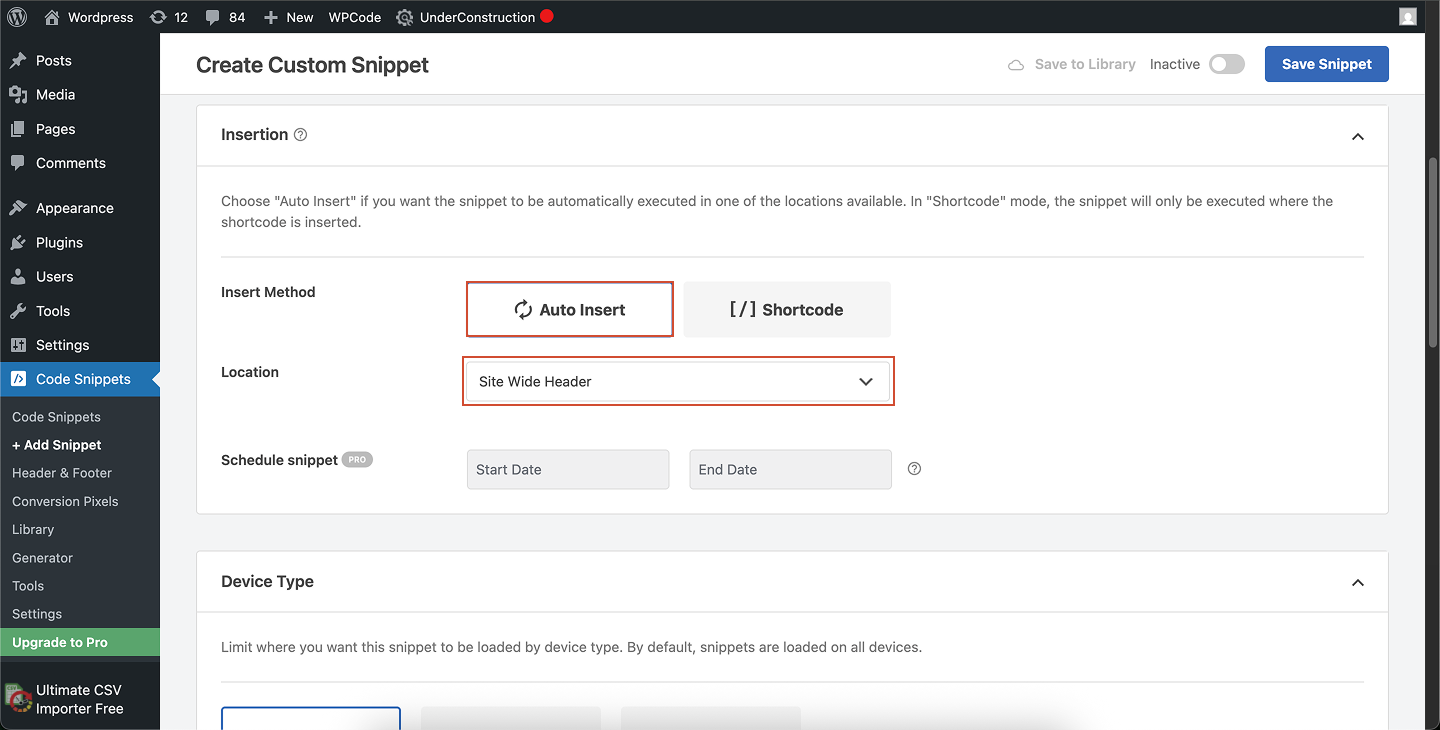
You can load the widget only on certain pages or for specific users, thanks to WPCode’s Smart Conditional Logic.
5
Save and activate
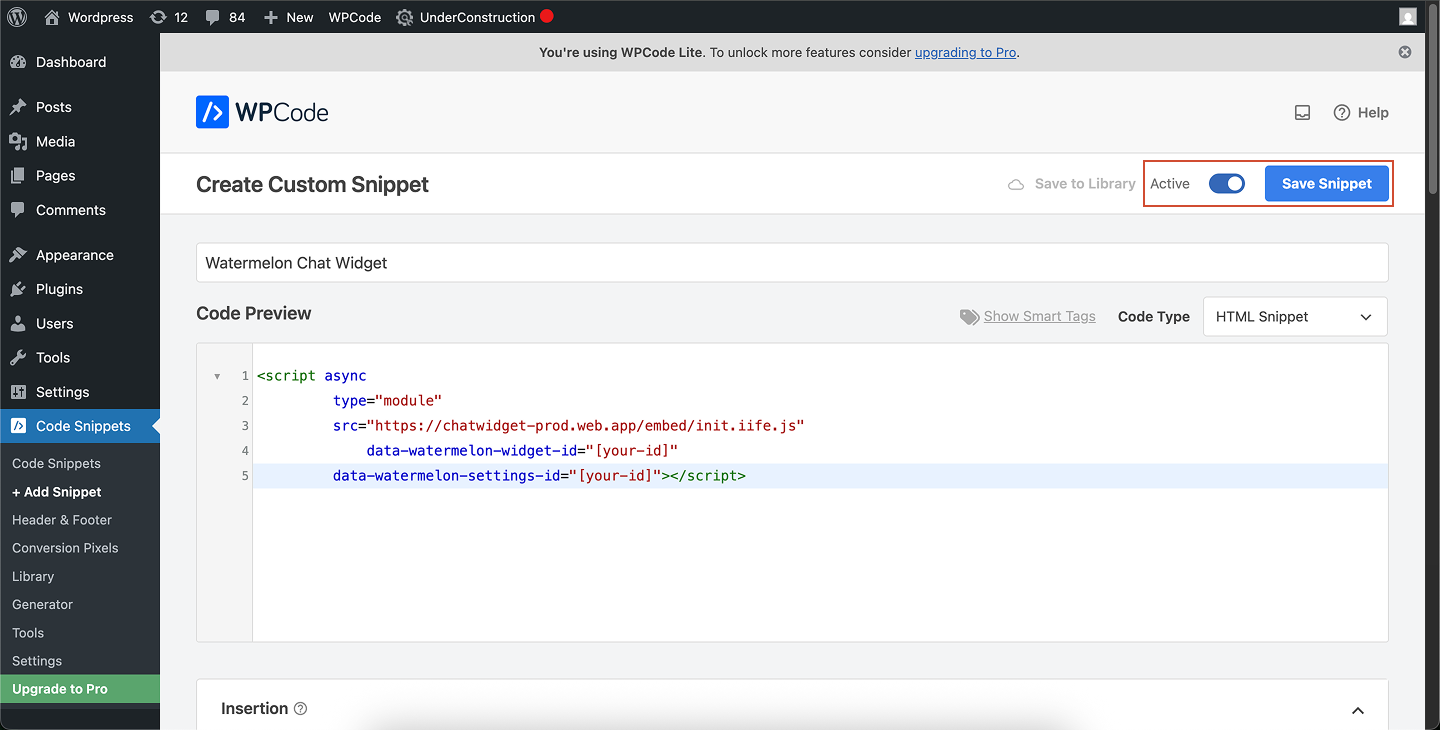
Click Save Snippet, then switch the toggle to Active.
Your chat widget is now live on your site.
Show Content Security Policy (CSP)
If your website uses a Content Security Policy (CSP) that restricts external styles, you need to allow Watermelon’s widget styles.The widget loads its CSS from:
Without this, the widget may load without styling or will be blocked entirely.
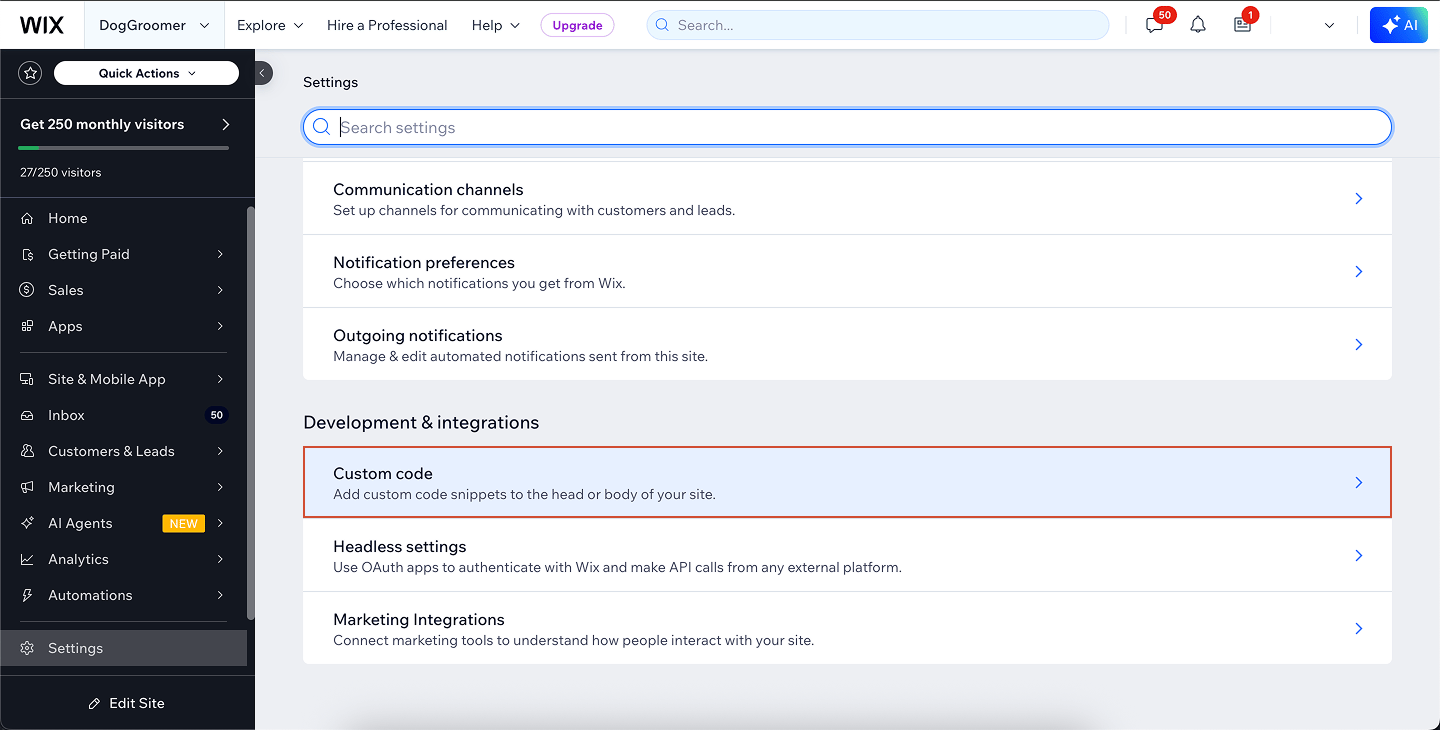
Add your chat widget to your Wix website so visitors can chat directly with your team or AI Agent. To add custom JavaScript in Wix, you need a paid Wix plan with a connected domain. Free Wix sites don’t support adding custom code snippets.
1
Open your Wix Dashboard
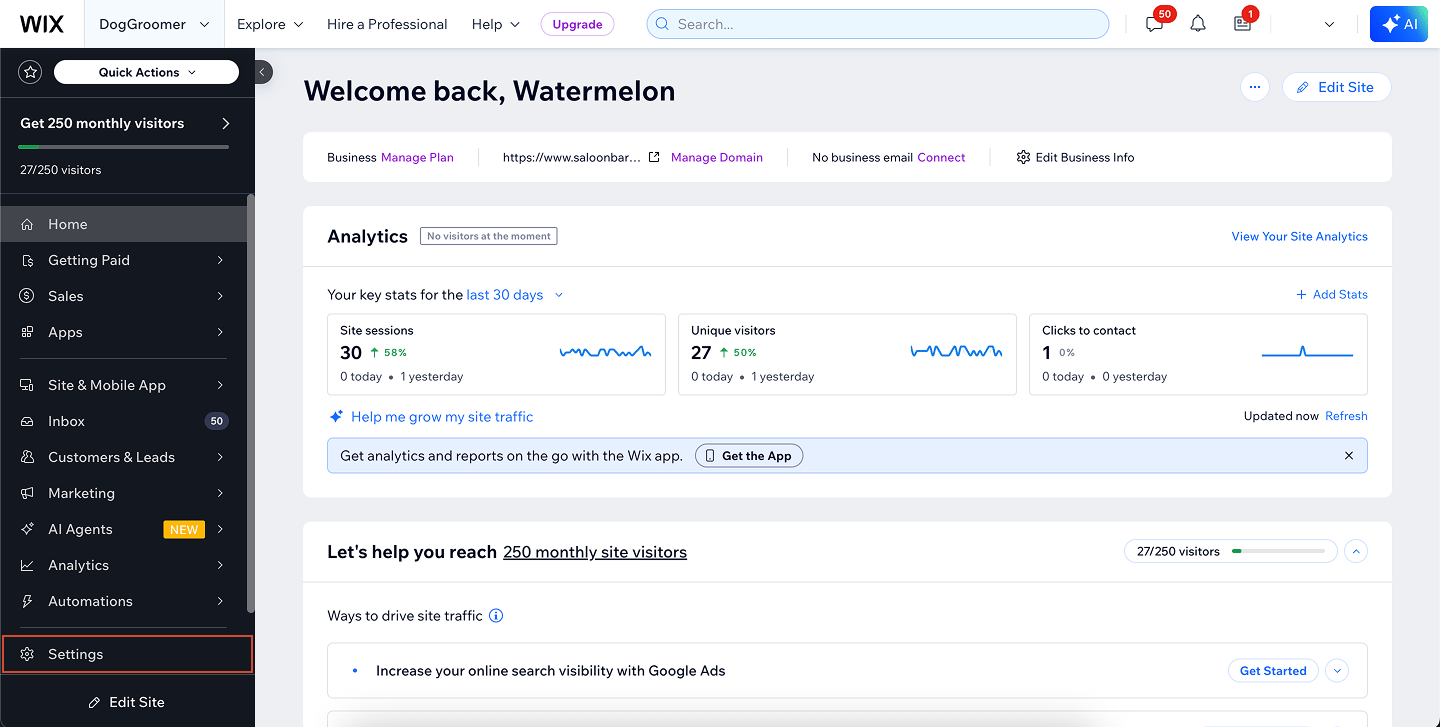
Go to your Wix Website Dashboard.Scroll down and click Settings in the left-hand menu.
2
Open the Custom Code settings
Scroll to the bottom of the Settings page and open Advanced → Custom Code.
3
Add your chat widget code
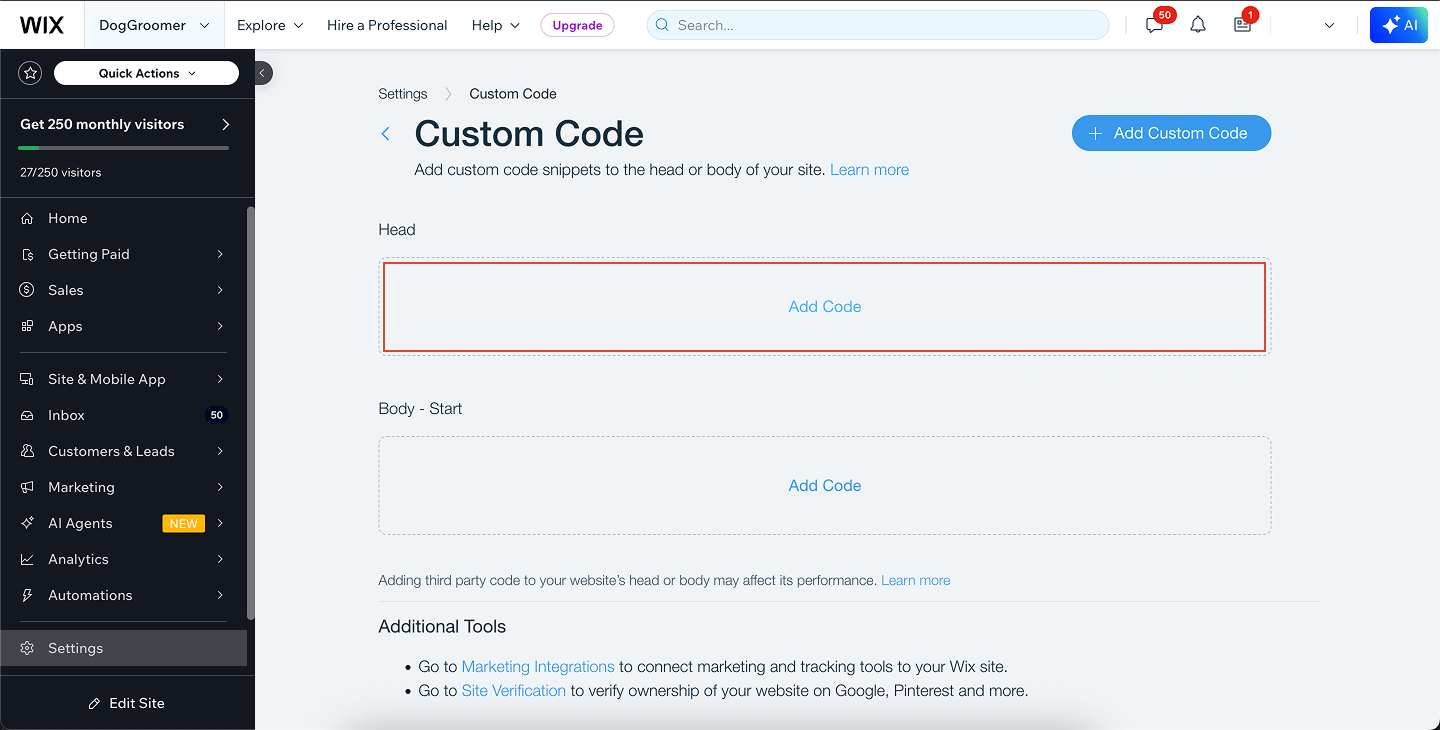
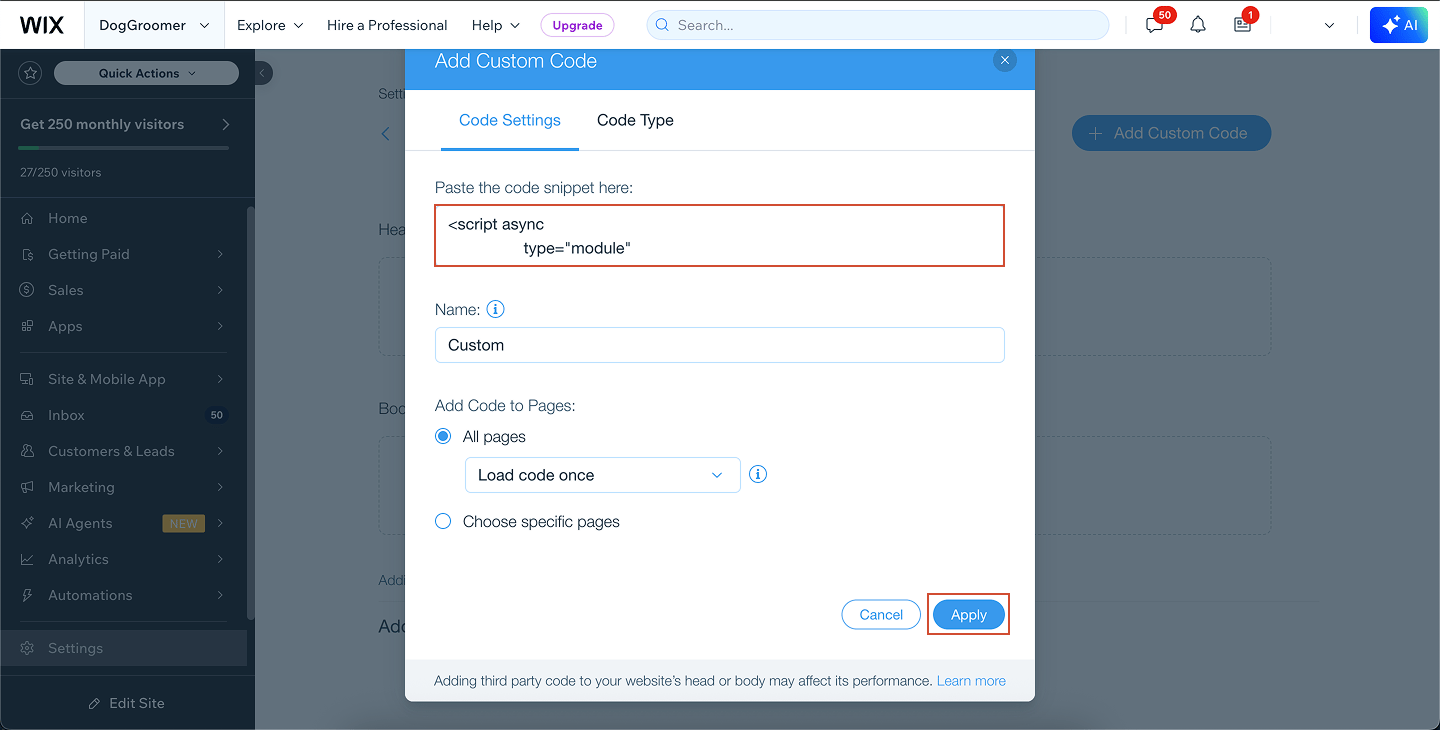
Click Add Code, then choose Head as the placement location.Paste your chat widget JavaScript code into the code editor.
4
Enable the snippet
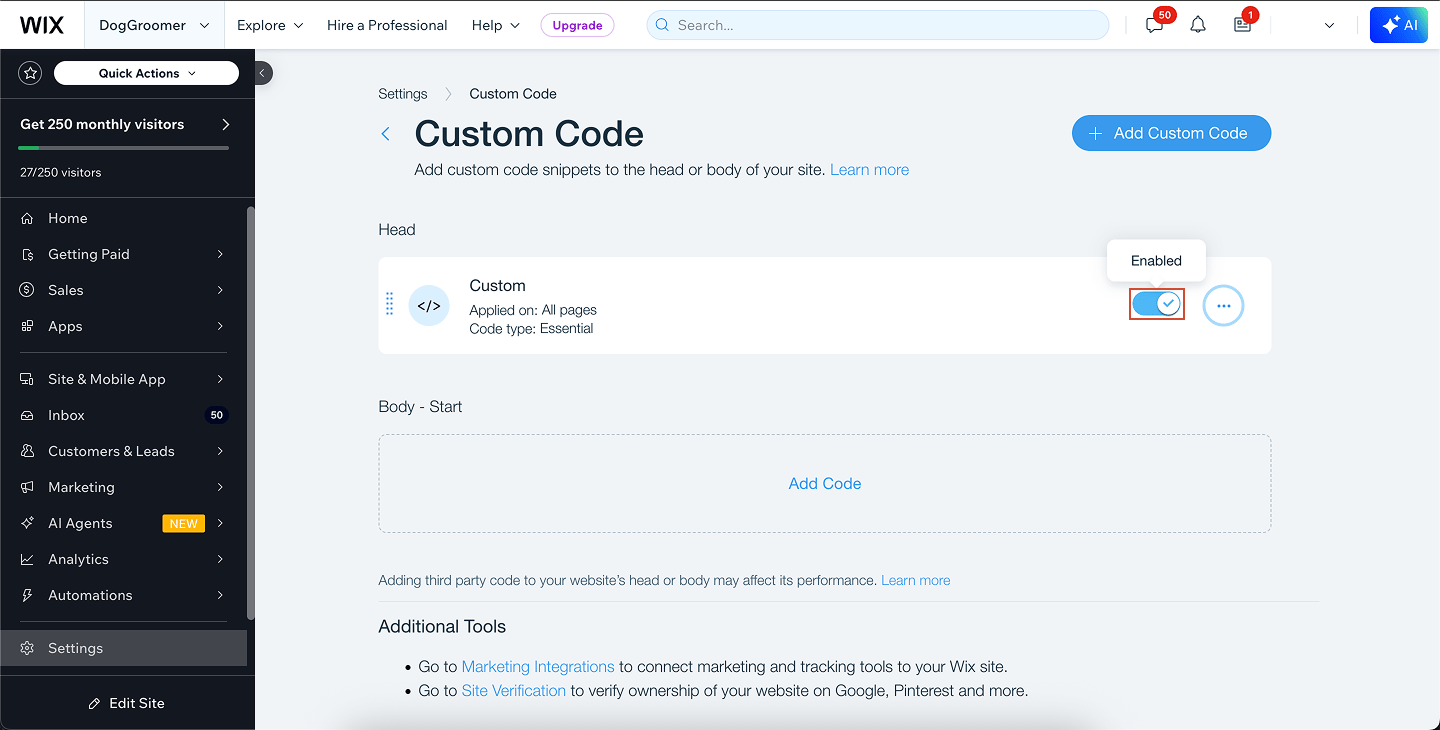
After applying your code, turn on the toggle switch to enable the snippet on your website.
5
Disable the built-in Wix Chat (optional)
If you don’t want Wix’s native chat to appear next to your own chat widget:
Open the Wix Editor
Select the Wix Chat element
Delete it from the page
6
Publish and preview your live site
Click Publish to make the changes live.Open your website in a browser — not in preview mode — to confirm that your chat widget is now visible
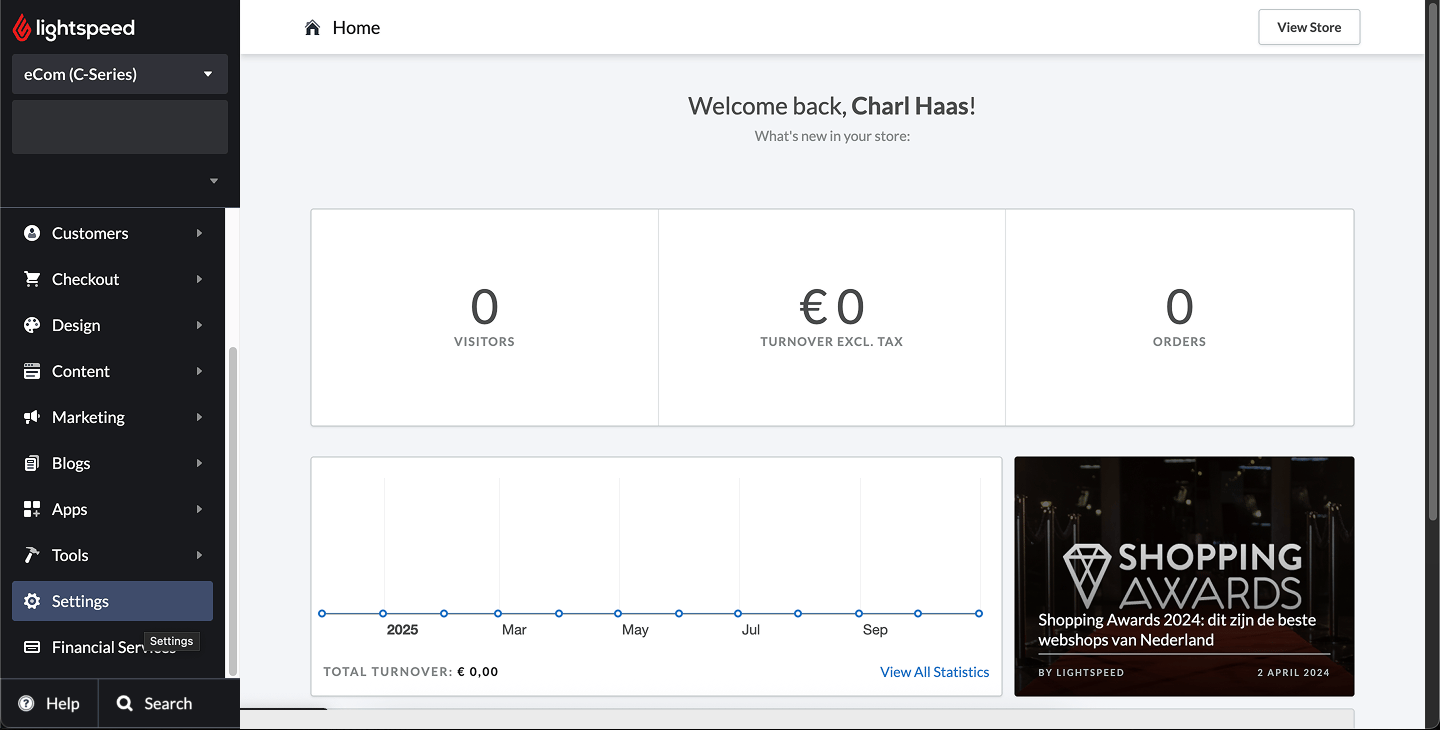
Add your chat widget to your Lightspeed eCom C-Series store so visitors can chat directly with your team or AI Agent.Lightspeed eCom C-Series allows you to add custom code to the <head> section of your entire website. This is the best—and only—location for adding your chat widget script.
1
Open your eCom settings
From your Lightspeed eCom admin, go to Settings.
2
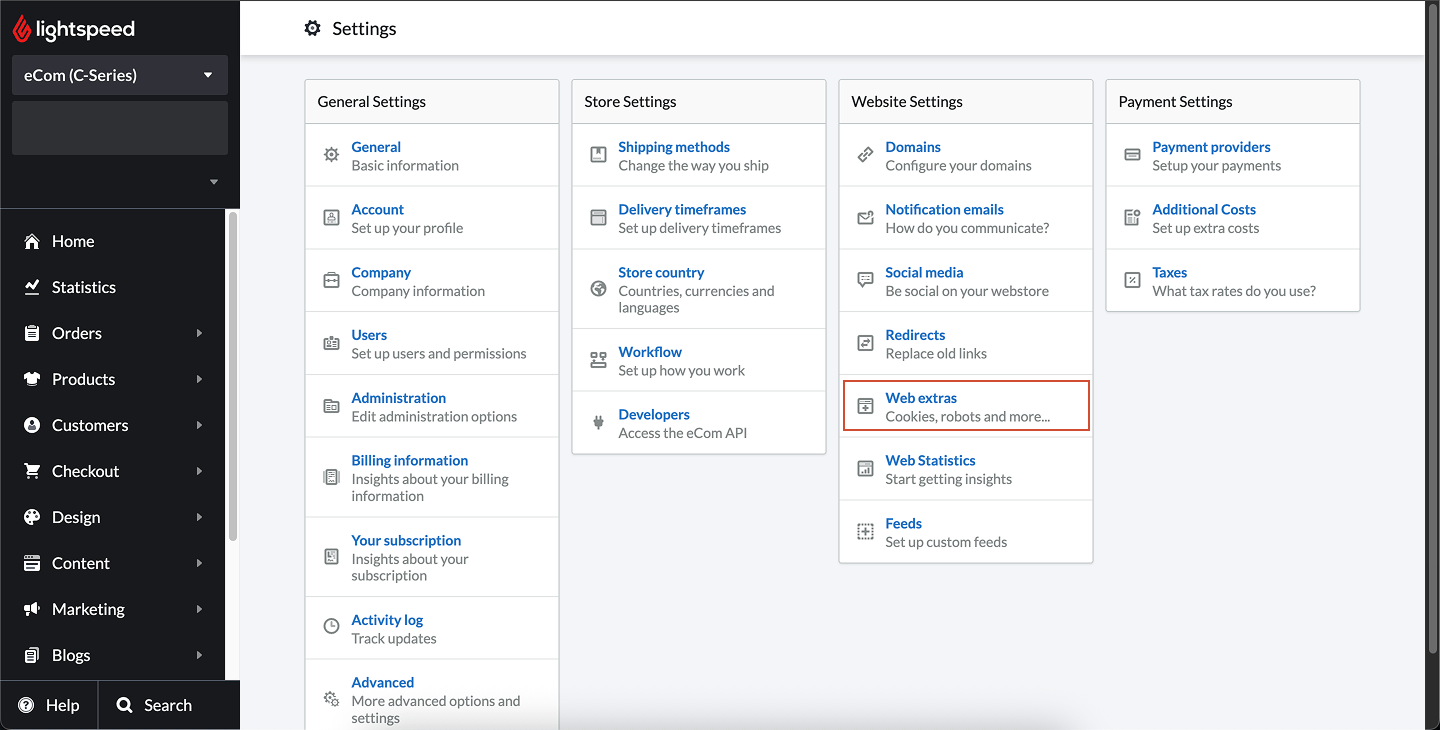
Open Web extras
Under the Website Settings column, select Web extras.
3
Add your custom code
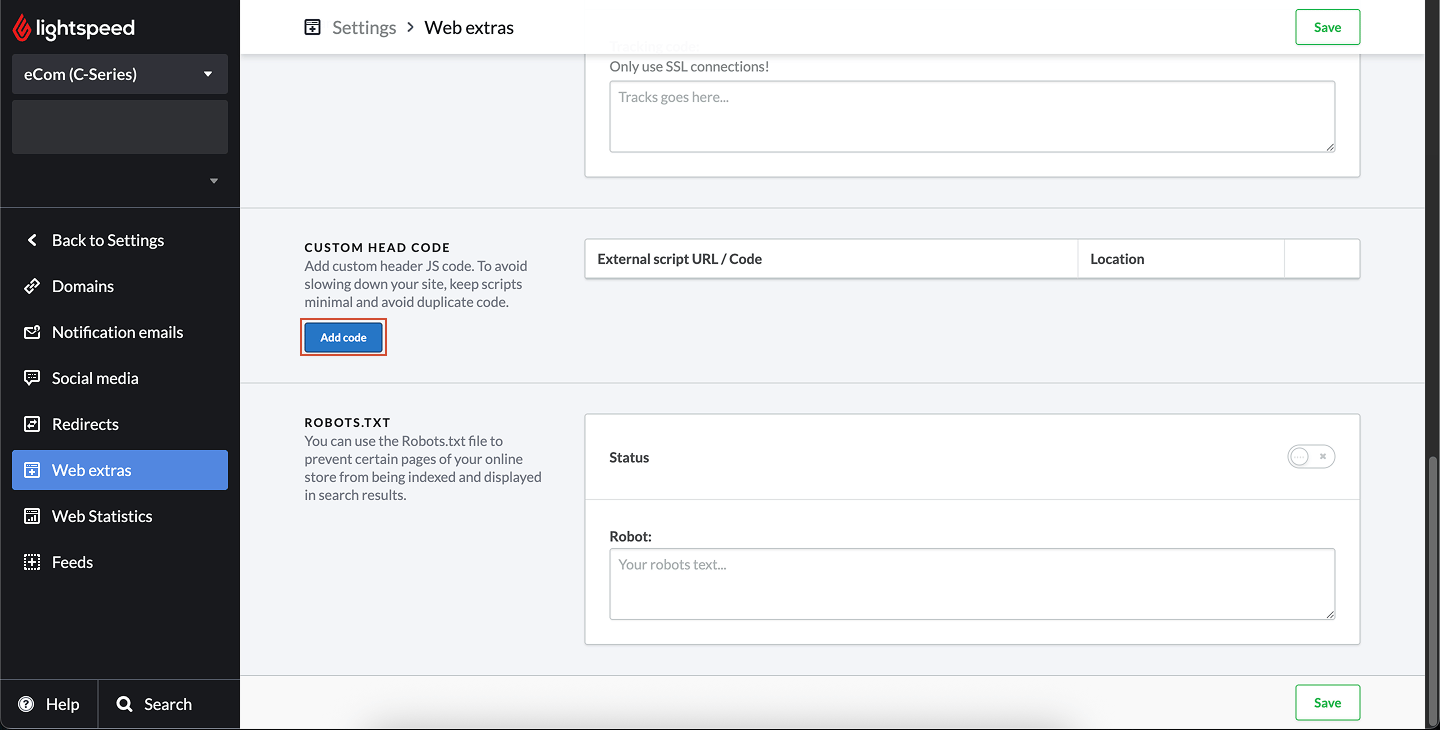
In the Custom head code section, click Add code.
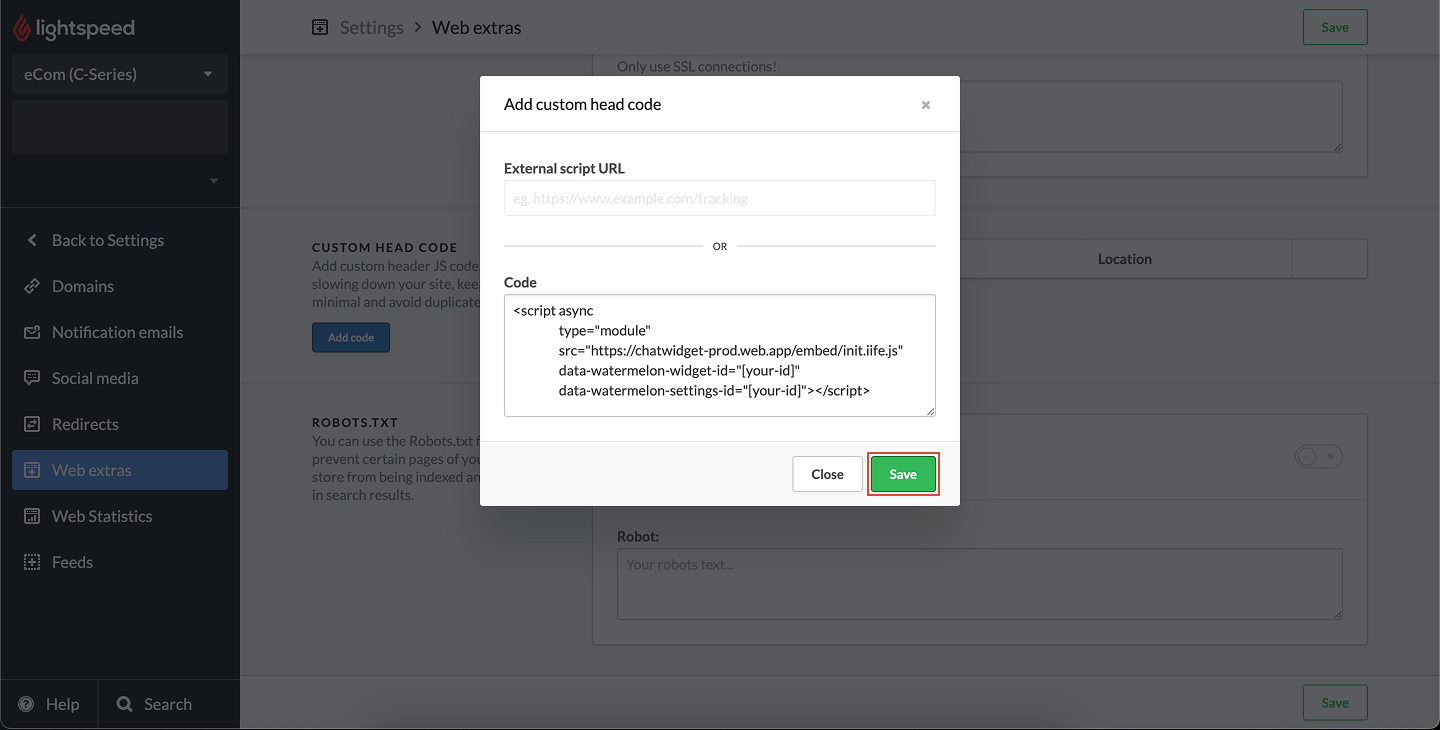
Paste your chat widget script or URL in the field.
Code added here is injected into the <head> section on every page of your website.Lightspeed eCom C-Series does not support page-specific custom code.
4
Save your changes
Click Save to apply your code.
5
Preview your live store
Open your website in a browser to confirm that your chat widget appears.
Custom code may not appear in previews — always check your live store.
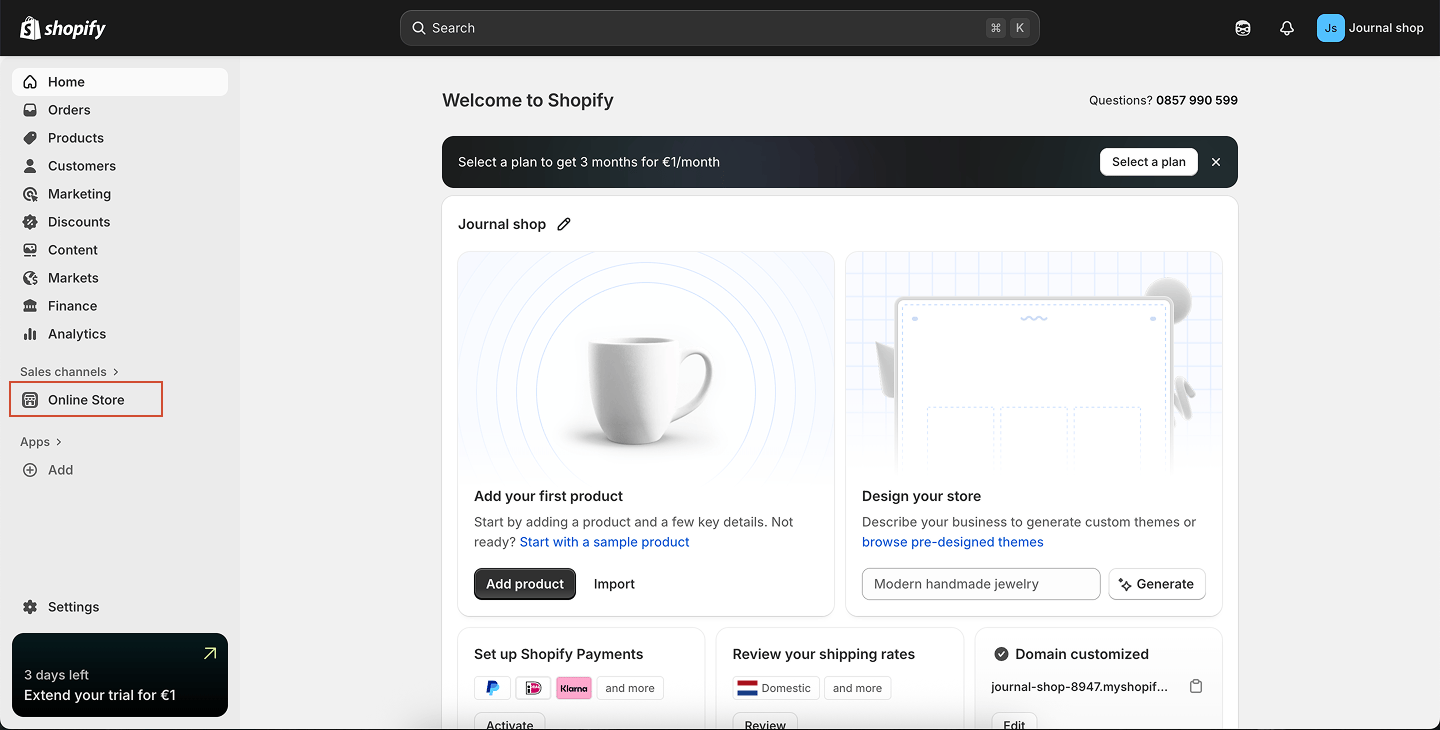
Add your chat widget to your Shopify store and let visitors chat directly with your team or AI Agent.You can install your widget across your entire website, or place it on a single page only whichever fits your use case.
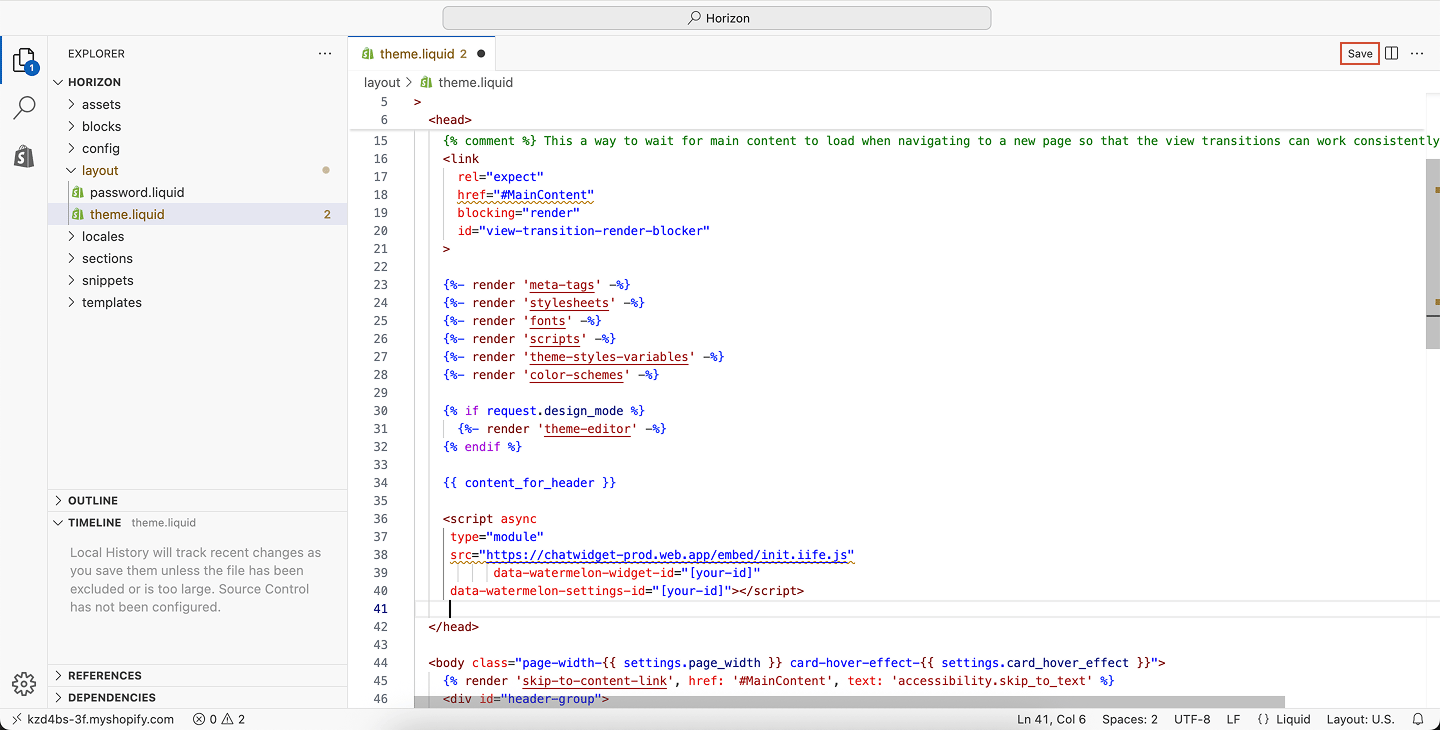
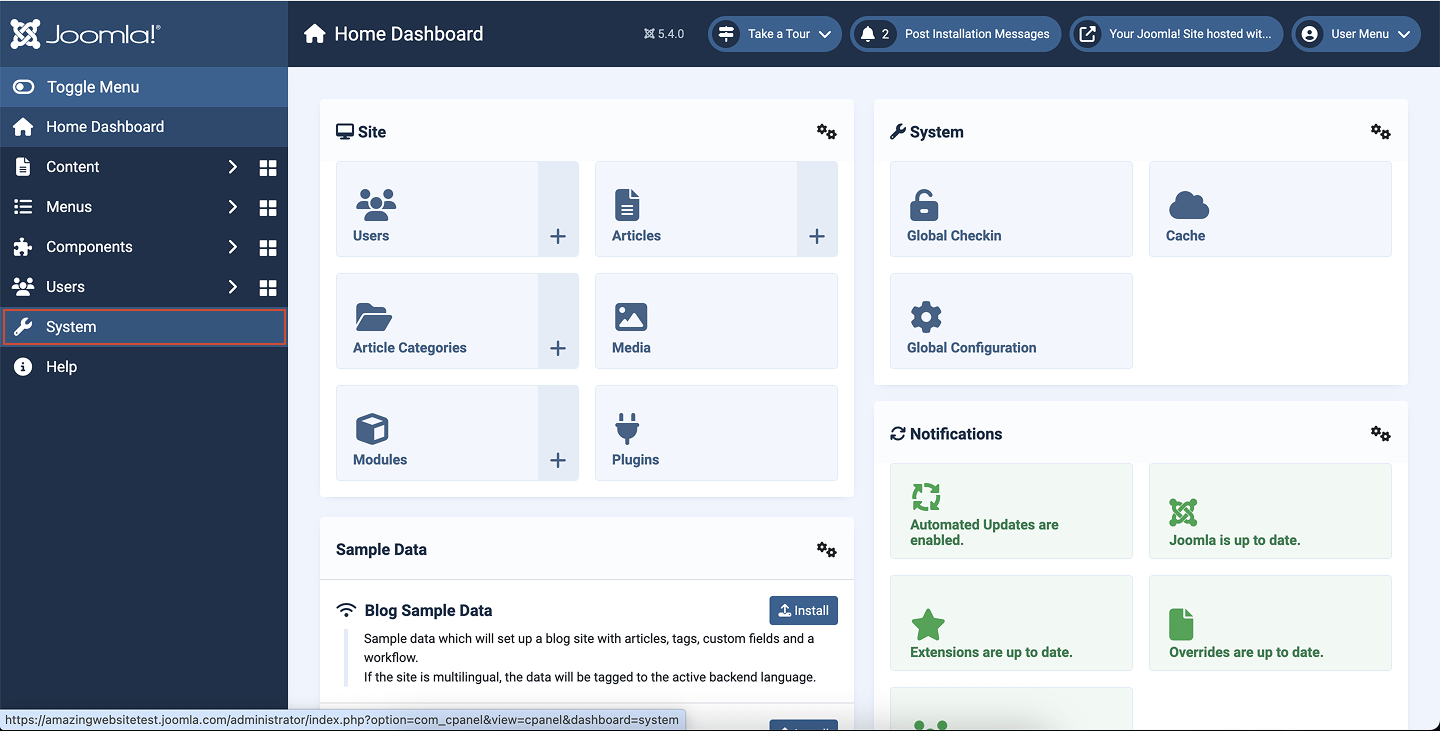
You can easily place your chat widget by adding a short code snippet to your Joomla site’s template file.
1
Log in to your Joomla admin panel
Open your Joomla Administrator panel and log in with your admin credentials.
2
Go to System settings
From the left-hand menu, navigate to System.
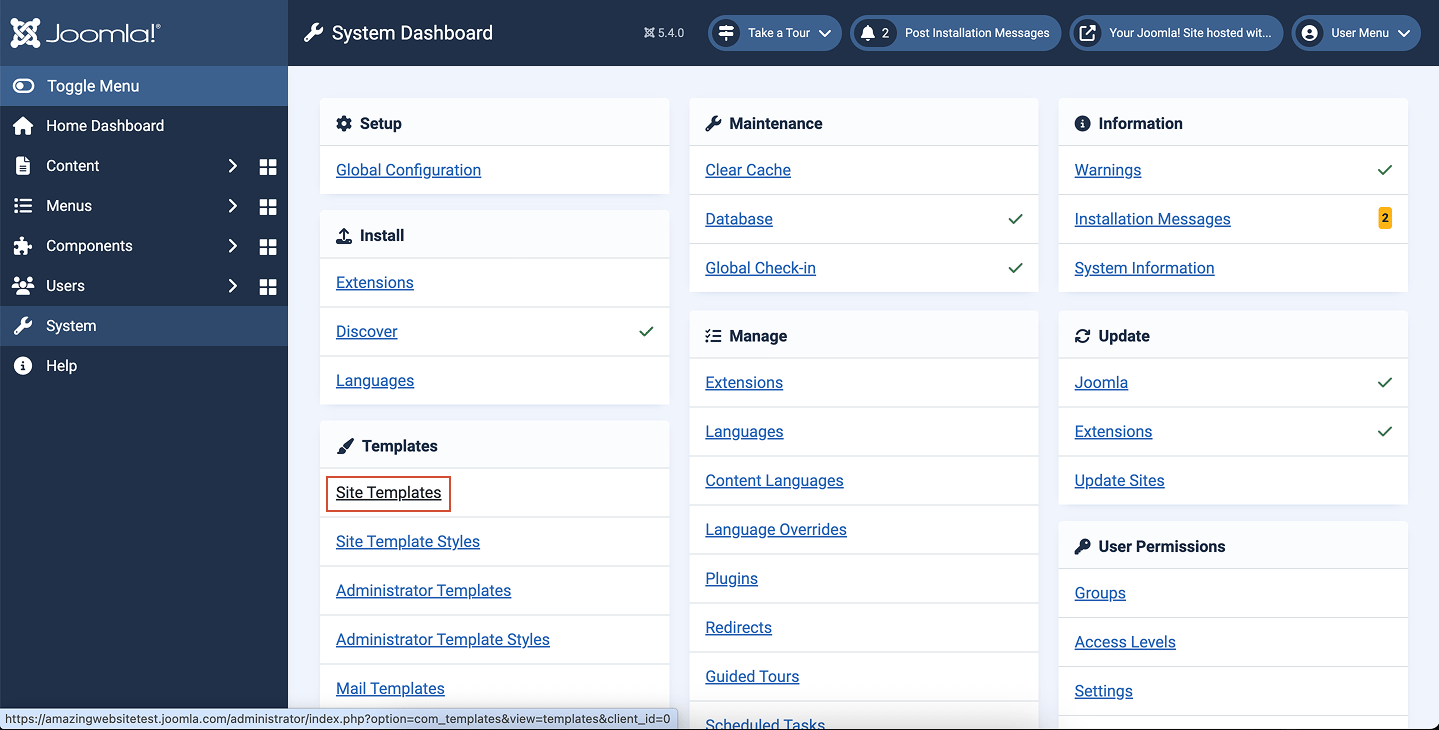
3
Open Site Templates
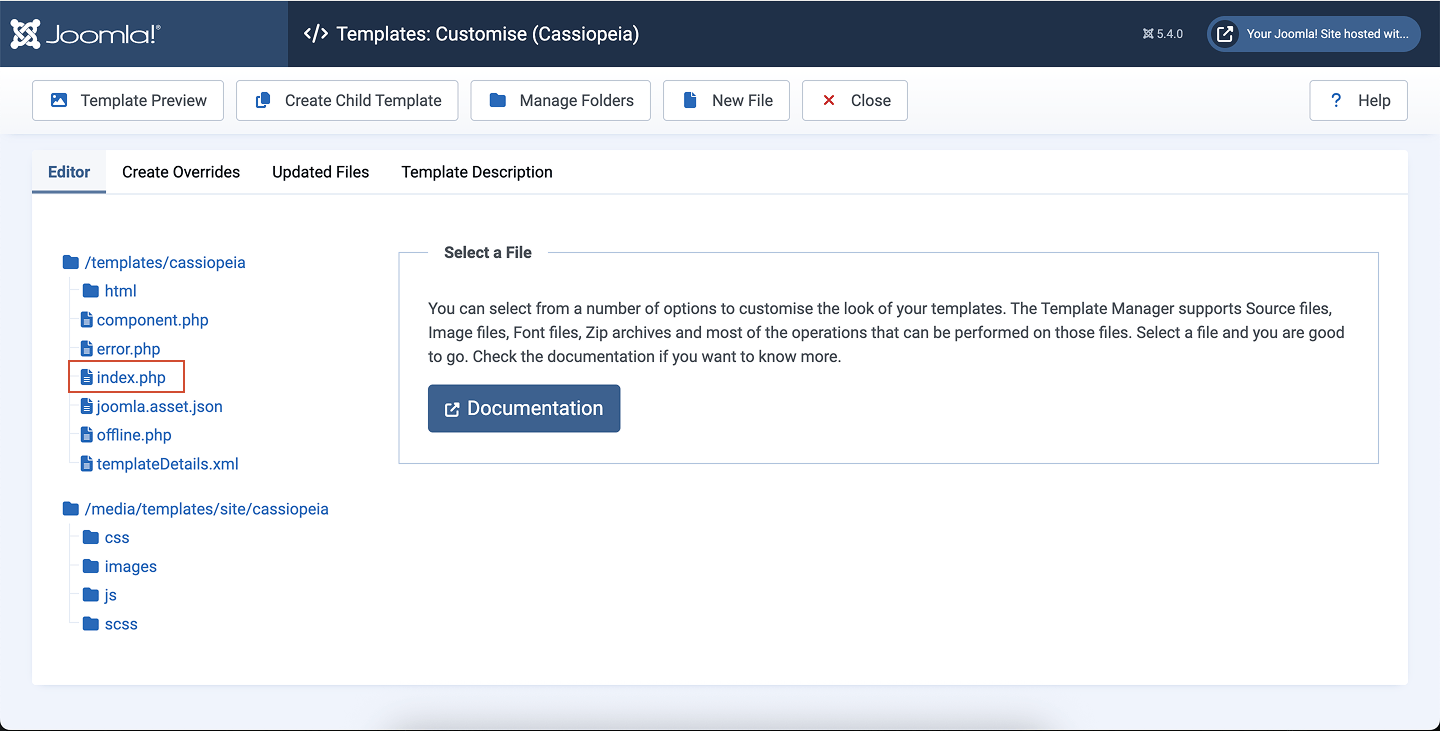
Under the Templates section, click Site Templates.
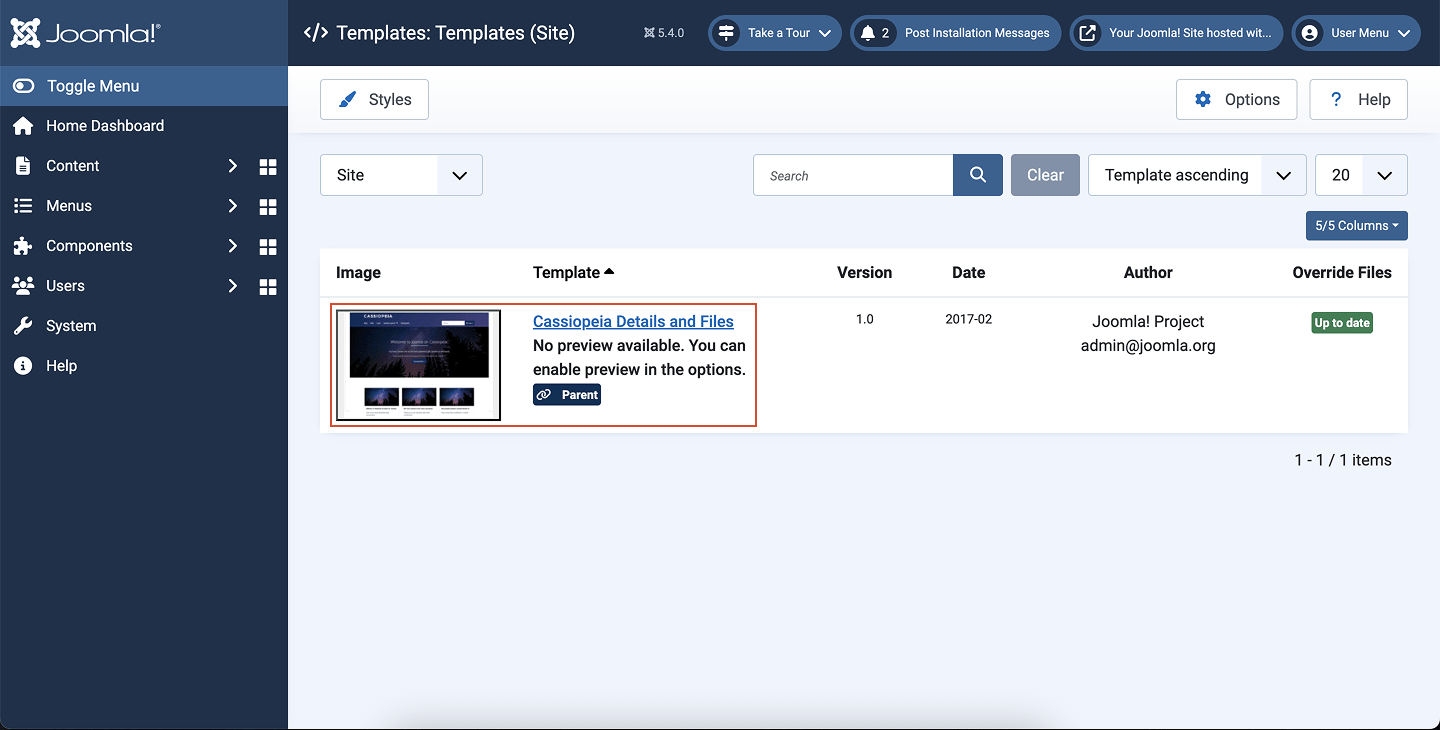
4
Select your active template
Choose the template you want to add your chat widget to.
5
Edit the index.php file
In your template’s file editor, locate and open the index.php file.
6
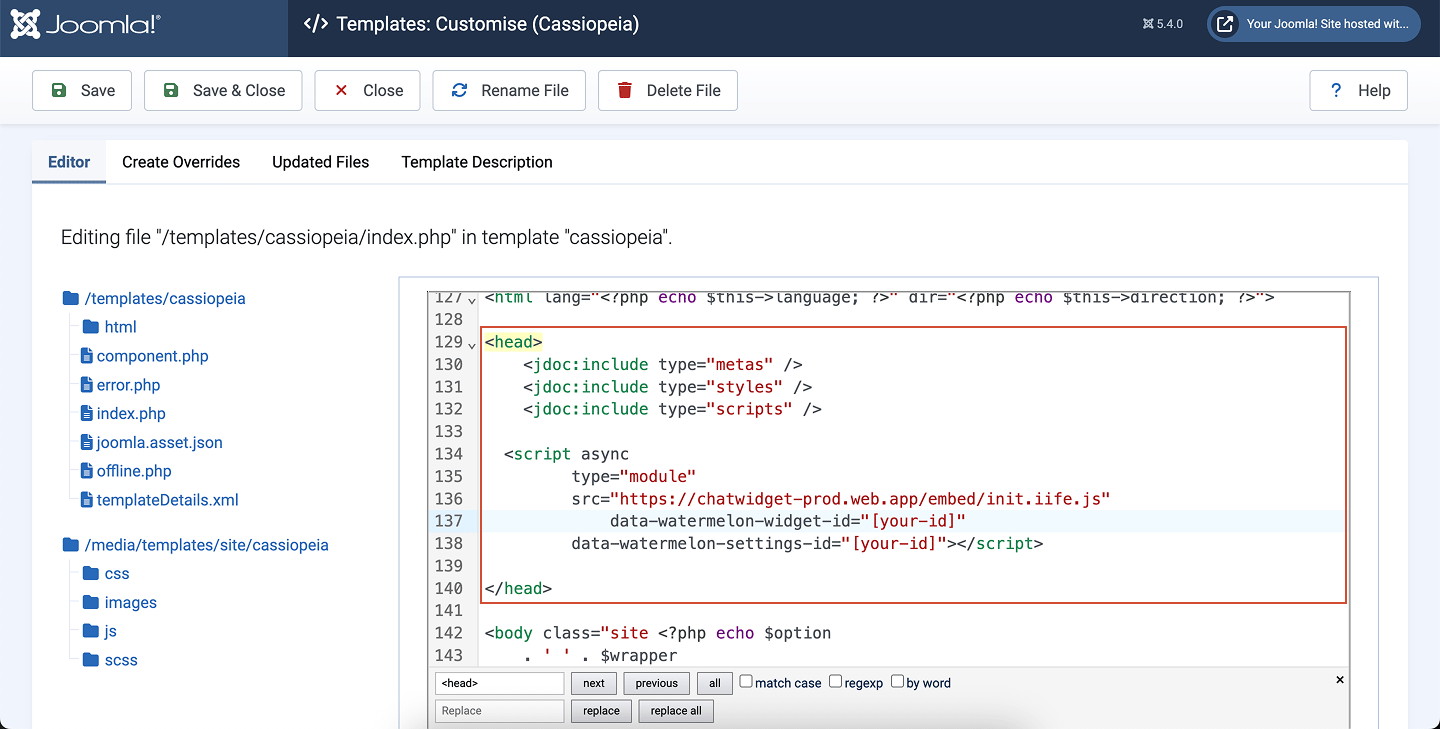
Paste your chat widget code
Scroll to the middle of the index.php file and paste your chat widget embed code **just before the closing **</head>tag .
Tip: You can also use the search function on the bottom left and type in <head> to go to the correct spot in the index.php file to add your code, as seen in the screenshot above.
To use Code Injection, make sure your site is on one of the following plans: Core, Plus, Advanced, Business, Commerce Basic, or Commerce Advanced.
1
Open Settings
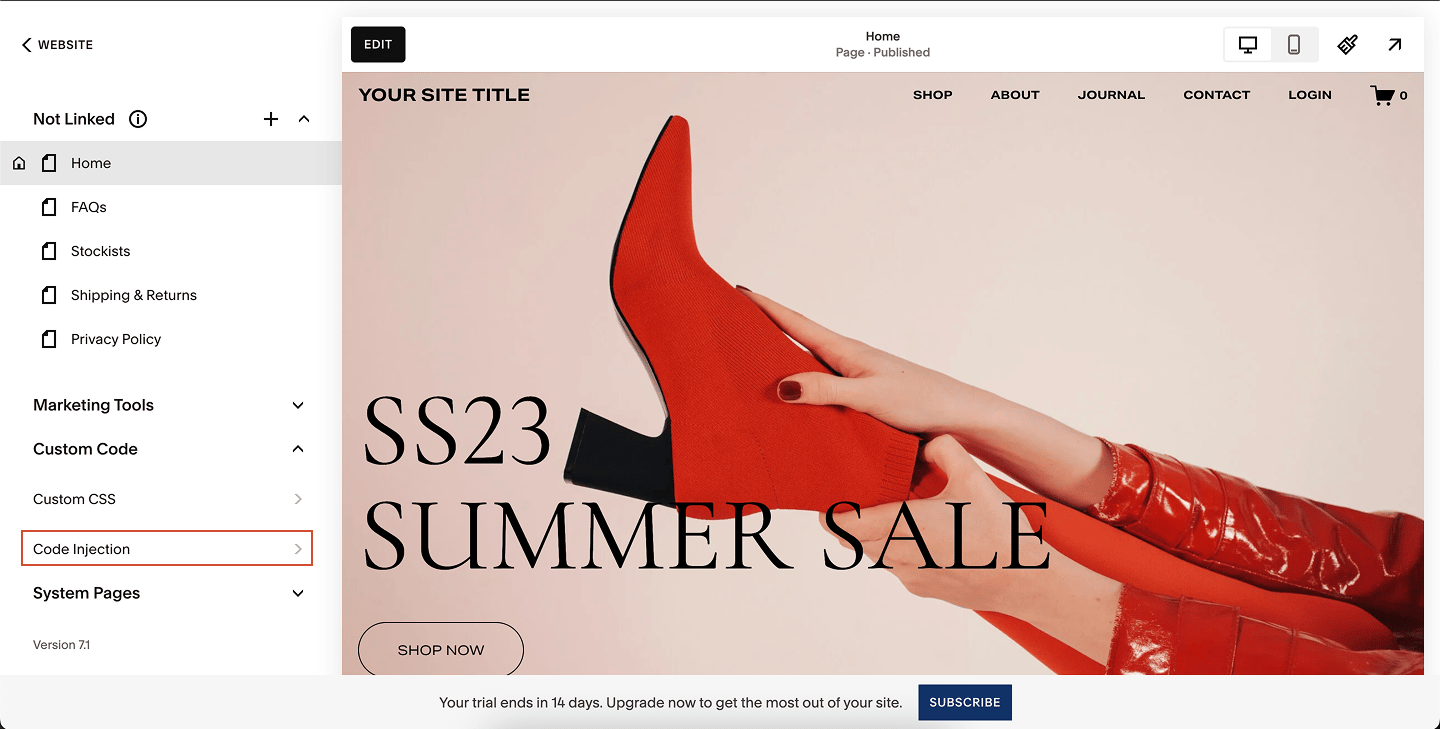
From your Squarespace dashboard, click Website.
2
Go to Custom Code → Code Injection
In the menu, select Custom Code, then click Code Injection.
3
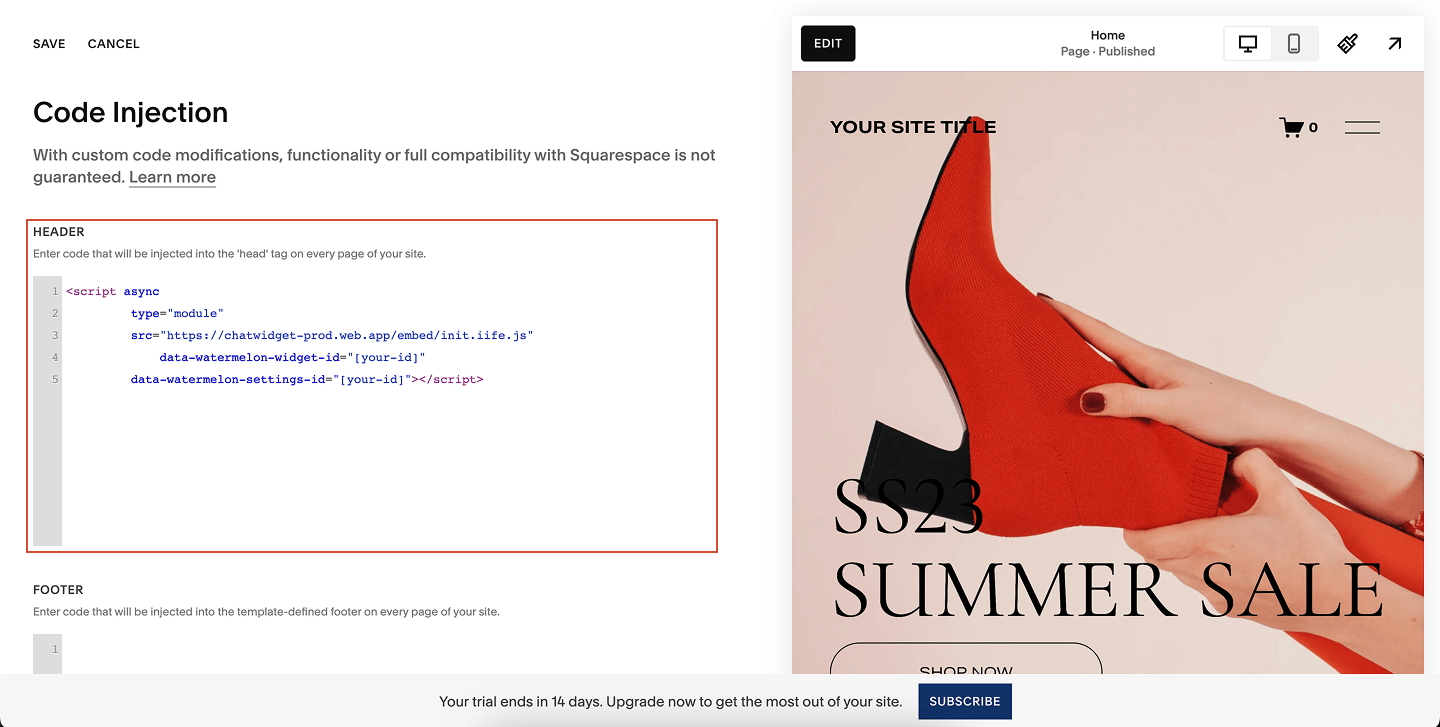
Add your widget code
Under Header, paste your chat widget code.
This will inject the widget into the <head> tag on every page of your site.
The Header field adds the code to all pages.If you prefer, you can also add your code to the Footer section — this loads the widget before the closing </body> tag, which can slightly improve page performance.
4
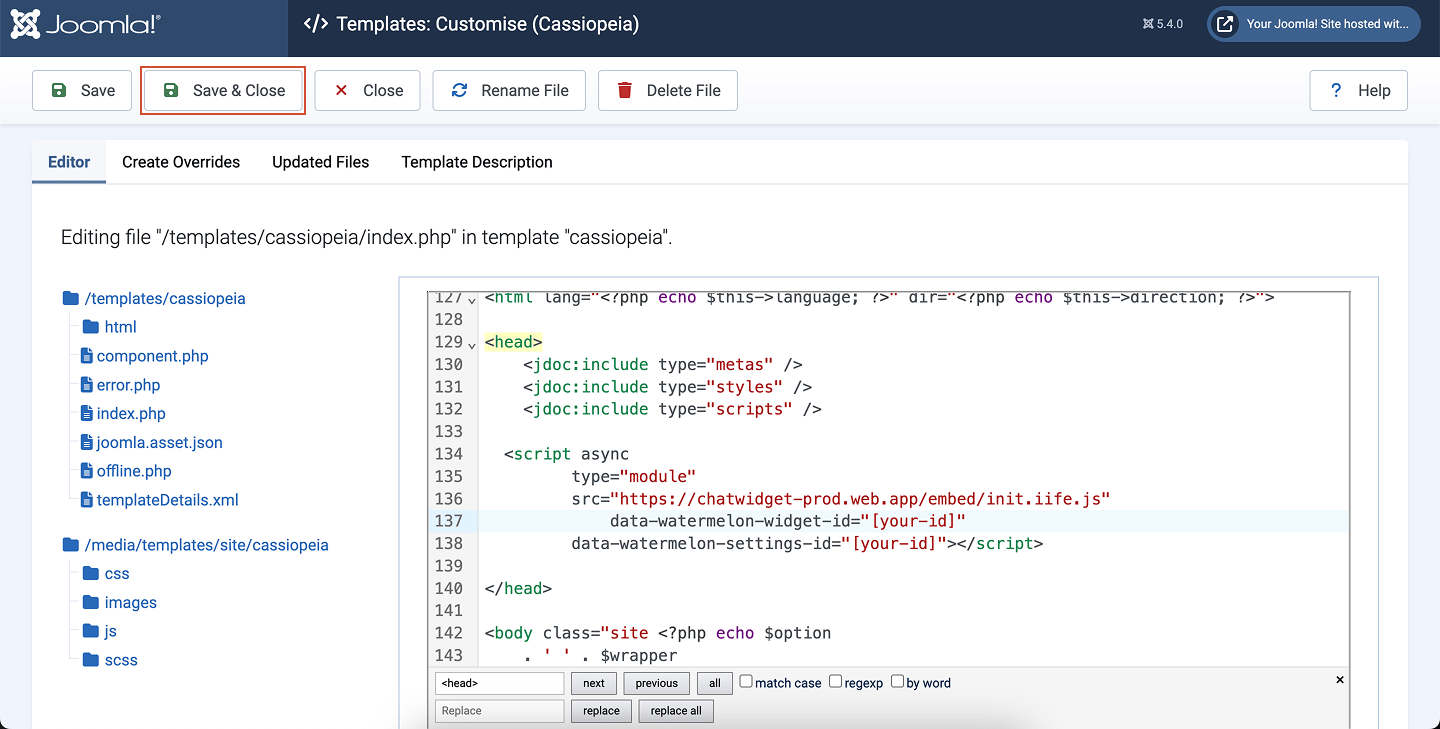
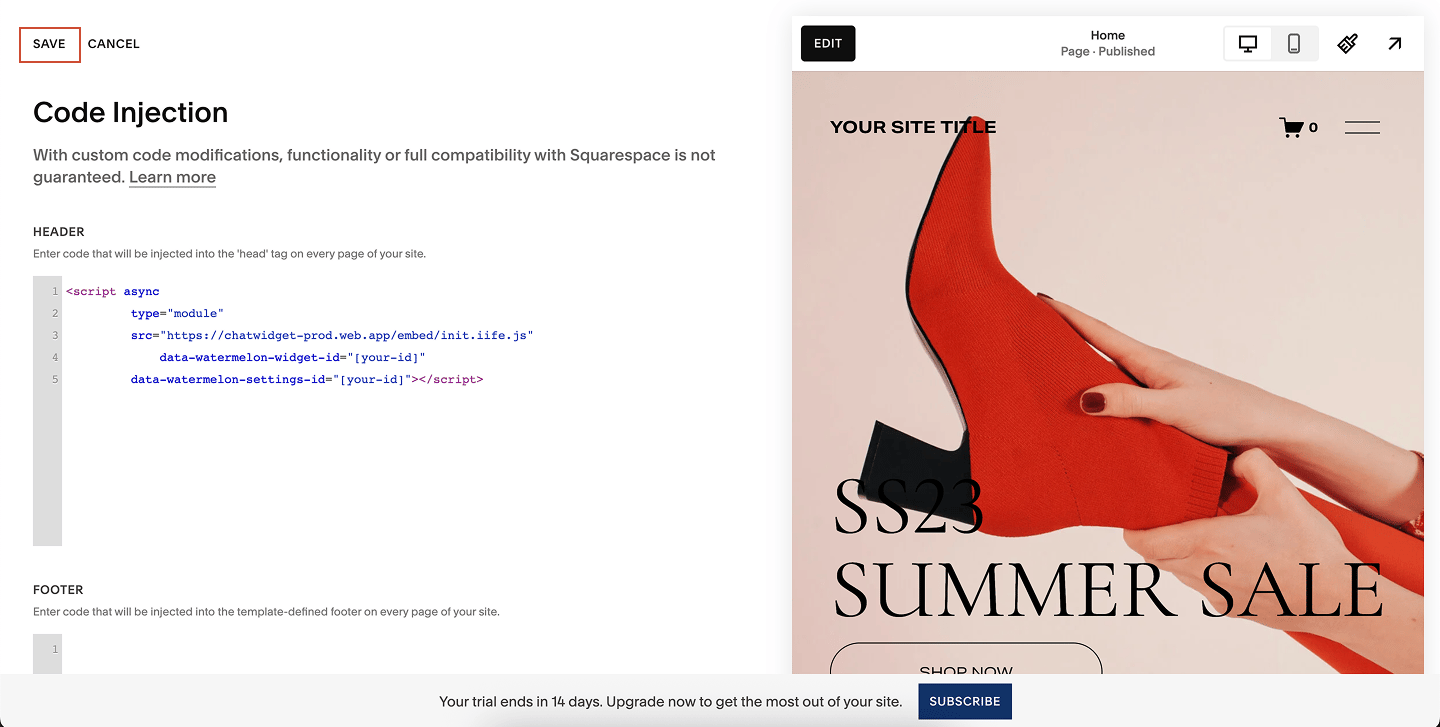
Save your changes
Click Save to apply your chat widget code.
If you don’t see the widget check if the selected chat widget is set on “Show on website”.
If you’d like to add the chat widget only to certain pages, follow these steps:
1
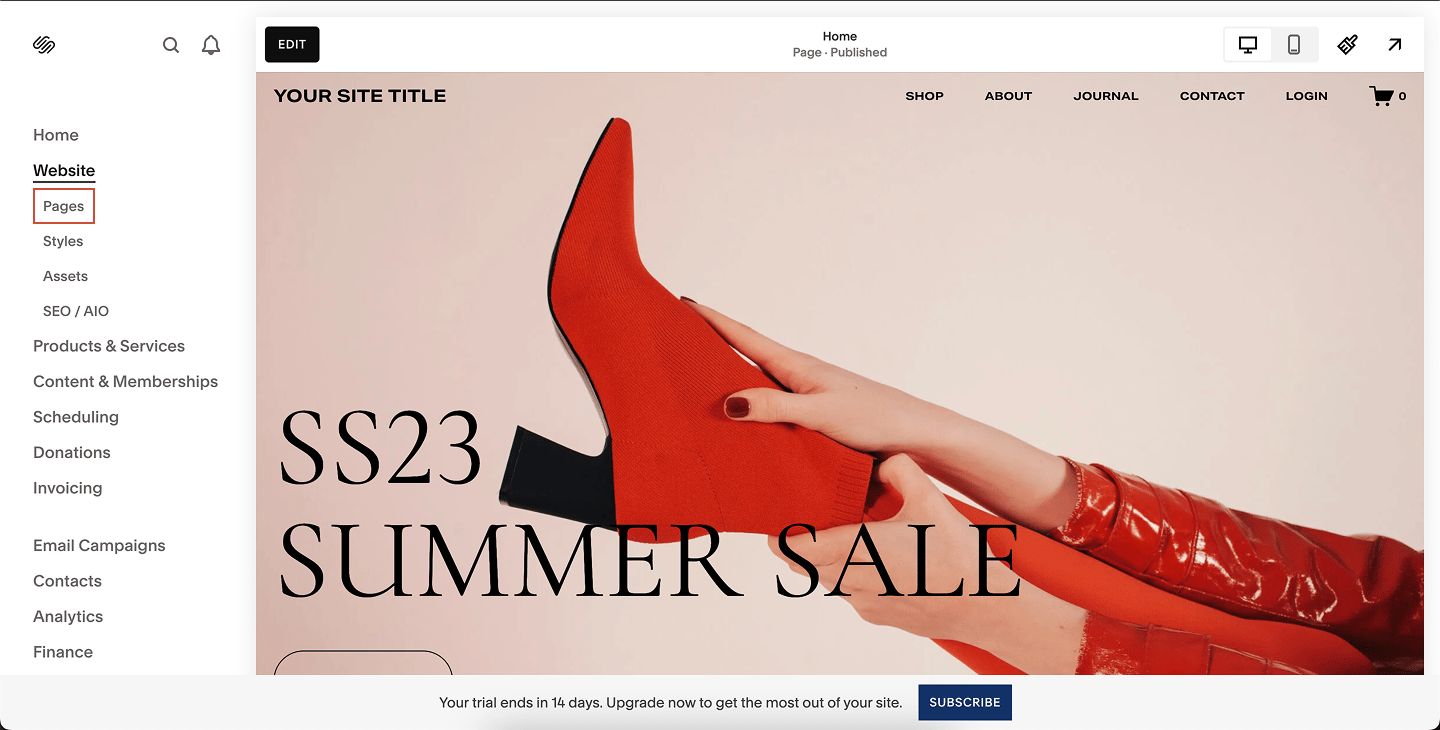
Open the Pages panel
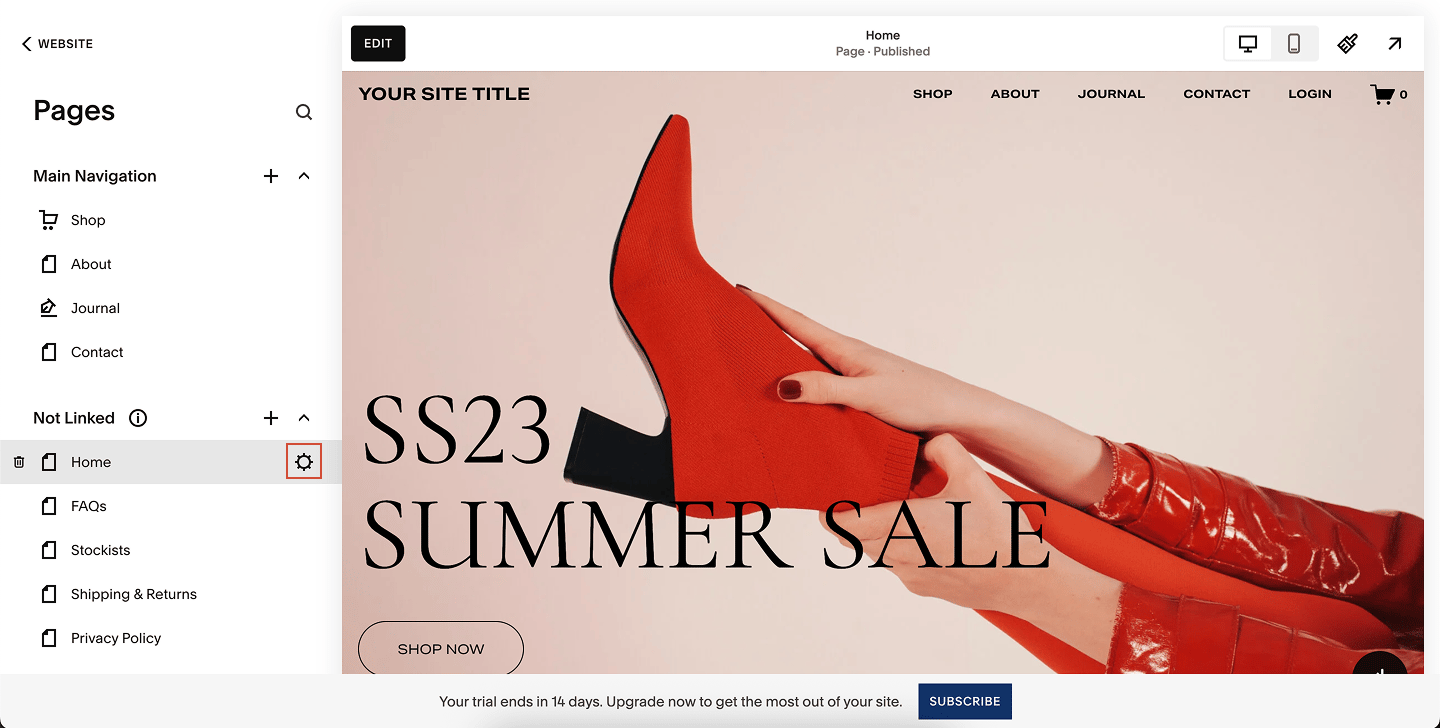
In your Squarespace dashboard, go to Website and click on Pages.
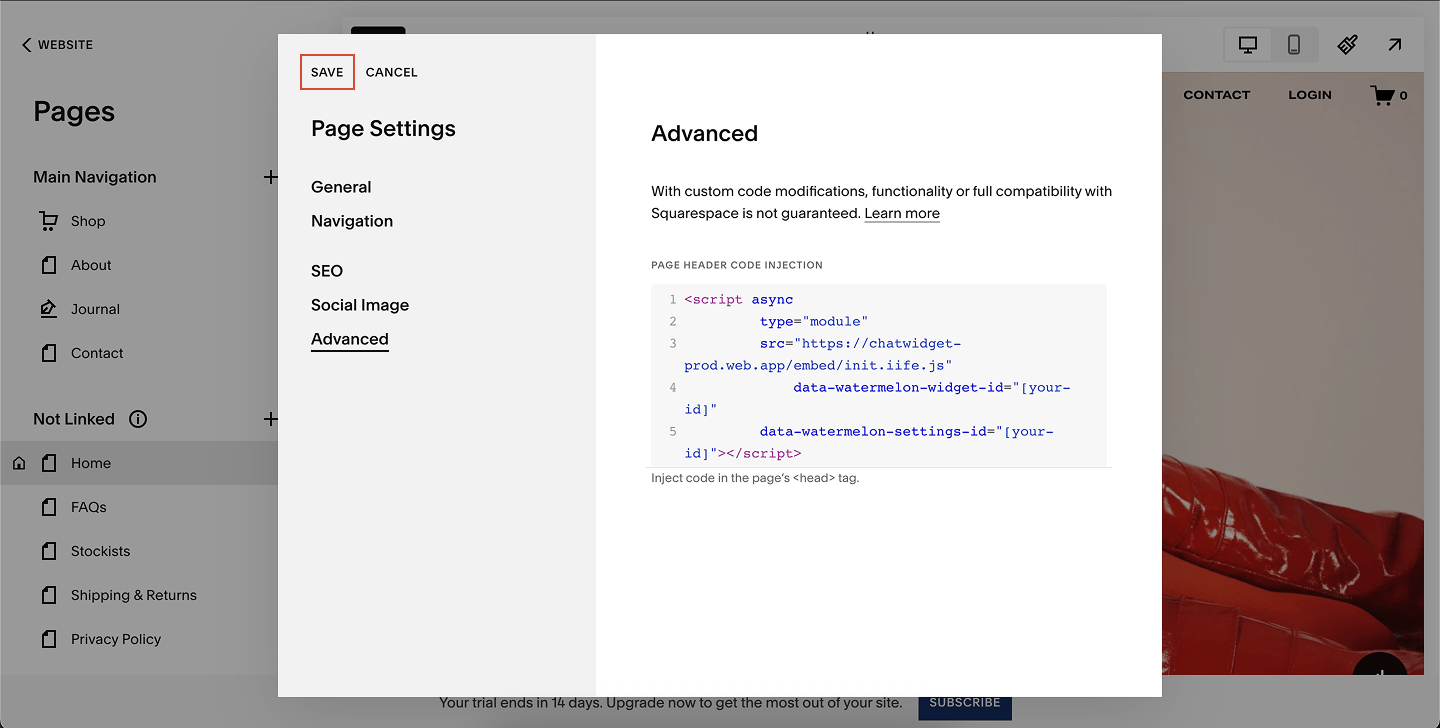
Then hover over the page you want to edit and click the gear icon to open Page Settings.
2
Inject the code on the page
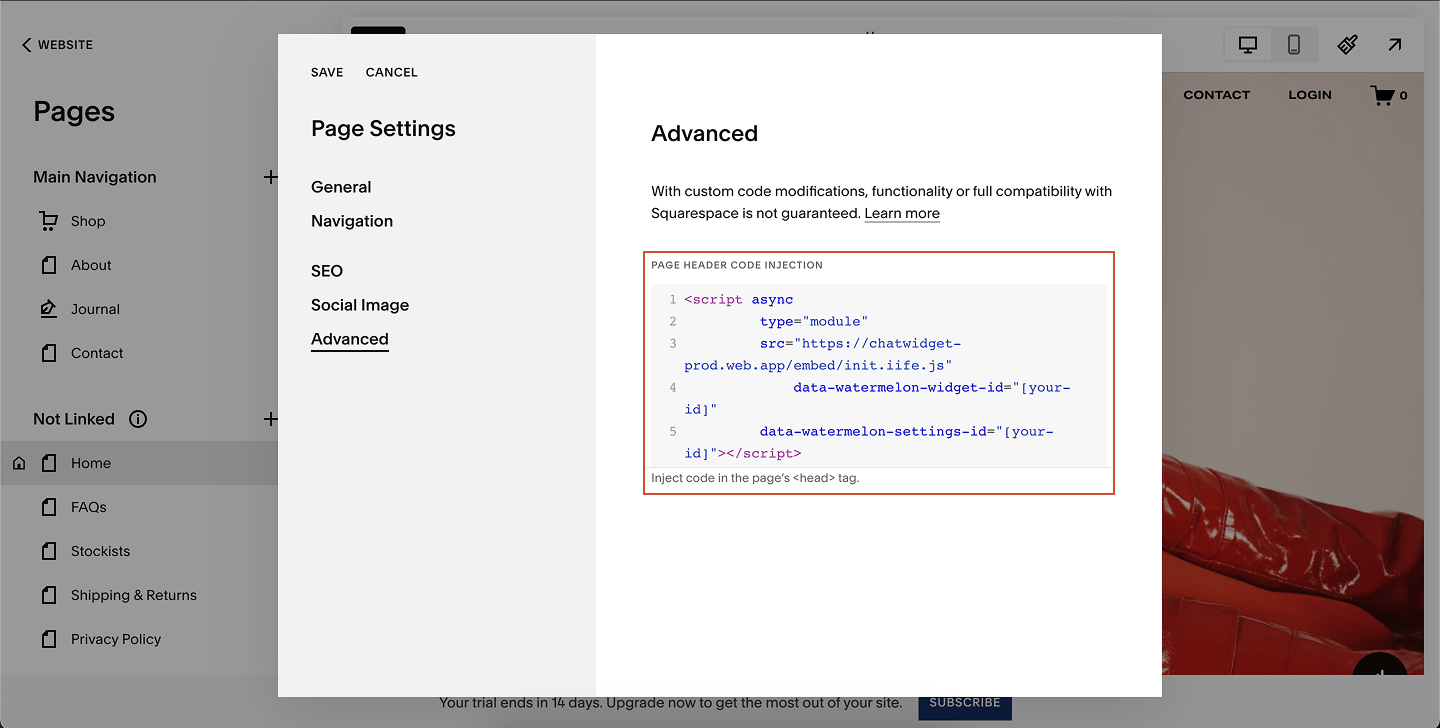
Click Advanced, then scroll to Page Header Code Injection. Paste your chat widget code here.
The code you add here is injected into the <head> tag of this specific page.Blog pages also include a Post Blog Item Code Injection option if you want the widget on each post.
3
Save and publish
Click Save, then Publish your site. Open the page in your browser to confirm that your Watermelon chat widget appears correctly.
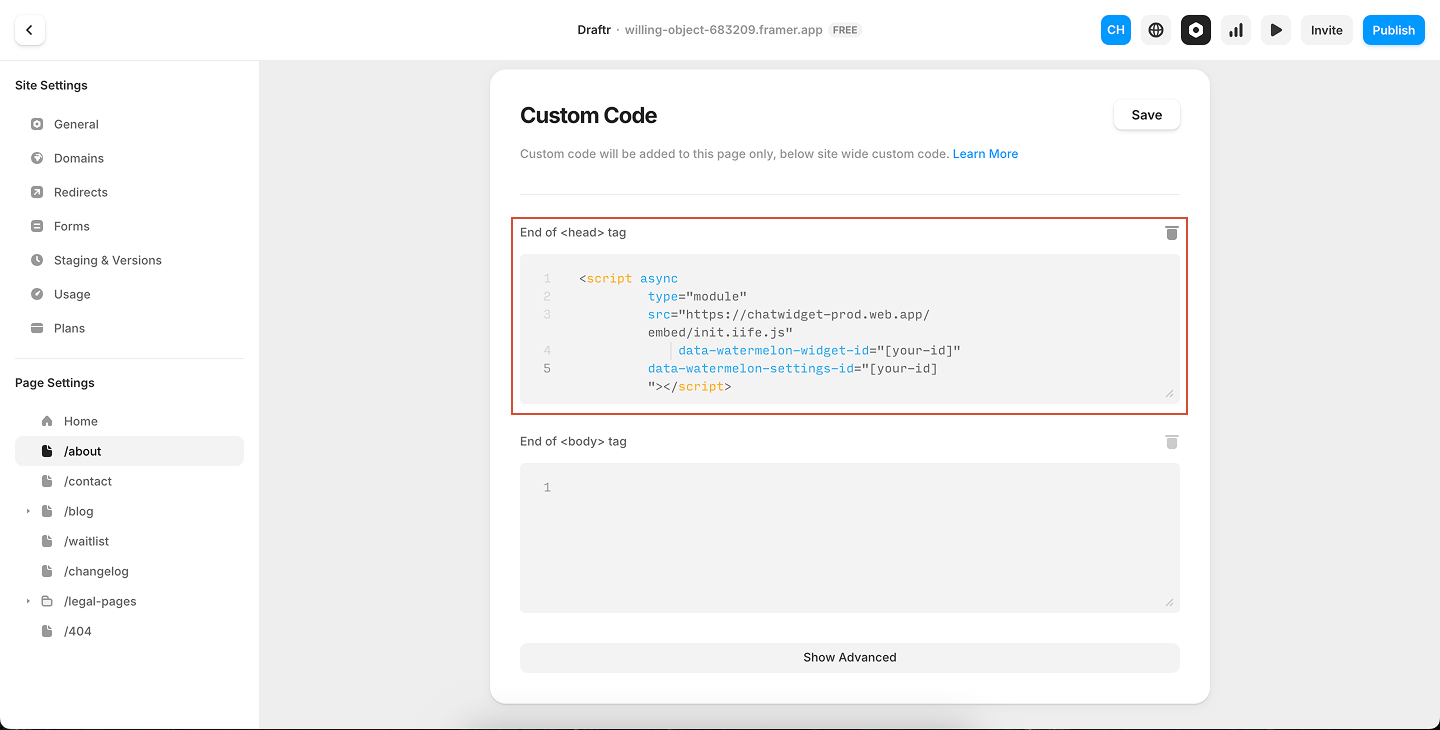
Now that you have your chat widget code, follow the steps below to add it to your Framer website.
1
Open project settings
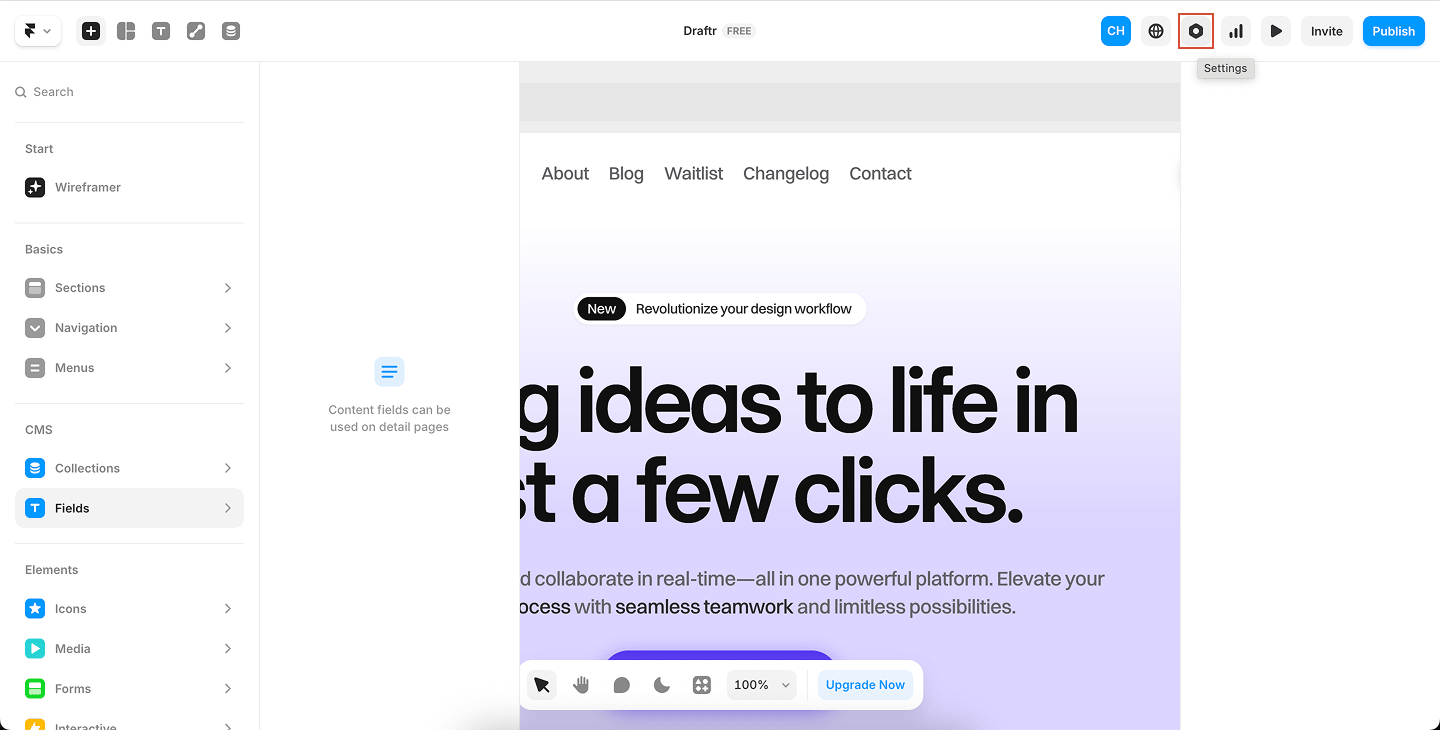
In Framer, click Project Settings in the top right corner of your dashboard.
2
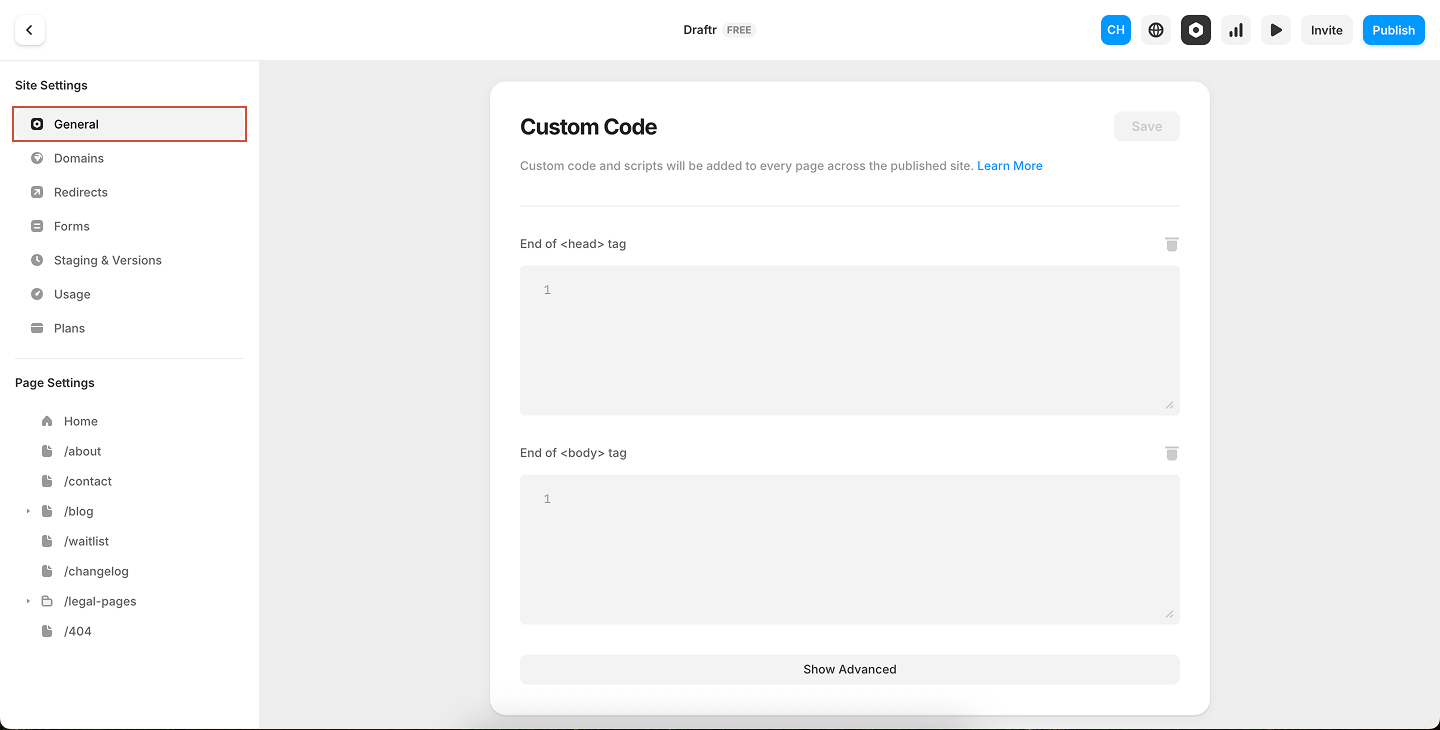
Open the General tab
Navigate to the General tab and scroll down to the Custom Code section.
3
Add your chat widget code
In the Custom Code section, you’ll see fields for adding code to the Head, Body, and Footer.Paste your Watermelon chat widget code at the **start of the **<head>tag code area.
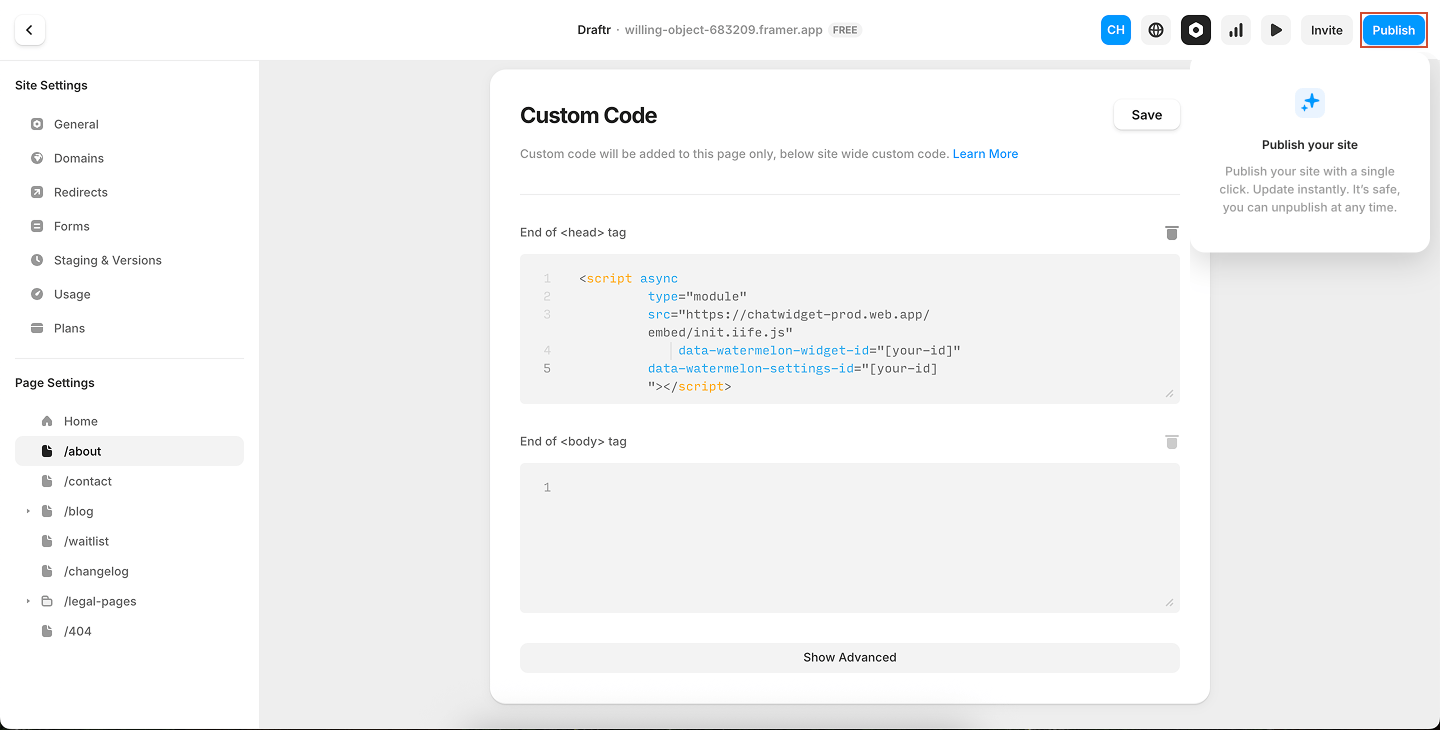
4
Save changes
Your script will now run across the entire website after you publish your project.
Tip: The custom code will only appear after publishing your website.The chat widget won’t show up in Framer’s preview — open your live site in a browser to see it in action.
If you don’t see the widget, double-check if you have published your website. And also check if the selected chat widget is set on “Show on website”
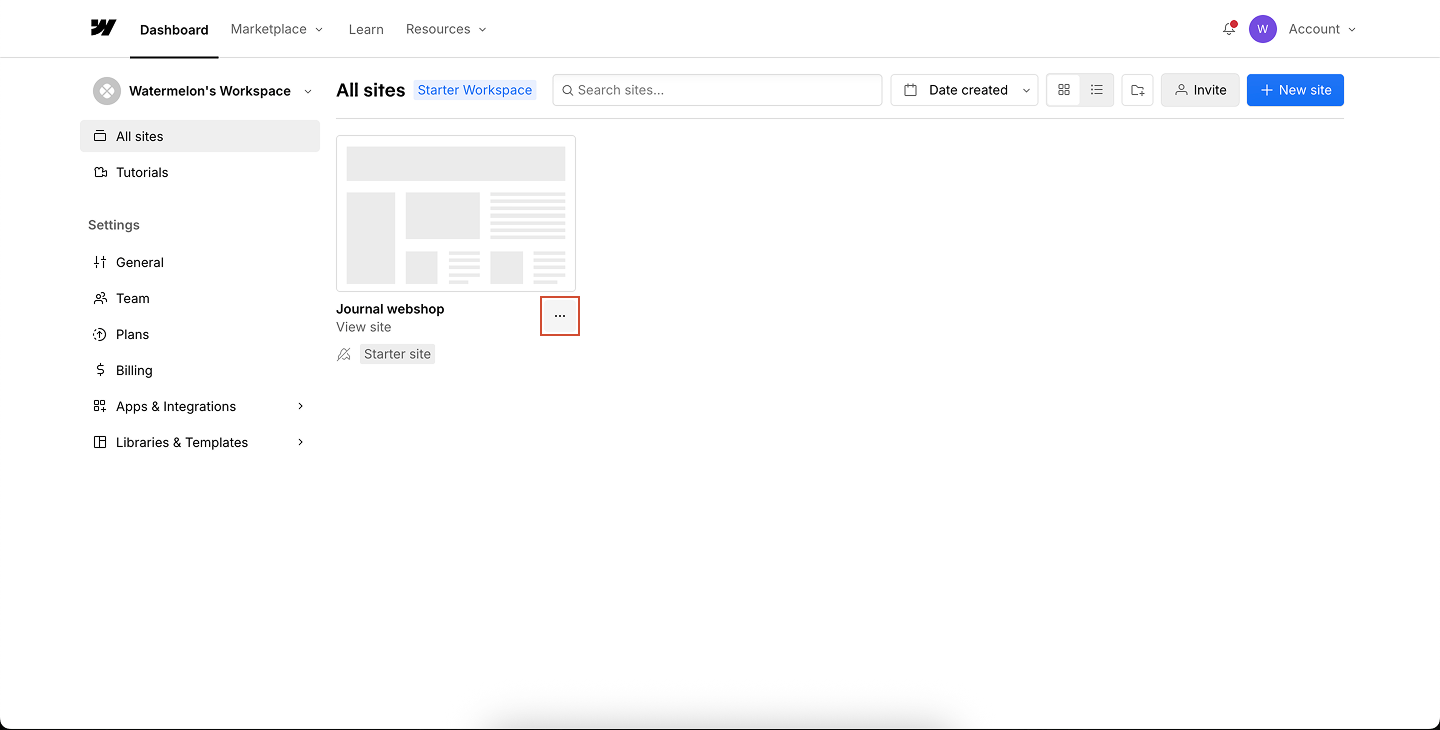
Now that you have your chat widget code, follow the steps below to add it to your Webflow website.
1
Open your Webflow project
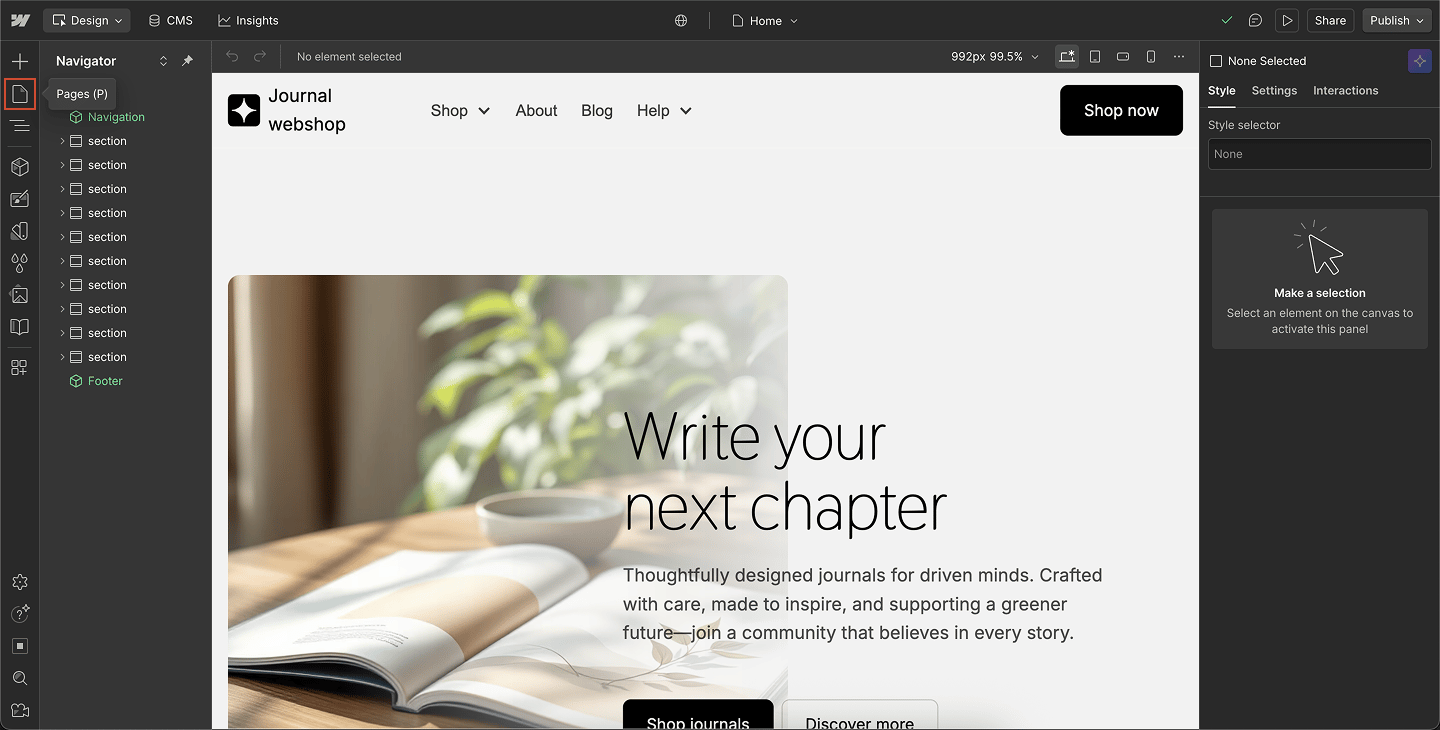
From your Webflow dashboard, find your project thumbnail and click the three dots icon to view more options.
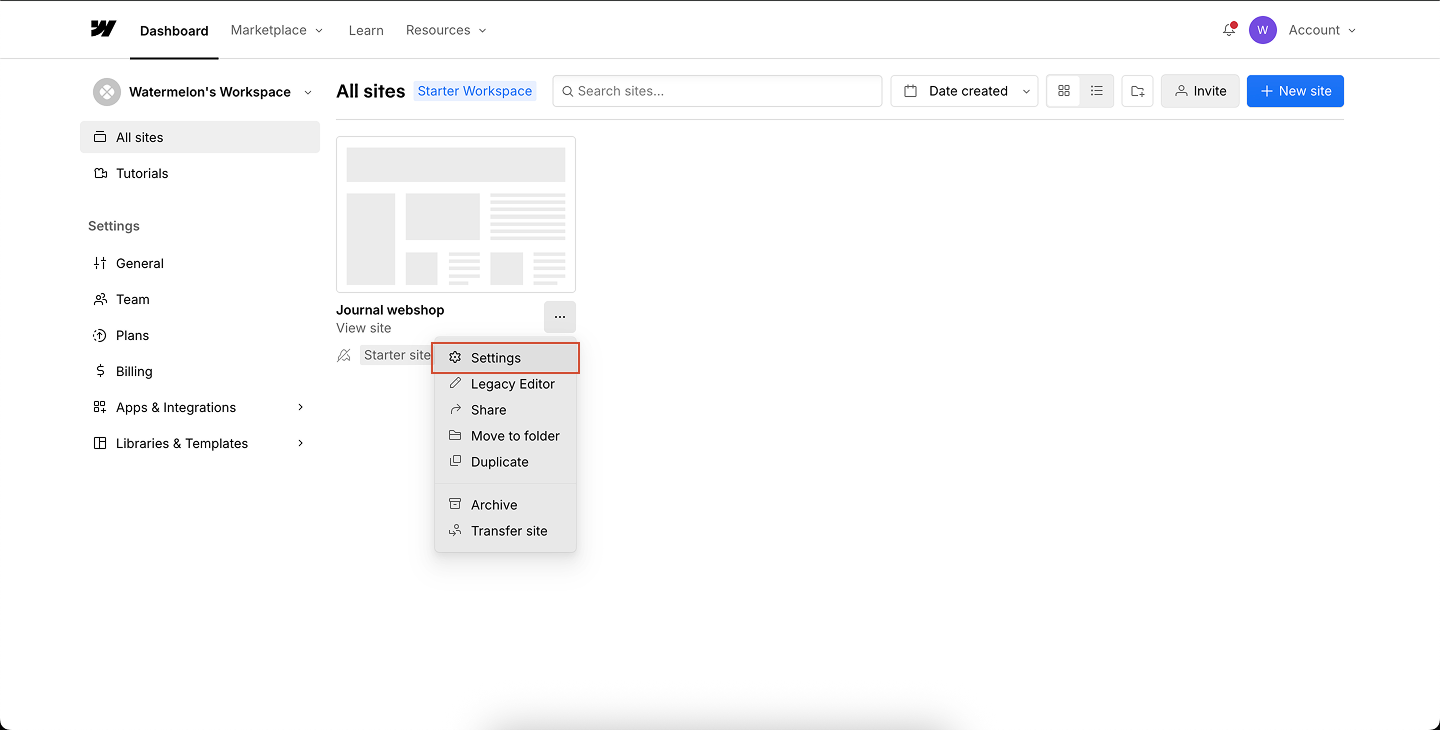
2
Open project settings
Click Settings to open the project configuration page.
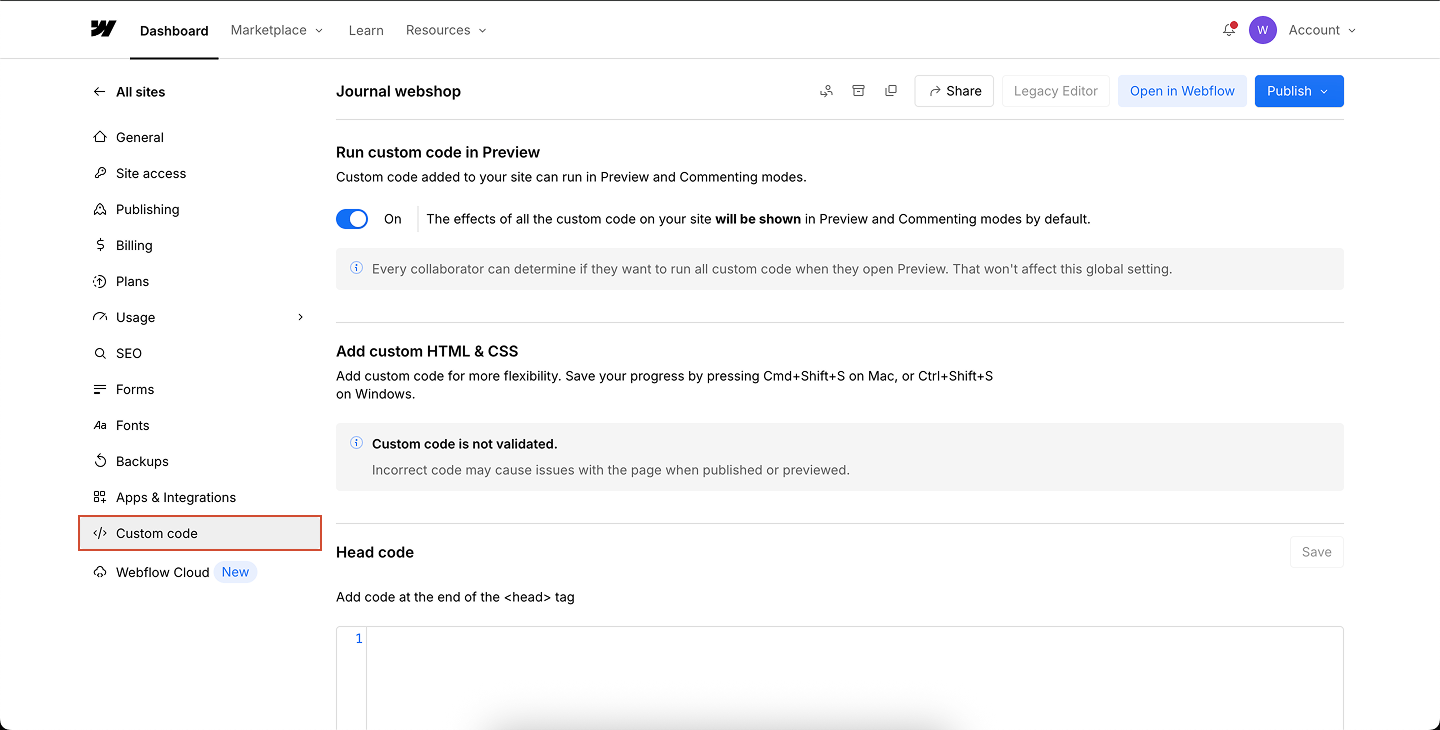
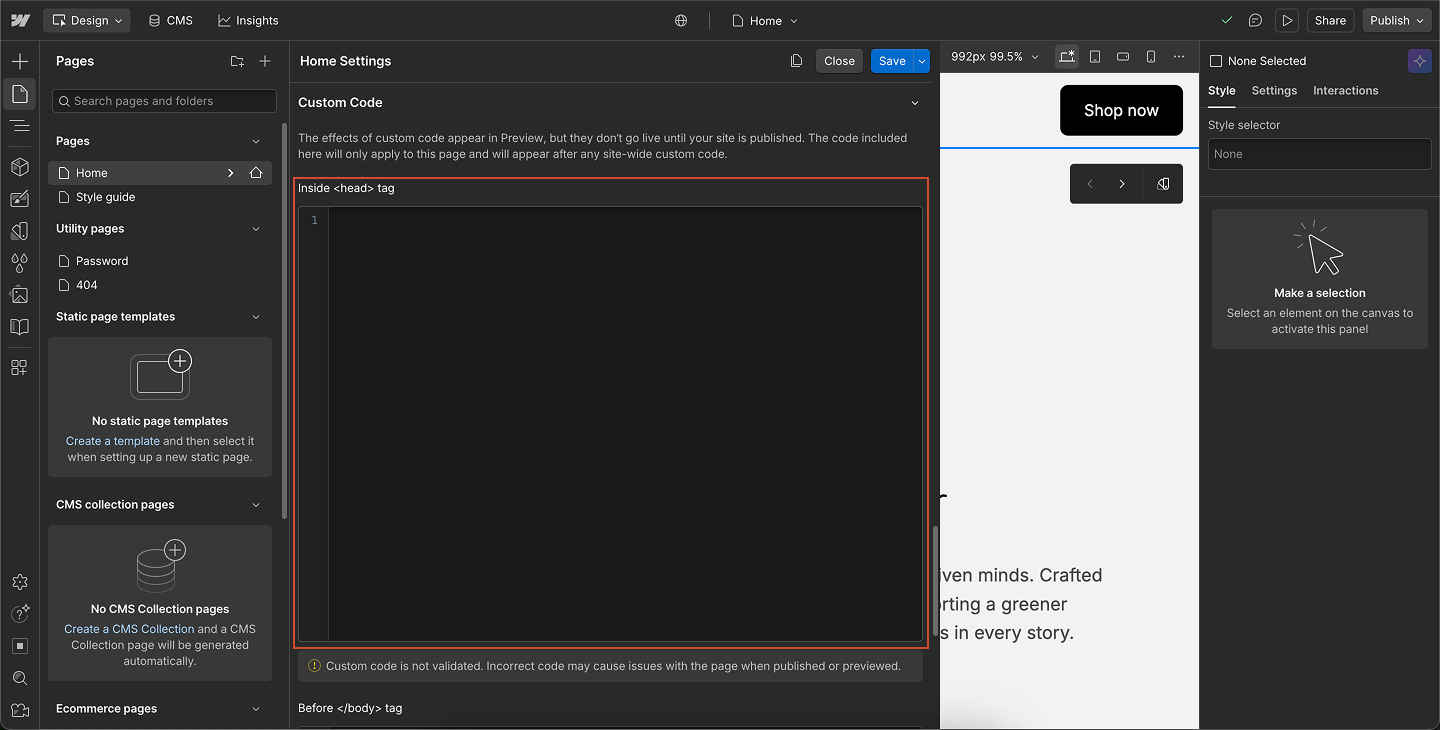
3
Go to Custom Code
From the left sidebar, navigate to Custom Code.
4
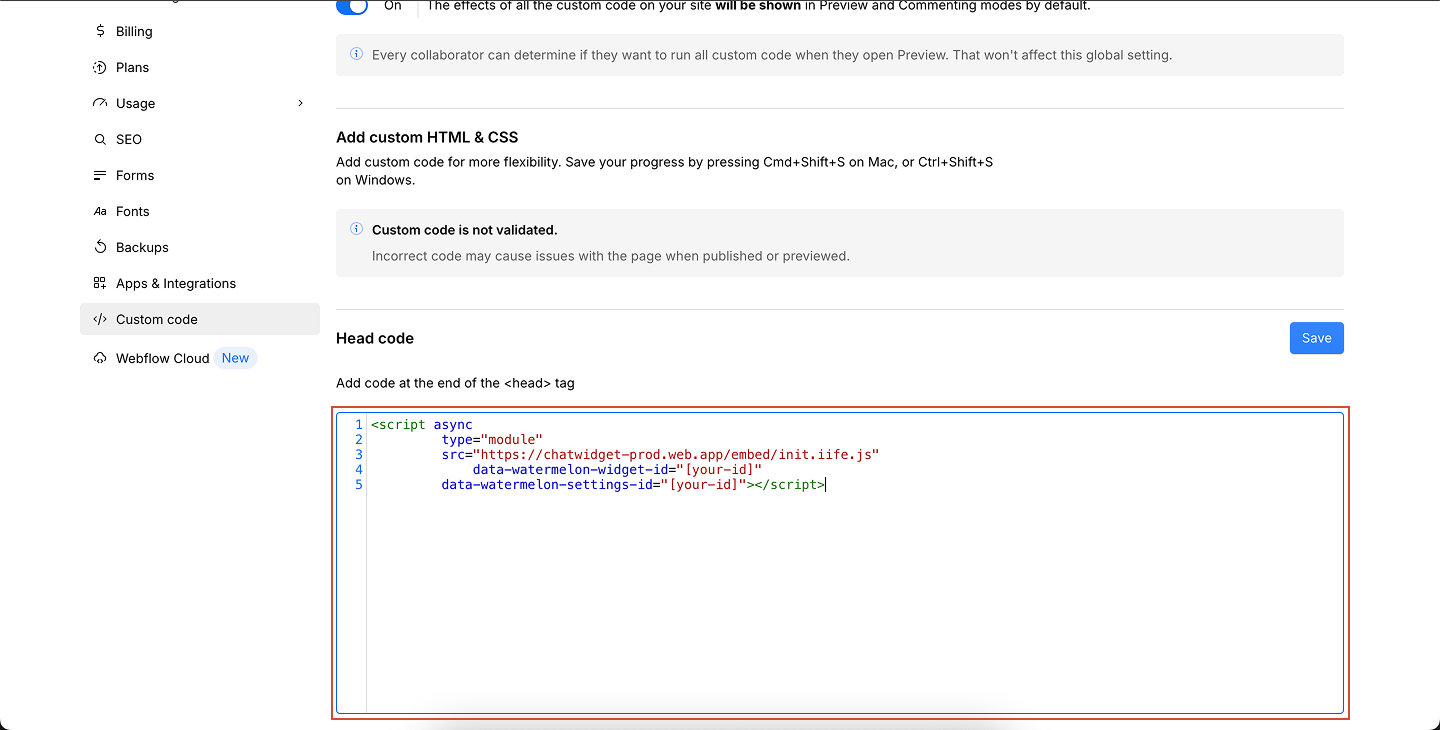
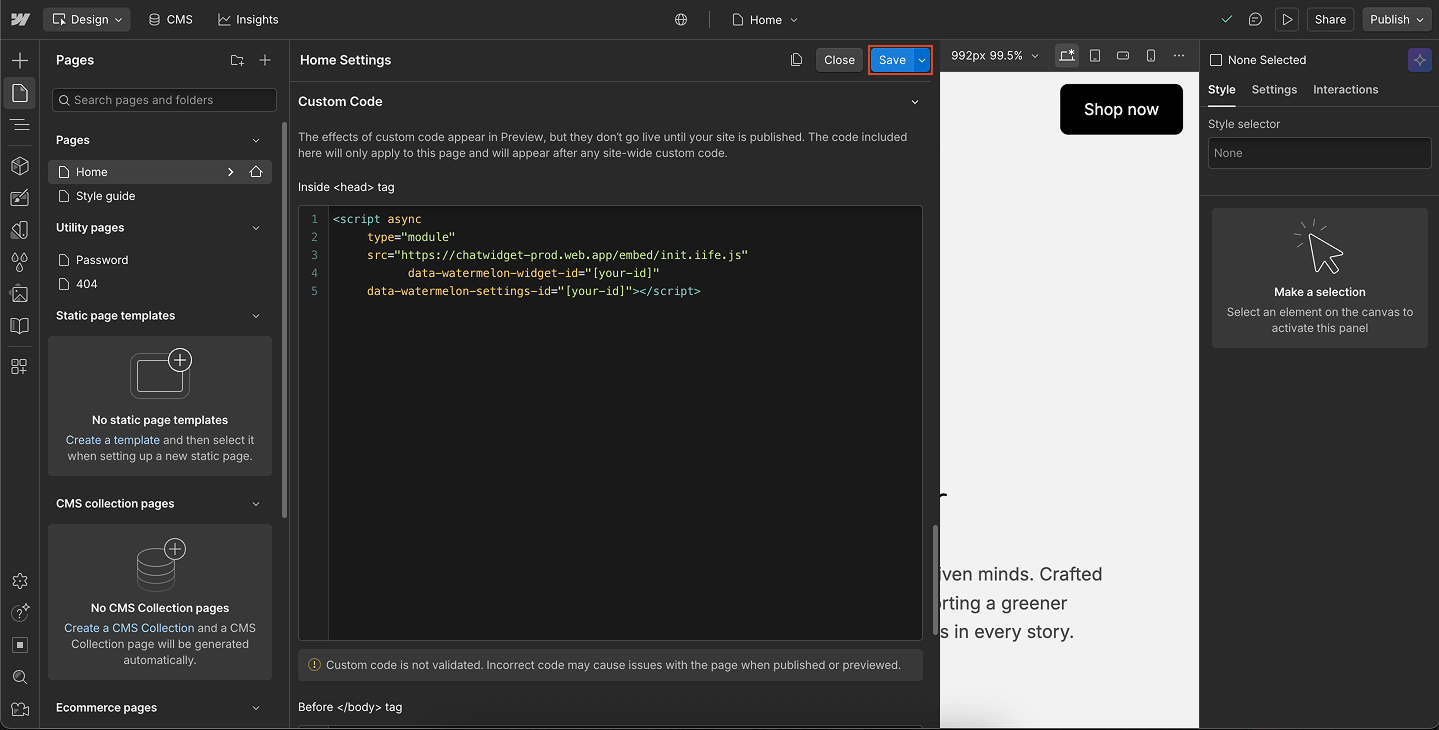
Add your widget code
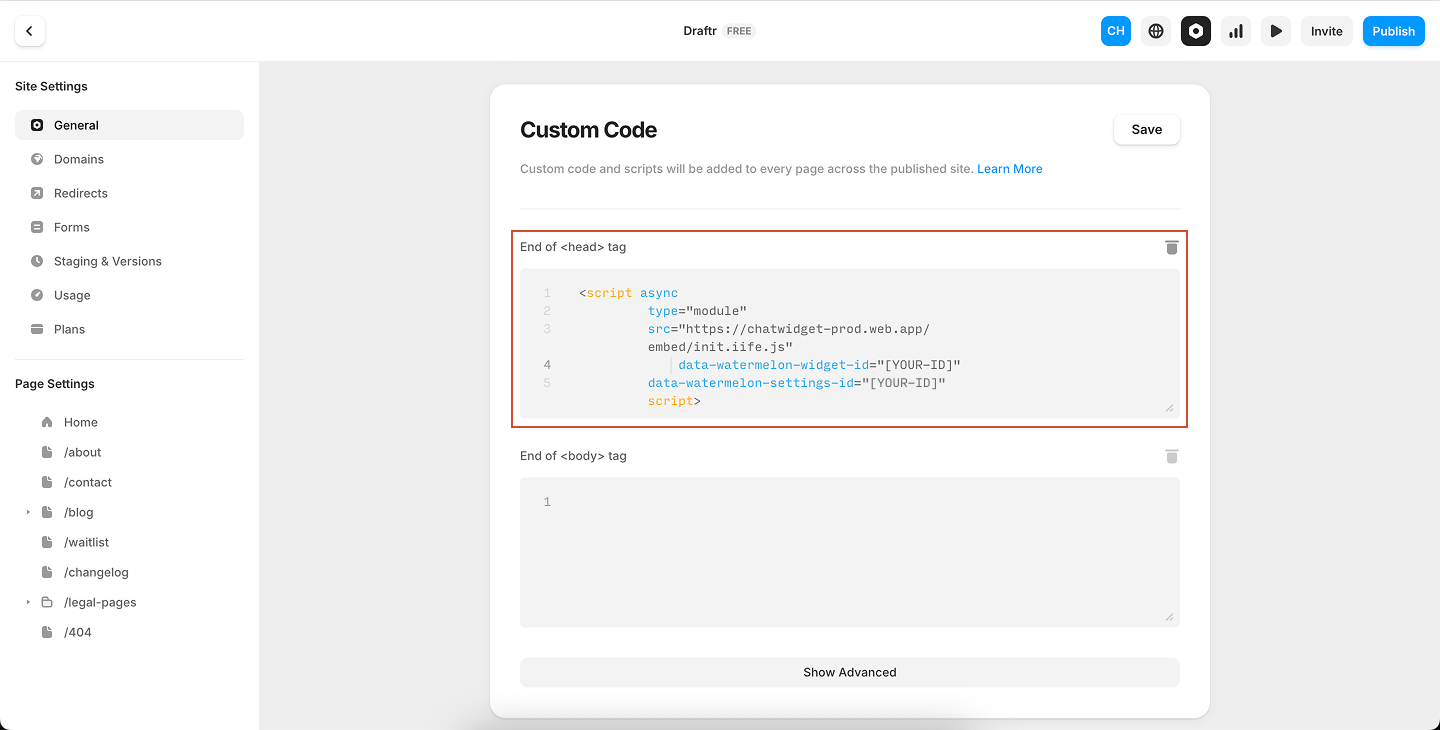
Scroll down to the section **Add code in the **<head>tag and paste your chat widget code here.
Tip: For best performance, place your code before the closing <footer> tag instead of in the head. This makes sure your site loads faster while the widget still appears correctly.
Make sure your code is wrapped in <script> and </script> tags. Do not include <body> or </body> tags — Webflow automatically places your code inside them.
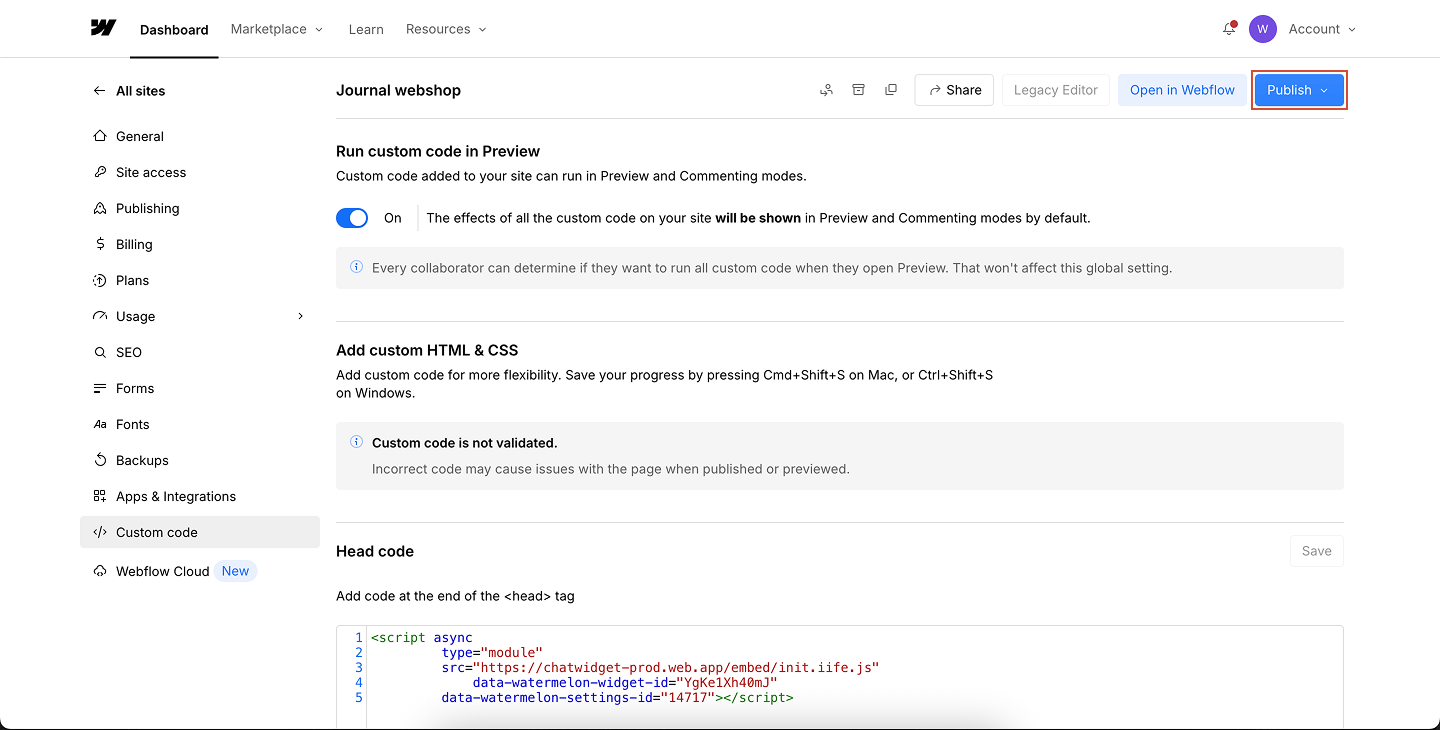
5
Save changes
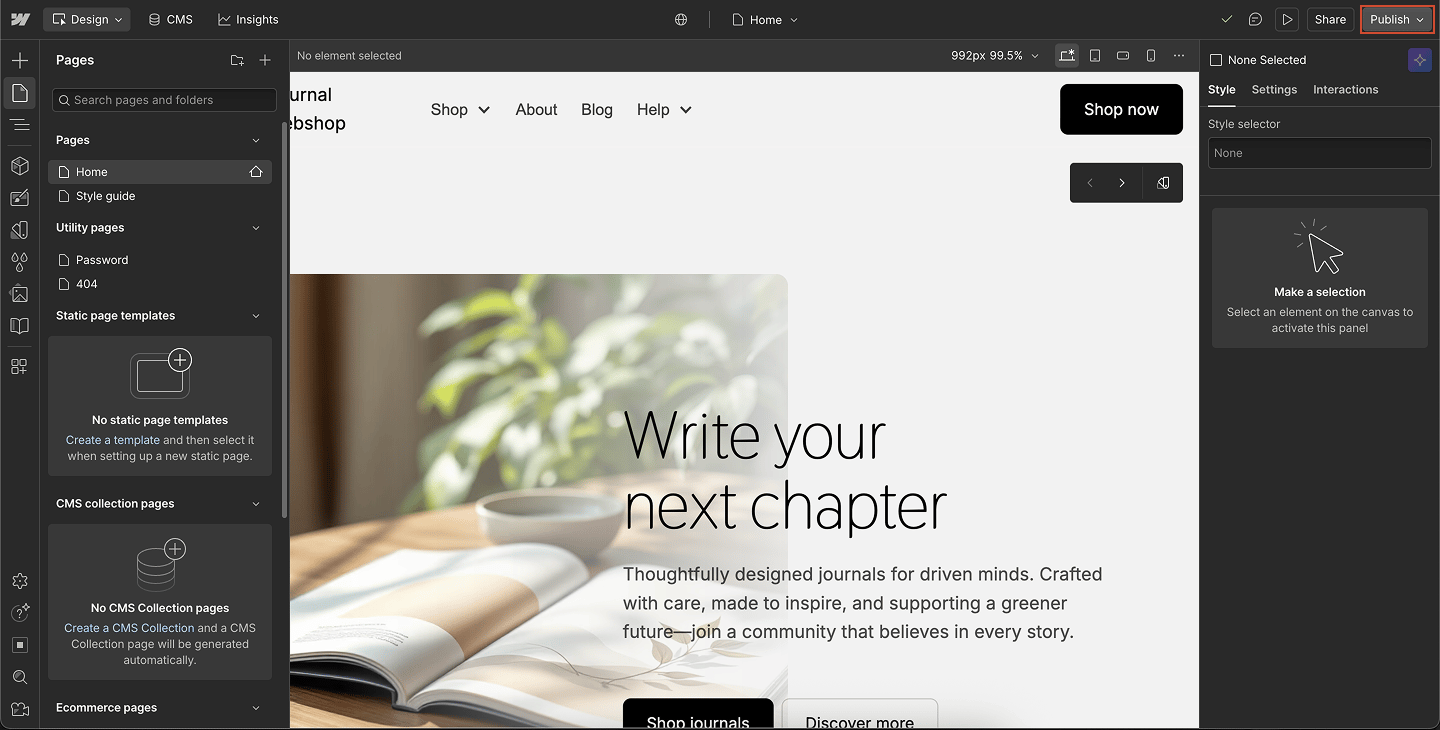
Any code added here will be applied to all pages of your Webflow project.
If you don’t see the widget, double-check that you selected “All pages” in the Script Manager and that the full code was pasted correctly. And also check if the selected chat widget is set on “Show on website”
Now that you have your chat widget code, follow the steps below to add it to your BigCommerce store.
1
Open Script Manager
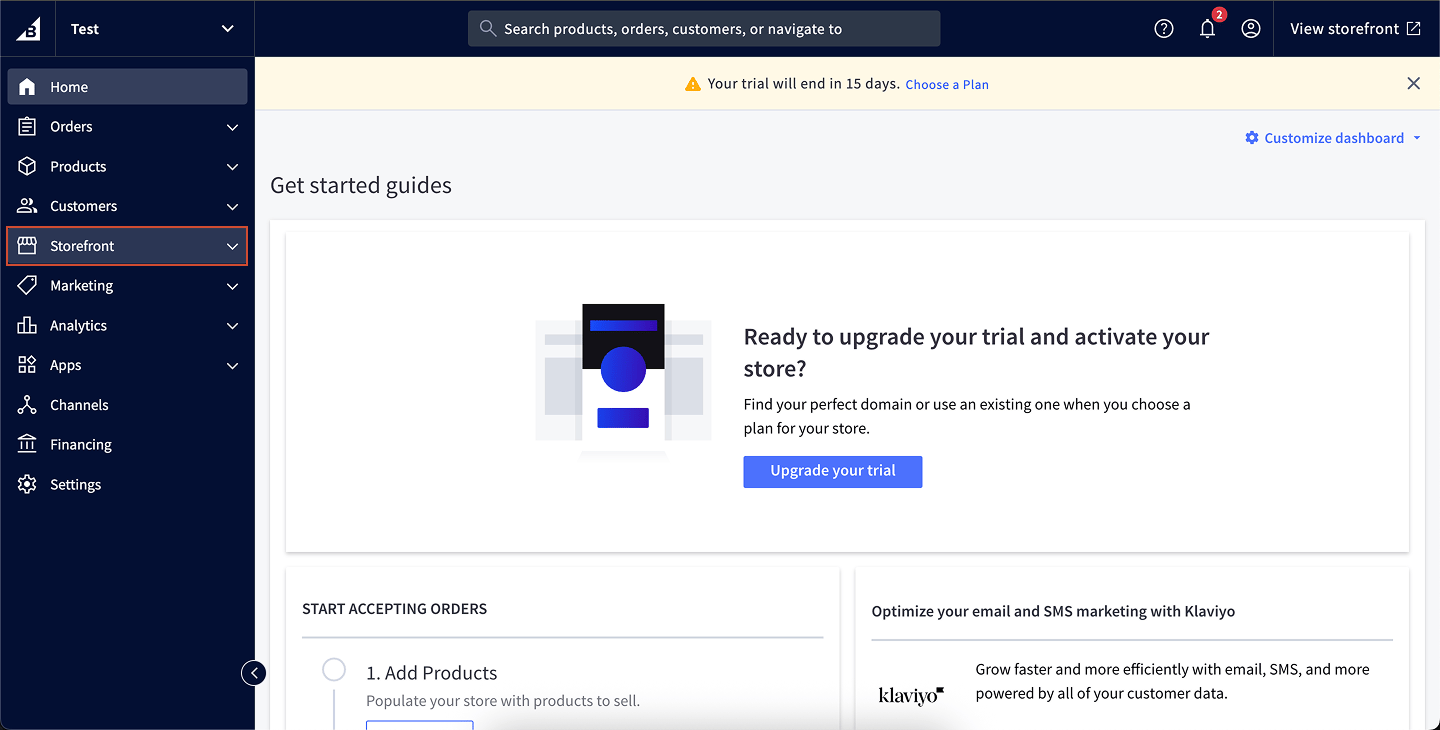
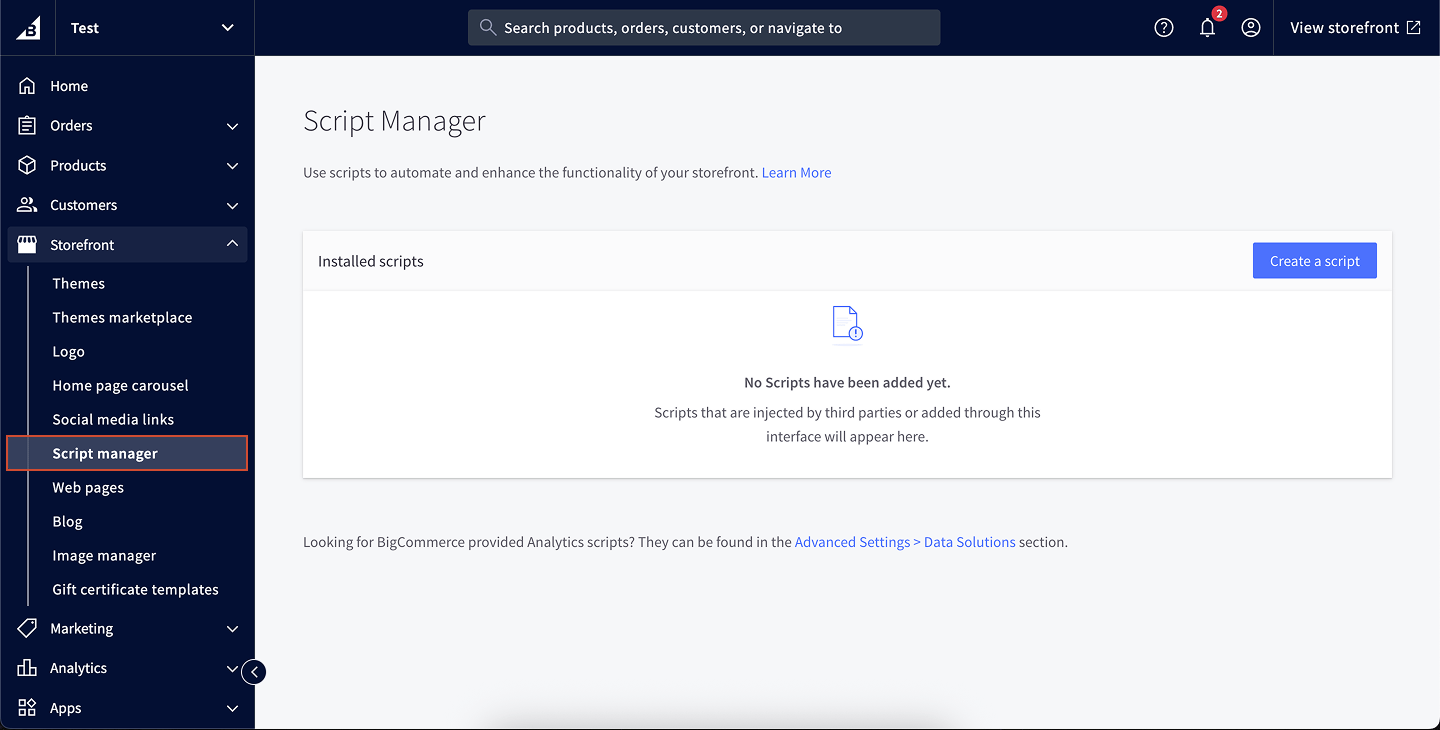
In your BigCommerce control panel, go to Storefront → Script Manager.
2
Create a new script
Click on Create a Script.
3
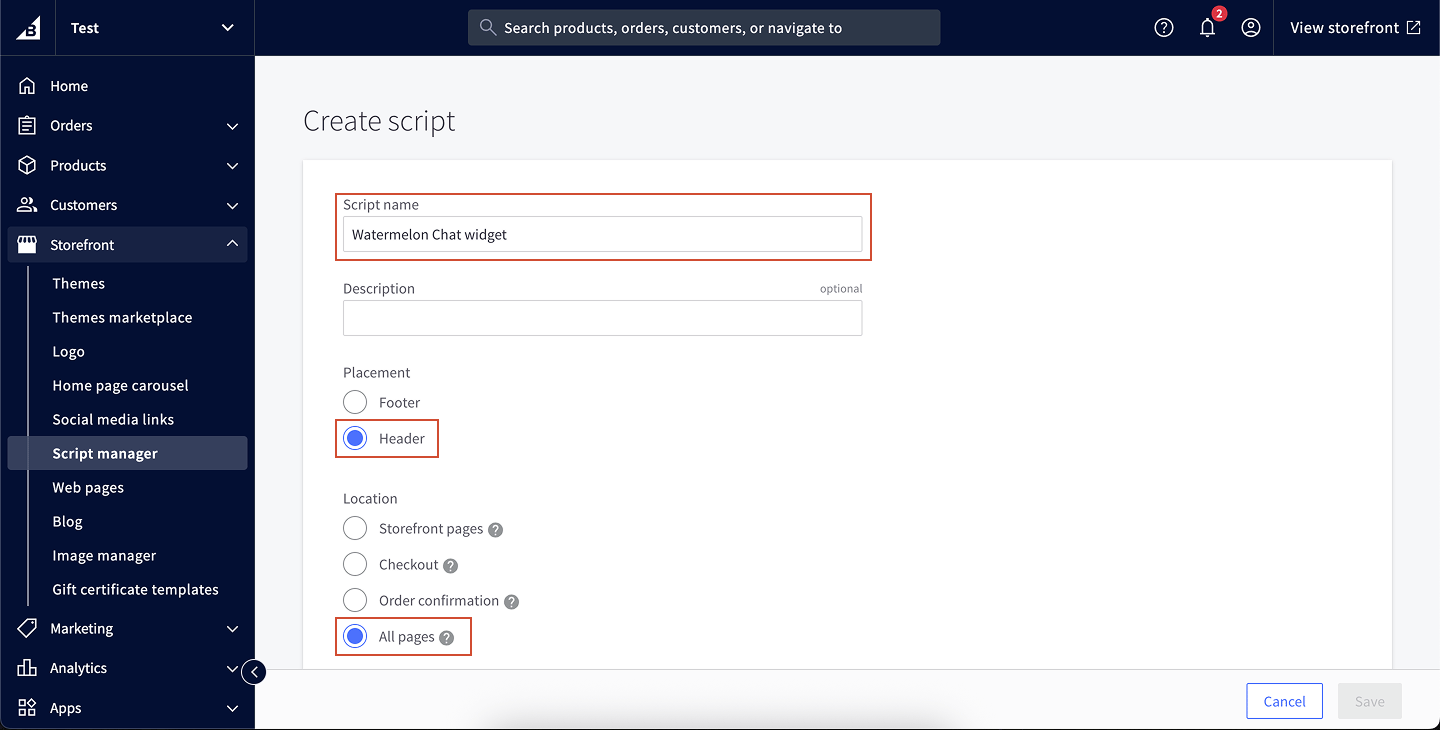
Enter script details
Name: Watermelon Chat Widget
Location on page: Header (recommended), for faster page loads, you can also paste the script in the Footer.
Select pages where script will be added: All pages (or select a specific page you want the widget to show)
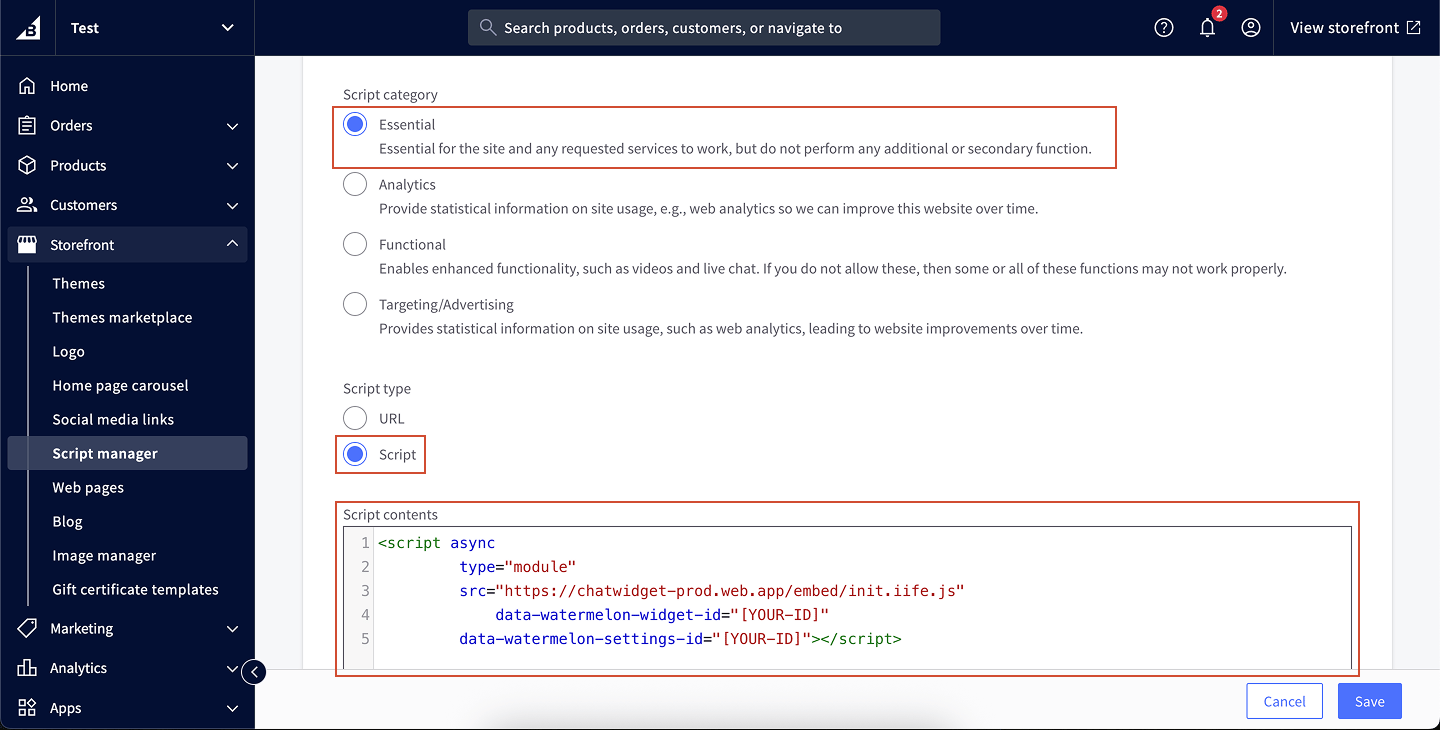
Script type: Script
4
Paste your widget code
In the Script contents field, paste the chat widget code you copied from Watermelon.
5
Save your script
Click Save to apply your changes.
6
Verify installation
Visit your BigCommerce store and refresh the page. Your chat widget should now appear in the bottom corner of your website.
If you don’t see the widget, double-check that you selected “All pages” in the Script Manager and that the full code was pasted correctly. And also check if the selected chat widget is set on “Show on website”
Now that you have your chat widget code, follow the steps below to add it to your Weebly website.
1
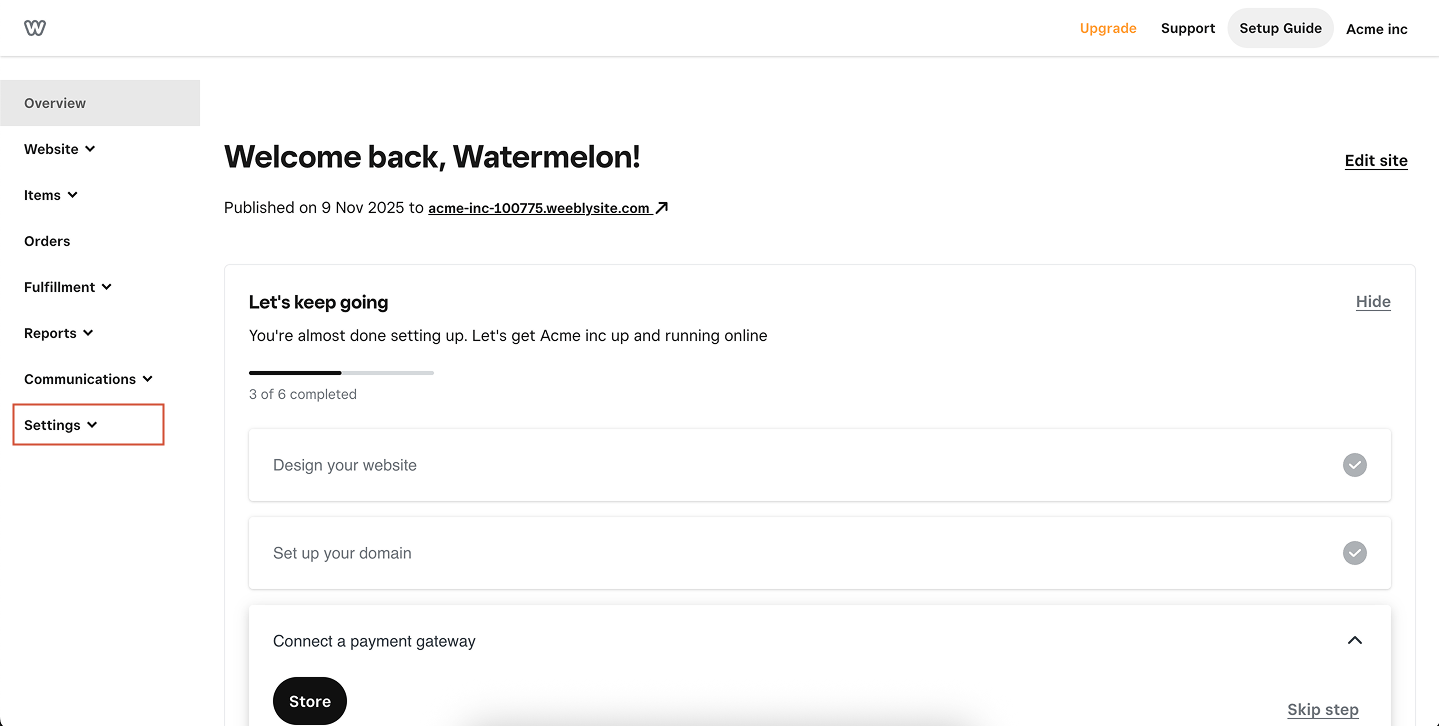
Open Settings
In your Weebly dashboard, click Settings in the left-hand menu.
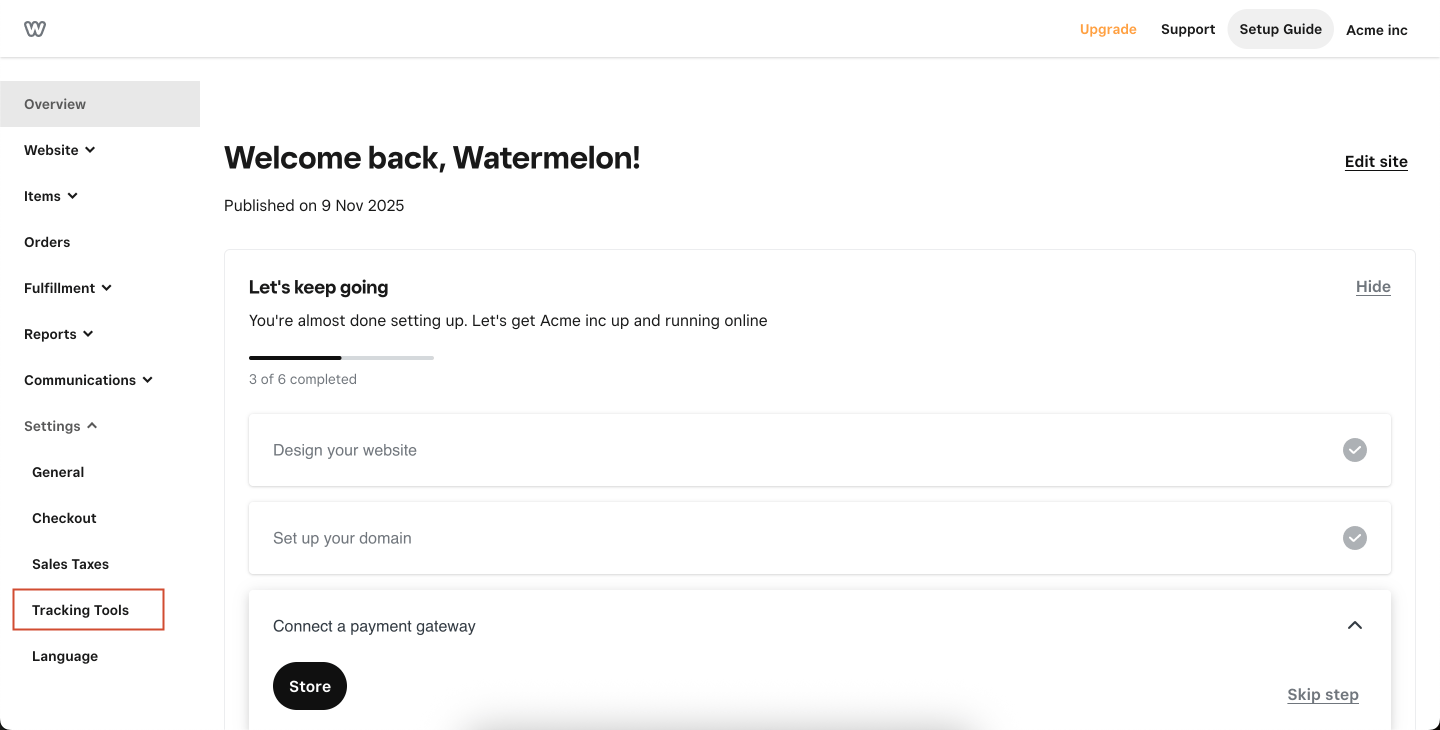
2
Select Tracking Tools
Go to Tracking Tools in the settings menu.
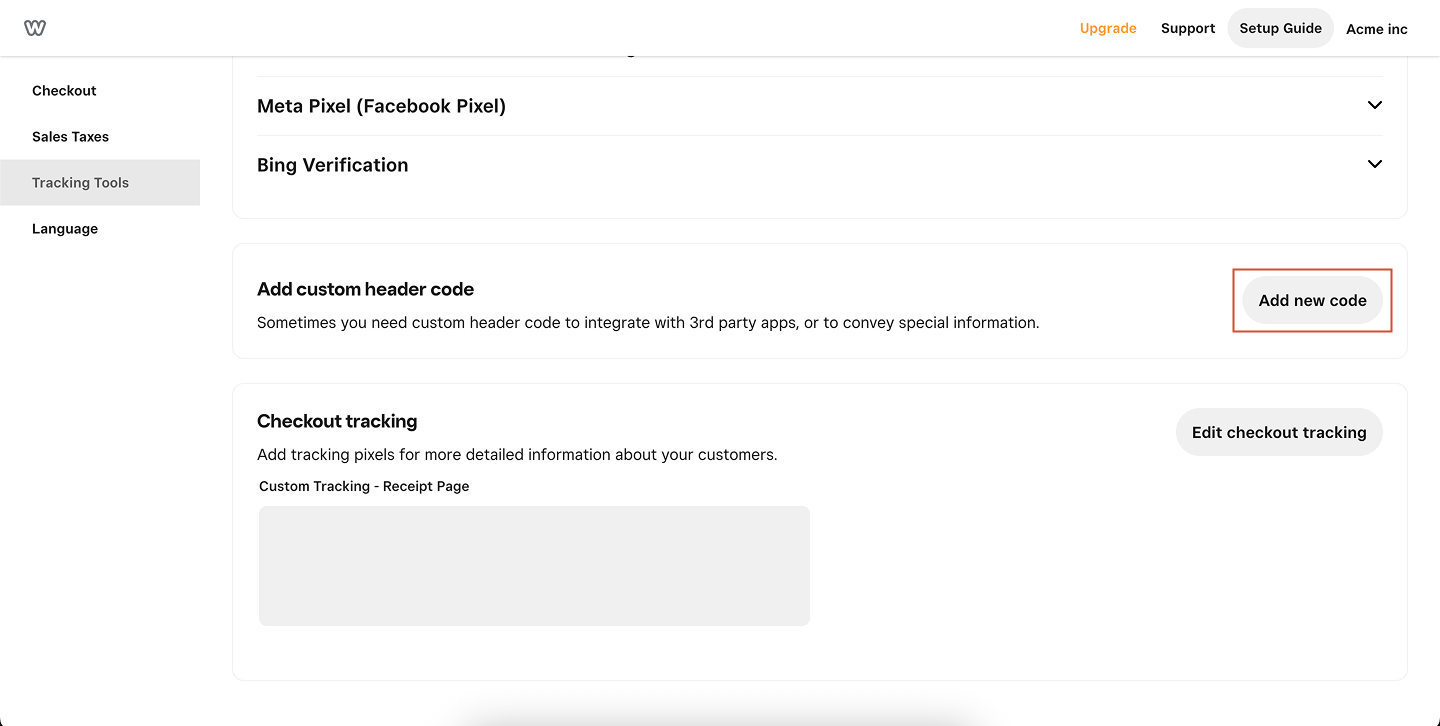
3
Add custom header code
Scroll down to Add custom header code and click Add new code.
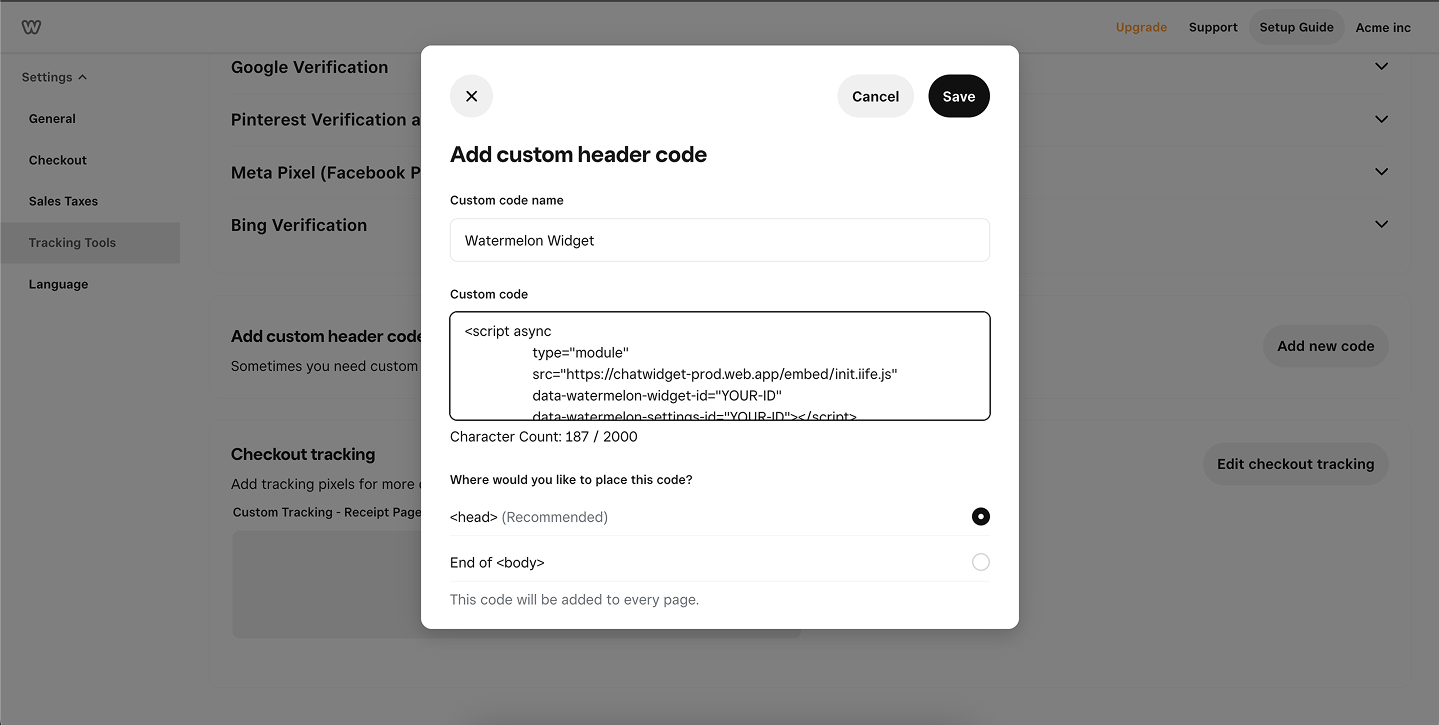
4
Paste your chat widget code
Fill in a name — for example, Watermelon Chat Widget.
Paste your Watermelon chat widget script into the code box.Make sure is selected under Where would you like to place this code? (this is selected by default).
5
Save changes and open your site
Click Save, then navigate to Website → Edit Site.
6
Publish your website
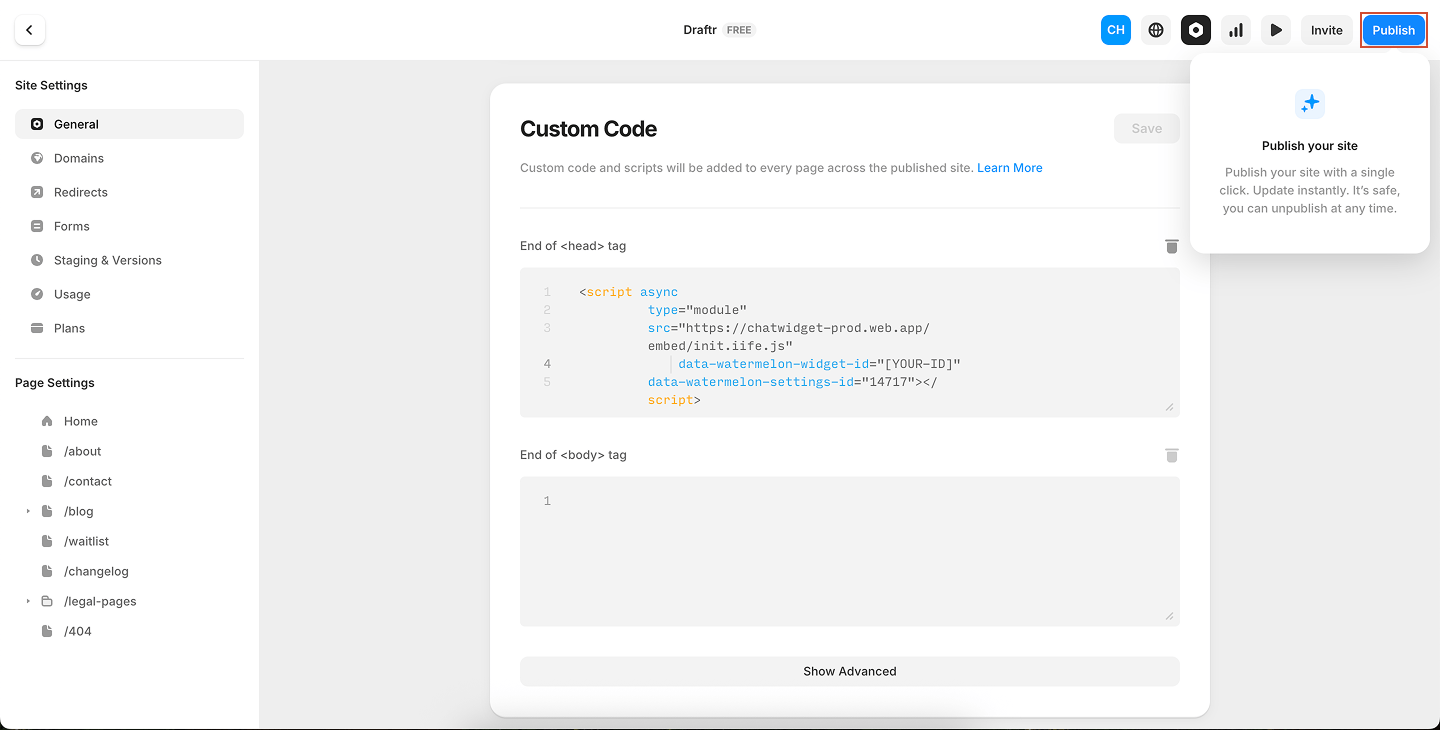
Click Publish to make the chat widget live on your website.
Tip: The widget won’t appear in preview mode — open your published site in a browser to see it active.
If you don’t see the widget, double-check if you have published your website. And also check if the selected chat widget is set on “Show on website”
If you only want your chat widget to appear on certain pages, follow these steps instead.If you only want your chat widget to appear on certain pages, follow these steps instead.If you only want your chat widget to appear on certain pages, follow these steps instead.
If you’d prefer someone else from your team to take care of the installation, you can add them to Watermelon so they have direct access to the code. Alternatively, you can share the code and this documentation guide with a developer, they’ll be able to handle it from there.
Installing the widget for both visitors and logged-in users
You can install the widget directly using our NPM package, which works with any framework. The package includes a script to embed the widget into your application.Add Watermelon to your application using the following command in your terminal:
Get the variables from your system API response, localstorage or wherever you’ve saved them and pass them to the inject widget functionality. Example below
user_id is a required field to store conversation history accross devices and browsers
Copy
// ----- These are variables comming from your request ---- //const first = response.me.first_nameconst last = response.me.last_nameconst email = response.me.emailconst phone = response.me.phone_numberconst userId = response.me.id.toString() // Required
To initialize Watermelon, copy and paste the code snippet into every page or a shared component where you want the Widget to appear. Make sure to do this in your client-side code.
Copy
import {injectWidget} from "watermelon-widget-injection"; in the component// Initialize and assign variables first before passing them to the functioninjectWidget(widgetId, settingsId, 'prod', first, last, email, phone, userId)setTimeout(() => { const iframe = document.querySelector('.watermelon-embed-frame') as HTMLIFrameElement; iframe.contentWindow.postMessage( { type: 'login', payload: { first_name: first, last_name: last, email: email, phone: phone, user_id: userId, } }, '*' // Security target origin );}, 10000)
The timeout is set to 10 seconds in this example. Replace with the duration that represents how long it takes before the user is logged in, in milliseconds
Click Copy code and paste it before the </body> tag on every page you want the Widget to appear on your app and/or website.Then edit the code to send Watermelon the email address, name, or phone number of the user who is currently logged in.After adding the code, open your app and the Widget will appear.
In addition to the standard user attributes (first name, last name, email, phone and user ID), you can also pass custom fields to Watermelon. These fields allow you to attach additional information about the logged-in user.Custom fields must first be created in your Watermelon dashboard before they can be sent from your application.Once the fields exist, you can include them in the login payload when initializing the widget. Field names within the Watermelon application can be stored with spaces, uppercase and lowercase letters. And in the custom fields page there will also be displayed internal name which is how the name of field needs to be passed in the payload in order to map it correctly.
For instance if the custom field in the Watermelon custom fields page is stored as ‘Company Name’, internal name would result in ‘company_name’
Example: sending custom fieldsBelow is a simple example showing how to pass custom fields along with the standard login payload. In order to pass the custom fields value, they need to be added to the initial postMessage payload and then sent to the iframe using a second postMessage call after the widget is initialized.
Field values passed in that payload need to be of string value. If in your system the value is stored as a number or boolean, make sure to convert it to a string before sending it to Watermelon using methods like toString().
Copy
const iframe = document.querySelector('.watermelon-embed-frame') as HTMLIFrameElement;const companyName = 'Watermelon'const yearOfEstablishment = 1998.toString() // example of value stored as a number in your system, but needs to be converted to string before sending to Watermelonconst companyField = 'Support'const chatWidgetCustomFields = [ { name: "company_name", value: companyName }, { name: "year_of_establishment", value: yearOfEstablishment }, { name: "company_field", value: companyField }, ];iframe.contentWindow.postMessage({ type: 'login', payload: { first_name: first, last_name: last, email: email, phone: phone, user_id: userId, // Custom fields custom_fields: { company_name: chatWidgetCustomFields.companyName company_establishment: chatWidgetCustomFields.yearOfEstablishment, company_field: chatWidgetCustomFields.companyField } }},'*');