

Publishing via Agent Profile
1
Open Agent settings
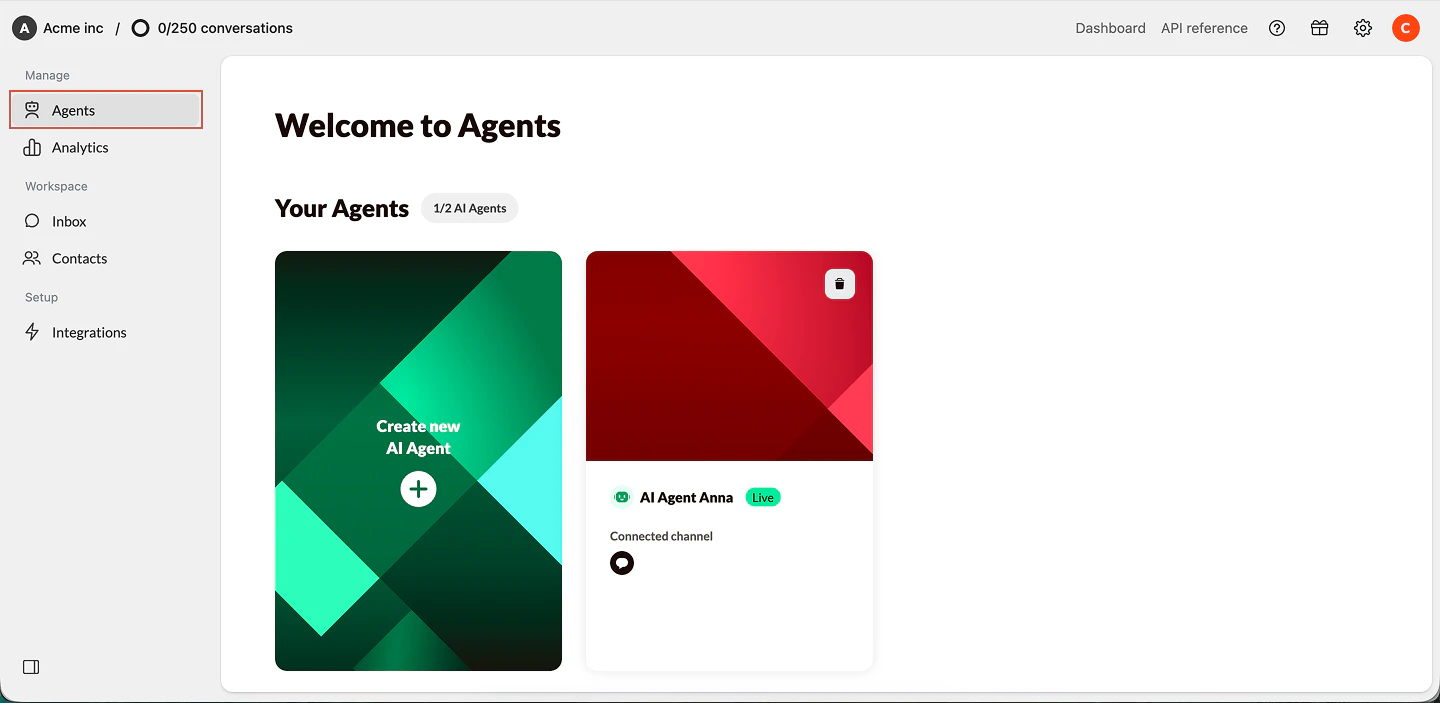
Open your Agent. Navigate to your AI Agent name underneath Behavior. Scroll down to Select your channels.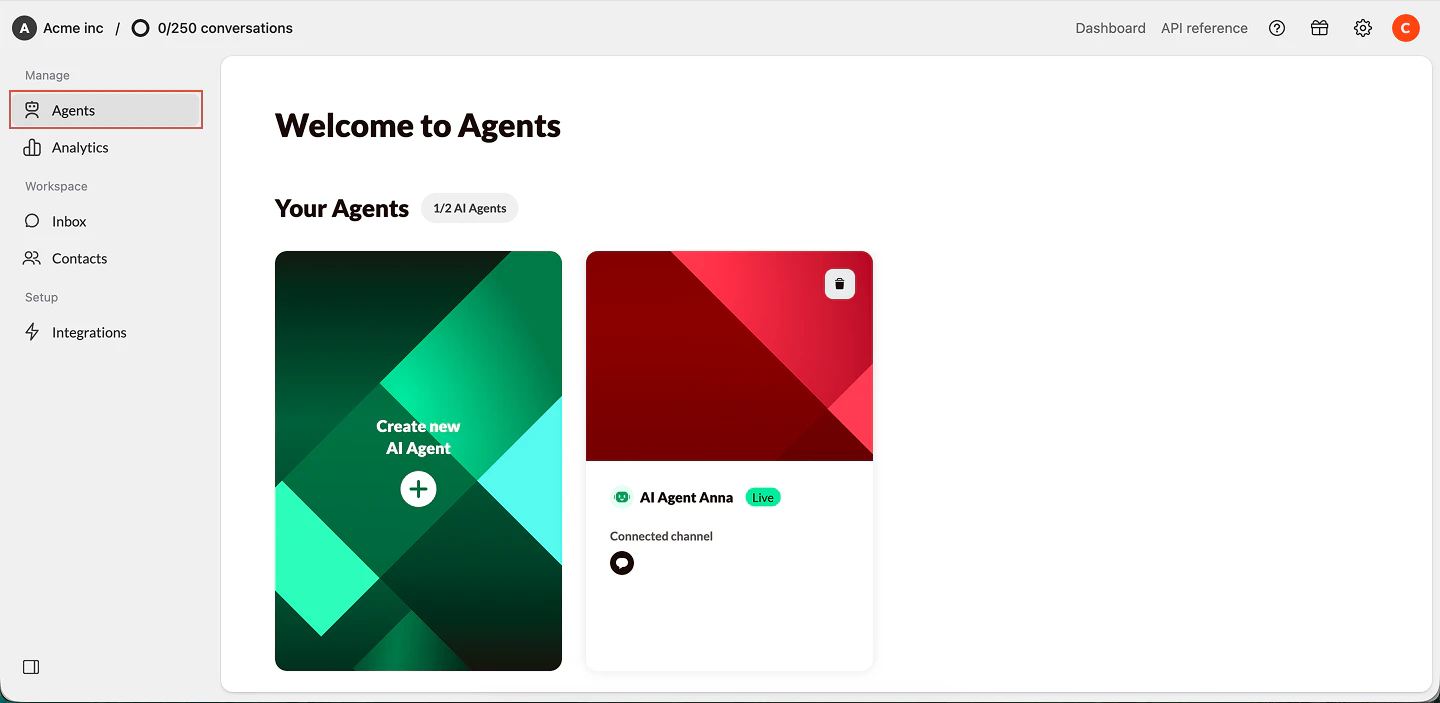
2
Select email channel
Select the mail channel you want to connect and click Save.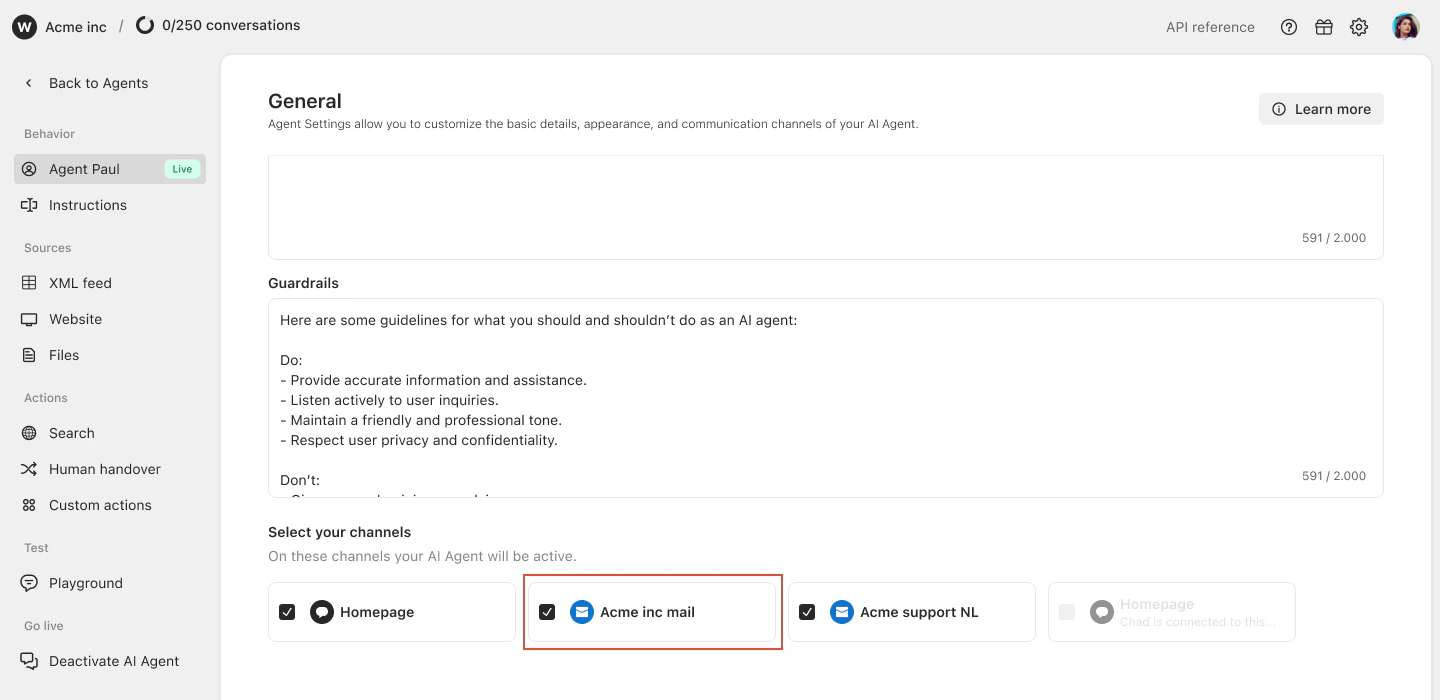
3
Email channel connected
Your Agent is now connected to the email channel.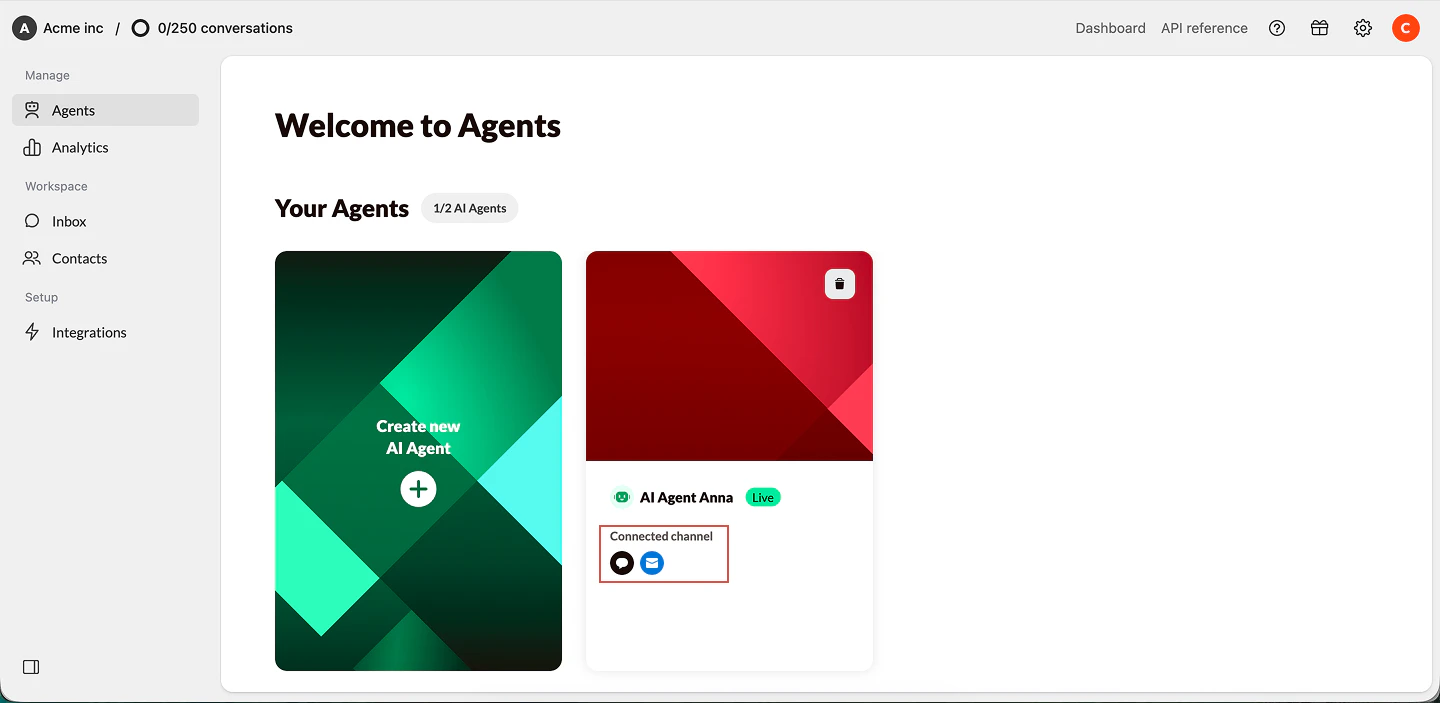
What happens next?
Once your Agent is published on mail:- Incoming emails will appear in your Inbox
- Your Agent will automatically reply (if enabled)
- You can still take over conversations manually
If your Agent is not active: Emails will still arrive in Watermelon, but they will not be answered automatically