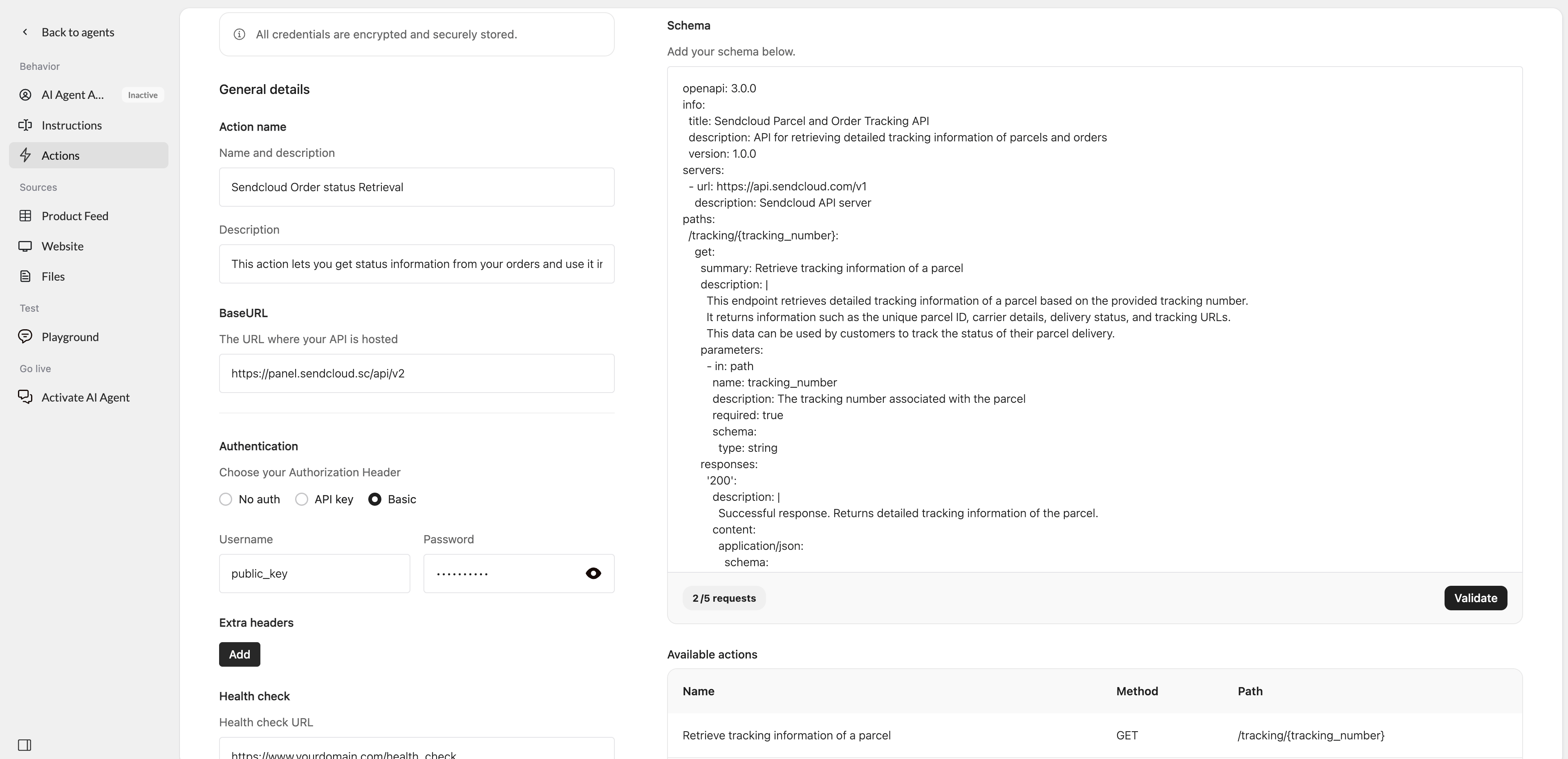
- A predefined OpenAPI schema for Sendcloud
- Basic authentication
- The required Sendcloud API BaseURL
- A health check configuration
Set up the action
- Go to Actions in Watermelon.
- In the Actions catalog, click Custom action.
- Click Create new Action.
- Fill in the fields below.
General details
Action nameSendcloud Order status Retrieval
DescriptionThis action lets you get status information from your orders and use it in your chatbot when customers ask for it.
BaseURLhttps://panel.sendcloud.sc/api/v2
Authentication
For Authorization Header, select Basic. Usernamepublic_key
Replace this with your Sendcloud public key.
Passwordsecret_key
Replace this with your Sendcloud secret key.
Health check
Health check URLhttps://www.yourdomain.com/health_check
Replace this URL with the health check endpoint you want Watermelon to use.
Instruction
You should respond with the following message or a similar variation: Sorry, something went wrong on our end. Can I assist you with anything else? Please let me know how I can help.
Schema
Paste the Sendcloud schema into the Schema field:Example in Watermelon