

- Opening, loading and closing the widget.
- Sending, receiving messages for both the AI Agent, end user and Human Agent.
- Outbound Clicks.
Available events
Tracking Events in GA4 from the Widget with Google Tag Manager
1
Install the widget
Install the website widget code using this guide
2
Go to Google Tag Manager
Log in to Google Tag Manager.
3
Check that events reach the dataLayer
The widget pushes events into the browser’s dataLayer.To verify this:
-
Open your website with GTM Preview Mode enabled.
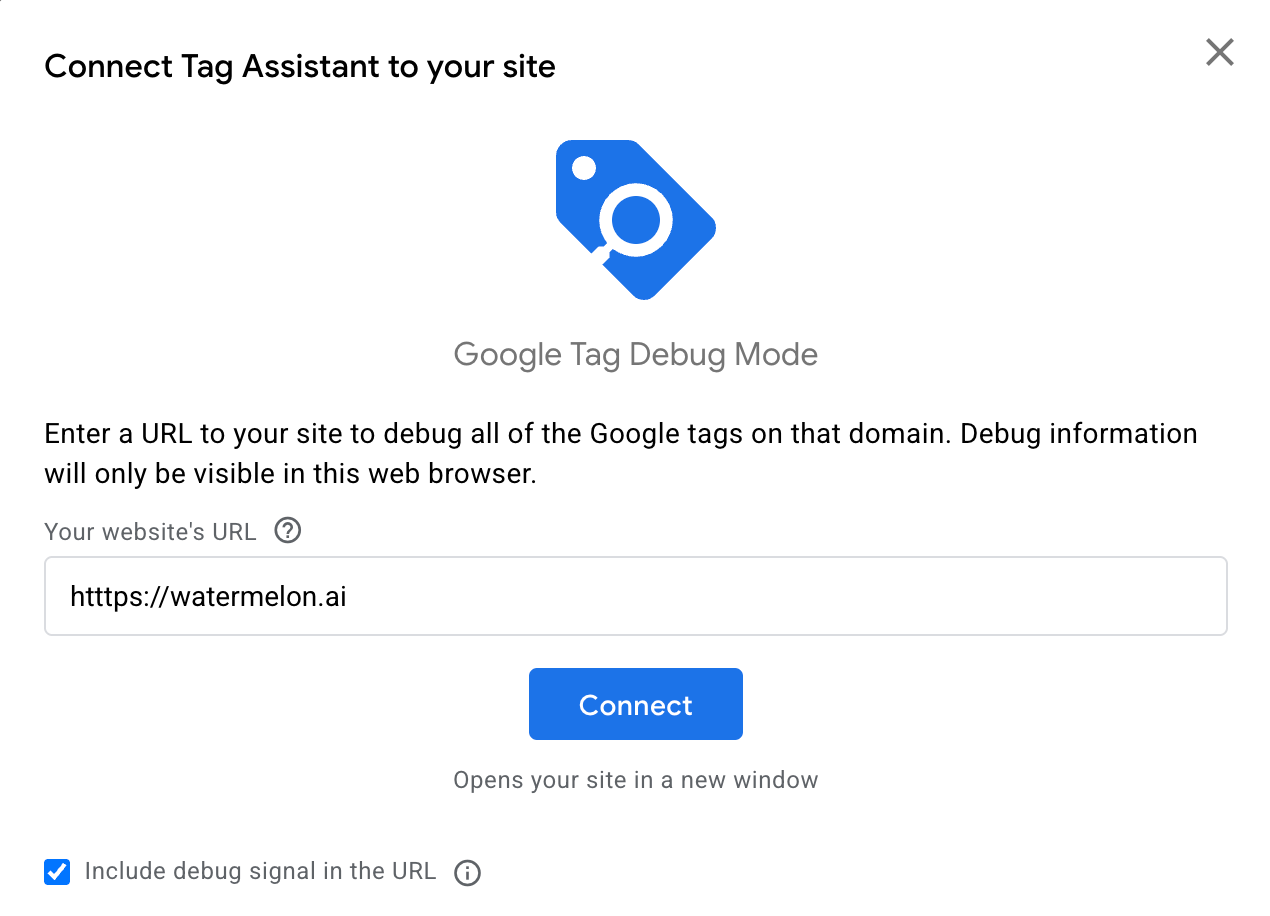
- Interact with the widget (fire an event).
- In the left panel, you should see event names appear under the “Events” section.
4
Create a GTM Trigger for a Widget Event
You can set up triggers in two ways, depending on your tracking needs:Option 1: Individual Triggers (One trigger per Event).
- In GTM, go to Triggers → New.
- Choose Custom Event.
- Enter the event name, for example: widget_conversation_started.
- Set This trigger fires on: All Custom Events.
- Save.
- In GTM, go to Triggers → New.
- Choose Custom Event.
- Select Use regex matching.
- Enter a pattern to match multiple events:
- ^widget_.* catches all widget events;
- ^widget_.*_clicked$ catches all click events only;
- ^widget_(opened|closed|loaded)$ catches specific event groups.
- Set This trigger fires on: All Custom Events.
- Save.
5
Create a GA4 Event Tag
To send the captured widget event to Google Analytics:
- Go to Tags → New.
- Choose Google Analytics: GA4 Event.
- Select your GA4 Configuration Tag.
- Under Event Name, use the same event name from the widget, for example:
6
Connect events
Attach the Custom Event Trigger you created earlier and click save.
7
Verify events
After publishing, test your events using DebugView: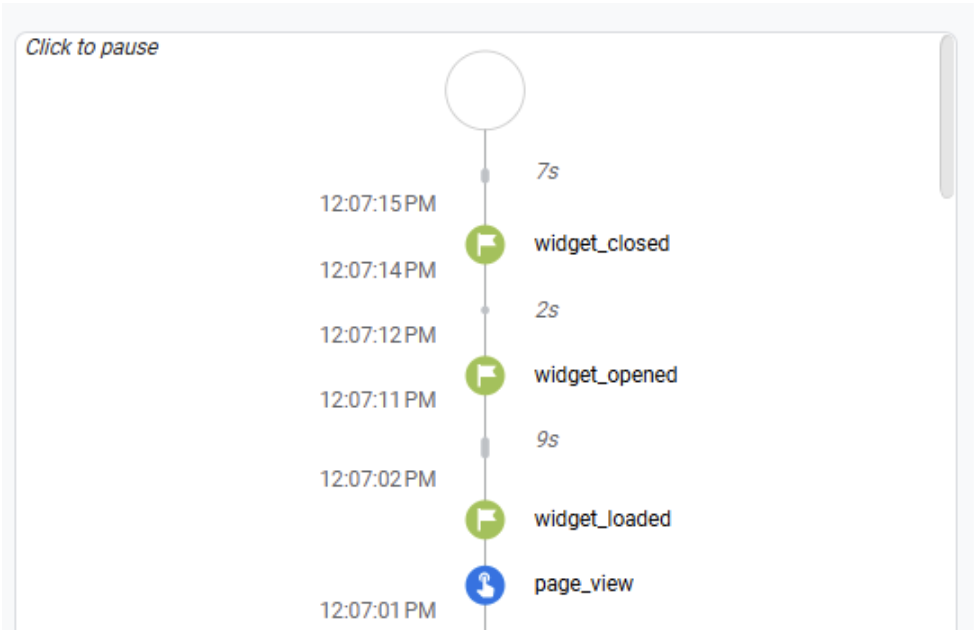
- Go to GA4 → Admin (gear icon, bottom left) → Data Display → DebugView;
- Trigger widget events on your site, using PreviewMode in GTM;
- Events should appear as blue hits in real-time.
Create Key Events (optional)
- Go to GA4 → Admin → Data Display → Events
- Click Create Key Event
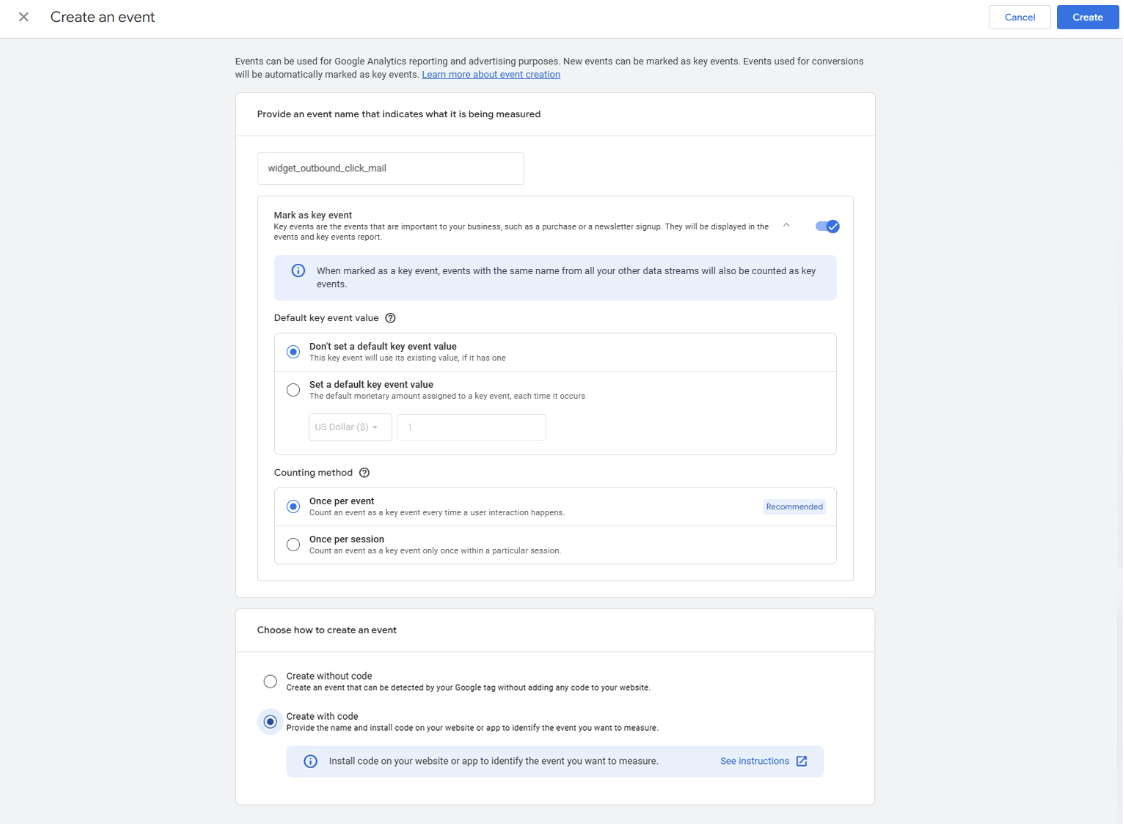
- Add the widget event, with the exact event name, to convert it from a regular hit (blue ball) to a key event (green ball) in DebugView.
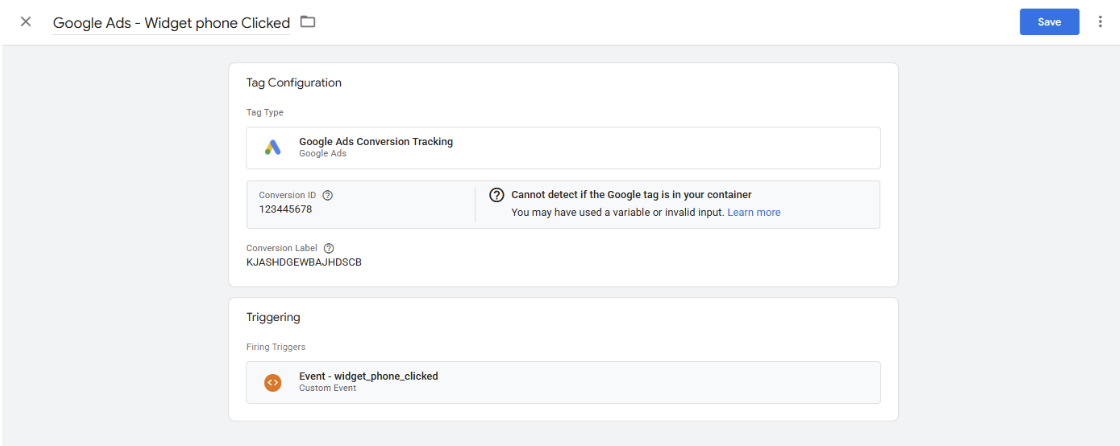
Use events across multiple platforms
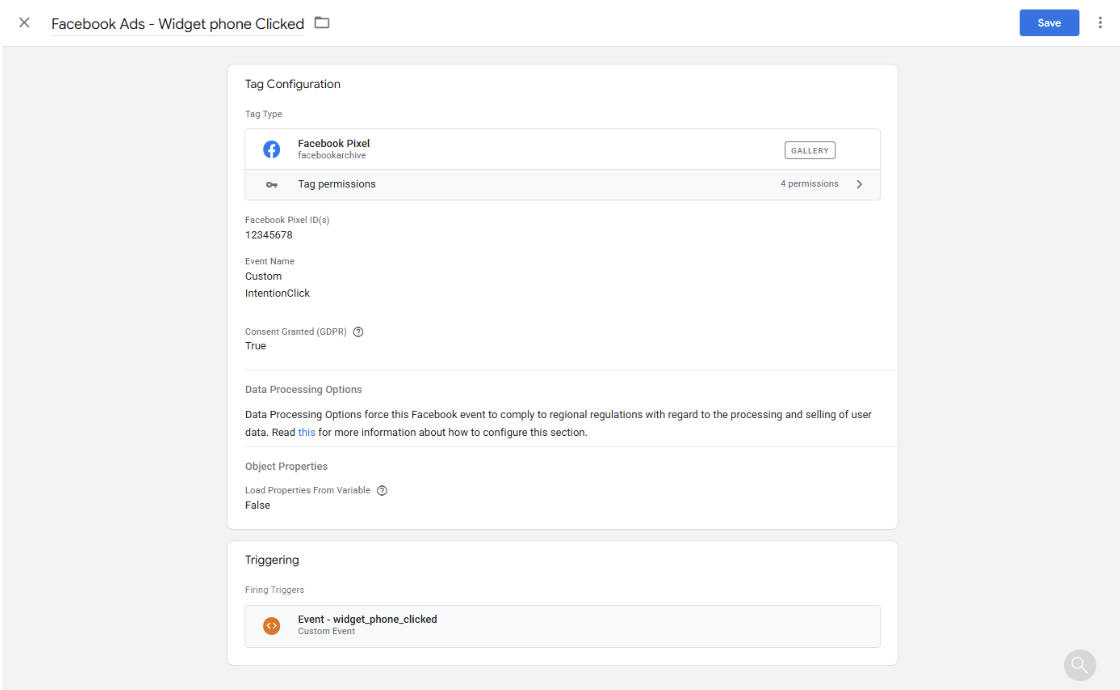
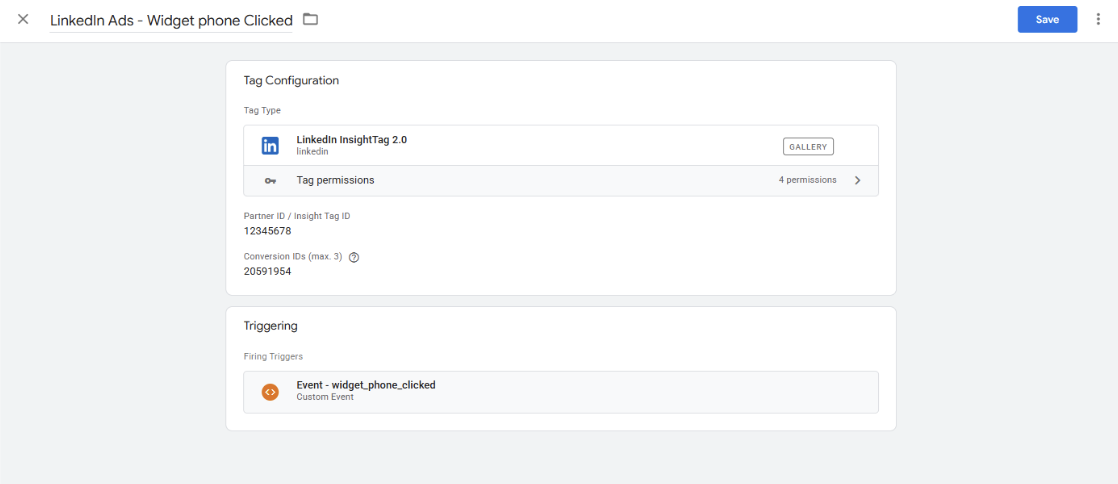
The widget events aren’t limited to GA4. The Custom Event triggers, made in point 5 can be used to fire all other conversion and event tags:- Google ads
- Facebook ads
- LinkedIn ads
- Any other tag-based platform
How to use the Event Parameters
Each Widget Event has dedicated, built in Event Parameters, add them to all you analytics platform tags, like GA4, Matomo or HubSpot.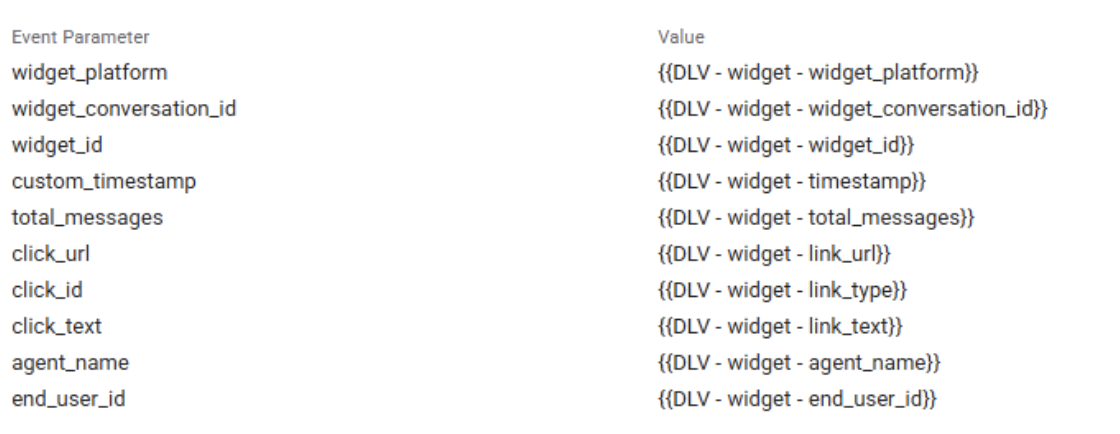
Conversion based tags (E.g. Google Ads, LinkedIn Ads, Microsoft UET Ads) do not benefit nor optimize using this information.
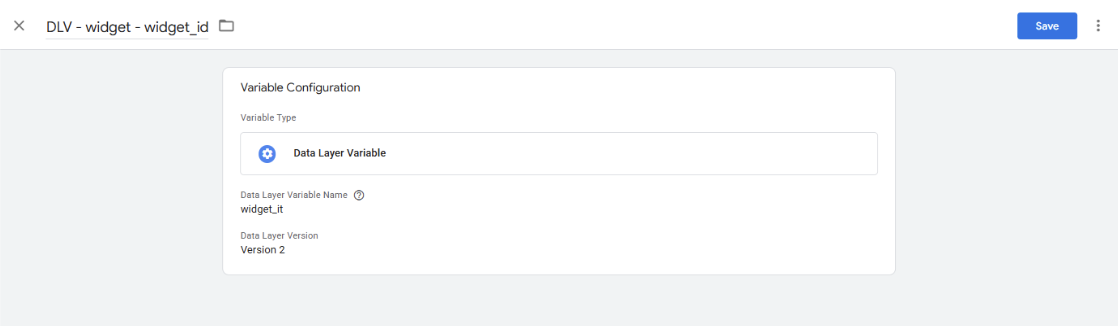
- In GTM, go to Variables → New.
- ChooseData Layer Variable .
- Enter the datalayer variable name, for example: widget_id.
-
Find these in the datalayer → same as event testing in GTM preview:
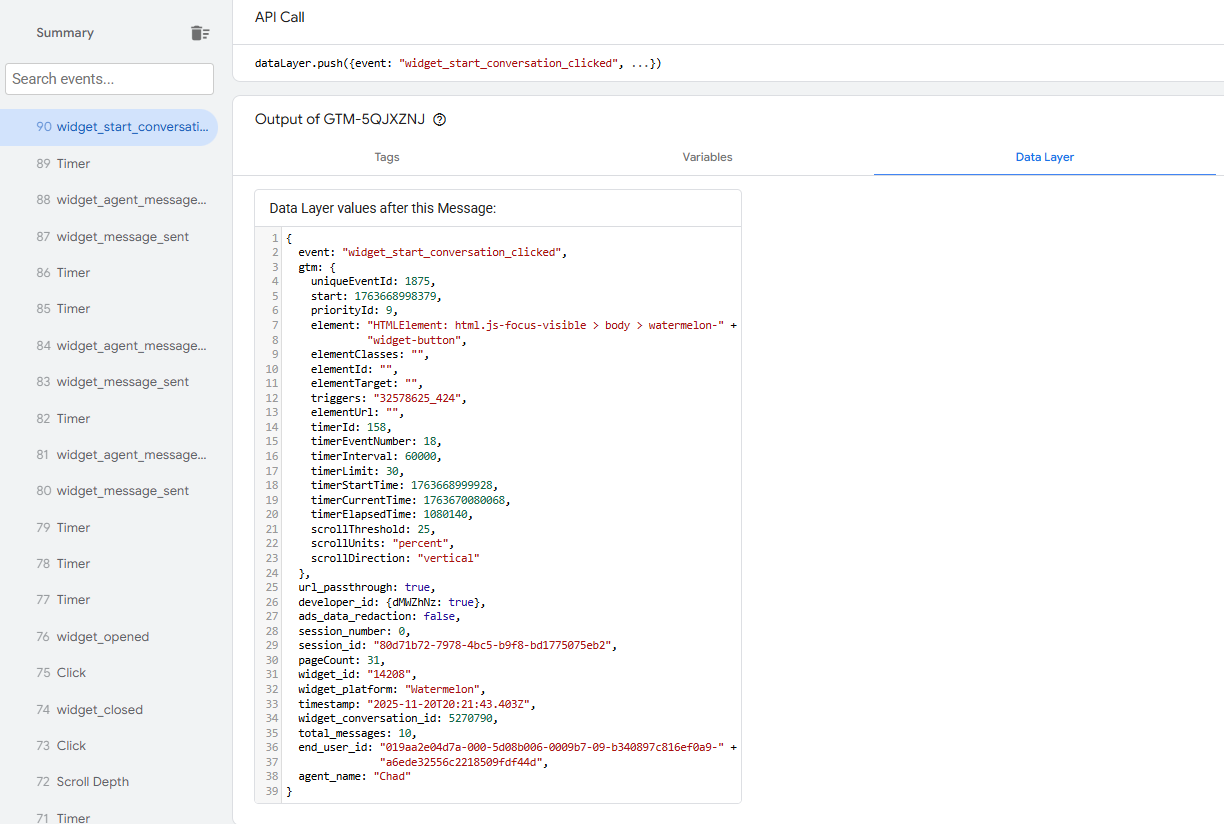
-
It should look like this:
- Save.
-
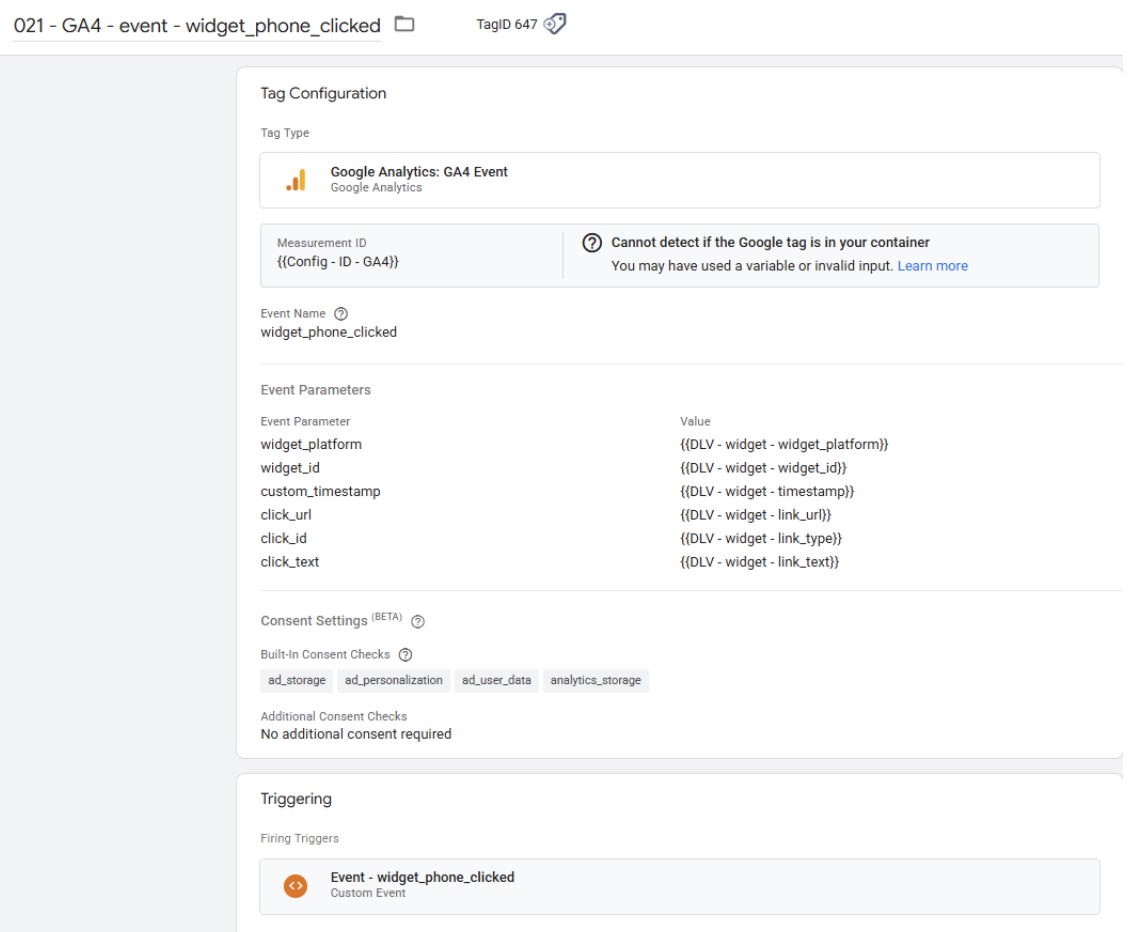
Make all the other variables you need to measure, for example:

-
Add the individual Datalayer Variables to your Analytics tag, for example GA4:
-
Find these in the datalayer → same as event testing in GTM preview: