

Available on: Starter, Advanced, Business, and Enterprise.
Shopify uses Actions. Free plans do not include Actions.
Shopify uses Actions. Free plans do not include Actions.
Before you start
Before connecting Shopify, make sure:
- You are on a plan that includes Actions.
- You have access to the Watermelon agent you want to connect.
- You have permission in Shopify to install apps.
- You know your Shopify store URL.
- You have decided which Shopify actions your AI agent is allowed to use.
What you’ll do
- Select your agent
Choose the AI agent you want to connect to Shopify. - Add Shopify as an action
Go to Actions and select Shopify. - Choose the allowed Shopify actions
Choose which Shopify actions your agent is allowed to use. - Authorize Watermelon in Shopify
Review the requested permissions and install the Watermelon app in Shopify. - Test and activate
Test the connection in draft mode before making it available to customers.
Method 1: Connect Shopify from Watermelon
We recommend connecting Shopify directly from Watermelon. This allows you to choose the agent you want to connect and configure which Shopify actions the agent can use.1
Go to your agents
In Watermelon, go to Agents.Select the agent you want to connect to Shopify.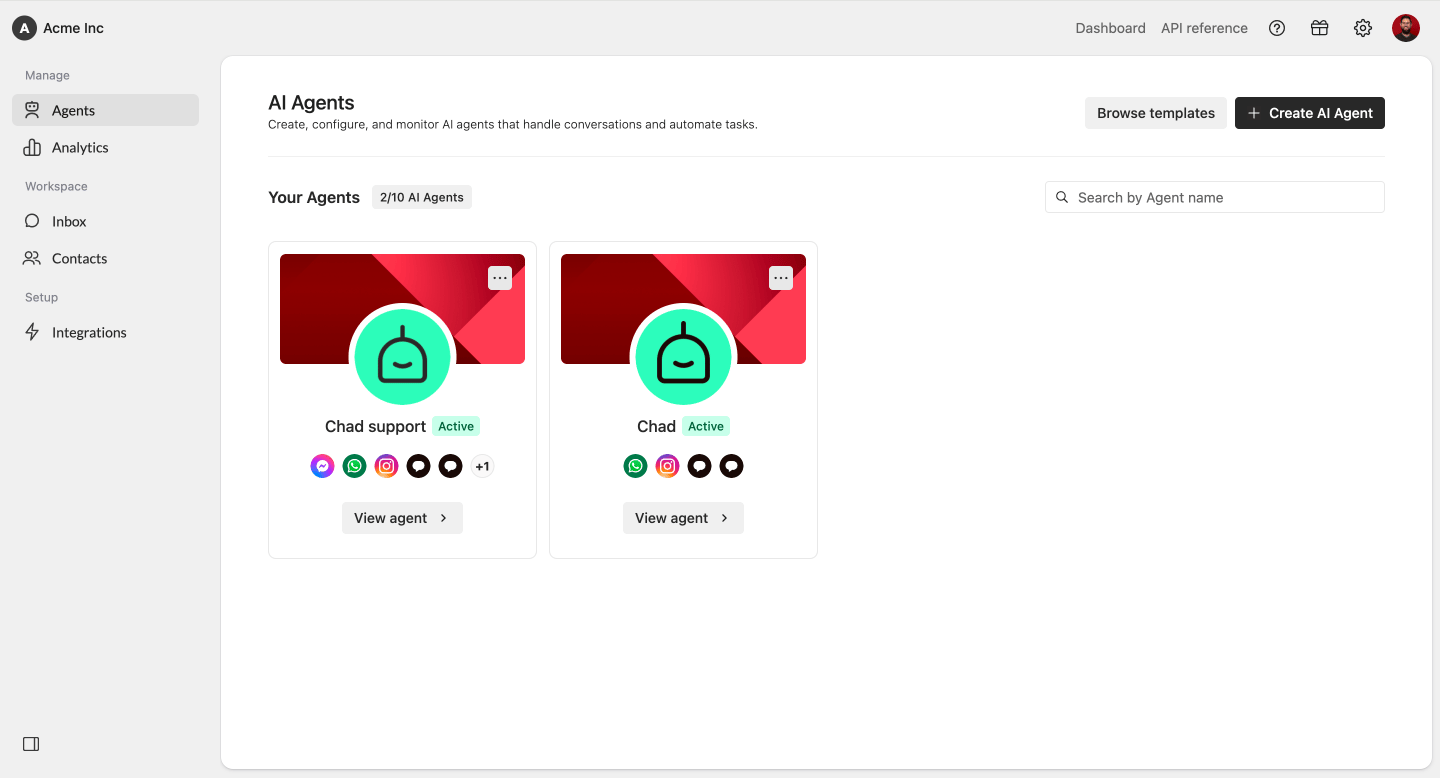
2
Open Actions
In the selected agent, navigate to Actions.Click Actions, then select Shopify.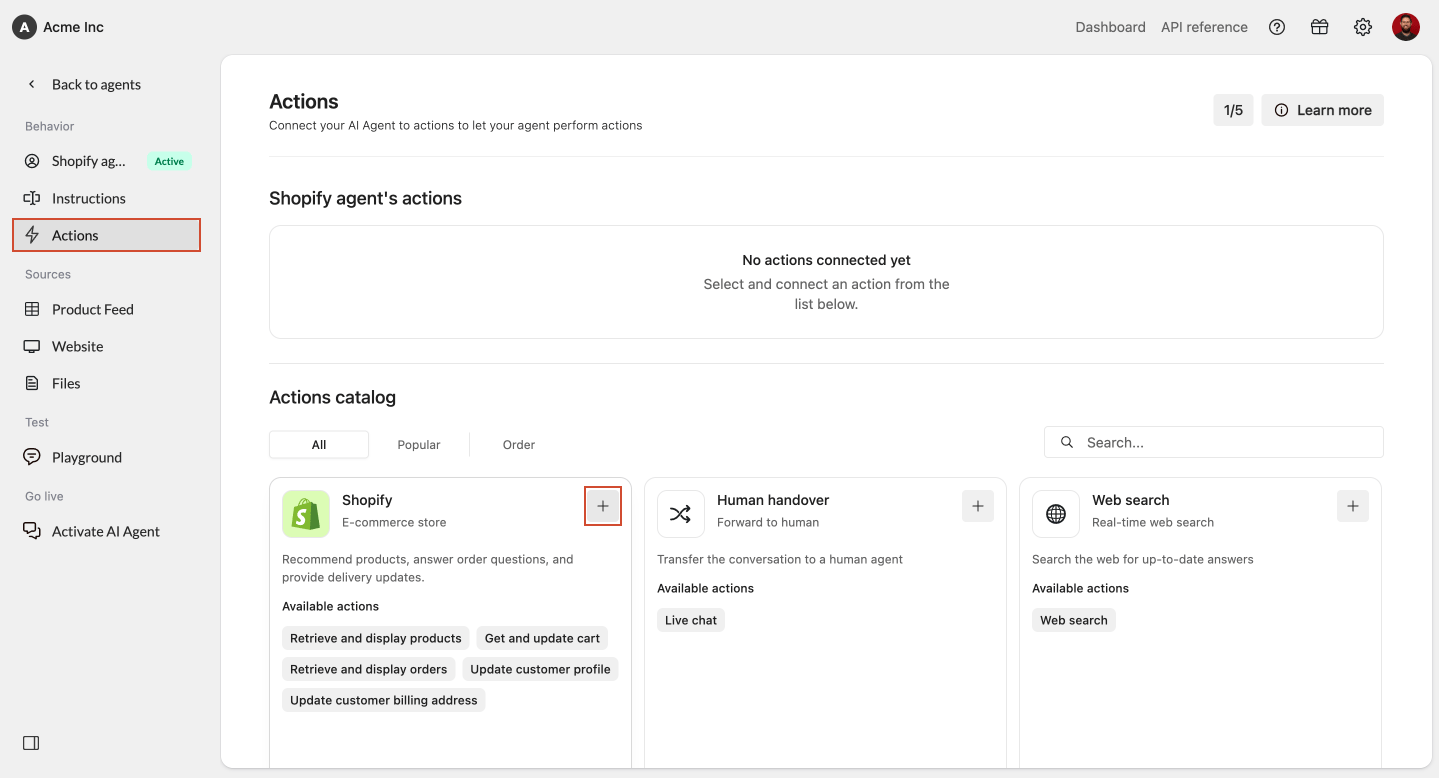
3
Name your Shopify connection
Give this Shopify connection a clear name.For example: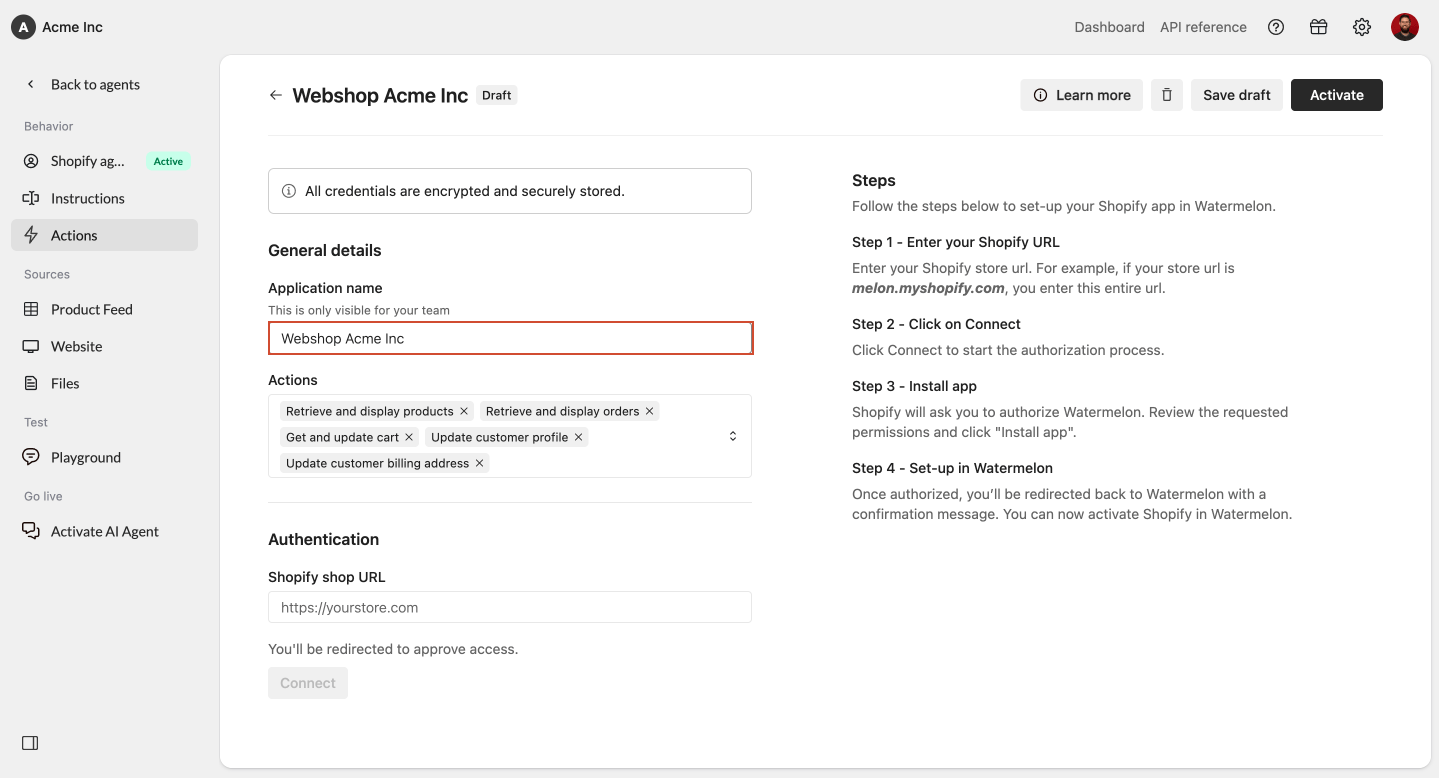
Shopify storeMain webshopWatermelon Shopify connection
4
Select the Shopify actions
Choose which Shopify actions your Watermelon agent is allowed to use.You can select one or more of the following actions:
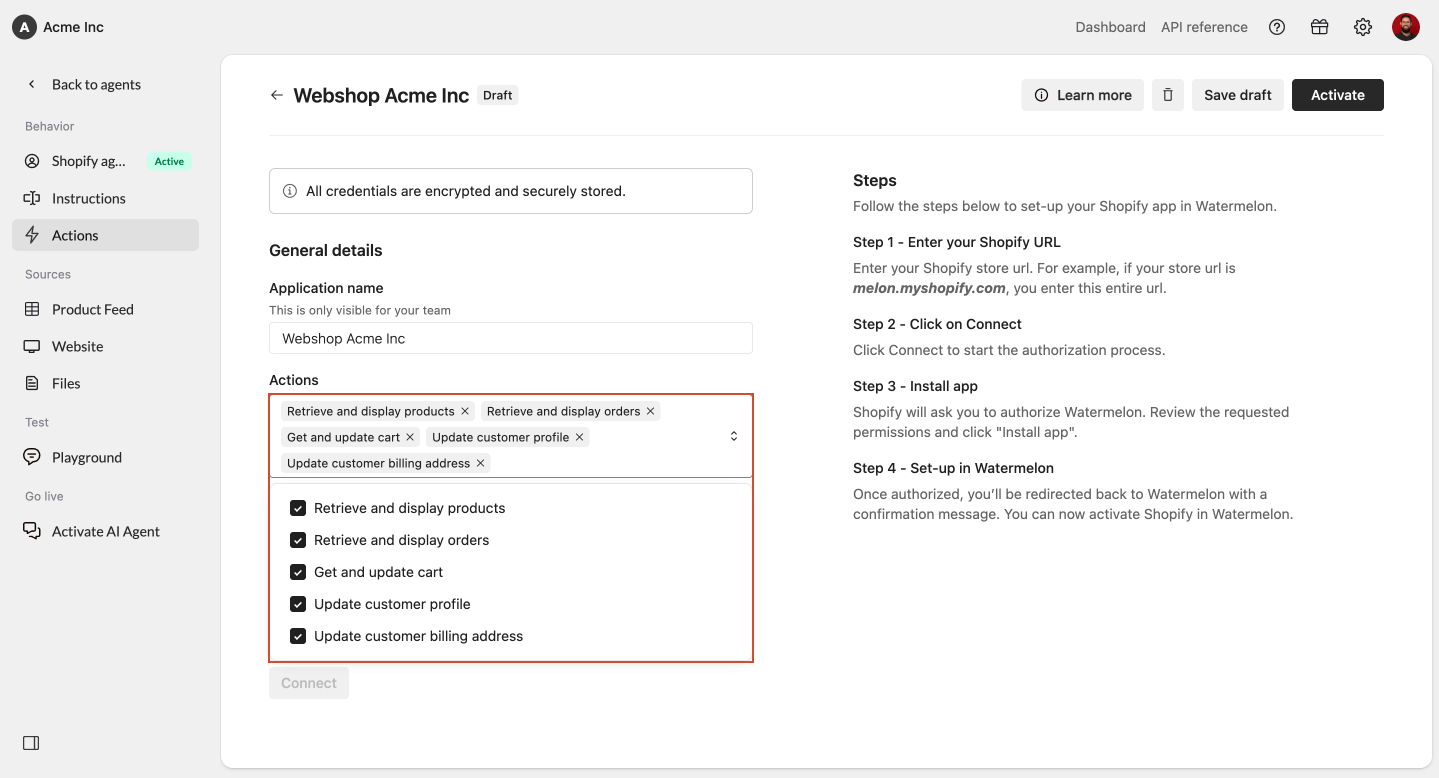
Retrieve and display products
Retrieve and display products
Allows your agent to search for products in Shopify and show them to customers in the chat.
Retrieve and display orders
Retrieve and display orders
Allows your agent to retrieve order information and display it in the chat.
Get and update cart
Get and update cart
Allows your agent to help customers view or update their shopping cart.
Update customer profile
Update customer profile
Allows your agent to update customer profile information.
Update customer billing address
Update customer billing address
Allows your agent to update a customer’s billing address.
5
Enter your Shopify store URL
Fill in your Shopify store URL.For example: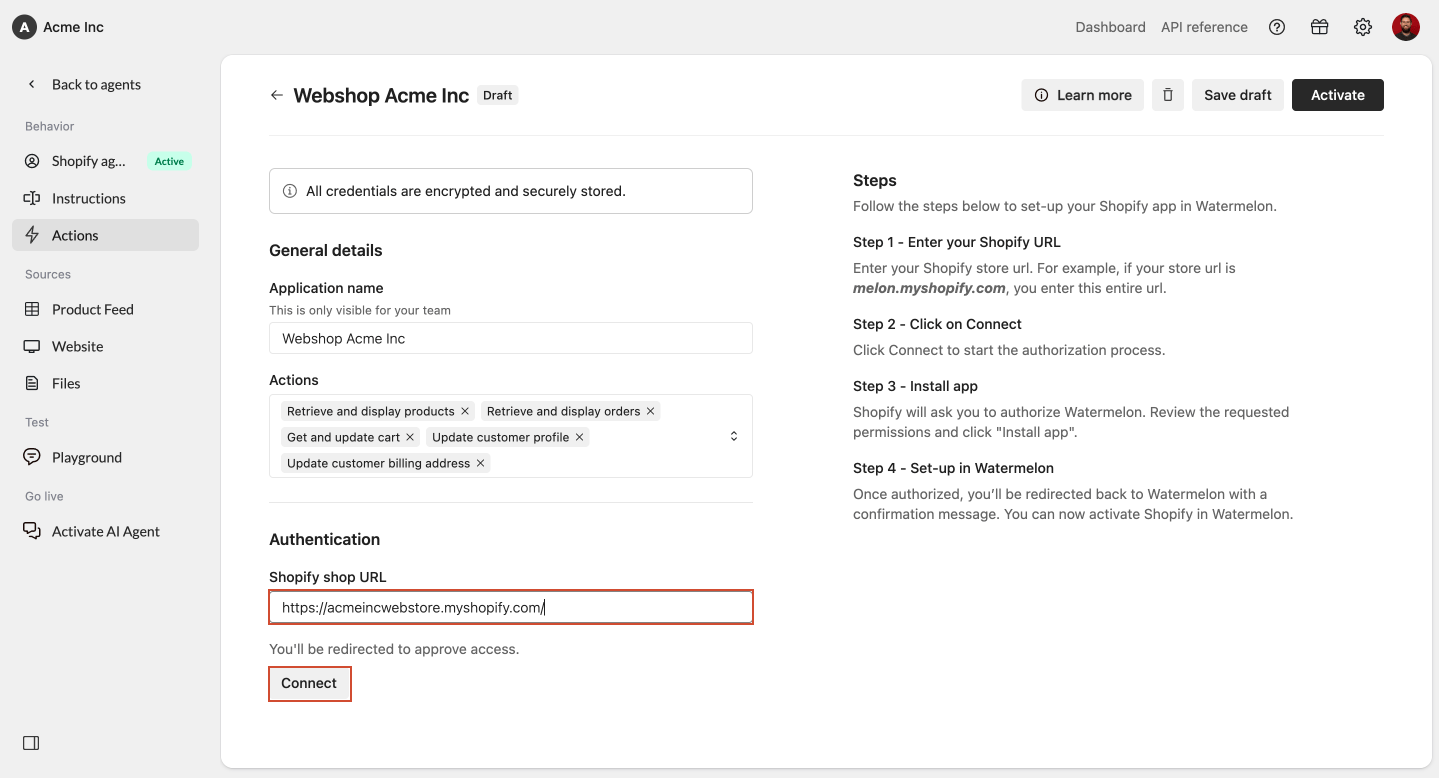
your-store.myshopify.comhttps://your-store.myshopify.com
We recommend using your
myshopify.com URL when connecting your store. Custom domains, such as www.example.com, may not always identify the correct Shopify store.6
Authorize Watermelon in Shopify
Shopify will open and ask you to authorize Watermelon.Review the requested permissions carefully, then click Install.After the installation is approved, you’ll be redirected back to Watermelon.You’ll see a confirmation message once Shopify is connected to Watermelon.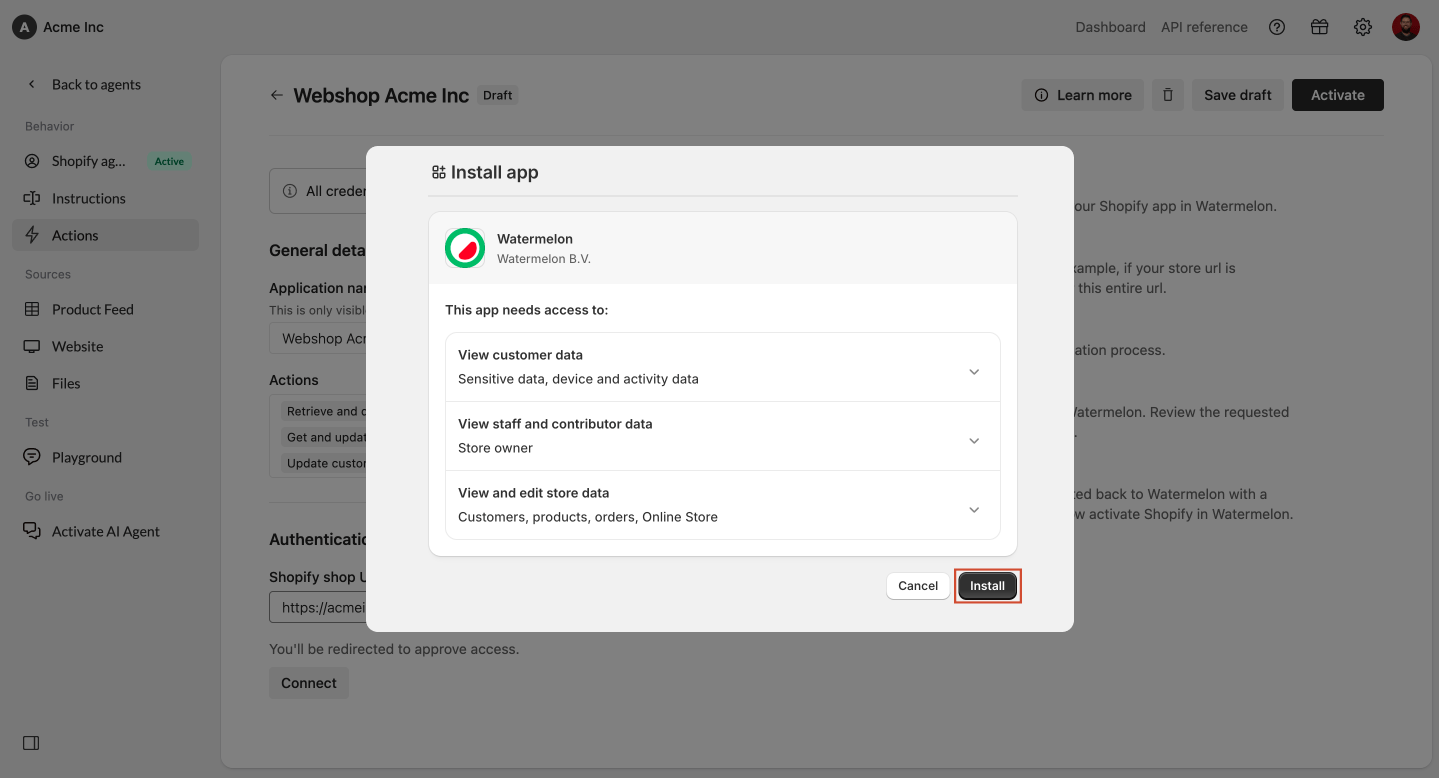
7
Test your Shopify connection
After connecting Shopify, the action is first created in draft mode.This means your customers cannot use it yet.Use the Playground to test whether your agent responds correctly. For example, you can test questions like:Check whether the agent gives accurate answers and uses the Shopify actions as expected.
Product questions
“Can you show me blue sneakers?”
Order questions
“Can you help me check my order?”
Cart questions
“Can you add this product to my cart?”
Customer details
“Can you update my billing address?”
8
Activate the Shopify action
Once you are satisfied with the test results, activate the Shopify action.After activation, your customers can use the Shopify functionality in the chat widget.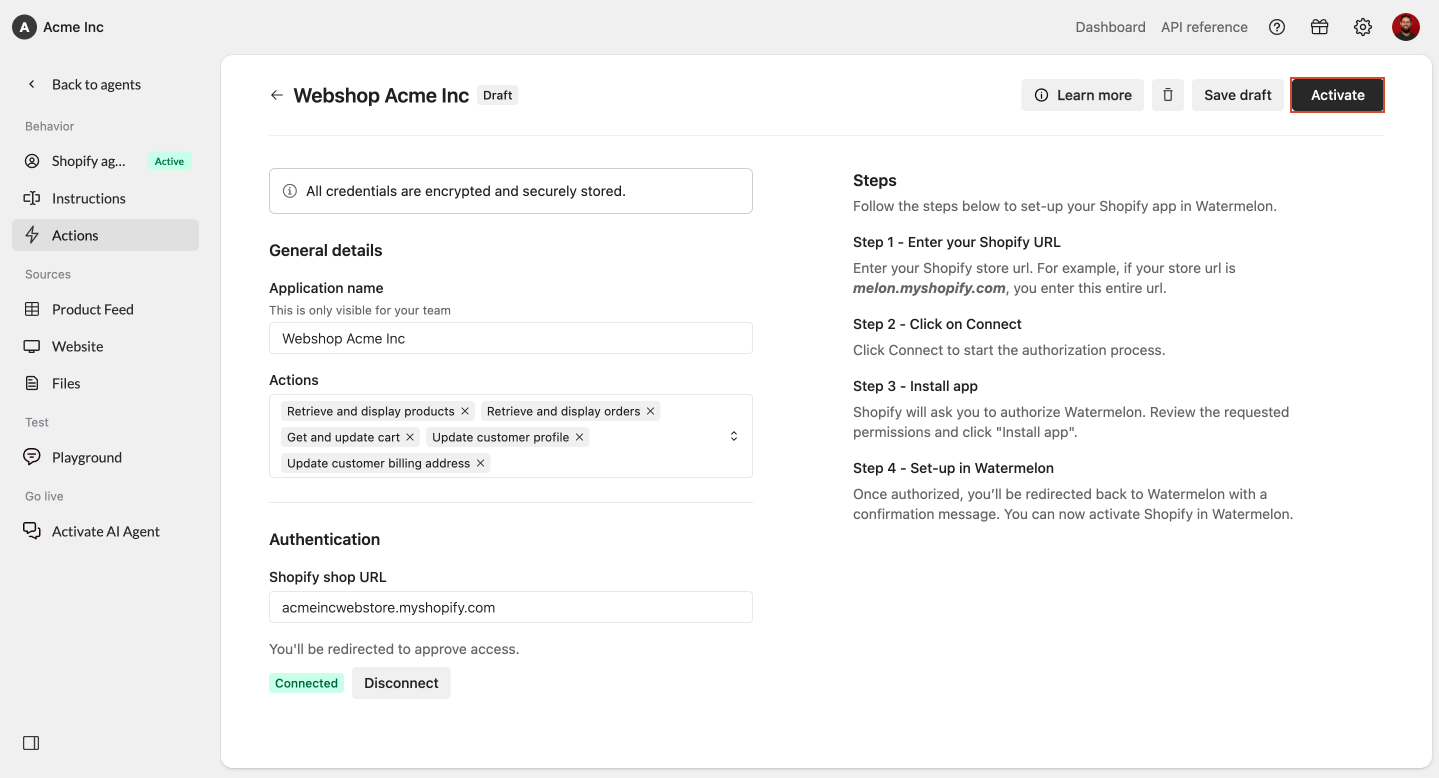
We recommend testing the full customer flow before activating the Shopify action.
Method 2: Connect Shopify from the Shopify App Store
You can also connect Watermelon from the Shopify App Store. Use this method when you prefer to start the installation from Shopify instead of from Watermelon.Installing the app from Shopify only starts the connection. You still need to select an agent and choose the allowed Shopify actions in Watermelon.
1
Find the Watermelon app in Shopify
Go to the Shopify App Store and search for Watermelon.Open the Watermelon app listing and click Install.
2
Approve the permissions
Shopify will show the permissions Watermelon needs to connect with your store.Review the permissions and click Install to approve.
3
Complete the setup in Watermelon
After installation, you’ll be redirected to Watermelon to complete the setup.Select the agent you want to connect to Shopify and configure which Shopify actions your agent is allowed to use.After setup, test the Shopify action in the Playground and activate it when you are ready for customers to use it.
Next steps
Once Shopify is connected, you can decide how Shopify information should appear in the chat widget.Enable the product carousel
Show Shopify products visually in the chat widget.
Enable the order element
Display order information clearly inside the chat widget.
Troubleshooting
I do not see Shopify under Actions
Make sure you selected the correct agent and that Shopify actions are available in your Watermelon account. If you are on the Free plan, Shopify will not be available because Free plans do not include Actions.Shopify does not let me install the app
Check whether you have permission to install apps in Shopify. You may need help from the Shopify store owner or an admin.I entered my Shopify URL but cannot connect
Check that the URL is correct and belongs to the Shopify store you want to connect. We recommend using yourmyshopify.com URL, for example your-store.myshopify.com.
I installed the app but was not redirected to Watermelon
Go back to Watermelon, go to Agents, open the selected agent, and check whether Shopify appears under Actions. If Shopify does not appear, try starting the setup again from Watermelon.The connection is live, but customers cannot use it
The Shopify action may still be in draft mode. Test it in the Playground first, then activate it when you are ready for customers to use it.The agent does not show products correctly
Make sure the Retrieve and display products action is enabled. Also check whether the product exists in Shopify and is available in the connected store.The agent says it cannot access order information
Make sure the Retrieve and display orders action is enabled. The customer also needs to provide enough order details for the agent to identify the order.The agent does not update customer details or billing addresses
Make sure the correct action is enabled:- Update customer profile
- Update customer billing address