

1
Open the Conversation
Go to Inbox and click on the conversation you want to forward.You’ll see who the conversation is currently assigned to (you or a colleague) in the upper-right corner of the conversation window, and the Details pane.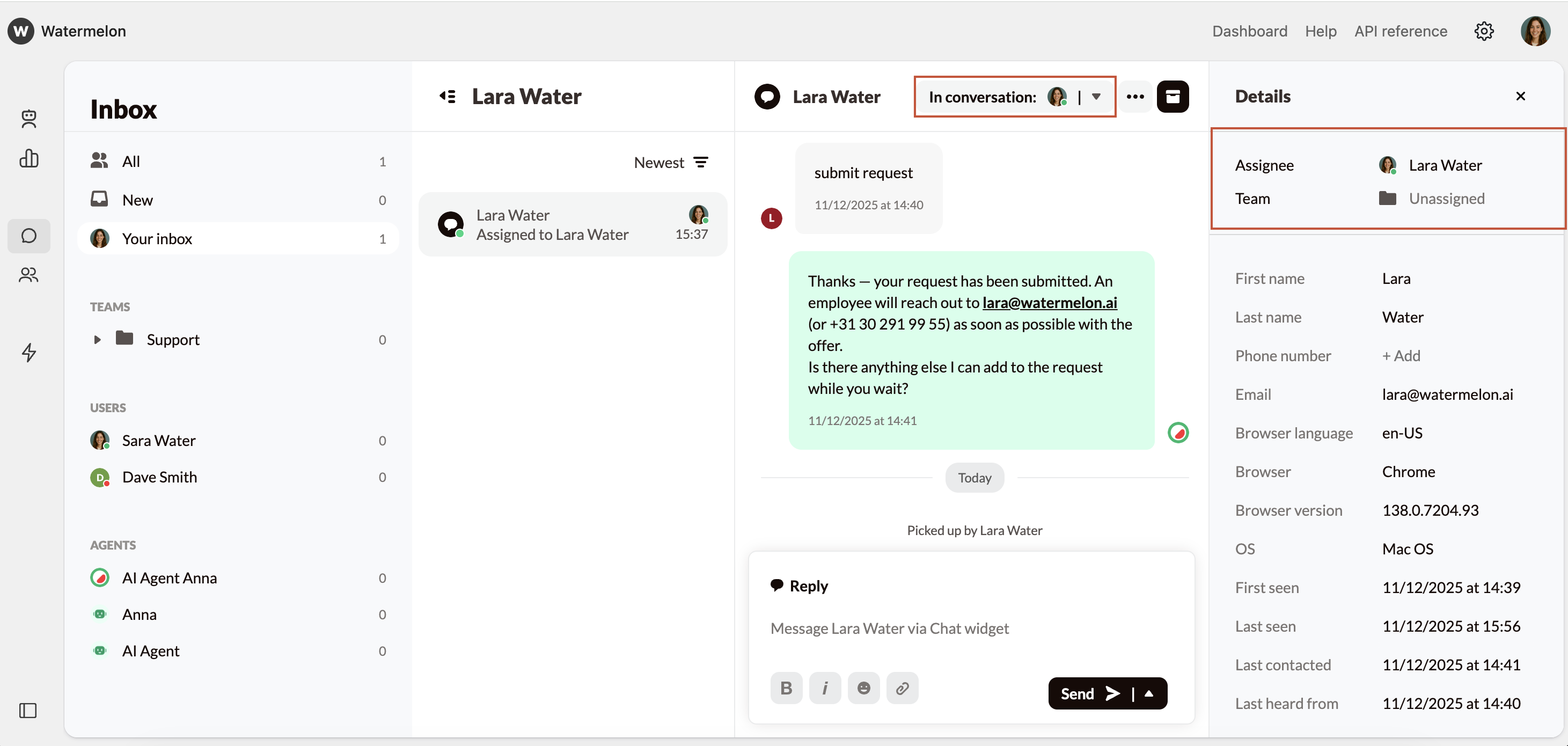
2
Reassign Conversation
Click In Conversation at the top of the conversation. A dropdown menu will appear with several options.If the conversation is already assigned to you, you have the following options: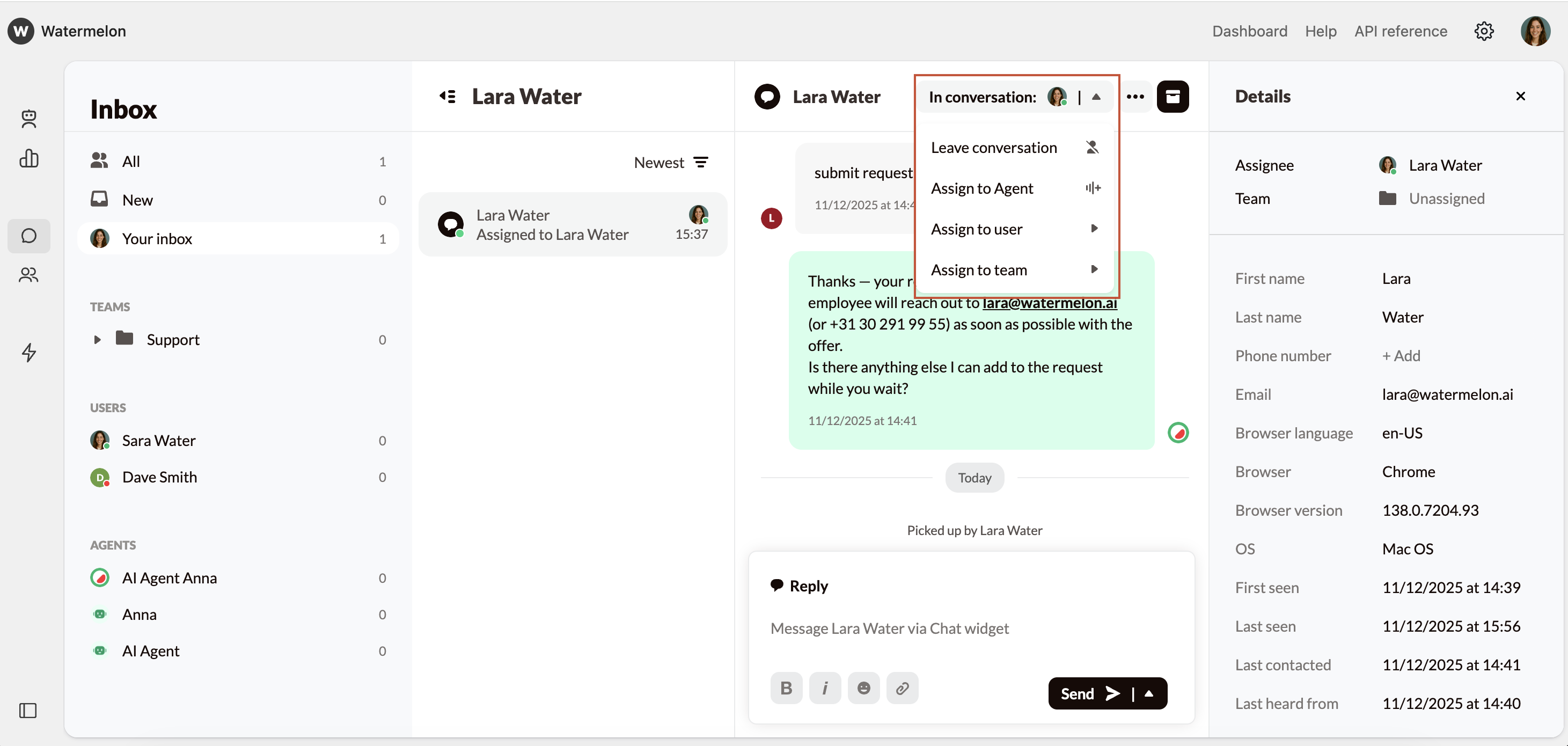
- Leave Conversation - Returns the conversation to Unassigned Conversations so another team member can pick it up.
- Assign to User - Choose a specific user to forward the conversation to.
- Assign to Team- Select a team so any available team member can take over.
- Remove [User] - Removes the assigned user and returns the conversation to Unassigned Conversations.
- Assign to Me - Assigns the conversation to yourself so you can continue directly.
- Assign to User - Forward to another user of your choice.
- Assign to Team - Forward to a team so they can take over.
If you forward a conversation to a team that you are part of, it will remain visible to you in the Unassigned view until someone else from your team claims it.
Best Practices
Forward conversations promptly when:- The topic falls outside your department’s scope.
- The customer should speak to a specialist or specific region.
- You’re unable to continue and need another team member to handle follow-up.