

Conversation starters are available on all plans and only appear in the chat widget.Limit: You can create up to 4 conversation starters. Each starter can contain up to 40 characters.
Set up conversation starters
1
Go to Integrations
In your Watermelon dashboard, go to Integrations.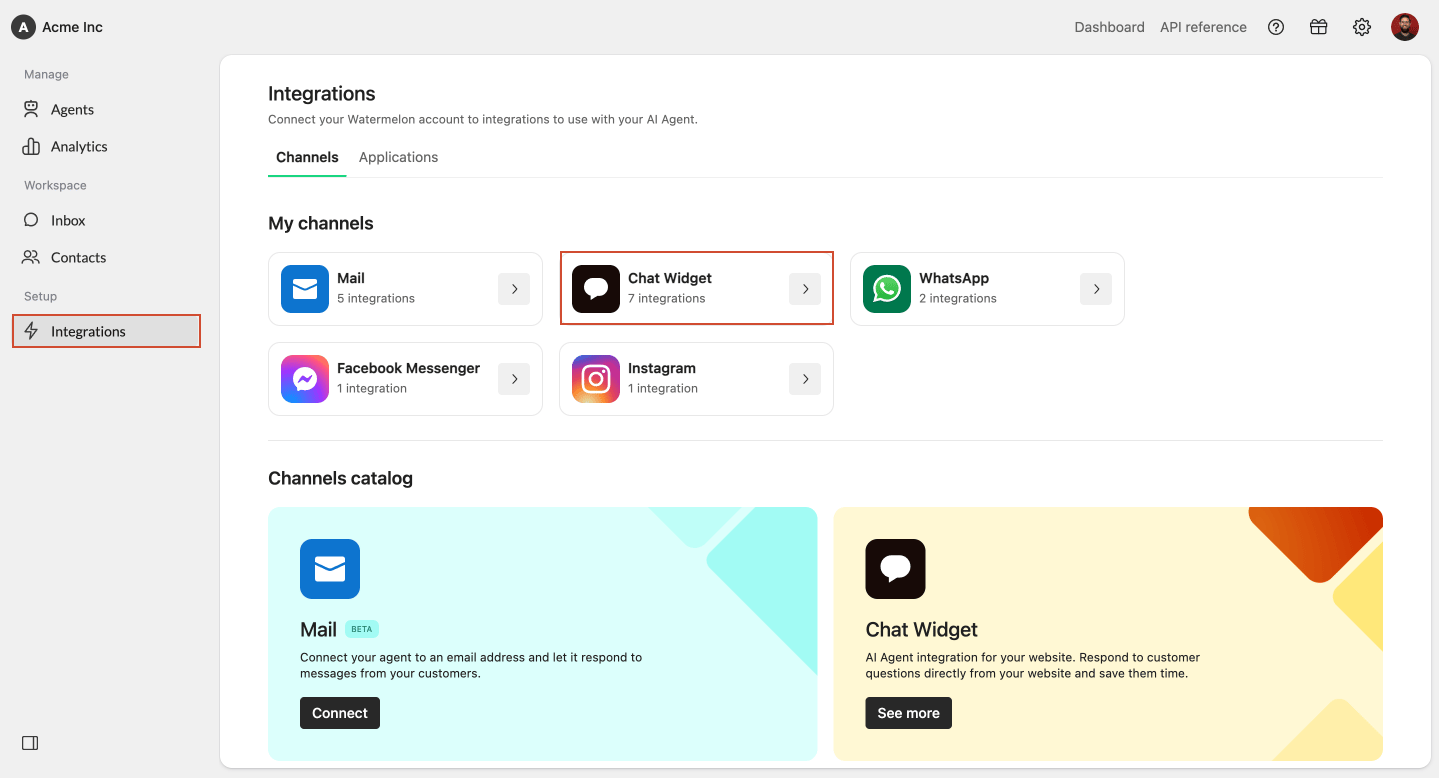
2
Open Chat Widget
Select Chat Widget from the integrations overview. Open the chat widget you want to edit.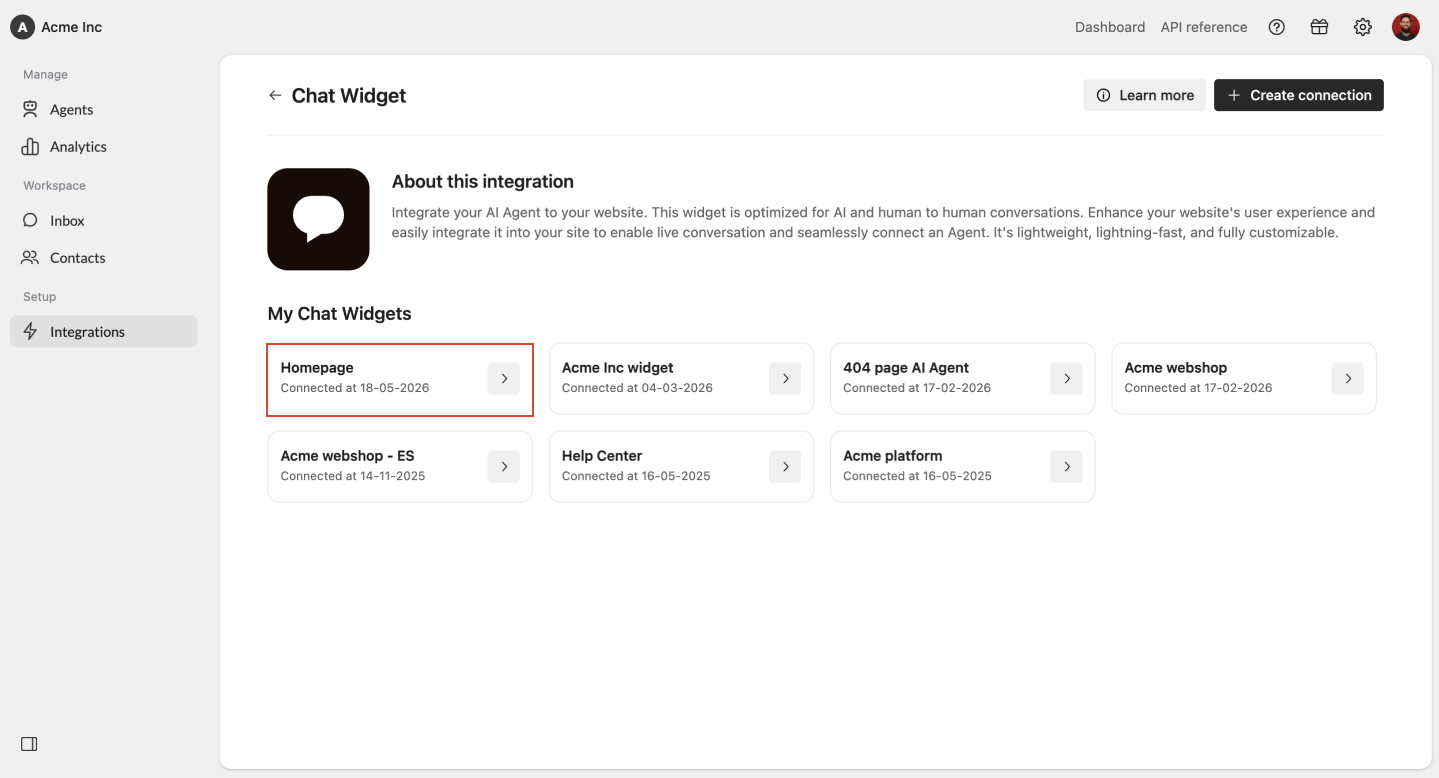
3
Open Attract
Click Attract in the chat widget settings.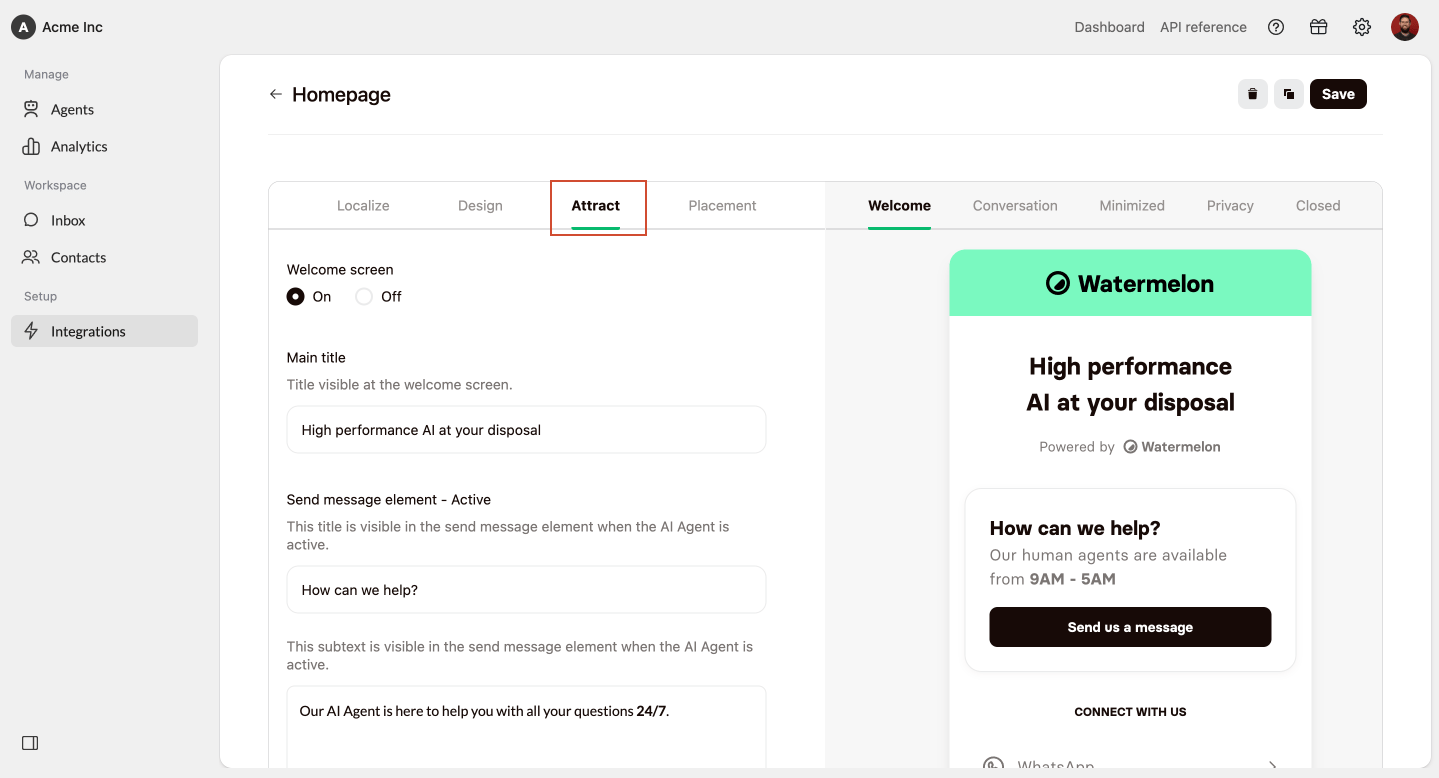
4
Enable Conversation starters
Scroll down to the Conversation starters section. Enable Conversation starters.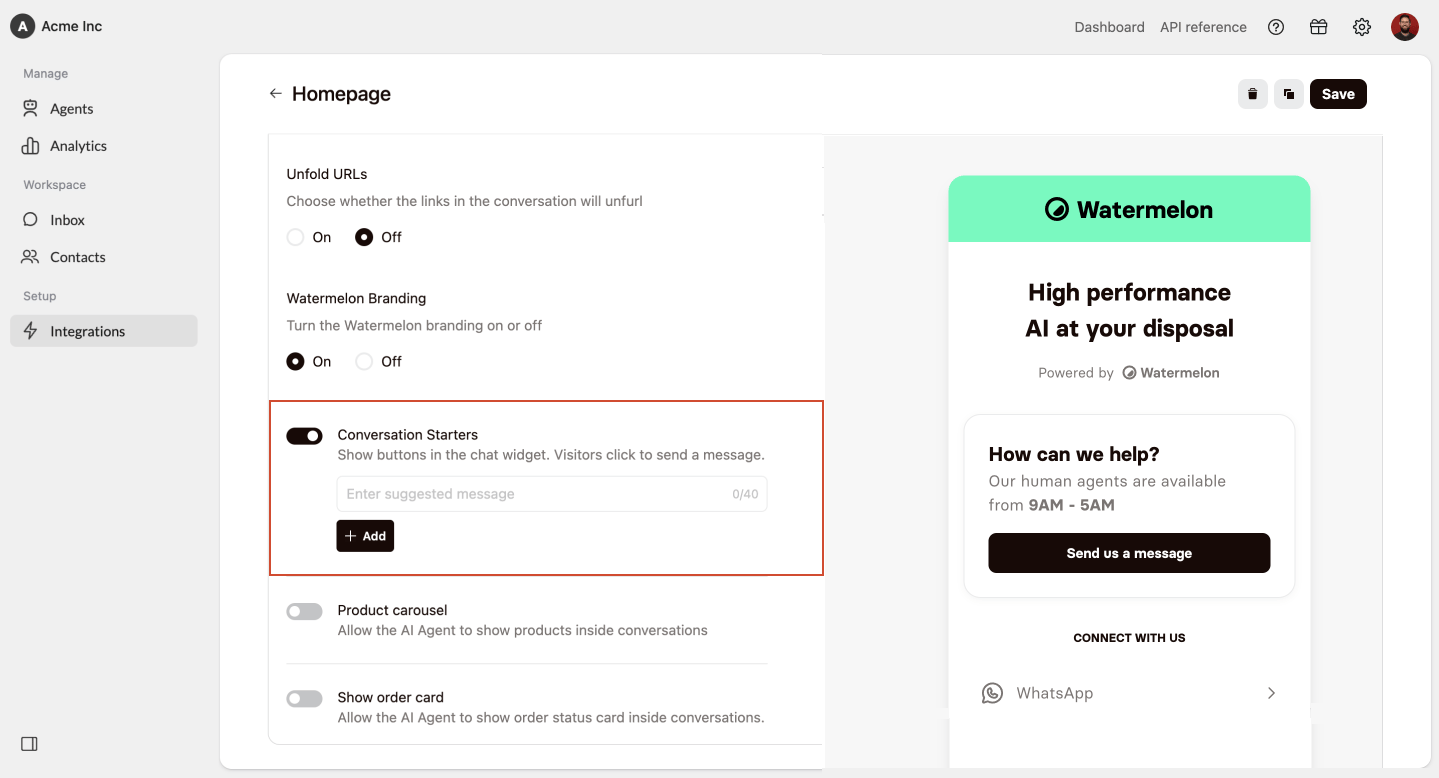
5
Add your starters
Add up to 4 conversation starters.Each starter can contain up to 40 characters.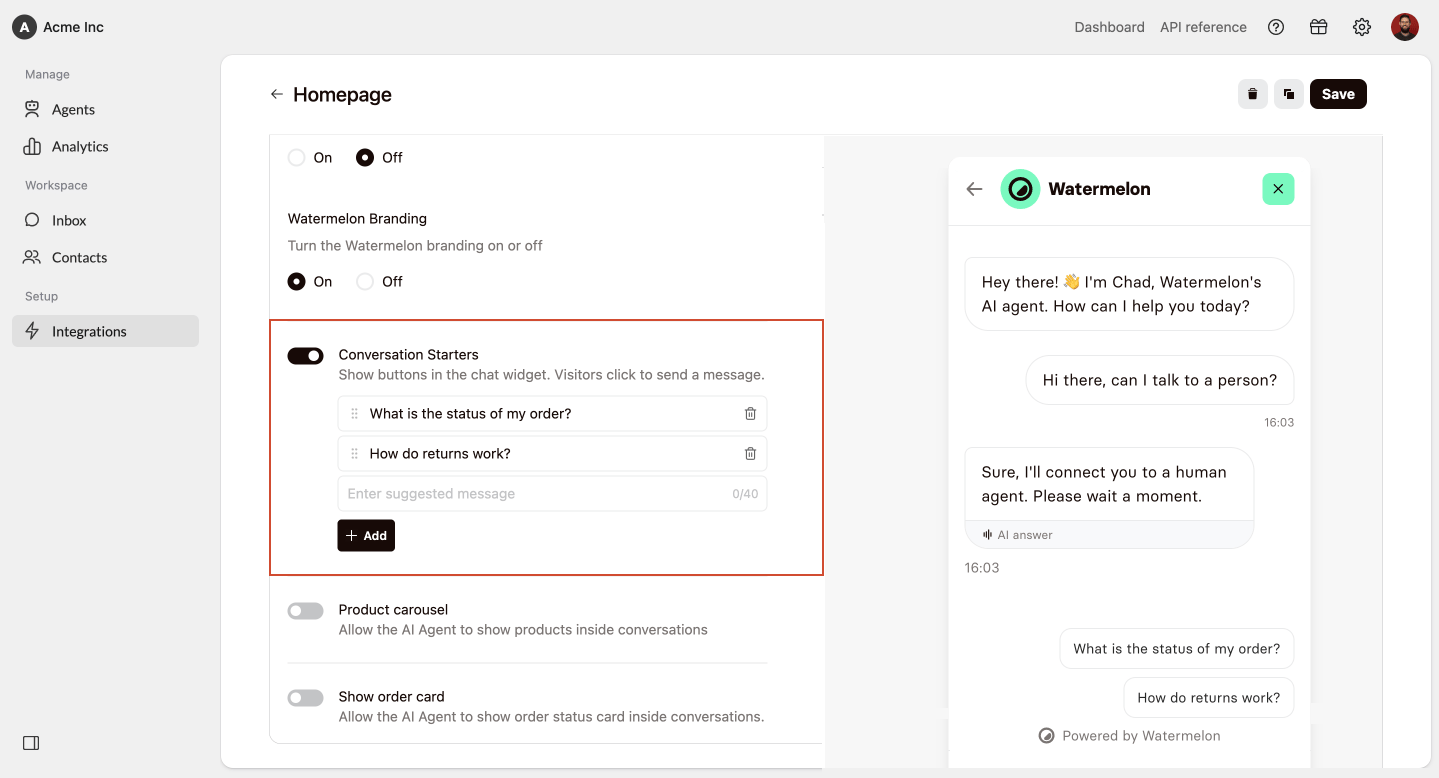
6
Place them in the right order
Drag and drop the starters into the order you want visitors to see them.
7
Save your changes
Click Save to publish your changes to the chat widget.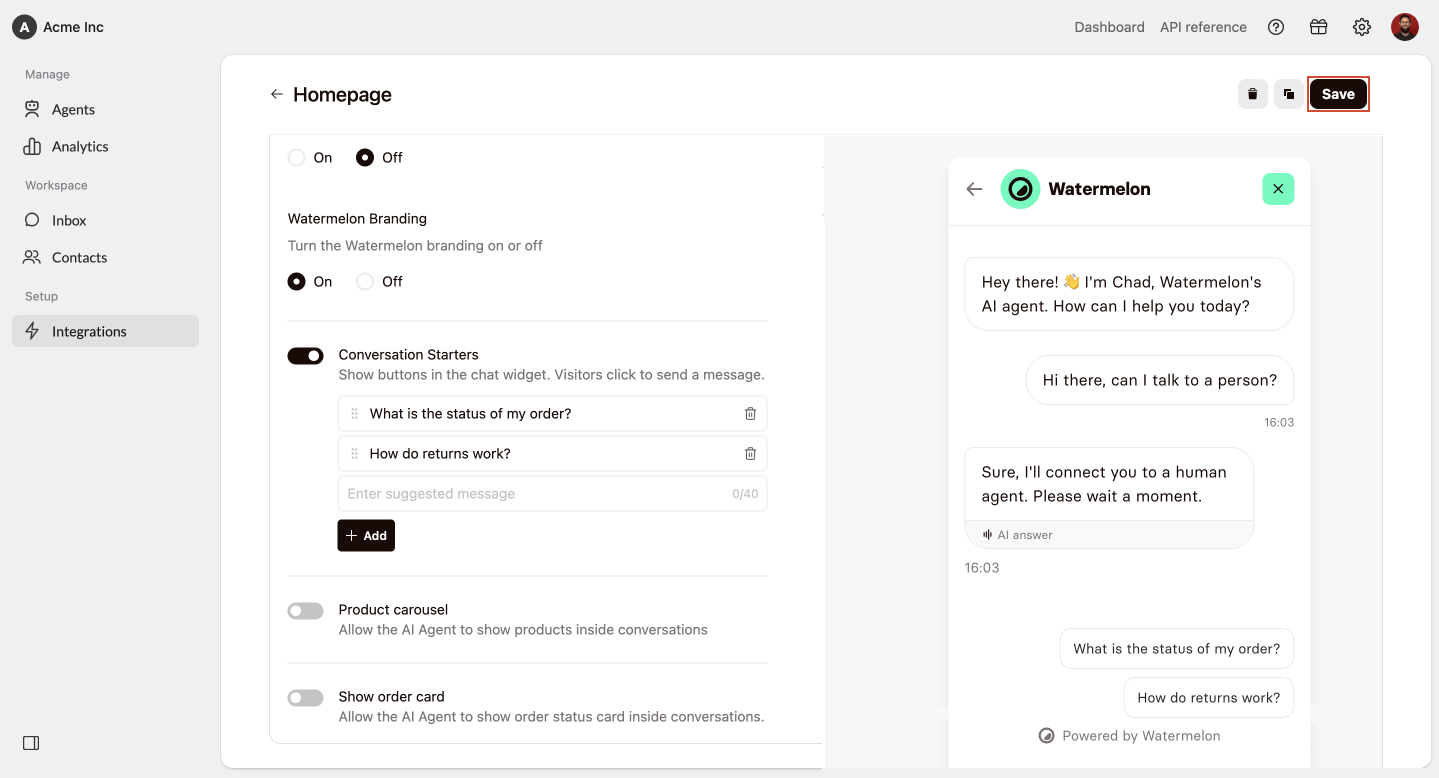
Change the order
1
Go to your chat widget
Go to Integrations > Chat Widget and select the chat widget you want to edit.
2
Open Attract and scroll down to Conversation starters
Click Attract. Scroll down to the Conversation starters section.
3
Reorder the starters
Drag and drop the starters into the order you want.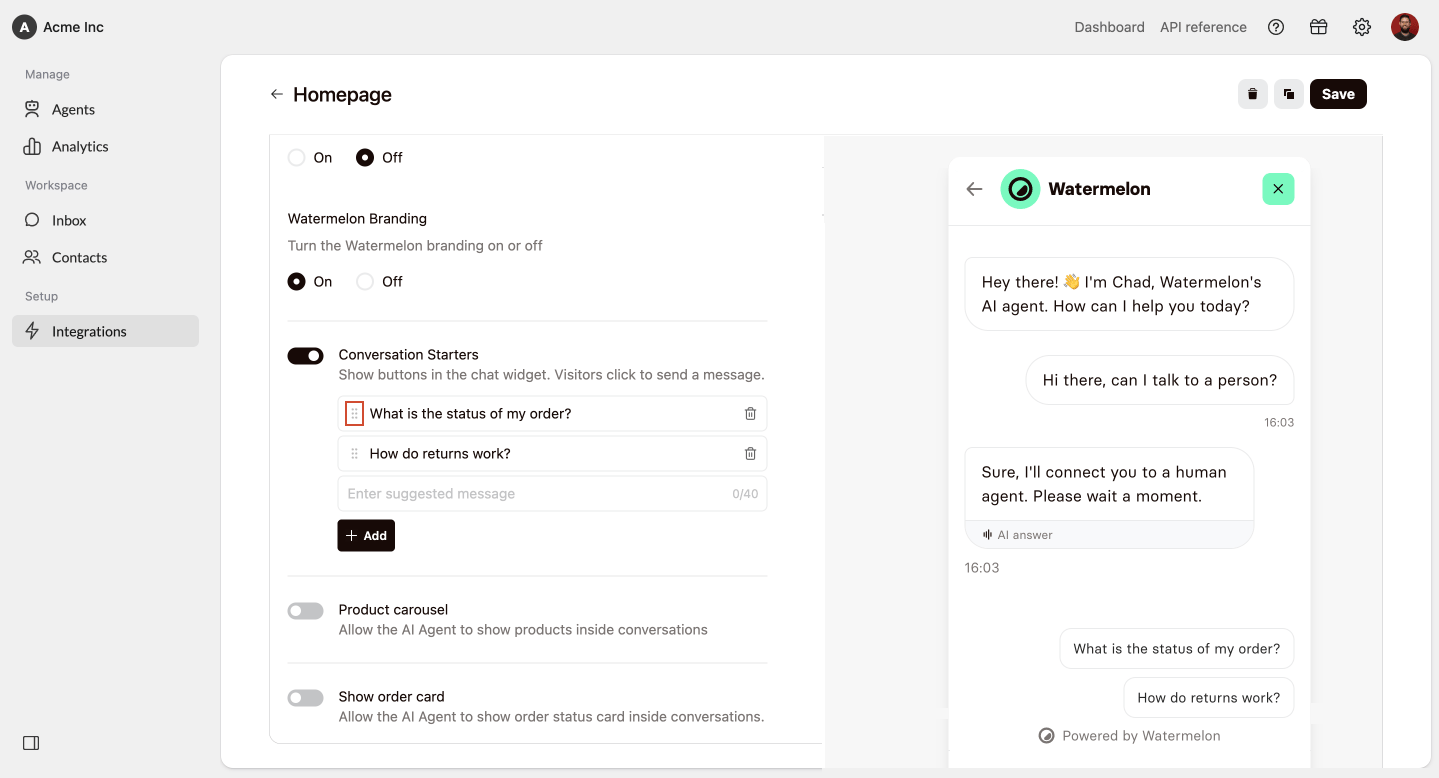
4
Save your changes
Click Save to save your changes.
Disable conversation starters
1
Go to your chat widget
Go to Integrations > Chat Widget and select the chat widget you want to edit.
2
Open Attract and scroll down to Conversation starters
Click Attract. Scroll down to the Conversation starters section.
3
Turn off Conversation starters
Disable Conversation starters.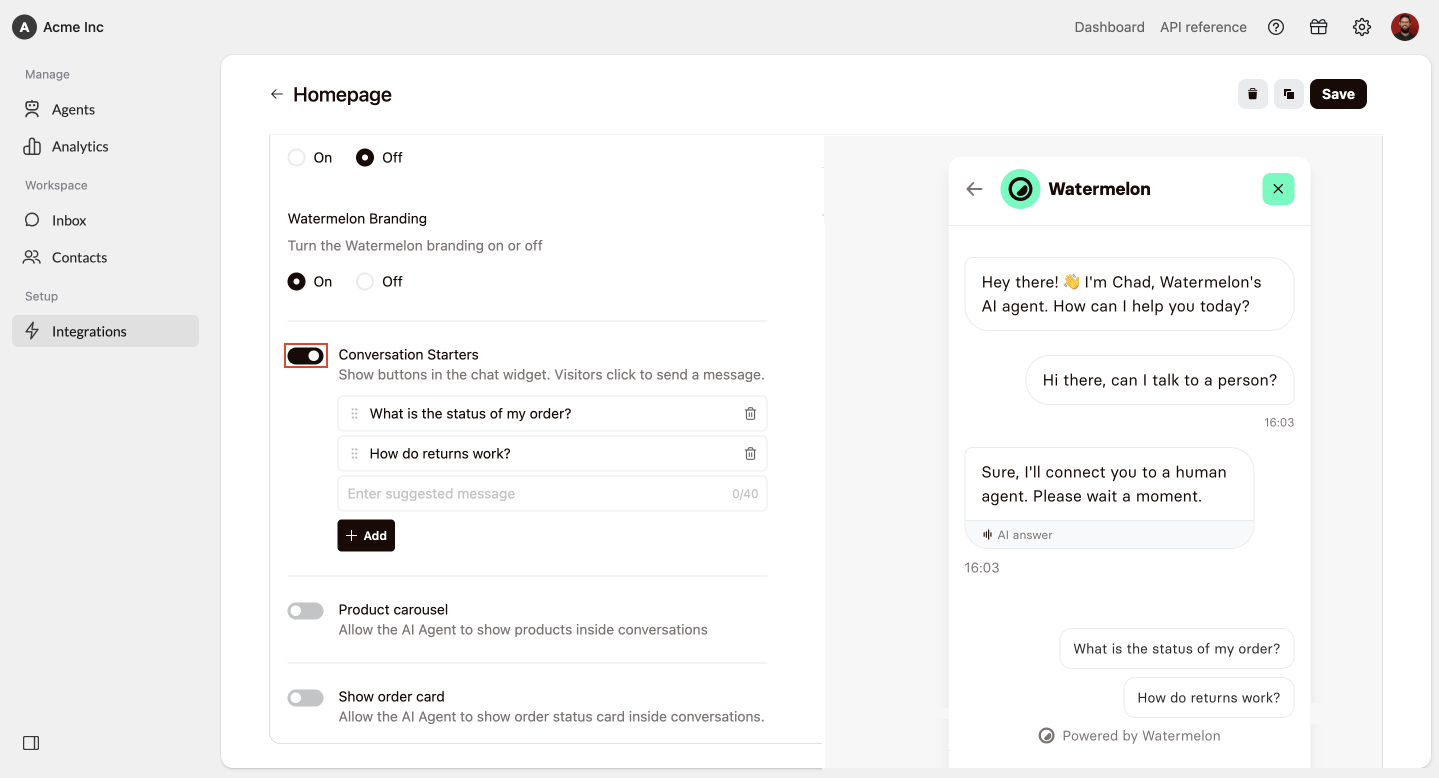
4
Save your changes
Click Save to save your changes.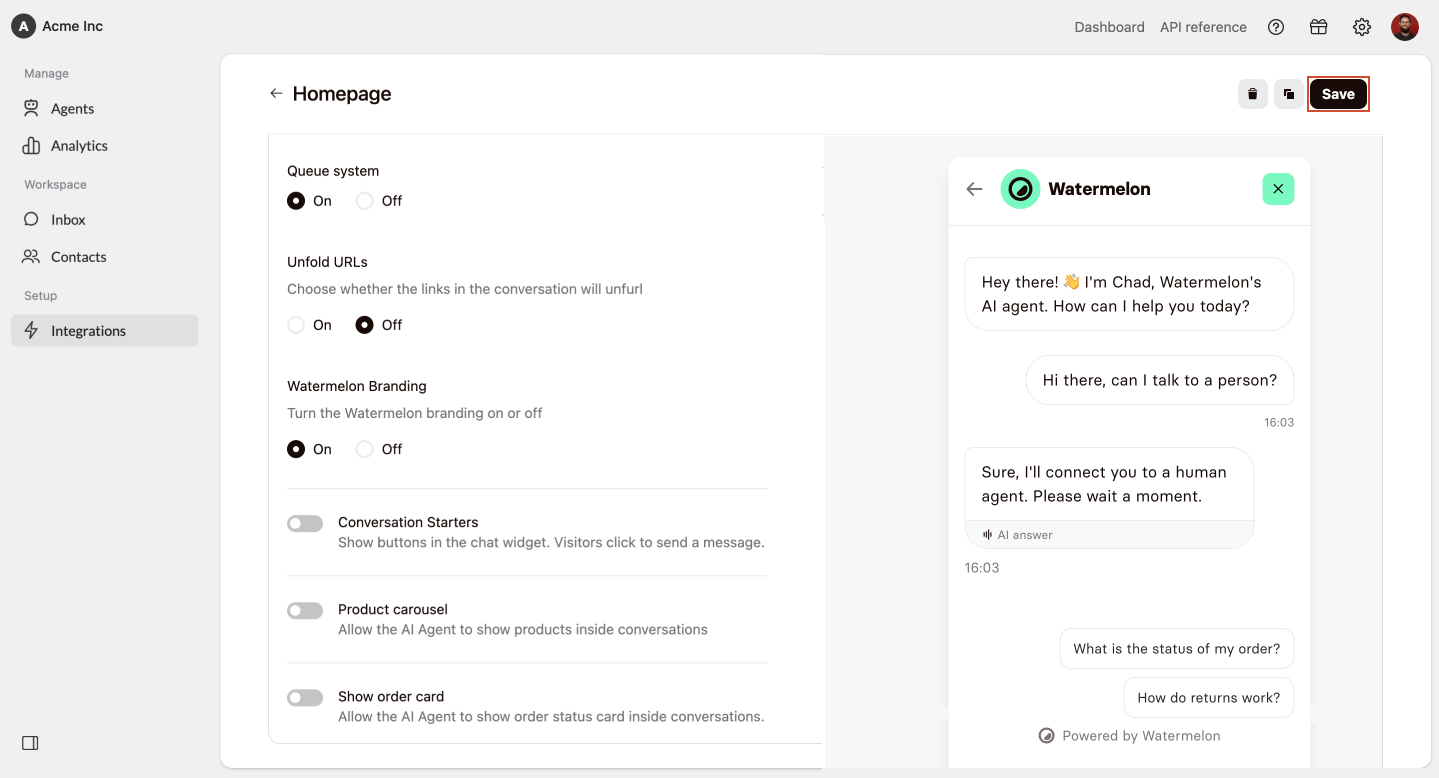
Best practices
Keep them short
Use clear and simple messages. Visitors should immediately understand what will happen when they click.
Focus on common questions
Add starters for the topics visitors ask about most often, such as pricing, support, or product details.
Use action-oriented text
Write starters like actions, for example “Book a demo” or “View pricing”.
Put the most useful starter first
Place the starter visitors are most likely to need at the top.