Documentation Index
Fetch the complete documentation index at: https://watermelon.ai/docs/llms.txt
Use this file to discover all available pages before exploring further.
With an XML feed, your Agent stays up to date with your latest product information.
If you’re using tools like Channable, WooCommerce, or Shopify, you can generate an XML feed in just a few steps. In this guide, we’ll show you exactly how to do it.
Choose your platform below and follow the steps. The setup usually takes just a few minutes.
Your XML feed must include:
- product ID
- title
- description
- product URL
- price
- availability
Channable
WooCommerce
Shopify
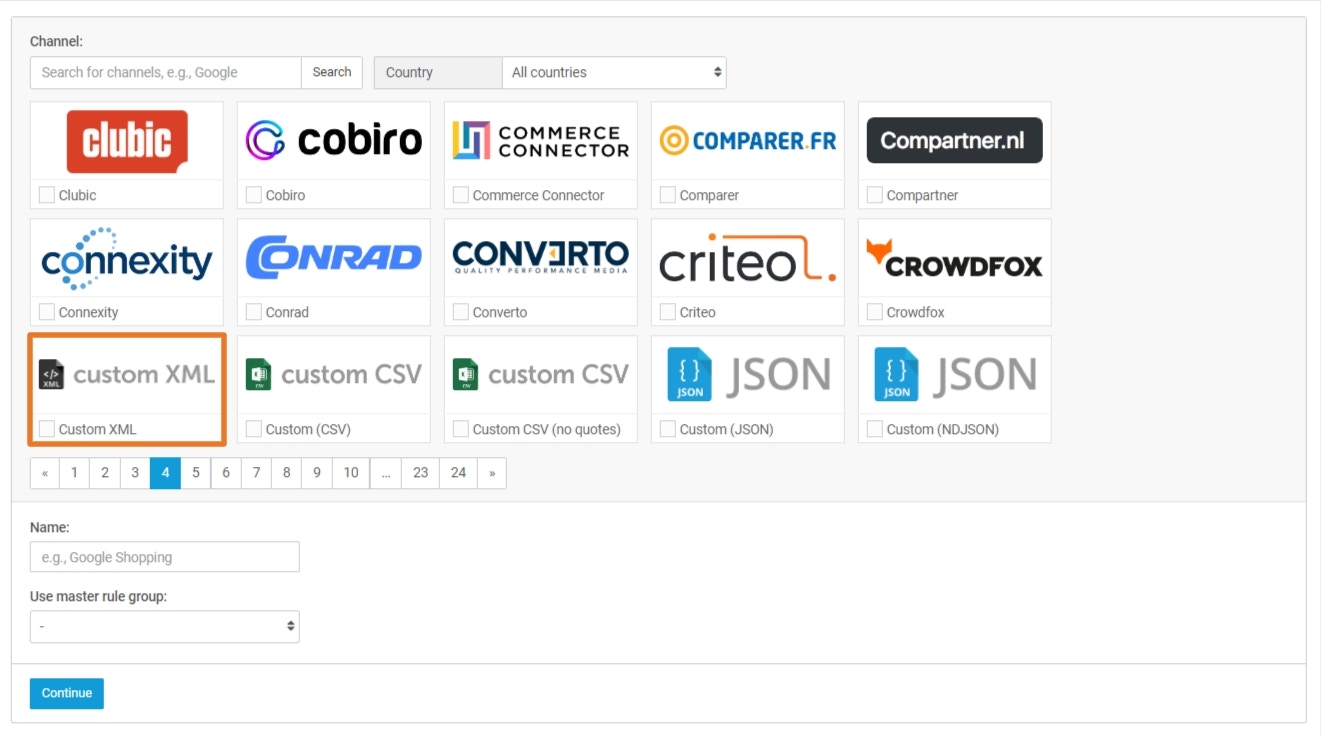
If you use Channable, you can generate an XML feed by creating a Custom XML channel. This allows you to export your product data in XML format and fully control the structure of your feed. The setup starts in [Your project] > Channels, where you can create and configure your XML feed step by step.Create a new channel
Go to [Your project] > Channels and click + Create channel. Select Custom XML. Set up your feed structure
Choose whether you want to use default XML tags (standard labels like <item> and <title>) or define your own structure.
Optimize your data (optional)
Use Rules if you want to clean up or adjust your product data before exporting.
Add the fields to your feed
In the Mapping step, select the product fields you want to include in your XML feed.\Make sure to include at least:

- product ID
- title
- description
- product URL
- price
- availability
Activate your feed
- Go to Settings and click Activate project.
- Go to Feeds > Your custom XML feed > Preview and click Activate feed.
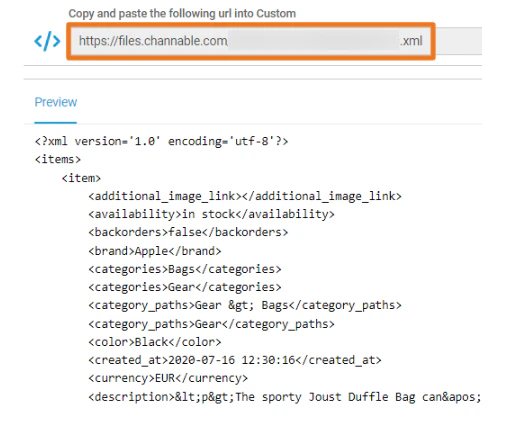
- Once you activate your project and feed, the feed URL will show.
If you use WooCommerce, you can generate an XML feed with the Product XML Feeds for WooCommerce plugin by WPFactory. The plugin is available in the WordPress plugin directory, and WPFactory’s setup flow starts in WooCommerce > Settings > Products > Product XML Feeds after installation and activation.Install the plugin
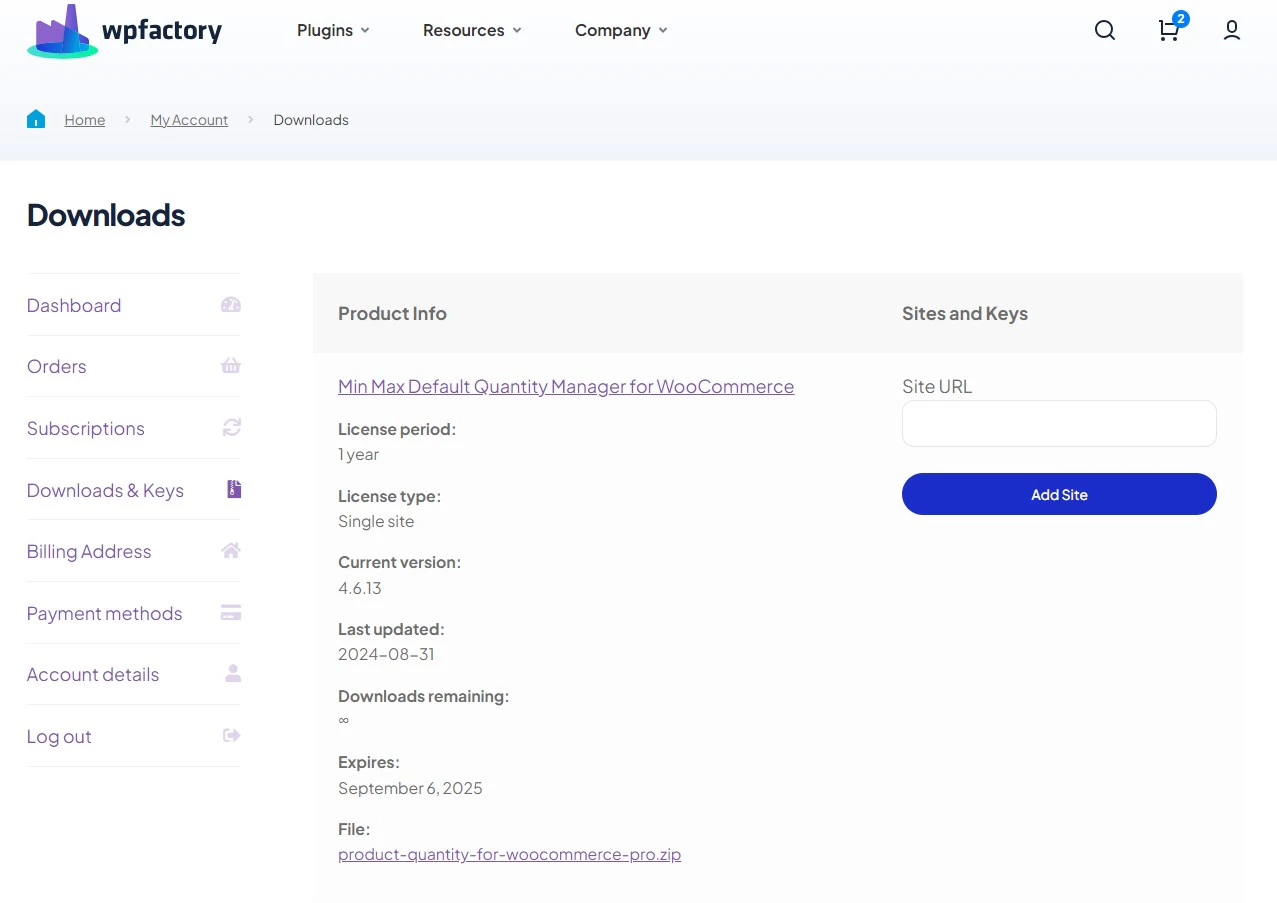
In your WordPress dashboard, go to Plugins > Add New and search for Product XML Feeds Manager for WooCommerce by WPFactory. Install and activate the plugin. WPFactory also offers a Pro version, but the free version can already be used to create basic product XML feeds. After downloading the plugin from your WPFactory account, upload it to your WordPress site. Open the XML feed settings
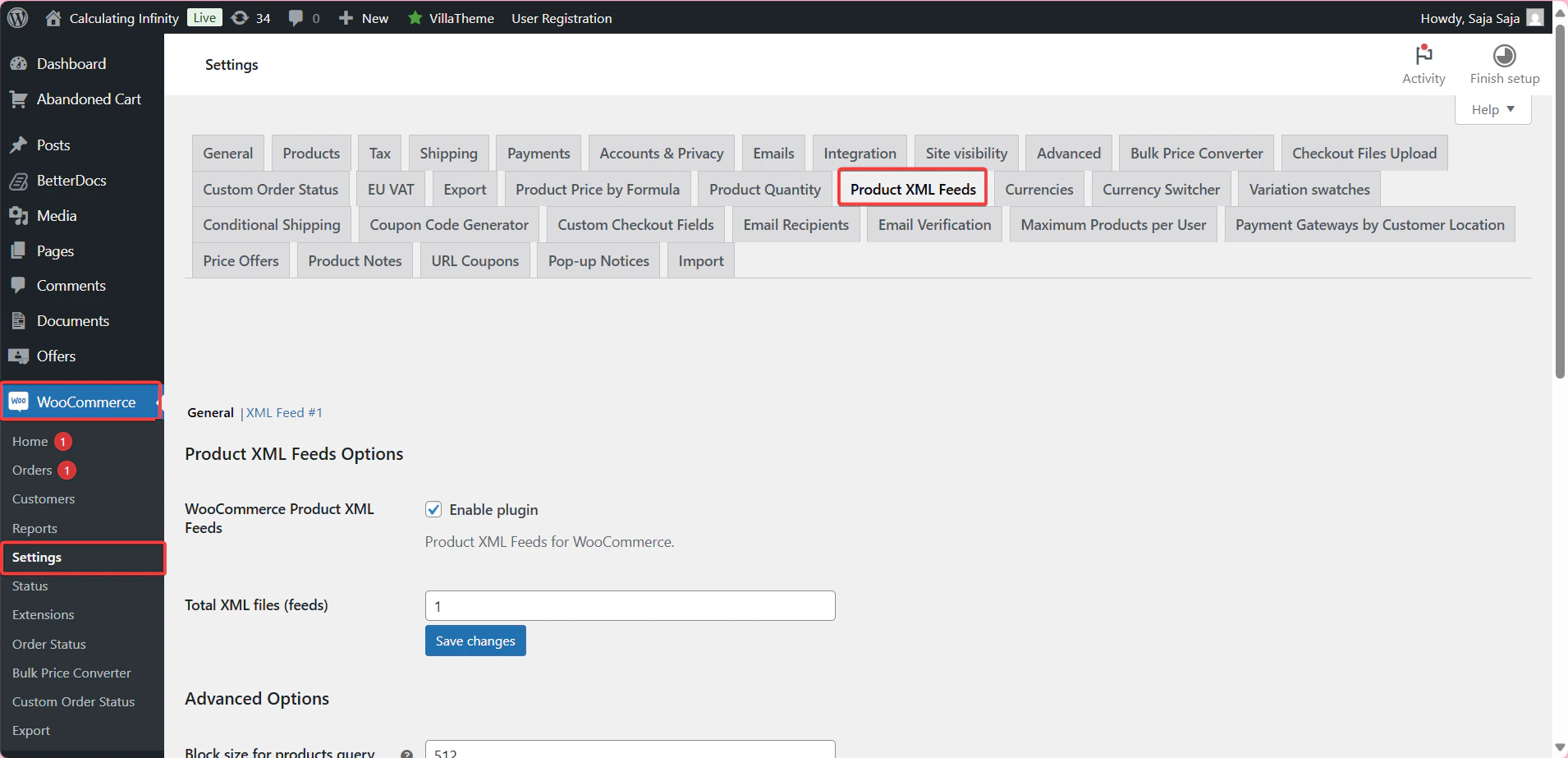
In WordPress, go to WooCommerce > Settings > Products and click the Product XML Feeds tab. This is where you create and manage your feed. Enable the plugin and create a feed
Turn on Product XML Feeds for WooCommerce. Then choose how many XML feeds you want to create in Total XML files (feeds). If you only need one feed for Watermelon, one feed is enough. After that, click Save changes.
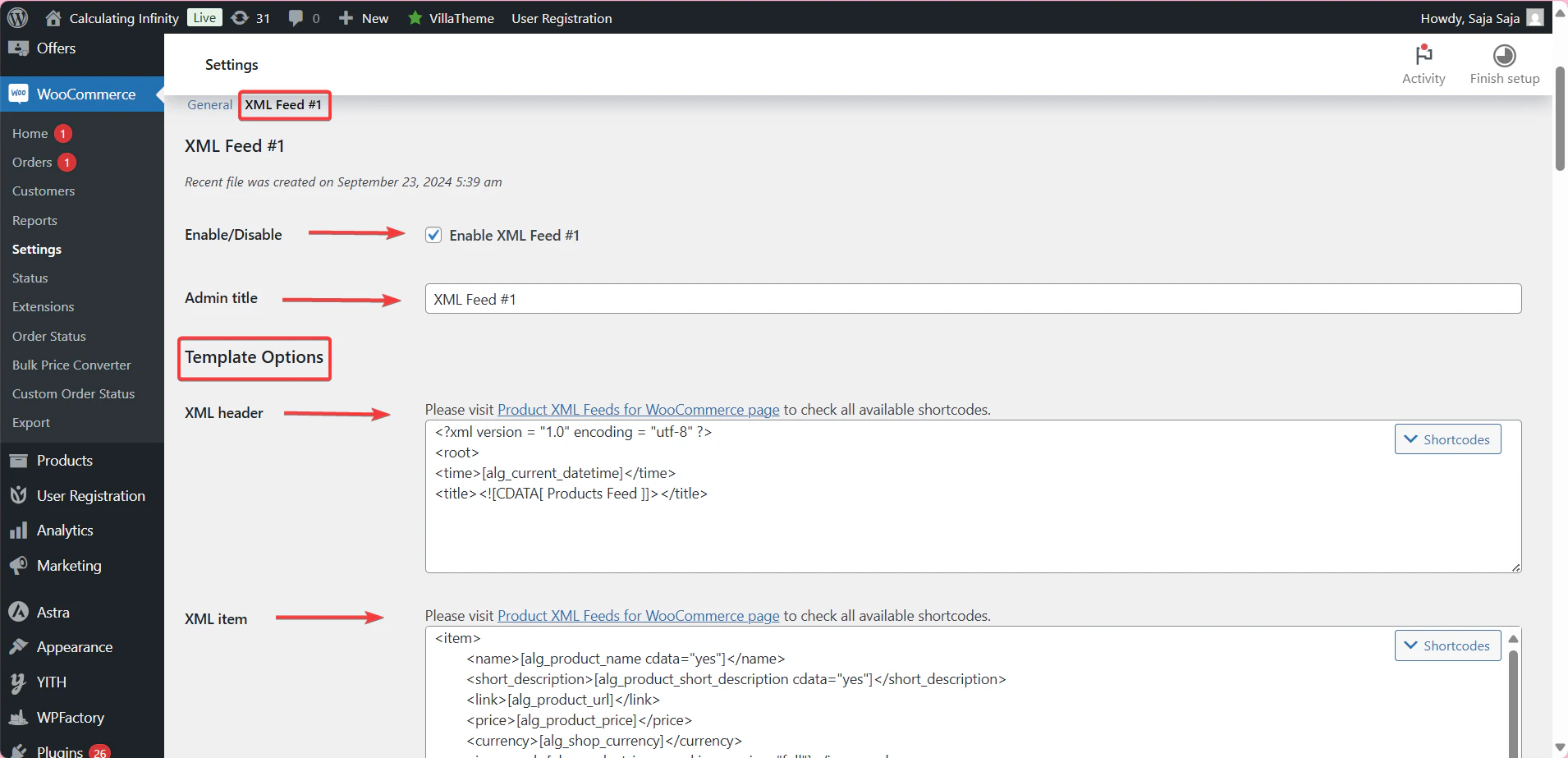
Open your feed settings
After saving, open the tab for your feed, for example Feed #1. There you can:
- enable or disable that specific feed,
- add an Admin Title for internal reference,
- and define the XML structure with XML header, XML item, optional Variation XML item, and XML footer.
Add the product fields to your XML template
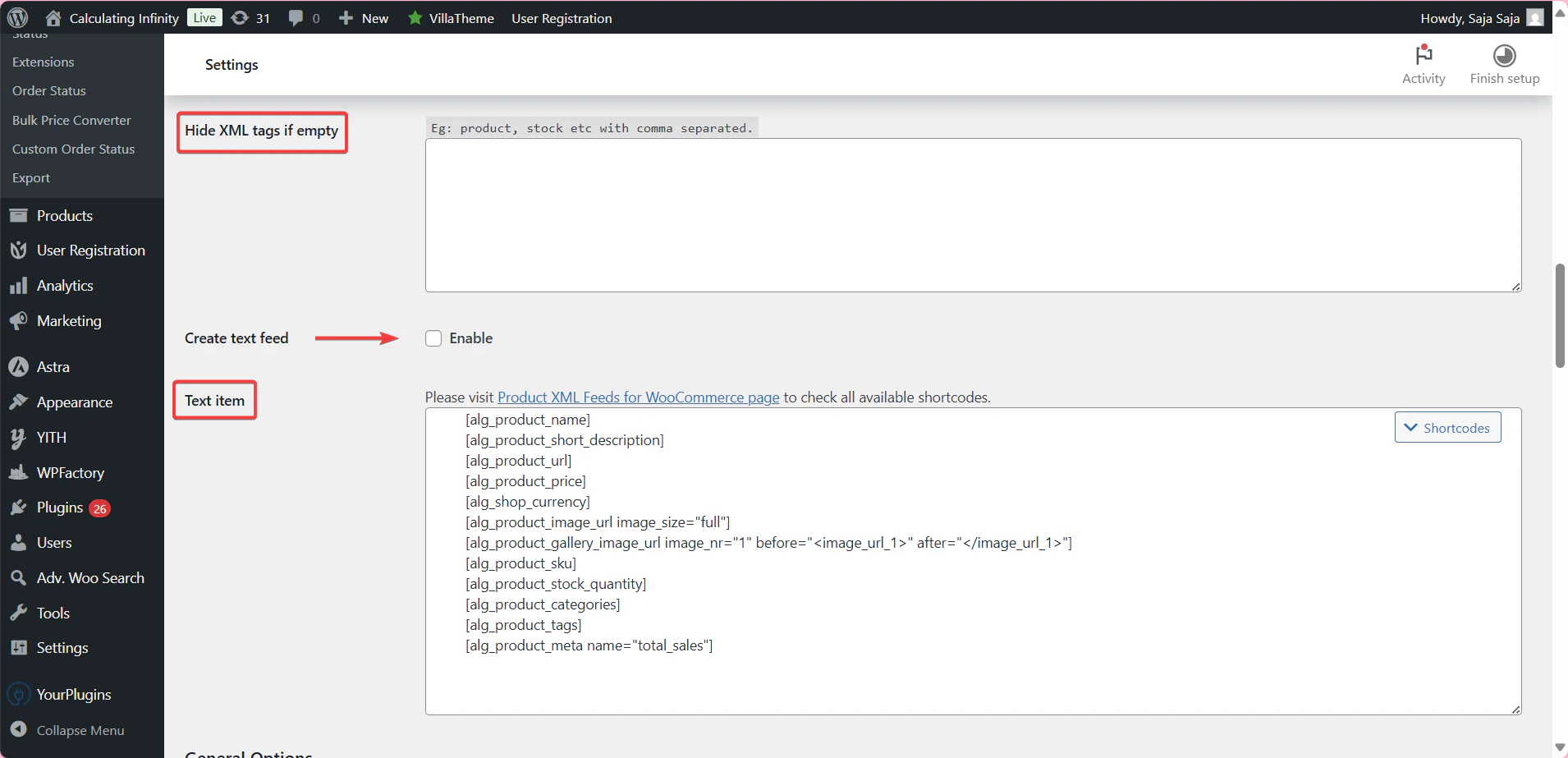
In the XML item section, you build the product structure with WPFactory shortcodes. WPFactory provides shortcodes for core fields such as:
- product name:
[alg_product_name]
- product description:
[alg_product_description]
Its shortcode library also covers pricing, stock, images, attributes, taxonomies, and custom fields.For Watermelon, your feed should at minimum map these fields:
- product ID
- title
- description
- product URL
- price
- availability
Set the feed URL
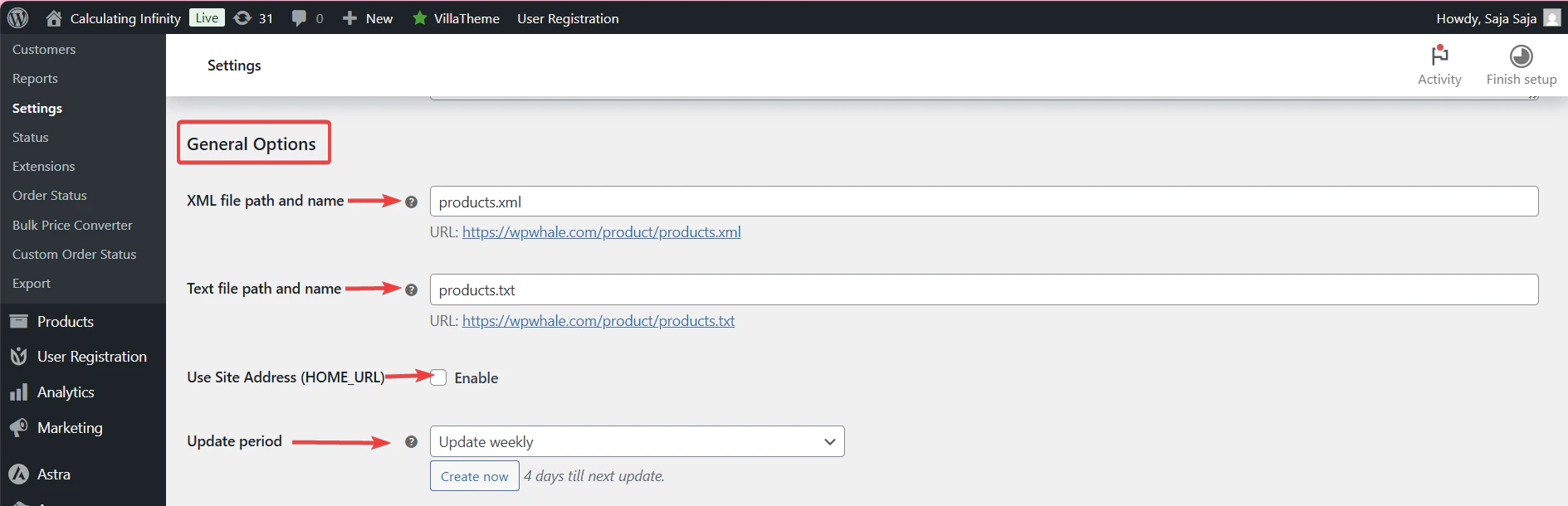
In the General Settings for the feed, choose the XML file path and name. You can set a custom path such as /products.xml, or use Use Site Address (HOME_URL) so the plugin generates the feed path based on your website URL.This is important, because Watermelon needs a public feed URL that you can paste into the XML feed connection. If you use Shopify, you can generate an XML feed using an app from the Shopify App Store. These apps allow you to export your product data in XML format. Depending on the app, you can choose a plan that fits your needs.Go to the Shopify App Store
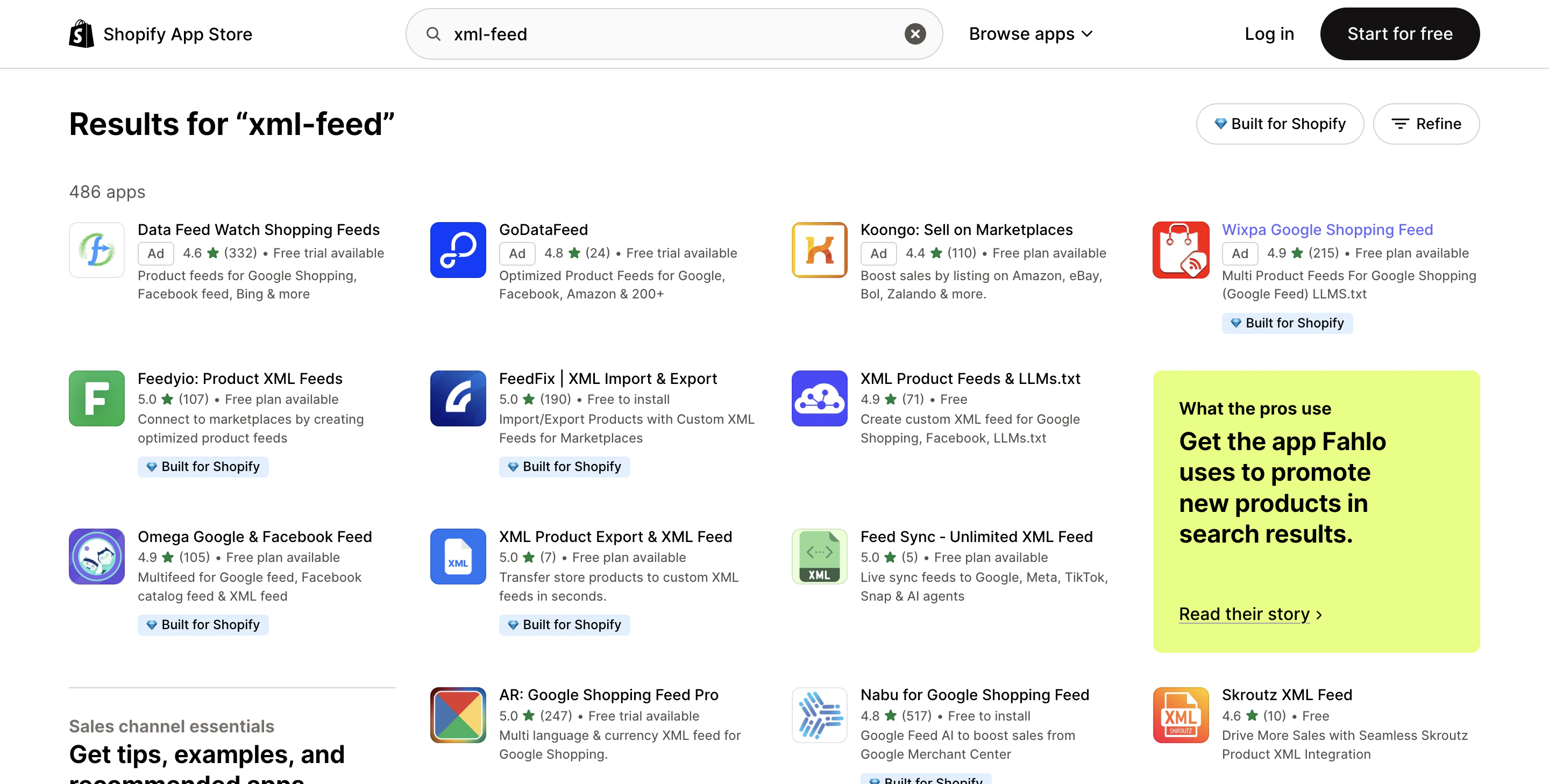
Search for “XML feed” in the Shopify App Store. Choose an app and set up your XML feed
Select an app from the Shopify App Store that can generate an XML product feed. We don’t specifically recommend one, as many apps offer different features and pricing (often with paid plans). Choose the app that best fits your product catalog, budget, and required integrations.Install the app and follow its setup instructions to generate your XML feed. Once completed, make sure the feed is available via a public URL so Watermelon can access and fetch the data.
Upload your feed in Watermelon
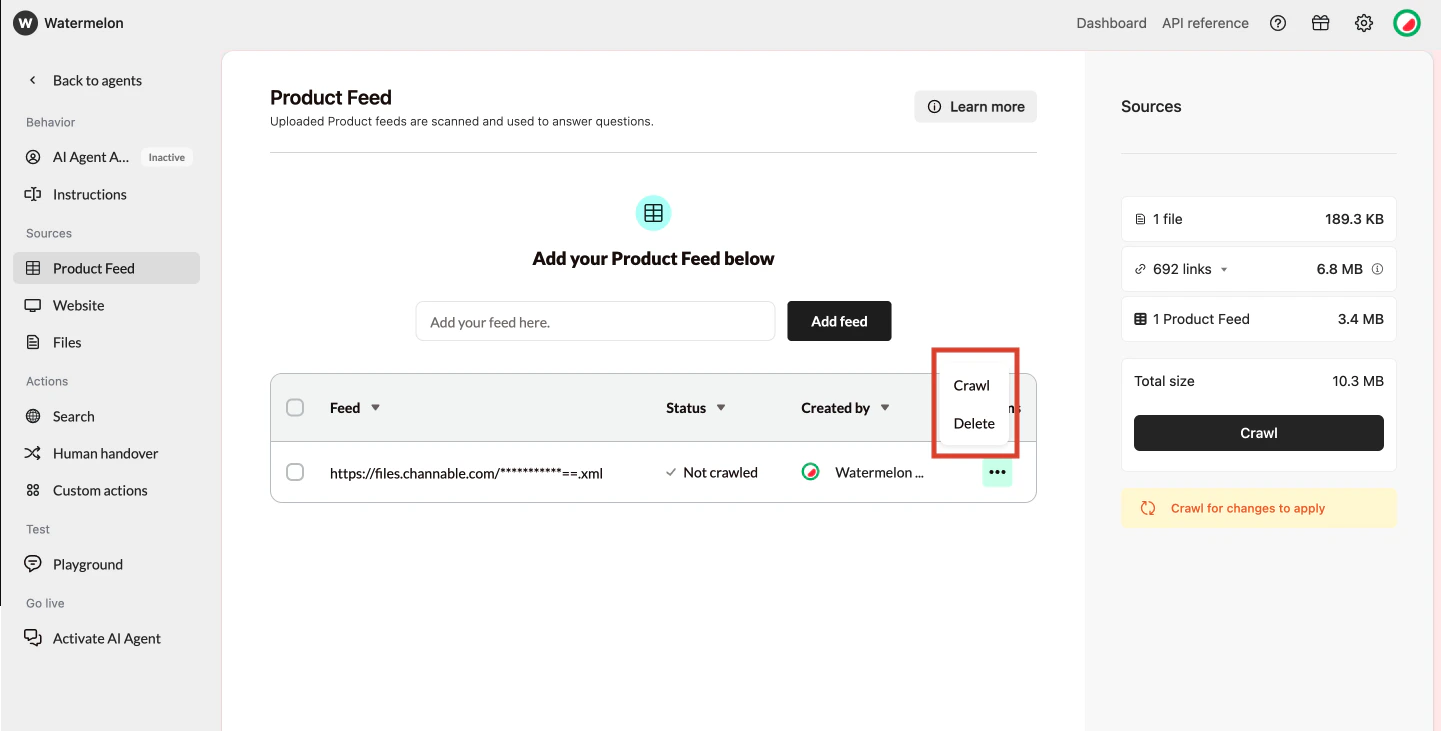
In Watermelon, go to the XML feed connection and paste the feed URL into the input field, then click Add feed. Watermelon will start syncing the feed automatically.
You can also use Synchronize agent later if you want to refresh the data manually. Watermelon supports XML only, not JSON feeds or sitemaps, and the maximum file size is 50 MB per XML feed.