- Channable
- WooCommerce
- Shopify
If you use Channable, you can generate an XML feed by creating a Custom XML channel. This allows you to export your product data in XML format and fully control the structure of your feed. The setup starts in [Your project] > Channels, where you can create and configure your XML feed step by step.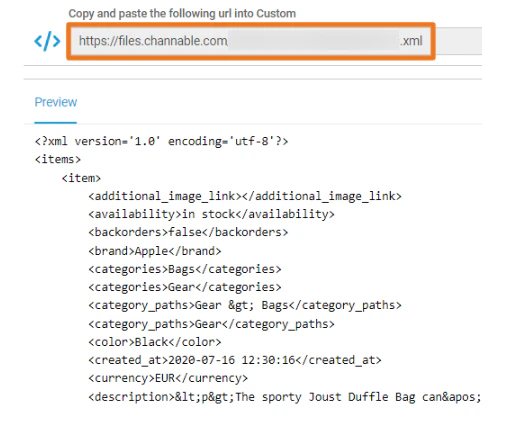
1
Create a new channel
Go to [Your project] > Channels and click + Create channel. Select Custom XML.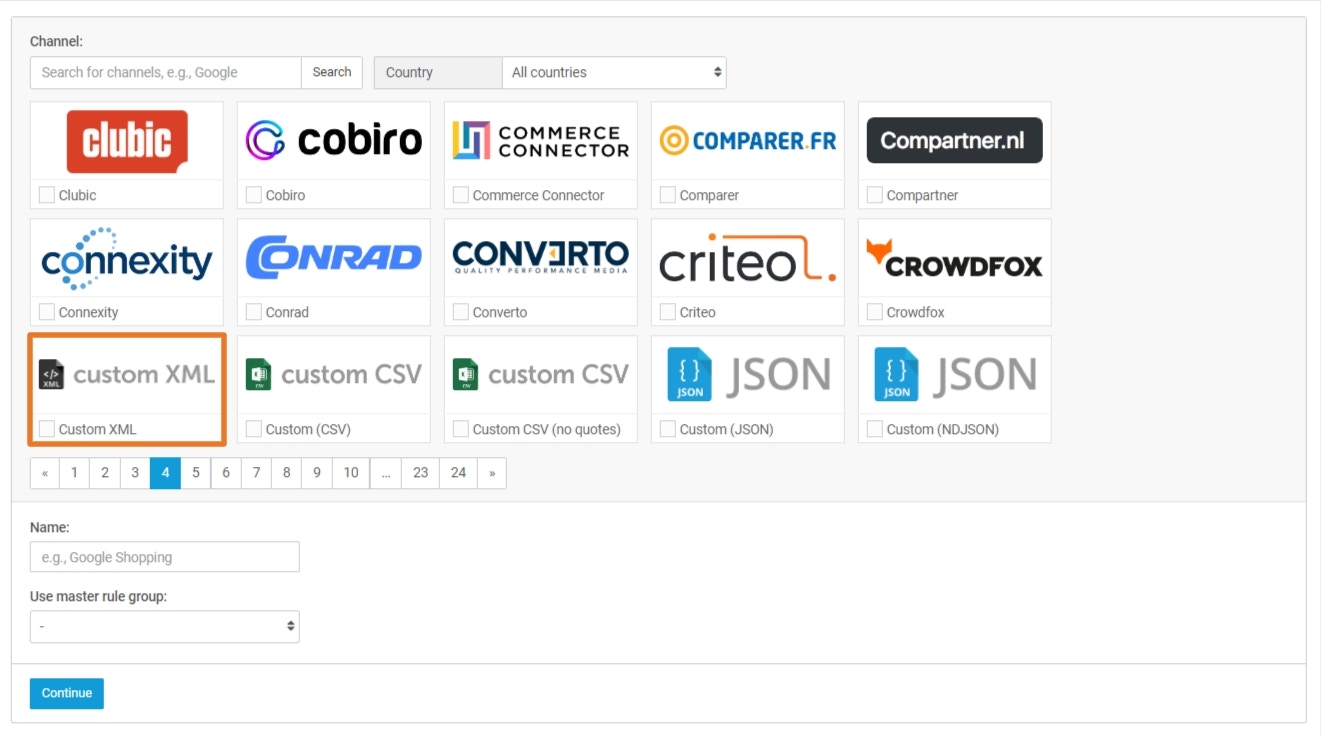
2
Set up your feed structure
Choose whether you want to use default XML tags (standard labels like
<item> and <title>) or define your own structure.3
Optimize your data (optional)
Use Rules if you want to clean up or adjust your product data before exporting.
4
Add the fields to your feed
In the Mapping step, select the product fields you want to include in your XML feed.\
- product ID
- title
- description
- product URL
- price
- availability
5
Activate your feed
- Go to Settings and click Activate project.
- Go to Feeds > Your custom XML feed > Preview and click Activate feed.
- Once you activate your project and feed, the feed URL will show.
For more detailed information, we recommend consulting the Channable documentation.
Upload your feed in Watermelon
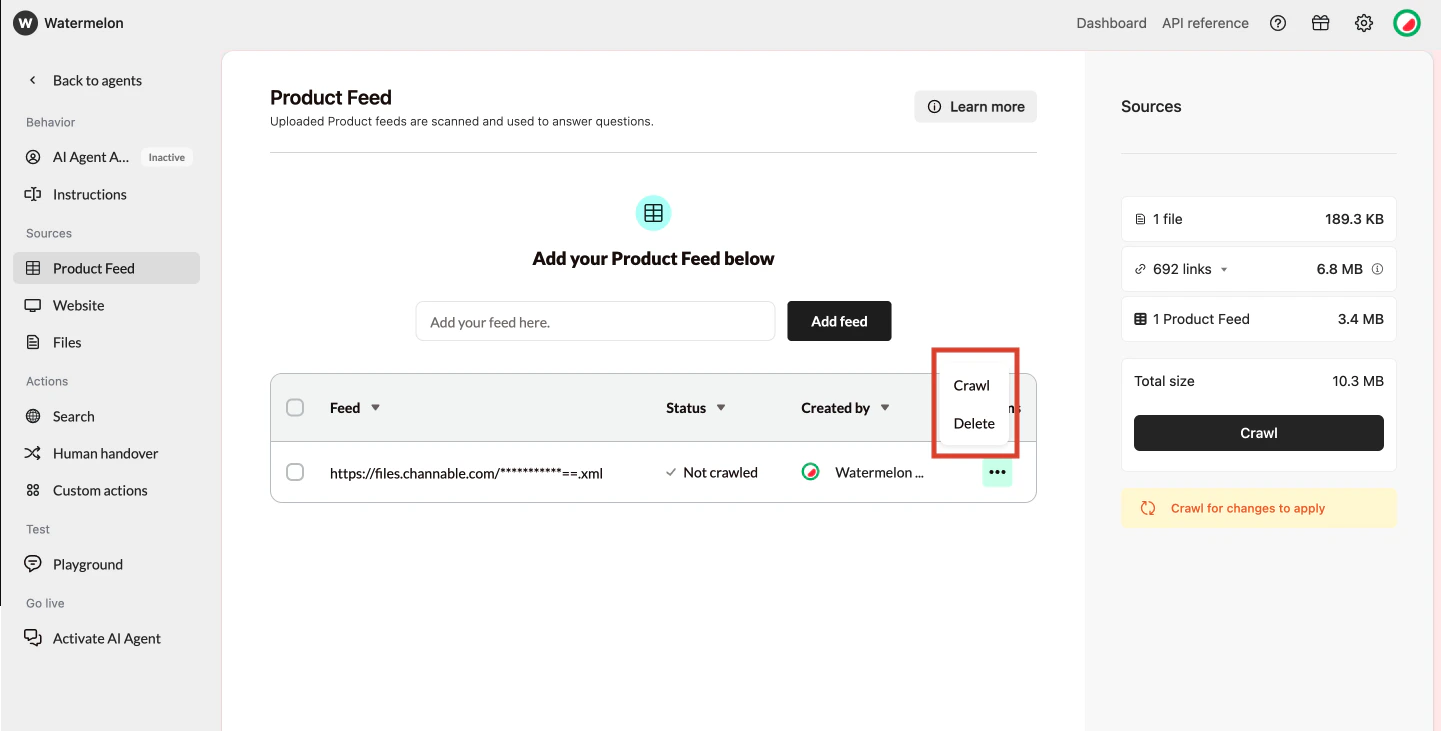
In Watermelon, go to the Product Feed and paste the feed URL into the input field, then click Add feed. After the feed is added, click Crawl so your data becomes part of the agents knowledge base. After crawling, you can use also Crawl a specific product feed if you want to refresh the data manually. Watermelon supports XML only, not JSON feeds or sitemaps, and the maximum file size is 50 MB per XML feed.