

Why reproducing conversations matters
When a reply feels incorrect, incomplete, or off-brand, the fastest way to understand why is to reproduce the exact user message in the Playground. This allows you to see exactly what the agent used to generate its answer — including:- Instructions
- Connected websites
- XML feeds
- Uploaded files
- Other knowledge sources
When should you use this?
Use this method when:- An answer is factually incorrect
- The tone does not match your personality settings
- The response is incomplete
- The agent ignores specific product or company information
- The agent says it doesn’t know something that should be in its sources
1
Open the conversation in the Inbox
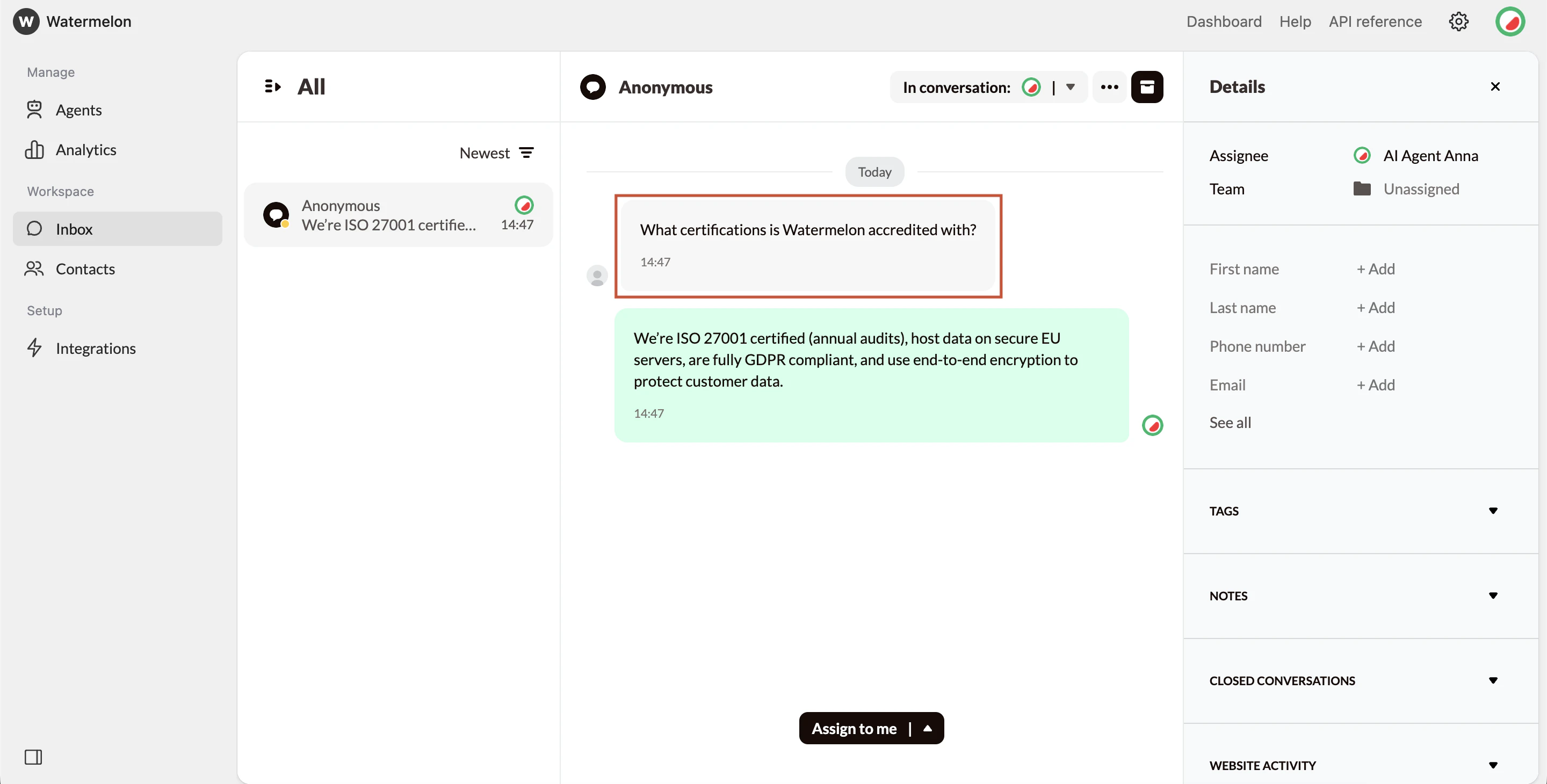
- Navigate to the conversation where the agent’s response did not meet expectations.
- Identify the user message that triggered the response.
- Copy the message exactly as sent.
2
Reproduce the message in the Playground
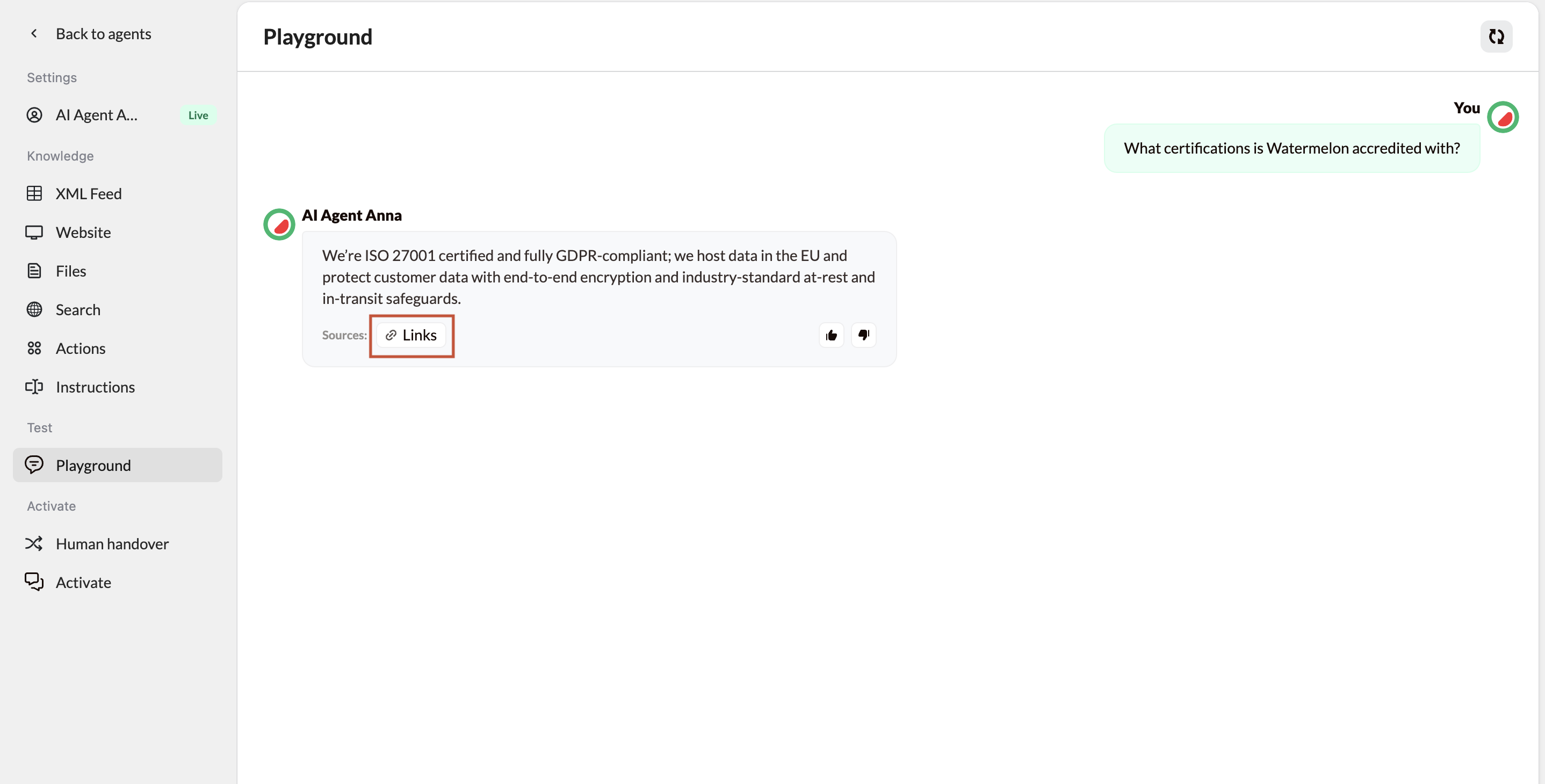
- Open the Playground for the same agent used in the conversation.
- Make sure the agent configuration matches the one that was active when the conversation happened.
- Paste the copied user message into the input field and send it.
If instructions, sources, or model settings were changed after the conversation happened, the reproduced answer may not match the original reply.
3
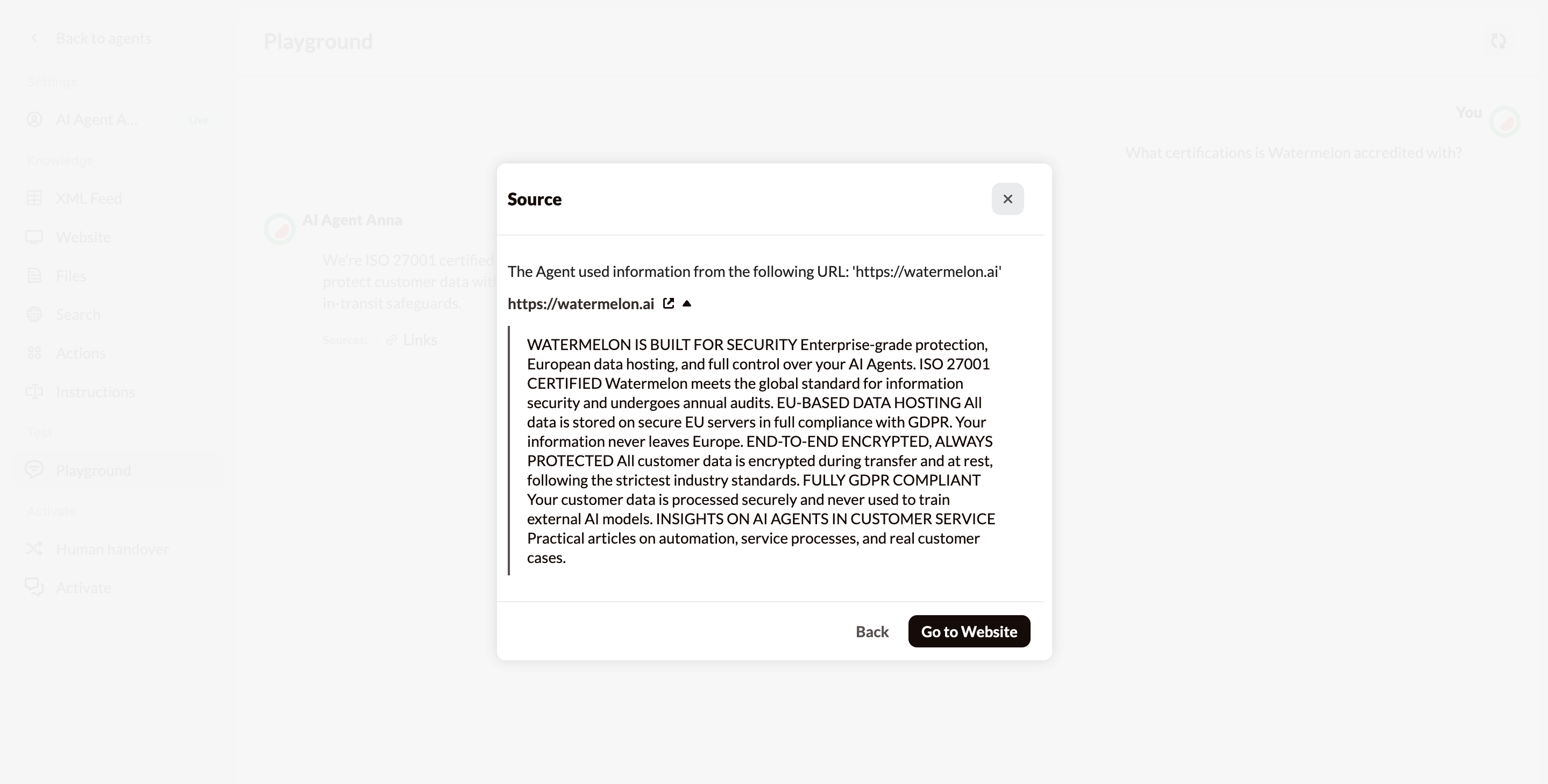
Inspect the sources used by the agent
- Under the agent’s response, locate the Source: label.
- Click one of the source chips/buttons (for example: Instructions, Website, XML feed).
Next Steps: Fix and Confirm
Once you’ve identified the cause:
- Unclear instructions → Edit the agent instructions and make them more specific
- Broken or outdated URLs → Update or remove them, then re-crawl if applicable
- Incorrect product feed data → Validate the feed and refresh the connection
- Unexpected sources → Remove the source or tighten instructions to restrict usage