

How Phone works
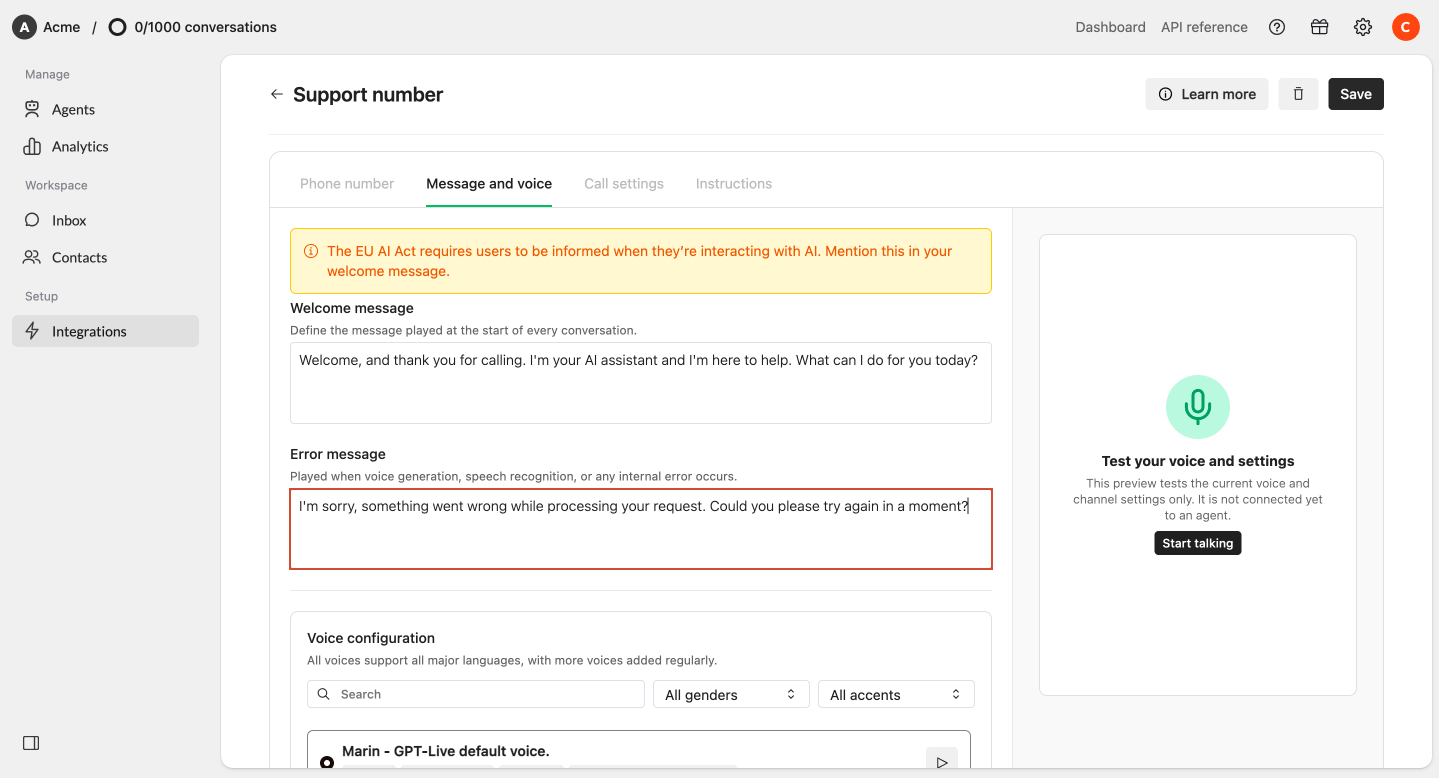
When someone calls your connected phone number:- The caller hears your configured welcome message.
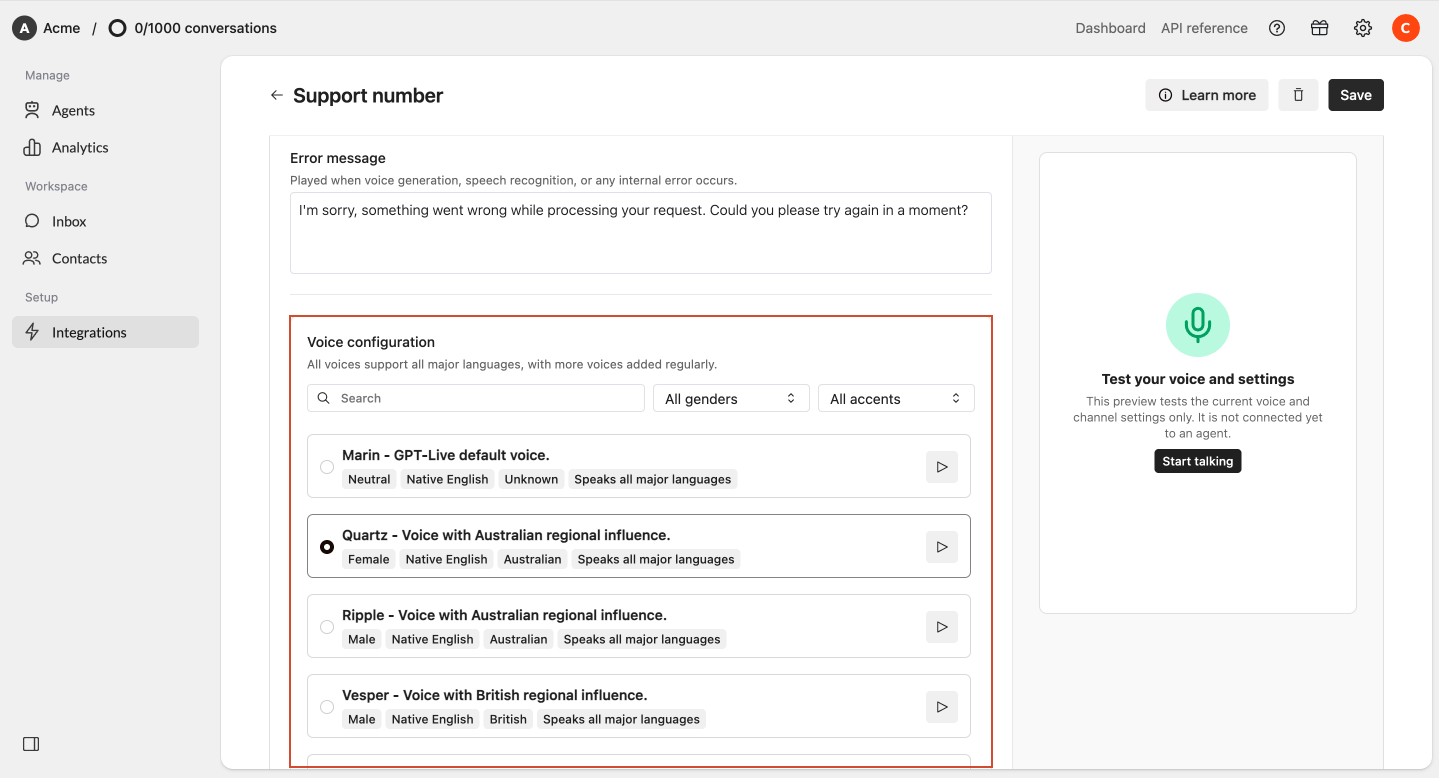
- Your AI Agent starts the conversation using your selected voice.
- The Agent uses its existing knowledge, instructions, Actions, and workflows to answer the caller.
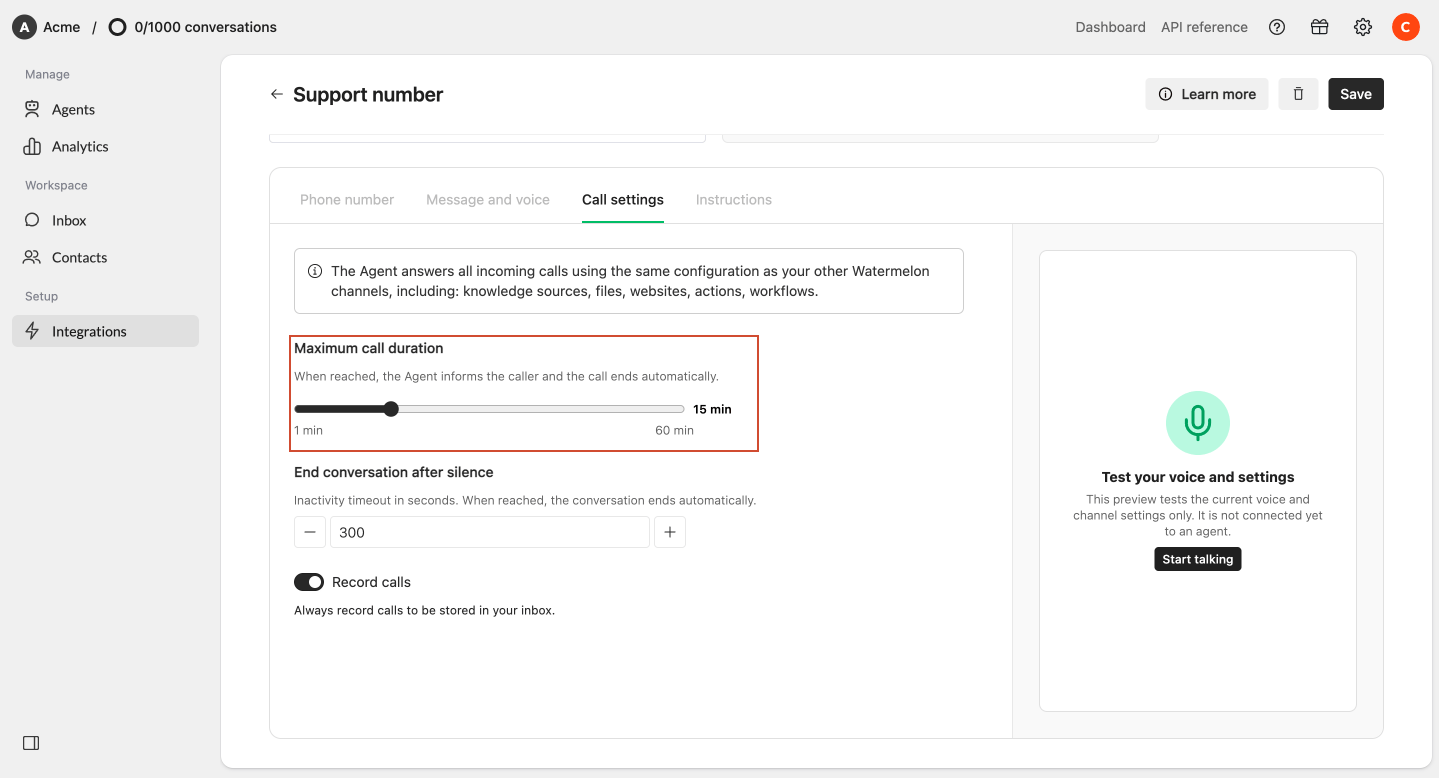
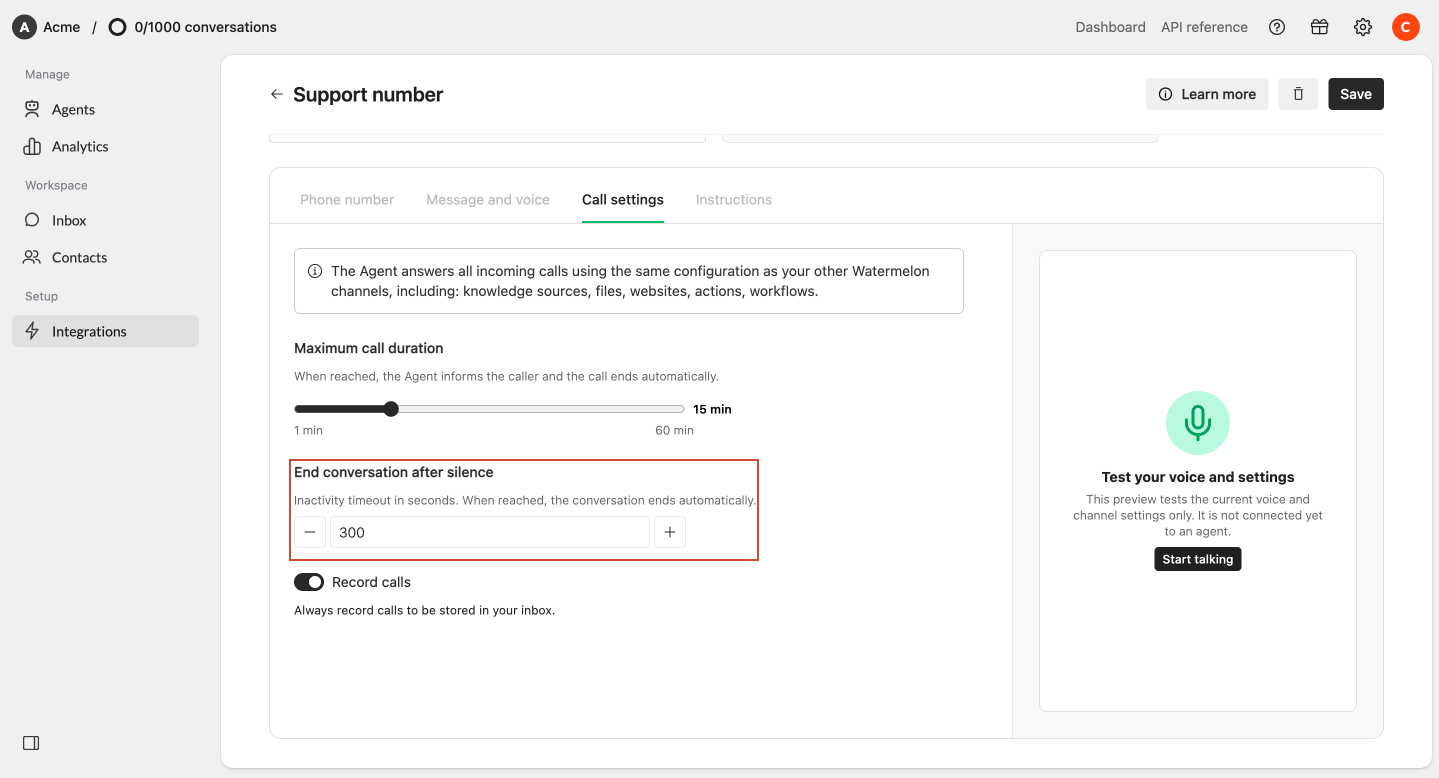
- The call ends when the conversation is finished, the maximum call duration is reached, or the configured silence timeout is reached.
- The conversation is saved in Watermelon with a transcript and summary.
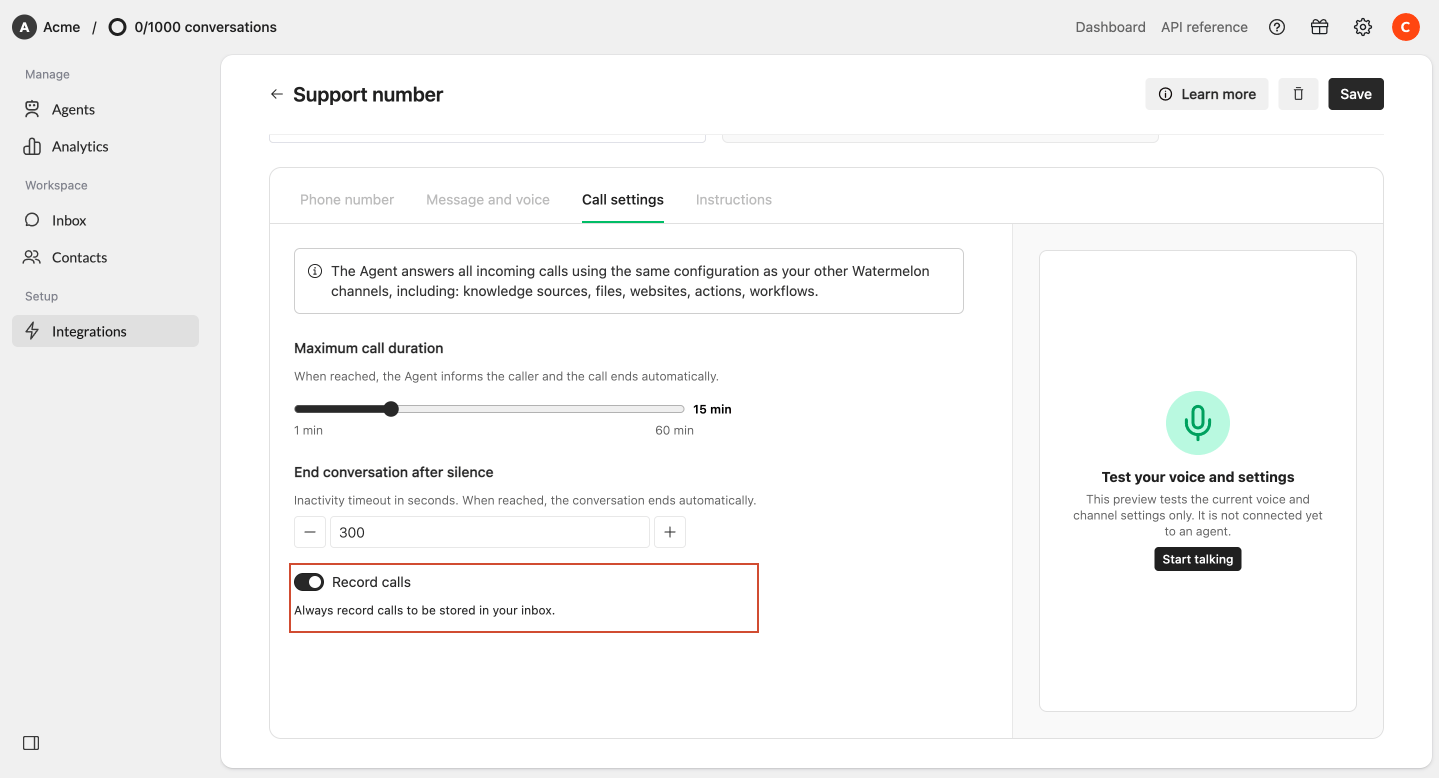
- If call recording is enabled, you can also listen back to the recording.
Create a Phone integration
1
Open Phone
Go to Integrations and select Phone.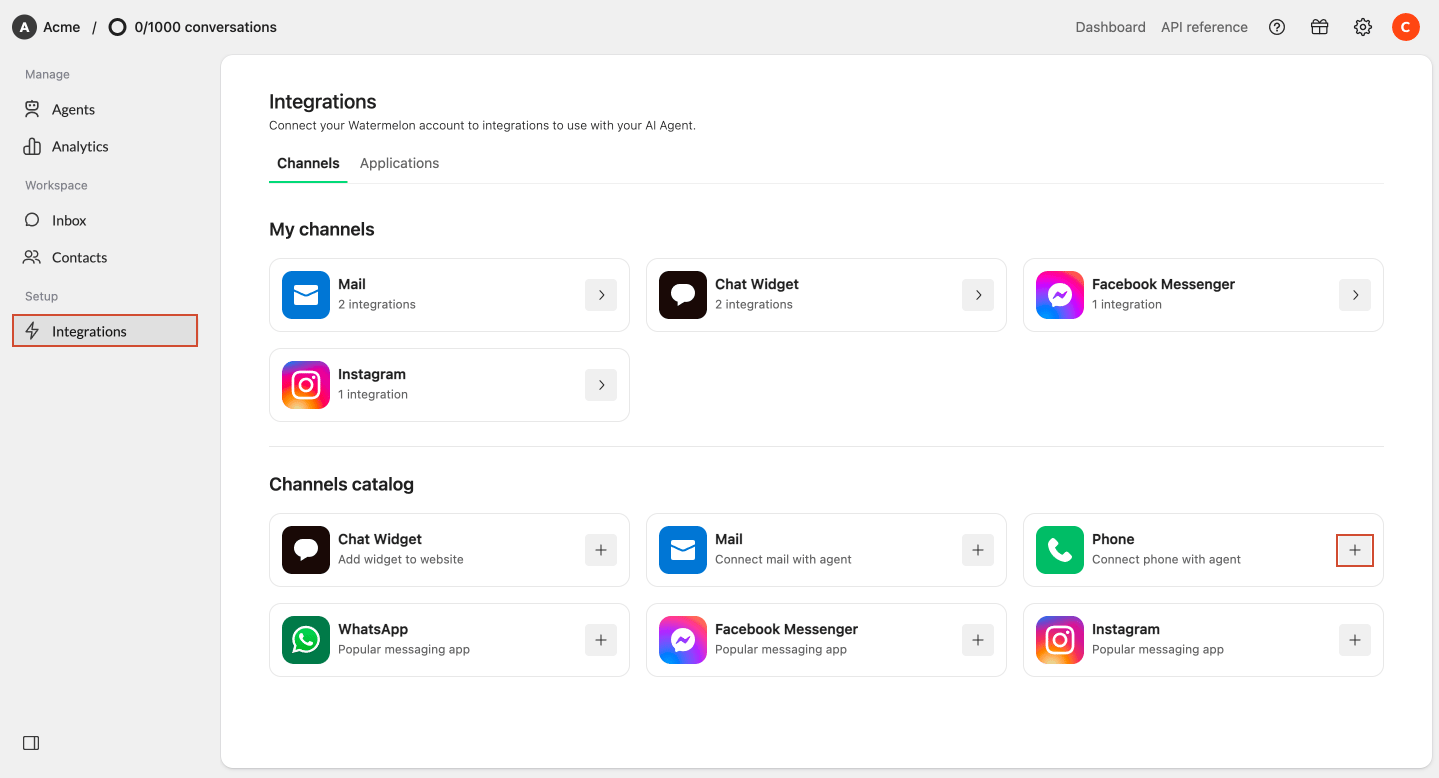
2
Add an integration
Click + Add integration in the top-right corner.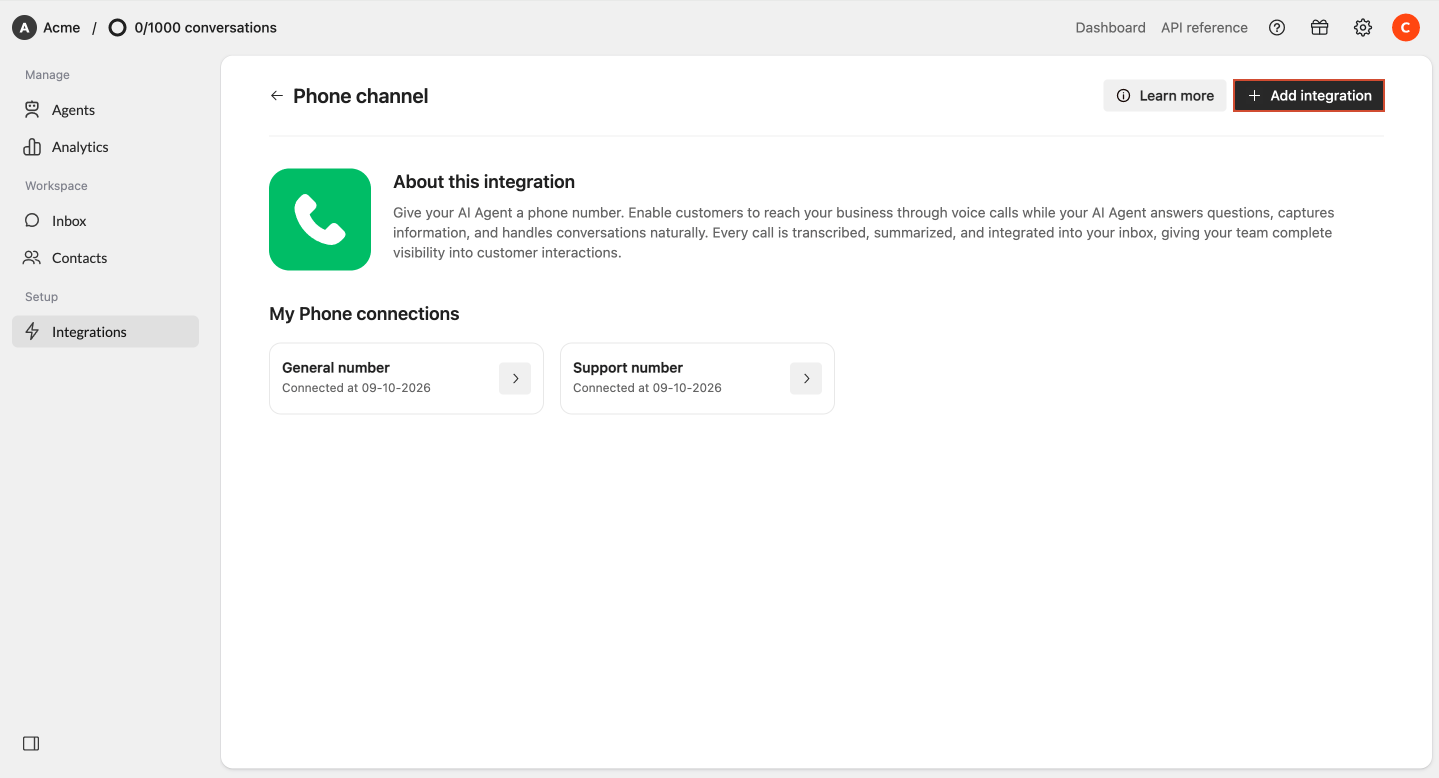
3
Name your integration
Enter a name that helps you recognize the integration. This name is only used internally in Watermelon.For example: 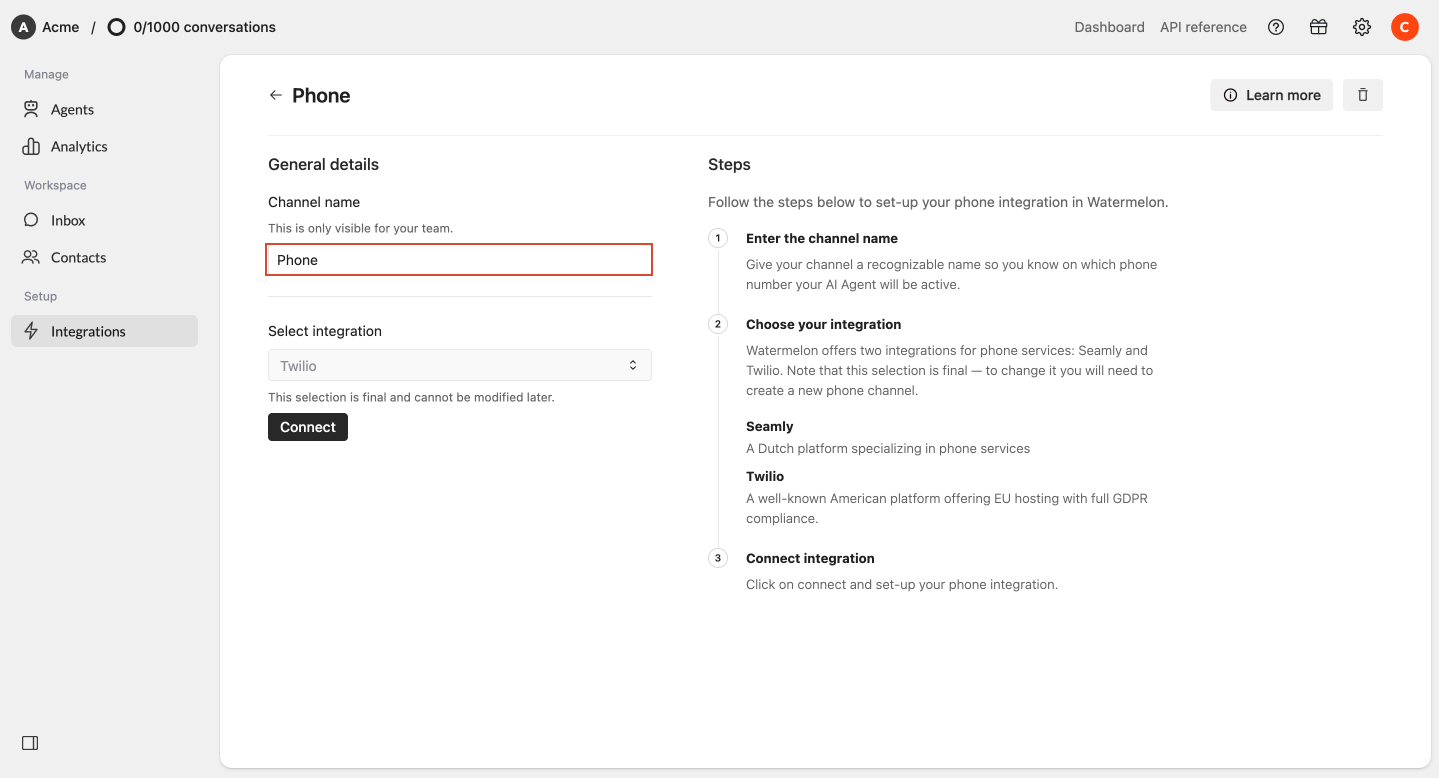
Support NL4
Select a phone provider
Select the provider you want to use. You can choose between: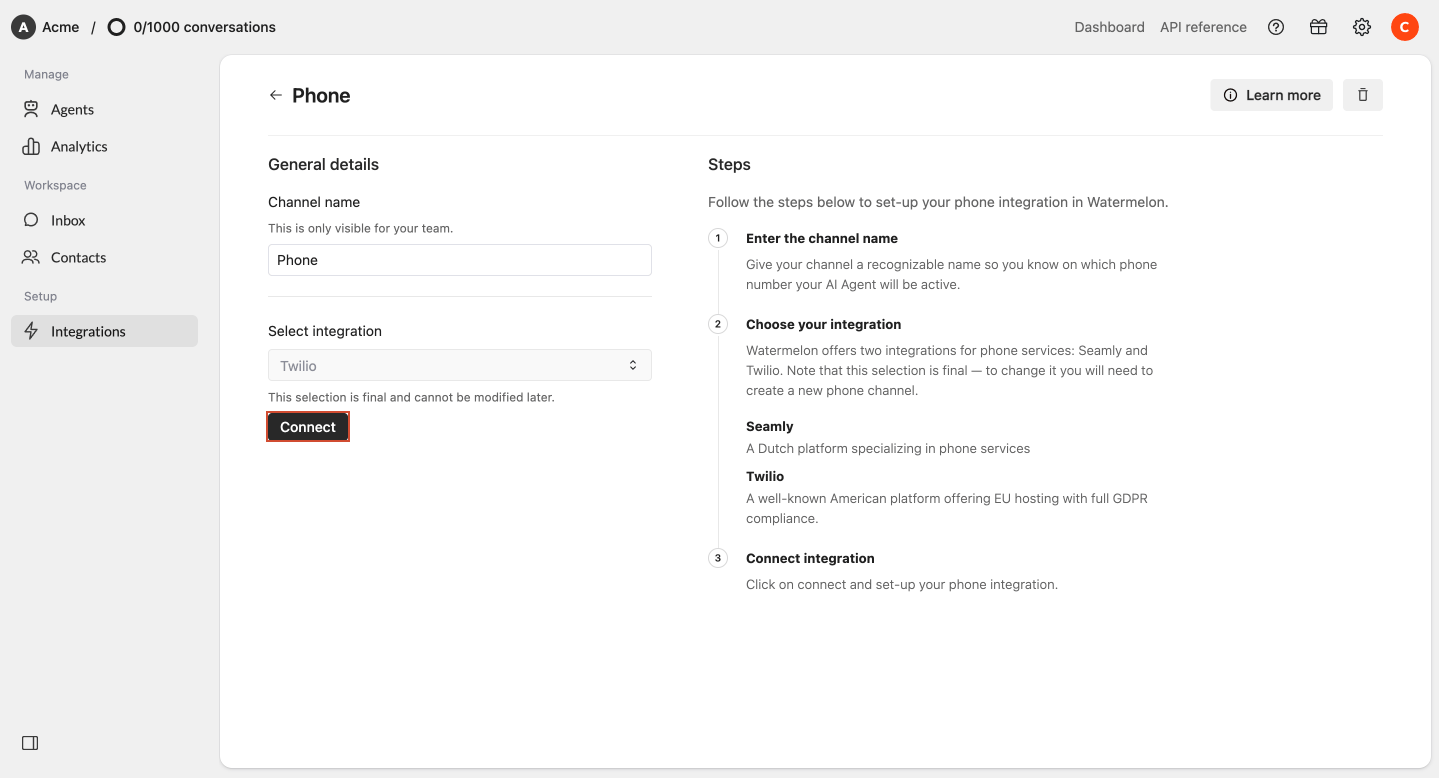
- Seamly — A Dutch platform specializing in phone services.
- Twilio — A well-known American platform offering EU hosting with full GDPR compliance.
Important: Once you select Seamly or Twilio, you cannot change the provider for that Phone integration. To switch providers, you need to create a new Phone integration and generate a new phone number.
Configure your Phone integration
Your Phone integration contains four settings tabs. Go through each tab to configure your phone number and how your AI Agent handles calls.- Phone number
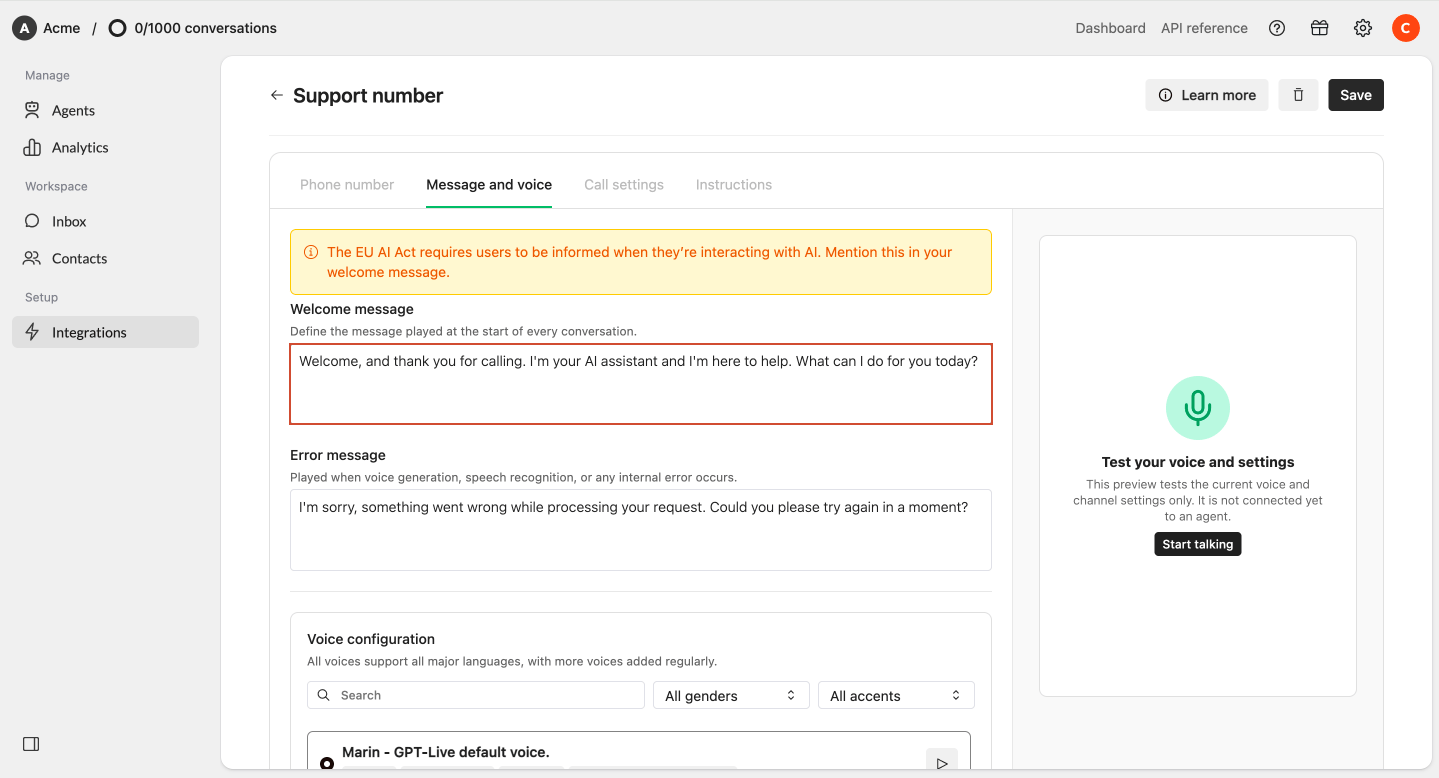
- Message & Voice
- Call settings
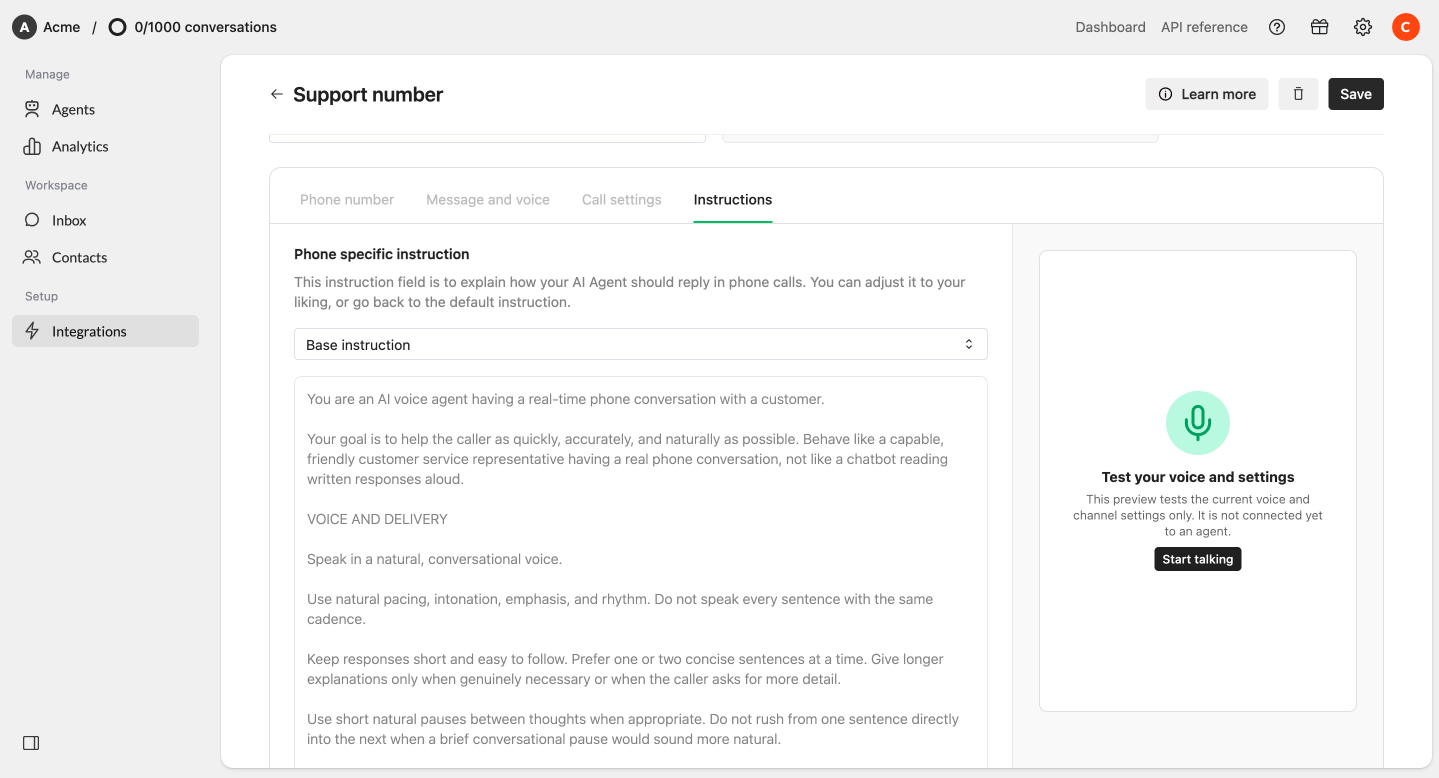
- Instructions
Phone number
Use the Phone number tab to generate the phone number your AI Agent will use.1
Select a country
Open the country dropdown and scroll down the list or search by country name or country code.Select the country for which you want to generate a phone number.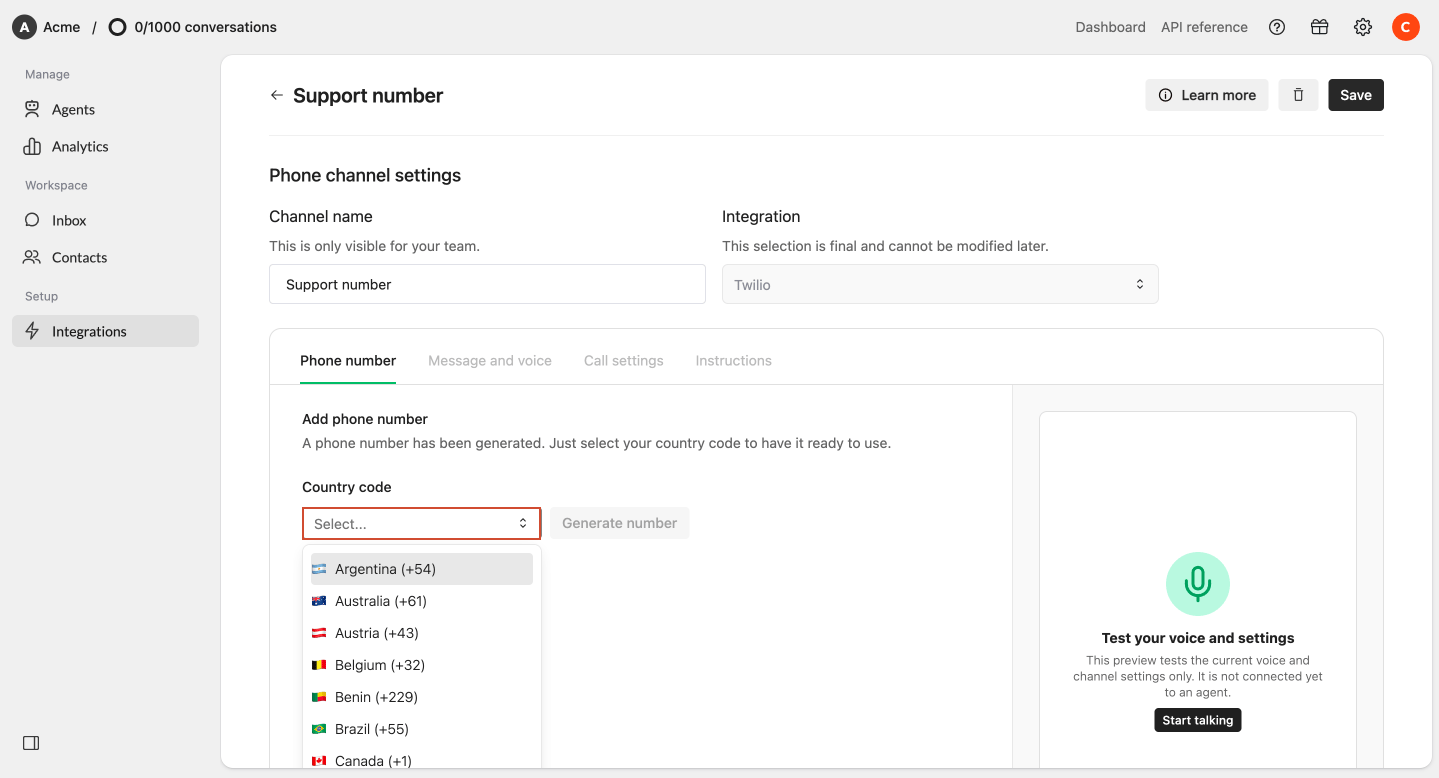
2
Enter your company details if required
For some countries, additional company information is required.For example, when generating certain Dutch phone numbers, you need to provide your company address.Complete the required fields before continuing.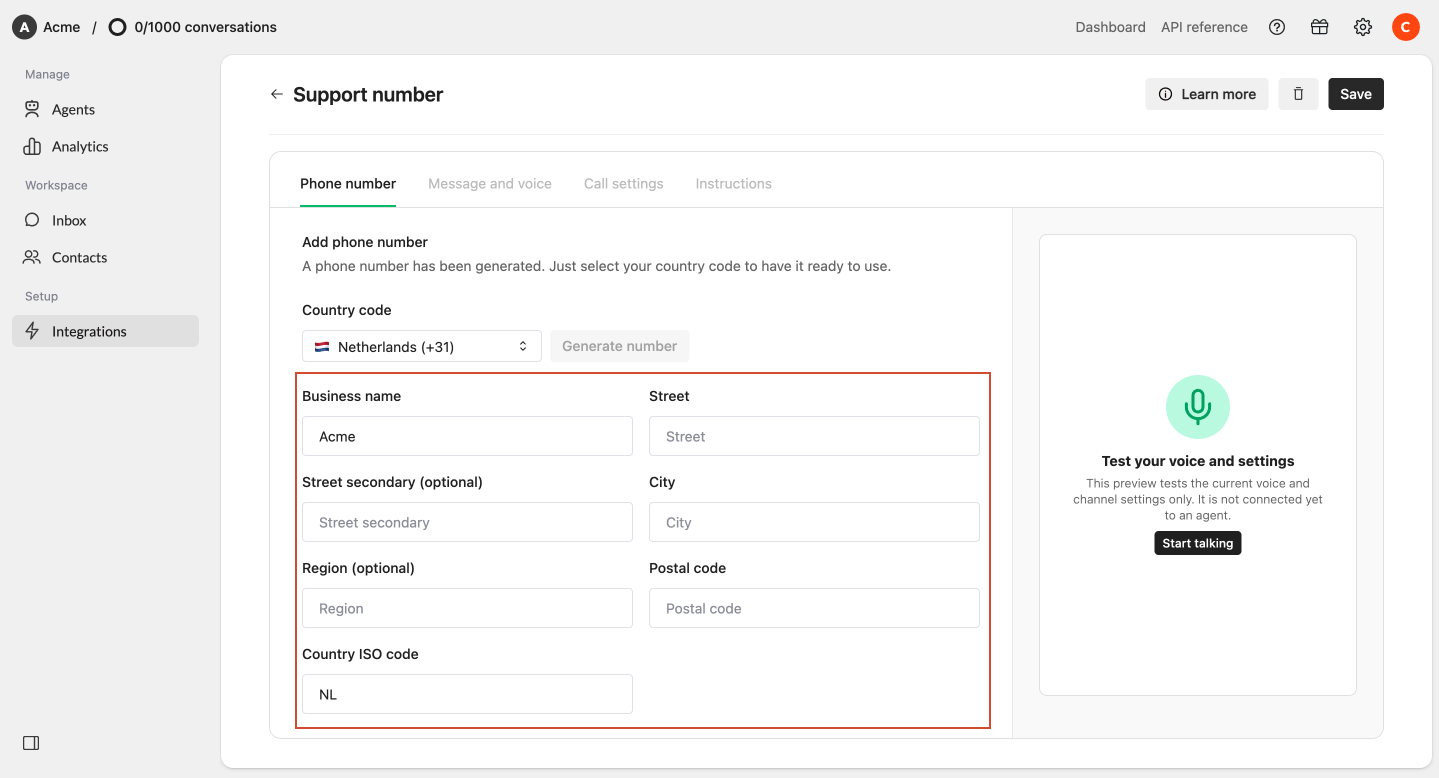
3
Generate your number
Click Generate number.Watermelon generates a phone number that you can use with your AI Agent.Once your number has been generated, you can: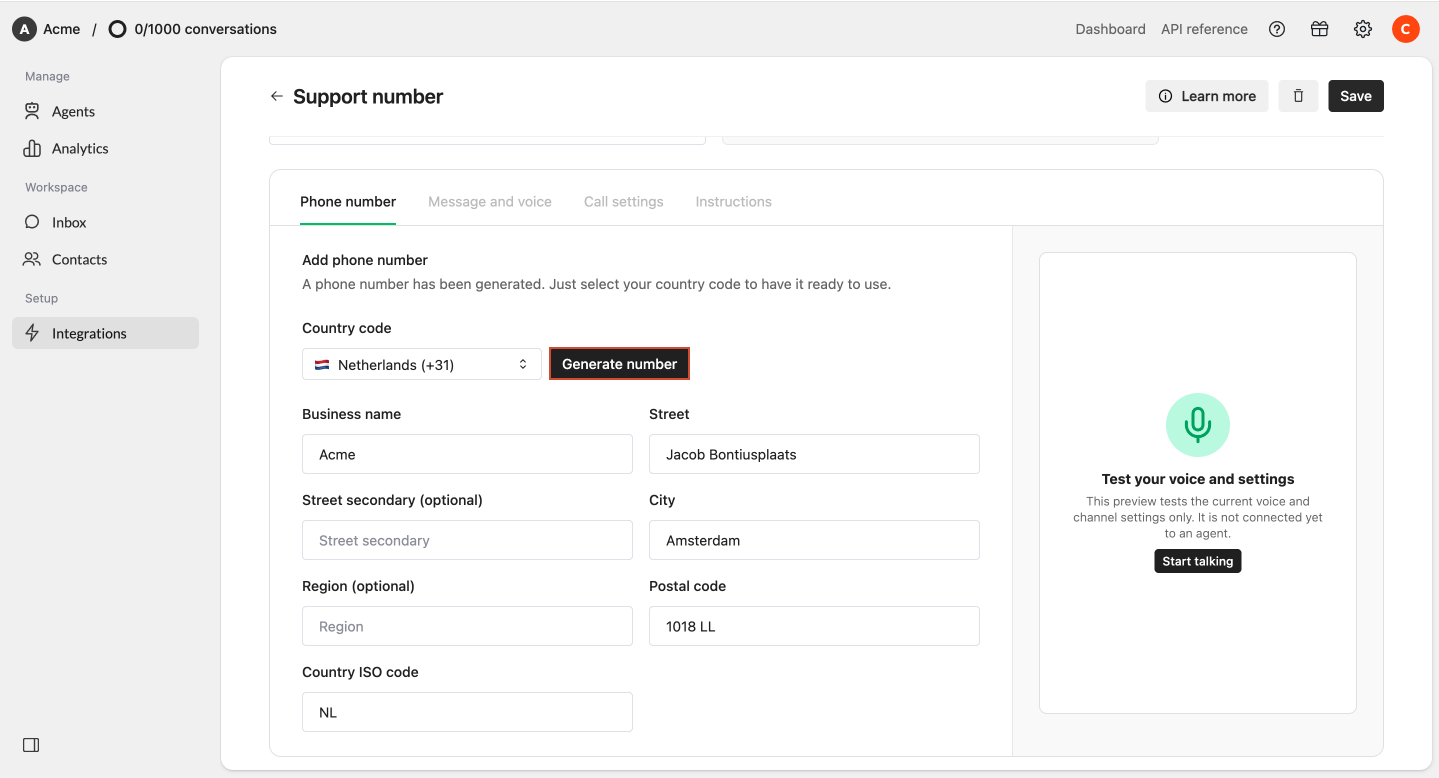
- Let customers call this number directly
- Forward your existing business number to it
- Add it as an option in your existing phone menu
Use your generated phone number
Once your Phone integration is connected to a published AI Agent, customers can call the generated number directly. You can:- Publish the number on your website
- Use it as your main support number
- Use it as a dedicated AI support number
- Forward your existing business number to it
- Add it as an option in your existing phone menu
Forward your existing phone number
You do not need to replace your existing business phone number to start using your AI Agent for calls. Instead, you can forward calls from your existing number to the phone number generated by Watermelon. The exact setup depends on your current phone provider or telephone system.How forwarding works
When forwarding is enabled:- A customer calls your existing business number.
- Your current phone provider forwards the call to your Watermelon phone number.
- Your AI Agent answers the call.
- The conversation is handled inside Watermelon.
Forward all calls
You can forward every incoming call directly to your AI Agent. This is useful when you want your Agent to be the first point of contact for every caller.Forward calls under certain conditions
Depending on your provider or telephone system, you may also be able to forward calls only:- When nobody answers
- When the line is busy
- Outside business hours
- During specific opening hours
- When your team is unavailable
- When there are too many incoming calls
Add your AI Agent to your phone menu
You can also add your AI Agent as an option within your existing phone menu. For example:Press 1 to speak to our AI assistant, or press 2 to speak to our support team.Your existing telephone system can then forward callers who select the AI option to your Watermelon phone number.
Set up forwarding with your provider
The exact steps depend on your current provider. In most cases:1
Open your phone provider settings
Open the call or phone settings of your existing provider or telephone system.
2
Find the forwarding settings
Look for a setting such as Call forwarding, Call routing, Forwarding, or Incoming call routing.
3
Enter your Watermelon number
Enter the phone number generated by Watermelon as the forwarding destination.
4
Choose when calls should be forwarded
Depending on your provider, you may be able to forward all calls or only calls that meet certain conditions.
5
Save and test
Save your settings and call your existing business number to make sure the call reaches your AI Agent.
Test your Phone integration
We recommend testing both your voice settings and your complete AI Agent before using your phone number with customers.Test your voice settings
You can test the selected voice directly from your Phone integration.1
Open your Phone integration
Go to Integrations and open your Phone integration.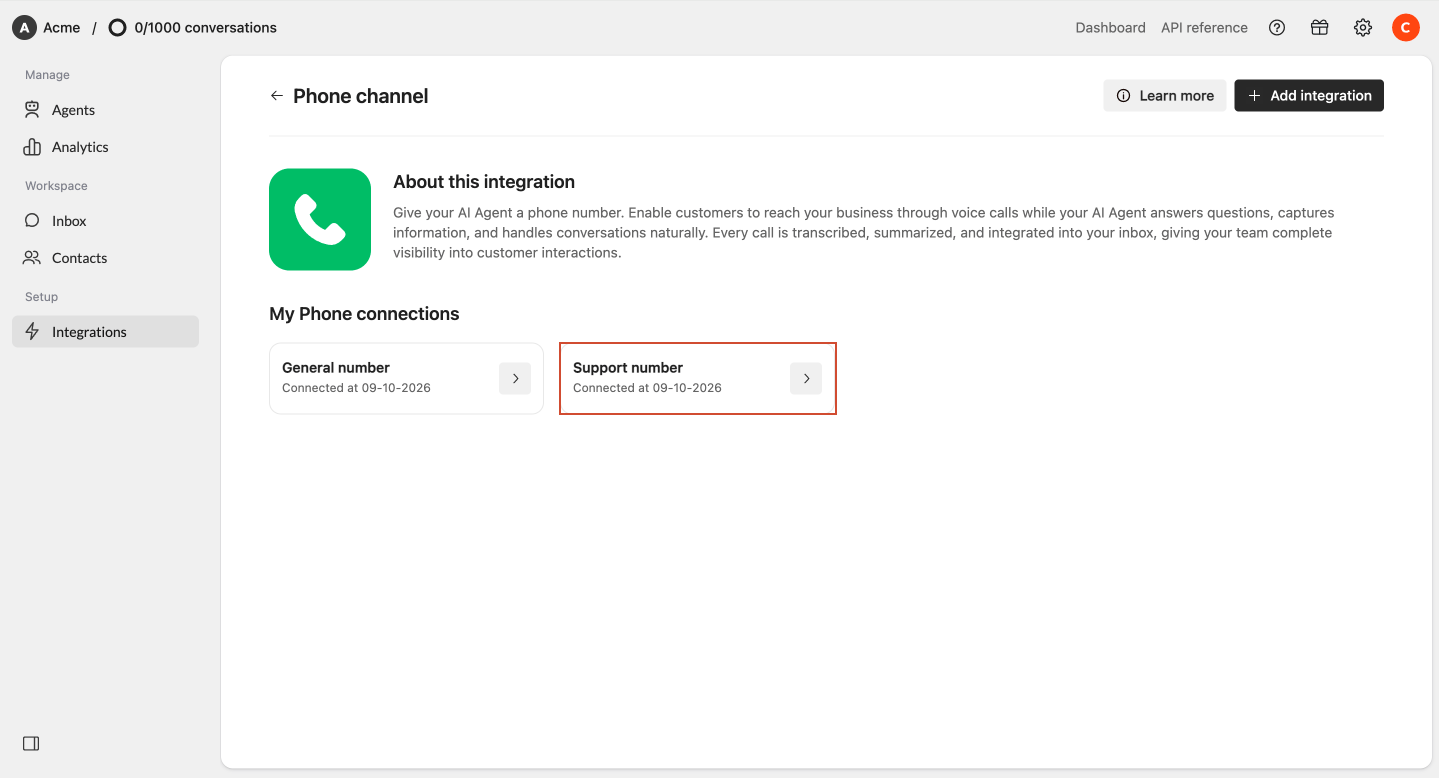
2
Open Message & voice
Go to the Message & voice tab.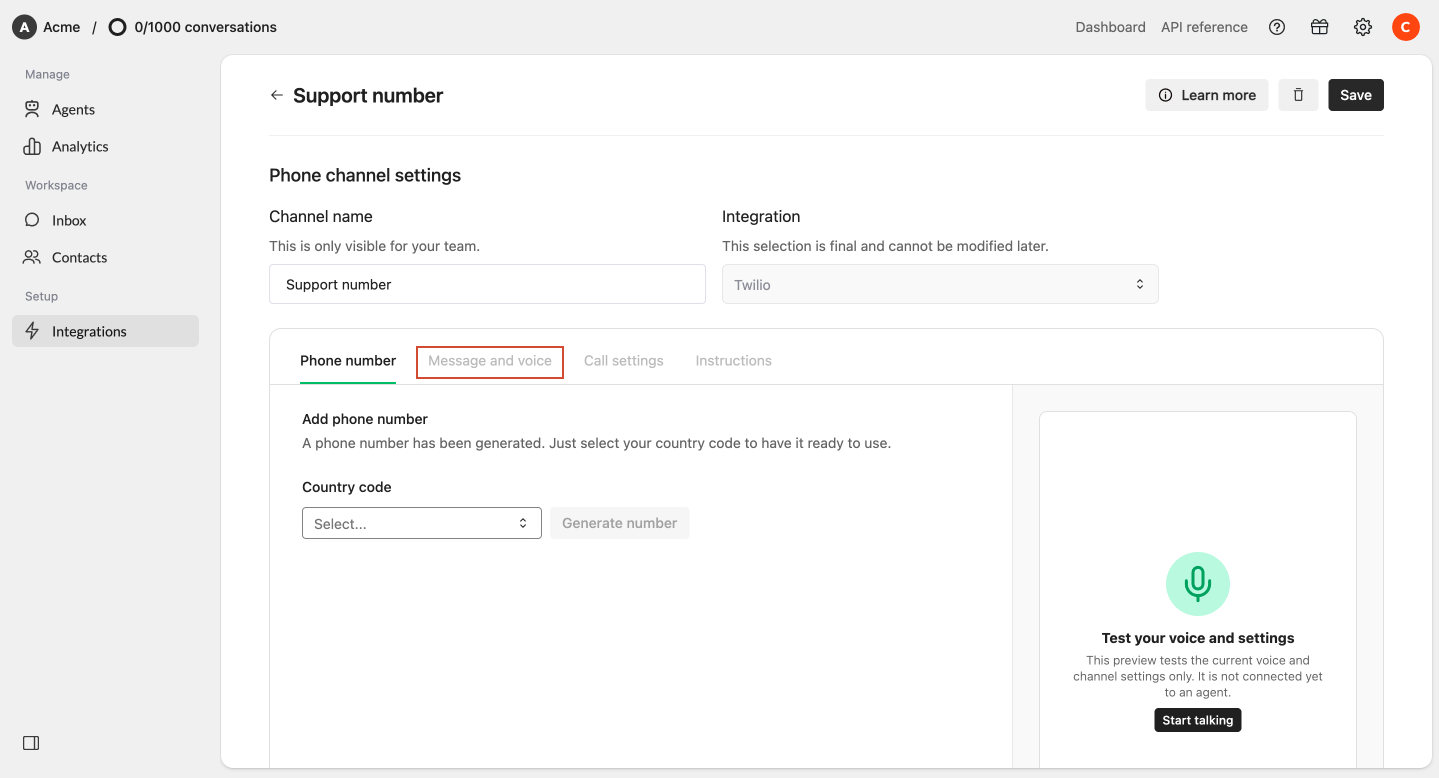
3
Select a voice
Select the voice you want your AI Agent to use. You can search for a name, select the gender or accent. You can preview the phone by simply clicking the play icon.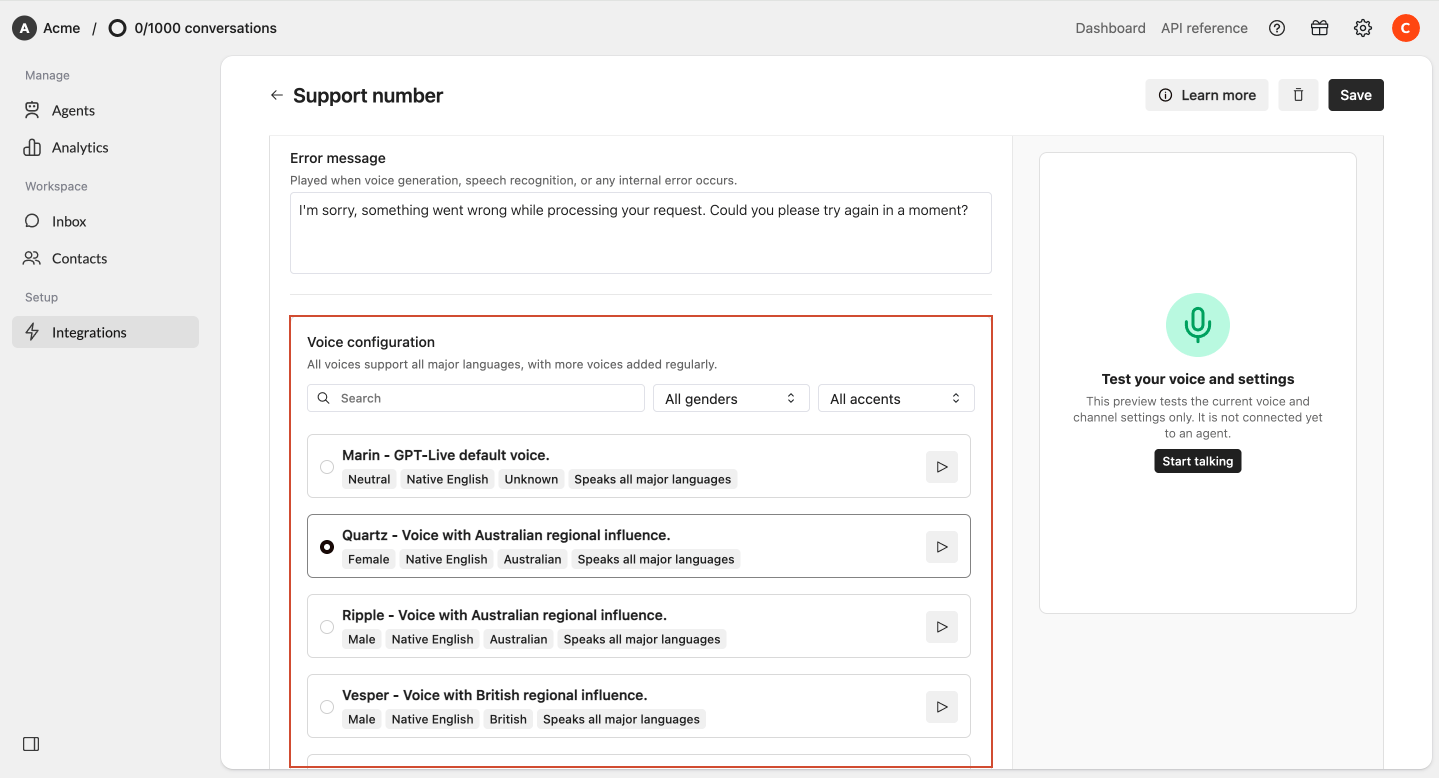
4
Start talking
Click Start talking in the panel on the right.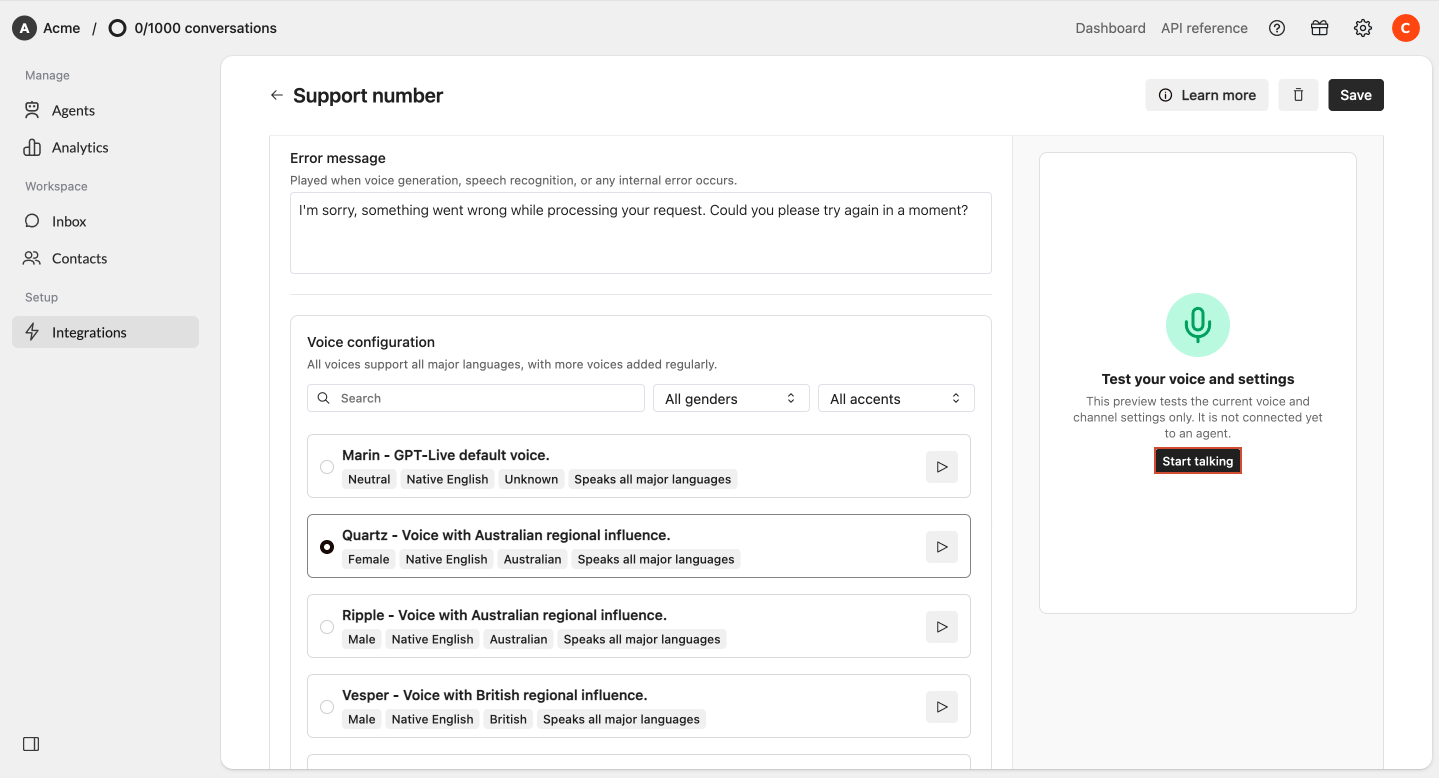
Connect Phone to your AI Agent
Before your AI Agent can receive calls or be tested through the Playground, you first need to connect the Phone integration to an Agent.1
Open your AI Agent
Open the AI Agent you want to use for Phone.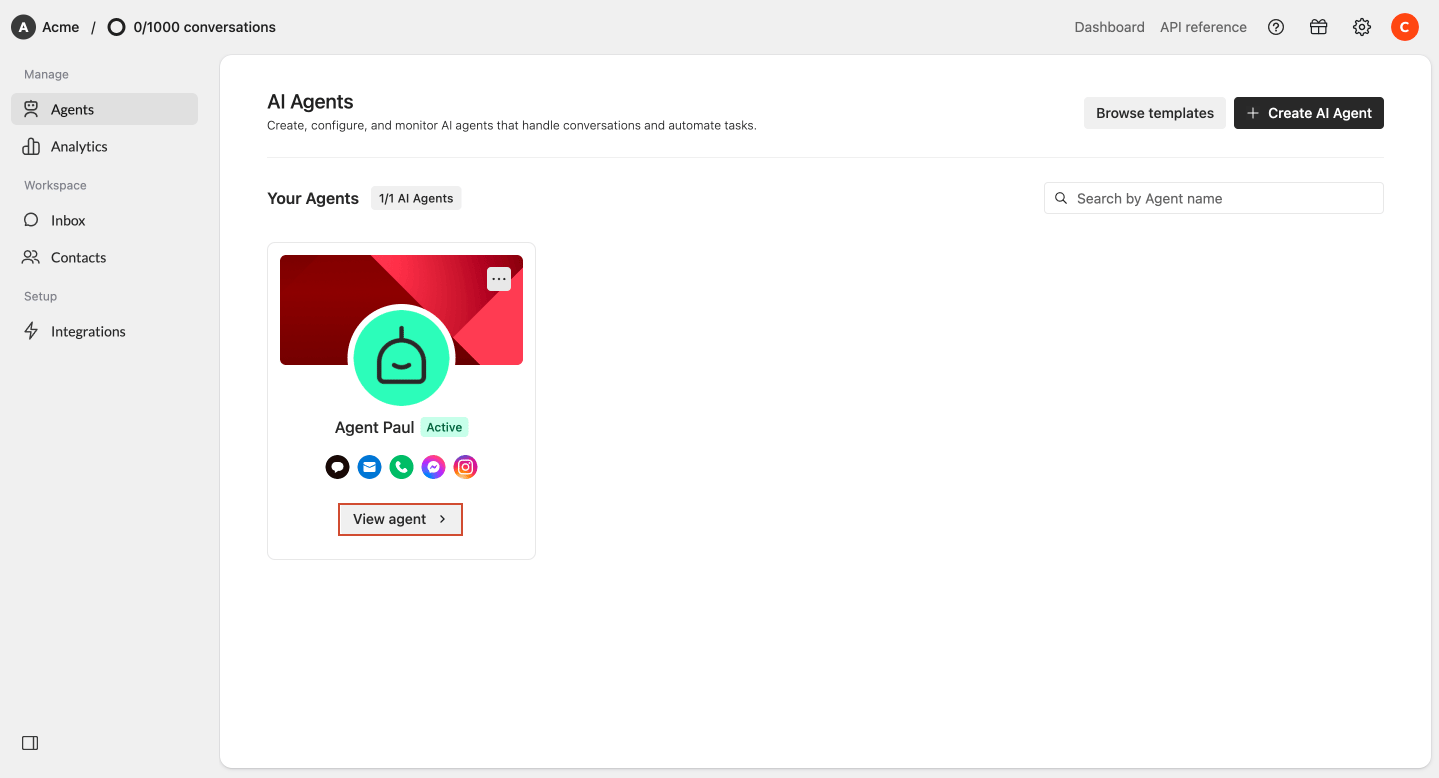
2
Connect your Phone integration
Go to Activate AI Agent and add the Phone integration you created to the AI Agent.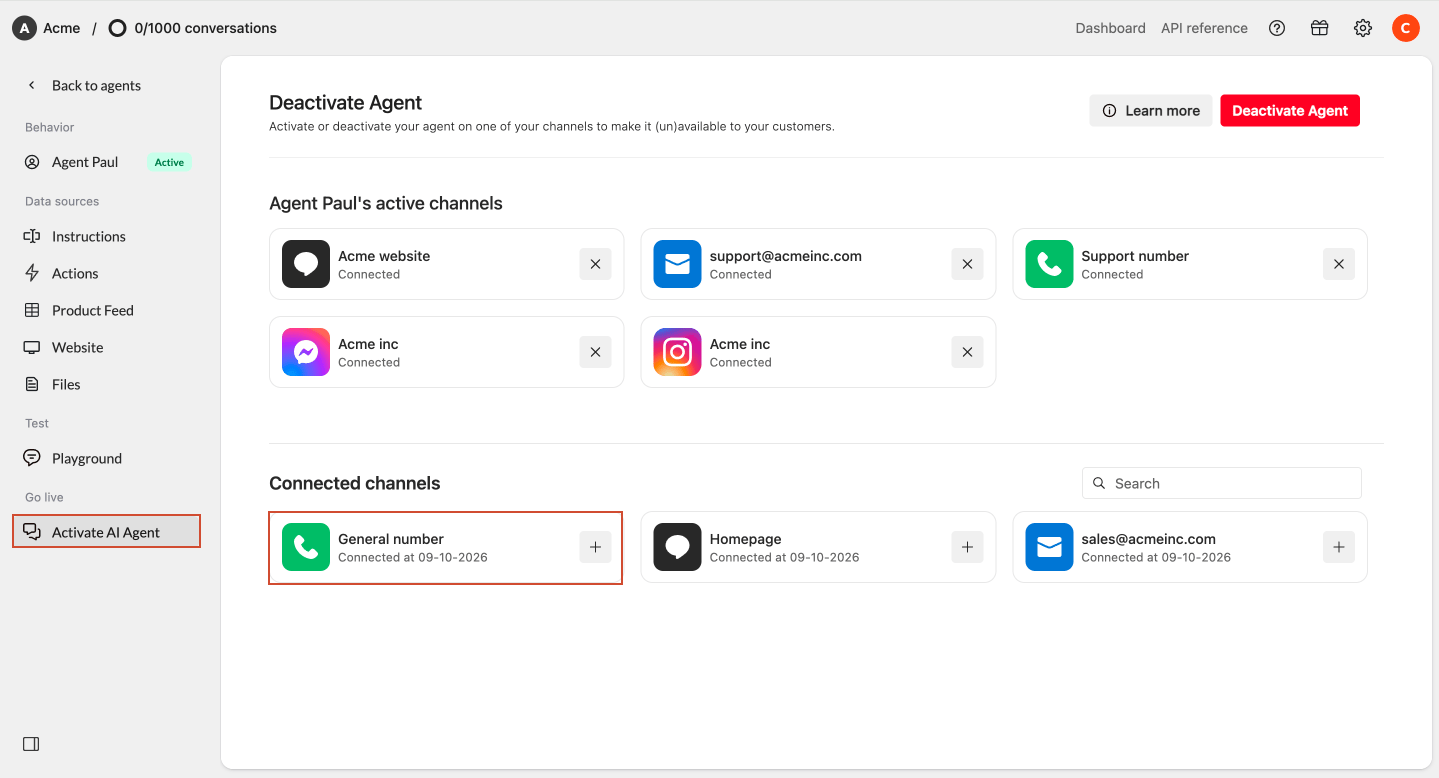
3
Publish your AI Agent
Save your changes and publish your AI Agent.
If someone calls the number before an AI Agent has been connected and published, they will hear a message indicating that the number has not been connected yet.
Test Phone in the Playground
Once your Phone integration is connected to your AI Agent, you can test a complete phone conversation through the Playground.1
Open the Playground
Open the Playground of your AI Agent.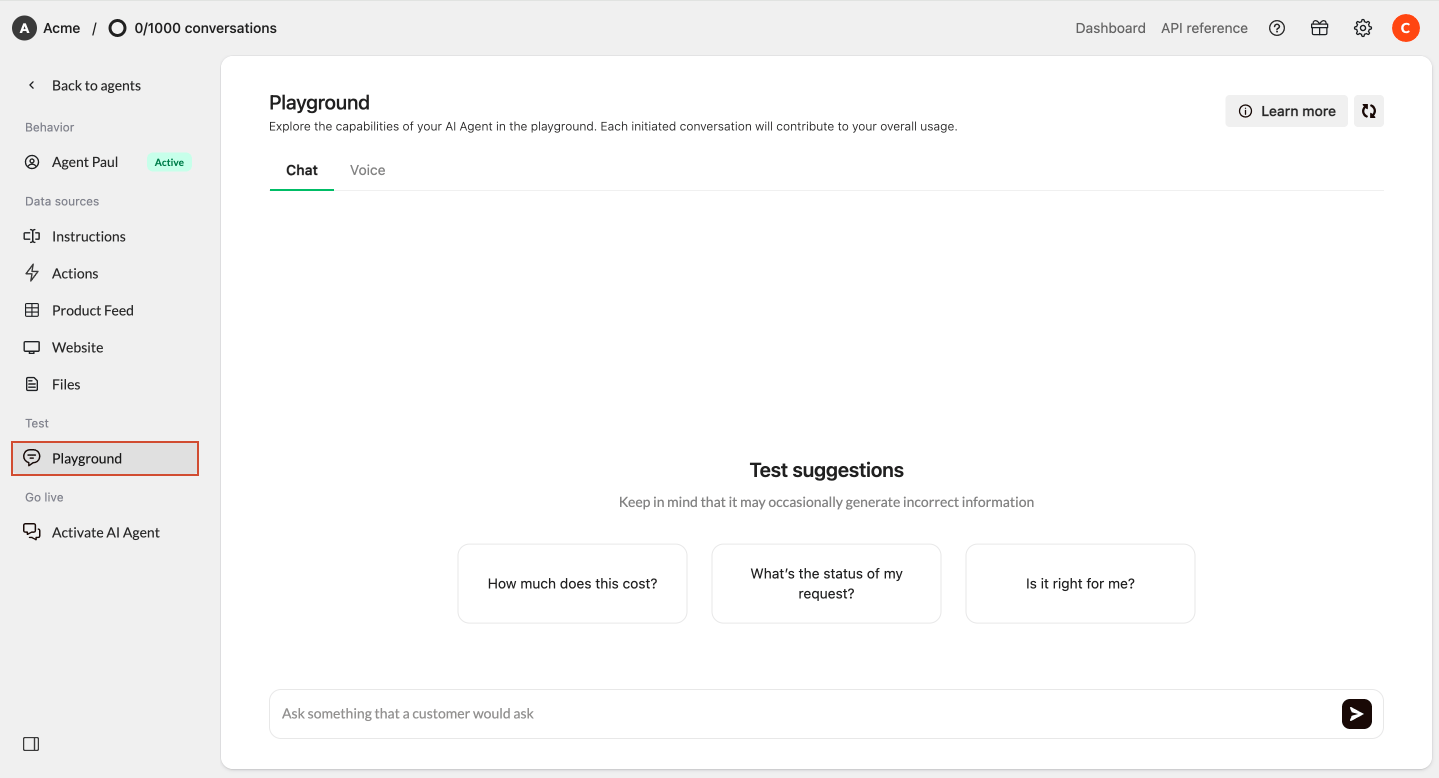
2
Select Voice
Select Voice in the playground**.**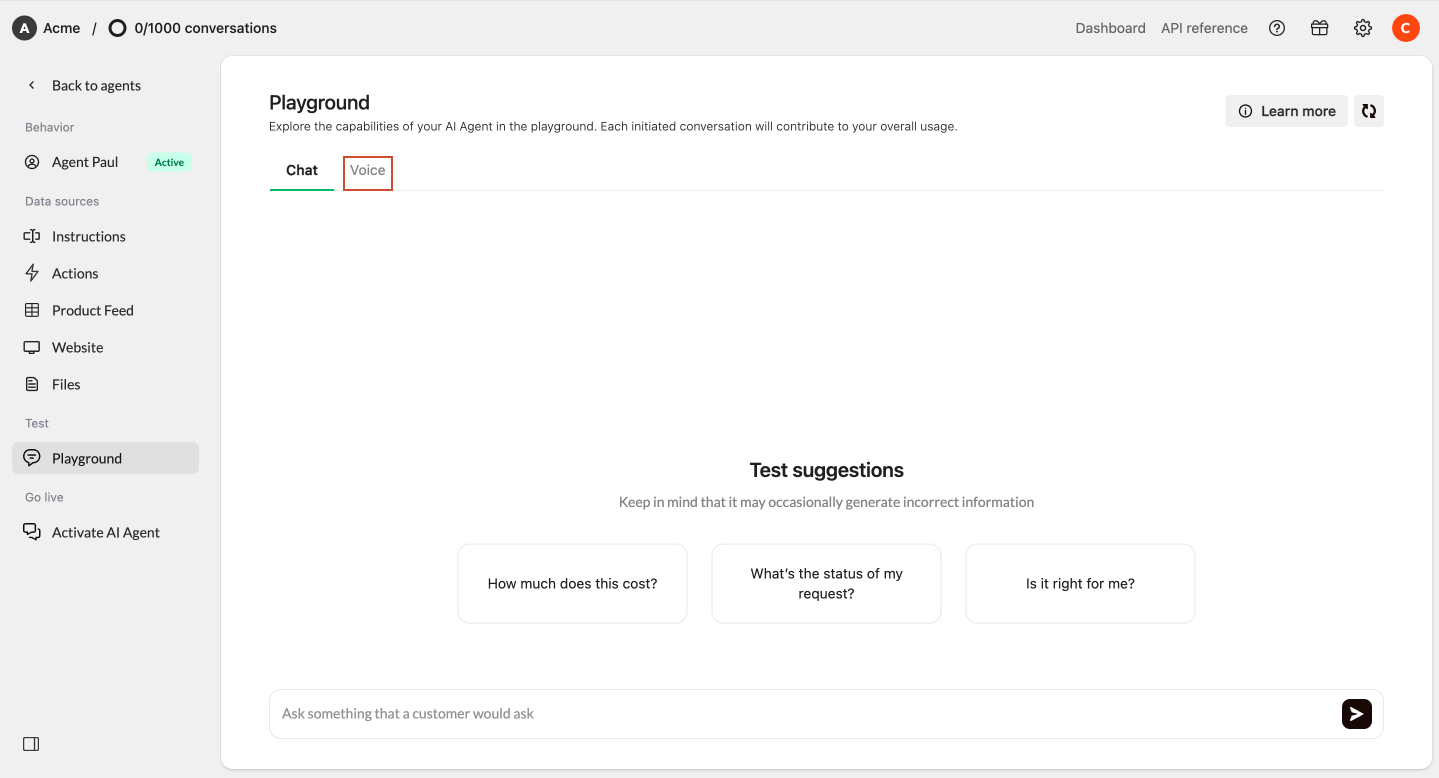
3
Start the conversation
Start a call by clicking on the Call now button and have a conversation with your AI Agent.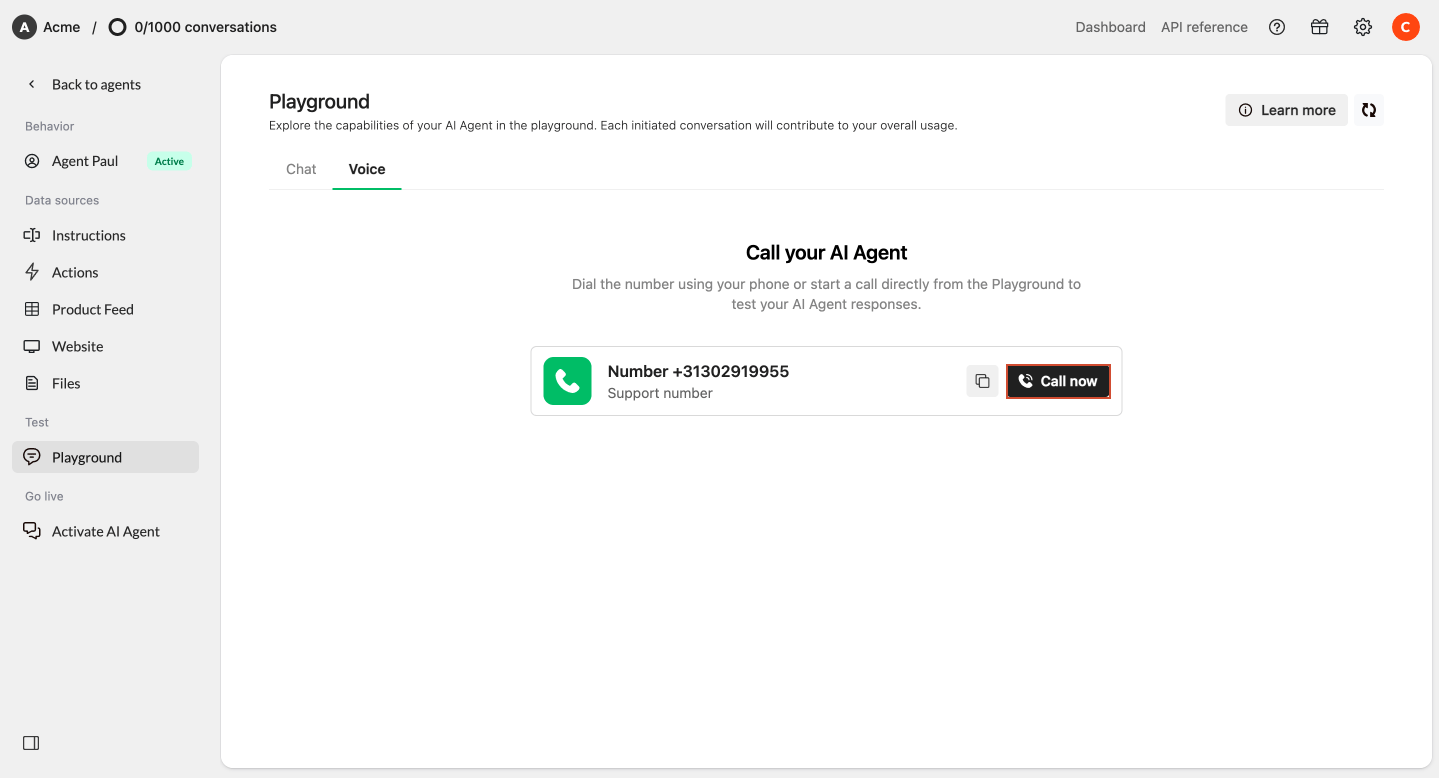
- Thumbs up when an answer was correct
- Thumbs down when an answer should be improved
After a call
Every phone call handled by your AI Agent is stored as a conversation in Watermelon. After the call, you can access:- The complete conversation transcript
- An AI-generated summary
- The call recording, if recording was enabled
Troubleshooting
My phone number does not answer with my AI Agent
Check whether:- The Phone integration is connected to the correct AI Agent
- Your AI Agent has been activated
- The correct Phone integration is connected
- You are calling the correct generated phone number
My forwarded calls do not reach Watermelon
First, call your generated Watermelon phone number directly. If the Watermelon number works directly but your existing business number does not, check:- Whether the correct Watermelon number is configured as the forwarding destination
- Whether call forwarding is enabled with your provider
- Whether your forwarding rule applies to the call you are testing
- Whether other routing rules in your phone system are preventing the forwarding
My AI Agent uses the wrong information
Your Phone Agent uses the same knowledge and configuration as your other connected channels. Check the sources configured on your AI Agent:- Product feed
- Files
- Websites
- Instructions
- Actions
My AI Agent does not sound the way I expected
Open Message & voice and listen to the available voices. After selecting a voice, use Start talking to test it in a conversation. Remember that the preview is in the voice’s native language, while the Agent can speak other supported languages during the call. We recommend to always test the voice within the phone integration settings, to understand if it sounds the way you want it to sound before saving.The welcome message is in the wrong language
The welcome message is static. It is always spoken exactly as configured and is not automatically translated based on the caller’s language. If you have a Dutch welcome message, and want to have an English one, you need to either create a new phone integration, or adjust the welcome message to English. Your AI Agent can switch languages after the welcome message once the conversation begins.My calls end automatically
Check your configuration under Call settings. A call can automatically end when:- The maximum call duration is reached
- The configured silence timeout is reached
- If you reached the limit of your credit tier