Connect your Agent to the Phone channel. When you’ve created a Phone integration in Watermelon, you’ll need to connect your Agent to the Phone channel. This ensures your Agent can automatically answer incoming phone calls. You can publish your Agent on Phone via the Agent Profile or via the Activate tab.
Make sure you’ve set up the Phone integration first in Integrations → Phone before connecting your Agent.

Publishing via Agent Profile

1

Open Agent settings

Open your Agent. Navigate to Activate AI Agent underneath Behavior. Scroll down to Select your channels.
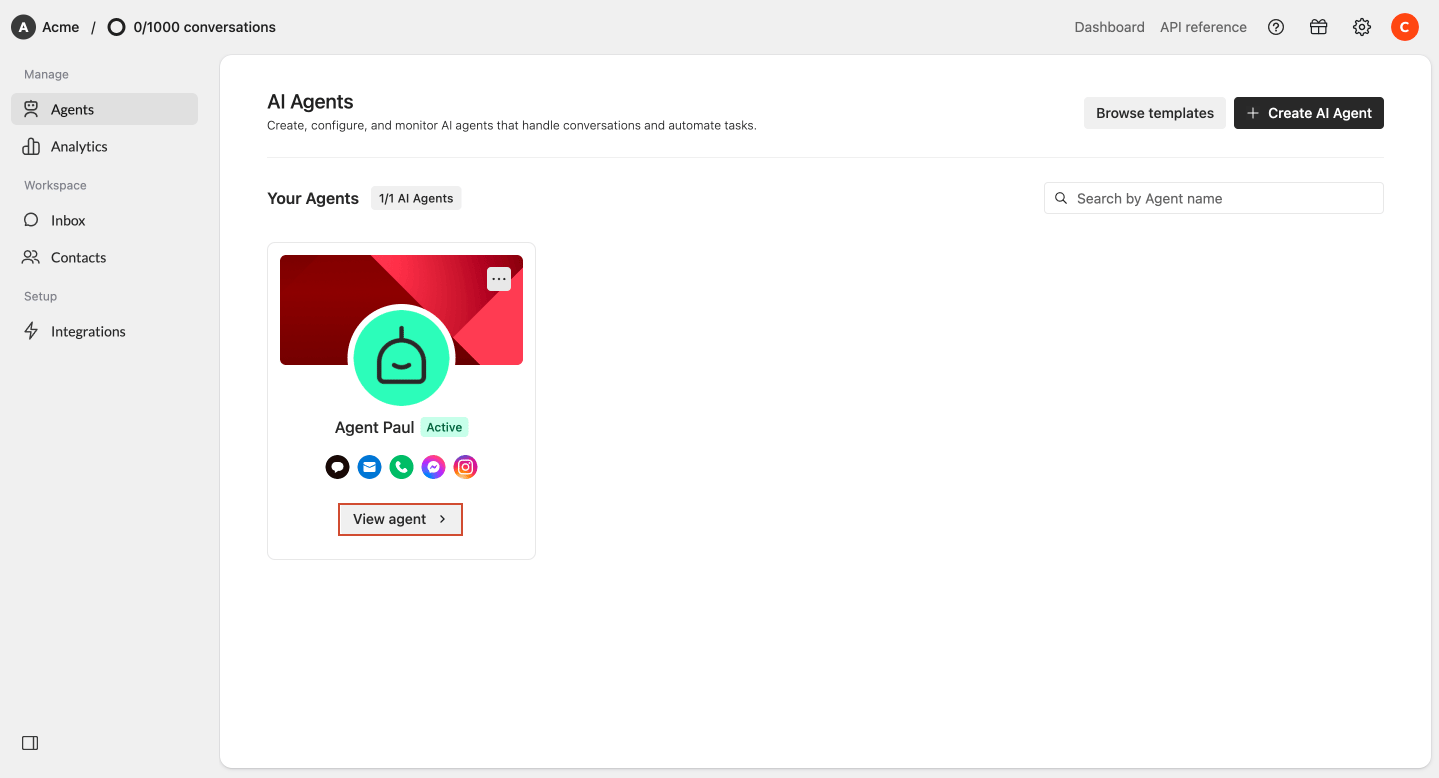
Connect Phone To Agent Settings
2

Select phone channel

Select the phone channel you want to connect and click Activate agent. If your agent is already activated, you are already done.
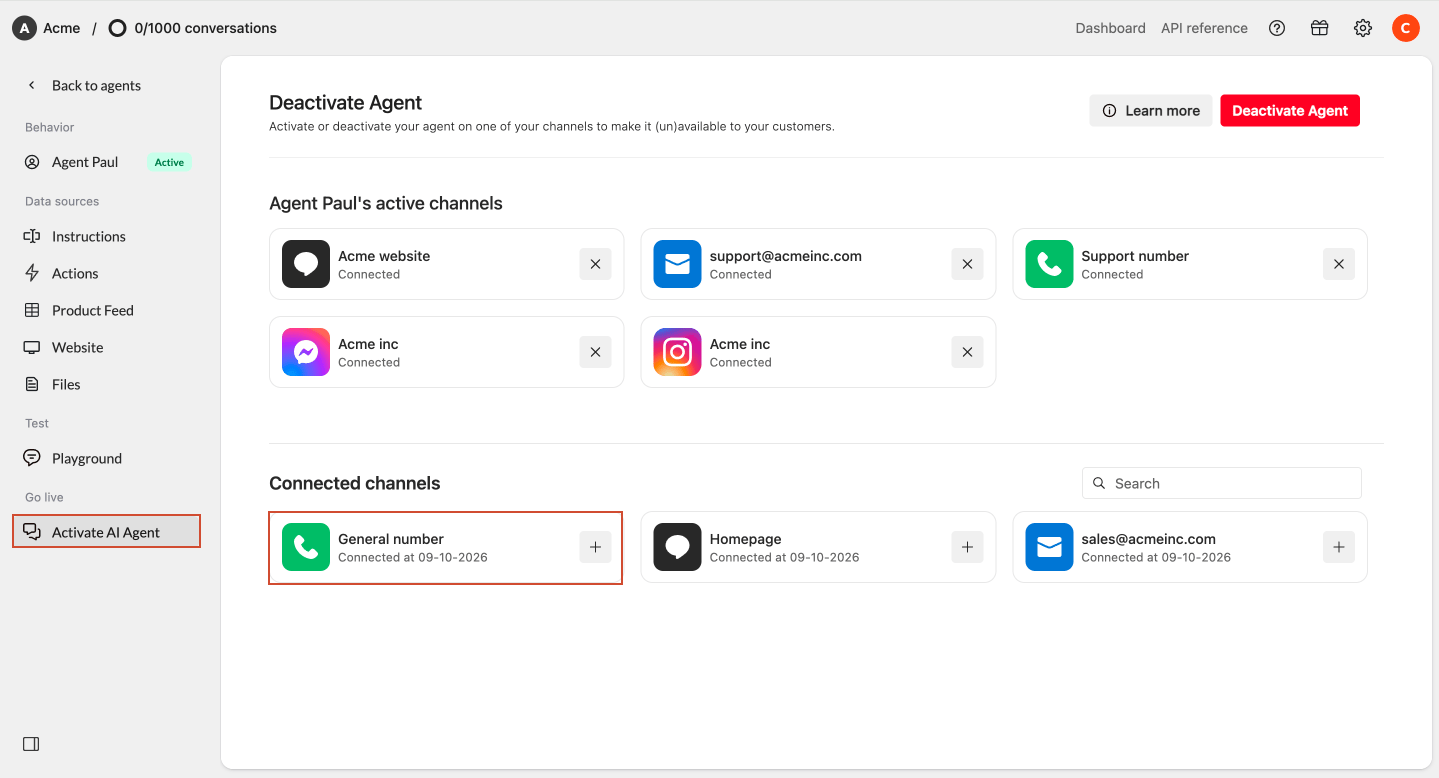
Phone Activate herePhone Activate here
3

Email channel connected

Your Agent is now connected to the phone channel.
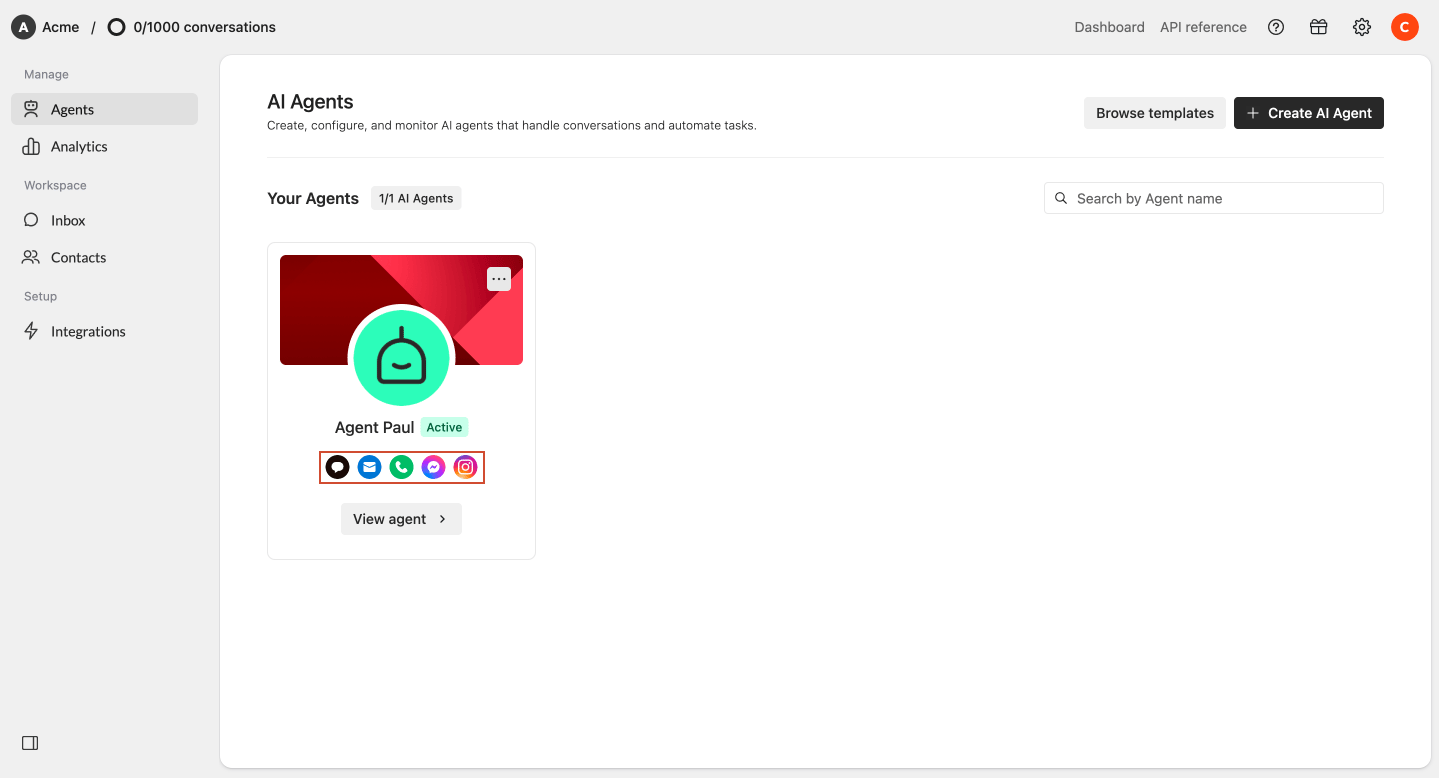
Agents Overview Mail ConnectedAgents Overview Mail Connected
Make sure your Agent is Active, otherwise it won’t reply to incoming emails.

What happens next?

Once your Agent is published on phone:
  • Incoming phone calls will appear in your Inbox
  • Your Agent will automatically reply (if enabled)