

Website is available in all plans. Limits differ per plan, for more information, check our Pricing page.
Adding a Website Source
1
Open your AI Agent
Go to Agents in the main menu and select the relevant AI Agent.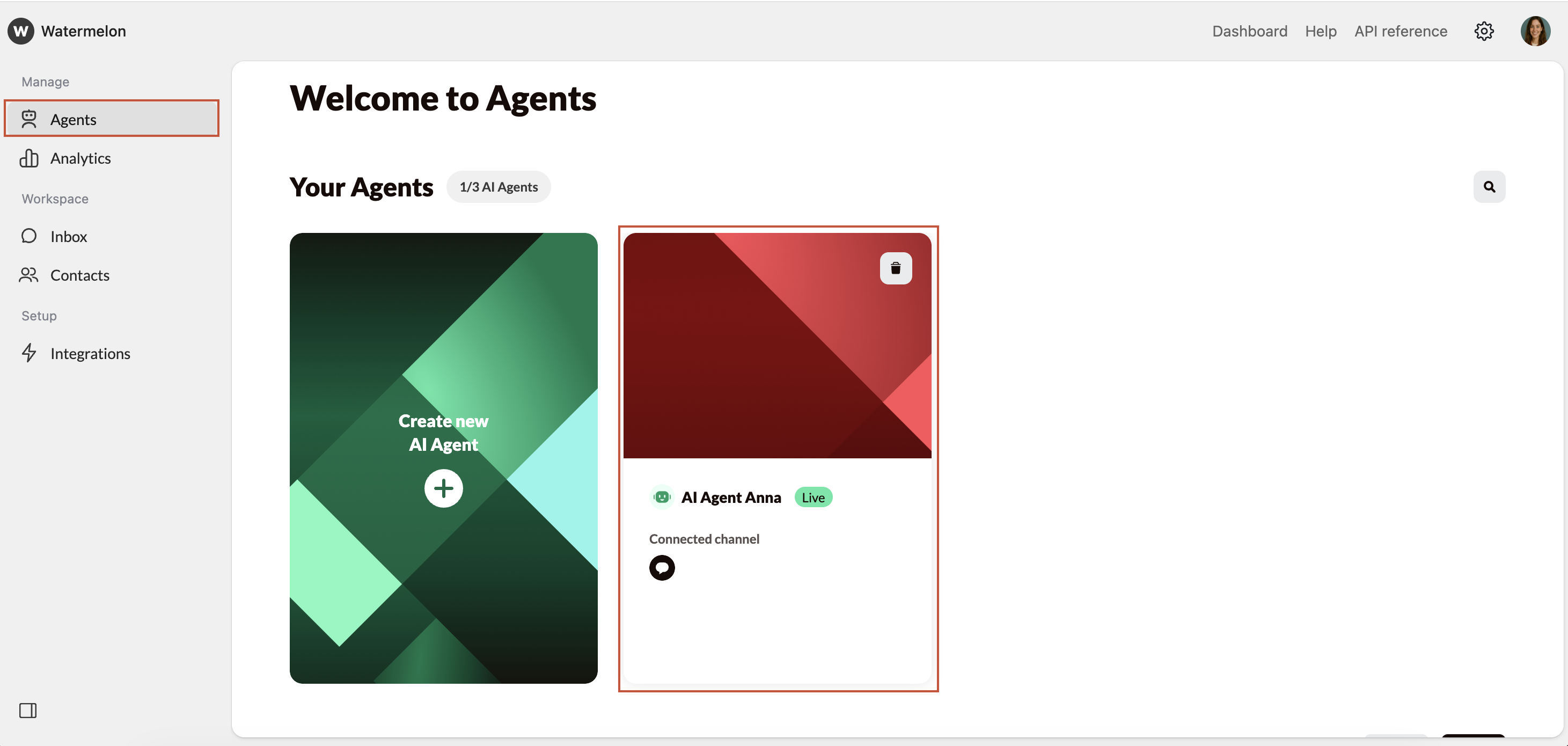
2
Navigate to Website
In the Agent menu, click Website to view your website settings, URL list, and crawling options.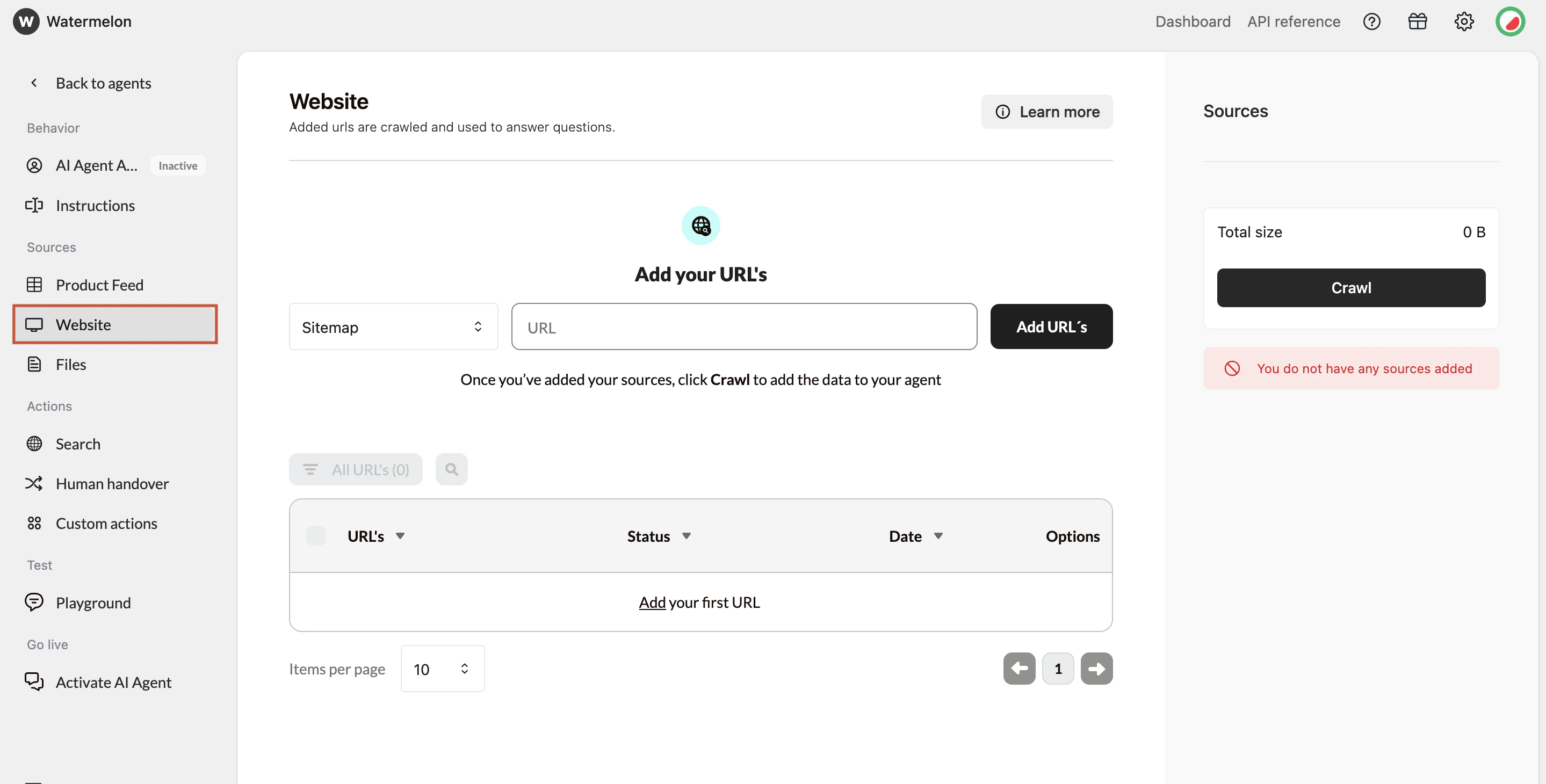
3
Fetch URLs
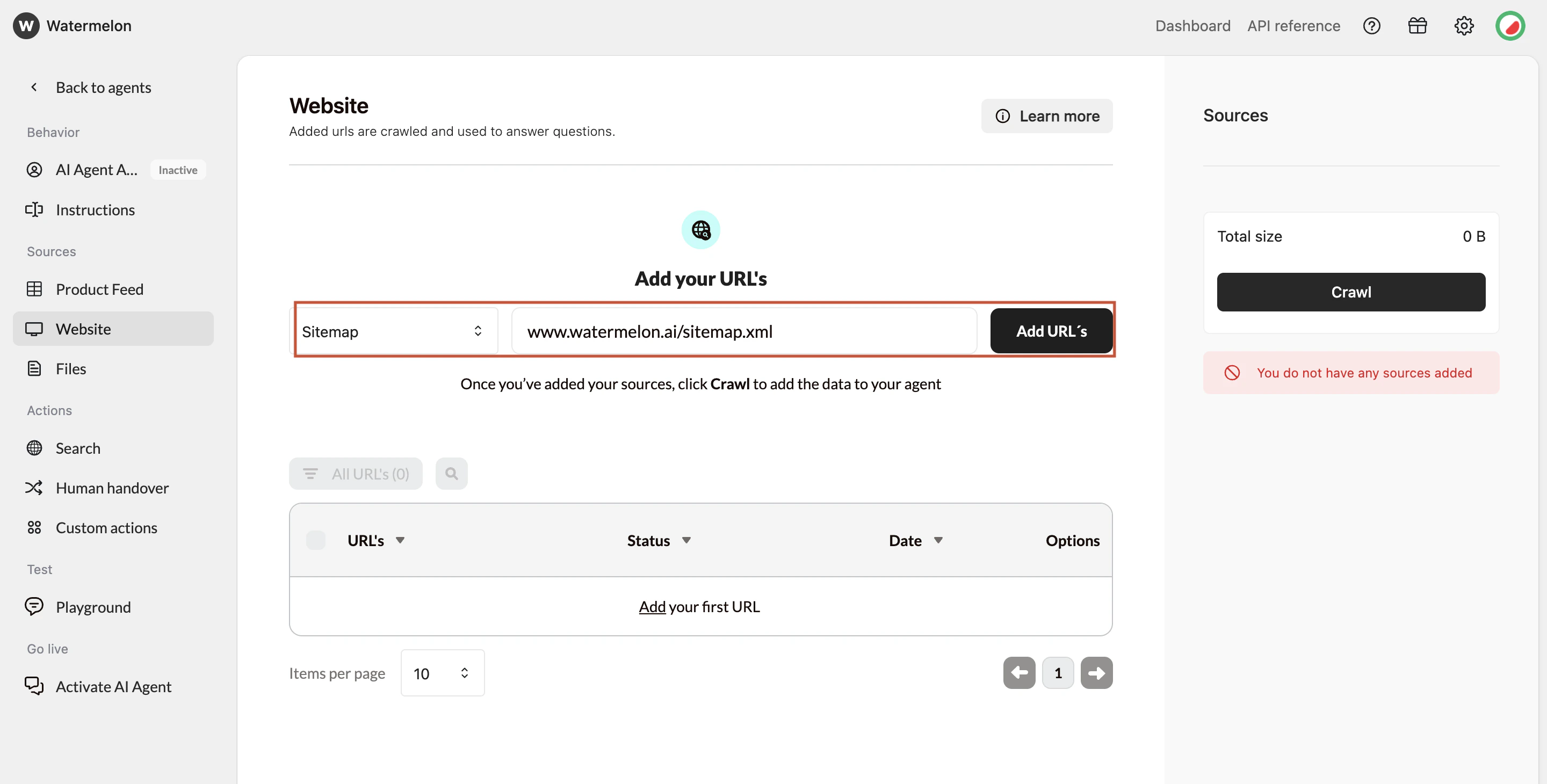
- Option A: Add your sitemap (recommended)
- This gives the most complete list of URLs. Enter your sitemap URL (without a trailing slash):
- Option B: Fetch URLs from your root domain
- Add your homepage (e.g., https://website.com) and the system will attempt to discover pages across the site.
- Option C: Add URLs manually
- Use this for specific pages you want to include without crawling the whole site.
- The URL
- The date added
- Status indicators
- Toggles for including/excluding and for link-sharing
4
Customize URL usage
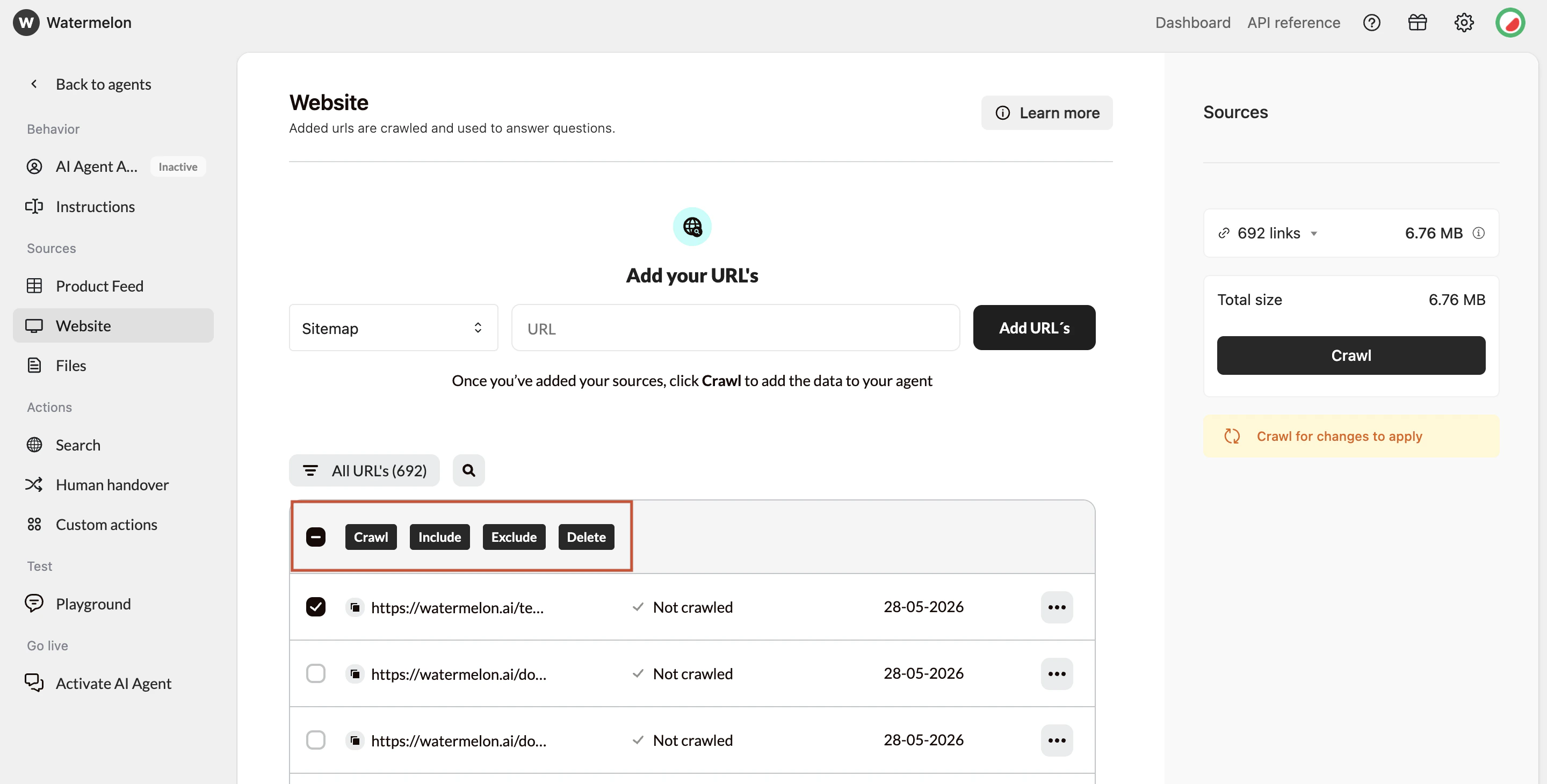
- Include → content will be added to the AI Agent
- Exclude → page content will be ignored
- Delete URL → Removing a URL also removes its stored content.
5
Crawl Agent
Once your URLs are prepared, select Crawl to update your Agent.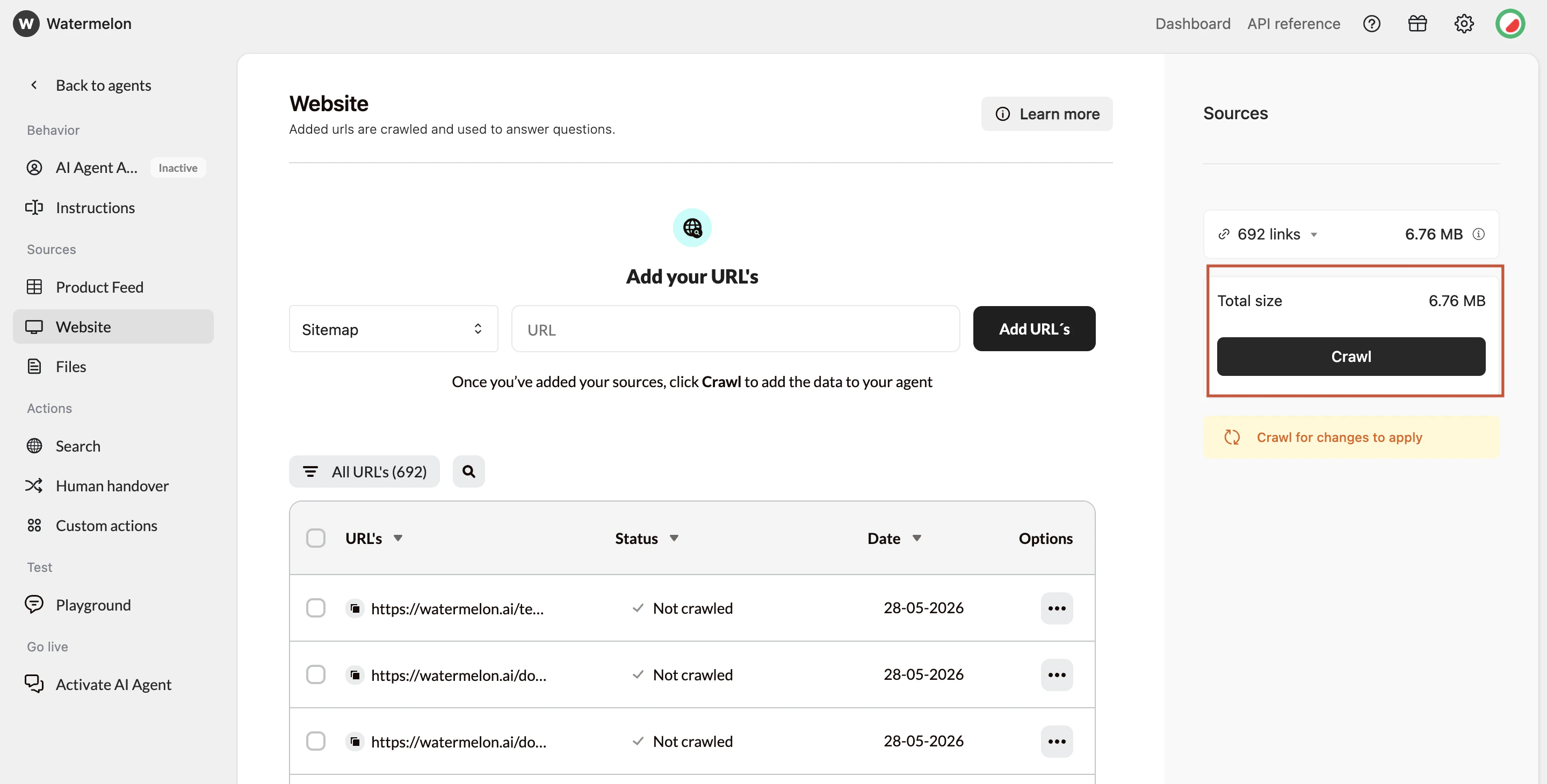
Crawl statuses
- Crawled – Content added successfully
- Not Crawled – Not processed yet
- Queued – Waiting to be processed
- Excluded – Skipped by your choice
6
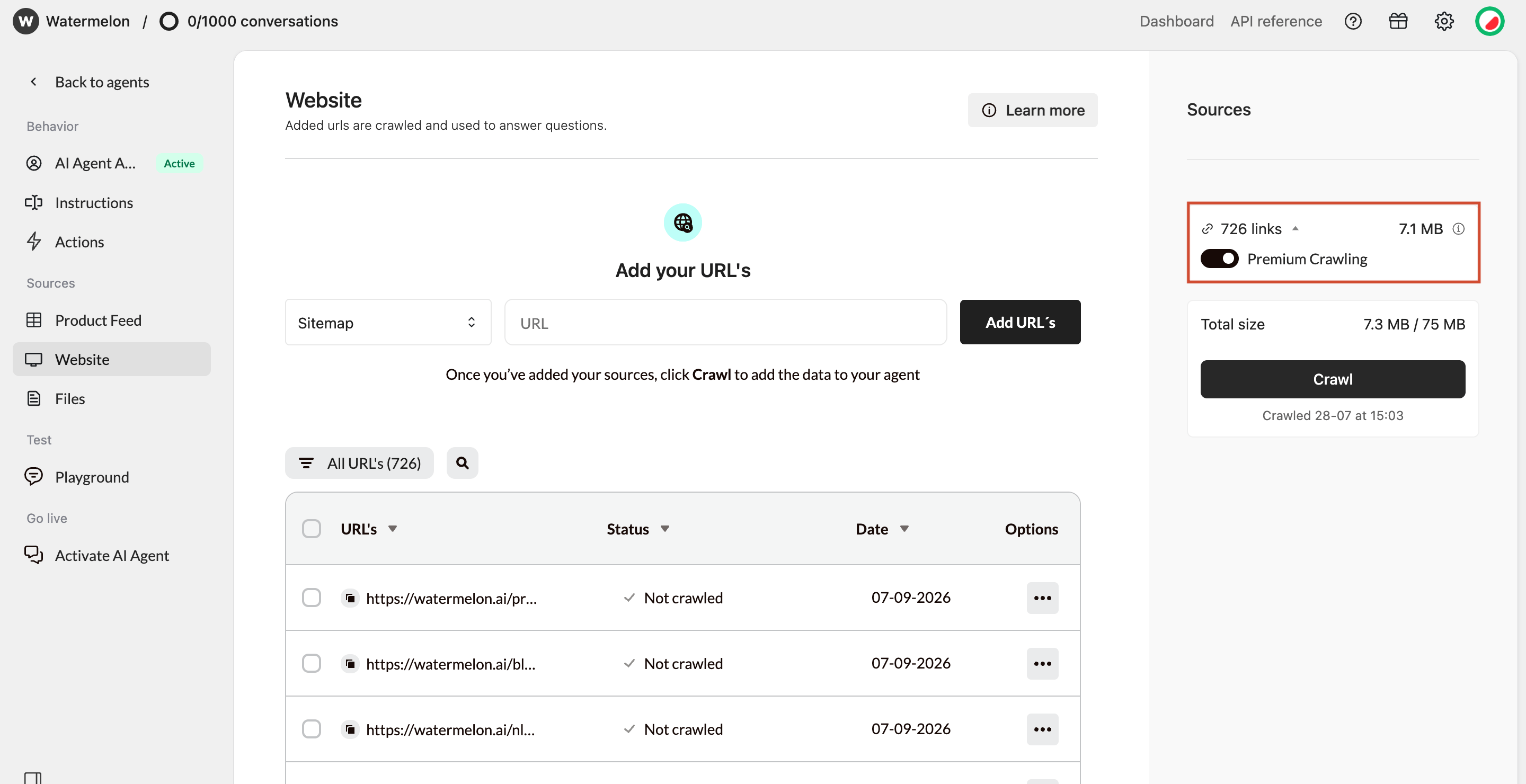
Enable Premium Crawling (optional)
Premium Crawling is available on Business and Enterprise plans
- Content that appears after the page has loaded
- Tabs, expandable sections, or other dynamically generated content
- Content from websites built with frameworks such as React, Vue, or Angular
7
Crawled information
After a URL has been crawled, you can click Details next to the URL to view the exact information that was extracted from the page. This helps you make sure the information on your website is part of your AI Agent’s knowledge.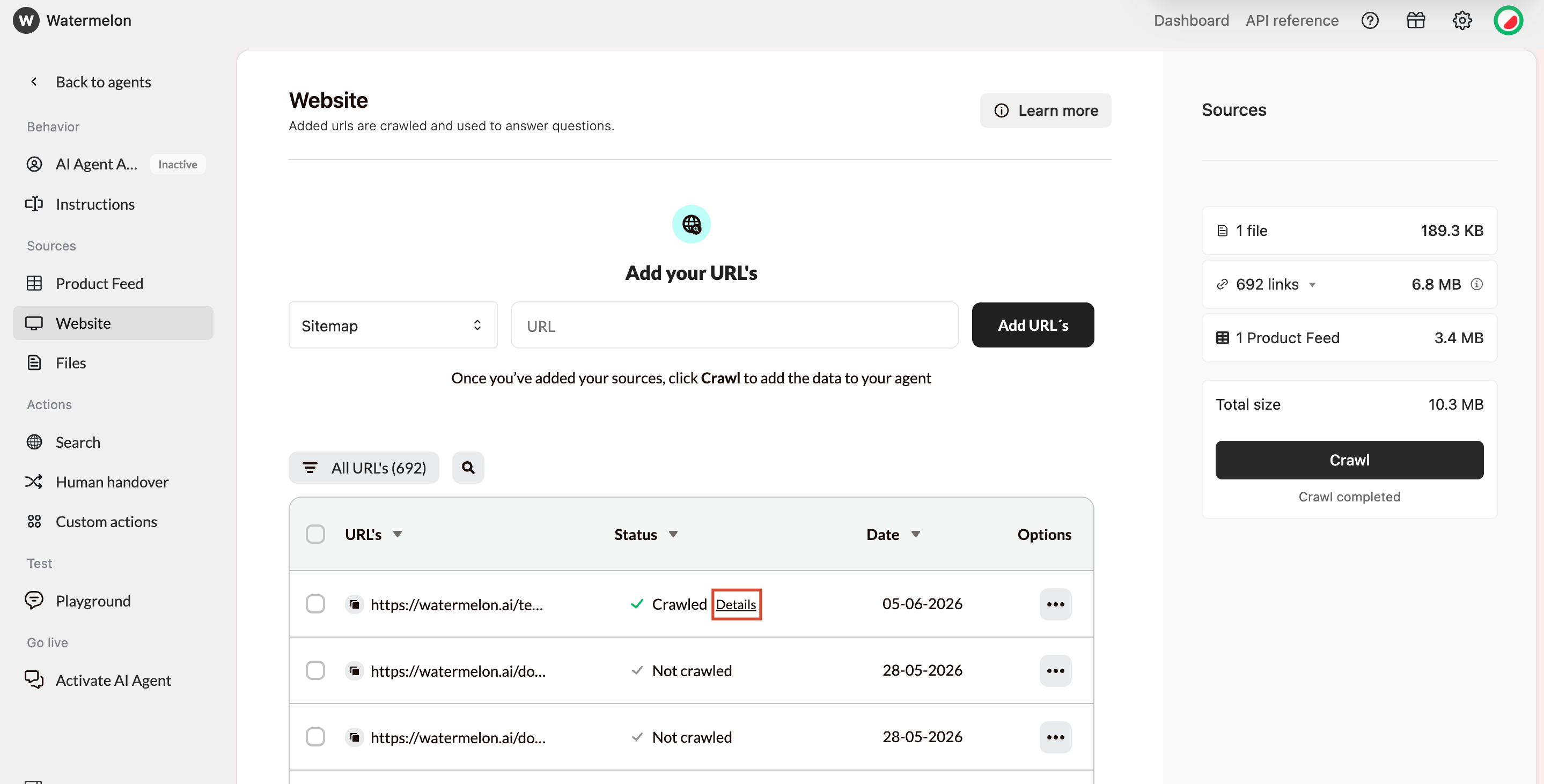
Important behavior notes
- The crawling process may take up to 24 hours to complete
- You do not need to stay on the page or stay logged in; the crawling process will continue automatically
- Failed pages will be retried up to 50 times before marking a URL as failed
- If crawling a sitemap or domain finishes within seconds, it may indicate access issues or a technically difficult site.
- If progress appears stuck at 90–100%, the system is still retrying a small number of slower or temporarily unavailable URLs.
Troubleshooting
Common reasons a URL cannot be crawled include:- robots.txt restrictions
- The page blocks crawlers.
- Incorrect or inaccessible URLs
- Typos, wrong protocol, or pages that do not load.
- Anti-bot protection
- CAPTCHAs or bot detection systems block access.
- Server errors
- 404, 500, 504, or temporary downtime.
- IP or geographic restrictions
- Some sites block scraping or certain regions.
- Server overload
- Too many requests can cause timeouts.